
Windows Edition & Licence Key
What is Windows
What is Windows?
- Windows is a family of operating systems developed by Microsoft. An operating system (OS) is the most important software on a computer because it controls and manages all hardware and software resources. Without an operating system, a computer cannot function properly or run applications.
- Windows acts as an interface between the user and the computer hardware. It allows users to interact with the computer through graphical elements such as windows, icons, menus, buttons, and the desktop instead of typing complex commands. This graphical user interface (GUI) makes computers easier to learn and use.
- When a computer is turned on, Windows loads into memory and starts managing system resources. It controls the processor (CPU), memory (RAM), storage devices, graphics hardware, keyboard, mouse, printers, speakers, and other connected devices. Windows ensures that all these components work together efficiently.
- One of the primary functions of Windows is to provide a platform for running software applications. Programs such as Microsoft Word, Excel, Photoshop, web browsers, media players, and games rely on Windows to communicate with the hardware. The operating system allocates memory, processor time, and storage space to these applications so they can function correctly.
- Windows also provides file management capabilities. Users can create, copy, move, rename, and delete files and folders using File Explorer. This makes it easier to organize documents, images, videos, music, and other types of data stored on the computer.
- Another important feature of Windows is hardware compatibility. It supports a wide range of devices from different manufacturers, including graphics cards, printers, scanners, webcams, storage drives, and networking equipment. Through device drivers, Windows enables these hardware components to communicate with the operating system.
- Security is a major part of Windows. Modern versions include features such as antivirus protection, firewall security, user account control, encryption, and automatic updates. These features help protect computers from viruses, malware, hackers, and unauthorized access.
- Windows is also widely used because of its large software ecosystem. Millions of applications are designed to run on Windows, making it suitable for education, business, gaming, engineering, programming, graphic design, video editing, and many other fields.
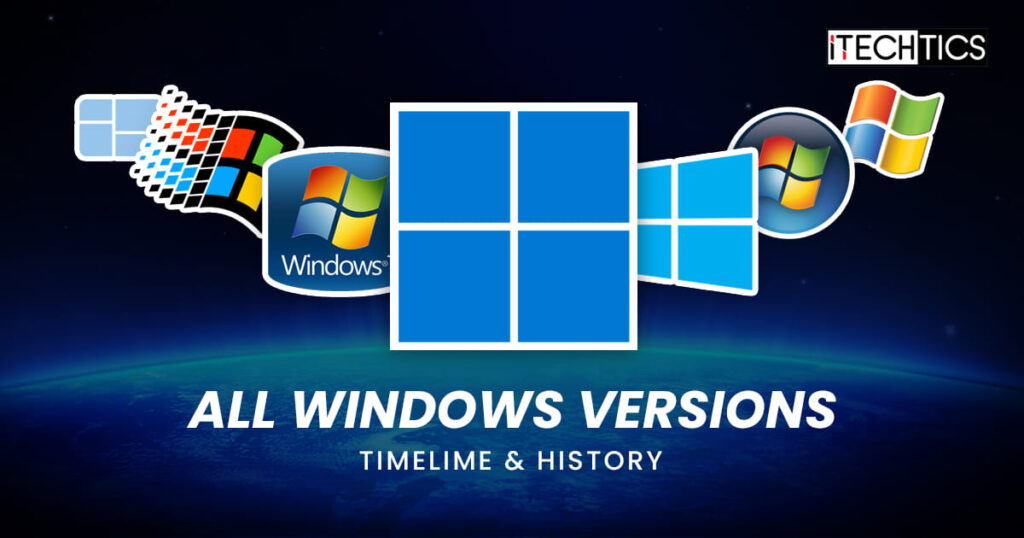
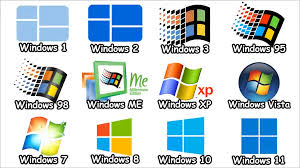
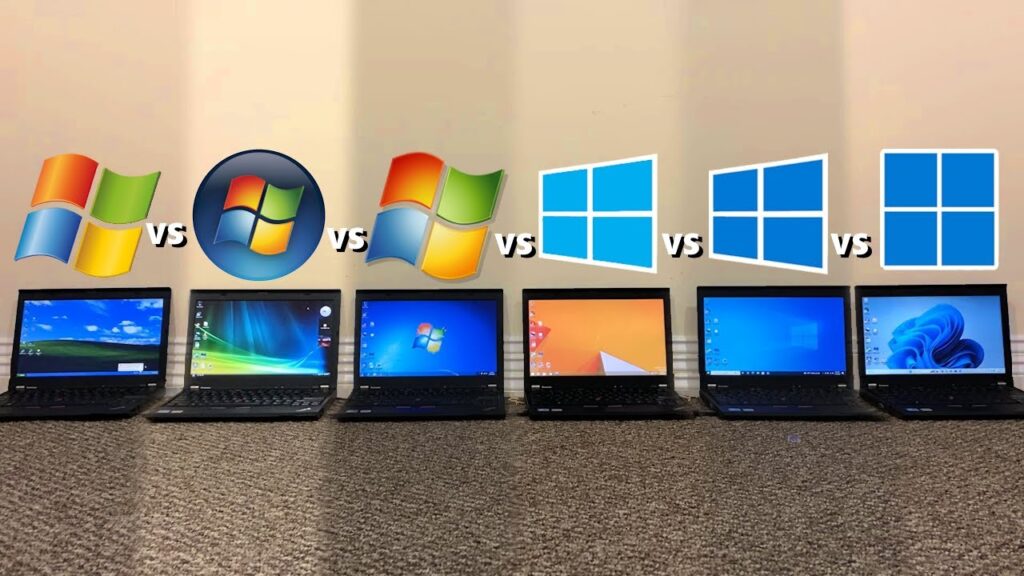
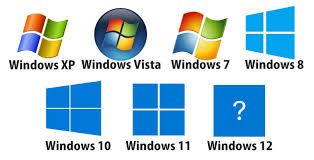
- Over the years, Windows has evolved through many versions, including Windows XP, Windows 7, Windows 10, and Windows 11. Each version introduced improvements in performance, security, hardware support, and user experience.
Real-World Example:
When you open a web browser, play a game, print a document, or save a file, Windows manages all the background operations required to complete those tasks. It coordinates communication between the software and hardware so that everything works smoothly.
Conclusion:
Windows is a graphical operating system that manages computer hardware, runs software applications, organizes files, provides security, and allows users to interact easily with a computer. It serves as the foundation of modern personal computing and is one of the most widely used operating systems in the world.
History of Windows
History of Windows:
Windows is a family of operating systems developed by Microsoft. It was created to make computers easier to use by providing a graphical user interface (GUI) instead of relying only on text-based commands. Since its introduction in 1985, Windows has become one of the most widely used operating systems in the world.
Beginning of Windows (1985):
Microsoft introduced the first version of Windows, called Windows 1.0, on November 20, 1985. At that time, most computers used MS-DOS, which required users to type commands. Windows 1.0 added graphical windows, menus, icons, and mouse support, making computers more user-friendly.
Growth and Improvement (1987–1993):
With Windows 2.0 and later Windows 3.0 and Windows 3.1, Microsoft improved performance, graphics, and software compatibility. These versions became popular in homes, schools, and businesses because they made computers easier to operate and supported a growing number of applications.
Windows 95 Revolution (1995):
The release of Windows 95 marked a major turning point in computer history. It introduced the Start Menu, Taskbar, and Plug-and-Play hardware support. These features became standard parts of future Windows versions and greatly improved the user experience.
Internet Era (1998–2000):
Windows 98 improved internet and USB support, helping users connect devices and access the web more easily. Microsoft later released Windows Me for home users and Windows 2000 for business environments.
Windows XP Success (2001):
Windows XP became one of the most successful operating systems ever created. It combined stability, speed, and ease of use. XP was widely used by homes, schools, businesses, and government organizations for many years.
New Design and Security (2007–2009):
Microsoft released Windows Vista in 2007 with a new Aero graphical interface and stronger security features. Although Vista introduced important technologies, it faced criticism for performance issues. In 2009, Microsoft launched Windows 7, which improved speed, reliability, and compatibility, becoming one of the most popular Windows versions.
Touchscreen Era (2012–2013):
With Windows 8, Microsoft redesigned Windows for touchscreen devices and tablets. The new tile-based interface was innovative but received mixed reactions. Windows 8.1 later improved usability and restored some familiar features.
Modern Windows (2015–Present):
Windows 10 introduced a blend of traditional and modern features, including the return of the Start Menu, virtual desktops, and regular feature updates. It became one of the most widely used operating systems globally.
In 2021, Microsoft released Windows 11, featuring a redesigned interface, improved security, enhanced gaming capabilities, and better support for modern hardware. Windows 11 continues to evolve with new updates and features.
Impact of Windows
Windows transformed personal computing by making computers accessible to ordinary users. It helped popularize graphical user interfaces, supported millions of software applications, and became the dominant desktop operating system for homes, businesses, schools, and organizations around the world.
Conclusion
The history of Windows reflects the evolution of modern computing. From the simple Windows 1.0 environment in 1985 to the advanced Windows 11 platform today, Microsoft has continuously improved Windows to provide better performance, security, usability, and support for changing technology needs
Windows Versions
- Windows 1.0 (1985) – First Microsoft graphical operating environment.
- Windows 2.0 (1987) – Added overlapping windows and better performance.
- Windows 3.0 (1990) – First commercially successful Windows version.
- Windows 3.1 (1992) – Improved fonts, multimedia, and stability.
- Windows 95 (1995) – Introduced Start Menu, Taskbar, and Plug-and-Play support.
- Windows 98 (1998) – Enhanced USB support and internet features.
- Windows Me (2000) – Home-user edition with multimedia improvements.
- Windows 2000 (2000) – Business-focused version with better stability and security.
- Windows XP (2001) – Popular, reliable, and long-lasting operating system.
- Windows Vista (2007) – Introduced Aero interface and stronger security.
- Windows 7 (2009) – Fast, stable, and widely used by businesses and home users.
- Windows 8 (2012) – Designed for touchscreen devices with a new tile interface.
- Windows 8.1 (2013) – Improved usability and restored familiar features.
- Windows 10 (2015) – Combined classic Windows features with modern updates.
- Windows 11 (2021) – Modern design, improved security, and better gaming support.
Windows Owner
Introduction:
Windows is one of the most popular operating systems in the world. It is owned, developed, and maintained by Microsoft, a multinational technology company based in the United States. Microsoft is responsible for creating new Windows versions, providing updates, fixing security issues, and developing new features.
Microsoft Corporation:
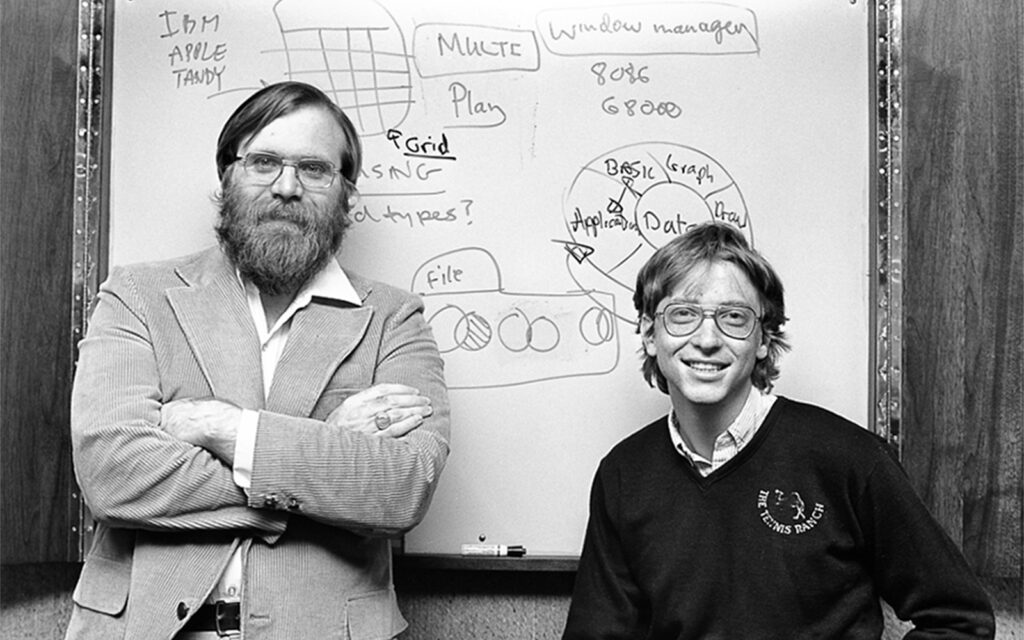
Microsoft Corporation was founded on April 4, 1975, by Bill Gates and Paul Allen. The company started by developing software for personal computers and later became one of the largest technology companies in the world. Microsoft develops operating systems, office software, cloud services, gaming products, and artificial intelligence technologies.
Ownership of Windows:
Windows is not owned by a single individual. Instead, it is owned by Microsoft Corporation as a company. Microsoft holds all legal rights, copyrights, trademarks, patents, and intellectual property related to the Windows operating system. This means Microsoft controls the development, licensing, distribution, and support of Windows.
Bill Gates and Windows:
Bill Gates played a major role in the creation and growth of Microsoft. Under his leadership, Microsoft released the first version of Windows in 1985. Although Bill Gates is closely associated with Windows, he does not personally own Windows. The operating system belongs to Microsoft Corporation.
Current Leadership:
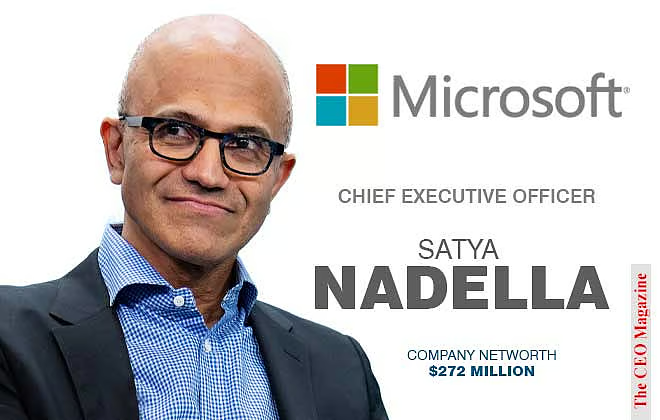
Today, Microsoft is led by Satya Nadella, who serves as the Chief Executive Officer (CEO). Under his leadership, Microsoft continues to develop and improve Windows while expanding into cloud computing, artificial intelligence, and enterprise technologies.
Microsoft’s Role in Windows Development:
Microsoft continuously develops Windows by releasing updates, improving security, adding new features, and ensuring compatibility with modern hardware and software. The company also provides technical support and maintains Windows for millions of users worldwide.
Conclusion:
Windows is owned and developed by Microsoft Corporation. While Bill Gates and Paul Allen founded Microsoft and helped create the Windows platform, the operating system itself belongs to Microsoft. Today, Microsoft continues to manage and improve Windows, making it one of the most widely used operating systems in the world.
- Windows is owned by Microsoft Corporation.
- Microsoft was founded in 1975.
- Founders: Bill Gates and Paul Allen.
- Windows was first released in 1985.
- Microsoft develops and maintains Windows.
- Microsoft owns all Windows copyrights and trademarks.
- Windows is Microsoft’s flagship operating system.
- Current Microsoft CEO: Satya Nadella.
- Windows is used on millions of computers worldwide.
- Windows is one of the world’s most popular operating systems.



What is a License Key
- A license key is a unique alphanumeric code used to activate software and verify that it has been legally obtained. Software companies provide a license key to users when they purchase a product.
- When a user installs software such as Microsoft Windows or Microsoft Office, the license key is entered during installation or activation. The software checks the key to confirm that it is genuine and valid.
- The main purpose of a license key is to prevent unauthorized copying and use of software. It helps software developers protect their products and ensures that users receive official updates, security patches, and technical support.
- A license key usually consists of letters and numbers arranged in groups, such as XXXXX-XXXXX-XXXXX-XXXXX-XXXXX. Each key is unique and is linked to a specific license or user account.
- Today, some software uses digital licenses instead of traditional license keys. In this method, activation is linked to an online account, and users do not need to enter a product key manually.
- In simple words, a license key is a special code that unlocks software and proves that the software is being used legally.
- Unique Activation Code – A license key is a special code used to activate software.
- Proof of Ownership – It verifies that the software has been legally purchased.
- Unlocks Features – A valid license key enables all software functions and tools.
- Prevents Piracy – It helps software companies stop unauthorized copying and distribution.
- Enables Updates – Licensed software can receive official updates and security patches.
- Provides Support – Users with valid licenses can often access technical support.
- Contains Letters and Numbers – License keys are usually made up of alphanumeric characters.
- Used During Installation – Many programs ask for a license key during setup or activation.
- Improves Security – Genuine software is safer and more reliable than unlicensed copies.
- Required by Many Applications – Operating systems, office suites, antivirus programs, and creative software often use license keys.
Examples: Microsoft Windows 11, Microsoft Office 2021, Adobe Photoshop, and Norton 360 commonly require activation through a license key or digtal license.
Why Need a License Key
- A license key is required to activate software and verify that it has been obtained legally. It acts as proof that the user has purchased a genuine copy of the software from the developer or vendor.
- Software companies use license keys to protect their products from piracy and unauthorized distribution. Without a licensing system, software could be copied and shared illegally, causing financial losses to the developers.
- A valid license key unlocks the full features of a software program. Some applications work only in trial mode until they are activated with a genuine license key.
- License keys also allow users to receive official software updates, security patches, and bug fixes. These updates help improve performance, add new features, and protect the computer from security threats.
- In addition, licensed users often receive technical support from the software company. If a problem occurs, the company can provide assistance because the software has been properly registered and activated.
- For example, when installing Microsoft Windows 11 or Microsoft Office 2021, a license key confirms that the software is genuine and enables full functionality.
- In simple terms, a license key is needed to activate software, prove legal ownership, access all features, receive updates, and ensure secure and authorized use.
- Software Activation – Activates the software and makes it ready for full use.
- Genuine Verification – Confirms that the software is legally purchased and genuine.
- Unlock Full Features – Provides access to all tools and premium features.
- Software Security – Helps users receive security updates and protection.
- Official Updates – Enables bug fixes, improvements, and new features from the developer.
- Technical Support – Allows users to get help from the software company when needed.
- Prevent Piracy – Protects software from illegal copying and distribution.
- Legal Usage – Ensures the software is used according to licensing terms.
- Better Stability – Licensed software is generally more reliable and stable.
- Account Verification – Links the software license to the user or organization for management and support.
Problems Without a License Key
Problems Without a License Key:
A license key is often required to activate software. Without a valid license key, users may face several problems.
Limited Features:
Many software programs run in trial mode without activation. Some features remain locked until a valid license key is entered.
Activation Warnings:
The software may repeatedly display messages asking the user to activate the product.
No Personalization:
In unactivated versions of Microsoft Windows 11, some personalization options such as changing wallpapers, themes, and colors may be restricted.
Update Restrictions:
Some software may limit access to updates, new features, or premium content until activation is completed.
Security Risks:
Using unlicensed or unofficial software can increase the risk of malware, viruses, and security vulnerabilities.
No Technical Support:
Software companies generally provide customer support only to licensed users. Without a valid license, users may not receive assistance when problems occur.
Legal Issues:
Using software without a proper license may violate the software’s terms of use and copyright laws.
Real Example
If Microsoft Office 2021 is not activated, applications such as Word and Excel may show activation warnings, and some editing features may become limited until a valid license is provided.
Conclusion:
Without a license key, software may have limited functionality, show activation reminders, miss updates, lack support, and potentially create legal or security issues.
- Limited Features – Some software features remain locked until activation is completed.
- Activation Warnings – The software may repeatedly display messages asking for activation.
- No Official Updates – Users may miss important updates, bug fixes, and new features.
- Security Risks – Unlicensed software can be more vulnerable to malware and security threats.
- No Technical Support – Software companies usually provide support only to licensed users.
- Personalization Restrictions – Some settings and customization options may be unavailable.
- Legal Issues – Using software without a valid license may violate copyright and licensing terms.
- Reduced Reliability – The software may not function properly or may stop working after a trial period.
Real Examples of License Keys
Video Editing Software
Some video editing programs use license keys such as:
ABCDE-FGHIJ-KLMNO-PQRST
The key unlocks premium editing features and removes trial limitations
Adobe Photoshop
Modern versions of Adobe Photoshop are usually activated through an Adobe account and subscription. Older versions used serial numbers such as:
1111-2222-3333-4444-5555-6666
Conclusion
Although the format differs between software products, the purpose is the same: a license key activates the software, verifies legal ownership, unlocks features, and allows updates and support. The examples above show common formats only and are not working license keys.
What is Trial Mode any Software
- Trial mode is a temporary version of software that allows users to use and test the program for a limited period before purchasing a license. It helps users evaluate the software’s features, performance, and usability.
- Software companies provide trial versions so that potential customers can experience the product before making a purchase decision. Trial periods commonly last for 7, 14, 30, or 90 days, depending on the software.
- During the trial period, users may have access to all features or only a limited set of functions. Some software also displays reminders asking the user to purchase or activate the product.
- When the trial period ends, the software may stop working, restrict important features, or require a valid license key for continued use. This encourages users to purchase a genuine license if they want to keep using the software.
- Many popular applications, including Adobe Photoshop, Microsoft Office 2021, and antivirus programs, offer trial versions for new users.
- In simple terms, trial mode is a free testing period that lets users try software before buying a full license.
- emporary Software Version – Available for a limited period only.
- Free Testing Period – Users can try the software before purchasing.
- Limited Duration – Commonly lasts 7, 14, 30, or 90 days.
- Feature Restrictions – Some advanced features may be locked.
- Activation Reminders – Displays messages to buy or activate the software.
- License Required Later – A valid license key may be needed after the trial ends.
- May Stop Working – Some software becomes unusable when the trial period expires.
- Used by Many Programs – Common in office, antivirus, video editing, and design software.
- Helps Purchase Decisions – Allows users to evaluate the software before spending money.
- Safe and Legal – Provided officially by software developers for testing purposes.
Trial Mode vs License Key
Trial Mode vs License Key
| Feature | Trial Mode | Licensed Software |
|---|---|---|
| Cost | Free for testing | Paid or activated |
| Usage Time | Limited period | Permanent (as per license) |
| Features | Full or limited features | Full features available |
| Activation | Not required initially | Requires license key |
| Updates | May be limited | Official updates available |
| Support | Usually limited | Full technical support |
| Expiry | Expires after trial period | Does not expire during license validity |
| Warnings | Frequent purchase reminders | No activation warnings |
| Legal Status | Evaluation use | Fully licensed use |
| Example | Photoshop 7-day trial | Activated Photoshop |
Simple Example:
- Trial Mode: Use Adobe Photoshop free for 7 days to test features.
- Licensed Version: Buy a subscription or license and use Photoshop with full features and updates.
- Trial Mode – Allows users to test software for a limited time before purchasing.
- License Key – A unique code used to activate software permanently or for the licensed period.
- Trial Mode – May have limited features or usage restrictions.
- License Key – Unlocks all software features and functions.
- Trial Mode – Displays activation or purchase reminders.
- License Key – Removes activation warnings after successful activation.
- Trial Mode – Usually expires after 7, 14, or 30 days.
- License Key – Keeps the software activated according to the license terms.
- Trial Mode – Mainly intended for evaluation and testing.
- License Key – Confirms legal ownership and authorized use.
- Trial Mode – May offer limited updates and support.
- License Key – Provides access to official updates and technical support.
- Trial Mode – No payment is usually required initially.
- License Key – Normally obtained after purchasing the software.
Type of Windows License Key
1. Retail License:
A Retail license is purchased separately from a store or directly from Microsoft. It is intended for individual users and can usually be transferred from one computer to another, provided it is removed from the old device first. This is the most flexible type of Windows license.
2. OEM (Original Equipment Manufacturer) License:
An OEM license comes pre-installed on a new computer from manufacturers such as Dell, HP, Lenovo, or ASUS. This license is permanently linked to the original motherboard of the computer and normally cannot be transferred to another device.
3. Volume License:
A Volume License is designed for businesses, government organizations, schools, and large institutions that need Windows on many computers. Instead of purchasing separate licenses for every device, organizations can manage multiple activations through a centralized licensing system.
4. MAK (Multiple Activation Key):
MAK is a type of Volume License key that allows a specific number of activations. Each computer activates directly with Microsoft’s activation servers. Once activated, the device remains activated without requiring regular communication with the organization.
5. KMS (Key Management Service):
KMS is another Volume License method used mainly by large organizations. Computers activate through an internal KMS server rather than directly with Microsoft. Devices must periodically reconnect to the organization’s activation server to remain activated.
6. Digital License:
A Digital License, previously called Digital Entitlement, activates Windows without requiring the user to manually enter a product key. The license is linked to the user’s Microsoft account and device hardware, making reinstallation easier.
7. Trial or Evaluation License:
A Trial or Evaluation License allows users to test Windows for a limited period before purchasing a full license. It is commonly used by IT professionals and organizations for evaluation purposes.
8. Subscription License:
Some business and enterprise editions of Windows are available through subscription plans. Organizations pay regularly and receive activation, updates, security features, and management tools as part of the subscription.
Types of Windows License Keys:
- Retail License – Purchased separately and can usually be transferred to another PC.
- OEM License – Comes pre-installed with a new computer and is tied to that device.
- Volume License – Designed for businesses, schools, and organizations with many computers.
- MAK (Multiple Activation Key) – Activates a fixed number of computers under a volume license.
- KMS (Key Management Service) – Activates computers through an organization’s local activation server.
- Digital License – Activation linked to a Microsoft account instead of manually entering a product key.
- Trial/Evaluation License – Temporary license used for testing Windows before full activation.
- Subscription License – Activation provided through a subscription plan in some enterprise environments.
- OEM License – Pre-installed on new computers and tied to that device.
- Retail License – Purchased separately and can usually be moved to another computer.
- Volume License – Used by businesses, schools, and organizations to activate many computers at once.
Example: A new laptop from Dell usually includes an OEM license, while a user who buys Microsoft Windows 11 separately often receives a Retail license. Large companies typically use Volume licenses.
OEM vs Retail vs Volume License
| Feature | OEM | Retail | Volume |
|---|---|---|---|
| Purchased Separately | No | Yes | No |
| Comes with New PC | Yes | No | No |
| Transfer to Another PC | No | Yes | Usually No |
| Intended For | Home users | Home users | Organizations |
| Activation Method | Product Key | Product Key | MAK/KMS |
| Microsoft Support | Limited | Full | Organization Support |
| Cost | Lower | Higher | Bulk Pricing |
| Number of PCs | One PC | One PC | Multiple PCs |
| Motherboard Change | May lose activation | Usually transferable | Depends on agreement |
| Common Use | Prebuilt computers | Custom-built PCs | Companies and Schools |
What Happens to OEM and Retail Keys After a Motherboard Change
The effect of a motherboard replacement depends on the type of Windows license installed on the computer. Microsoft treats the motherboard as the primary hardware component used to identify a device. When the motherboard is changed, Windows may consider the computer to be a new device.
OEM License
- An OEM (Original Equipment Manufacturer) license is normally pre-installed on computers sold by manufacturers. This license is linked to the original motherboard and is intended to remain with that computer for its entire life.
- If the motherboard is replaced due to an upgrade or a hardware change, Windows may lose its activation status because the OEM license is associated with the original motherboard. In most cases, the OEM license cannot be transferred to a different motherboard or another computer.
- However, if the motherboard is replaced by the manufacturer under warranty with an equivalent replacement, Microsoft may allow the activation to remain valid. This depends on the circumstances and manufacturer policies.
Retail License
- A Retail license is purchased separately by the user. Unlike an OEM license, a Retail license is owned by the purchaser and can usually be transferred to another computer or reactivated after major hardware changes.
- If the motherboard is replaced, Windows may become temporarily deactivated because the hardware identification has changed. The user can normally reactivate Windows by entering the original product key or signing in with the Microsoft account linked to the license.
- Retail licenses provide much greater flexibility for users who frequently upgrade or rebuild their computers.
Digital License
A Digital License linked to a Microsoft account can make reactivation easier after a motherboard replacement. After signing in to the Microsoft account, users can use the Windows Activation Troubleshooter to attempt reactivation.
Example
- Imagine a computer running Microsoft Windows 11 with an OEM license. If the motherboard fails and is replaced with a different model, Windows may show an activation error because the original hardware has changed.
- If the same computer uses a Retail license, the user can usually reactivate Windows using the original product key or Microsoft account after the motherboard replacement.
OEM License is usually tied to the original motherboard.
- Changing the motherboard may cause Windows to lose activation.
- OEM Keys generally cannot be transferred to a new motherboard.
- Retail License can usually be reactivated after a motherboard change.
- Retail Keys can be transferred to another computer (one device at a time).
- Digital Retail Licenses linked to a Microsoft account are easier to reactivate.
How to Check if Windows is Activated and Genuine
- Windows provides built-in tools that allow users to verify whether their copy of Windows is activated. Activation confirms that Windows has been properly registered with Microsoft and can receive updates and support.
- The easiest method is to open Settings, go to System, and then select Activation. If the status shows “Active” or “Active with a digital license”, Windows is successfully activated.
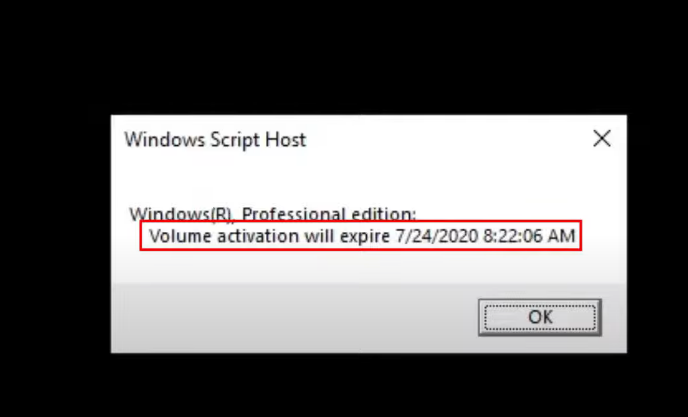
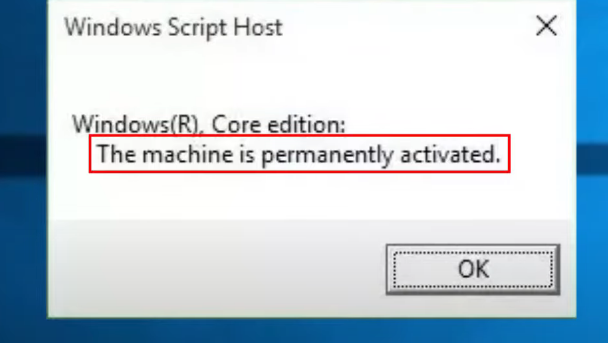
- Another method is to use Command Prompt. Open Command Prompt as Administrator and type slmgr /xpr. If a message appears stating “The machine is permanently activated”, the Windows installation is activated.
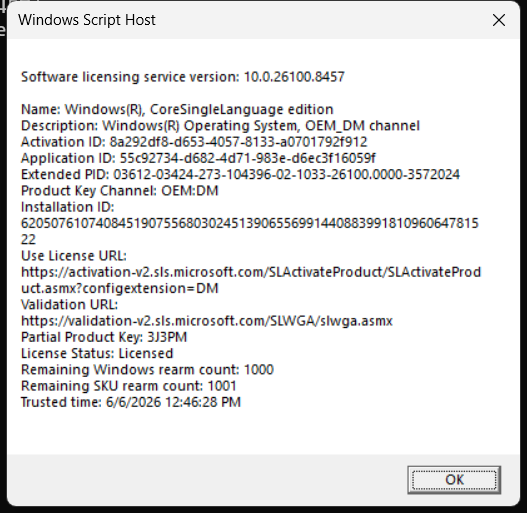
- Users can also view detailed license information by running slmgr /dlv in Command Prompt. This command displays activation status, license type, and other licensing details.
- A genuine and activated Windows installation usually receives regular security updates from Microsoft. It also does not display the “Activate Windows” watermark on the desktop.
- If Windows is not activated, users may see activation reminders, restricted personalization options, and messages asking them to enter a valid product key.
- In simple terms, if Windows shows “Active” in the Activation settings and receives normal updates, it is generally activated and functioning as a legitimate Windows installation.
উইন্ডোজ অ্যাক্টিভেশন স্ট্যাটাস চেক করুন:
slmgr /xpr
এটি যা করে:
- উইন্ডোজ সক্রিয় আছে কিনা তা জানানোর জন্য একটি ছোট উইন্ডো খোলে।
- যদি লেখা থাকে: “মেশিনটি স্থায়ীভাবে সক্রিয় করা হয়েছে” , তাহলে আপনার উইন্ডোজ সক্রিয় করা আছে।
- ভলিউম অ্যাক্টিভেশনের মেয়াদ শেষ হওয়ার তারিখ, তারপর উইন্ডোজটি আসল নয়
অ্যাক্টিভেশনের বিবরণ (লাইসেন্সের ধরণ সহ) যাচাই করুন:
slmgr /dlv
এটি যা দেখায়:
- সক্রিয়করণ অবস্থা
- লাইসেন্সের ধরণ (খুচরা, OEM, ভলিউম)
- আংশিক পণ্যের চাবি
- অ্যাক্টিভেশনের মেয়াদ শেষ হওয়া (যদি থাকে)
পণ্যের মূল চ্যানেল (OEM / খুচরা / ভলিউম) যাচাই করুন:
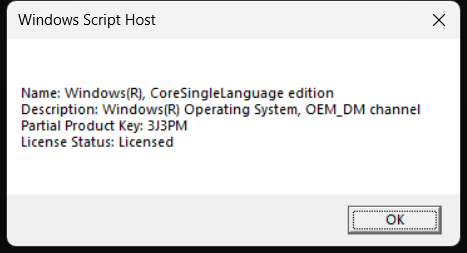
slmgr /dli
কী কী দেখতে হবে:
- খুচরা – ক্রয়কৃত ও হস্তান্তরযোগ্য।
- OEM – ডিভাইসে আগে থেকেই ইনস্টল করা থাকে এবং হার্ডওয়্যারের সাথে সংযুক্ত থাকে।
- ভলিউম – প্রতিষ্ঠান কর্তৃক ব্যবহৃত (কেএমএস সার্ভারের মাধ্যমে সক্রিয়করণের প্রয়োজন হতে পারে)।
How To Check System Configuration Details
- System configuration refers to the hardware and software specifications of a computer, such as the processor, RAM, motherboard, storage devices, graphics card, and operating system. Windows provides several built-in tools to view this information.
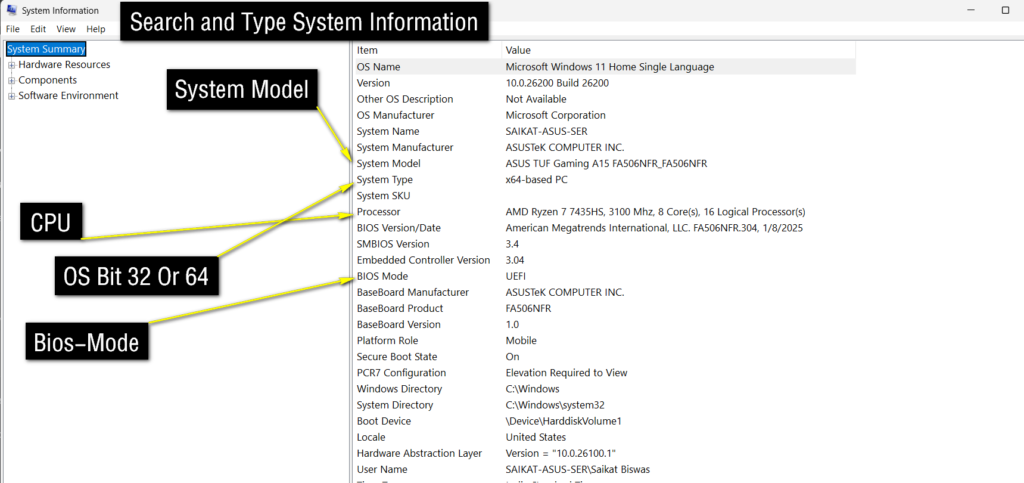
- One of the easiest ways to check system configuration is by using System Information. Press Windows + R, type msinfo32, and press Enter. This tool displays detailed information about the computer, including the processor, installed RAM, BIOS version, motherboard details, and Windows version.
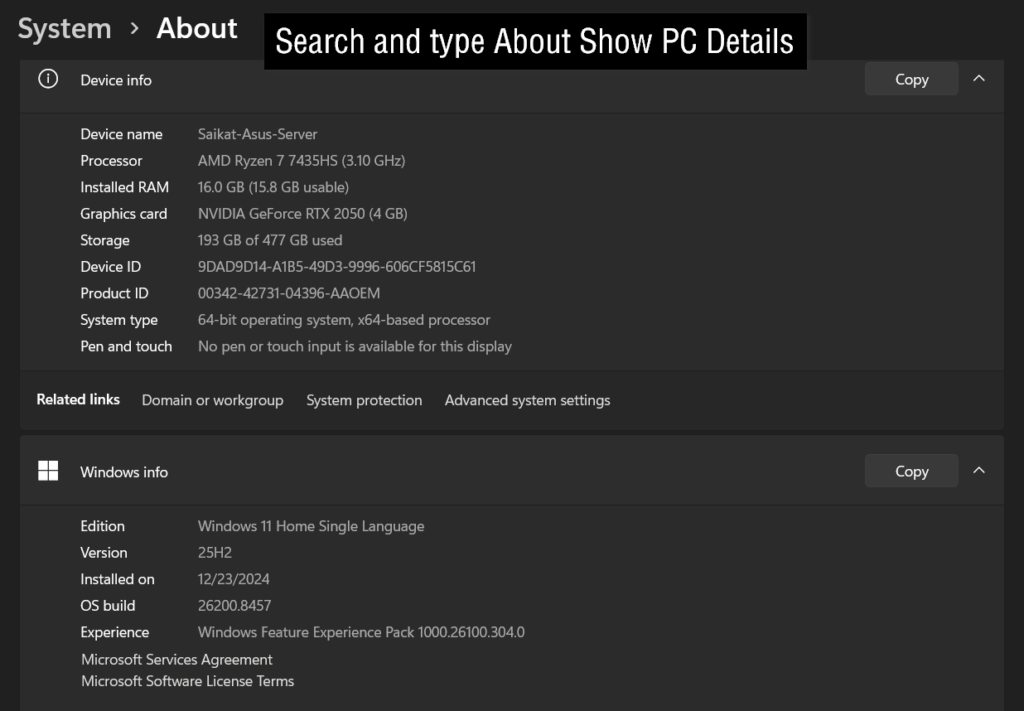
- Another method is through Settings. Open Settings → System → About. This section shows basic information such as the device name, processor model, installed memory (RAM), Windows edition, and system type.
- Users can also use the DirectX Diagnostic Tool by pressing Windows + R, typing dxdiag, and pressing Enter. This tool provides information about the processor, memory, graphics card, sound devices, and DirectX version.
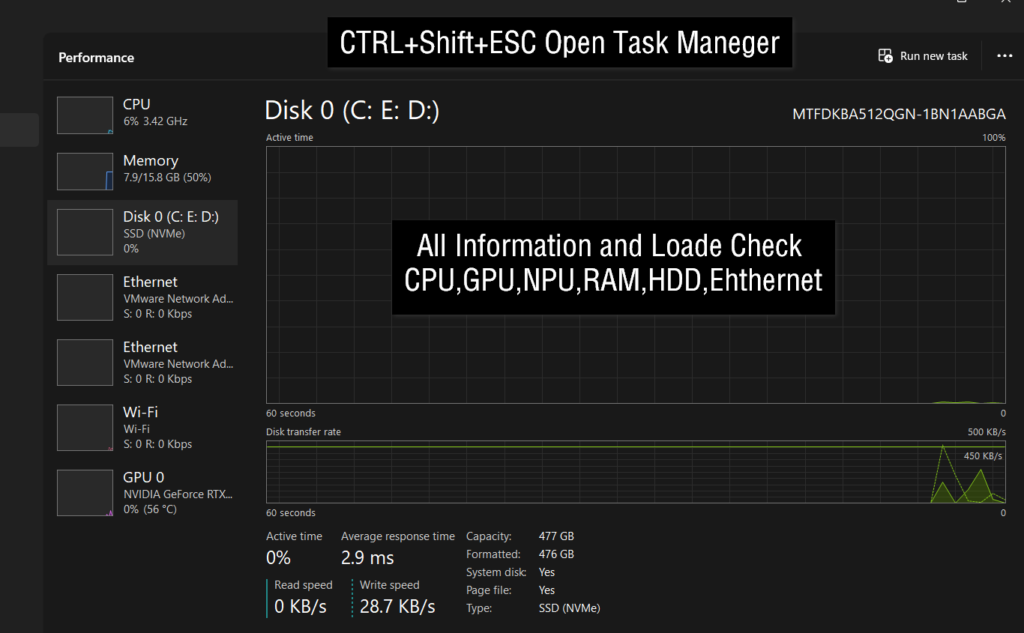
- The Task Manager is useful for viewing real-time hardware information. Press Ctrl + Shift + Esc and open the Performance tab. Here you can monitor CPU usage, RAM usage, storage devices, graphics card performance, and network activity.
- Another useful option is Command Prompt. Open Command Prompt and run the systeminfo command. Windows will display detailed system information, including operating system details, processor information, memory size, BIOS data, and system installation date.
- In simple terms, tools such as msinfo32, dxdiag, Task Manager, and systeminfo help users check the complete configuration of their computer and understand its hardware and software specifications.
System Configuration Check:
- msinfo32 – Displays complete system information, including CPU, RAM, BIOS, and motherboard details.
- Settings → About – Shows basic device specifications such as processor, memory, and Windows edition.
- dxdiag – Provides information about CPU, RAM, graphics card, sound devices, and DirectX version.
- Task Manager – Monitors real-time CPU, RAM, Disk, Network, and GPU usage.
- systeminfo Command – Displays detailed hardware and operating system information in Command Prompt.
- Device Manager – Lists all installed hardware devices and drivers.
- BIOS/UEFI Setup – Shows motherboard settings, boot options, and hardware configuration.
- This PC – Displays storage drives and available disk space.
- Performance Tab – Helps track system performance and resource usage.
- System Properties – Provides quick access to basic computer specifications.
Information You Can Check:
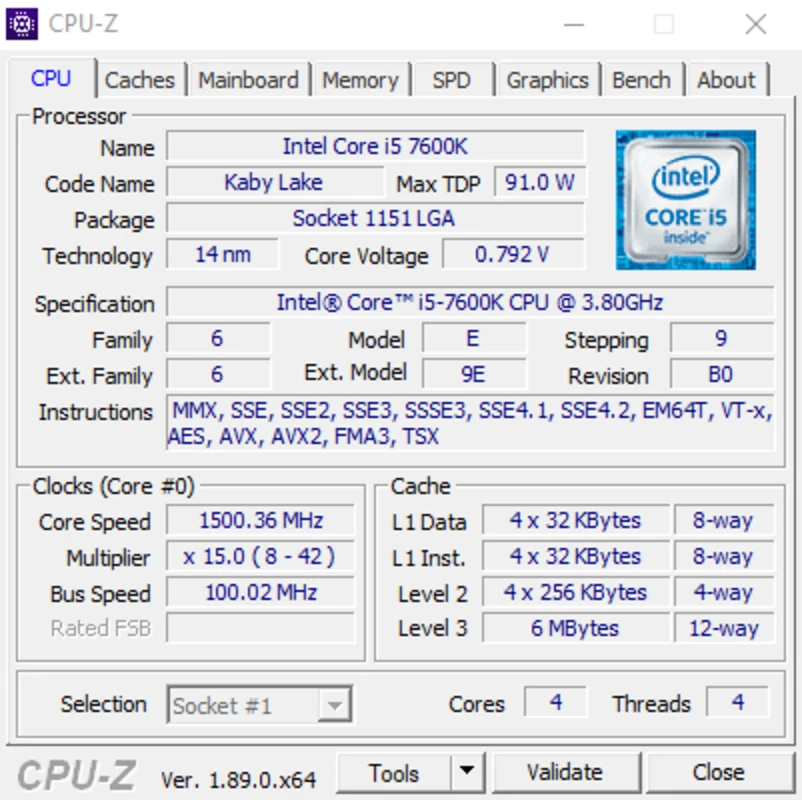
- Processor (CPU) – Model, speed, and core count.
- Memory (RAM) – Installed RAM capacity and usage.
- Graphics Card (GPU) – Graphics hardware details.
- Motherboard – System board and BIOS information.
- Storage (HDD/SSD) – Drive type, capacity, and free space.
- Operating System – Windows edition and version.
- System Type – 32-bit or 64-bit operating system.
- Network Adapter – Network and internet hardware information.
How to Check RAM Speed (MHz) Powershell
- RAM speed is measured in MHz (megahertz) and indicates how fast the memory can transfer data. Higher RAM speeds can improve system performance in some applications and games.
- The easiest way to check RAM speed is through Task Manager. Press Ctrl + Shift + Esc to open Task Manager, click the Performance tab, and select Memory. The RAM speed will be displayed next to Speed, for example 3200 MHz or 5600 MHz.
- Common RAM speeds include 1600 MHz for older DDR3 memory, 3200 MHz for many DDR4 systems, and 4800 MHz or higher for DDR5 systems.
Get-CimInstance Win32_PhysicalMemory | Select-Object Speed
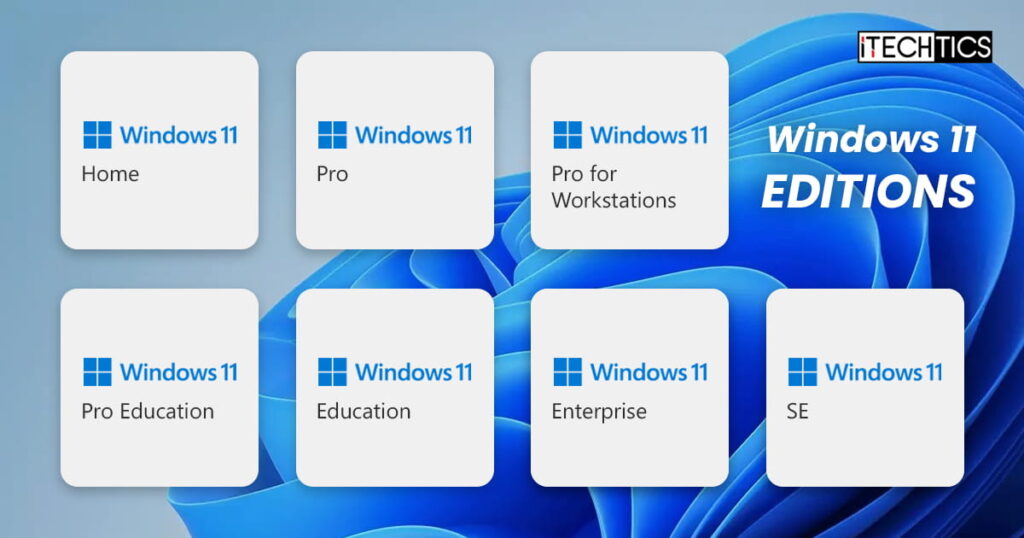
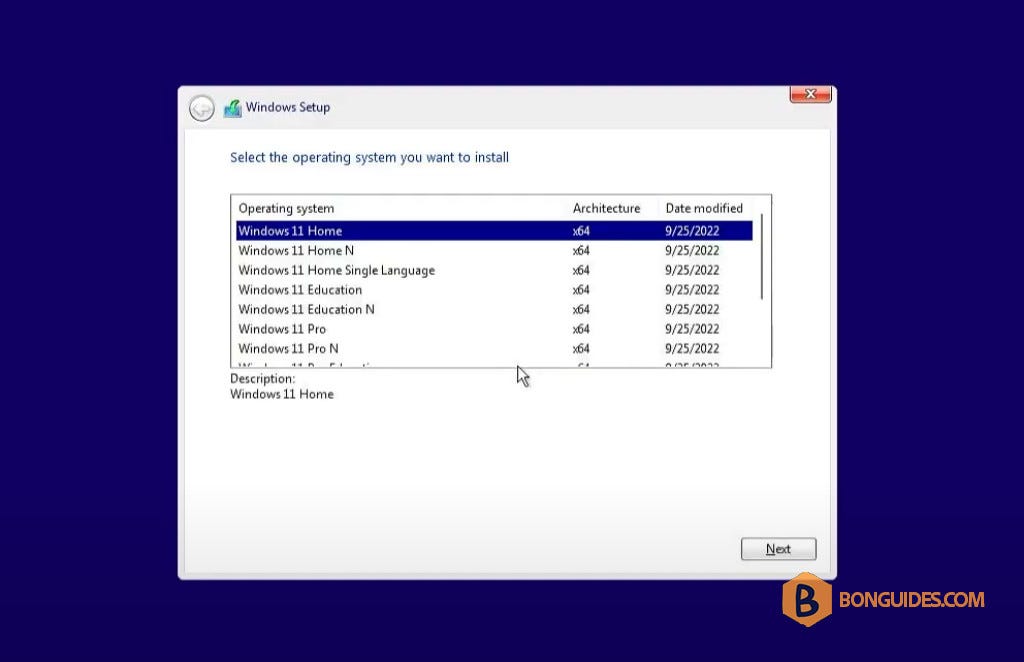
Types of Windows Editions
Windows Home:
Windows Home is the basic edition of Windows designed for everyday users. It includes essential features for web browsing, watching videos, listening to music, gaming, online learning, and office work. Most home computers and laptops are sold with Windows Home because it provides all the features required for normal personal use.
Windows Pro:
Windows Pro is an advanced version of Windows intended for professionals and small businesses. It includes all the features of Windows Home along with additional tools such as BitLocker encryption, Remote Desktop, Hyper-V virtualization, and Group Policy management. This edition is suitable for users who need enhanced security and system management capabilities.
Windows Enterprise:
Windows Enterprise is designed for medium and large organizations that manage many computers. It includes all Windows Pro features plus advanced security, deployment, and management tools. Large companies use this edition to control devices, protect sensitive data, and manage users across an organization.
Windows Education:
Windows Education is created specifically for schools, colleges, and universities. It provides many of the same features found in the Enterprise edition but is licensed for educational institutions. It helps schools manage computers, users, and learning environments efficiently.
Windows Pro for Workstations:
Windows Pro for Workstations is a specialized edition built for high-performance computers. It supports powerful processors, large amounts of memory, and advanced storage technologies. This edition is commonly used by engineers, scientists, architects, video editors, and 3D designers who work with demanding applications.
Which Edition Should You Choose?
For most home users, Windows Home is sufficient for daily tasks and entertainment. Professionals and small businesses often choose Windows Pro because of its additional security and management features. Large organizations typically use Windows Enterprise, while educational institutions use Windows Education. Users with powerful workstations and demanding workloads may benefit from Windows Pro for Workstations.
Summary:
Windows Home is designed for personal use, Windows Pro is for professionals and businesses, Windows Enterprise is for large organizations, Windows Education is for schools and universities, and Windows Pro for Workstations is intended for high-performance professional computers.
Types of Windows Editions:
- Windows Home – Basic Windows edition for home users, students, web browsing, office work, entertainment, and gaming.
- Windows Pro – Professional edition that includes advanced features such as BitLocker, Remote Desktop, Hyper-V, and business management tools.
- Windows Enterprise – Corporate edition designed for large organizations with advanced security, deployment, and device management features.
- Windows Education – Special edition for schools, colleges, and universities with education-focused management and security tools.
- Windows Pro for Workstations – High-performance edition designed for powerful computers used in engineering, 3D design, video editing, and scientific applications.
Main Differences
- Home – Best for everyday personal use.
- Pro – Adds business and professional features.
- Enterprise – Provides enterprise-level security and management.
- Education – Optimized for educational institutions.
- Pro for Workstations – Supports high-end hardware and demanding workloads.
Examples
- Windows 11 Home – Common on home laptops and desktops.
- Windows 11 Pro – Used by professionals and small businesses.
- Windows 11 Enterprise – Used in companies and organizations.
- Windows 11 Education – Used in schools and universities.
- Windows 11 Pro for Workstations – Used for high-performance professional tasks.
Windows 11 Price in India
- Windows 11 Home – ₹10,379 (Official Microsoft Price)
- Windows 11 Pro – ₹16,515 (Official Microsoft Price)
- Windows 11 Enterprise – Volume Licensing (Custom Pricing)
- Windows 11 Education – Educational Licensing (Custom Pricing)
- Windows 11 Pro for Workstations – Higher than Pro, varies by seller and licensing program.
OEM vs Retail Price
- OEM Home – Usually cheaper than Retail.
- OEM Pro – Usually cheaper than Retail.
- Retail Home – ₹10,379 (Official Microsoft Store).
- Retail Pro – ₹16,515 (Official Microsoft Store).
- OEM License – Tied to one motherboard.
- Retail License – Can usually be transferred to another PC.
Windows Editions Comparison Chart:
| Feature | Home | Pro | Enterprise | Education | Pro for Workstations |
|---|---|---|---|---|---|
| Home Use | ✅ | ✅ | ❌ | ❌ | ✅ |
| Business Use | ❌ | ✅ | ✅ | ❌ | ✅ |
| Gaming | ✅ | ✅ | ✅ | ✅ | ✅ |
| BitLocker | ❌ | ✅ | ✅ | ✅ | ✅ |
| Remote Desktop | ❌ | ✅ | ✅ | ✅ | ✅ |
| Hyper-V | ❌ | ✅ | ✅ | ✅ | ✅ |
| Group Policy | ❌ | ✅ | ✅ | ✅ | ✅ |
| Domain Join | ❌ | ✅ | ✅ | ✅ | ✅ |
| Advanced Security | Basic | Advanced | Enterprise-Level | Enterprise-Level | Advanced |
| Large RAM Support | Standard | Higher | Higher | Higher | Highest |
| Target Users | Home Users | Professionals | Large Companies | Schools & Colleges | Engineers & Creators |