Virtualization Technology
What Is Virtualization?
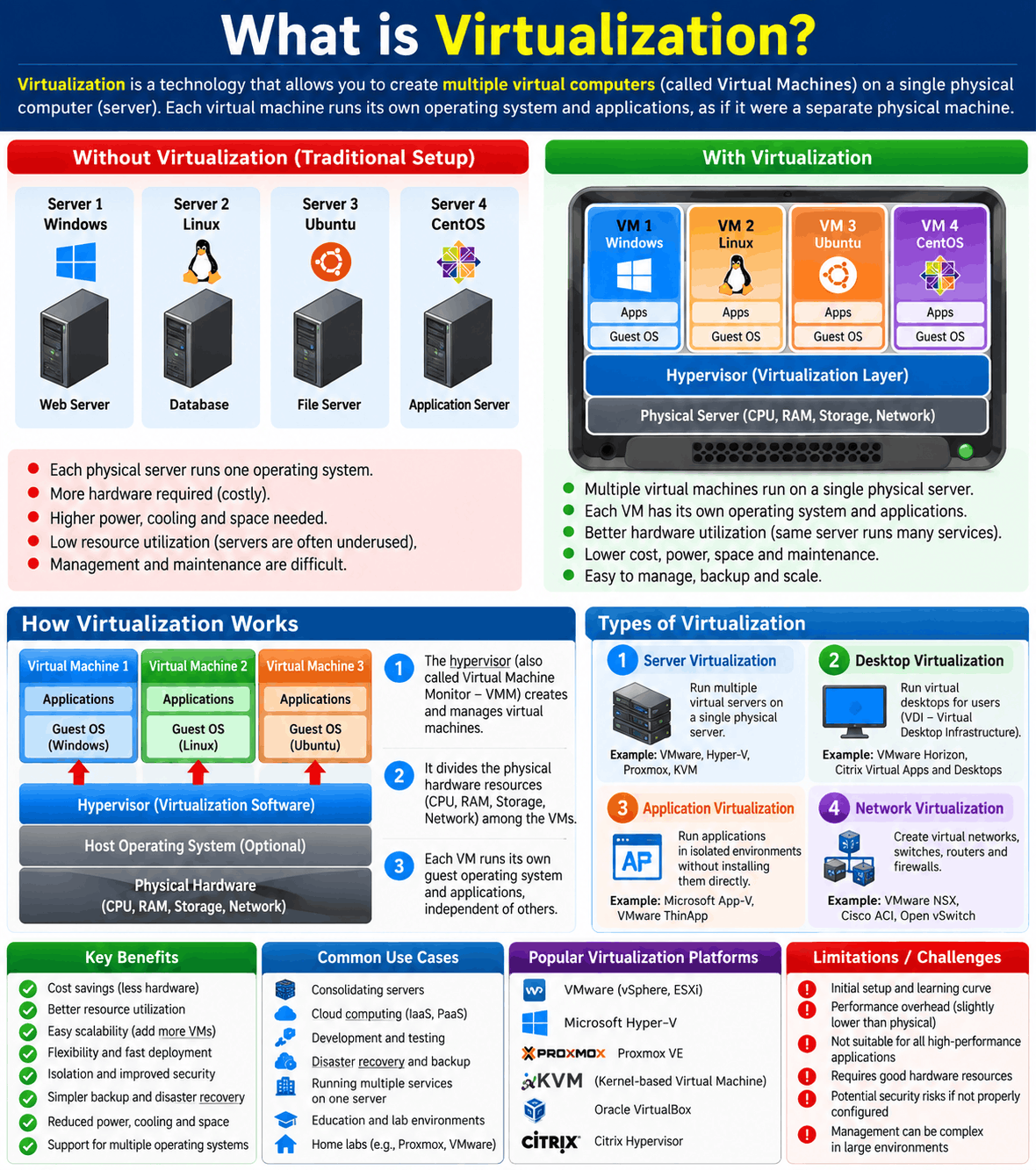
Virtualization is a technology that allows one physical computer or server to run multiple virtual computers, called Virtual Machines (VMs). Each virtual machine can run its own operating system, applications, and services independently.
For example, one physical server can run Windows Server, Ubuntu Linux, and another Windows Server simultaneously without requiring three separate physical computers.
OR
Virtualization is a technology that allows one physical computer or server to run multiple virtual machines (VMs). Each virtual machine can have its own operating system and applications.
Example: A company has one powerful Dell Server. Using virtualization software like VMware, it can run three virtual machines on that server:
- VM 1: Windows Server for user management.
- VM 2: Linux Server for hosting a website.
- VM 3: Windows 11 for testing software.
All three virtual machines share the same physical server’s hardware but work independently.
In simple words: Virtualization is like using one physical computer as multiple separate computers, saving hardware costs, electricity, and space.
What Is Virtualization in Details
1. Definition of Virtualization
Virtualization is a Technology that allows us to create multiple virtual computers or virtual servers on a Single Physical Computer or Server. Each virtual machine can run its own operating system, software, and applications independently. Virtualization helps organizations use their hardware resources efficiently and reduces the need to purchase multiple physical servers.
2. How Virtualization Works
Virtualization works by dividing the resources of a physical server, such as CPU, RAM, Storage, and Network Connectivity, among Multiple Virtual Machines. A software layer called a Hypervisor manages these resources and allocates them to each virtual machine. As a result, multiple operating systems can run simultaneously on the same physical server.
3. Real-Life Example of Virtualization
Suppose a company needs three servers: one for HR, one for Finance, and one for IT. Without virtualization, the company might purchase three separate physical servers. With virtualization, the company can use one powerful physical server to create three virtual machines. The HR team can use one VM, the Finance team can use another VM, and the IT team can use the third VM. This reduces hardware costs and simplifies server management.
4. What Is a Virtual Machine (VM)?
A Virtual Machine (VM) is a software-based computer that behaves like a physical computer. It has virtual CPU Cores, Allocated RAM, Virtual Storage, a Network Interface, and its own operating system. For example, one VM can run Windows Server while another VM on the same physical machine runs Ubuntu Linux. These VMs operate independently, subject to the security and configuration of the virtualization platform.
5. What Is a Hypervisor?
A Hypervisor is Software or Firmware that creates and manages virtual machines. It allocates the physical server’s CPU, memory, storage, and networking resources to the VMs. It also helps keep virtual machines isolated from one another. Examples of hypervisors include VMware ESXi, Microsoft Hyper-V, Oracle VirtualBox,
6. Type 1 Hypervisor
A Type 1 hypervisor, also called a bare-metal hypervisor, runs directly on the physical server hardware rather than on top of a general-purpose host operating system. It is commonly used in enterprise data centers because it provides centralized VM management and efficient resource allocation. Examples include VMware ESXi, Microsoft Hyper-V
7. Type 2 Hypervisor
A Type 2 Hypervisor runs as an application on an existing operating system, such as Windows or Linux. It is useful for students, developers, and IT professionals who want to test different operating systems on their computers without installing another physical computer. For example, a student using Windows 11 can install VirtualBox and create an Ubuntu Linux VM for networking practice.
8. Types of Virtualization
Virtualization has several types, depending on what resources are being virtualized. Server virtualization allows multiple virtual servers to run on one physical server. Desktop virtualization provides users with virtual desktop environments. Network virtualization creates logical networks independently of the underlying physical network. Storage virtualization combines storage resources into a logical storage pool. Application virtualization allows applications to run in isolated or managed environments.
9. Advantages of Virtualization
Virtualization Reduces Hardware Costs because multiple workloads can share one physical server. It improves resource utilization by distributing available CPU and RAM among virtual machines. It also makes testing easier, allows new servers to be deployed quickly, and can simplify backup and disaster recovery. Furthermore, separate VMs can help isolate applications and workloads, provided the virtualization platform is properly secured.
10. Virtualization in a Real Company
Imagine a company with 200 employees that needs Active Directory, a RADIUS Server, a File Server, a Web Server, and a Monitoring Server. Instead of Purchasing Five Physical Servers, the company could host these Workloads as Separate VMs on one or more appropriately sized physical servers. The administrator can manage the VMs centrally, assign resources according to workload requirements, and expand the environment when additional capacity is needed.
11. Virtualization vs. Physical Servers
In a Traditional Physical-Server environment, each workload may require its own physical machine, increasing Hardware Costs, Electricity Consumption, Cooling Requirements, and Maintenance. In a Virtualized Environment, several workloads can share the resources of one physical server. However, the physical server must have sufficient capacity, and critical workloads may require multiple physical hosts for High Availability.
12. Conclusion
Virtualization is an important technology in modern IT infrastructure because it allows multiple virtual computers to operate on shared physical hardware. It reduces costs, improves resource utilization, simplifies deployment, and supports flexible server management. Virtualization is widely used in data centers, cloud computing, software testing, enterprise networks, and IT training laboratories.
Advantages and Disadvantages of Virtualization
Advantages of Virtualization
1. Cost Reduction: Virtualization reduces hardware costs because multiple virtual machines can run on a single physical server instead of requiring separate physical servers for every workload.
2. Better Resource Utilization: Virtualization allows CPU, RAM, storage, and network resources to be shared among multiple virtual machines, helping organizations use their hardware more efficiently.
3. Easy Management: Administrators can create, configure, monitor, and manage multiple virtual machines from a centralized management platform.
4. Quick Deployment: A new virtual machine can be created in minutes using a VM template, without purchasing and installing a new physical server.
5. Isolation: Each virtual machine operates in its own environment. If an application crashes inside one VM, other VMs can usually continue working independently.
6. Backup and Recovery: Virtual machines can be backed up and restored using supported backup tools, making recovery after hardware failure or accidental changes easier.
7. Multiple Operating Systems: Virtualization allows different operating systems, such as Windows Server and Ubuntu Linux, to run simultaneously on the same physical server.
8. Easy Testing and Training: Students and IT professionals can create virtual labs to practise networking, server configuration, cybersecurity, and operating system installation without needing multiple physical computers.
9. Energy Saving: Running several workloads on fewer physical servers can reduce electricity consumption and cooling costs.
10. Scalability: Organizations can create additional virtual machines and adjust allocated resources when their workloads grow, provided sufficient physical capacity is available.
Disadvantages of Virtualization
1. High Initial Cost: Enterprise virtualization may require powerful servers, shared storage, backup systems, and management software, which can be expensive to purchase and configure.
2. Performance Overhead: Virtual machines share physical resources, and the hypervisor introduces some overhead. CPU-intensive applications or workloads with high storage and network demands may experience reduced performance.
3. Single Point of Failure: If one physical server hosts multiple VMs and that server fails, all the VMs running on it may become unavailable unless high availability or another recovery solution is configured.
4. Resource Contention: If too many virtual machines compete for limited CPU, RAM, storage I/O, or network bandwidth, their performance can decrease.
5. Complex Management: Large virtualized environments require skilled administrators who understand hypervisors, virtual networking, storage, security, and troubleshooting.
6. Security Risks: A vulnerability in the hypervisor or a misconfigured virtual network could expose multiple virtual machines to security threats. Proper patching and access control are essential.
7. Licensing Costs: Some enterprise hypervisors, operating systems, and management tools require paid licenses, increasing the total cost of ownership.
8. Backup and Storage Requirements: Multiple virtual machines can consume significant storage space, and their backups may require additional capacity, time, and network bandwidth.
9. Hardware Resource Limits: Virtualization cannot create unlimited CPU, RAM, or storage. The total workload must remain within the physical server’s available capacity.
10. Troubleshooting Difficulties: Problems involving virtual switches, virtual disks, hypervisor settings, and resource allocation can make troubleshooting more complicated than in a simple physical-server environment.
Real-Life Example
Suppose a company runs five virtual servers on one physical server. Virtualization saves money because the company does not need five separate physical machines. However, if the physical server fails, all five virtual servers could stop working together. To reduce this risk, the company can use multiple physical hosts, high-availability clustering, and regular backups.
Virtualization PPT
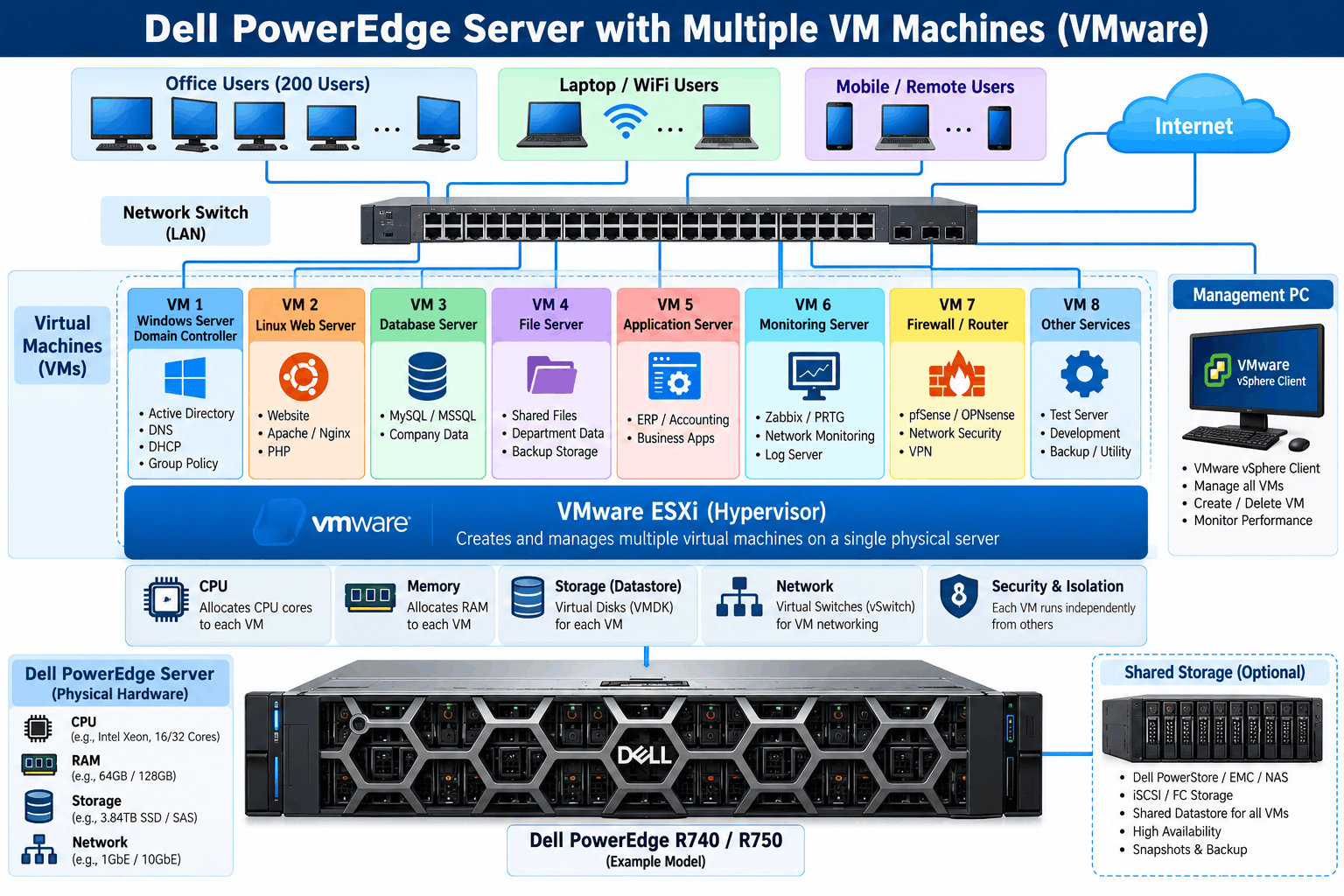
Here is the Dell PowerEdge Server + VMware ESXi + Multiple Virtual Machines (VMs) virtualization diagram.
The diagram shows how one physical Dell PowerEdge server can run multiple virtual servers using VMware ESXi, with separate roles for Active Directory, Linux Web Hosting, Database, File Sharing, Monitoring, and other services.
How to understand the diagram:
Dell PowerEdge Server: Physical hardware containing the CPU, RAM, disks, and network interfaces.
VMware ESXi: The hypervisor installed directly on the physical server that creates and manages virtual machines.
Multiple VMs: Each VM has its own virtual CPU, RAM, virtual disk, operating system, and applications.
Network Switch: Connects users and VMs to the LAN and other networks through configured virtual and physical networking.
VMware vSphere Client: Used by the administrator to manage VMs and monitor server performance.
Optional Shared Storage: Provides a shared datastore for VMs when the infrastructure requires it.
Example: A Dell PowerEdge server with 16 CPU cores and 128 GB RAM could host several VMs, depending on their actual resource requirements. You could run Windows Server for Active Directory, Ubuntu for a website, a database server, and a file server on the same physical machine.
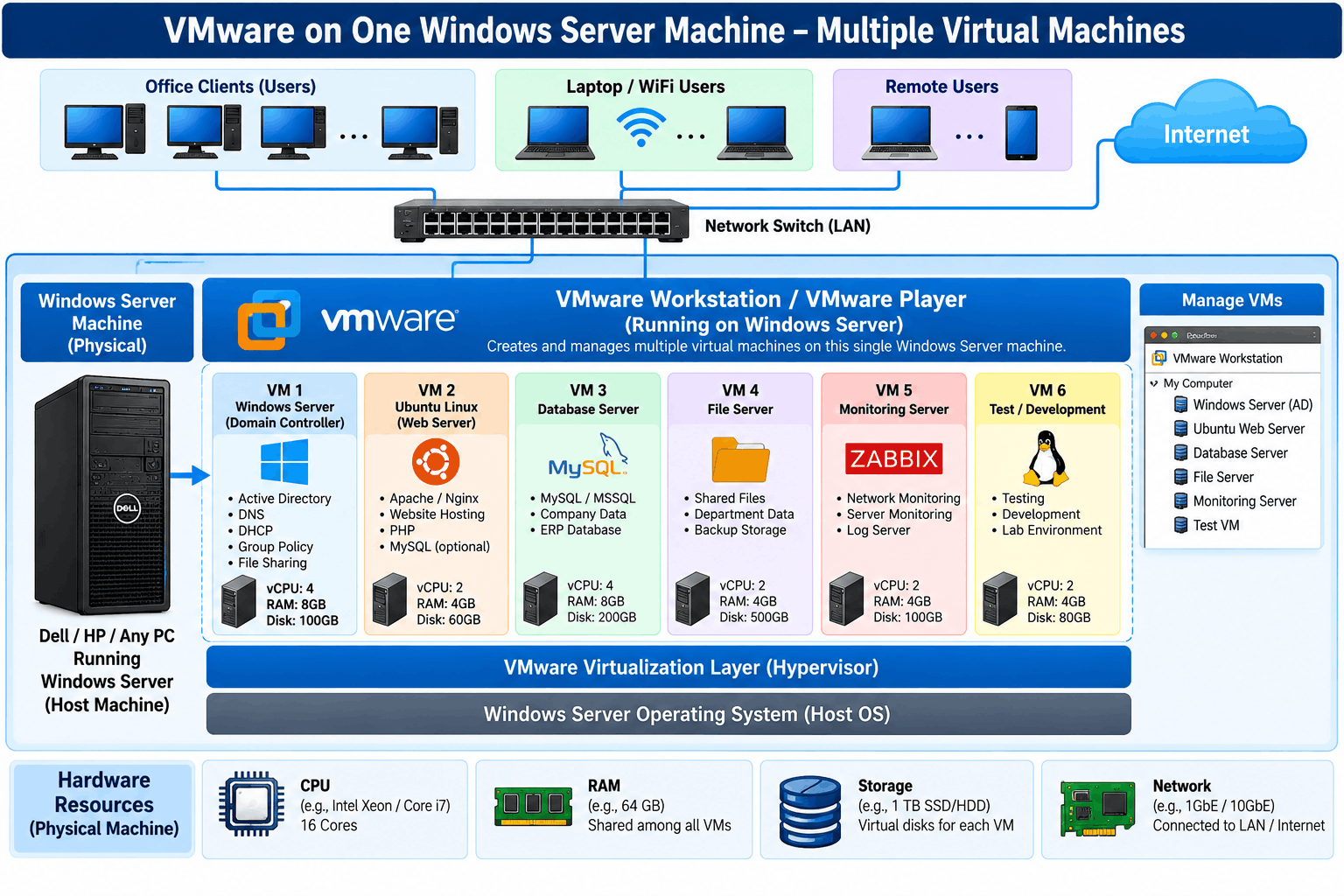
Here is the diagram showing one physical Windows Server machine running multiple VMs using VMware.
The diagram includes:
Physical Host: One computer running Windows Server.
VMware: Virtualization software managing multiple virtual machines.
VM 1: Windows Server — Active Directory, DNS, DHCP.
VM 2: Ubuntu Linux — Web Server.
VM 3: Database Server.
VM 4: File Server.
VM 5: Monitoring Server.
VM 6: Testing and Development.
All VMs share the physical machine’s CPU, RAM, storage, and network resources, while maintaining separate virtual environments.
Important technical note: VMware Workstation/Player runs on a Windows Server host OS. If you want a dedicated production hypervisor, VMware ESXi is a different architecture: it installs directly on compatible physical hardware rather than on top of Windows Server.

Virtualization Software and Platforms
1. VMware ESXi
VMware ESXi is a Type 1 hypervisor that installs directly on compatible physical server hardware. It allows an administrator to create and run multiple virtual machines on one physical server. Each VM can have its own operating system, virtual CPU, RAM, storage, and network adapter.
Example: A Dell PowerEdge server running VMware ESXi can host a Windows Server VM for Active Directory, a Linux VM for web hosting, a database VM, and a file server VM.
Uses: Enterprise servers, data centres, production workloads, and server consolidation.
2. VMware vSphere
VMware vSphere is a server virtualization platform that includes ESXi and associated management and infrastructure capabilities. Administrators use its management tools to create VMs, allocate resources, monitor performance, and manage virtualized infrastructure. Advanced configurations can support features such as live VM migration and high availability, depending on the products and licences used.
Example: An IT administrator manages multiple ESXi hosts and their virtual machines through centralized management.
Uses: Enterprise virtualization, clustered servers, and large IT environments.
3. VMware Workstation Pro
VMware Workstation Pro is a Type 2 desktop hypervisor that runs on a supported Windows or Linux host operating system. It allows users to create virtual machines without installing a bare-metal hypervisor on the computer.
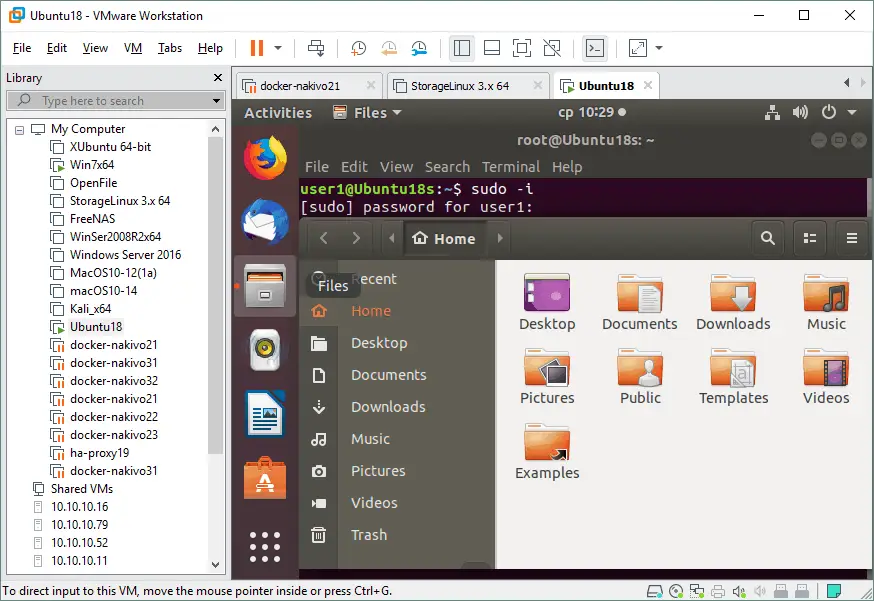
Example: A Windows 11 computer runs Windows Server, Ubuntu Linux, Kali Linux, and other supported operating systems as separate VMs.
Uses: Networking labs, cybersecurity training, software testing, and operating-system learning.
4. Microsoft Hyper-V
Microsoft Hyper-V is Microsoft’s hypervisor technology for creating and managing virtual machines. It is available in supported Windows Server environments and certain Windows client editions. It supports Windows and Linux guest operating systems.
Example: A company installs Windows Server with the Hyper-V role on a Dell PowerEdge server and creates separate VMs for Active Directory, DNS, DHCP, and database services.
Uses: Business servers, Windows infrastructure, test labs, and server consolidation.
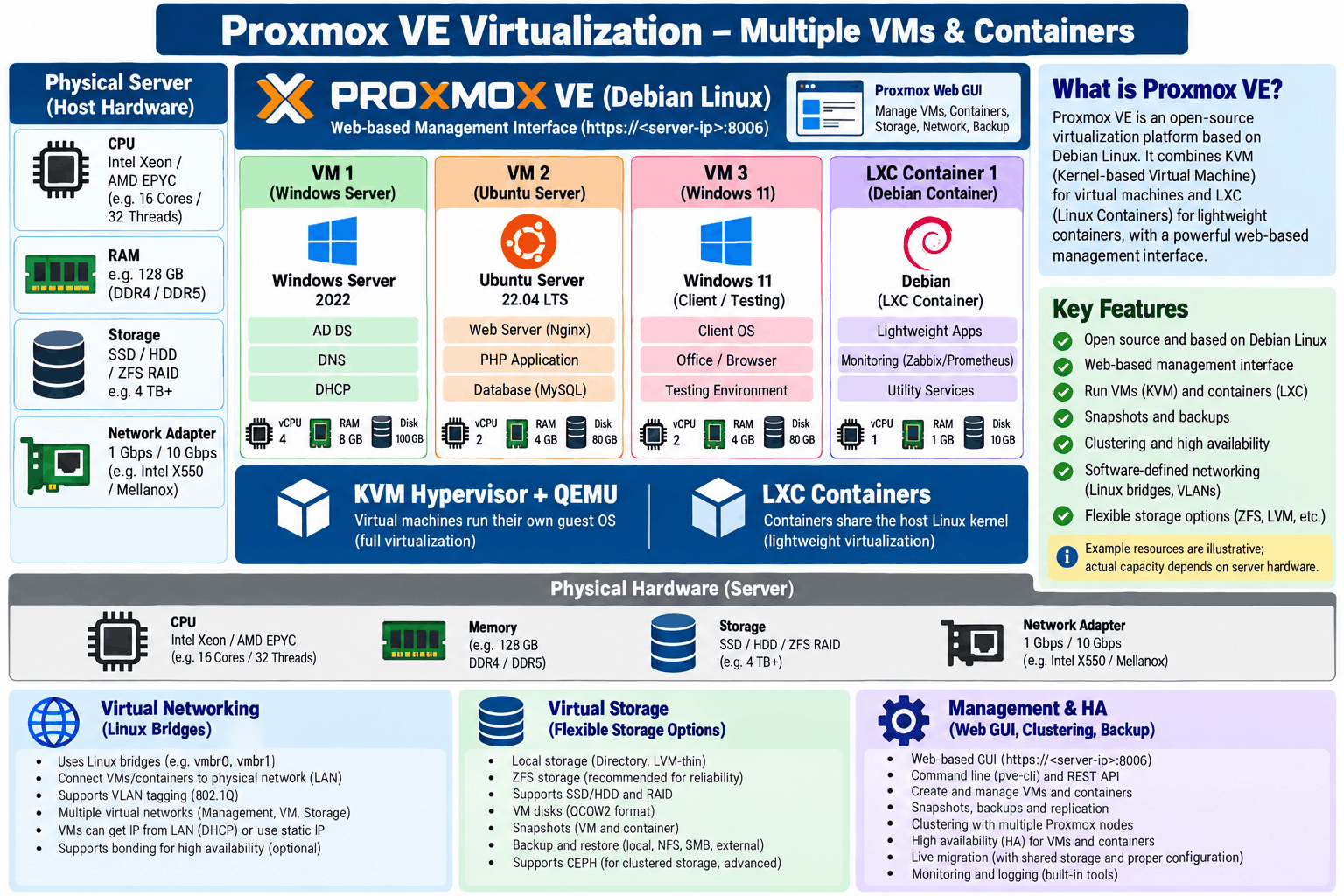
5. Proxmox Virtual Environment (Proxmox VE)
Proxmox VE is a Linux-based virtualization platform that combines KVM virtual machines and LXC containers. It provides a web-based interface for managing virtual machines, storage, networks, backups, and clusters.
Example: One physical server runs Windows Server VMs, Ubuntu VMs, a firewall VM, and Linux containers.
Uses: Home labs, small businesses, educational institutions, NAS environments, and production servers.
Vmware Pro & VirtualBox PPT
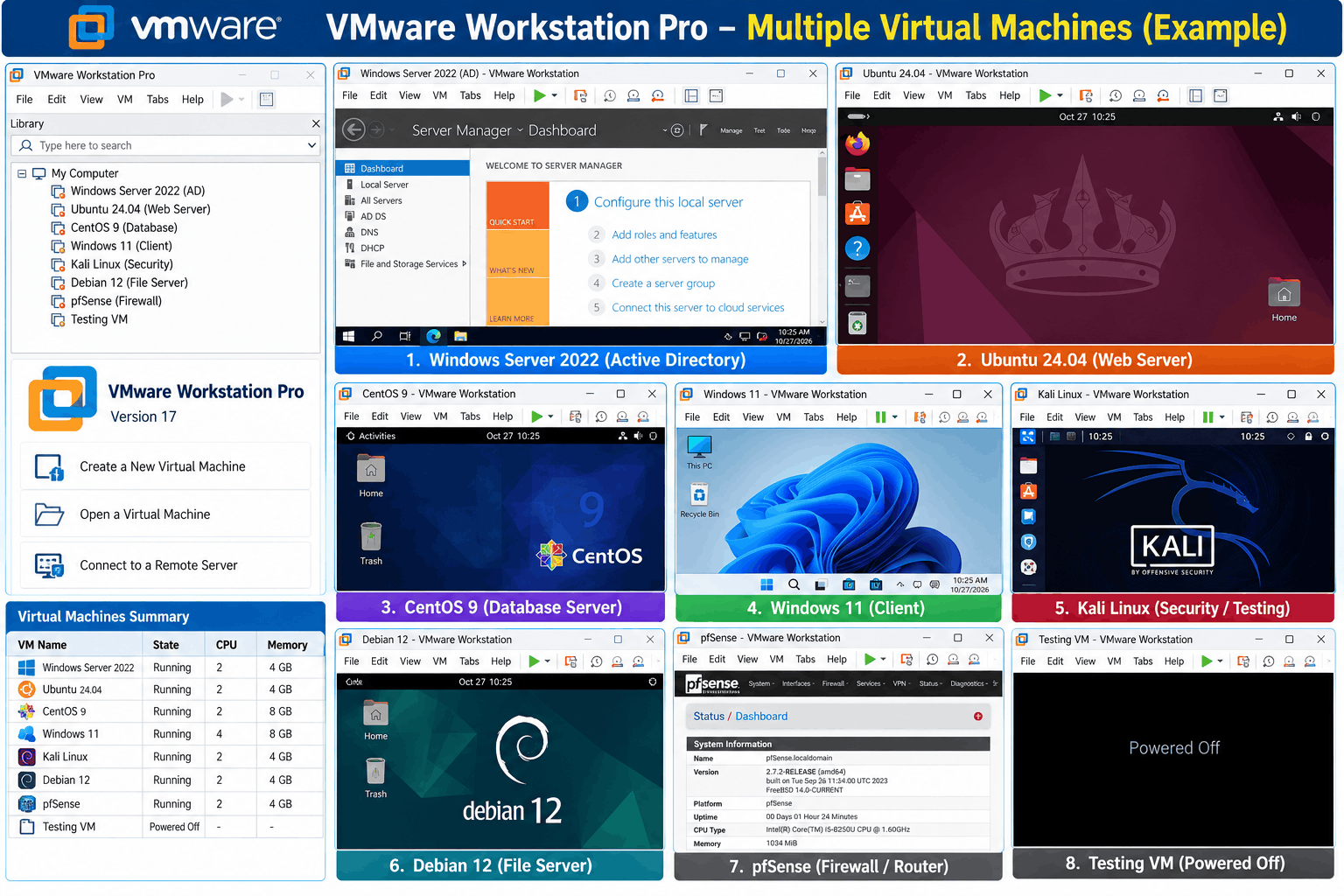
Here is the VMware Workstation Pro – Multiple Virtual Machines diagram.
It shows one physical Windows computer running VMware Workstation Pro with multiple VMs:
Windows Server 2022 — Active Directory, DNS and DHCP.
Ubuntu Linux — Web server.
CentOS — Database server.
Windows 11 — Client computer.
Kali Linux — Security testing lab.
Debian Linux — File server.
pfSense — Virtual firewall and router.
Testing VM — An additional VM that is powered off.
Important: These are example configurations. VMware Workstation Pro shares the physical computer’s CPU, RAM, storage, and network resources among the VMs. The host needs sufficient resources to run several VMs simultaneously.
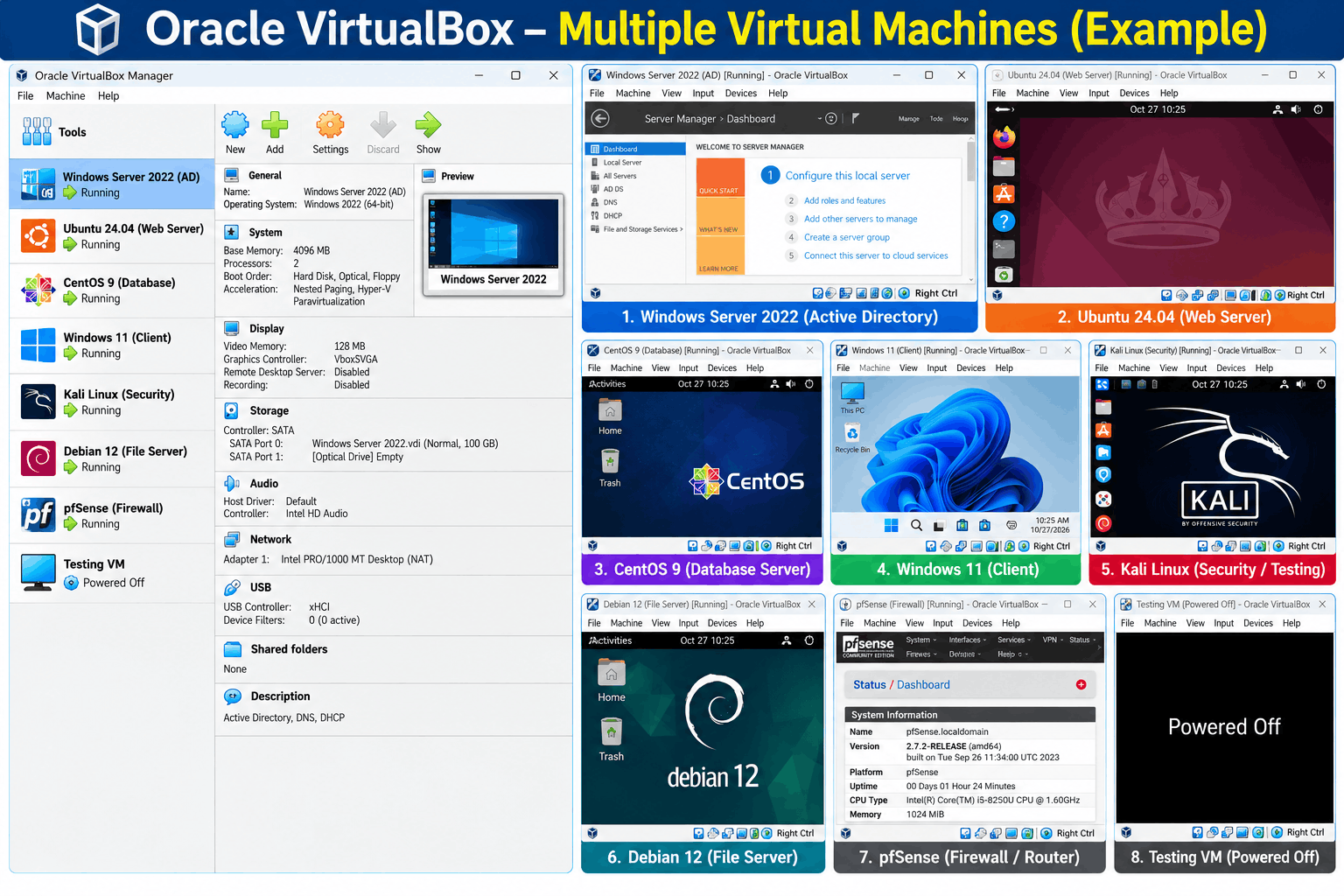
Here is the Oracle VirtualBox – Multiple Virtual Machines diagram.
It shows one physical computer running Oracle VirtualBox with eight example virtual machines:
Windows Server 2022 — Active Directory, DNS and DHCP.
Ubuntu Linux — Web server.
CentOS Linux — Database server.
Windows 11 — Client machine.
Kali Linux — Security testing.
Debian Linux — File server.
pfSense — Virtual firewall and router.
Testing VM — Powered off.
How it works: Oracle VirtualBox runs on the host operating system. Each VM has its own virtual hardware, operating system, and applications, while sharing the physical computer’s CPU, RAM, storage, and network resources.
Note that the diagram is an illustrative example, not a screenshot of an actual running VirtualBox installation.


What Is Cloud Virtualization?
Cloud Virtualization is a Technology that allows a physical server, storage device, or network to be divided into multiple virtual resources. These resources are provided to users through a cloud platform, usually over the internet.
For example, a company does not need to purchase a separate physical server for every application. It can use cloud virtualization to create multiple Virtual Machines (VMs) on shared physical infrastructure.
1. Meaning of Cloud Virtualization
Cloud virtualization combines virtualization technology with cloud computing. Virtualization creates virtual versions of computing resources, while cloud computing provides those resources on demand.
For example, a company can rent a virtual Windows Server from Microsoft Azure instead of buying a physical server, installing an operating system, and maintaining the hardware itself.
2. How Cloud Virtualization Works
First, a cloud provider maintains powerful physical servers in a data center. These servers contain processors, RAM, storage devices, and network interfaces.
Second, virtualization software called a hypervisor allows a physical server to run multiple virtual machines. Each VM receives an allocated amount of CPU, RAM, storage, and other resources.
Third, each virtual machine can run its own operating system and applications. For example, one VM can run Windows Server, another can run Ubuntu Linux, and a third can run a database application.
Finally, the cloud management platform allows users to create, configure, start, stop, and manage these virtual resources through a web portal or API.
3. Real-Life Example of Cloud Virtualization
Suppose a company needs three servers for its business operations.
The First Server is required for user Authentication and File Sharing. The Second Server is required for Website Hosting. The Third Server is required for storing customer information in a Database.
Traditionally, the company might purchase Three Separate Physical Servers. This requires additional hardware, electricity, cooling, and maintenance.
With Cloud Virtualization, the company can create three Virtual Machines on Cloud Infrastructure. One VM runs Windows Server for authentication, another runs Linux for website hosting, and the third runs a database service.
Each VM works independently from the others, although they may share the underlying physical hardware. The company can increase its resources when its workload grows, subject to the cloud provider’s available services and limits.
4. What Is a Virtual Machine in Cloud Computing?
A Virtual Machine (VM) is a software-based computer that behaves like a physical computer. It has virtual CPU resources, memory, storage, a network interface, and an operating system.
For example, when you create a virtual machine in AWS or Azure, you can choose the operating system, CPU capacity, RAM, disk size, and network settings.
After the VM is created, you can connect to it remotely using Remote Desktop Protocol (RDP) for Windows or SSH for Linux.
A virtual machine can run applications, host websites, manage users, store data, or provide other server services without requiring a dedicated physical server for every workload.
5. What Is a Hypervisor?
A Hypervisor is Software that creates and manages virtual machines by allocating the resources of a physical computer.
For example, VMware ESXi, Microsoft Hyper-V, and KVM are technologies used to run multiple virtual machines on a physical server.
The hypervisor distributes CPU time, memory, storage access, and network connectivity among VMs. It also maintains separation between virtual machines.
In a cloud data center, virtualization is one of the technologies that allows providers to serve many customers using shared physical infrastructure.
6. Types of Cloud Virtualization
Server Virtualization: A physical server runs multiple virtual machines. For example, a cloud provider can run Windows and Linux VMs on the same physical server.
Storage Virtualization: Multiple physical storage devices can be presented as logical storage resources. For example, a VM can use a virtual disk without needing to know which physical storage device holds its data.
Network Virtualization: Software creates logical networks, virtual switches, routers, and firewalls. For example, a company can separate HR, Finance, and Guest networks within its cloud environment.
Desktop Virtualization: Desktop environments run on centralized infrastructure and are accessed remotely. For example, employees can use cloud-hosted Windows desktops from their office computers.
Application Virtualization: Applications are isolated from parts of the underlying operating system or delivered through a managed application platform. This can simplify application deployment and management.
7. Cloud Virtualization Platforms
Amazon Web Services (AWS): AWS provides virtual servers through Amazon EC2. Users can select machine types, operating systems, storage, and networking configurations.
Microsoft Azure: Azure provides virtual machines for Windows and Linux workloads. Organizations can use them for Active Directory-related workloads, web servers, application servers, and databases.
Google Cloud: Google Cloud provides virtual machines through Compute Engine. Users can configure computing resources according to their workloads.
VMware vSphere: VMware virtualization technology is used to run and manage virtual machines on physical servers in private data centers and supported cloud environments.
Microsoft Hyper-V: Hyper-V is Microsoft’s hypervisor technology. It can be used to create and manage virtual machines on compatible Windows Server systems and other supported Windows editions.
8. Cloud Virtualization vs Traditional Virtualization
Traditional virtualization usually refers to running virtual machines on hardware that an organization owns or manages. For example, a company installs VMware ESXi on its Dell PowerEdge server and creates multiple VMs for its internal network.
Cloud virtualization uses virtualization as part of a cloud service or cloud platform. Instead of managing the underlying physical hardware, customers can provision virtual machines through a provider such as AWS, Azure, or Google Cloud.
The underlying technology can be similar, but cloud platforms typically add on-demand provisioning, automated management, remote access, usage monitoring, and flexible billing.
9. Cloud Virtualization vs Cloud Computing
Cloud virtualization is a technology used to create virtual computing resources. Cloud computing is the broader service model that makes computing resources available on demand.
For example, virtualization can create a virtual server with CPU, RAM, and storage. Cloud computing adds services such as self-service provisioning, identity management, monitoring, automated scaling, billing, and managed databases.
Cloud computing can also use containers, dedicated physical servers, and serverless technologies. Therefore, not every cloud service is necessarily based on a virtual machine.
10. Real-Life Example: A College
Imagine a college needs a student management system, a website, and a file server.
The college can create a Windows VM for student administration, a Linux VM for the website, and another VM for file sharing. The VMs can run on cloud infrastructure and be accessed by authorized staff over the network.
When student enrollment increases, the college can allocate additional resources or deploy more application instances, depending on its architecture.
This approach reduces the need to purchase and maintain several physical servers while making it easier to manage and expand the IT infrastructure.
Conclusion: Cloud virtualization allows organizations to create and use virtual servers, storage, networks, and desktops on shared infrastructure. It improves flexibility and resource utilization and is an important technology behind many cloud computing services.
Advantages of Cloud Virtualization
1. Cost Saving: Companies do not need to buy expensive physical servers. They can rent virtual machines from cloud providers such as AWS, Microsoft Azure, or Google Cloud and pay according to their usage.
2. Scalability: Cloud virtualization allows companies to increase or decrease CPU, RAM, and storage according to their needs. For example, an online shopping website can increase its resources during a festival sale.
3. Easy Accessibility: Users can access cloud virtual machines from different locations through the internet, depending on permissions and network access.
4. High Availability: Cloud providers offer services and infrastructure designed to keep applications running. With suitable redundancy and failover configurations, services can continue even if some hardware fails.
5. Fast Deployment: A new virtual machine can often be created within minutes. For example, a company can quickly create a Linux VM to host a new website.
6. Backup and Recovery: Virtual machines can be backed up using snapshots and backup services. If a problem occurs, administrators can restore data or recover a machine from a suitable backup.
7. Better Resource Utilization: Multiple virtual machines can share the resources of physical servers, helping reduce unused hardware capacity.
Disadvantages of Cloud Virtualization
1. Internet Dependency: Accessing cloud virtual machines generally requires a reliable internet connection. If the connection fails, remote users may lose access.
2. Ongoing Cost: Cloud services require recurring payments. If virtual machines run continuously or use large amounts of storage and bandwidth, the monthly bill can become expensive.
3. Security Risks: Incorrect configurations, weak passwords, or stolen credentials can expose cloud virtual machines and data to unauthorized access.
4. Limited Control: The cloud provider manages the underlying physical hardware. Customers generally cannot directly control or repair the physical servers.
5. Performance Issues: Multiple virtual machines may share physical resources. Poor resource allocation or heavy workloads can cause slow performance.
6. Vendor Lock-in: Moving virtual machines, applications, and data from one cloud provider to another can require extra time, money, and technical work.
7. Downtime Risk: Cloud services can experience outages because of hardware failures, network problems, software issues, or provider-side incidents.
8. Data Privacy and Compliance: Companies must ensure that storing data in the cloud meets their privacy, security, and legal requirements.
Real-life example: A college hosts its student management system on a cloud VM. It can increase resources during admission season, but if the internet connection fails, staff may temporarily be unable to access the system remotely.
Conclusion: Cloud virtualization provides flexibility, scalability, and reduced upfront hardware costs, but organizations must manage security, recurring expenses, internet connectivity, and downtime risks.
Cloud VM vs On-Premises VM
A Cloud VM (Virtual Machine) runs on a cloud provider’s physical infrastructure, such as AWS, Microsoft Azure, or Google Cloud.
An On-Premises VM runs on a physical server owned or managed by an organization at its own office or data center.
The main difference is where the physical server is located, who manages the hardware, and how the organization pays for the resources.
1. What Is a Cloud VM?
A Cloud VM is a virtual computer hosted in a cloud provider’s data center. You can create a Windows or Linux virtual machine without purchasing a physical server.
For example, suppose you need a Windows Server for your company. You create a VM in Microsoft Azure, select the CPU, RAM, storage, and operating system, and connect to it using Remote Desktop Protocol (RDP).
The cloud provider manages the underlying physical servers, power, cooling, and data center infrastructure. You generally manage the VM’s operating system, applications, user accounts, and security settings, depending on the service.
Real-life example: A web hosting company needs a Windows Server to host a customer’s website. Instead of buying a Dell PowerEdge server, the company rents a VM from AWS or Azure and pays for the resources it uses.
2. What Is an On-Premises VM?
An On-Premises VM is a virtual machine that runs on a physical server located in your own office, server room, or data center.
For example, you purchase a Dell PowerEdge server and install VMware ESXi, Microsoft Hyper-V, or Proxmox VE. Then you create multiple VMs on that server.
You can run Windows Server on one VM, Ubuntu Linux on another, and a database server on a third VM.
Your organization is responsible for managing the physical server, RAM, storage, networking, power backup, cooling, hardware maintenance, and virtualization platform.
Real-life example: A company has 200 employees and needs Active Directory, DNS, and file sharing. It installs VMware ESXi on its own Dell PowerEdge server and creates separate VMs for these services. Employees access them through the office LAN.
Cloud VM vs On-Premises VM: Main Differences
Feature | Cloud VM | On-Premises VM |
|---|---|---|
Physical server location | Cloud provider’s data center | Your office or data center |
Hardware ownership | Usually the provider | Usually your organization |
Initial investment | Usually lower | Higher due to hardware purchases |
Payment model | Usage-based or subscription | Hardware purchase and ongoing maintenance |
Hardware maintenance | Provider | Your IT team |
Internet requirement | Usually needed for remote cloud access | Not required for local access if the LAN is operational |
Resource upgrades | Often available on demand | May require hardware upgrades |
Physical control | Limited | Greater control |
Data location | Selected cloud region, subject to service configuration | Your chosen physical location |
Hardware failure | Depends on provider infrastructure and redundancy | Depends on your hardware and redundancy |
Best suited for | Flexible workloads and remote services | Local services and direct infrastructure control |
Cost Difference
Cloud VM: You usually avoid purchasing a physical server upfront. However, you pay recurring charges for compute resources, storage, backups, network traffic, and any applicable software licensing. Costs may increase as usage grows.
On-Premises VM: You pay for physical servers, RAM, storage, UPS, networking, electricity, cooling, maintenance, and applicable licenses. Although the initial cost is higher, it can be economical for workloads that run continuously over several years.
For a fair comparison, calculate the total cost over three to five years rather than comparing only the monthly cloud VM price with the purchase price of a physical server.
7. What Is a Hybrid Model?
A hybrid model combines on-premises infrastructure with cloud services.
For example, a company keeps its Active Directory and file server on a Dell PowerEdge server in the office while hosting its public website and an off-site backup in the cloud.
This approach can provide local performance and control alongside cloud scalability and disaster recovery. However, it requires suitable networking, identity integration, and security planning.
8. Short Interview Answer
Cloud VM: A virtual machine hosted on a cloud provider’s infrastructure. The provider manages the underlying physical hardware, while the customer manages the VM according to the service model.
On-Premises VM: A virtual machine running on an organization’s own physical servers. The organization is responsible for the physical infrastructure and virtualization platform.
Easy way to remember: Cloud VM means using computing resources in a cloud provider’s data center. On-Premises VM means using virtual machines on your own physical servers.
Cloud VM Providers
Cloud VM Provider is a company that provides virtual machines over the internet. You can rent a virtual server, select the operating system, CPU, RAM, and storage, and run your applications without purchasing a physical server.
For example, instead of buying a Dell PowerEdge server, you can rent a Windows Server VM from Microsoft Azure and access it remotely using Remote Desktop Protocol (RDP).
1. Popular Cloud VM Providers
1. Amazon Web Services (AWS)
AWS provides virtual machines through its Amazon EC2 service. You can create Windows or Linux VMs and use them for websites, databases, application servers, and enterprise workloads.
2. Microsoft Azure
Azure provides virtual machines for Windows Server and Linux. It is useful for Microsoft technologies, enterprise applications, and Windows Server administration.
3. Google Cloud
Google Cloud provides virtual machines through Compute Engine. It supports Windows and Linux workloads and is used for applications, websites, databases, and cloud infrastructure.
4. DigitalOcean
DigitalOcean provides virtual servers called Droplets. It is popular for Linux hosting, web applications, development environments, and smaller projects.
5. Oracle Cloud Infrastructure (OCI)
Oracle Cloud provides virtual machines through OCI Compute. It supports enterprise applications, Linux and Windows workloads, and Oracle-related infrastructure. Eligible free resources may be available under its current terms.
Cloud VM Providers PPT


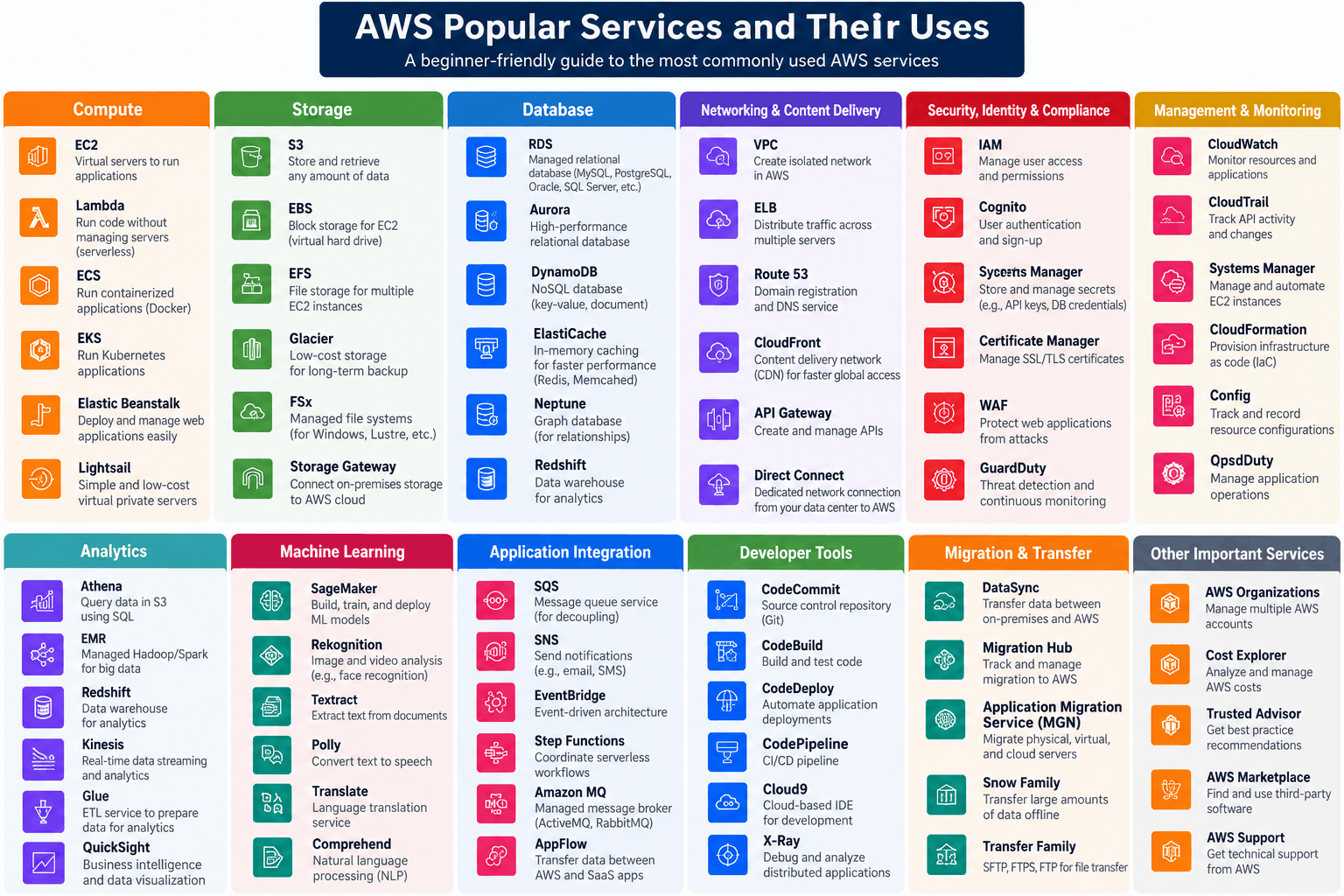
AWS Popular Services and Their Uses
1. Compute Services
Amazon EC2: Amazon EC2 provides virtual machines in the AWS cloud, allowing users to run Windows or Linux servers, host websites, install software, and deploy business applications without purchasing physical server hardware.
AWS Lambda: AWS Lambda allows developers to execute code automatically when an event occurs, without managing servers, making it useful for processing uploaded files, sending notifications, and automating application tasks.
Amazon ECS: Amazon ECS is a container management service that helps deploy, run, and manage Docker containers, making it easier to operate applications packaged with all their required dependencies.
Amazon EKS: Amazon EKS provides managed Kubernetes to orchestrate containerized applications, helping organizations deploy, scale, and manage applications across multiple containers and computing resources.
AWS Elastic Beanstalk: Elastic Beanstalk simplifies application deployment by managing much of the underlying infrastructure, allowing developers to deploy applications written in supported languages such as Java, Python, and Node.js.
Amazon Lightsail: Amazon Lightsail provides an easy way to launch virtual private servers with predictable basic pricing, making it suitable for small websites, WordPress installations, and development projects.
2. Storage Services
Amazon S3: Amazon S3 is an object storage service used to store and retrieve files, images, videos, documents, application assets, and backups securely and at scale.
Amazon EBS: Amazon EBS provides persistent block storage volumes for EC2 instances, working like virtual hard disks that can store operating systems, applications, and database files.
Amazon EFS: Amazon EFS provides shared file storage that multiple Linux-based computing resources can access simultaneously, making it useful for applications that need a common file system.
Amazon S3 Glacier Storage Classes: These storage classes provide cost-effective options for retaining data over long periods, making them suitable for archived documents, historical records, and backups that are accessed infrequently.
Amazon FSx: Amazon FSx provides managed file systems for specialized workloads, including Windows file sharing and high-performance computing, reducing the need to maintain file servers manually.
AWS Storage Gateway: AWS Storage Gateway connects on-premises applications and storage environments with AWS cloud storage, helping businesses integrate local storage workflows with cloud-based backup and archiving.
3. Database Services
Amazon RDS: Amazon RDS simplifies the operation of relational databases such as MySQL and PostgreSQL by managing many routine administrative tasks, making it useful for websites, student management systems, and business applications.
Amazon Aurora: Amazon Aurora is a managed relational database compatible with MySQL and PostgreSQL that is designed for demanding application workloads requiring scalable database performance and availability.
Amazon DynamoDB: Amazon DynamoDB is a managed NoSQL database that supports key-value and document data models, making it suitable for applications such as shopping carts, user sessions, and IoT device records.
Amazon ElastiCache: Amazon ElastiCache provides managed in-memory caching that can reduce repeated database queries and improve application response times when frequently accessed data is stored in memory.
Amazon Neptune: Amazon Neptune is a graph database designed to store and query relationships between entities, making it useful for social networks, recommendation systems, and connected-data applications.
Amazon Redshift: Amazon Redshift is a cloud data warehouse that enables organizations to analyze large datasets and generate business reports, such as sales trends, customer behavior, and financial performance.
4. Networking and Content Delivery Services
Amazon VPC: Amazon VPC allows users to create a logically isolated virtual network in AWS, where they can configure IP address ranges, subnets, route tables, and network security controls for cloud resources.
Elastic Load Balancing (ELB): ELB distributes incoming application traffic across multiple targets, such as EC2 instances, helping applications handle increased traffic and improve availability.
Amazon Route 53: Amazon Route 53 provides DNS services that connect domain names to application endpoints, helping users access websites through memorable names instead of needing to remember IP addresses.
Amazon CloudFront: Amazon CloudFront is a content delivery network that caches and delivers content through geographically distributed edge locations, helping users access website images, videos, and other content more efficiently.
Amazon API Gateway: Amazon API Gateway allows developers to create, publish, secure, and manage APIs that connect websites, mobile applications, and other software with backend services.
AWS Direct Connect: AWS Direct Connect establishes dedicated network connectivity between an organization’s data center or office and AWS, supporting workloads that need predictable network connectivity.
AWS VPN: AWS VPN provides encrypted connections between supported networks and AWS, allowing an organization to connect its office network to a cloud VPC securely over the internet.
5. Security, Identity and Compliance Services
AWS IAM: AWS Identity and Access Management controls who can access AWS resources and which actions they can perform, allowing administrators to assign appropriate permissions to users, applications, and services.
Amazon Cognito: Amazon Cognito provides user authentication and identity features for applications, allowing developers to implement sign-up, sign-in, and supported identity federation without building every authentication component from scratch.
AWS Secrets Manager: AWS Secrets Manager helps securely store, retrieve, and manage sensitive information such as database passwords and API keys, reducing the need to place credentials directly in application code.
AWS Certificate Manager: AWS Certificate Manager helps provision and manage supported TLS/SSL certificates, enabling encrypted HTTPS connections for websites and applications integrated with compatible AWS services.
AWS WAF: AWS Web Application Firewall filters HTTP and HTTPS requests using configured security rules, helping protect web applications against common web exploits and unwanted request patterns.
Amazon GuardDuty: Amazon GuardDuty analyzes supported security-related data sources to detect suspicious activity and potential threats, helping security teams investigate unusual behavior in their AWS environments.
AWS KMS: AWS Key Management Service helps create and manage cryptographic keys used to encrypt and decrypt data, supporting encryption workflows across compatible AWS services and applications.
AWS Shield: AWS Shield helps protect supported applications and network resources against distributed denial-of-service attacks that attempt to disrupt services by overwhelming them with traffic.
6. Management and Monitoring Services
Amazon CloudWatch: Amazon CloudWatch collects metrics and logs from AWS resources and applications, allowing administrators to monitor performance, create alarms, troubleshoot problems, and receive notifications when defined thresholds are exceeded.
AWS CloudTrail: AWS CloudTrail records AWS account activity and API events, helping administrators investigate who performed an action, when it occurred, and which AWS resources were affected.
AWS Systems Manager: AWS Systems Manager helps administrators manage supported instances and operational tasks, including remote command execution, patch management, and maintenance across multiple servers.
AWS CloudFormation: AWS CloudFormation allows users to define and deploy AWS infrastructure through templates, making it possible to create repeatable environments containing resources such as VPCs, subnets, and EC2 instances.
AWS Config: AWS Config tracks resource configurations and evaluates them against configured rules, helping organizations identify configuration changes and resources that may violate their policies.
AWS Trusted Advisor: AWS Trusted Advisor provides recommendations across supported cost optimization, security, performance, and reliability checks, helping organizations identify potential improvements to their AWS environments.
7. Analytics Services
Amazon Athena: Amazon Athena allows users to run SQL queries directly against supported data stored in Amazon S3, making it useful for analyzing logs and datasets without provisioning a traditional database server.
Amazon EMR: Amazon EMR provides managed infrastructure for big-data frameworks such as Apache Spark, enabling organizations to process large datasets for research, reporting, and analytical workloads.
Amazon Kinesis: Amazon Kinesis supports the collection and processing of streaming data, helping applications analyze continuously arriving information from sources such as IoT devices, application logs, and online activity.
AWS Glue: AWS Glue helps discover, prepare, transform, and integrate data from different sources, making it useful for building data pipelines that prepare information for analytics.
Amazon QuickSight: Amazon QuickSight is a business intelligence service that helps users create interactive dashboards, charts, and reports to understand business performance and communicate insights.
Amazon Redshift: Amazon Redshift enables organizations to analyze large volumes of structured data using a cloud data warehouse, supporting complex queries and reporting across business datasets.
8. Artificial Intelligence and Machine Learning Services
Amazon SageMaker AI: Amazon SageMaker AI provides tools to build, train, customize, and deploy machine learning models, helping developers create applications for prediction, classification, and other machine learning tasks.
Amazon Rekognition: Amazon Rekognition analyzes images and videos to identify supported visual information, making it useful for applications involving image analysis and video content processing.
Amazon Textract: Amazon Textract extracts text, tables, and form information from supported documents, helping organizations digitize paper forms, invoices, and scanned records.
Amazon Polly: Amazon Polly converts written text into spoken audio, allowing developers to create voice-enabled applications, spoken announcements, and audio versions of educational content.
Amazon Translate: Amazon Translate translates text between supported languages, helping applications provide multilingual content to users in different regions.
Amazon Comprehend: Amazon Comprehend uses natural language processing to analyze text and identify information such as entities and sentiment, making it useful for reviewing customer feedback and documents.
Amazon Bedrock: Amazon Bedrock provides access to supported foundation models and tools for building generative AI applications, such as chatbots, document assistants, and automated content-processing systems.
9. Application Integration Services
Amazon SQS: Amazon Simple Queue Service allows applications to exchange messages through queues, helping separate different application components so that one component can process work without requiring an immediate response from another.
Amazon SNS: Amazon Simple Notification Service distributes messages to subscribed endpoints, making it useful for notifications and event-driven messaging workflows.
Amazon EventBridge: Amazon EventBridge routes events between supported applications and AWS services, allowing developers to trigger automated actions when particular events occur.
AWS Step Functions: AWS Step Functions coordinates multiple application tasks into workflows with sequencing, branching, retries, and error handling, making it useful for automating multi-step business processes.
Amazon MQ: Amazon MQ provides managed message brokers for supported messaging technologies, helping organizations connect applications that depend on compatible messaging systems.
Amazon AppFlow: Amazon AppFlow transfers data between supported software-as-a-service applications and AWS services, helping businesses automate data integration without building every transfer process from scratch.
10. Developer Tools and DevOps Services
AWS CodeBuild: AWS CodeBuild builds and tests application code in managed build environments, helping development teams automate compilation, testing, and other stages of software development.
AWS CodeDeploy: AWS CodeDeploy automates application deployments to supported compute targets, helping teams release new application versions more consistently and reduce manual deployment work.
AWS CodePipeline: AWS CodePipeline orchestrates continuous integration and continuous delivery workflows, connecting source changes, testing, and deployment steps into an automated software release process.
AWS CloudShell: AWS CloudShell provides a browser-based command-line environment with AWS tools, allowing users to run supported commands and manage resources without installing a separate local command-line environment.
AWS X-Ray: AWS X-Ray traces requests across supported application components, helping developers identify performance bottlenecks and troubleshoot errors in distributed applications.
11. Migration and Data Transfer Services
AWS DataSync: AWS DataSync automates data transfer between supported on-premises and AWS storage systems, helping organizations move files and datasets efficiently.
AWS Migration Hub: AWS Migration Hub helps track supported migration activities in a central place, allowing organizations to monitor the progress of moving multiple applications and servers to AWS.
AWS Application Migration Service: AWS Application Migration Service helps replicate and migrate supported server workloads to AWS, reducing the manual effort involved in moving applications from physical or virtual servers.
AWS Snowball: AWS Snowball provides physical devices for supported data transfer and edge computing use cases, making it useful when transferring very large datasets over a network would be impractical.
AWS Transfer Family: AWS Transfer Family provides managed file transfer using supported protocols such as SFTP, allowing organizations to exchange files with customers, suppliers, and business partners.
12. Other Important AWS Services
AWS Organizations: AWS Organizations allows businesses to group and centrally govern multiple AWS accounts, helping administrators apply account-management policies across an organization.
AWS Cost Explorer: AWS Cost Explorer helps users analyze AWS spending and usage trends, allowing them to understand which services and resources contribute to their cloud costs.
AWS Budgets: AWS Budgets allows users to define spending or usage thresholds and receive alerts when actual or forecasted costs approach configured limits.
AWS Backup: AWS Backup centralizes and automates backup activities for supported AWS resources, helping organizations protect important data and prepare for recovery.
Amazon WorkSpaces: Amazon WorkSpaces provides managed virtual desktops that users can access remotely, allowing businesses to offer desktop environments without maintaining every physical desktop locally.
Amazon Connect: Amazon Connect provides cloud-based contact-center capabilities, helping organizations manage customer interactions through supported communication channels.
AWS Outposts: AWS Outposts brings supported AWS infrastructure and services to on-premises locations, helping organizations run selected workloads locally while integrating them with AWS.
AWS IoT Core: AWS IoT Core connects supported IoT devices to cloud applications, allowing devices to exchange messages and send information such as temperature readings, sensor measurements, and device status.
Conclusion: AWS provides services for almost every stage of application development, from launching virtual servers with EC2 and storing files in S3 to managing databases with RDS, securing access with IAM, monitoring performance with CloudWatch, and building AI applications with Amazon Bedrock. Students should learn these foundational services first to understand how real-world cloud environments are designed and operated.

IaaS, PaaS and SaaS in Cloud Computing
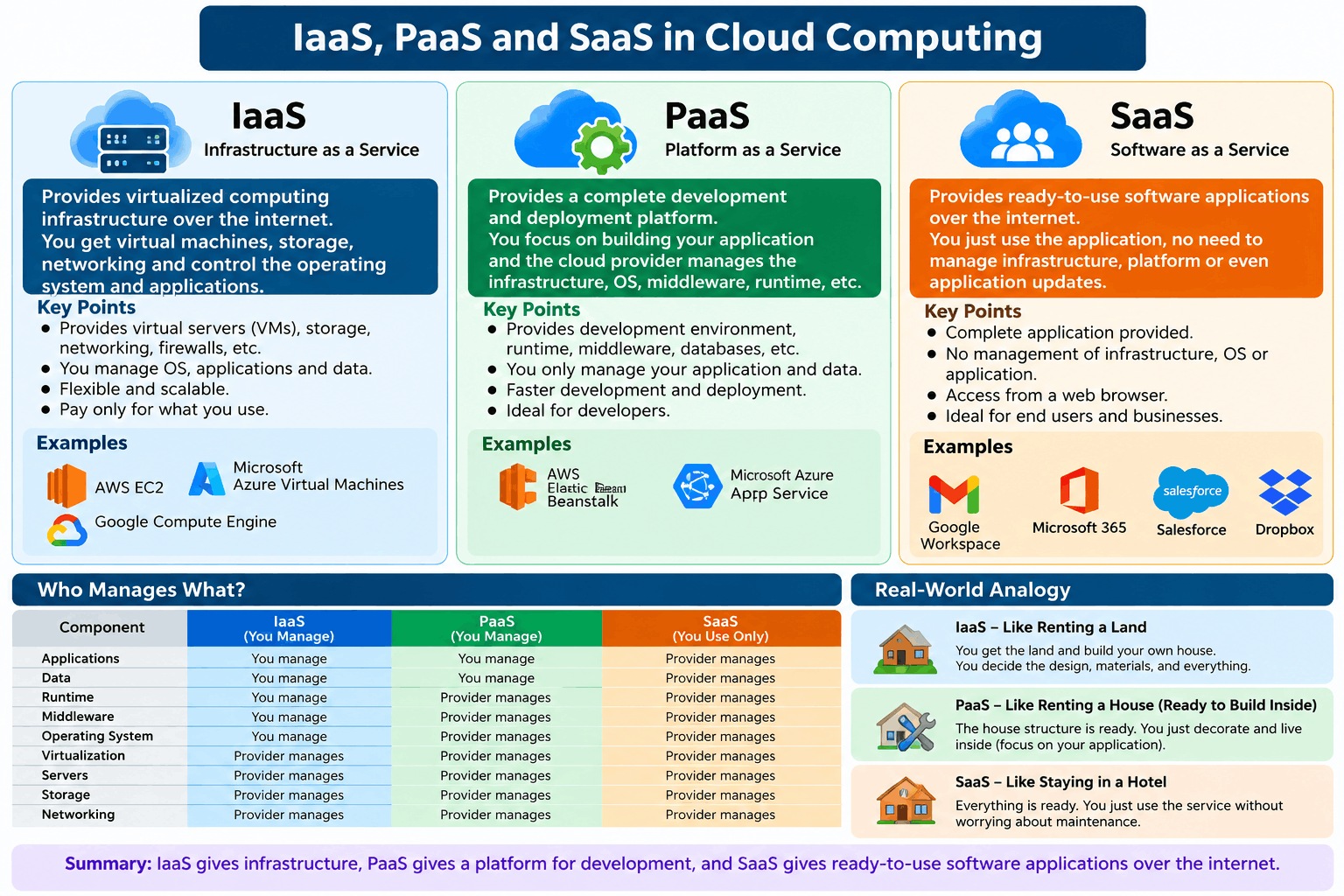
Cloud computing allows users to access computing resources, development platforms and software over the internet without purchasing and maintaining all the physical infrastructure themselves.
The three popular cloud service models are IaaS (Infrastructure as a Service), PaaS (Platform as a Service), and SaaS (Software as a Service). They differ in how much the cloud provider manages and how much control the customer has.
1. IaaS — Infrastructure as a Service
IaaS provides basic computing infrastructure, including virtual machines, storage and networking, over the internet. The cloud provider manages the physical servers, data center, networking hardware and virtualization layer, while the customer generally manages the operating system, installed software, applications and their configurations.
Popular Examples:
Amazon EC2 — AWS
Azure Virtual Machines — Microsoft Azure
Google Compute Engine — Google Cloud
Real-life Example: A college wants to create its own website and student management system. Instead of purchasing a physical server, it rents an Amazon EC2 virtual machine, installs Ubuntu, configures Apache, installs PHP and MySQL, and hosts the website. AWS manages the physical infrastructure, but the college manages the operating system and application software.
Advantages:
Provides greater control over virtual servers and operating systems.
Allows users to choose suitable computing resources for their workloads.
Makes it possible to increase or decrease resources as requirements change.
Avoids the need to purchase and maintain physical server hardware.
Disadvantages:
Customers must manage operating system updates, software configuration and many security responsibilities.
Requires knowledge of servers, networking and system administration.
Poor resource management can lead to unnecessary cloud expenses.
2. PaaS — Platform as a Service
PaaS provides a managed platform for developing, testing and deploying applications. The cloud provider manages the underlying infrastructure and much of the platform environment, allowing developers to focus mainly on application code and business logic.
Popular Examples:
Google App Engine
Azure App Service
AWS Elastic Beanstalk
Real-life Example: A developer wants to create an online examination system using Python. Instead of manually installing and configuring the operating system, web server and runtime environment on a virtual machine, the developer deploys the application through a managed platform such as Google App Engine. The platform manages much of the underlying infrastructure, while the developer focuses on features such as student login, examinations and result calculation.
Advantages:
Reduces server administration and maintenance work.
Helps developers build and deploy applications faster.
Provides managed runtime environments and supported scaling capabilities.
Allows development teams to focus more on writing and improving software.
Disadvantages:
Provides less control over the underlying operating system and infrastructure.
Developers may face restrictions on supported languages, runtimes or configurations.
Moving an application to another platform can require changes.
Costs can increase depending on application usage and resource consumption.
3. SaaS — Software as a Service
SaaS provides ready-to-use software over the internet, usually through a web browser or application. The provider manages the software, infrastructure, updates and maintenance, while users mainly manage their accounts, data and application settings.
Popular Examples:
Gmail
Google Docs
Microsoft 365
Salesforce
Zoom
Real-life Example: A student needs to prepare an assignment. The student opens Google Docs in a browser, writes the assignment and saves it online. There is no need to install or maintain the application server, database or operating system. Google manages the underlying service, while the student uses the available features.
Advantages:
Easy to access through a browser or supported application.
Usually requires minimal local installation and maintenance.
Software updates are managed by the provider.
Supports collaboration and access from multiple devices.
Disadvantages:
Often depends on internet connectivity.
Users have limited control over the underlying software and infrastructure.
Subscription fees may apply.
Data access, privacy and customization depend on the provider’s features and policies.
4. Main Differences Between IaaS, PaaS and SaaS
Feature | IaaS | PaaS | SaaS |
|---|---|---|---|
Full form | Infrastructure as a Service | Platform as a Service | Software as a Service |
Main purpose | Rent computing infrastructure | Build and deploy applications | Use ready-made software |
Example | Amazon EC2 | Google App Engine | Gmail |
Operating system management | Customer generally manages it | Provider generally manages it | Provider manages it |
Application management | Customer manages it | Developer manages application code | Provider manages application software |
Control | High infrastructure control | Moderate infrastructure control | Limited infrastructure control |
Main users | System administrators and IT teams | Application developers | End users and businesses |
5. One Real-Life Example to Understand All Three
Imagine that a company wants to create an online shopping website.
Using IaaS: The company rents an EC2 virtual machine, installs Linux, configures the web server and database, and develops and maintains the shopping application.
Using PaaS: The company develops its shopping application and deploys it through a managed application platform, reducing the need to configure and maintain the underlying server infrastructure.
Using SaaS: The company subscribes to a ready-made online store platform and uses its existing features to manage products, orders and customers without developing the entire application itself.
Conclusion: IaaS is suitable when an organization needs more control over its virtual infrastructure, PaaS is useful when developers want to build and deploy applications without managing most underlying infrastructure, and SaaS is appropriate when users need ready-made software for everyday tasks