
What is Domain Controler Server
A Domain Controller (DC) is a server in a Windows Server environment that is responsible for managing authentication and authorization within a domain. It serves as the backbone of a Windows-based network, specifically in environments using Active Directory (AD), which is Microsoft’s directory service. A Domain Controller holds the directory information, enforces security policies, and ensures that network resources are accessed by the correct users or systems based on their permissions.
What is a Domain Controller (DC)?
A Domain Controller is a server in a Windows network that manages user logins, security, and access to network reurces.
It’s the brain of an Active Directory (AD) environment.
👉 Example:
When you log in to a company computer, the Domain Controller checks your username & password and decides what files, printers, or servers you can use.
Main Functions of a Domain Controller?
- User Authentication: Verifies usernames and passwords.
- Authorization: Gives permission to use files, folders, or apps.
- Centralized Management: Admins can manage all computers from one place.
- Policy Enforcement: Applies security and group policies (GPOs).
- Replication: Shares AD data with other domain controllers.
Types of Domain Controllers
| Type | Full Form | Description | Main Role |
|---|---|---|---|
| PDC | Primary Domain Controller | Original DC in old Windows NT systems (Now called PDC Emulator role in AD). | Handles password changes, time sync, and backward compatibility. |
| ADC | Additional Domain Controller | A backup Domain Controller that holds a copy of the AD database. | Provides redundancy and load sharing. |
| CDC | Child Domain Controller | Controller for a child domain under a parent domain. Example: sales.company.com under company.com. | Manages its own users and policies within that subdomain. |
| RODC | Read-Only Domain Controller | Domain Controller with a read-only copy of AD. | Used in branch offices for security — can authenticate users but cannot make changes. |
Example Use Case
Head Office (Main Server Room)
- PDC → Main authentication & time synchronization
- ADC → Backup and load balancing
Branch Office (Remote Location)
- RODC → Local authentication (faster login, more secure)
Department Domain
- CDC → For departments like HR or Sales that need separate management
saikatinfotech.com
│
├── PDC (Head Office)
│ – Master DC (authenticates users, manages policies)
│
├── ADC (Backup)
│ – Shares and replicates AD data from PDC
│
├── CDC (Child Domain Controller)
│ – Manages child domain: sales.company.com
│
└── RODC (Branch Office)
– Authenticates local users, no write access to AD
PDC, ADC, CDC, GCDC and RODC
What is a PDC Server?
PDC (Primary Domain Controller) is the main server in a Windows domain that manages and controls all user accounts, passwords, and security settings within the Active Directory (AD) environment.
It is the leader or master controller among all domain controllers.
Main Work of PDC Server
User Authentication:
Checks and approves usernames & passwords when users log in.Password Management:
Handles password changes — if users update passwords, PDC processes them first.Time Synchronization:
Works as the time master — all computers and other domain controllers sync their time with the PDC.Group Policy Management:
PDC applies and manages Group Policies (GPOs) for all computers and users in the domain.Replication Control:
Shares updated AD data with other domain controllers (like ADCs).
Example
Suppose your company domain is company.com.
When any employee logs in:
- The PDC server checks their username and password.
- It decides if they are allowed to access files, printers, or applications.
- It updates any new password or policy changes.
PDC in a Domain Setup Example?
company.com
│
├── PDC → Main Domain Controller (Head Office)
├── ADC → Backup Domain Controller
├── CDC → Child Domain Controller (sales.company.com)
└── RODC → Read-only DC (Branch Office)
Advantages of a PDC Server?
- Centralized control over all users and computers.
- High security and easy management.
- Supports multiple DCs (ADC, CDC, RODC).
- Ensures smooth login and authentication process.
In short:
PDC Server = Main Domain Controller that handles authentication, passwords, policies, and time management for all computers in a Windows domain.
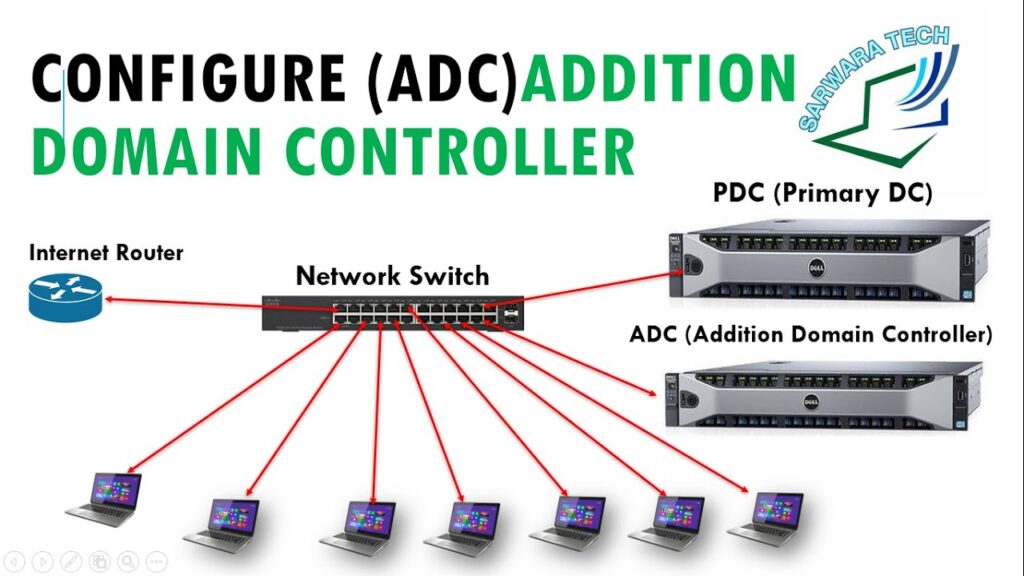
What is an ADC Server?
ADC stands for Additional Domain Controller.
It is a secondary or backup domain controller in a Windows Active Directory (AD) network.
The ADC has the same copy of the Active Directory database as the main server (PDC or DC).
If the main Domain Controller fails, the ADC can continue authentication and management, so the network keeps running smoothly.
Main Work / Functions of ADC Server
Backup of Active Directory Database:
The ADC keeps an exact replica of the Active Directory (AD) from the main Domain Controller.
It updates automatically through replication.User Login & Authentication:
If the main DC (PDC) is busy or goes down, the ADC authenticates user logins and provides access to network resources.Load Balancing:
In large networks, both PDC and ADC share the login and authentication workload — making the system faster and more reliable.High Availability / Redundancy:
Ensures continuous operation of the network even if the main DC fails — no downtime for users.Replication Management:
The ADC constantly syncs and updates its data from the main DC using replication services, so both always have the latest information.
Example Scenario
Your company has one main PDC (Primary Domain Controller) and one ADC.
- When users log in, sometimes the PDC authenticates them.
- If the PDC is down or under maintenance, the ADC automatically takes over.
- Users can still log in and access files — no interruption in service.
- When the PDC comes back, data syncs automatically.
company.com
│
├── PDC → Main Domain Controller (Handles main AD operations)
└── ADC → Backup / Secondary Domain Controller (Replicates AD data)
Advantages of ADC Server?
| Benefit | Description |
|---|---|
| High Availability | Keeps the domain working even if PDC fails. |
| Load Sharing | Helps share user login requests. |
| Data Redundancy | Keeps a synced copy of Active Directory. |
| Faster Logins | Reduces load on the main DC for large networks. |
| Improved Reliability | Network doesn’t stop during maintenance or failure. |
Simple Definition:
👉 An ADC Server is a backup domain controller that keeps a copy of the Active Directory from the main DC, helps with authentication, and ensures the network keeps running even if the main DC fails.
What is a CDC Server?
CDC stands for Child Domain Controller.
It is a Domain Controller (DC) that manages a child domain — a sub-domain under a main (parent) domain in a Windows Active Directory (AD) network.
👉 In simple terms:
A CDC controls and manages users, computers, and resources of its own subdomain, while still being connected to the main domain.
Example of Parent and Child Domains
Parent Domain:
company.comChild Domains:
sales.company.comhr.company.comit.company.com
Each of these child domains can have its own Child Domain Controller (CDC) to manage that department or branch.
Work / Function of a CDC
Manages Local Users and Computers:
Each child domain has its own users, groups, and computers.
The CDC handles logins and policies for that specific child domain.Local Authentication:
When a user fromsales.company.comlogs in, the Sales CDC authenticates them locally — no need to contact the main DC every time.Policy and Resource Control:
The CDC applies its own Group Policies for the child domain, while still following global rules from the parent domain.Replication with Parent DC:
The CDC syncs data with the parent domain’s controller to keep everything updated.Delegated Administration:
Each department or branch can have its own admin team to manage local users and resources without affecting the parent domain.
What is a GCDC Server?
GCDC stands for Global Catalog Domain Controller.
It is a special type of Domain Controller (DC) that holds a Global Catalog (GC) — a readable copy of all objects (like users, groups, computers) from every domain in the entire Active Directory Forest.
👉 In simple words:
A GCDC stores important information from all domains, not just one — so users anywhere in the network can find and log in quickly.
Main Work / Function of a GCDC Server
Stores Global Catalog Data:
Keeps a partial, read-only list of all objects (users, computers, groups) from every domain in the AD forest.
Helps locate resources across domains quickly.
Supports Universal Group Membership:
During login, a GCDC verifies universal group membership (groups that exist across multiple domains).
Faster Logins in Multi-Domain Networks:
When a user logs in, the GCDC quickly checks user information and group membership even if the user belongs to another domain.
Improves Search Performance:
Allows users or applications to search for objects (like users, printers, or computers) anywhere in the forest without contacting every domain controller.
Fault Tolerance:
If one GCDC goes down, another can respond — improving reliability.
Simple Definition:
👉 A GCDC (Global Catalog Domain Controller) is a special domain controller that stores a partial copy of all directory objects from every domain in the forest — allowing fast user logins, quick searches, and efficient cross-domain access.
What is RODC (Read-Only Domain Controller)?
RODC stands for Read-Only Domain Controller.
It is a special type of Domain Controller used in remote or branch offices where physical security or network reliability is limited.
👉 In simple terms:
A RODC has a read-only copy of the Active Directory (AD) database.
It can authenticate users locally, but cannot make changes to the AD.
Main Work / Function of RODC
Read-Only Active Directory Database:
The RODC keeps a copy of the AD database but cannot modify it.
All changes (like password updates, new users) can only be made on a writable DC (like the PDC or ADC).
Local Authentication:
Authenticates users locally at the branch site for faster login.
If the user’s password is not cached, the RODC contacts the main DC to verify it.
Improved Security:
Because it’s read-only, if the RODC is stolen or hacked, the attacker cannot change or damage the AD database.
Password Caching:
The RODC can store (cache) only selected user passwords — usually for local staff.
Admins can choose which accounts are allowed for caching.
Replication from Main DC:
The RODC replicates data one-way from the main DC (PDC or ADC).
It does not replicate data back, ensuring higher security.
Why We Need RODC?
| Reason | Description |
|---|---|
| Security in Remote Sites | Protects AD data in locations that are not physically secure. |
| Fast Login | Users at remote sites can log in without always contacting the main DC. |
| Low Bandwidth Support | Works efficiently even over slow WAN connections. |
| Limited Admin Rights | Local administrators can manage servers without full domain privileges. |
RODC in a Network Example?
company.com
│
├── PDC → Main DC (Writable)
├── ADC → Backup DC
└── RODC → Branch Office (Read-Only Copy)
Key Features Comparison
| Feature | PDC/ADC (Writable DC) | RODC (Read-Only DC) |
|---|---|---|
| AD Database Type | Read & Write | Read-Only |
| Password Storage | All users | Selected users (optional) |
| Data Replication | Two-way | One-way (from main DC only) |
| Security Risk if Stolen | High | Very Low |
| Ideal Use | Main office | Branch / Remote office |
👉 A RODC (Read-Only Domain Controller) is a secure domain controller that stores a read-only copy of the Active Directory database, used mainly in branch offices to provide fast local logins and protect AD data from tampering or theft.
Where to Deploy an RODC Server
You should deploy an RODC in remote, branch, or less-secure locations —
not in the main data center or head office.
Ideal Places to Deploy RODC
| Location | Reason |
|---|---|
| 🏬 Branch Offices / Remote Sites | Local users can log in faster without contacting the main DC. |
| 🏫 Small Offices or Departments | Limited IT staff — RODC provides AD services with low risk. |
| 🌍 Locations with Low Bandwidth | RODC reduces network traffic by authenticating locally. |
| 🔒 Physically Insecure Sites | If someone steals the server, they can’t modify AD data. |
| 🏗️ Temporary Project Sites | Easy to deploy, secure, and low-maintenance for short-term operations. |
Why Deploy RODC There?
Security Protection:
Since RODC holds a read-only AD copy, even if stolen, it cannot change or damage Active Directory data.Fast Local Logins:
Users in remote sites log in faster because the RODC authenticates them locally.Limited Password Caching:
You can choose whose passwords are stored — ideal for local employees only.Low Network Dependency:
Works even if the WAN link to headquarters is slow or temporarily down.Limited Administration Rights:
Local IT staff can manage the RODC server without full AD domain admin access.
Example Scenario?
Head Office (Main Data Center)
│
├── PDC → Primary Domain Controller (Writable)
├── ADC → Backup Domain Controller
│
└── Branch Office
└── RODC → Read-Only Domain Controller
↳ Authenticates local users
↳ Replicates AD data (one-way) from Head Office
In this example:
- The Head Office manages AD updates and password changes.
- The Branch Office has an RODC to handle logins locally and securely.
Best Practices for Deploying RODC?
Place it behind a firewall in remote locations.
Enable password caching only for local users who need offline login.
Use strong physical security (lock the server room).
Configure read-only DNS on the RODC for faster local name resolution.
Regularly monitor replication health between RODC and main DC.
PDC, ADC, CDC,and RODC Slide PPT


Exploring Authentication and Authorization Models
authentication, authorization, and the role of the SAM database. Discover the Workgroup, Domain models and NTDS, see the power of Active Directory, and understand why objects are important. Lastly, we’ll make Kerberos authentication easier to understand, Let’s get into the topics.
Exploring Authentication and Authorization Models
In any company, whether it’s big or small, employees have to sign in to their computers when they begin work. This lets them use shared stuff like files, folders, printers, important work programs, and the internet. But how do companies make sure it’s the employee?
Making sure that people are really who they say they are when using computers depends on how the computers are connected in a workplace. There are two main ways:
- Workgroup model: This is common in small offices or home offices. It’s like a small team of computers that share things. Each computer has its own rules for who can use it.
- Domain model: This is for bigger offices with many people. It’s like a big organized group for computers. A special computer keeps track of who’s in the group and what they’re allowed to do.
Before we look at these setups, let’s understand some basic Windows terms like authentication, authorization, and the SAM database. These terms help us grasp how computers allow the right people to do the right things.
i) Authentication:
Authentication is the process of confirming the identity of a user or entity trying to access a system or resource. It’s like entering a username and password when logging into your computer.
ii) Authorization:
Authorization, on the other hand, involves determining what actions and resources a user is allowed to access after they’ve been authenticated. It’s like deciding which folders and files a user can open and modify based on their user role.
In simple words, when you log into your computer, you authenticate yourself by providing your username and password. Once authenticated, the operating system determines your access rights to various files, folders, and system resources, which is the process of authorization.
SAM:
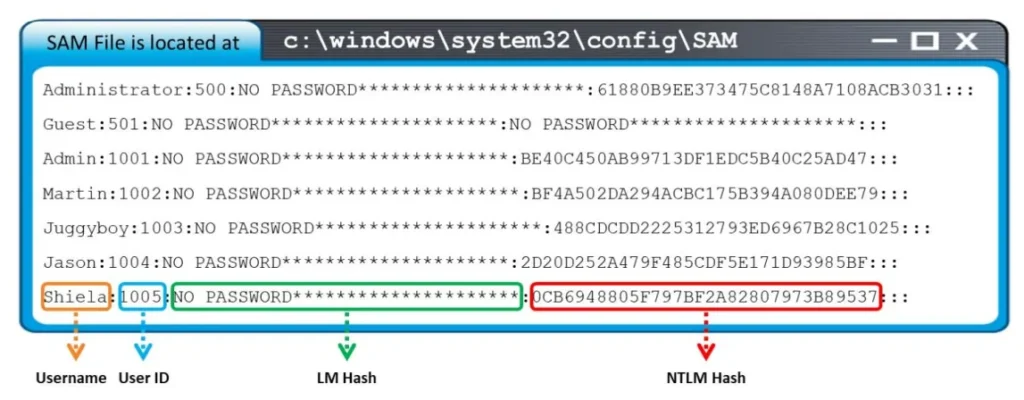
The SAM (Security Accounts Manager) database is a part of Windows that stores user account information, like usernames and password hashes. It’s like a secret storage for access details. It’s usually located in the Windows system folder. In the past, skilled hackers could potentially extract passwords from it, but modern security practices make this much harder.
- Function: The SAM database is primarily used to store usernames and password information for user accounts on a Windows system. It’s a crucial part of the authentication process, helping to verify the identity of users before granting access.
- Default Database: The SAM database is a default and integral part of the Windows operating system. Whenever you create user accounts on a Windows computer, the associated usernames and password hashes are stored in this database.
- Location: The SAM database is stored on the system drive in the C:\Windows\System32\Config folder. The specific file for the SAM database is named “SAM.”
- Local Database: The SAM database is local to each Windows system. This means that the SAM database for one computer is not directly accessible from another computer. It contains the user account information specific to that particular system.
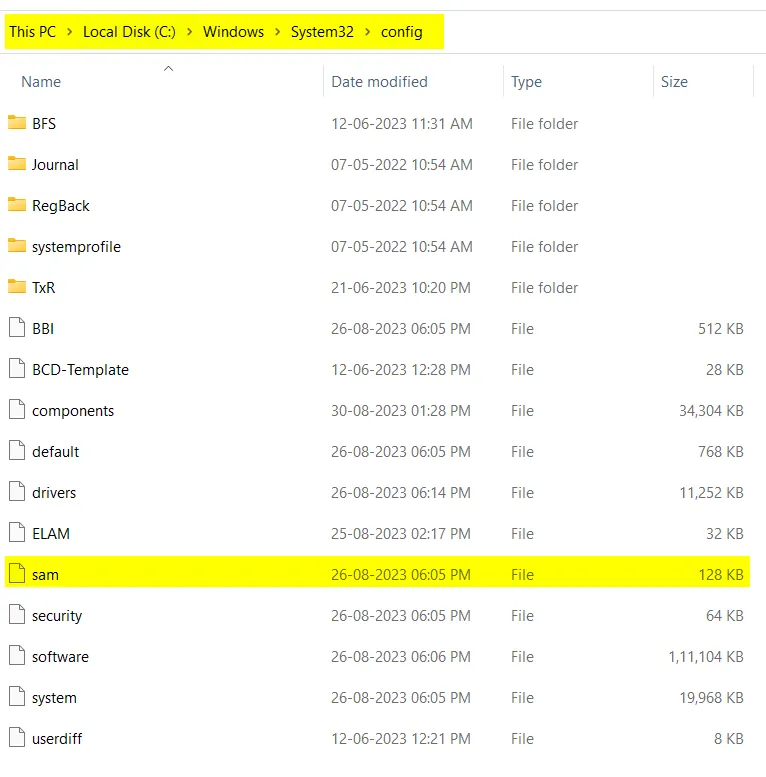
The SAM database is a critical component of Windows that stores usernames and password hashes, helping with user authentication. It’s a default and local database located at C:\Windows\System32\Config\SAM on the system drive.
Workgroup Model
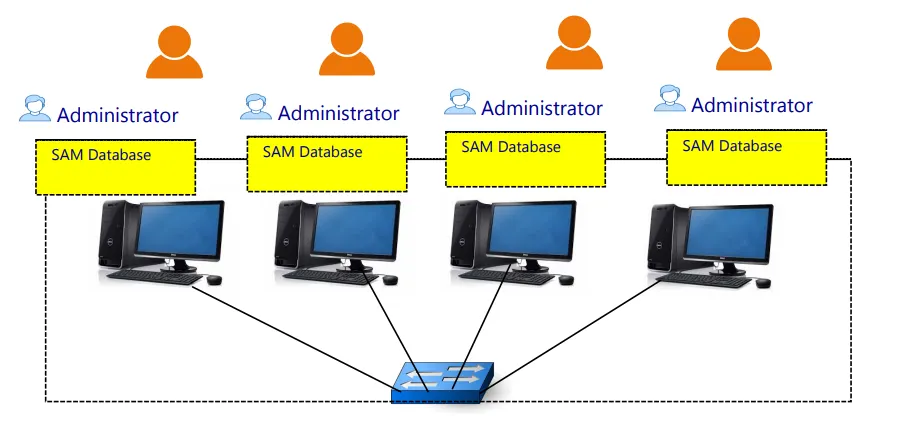
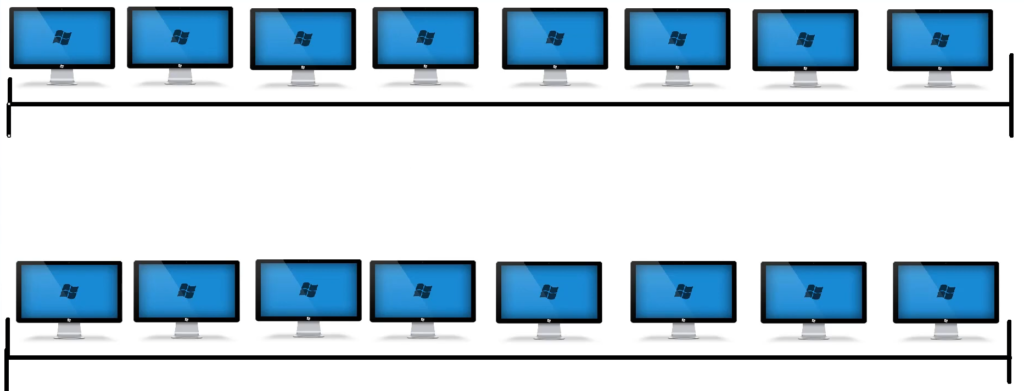
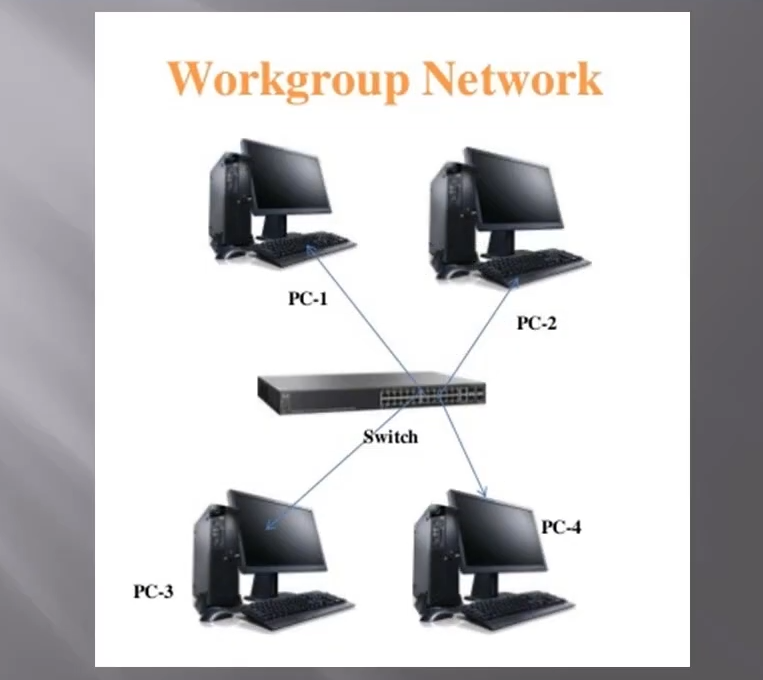
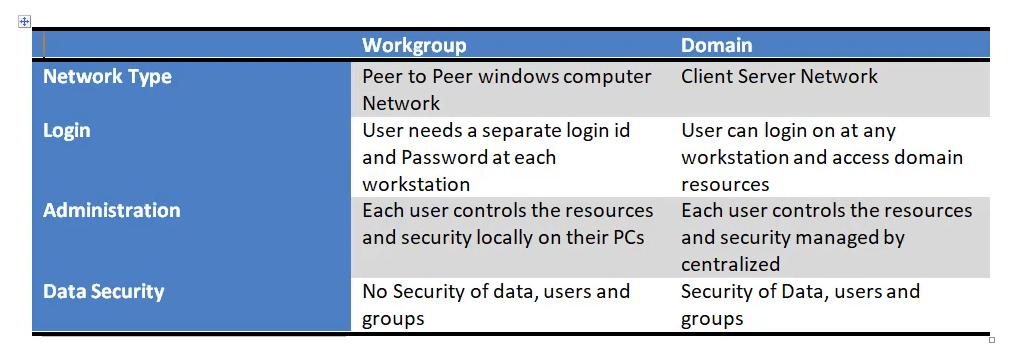
A workgroup model is like a group of computers connected in a Local Area Network (LAN). All the computers in this group are linked together in the same network space. In this group, each computer manages its own set of users and their permissions. This set is called the SAM (Security Accounts Manager) database.
Example: Picture an office where every employee has their computer. All these computers are part of the same workgroup. Each computer knows who the employees are and what tasks they’re allowed to handle. In a workgroup, an employee can only use their computer account on their assigned computer. They aren’t able to log in to someone else’s computer within the same workgroup, like a colleague’s, because the SAM database is local. This means the user’s account details are only stored on their computer, not on their colleague’s computer.
Now, if an employee needs to use their account on a colleague’s computer, the system administrator would have to manually create an account for them on that specific computer. This is feasible in small organizations where the number of computers is limited. However, in larger organizations, managing accounts like this becomes intricate. This is why bigger companies often transition to a different approach called a domain model.
Domain Model
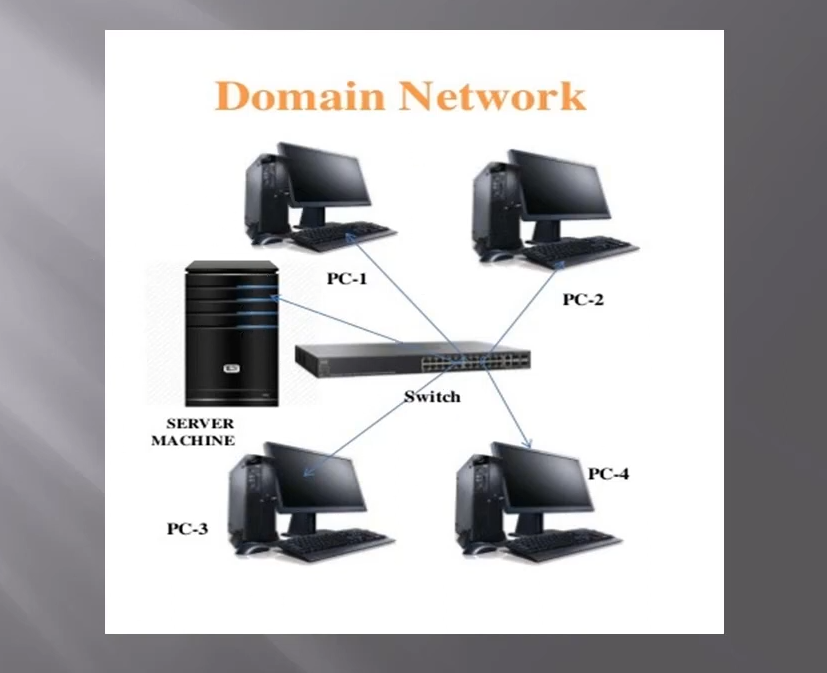
The Domain Model is a special way of setting up computer networks, especially in Windows. It’s like a well-organized group where all users and their computers gather under one domain. This domain is like an invisible fence that brings everyone together and helps control and manage them as a group. It’s a bit different from the simple Workgroup setup.
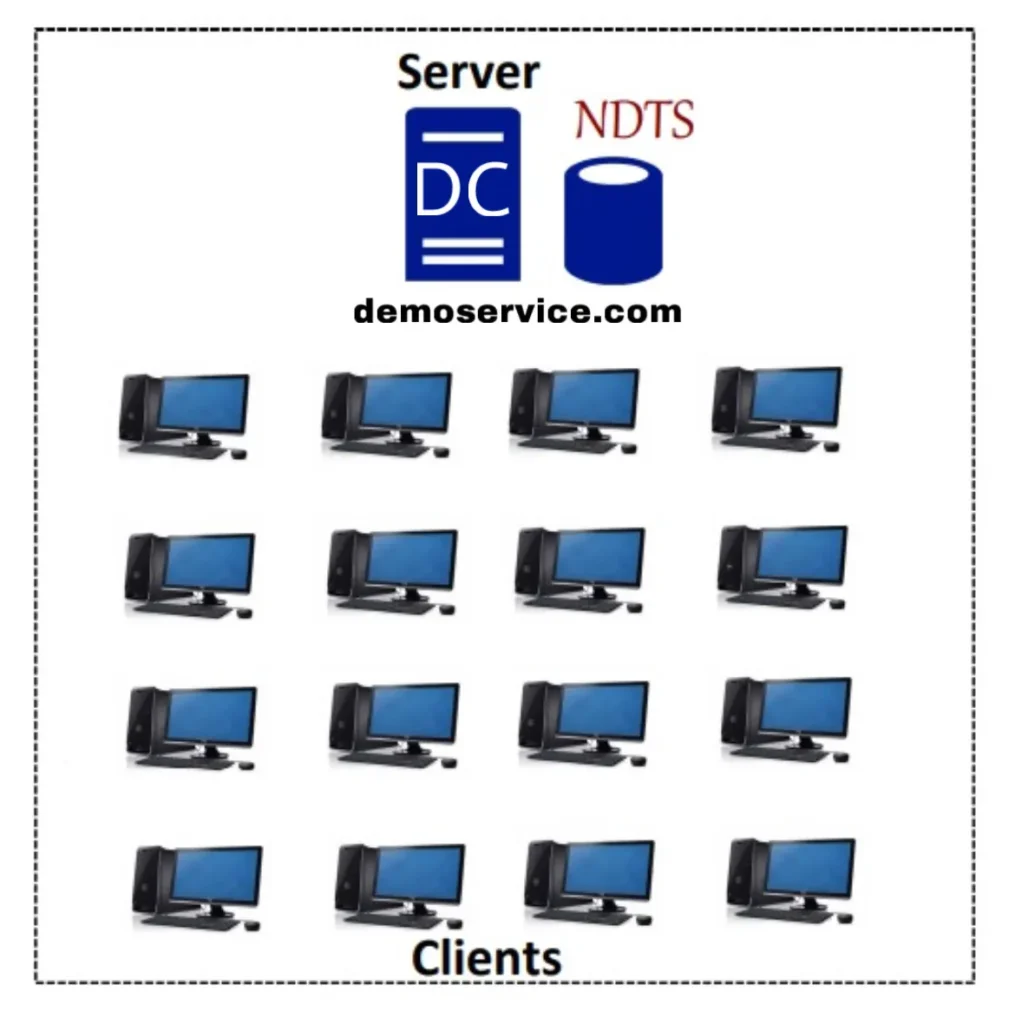
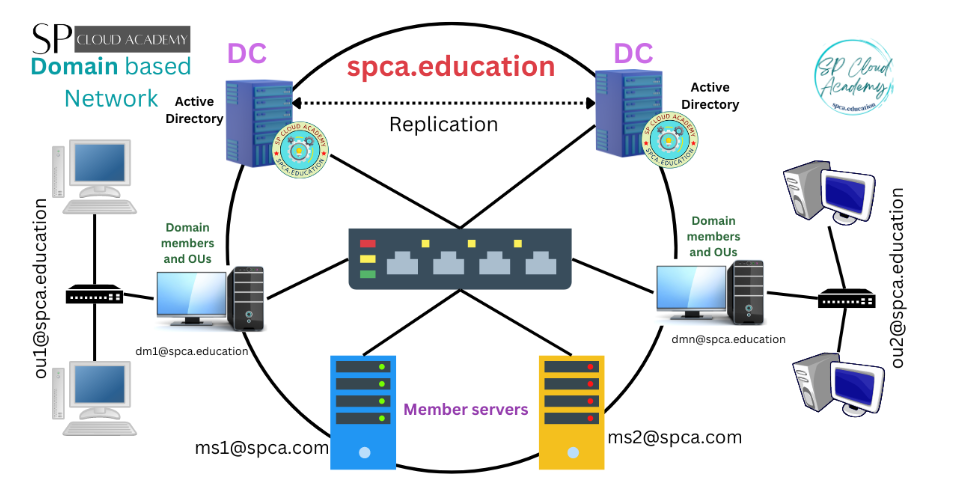
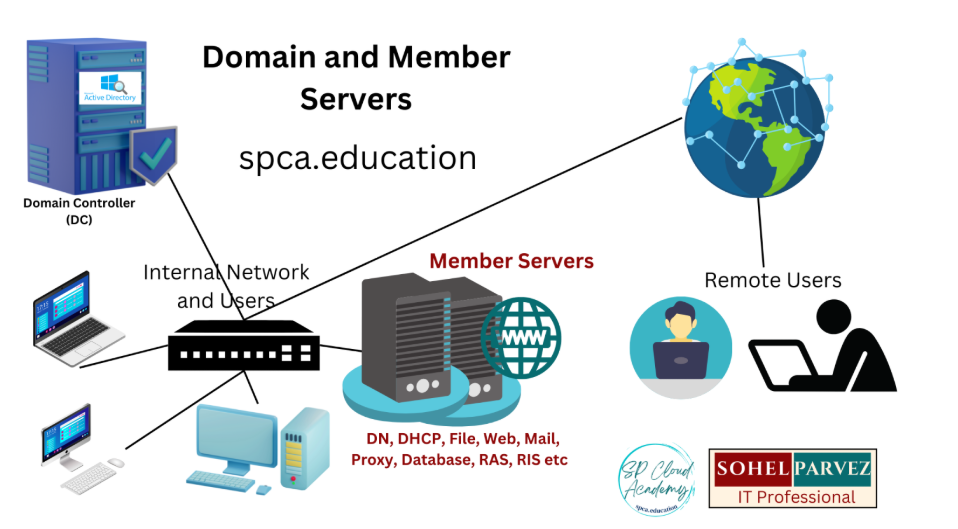
In this model, all users, servers, groups, and computers come together using a common database in an organization. This organized group is called a Domain. The heart of this setup is the Domain Controller (DC), which is a computer equipped with ADDS (Active Directory Domain Services). This Domain Controller operates with the NTDS (New Technology Directory Services) database, which exists to manage all the important details.
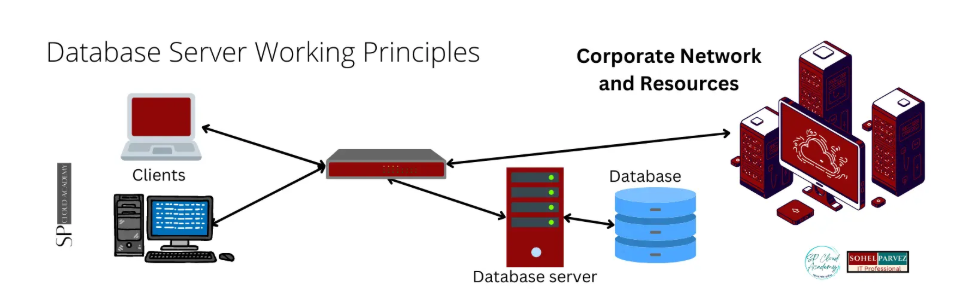
This model works like a client-server model. There’s a main computer (the Domain Controller) that takes care of everything, and the other computers (clients) follow its rules. It’s much neater and organized compared to having just a bunch of computers on their own, like in a Workgroup.
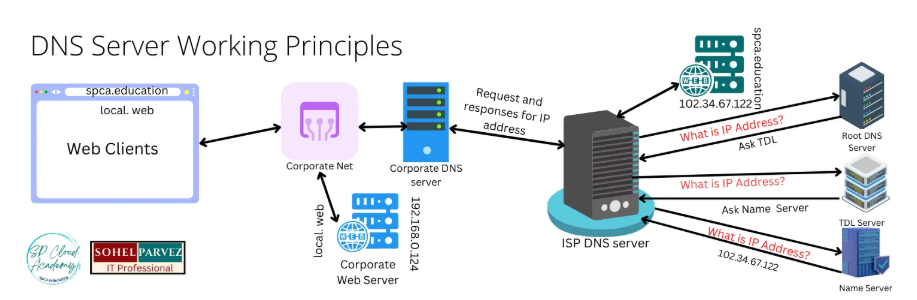
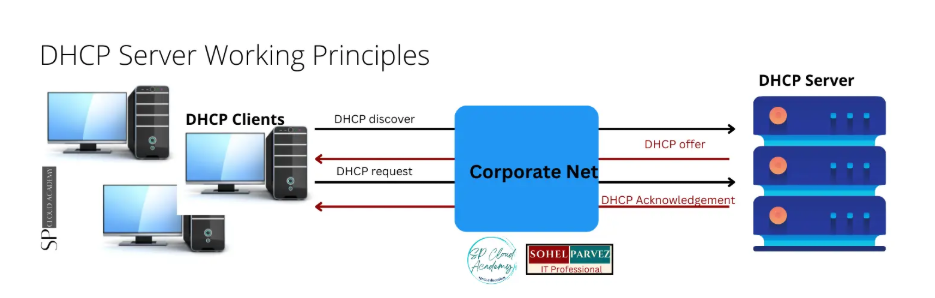
In this Domain Model, tasks like user authentication, authorization, and access control are managed by the Active Directory service.
Active Directory keeps a directory structure where it stores user details, security rules, and more. This makes it easy to manage users and resources all across the domain, making the whole network run smoothly.
NTDS
The NTDS (New Technology Directory Services) database is a critical part of the domain model used in Windows networks. Here’s what you need to know about the NTDS database:
- Centralized Database: In the domain model, all the computers, users, and network resources are managed using a common database. This helps in better organization, security, and control.
- Database of Domain Model: In this setup, the database that holds information about users, computers, groups, and more is the NTDS database.
- New Technology Directory Services (NTDS): This is what NTDS stands for. It’s a modern way of managing directories in Windows networks, involving users, resources, and their relationships.
- Manual Database: Unlike the decentralized Workgroup setup, the NTDS database is managed centrally by administrators. They oversee how user accounts, permissions, and other network-related things are organized.
- Database Path: The NTDS database file is stored at C:\Windows\NTDS\ntds.dit on the server computer. This file holds all the important user information, including usernames and passwords.
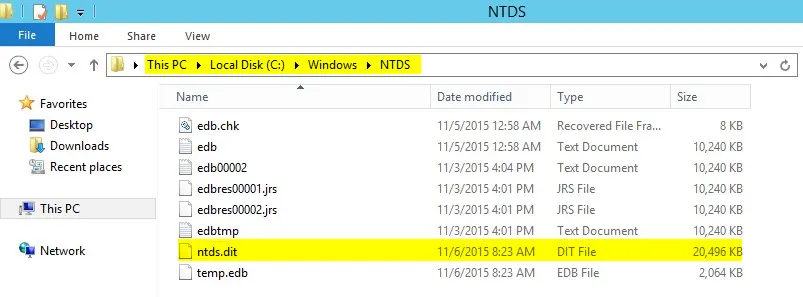
In essence, the NTDS database is a centralized hub in the domain model, storing crucial information about users, resources, and their access rights. It’s a way of making network management smoother and more secure.
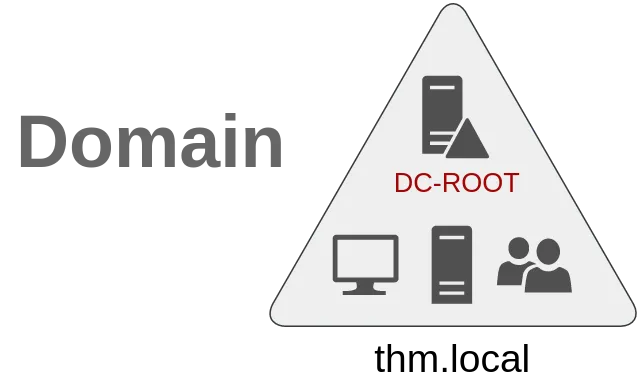
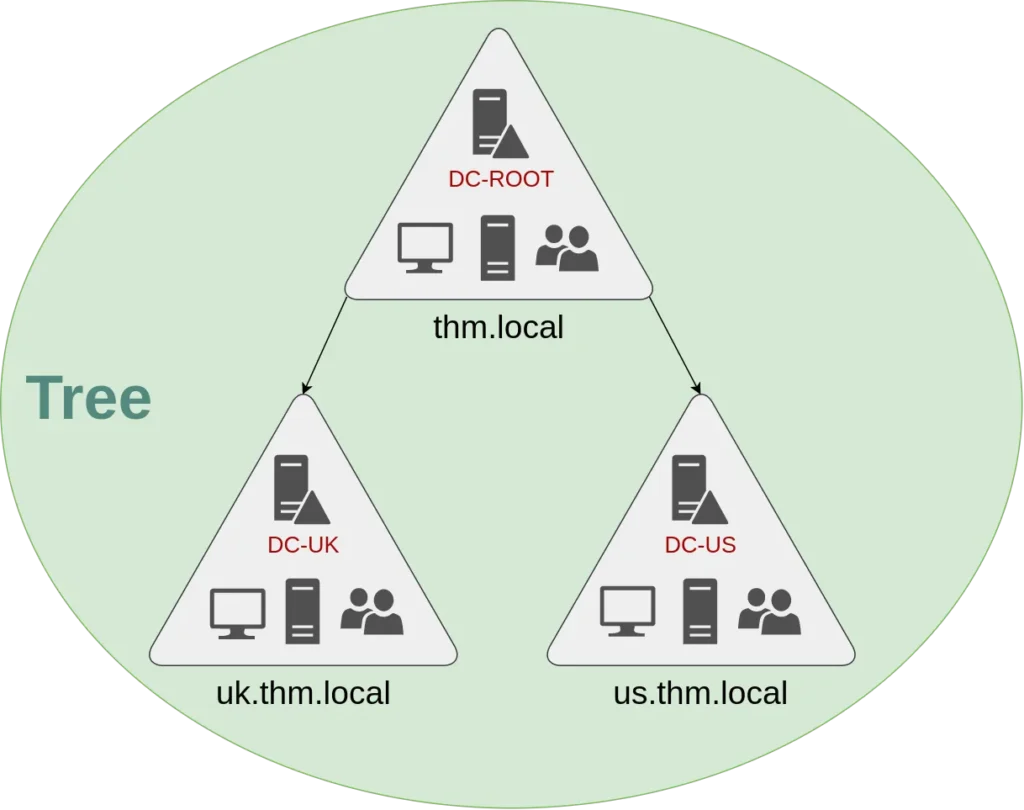
Domain: thm.local (Main Office)
Domain Controller: DC-ROOT
Sub-Domain: uk.thm.local (UK Office)
Domain Controller: DC-UK
Sub-Domain: us.thm.local(US Office)
Domain Controller: DC-US
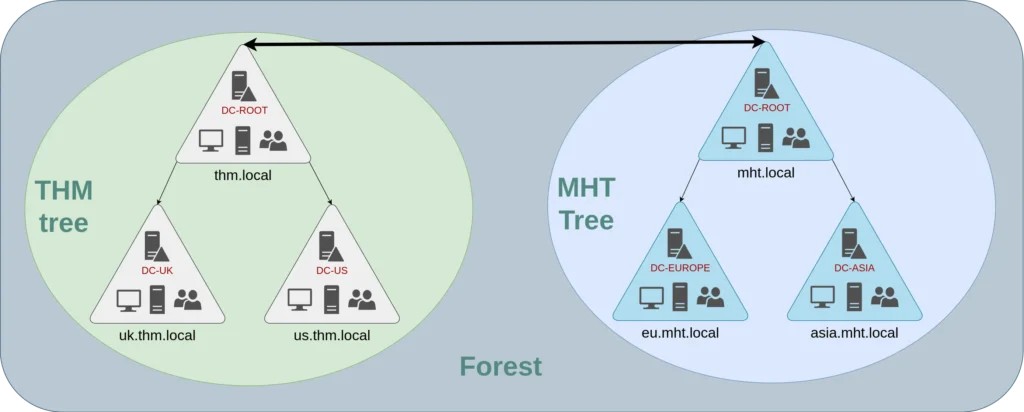
3. Forest: Multiple trees can be grouped into a forest.
THM also acquired another company named “MHT Inc” and integrated it into their network. However, MHT Inc has its own set of domains. The combination of THM and MHT Inc domains forms a “Forest.”
Example:
Domain: thm.local (Main Office)
Domain Controller: DC-ROOT
Sub-Domain: uk.thm.local (UK Office)
Domain Controller: DC-UK
Sub-Domain: us.thm.local(US Office)
Domain Controller: DC-US
Domain: mht.local(Acquired Company)
Domain Controller: DC-ROOT