DNS Server
History Of DNS
The Domain Name System (DNS) is a fundamental technology of the internet that translates human-readable domain names into IP addresses. Its development happened over several stages as the internet grew. Below is the history of DNS explained paragraph-wise.
Early Internet Naming System (1970s)
In the early days of the internet, when the ARPANET network was used by research institutions and universities, computers were identified only by IP addresses. Because it was difficult for people to remember long numeric addresses, a simple naming system was introduced. A single file called HOSTS.TXT stored the mapping between hostnames and IP addresses. This file was maintained by the Stanford Research Institute and distributed to all computers on the network.
Problems with the HOSTS.TXT System
As the internet started growing rapidly in the late 1970s and early 1980s, the HOSTS.TXT system became inefficient. Every time a new computer was added, the file had to be manually updated and redistributed to all machines. This caused problems such as network congestion, outdated records, and administrative difficulties. It became clear that a more scalable and automated system was needed to manage domain names.
Creation of DNS (1983)
In 1983, computer scientist Paul Mockapetris designed the Domain Name System (DNS) to solve the limitations of the HOSTS.TXT system. DNS introduced a distributed and hierarchical naming system, meaning that no single server stored all domain information. Instead, many DNS servers around the world share the responsibility of storing and resolving domain names. The DNS design was officially described in RFC 882 and RFC 883, which defined how the system should work.
Introduction of the Domain Hierarchy
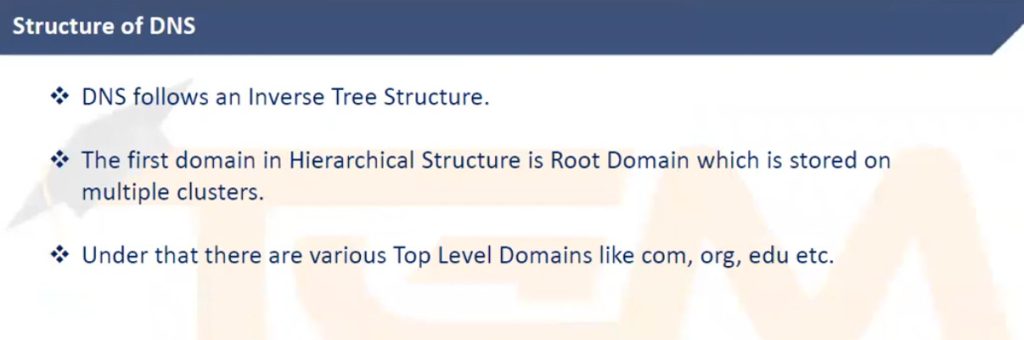
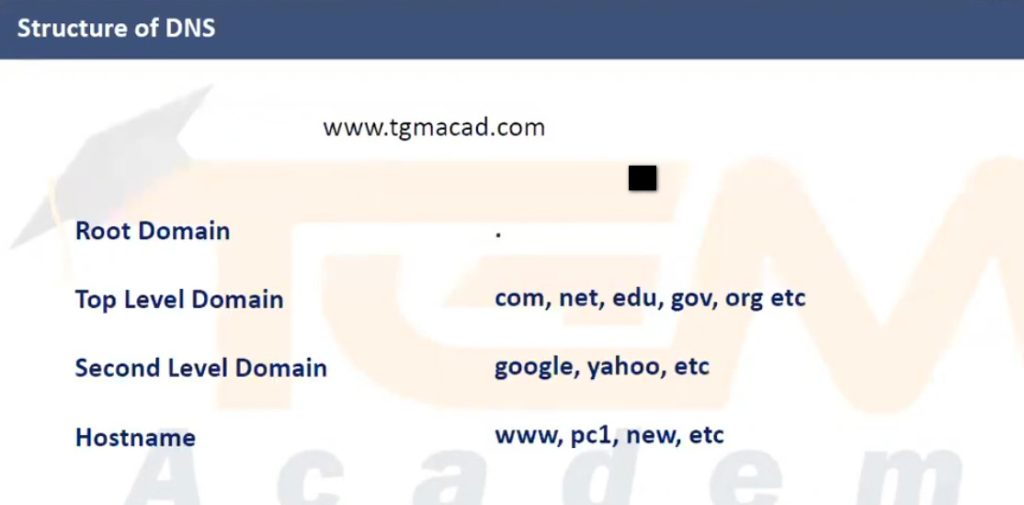
DNS introduced a hierarchical structure of domain names. At the top is the root domain, followed by Top-Level Domains (TLDs) such as .com, .org, .edu, and .net. Below these are second-level domains, such as example.com. This hierarchical design made it easier to organize and manage millions of domain names across the internet.
Expansion of DNS and Internet Growth (1990s)
During the 1990s, as the World Wide Web Consortium promoted the growth of the web and internet usage expanded globally, DNS became a critical infrastructure service. Many organizations began running their own authoritative DNS servers to manage their domain records. New domain extensions and DNS management systems were also introduced to support the rapidly increasing number of websites.
Modern DNS Development
Today, DNS is managed globally with coordination from organizations like the Internet Corporation for Assigned Names and Numbers (ICANN). Modern DNS includes advanced features such as DNS security extensions (DNSSEC), load balancing, caching, and distributed DNS servers across the world. These improvements make DNS faster, more secure, and capable of handling billions of internet requests every day.
What is DNS
What is DNS (Domain Name System)
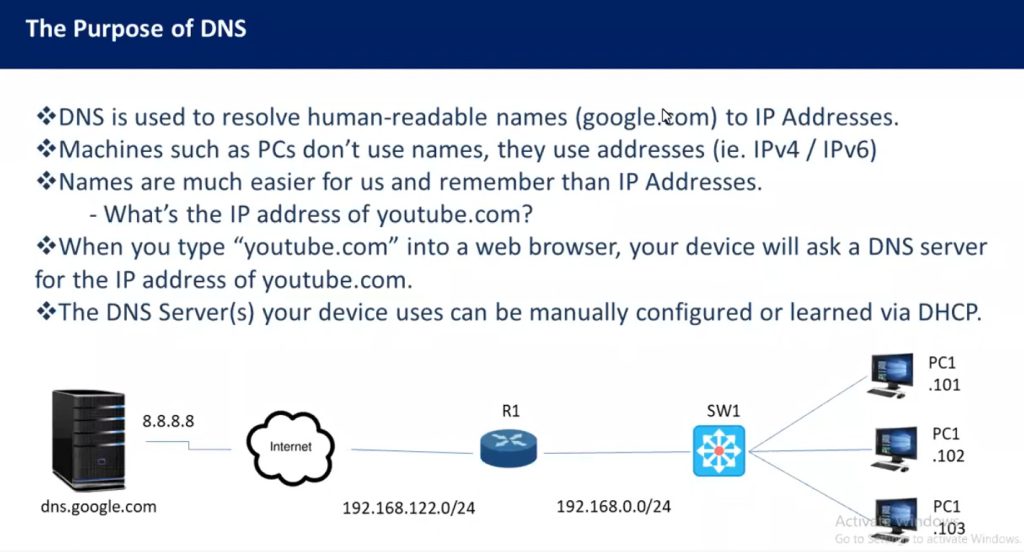
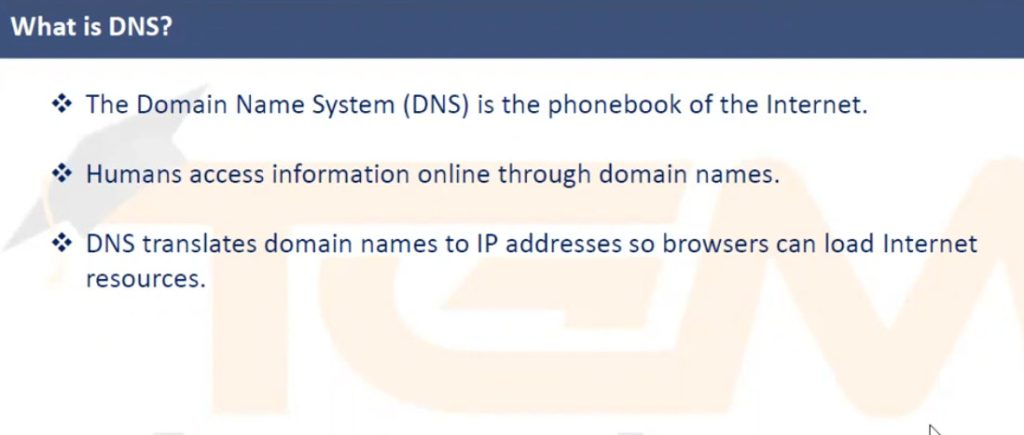
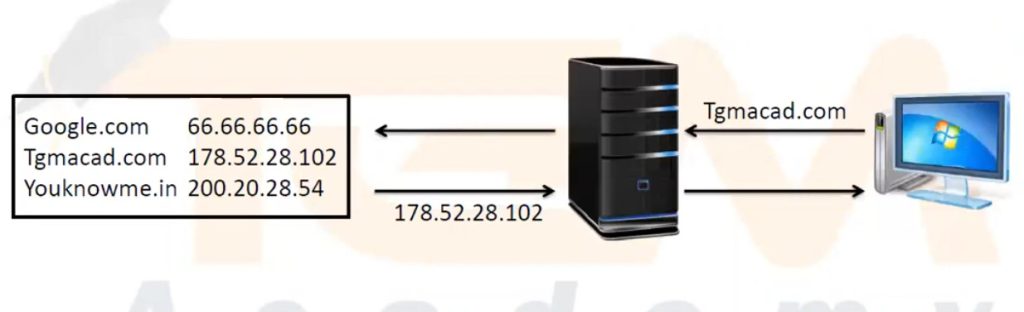
The Domain Name System (DNS) is a system used on the internet to translate domain names into IP addresses. Humans can easily remember domain names like google.com, but computers communicate using IP addresses such as 142.250.182.14. DNS works like an internet phonebook that converts the website name into the correct IP address so the browser can connect to the server.
Purpose of DNS
The main purpose of DNS is to make the internet easier for people to use. Instead of remembering long numeric IP addresses for every website, users can simply type a domain name in their browser. DNS automatically finds the correct IP address of the website and connects the user to the web server.
For example, when a user types www.example.com in a browser, DNS finds the server IP address where that website is hosted and sends the user to that server.
Type of DNS Server
The Domain Name System (DNS) uses different types of servers to resolve domain names into IP addresses. Each server has a specific role in the DNS resolution process. Below are the main types of DNS servers explained paragraph-wise.
1. Recursive DNS Resolver
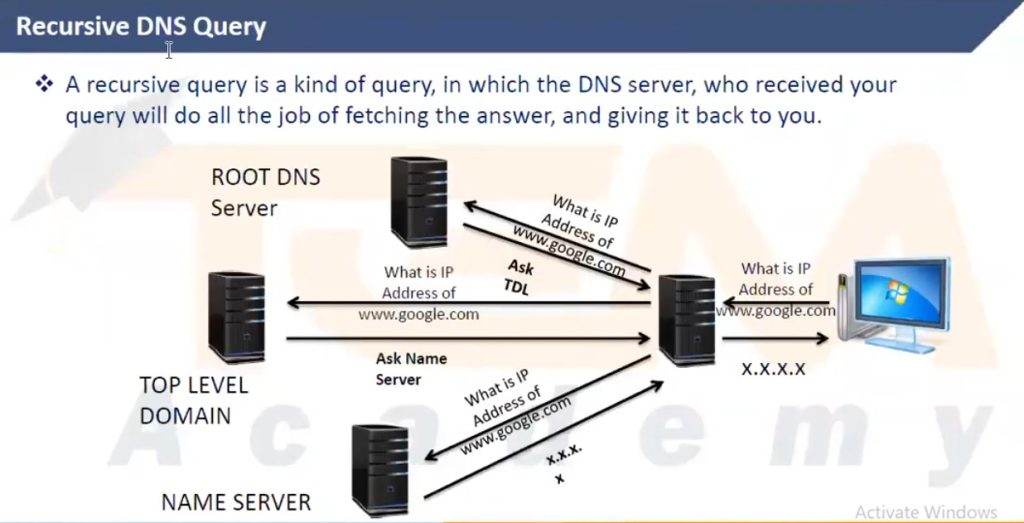
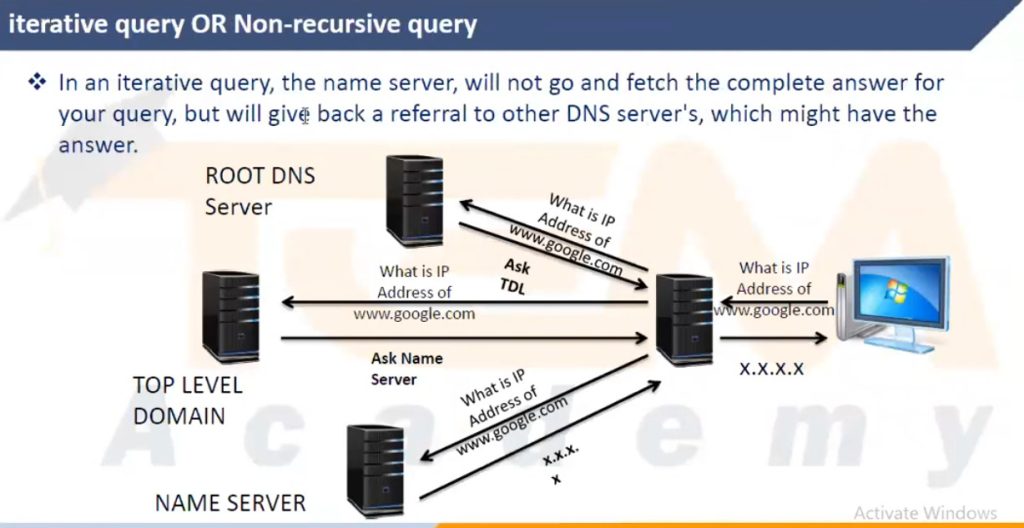
A Recursive DNS Resolver is the first server that receives the DNS query from the user’s computer or browser. Its job is to find the correct IP address for the requested domain name. If the resolver does not already have the answer in its cache, it will query other DNS servers (root, TLD, and authoritative servers) until it finds the correct IP address. Recursive resolvers are usually operated by Internet Service Providers (ISPs) or public DNS services.
2. Root DNS Server
A Root DNS Server is the top-level server in the DNS hierarchy. It does not store the actual IP address of every domain. Instead, it directs DNS queries to the appropriate Top-Level Domain (TLD) server based on the domain extension such as .com, .org, or .net. Root servers play a critical role in guiding DNS queries to the correct part of the DNS system.
3. Top-Level Domain (TLD) Server
A Top-Level Domain server manages domain extensions like .com, .org, .net, .edu, and country domains such as .in. When the DNS resolver queries the TLD server, it responds with the address of the authoritative DNS server responsible for the requested domain. This helps the resolver move one step closer to finding the correct IP address.
4. Authoritative DNS Server
An Authoritative DNS Server contains the official DNS records for a domain name. When the resolver queries this server, it provides the final answer by returning the correct IP address for the domain. Authoritative servers store records such as A records, MX records, CNAME records, and NS records.
5. Caching DNS Server
A Caching DNS Server temporarily stores DNS query results to improve speed and reduce network traffic. When a domain is requested again within the cache time (TTL), the server can quickly return the stored IP address without repeating the full DNS lookup process. This helps make website loading faster and reduces the load on other DNS servers.
Type of DNS Records
In the Domain Name System (DNS), DNS records are database entries that store information about a domain name and tell DNS servers how to handle requests for that domain. Each record type has a specific fu
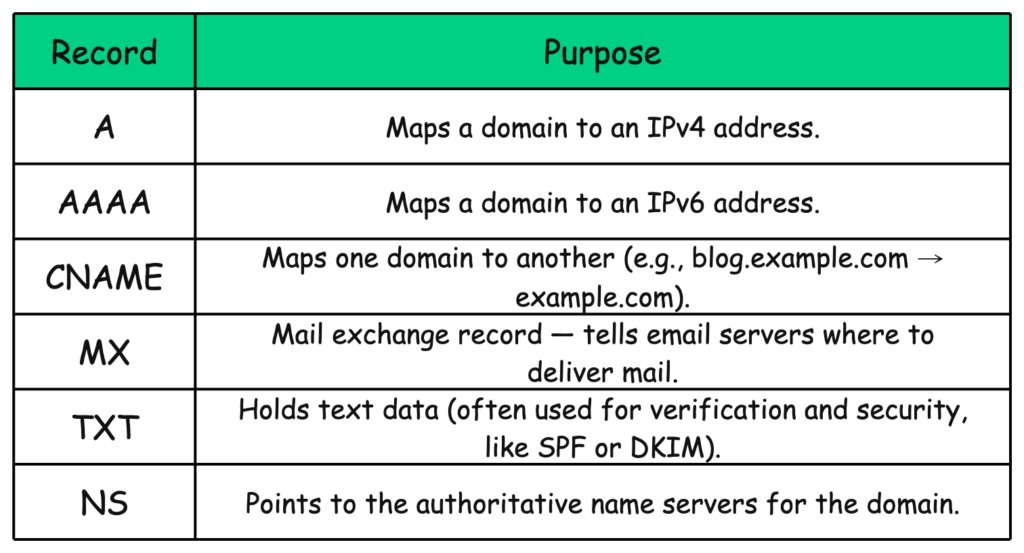
1. A Record (Address Record)
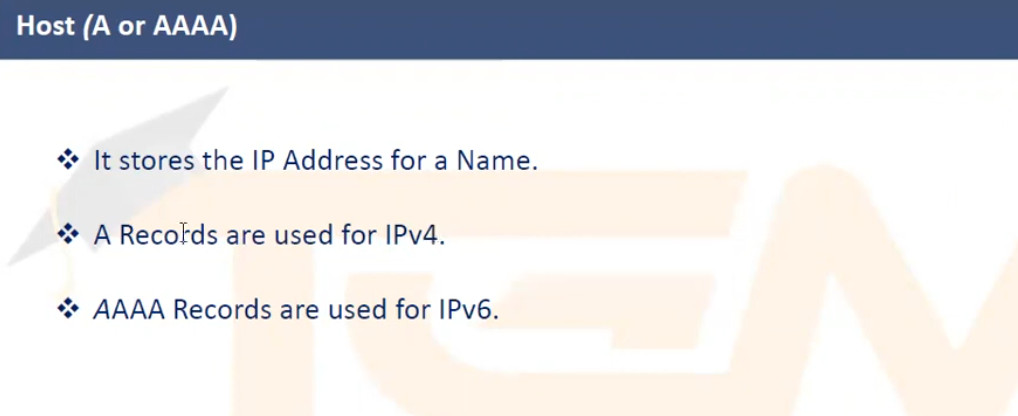
An A record is the most commonly used DNS record. It maps a domain name to an IPv4 address. When a user enters a website name in the browser, the DNS server checks the A record to find the IP address of the web server hosting the website. This record allows browsers to connect to the correct server.
Example:
example.com → 192.168.1.10
This means when a user visits example.com, DNS directs the browser to the server with the IP address 192.168.1.10.
2. AAAA Record (IPv6 Address Record)
An AAAA record works similarly to an A record but maps a domain name to an IPv6 address instead of IPv4. As modern networks adopt IPv6, this record helps devices connect to servers using IPv6 addresses.
Example:
example.com → 2001:db8::1
This record directs traffic to the server using the IPv6 address.
3. CNAME Record (Canonical Name Record)
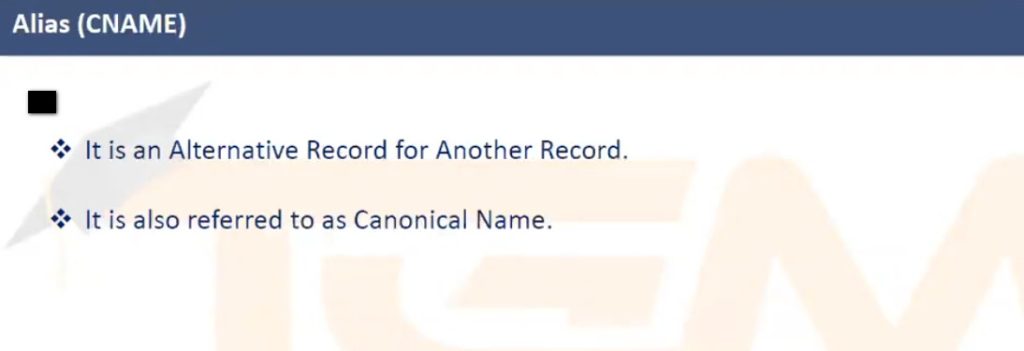
A CNAME record is used to create an alias for another domain name. Instead of pointing directly to an IP address, it points one domain name to another domain name. The DNS system then resolves the final domain to its IP address.
Example:
blog.example.com → example.com
If someone types blog.example.com, DNS redirects the request to example.com.
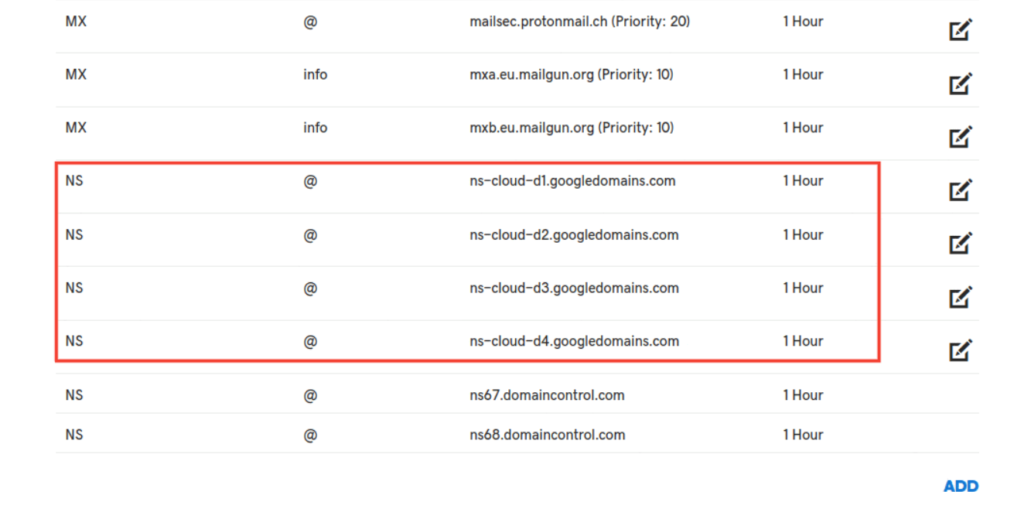
4. MX Record (Mail Exchange Record)
An MX record specifies the mail server responsible for receiving emails for a domain. When someone sends an email to a domain address, the email system checks the MX record to determine where to deliver the message.
Example:
example.com → mail.example.com
Emails sent to user@example.com will be delivered to the mail server mail.example.com.
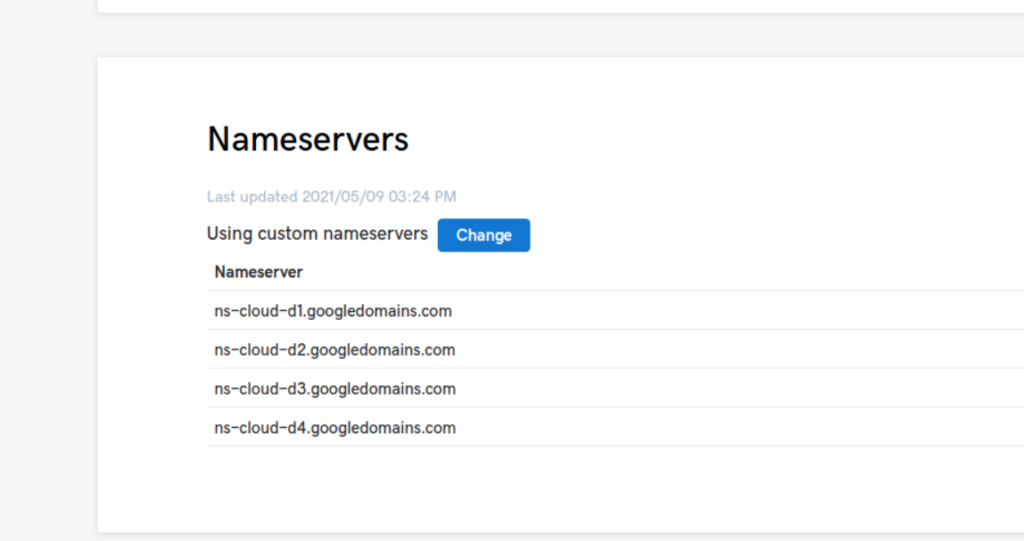
5. NS Record (Name Server Record)
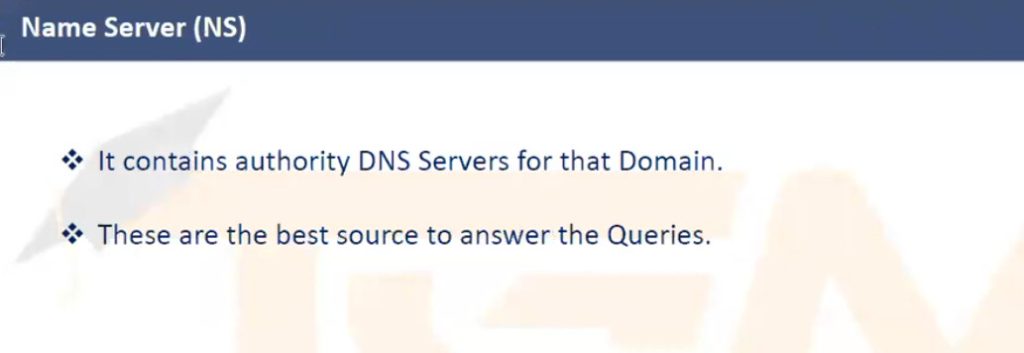
An NS record identifies the authoritative DNS servers responsible for managing the DNS records of a domain. These servers contain the official information about the domain and answer DNS queries.
Example:
example.com → ns1.exampledns.com
example.com → ns2.exampledns.com
These servers manage and store DNS information for the domain.
6. TXT Record (Text Record)
A TXT record is used to store text information in DNS. It is commonly used for domain verification and email security systems such as SPF, DKIM, and DMARC.
Example:
example.com → “v=spf1 include:_spf.google.com ~all”
This record tells email servers which systems are allowed to send email for the domain.
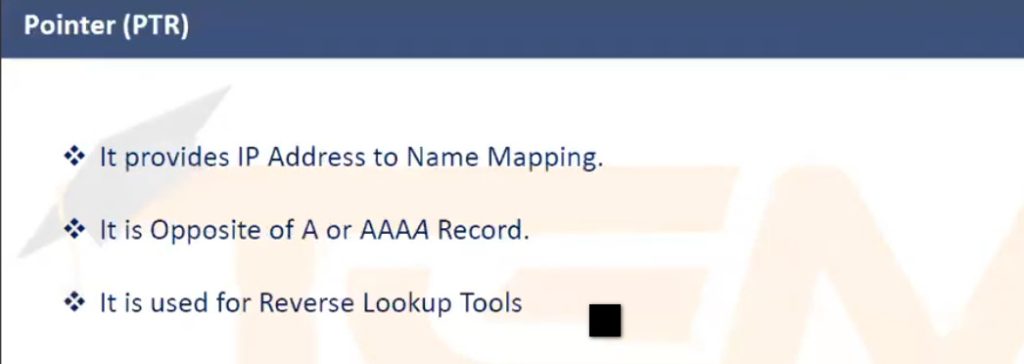
7. PTR Record (Pointer Record)
A PTR record is used for reverse DNS lookup, which means converting an IP address back into a domain name. This record is often used by email servers to verify the identity of the sending server.
Example:
192.168.1.10 → example.com
This means the IP address 192.168.1.10 belongs to the domain example.com.
8. SOA Record (Start of Authority Record)
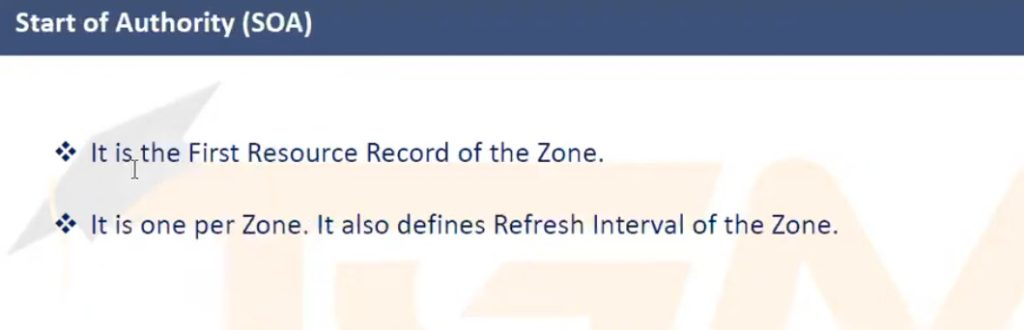
The SOA record contains important administrative information about a DNS zone. It includes the primary DNS server, the email address of the domain administrator, and timing settings for DNS updates and synchronization.
Example:
Primary DNS Server: ns1.exampledns.com
Administrator Email: admin@example.com
This record helps manage how DNS information is updated across servers.
Summary:
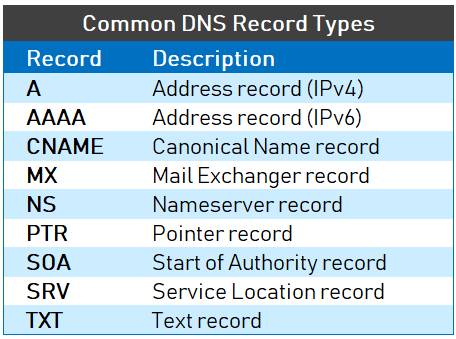
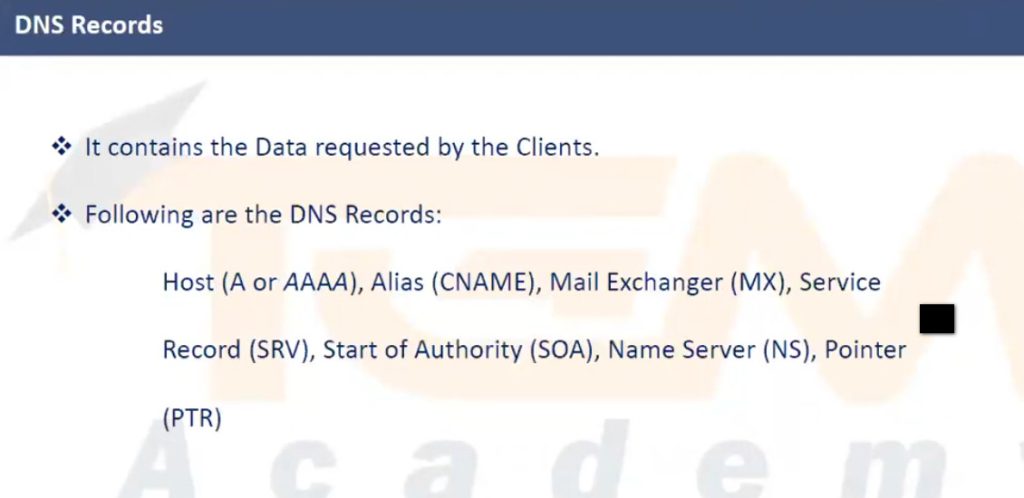
DNS records are essential components of DNS that store information about domains and services. Important record types include A, AAAA, CNAME, MX, NS, TXT, PTR, and SOA, each performing a specific function in domain name resolution and internet communication.
Email Services DNS Records
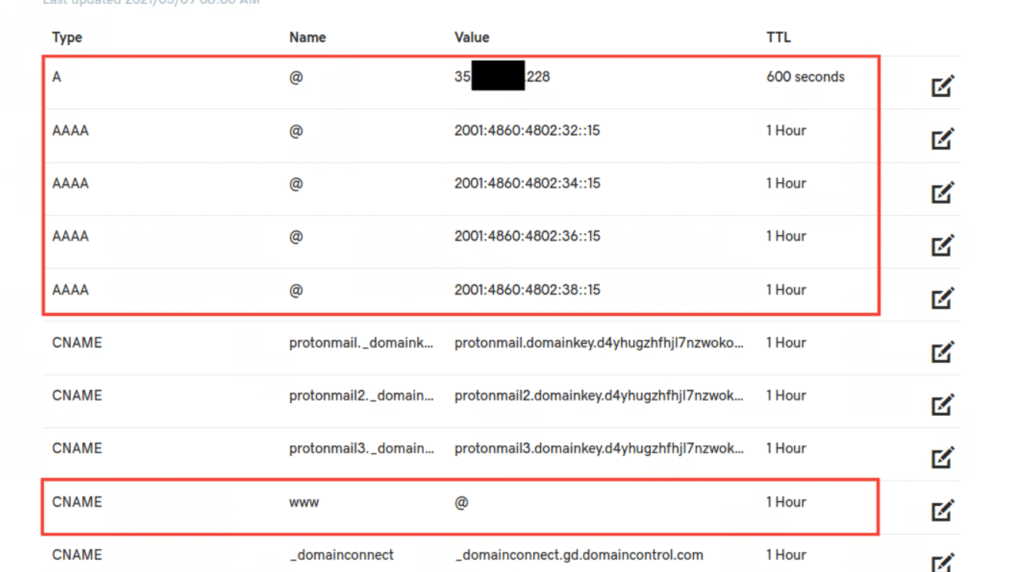
1. MX Record (Mail Exchange Record)
The MX record is the most important DNS record for email service. It tells the Internet which mail server receives emails for a domain. When someone sends an email to a domain, the sending mail server checks the MX record to know where to deliver the message. The MX record also includes a priority number, where a lower number means higher priority.
Example:
example.com MX 10 mail.example.com
This means emails for example.com will be delivered to mail.example.com.
2. A Record (Address Record)
The A record maps a hostname to an IPv4 address. In email systems, the mail server hostname defined in the MX record must point to an IP address using an A record. Without this record, the mail server cannot be reached.
Example:
mail.example.com A 192.168.1.10
3. AAAA Record
The AAAA record is similar to the A record but maps a hostname to an IPv6 address. If a mail server supports IPv6, this record allows email delivery through IPv6 networks.
Example:
mail.example.com AAAA 2001:db8::1
4. SPF Record (Sender Policy Framework)
The SPF record is used to prevent email spoofing. It specifies which mail servers are allowed to send emails on behalf of a domain. Receiving mail servers check the SPF record to verify whether the sender is authorized.
Example:
example.com TXT "v=spf1 ip4:192.168.1.10 -all"
5. DKIM Record (DomainKeys Identified Mail)
The DKIM record adds a digital signature to outgoing emails. This allows the receiving mail server to verify that the email message has not been modified and that it truly came from the domain. The public key for verification is stored in DNS as a TXT record.
Example:
selector1._domainkey.example.com TXT "v=DKIM1; k=rsa; p=publickey"
6. DMARC Record
The DMARC record works with SPF and DKIM to improve email security. It tells receiving mail servers what to do if SPF or DKIM verification fails. It can also send reports to the domain owner about authentication results.
Example:
_dmarc.example.com TXT "v=DMARC1; p=quarantine"
7. PTR Record (Reverse DNS)
The PTR record maps an IP address back to a domain name. Many email servers check reverse DNS to confirm that the sending mail server is legitimate. If the PTR record is missing or incorrect, emails may be marked as spam or rejected.
Example:
192.168.1.10 → mail.example.com
8. CNAME Record (Optional)
The CNAME record creates an alias for another domain name. In email systems it is sometimes used for services like SMTP, IMAP, or webmail.
Example:
smtp.example.com CNAME mail.example.com
Summary:
To run a complete email service, the main DNS records required are:
- MX – Defines mail server
- A / AAAA – Maps mail server to IP address
- SPF (TXT) – Prevents spoofing
- DKIM (TXT) – Email signature verification
- DMARC (TXT) – Email security policy
- PTR – Reverse DNS verification
- CNAME – Mail service alias (optional)
World Wide DNS Root Servers
1. What are DNS Root Servers
DNS Root Servers are the top-level servers in the Domain Name System (DNS) hierarchy. They are responsible for directing DNS queries to the correct Top-Level Domain (TLD) servers such as .com, .org, .net, .edu, and country domains. When a user types a website name like Facebook.com, the DNS process begins by contacting a root server to find where the .com DNS servers are located.
2. Number of Root Servers in the World
There are 13 logical DNS Root Servers in the world. These servers are identified by letters from A to M (A.root-servers.net to M.root-servers.net). Although the system has only 13 root server identities, they are copied and distributed in many locations worldwide using Anycast technology to improve speed, reliability, and security.
Logical Root Servers
There are 13 main root DNS servers:
- A.root-servers.net
- B.root-servers.net
- C.root-servers.net
- D.root-servers.net
- E.root-servers.net
- F.root-servers.net
- G.root-servers.net
- H.root-servers.net
- I.root-servers.net
- J.root-servers.net
- K.root-servers.net
- L.root-servers.net
- M.root-servers.net
These are managed by 12 different organizations worldwide.
Physical Root Server Instances
Although there are 13 logical root servers, they are replicated many times around the world using Anycast technology.
- 1700+ physical root server instances
- Located in many countries and data centers worldwide
There are 13 logical DNS root servers (A–M) that form the top of the global DNS hierarchy. Each root server is operated by a different organization and originally located in specific cities.
1. A Root Server (A.root-servers.net)
The A root server is operated by Verisign and its primary location is Dulles. It is one of the most important root servers and helps direct DNS queries to the correct top-level domain servers.
2. B Root Server (B.root-servers.net)
The B root server is managed by the University of Southern California Information Sciences Institute and is located in Los Angeles.
3. C Root Server (C.root-servers.net)
The C root server is operated by Cogent Communications and its main location is Herndon.
4. D Root Server (D.root-servers.net)
The D root server is operated by the University of Maryland and is located in College Park.
5. E Root Server (E.root-servers.net)
The E root server is operated by NASA Ames Research Center and is located in Mountain View.
6. F Root Server (F.root-servers.net)
The F root server is managed by the Internet Systems Consortium and its primary location is Palo Alto.
7. G Root Server (G.root-servers.net)
The G root server is operated by the U.S. Department of Defense Network Information Center and located in Columbus.
8. H Root Server (H.root-servers.net)
The H root server is operated by the U.S. Army Research Lab and located in Aberdeen.
9. I Root Server (I.root-servers.net)
The I root server is managed by Netnod and its main location is Stockholm.
10. J Root Server (J.root-servers.net)
The J root server is operated by Verisign and located in Dulles.
11. K Root Server (K.root-servers.net)
The K root server is managed by RIPE NCC and its main location is Amsterdam.
12. L Root Server (L.root-servers.net)
The L root server is operated by ICANN and located in Los Angeles.
13. M Root Server (M.root-servers.net)
The M root server is managed by the WIDE Project and its main location is Tokyo.
DNS Management Organizations
1. Internet Corporation for Assigned Names and Numbers (ICANN)
ICANN is the main global organization responsible for managing the Domain Name System (DNS) on the Internet. It coordinates domain names, IP address allocation, and root server management. ICANN ensures that every domain name in the world is unique and that the DNS system works smoothly and securely across the global Internet.
2. Internet Assigned Numbers Authority (IANA)
IANA operates under ICANN and manages the DNS Root Zone database. It is responsible for assigning IP address blocks, protocol numbers, and managing the root zone of DNS. When new top-level domains like .com, .org, or country domains are created, IANA updates the root zone information.
3. Verisign
Verisign plays a major role in DNS infrastructure. It operates the A-root DNS server and manages important Top-Level Domains (TLDs) like .com and .net. Verisign also maintains the root zone file under the supervision of ICANN.
4. Internet Systems Consortium (ISC)
ISC operates the F-root DNS server and develops DNS software such as BIND (Berkeley Internet Name Domain), which is widely used for DNS servers worldwide.
5. RIPE NCC
RIPE NCC (Réseaux IP Européens Network Coordination Centre) manages the K-root DNS server and coordinates Internet number resources in Europe, the Middle East, and parts of Central Asia.
6. NASA Ames Research Center
NASA operates the E-root DNS server. It supports the stability and availability of the DNS infrastructure and contributes to maintaining the global root server system.
7. University of Southern California Information Sciences Institute
This research institute operates the B-root DNS server. It has been involved in the development of Internet technologies and DNS infrastructure since the early days of the Internet.
INDIA DNS Root Servers
India has many DNS servers, including Root DNS server instances, ISP DNS servers, and public DNS servers. Below is a paragraph-wise explanation with locations.
1. DNS Root Server Instances in India
Although the world has 13 root servers (A–M), many instances are deployed in India using Anycast.
Major Root Server Locations in India
- Delhi / NCR – J, K, F root server instances
- Mumbai – D, E, F, I, J, K, L root servers
- Chennai – E and F root servers
- Bangalore – F and J root servers
- Hyderabad – E and F root servers
- Nagpur – E and F root servers
- Kolkata – F root server instance
These servers are operated by organizations like ICANN, Verisign, and RIPE NCC to improve DNS speed and reliability in India.
2. ISP DNS Servers in India
Internet Service Providers run DNS servers for their customers.
Examples
- Bharti Airtel DNS – Delhi
- Reliance Jio DNS – Mumbai / Kolar
- Vodafone Idea DNS – Ahmedabad / Bhubaneswar
- Tata Teleservices DNS – Mumbai
- Meghbela Broadband DNS – Kolkata
These DNS servers resolve domain names for users connected to those ISPs.
3. Public DNS Servers in India
Some organizations also provide public DNS servers accessible to anyone.
Examples with Locations
| DNS IP | Location |
|---|---|
| 103.123.226.10 | Mumbai |
| 203.201.60.12 | Bengaluru |
| 203.147.91.2 | Kolkata |
| 169.38.73.5 | Chennai |
| 61.95.143.59 | Delhi |
These servers are often run by hosting companies, ISPs, or government networks.
4. Government DNS Infrastructure in India
India also operates DNS infrastructure through
- National Internet Exchange of India (NIXI)
- Centre for Development of Advanced Computing (C-DAC)
These organizations help maintain DNS for .in domains and national internet infrastructure.
Short Summary
India DNS infrastructure includes:
- Root DNS servers: Delhi, Mumbai, Chennai, Bangalore, Hyderabad, Nagpur, Kolkata
- ISP DNS servers: Airtel, Jio, Vodafone, Tata, etc.
- Public DNS servers: Multiple IPs across Mumbai, Delhi, Bengaluru, Chennai, etc.
Public DNS Servers in the World
1. Google Public DNS
Description: One of the most popular DNS services, known for high speed and reliability.
- Primary DNS: 8.8.8.8
- Secondary DNS: 8.8.4.4
- Main Locations: Data centers worldwide including Mountain View, Singapore, Frankfurt, Mumbai
2. Cloudflare DNS
Description: One of the fastest DNS services focused on privacy.
- Primary DNS: 1.1.1.1
- Secondary DNS: 1.0.0.1
- Main Locations: Global network including San Francisco, London, Tokyo, Delhi
3. Cisco OpenDNS
Description: DNS service with security filtering and phishing protection.
- Primary DNS: 208.67.222.222
- Secondary DNS: 208.67.220.220
- Main Locations: San Jose with servers worldwide
4. Quad9 Foundation DNS
Description: Security-focused DNS that blocks malicious domains.
- Primary DNS: 9.9.9.9
- Secondary DNS: 149.112.112.112
- Main Locations: Zurich with global Anycast nodes
5. Verisign Public DNS
Description: Stable DNS service operated by the company that manages .com and .net domains.
- Primary DNS: 64.6.64.6
- Secondary DNS: 64.6.65.6
- Main Locations: Reston and global servers
Summary Table
| Provider | Primary DNS | Secondary DNS | Main Location |
|---|---|---|---|
| Google DNS | 8.8.8.8 | 8.8.4.4 | USA |
| Cloudflare DNS | 1.1.1.1 | 1.0.0.1 | USA |
| OpenDNS (Cisco) | 208.67.222.222 | 208.67.220.220 | USA |
| Quad9 | 9.9.9.9 | 149.112.112.112 | Switzerland |
| Verisign DNS | 64.6.64.6 | 64.6.65.6 | USA |
How DNS Works And Open Facebook Website
Why Do We Need DNS?
On the internet, computers communicate using IP addresses such as 104.198.32.55. You can think of them as phone numbers for servers.
Humans, however, are much better at remembering names like google.com. We can’t expect users (or even systems) to memorize a string of random numbers for every service they connect to.
This is where the Domain Name System (DNS) helps. It acts as a translator between human-readable domain names and machine-friendly IP addresses.
The Domain Name System (DNS) is a system that converts domain names into IP addresses. When users want to visit a website such as Facebook, they type the domain name facebook.com in the browser. However, computers communicate using IP addresses, so DNS is used to find the correct server IP address for that domain.
1. User Types Facebook in the Browser
The DNS process starts when a user types facebook.com in the web browser. The browser sends a request to the computer’s operating system asking for the IP address of the Facebook website so it can connect to the server.
2. Checking Local DNS Cache
The computer first checks its local DNS cache to see if it already has the IP address for facebook.com stored from a previous visit. If the IP address is found in the cache, the system immediately uses that IP address and connects to the Facebook server without sending further DNS requests.
3. Request Sent to DNS Resolver
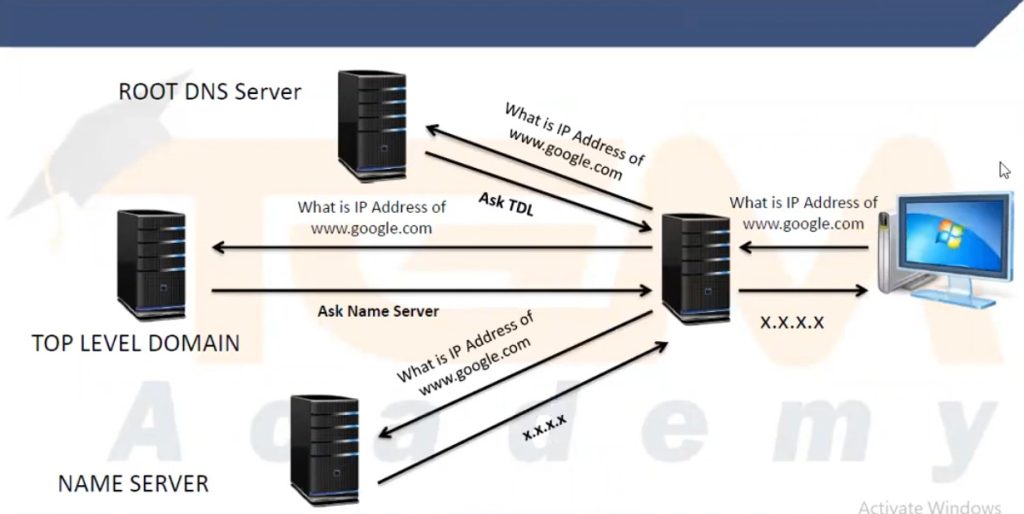
If the IP address is not found in the local cache, the computer sends a DNS query to a recursive DNS resolver, usually provided by the Internet Service Provider (ISP). The resolver is responsible for searching the DNS system and finding the correct IP address of facebook.com.
4. Query to the Root DNS Server
The recursive resolver then contacts a Root DNS Server, which is the highest level in the DNS hierarchy. The root server does not know the exact IP address of facebook.com, but it knows which Top-Level Domain (TLD) server manages domains ending with .com. The root server responds by directing the resolver to the .com TLD server.
5. Query to the TLD Server
Next, the resolver sends a request to the .com TLD server. This server manages all domain names that end with .com. The TLD server does not store the Facebook IP address, but it knows the authoritative DNS server responsible for the facebook.com domain. It sends that information back to the resolver.
6. Query to the Authoritative DNS Server
The resolver then contacts the authoritative DNS server for facebook.com. This server stores the official DNS records for the domain. It looks up the A record for facebook.com and returns the correct IP address of the Facebook web server.
7. Returning the IP Address to the User
The recursive resolver receives the IP address from the authoritative server and sends it back to the user’s computer. It also stores the result in its cache so that if another user requests facebook.com soon, the resolver can respond faster.
8. Browser Connects to the Facebook Server
Finally, the browser receives the IP address of the Facebook server and sends an HTTP or HTTPS request to that IP address. The Facebook web server responds by sending the webpage data back to the browser, and the Facebook homepage appears on the user’s screen.
Summary (Facebook Example)
- User types facebook.com in the browser.
- Computer checks the local DNS cache.
- Query goes to the ISP DNS resolver.
- Resolver contacts the Root DNS server.
- Root server points to the .com TLD server.
- TLD server provides the authoritative DNS server for facebook.com.
- Authoritative server returns the Facebook IP address.
- Browser connects to the Facebook web server and loads the website.
Why Do We Need DNS?
On the internet, computers communicate using IP addresses such as 104.198.32.55. You can think of them as phone numbers for servers.
Humans, however, are much better at remembering names like google.com. We can’t expect users (or even systems) to memorize a string of random numbers for every service they connect to.
This is where the Domain Name System (DNS) helps. It acts as a translator between human-readable domain names and machine-friendly IP addresses.
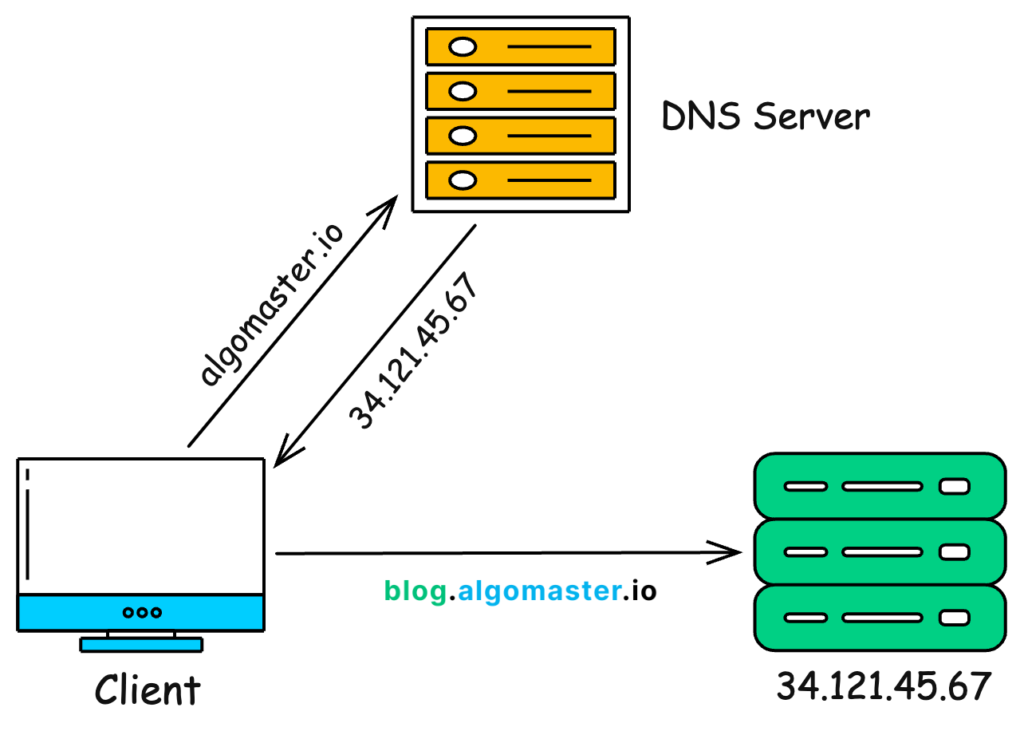
- You type a URL (
algomaster.io) - DNS maps it to the correct IP (
34.121.45.67) - Your browser connects to that IP
- You see the website
Without DNS, we would all be forced to type raw IP addresses such as 34.121.45.67 into our browsers. That would make using the internet far less convenient.
- The Journey of a DNS Query
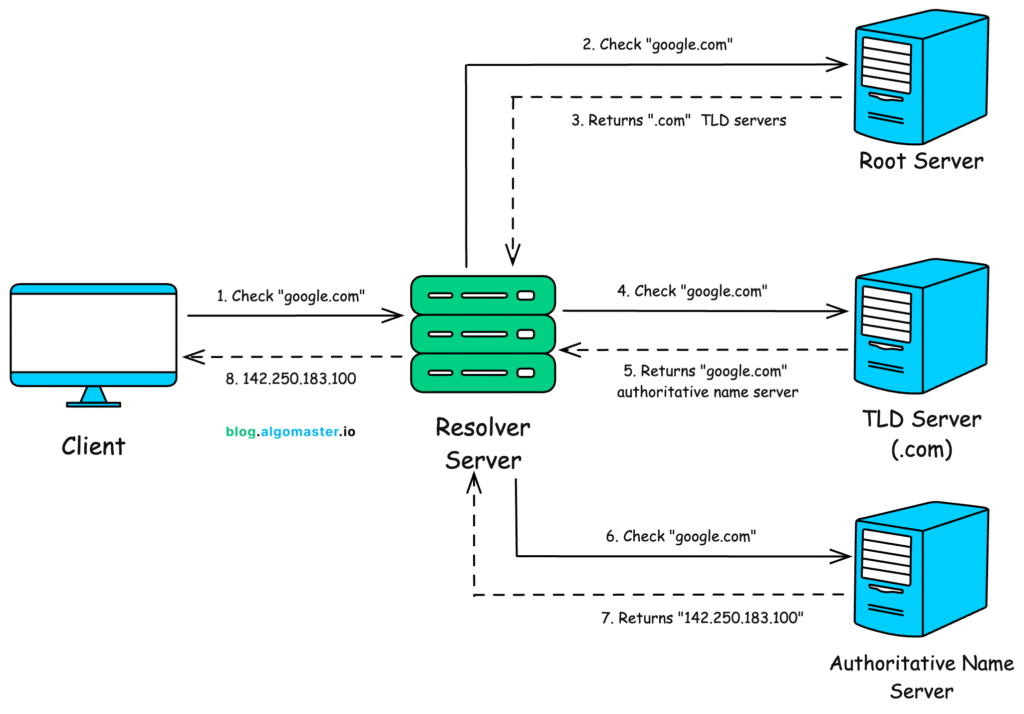
When you enter a domain name (e.g., google.com) in your browser, here’s the step-by-step journey of how that name gets resolved into an IP address:
- The Browser Cache
The browser’s first checks is its own cache. It checks whether it has recently resolved the domain you’re trying to visit.
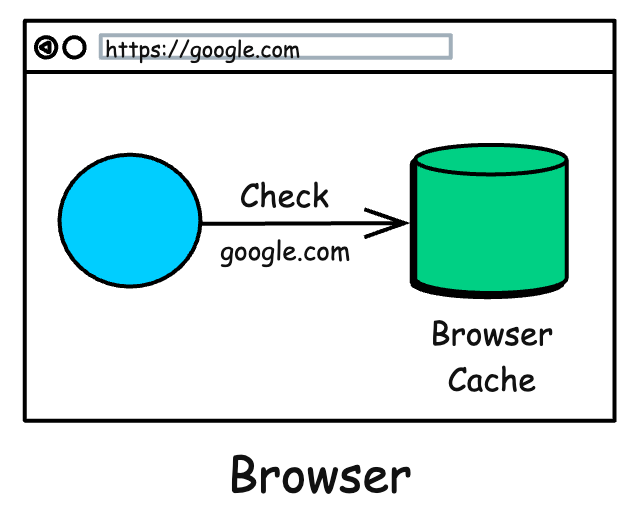
If so, it uses the cached IP directly. This is the fastest path beca
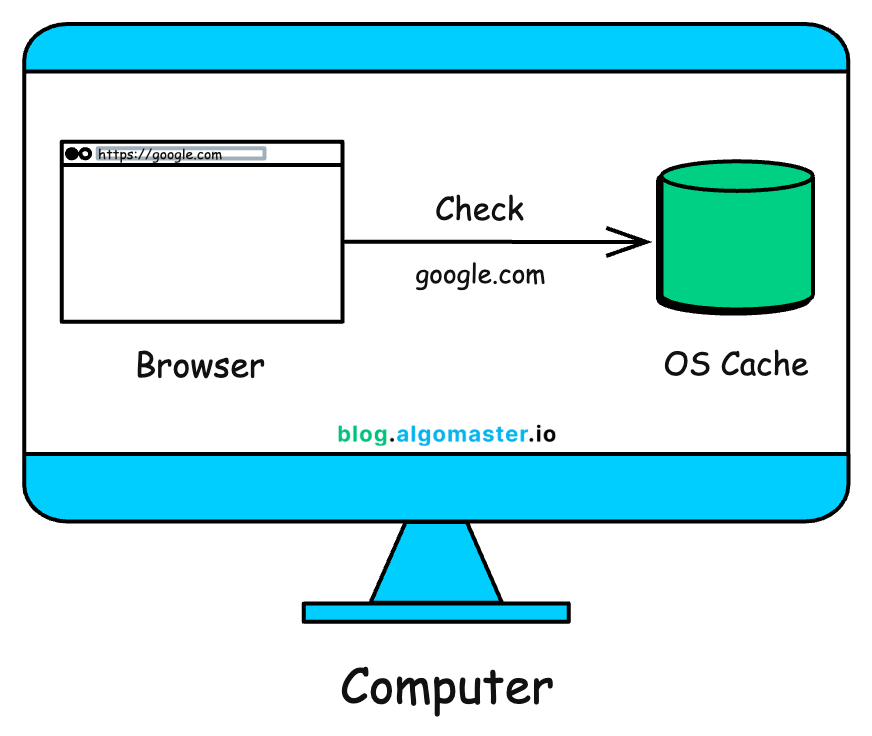
- The Operating System Cache
If the browser doesn’t know, it turns to your computer’s operating system.
use no extra work needed.
- The Recursive Resolver
If the OS doesn’t have the answer, your computer sends the query to a special server called a Recursive Resolver.
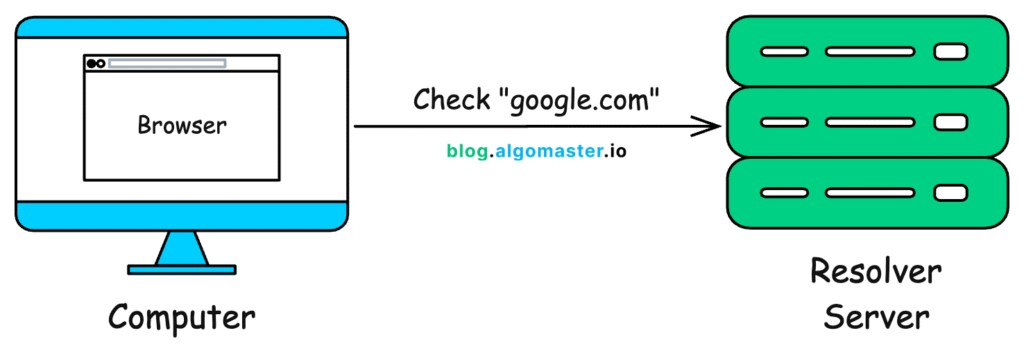
This resolver is usually operated by your Internet Service Provider (ISP) or a public DNS service like:
- Google DNS: 8.8.8.8
- Cloudflare DNS: 1.1.1.1
- OpenDNS: 208.67.222.222
The recursive resolver’s job is to do all the hard work of hunting down the correct IP address for you. It won’t give up until it finds the answer or confirms the domain does not exist.
- The Root Servers
If the resolver doesn’t already have the answer in its cache, it starts its search at the very top of the internet’s hierarchy: the Root Servers.
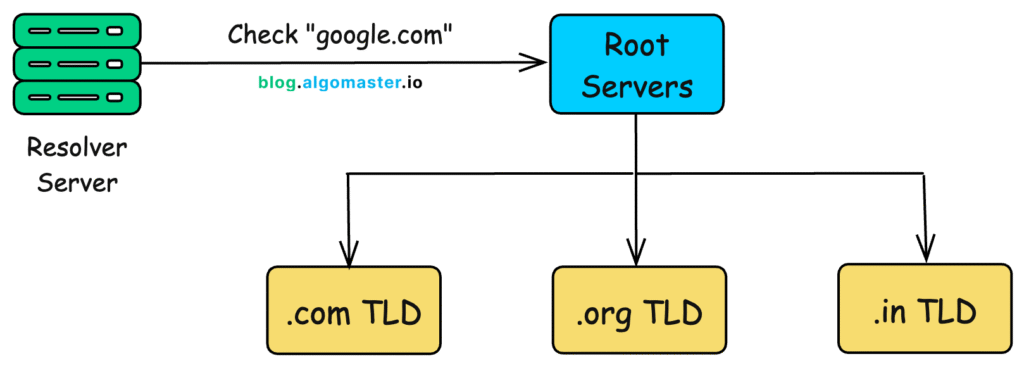
There are only 13 sets of these root servers globally (though they are replicated in hundreds of locations for reliability).
- Root servers don’t know the final IP, but they know where to look next.
- They looks at the last part of the domain (.com in google.com) and direct the resolver to the appropriate Top-Level Domain (TLD) server.
- The TLD Servers
The resolver now talks to the TLD servers. The TLD server manages all domains ending in a specific extension, like .com, .org, .gov, .in, etc.
So, the resolver asks the .com TLD server, “Hey, where can I find information about google.com?”
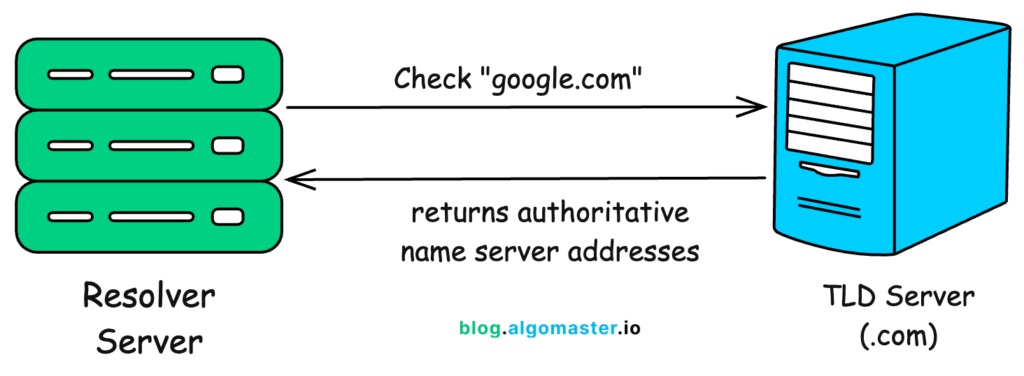
The TLD server doesn’t have the final IP address either. However, it knows which server is the official record-keeper for the google.com domain. It points the resolver to that domain’s Authoritative Name Server.
- The Authoritative Name Server
Finally, the resolver contacts the authoritative name server. This server is the ultimate source of truth for a specific domain. It holds the official DNS records for google.com and knows the exact IP adress.
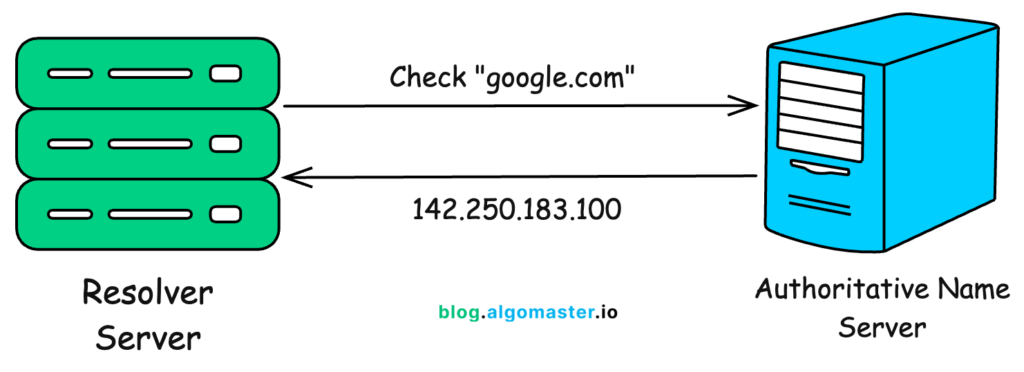
- Authoritative server responds with the correct IP address (e.g., 142.250.183.100).
- These records can include multiple IPs for load balancing and failover.
The authoritative server returns the actual A record (for IPv4) or AAAA record (for IPv6). It can also return other records depending on the query (e.g., MX for email, CNAME for aliases, TXT for verification).
- Back to the Browser
The recursive resolver now has the IP address. It passes this information back to your computer. Your computer then caches this answer so it doesn’t have to repeat the whole process next time.
Finally, your browser uses the IP address to connect to Google’s server, and the webpage begins to load.
All of this happens in milliseconds.
- What Makes DNS Fast and Reliable?
The magic of DNS is not just in translating names to numbers but in how it does this quickly and dependably for billions of users every day.
Several design choices make DNS both fast and resilient:
- Global Anycast Networks
Root servers and public resolvers (like Cloudflare or Google DNS) use anycast routing, which means the same IP address is advertised from many locations around the world.
- When you send a query, it automatically goes to the nearest available server.
- This reduces latency and ensures your request doesn’t have to travel halfway across the globe.
- Redundant Authoritative Servers
Domains usually have more than one authoritative name server, spread across different regions.
- If one server fails or becomes unreachable, another can respond.
- This redundancy ensures high availability and fault tolerance.
- GeoDNS
Some domains use geographic-based DNS responses.
- The same domain may resolve to different IP addresses depending on where the request originates.
- This can improve performance (by routing you to the closest server) or meet compliance needs (by directing you to a country-specific data center).
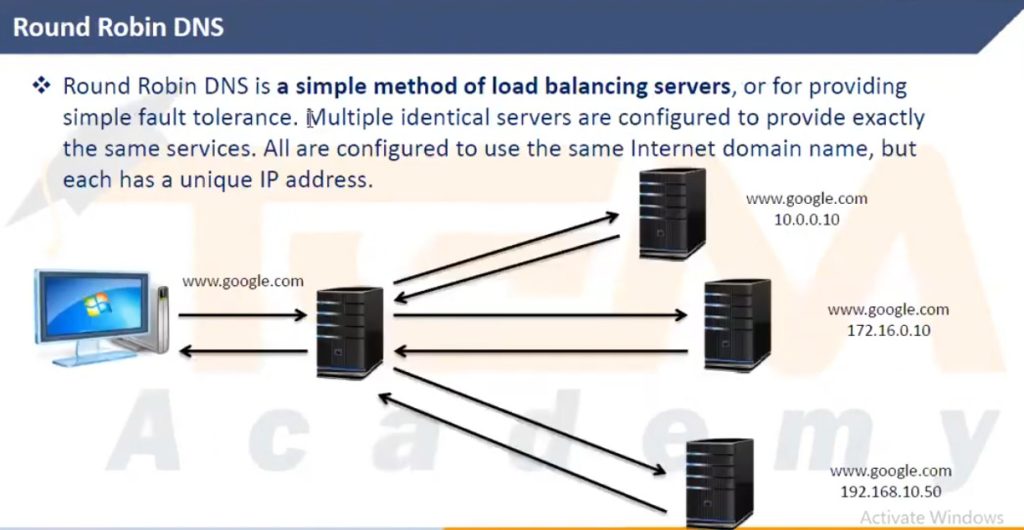
- Load Balancing with DNS
DNS can return multiple IP addresses for a single domain.
- With multiple A records or CNAMEs, traffic gets distributed across several servers.
- This simple form of load balancing spreads requests and prevents any single server from being overwhelmed.
- Content Delivery Networks (CDNs)
Many websites rely on CDNs to speed up content delivery.
- DNS queries resolve to an edge server located near the user.
- This way, static files (like images, videos, scripts) load from the closest location, reducing latency and improving user experience.
DNS Checking Commnds
1. nslookup Command
The nslookup command is the most commonly used tool to check DNS records. It queries DNS servers to find the IP address of a domain name.
nslookup google.com
Example output:
					Server:  dns.google
Address: 8.8.8.8

Name: google.com
Address: 142.250.183.14
Check MX Record (Mail Server)
To find the mail server of a domain, use the MX record query.
Example:
nslookup -type=mx gmail.com
This shows the mail exchange servers used for email delivery.
4. Check NS Record (Name Server)
The NS record shows which DNS servers are authoritative for a domain.
Example:
nslookup -type=ns google.com
This will list the name servers responsible for the domain.
Check TXT Record
TXT records often contain SPF, DKIM, or verification data.
Example:
nslookup -type=txt google.com
Check SOA Record (Start of Authority)
The SOA record provides DNS zone information such as the primary DNS server and zone administrator.
Example:
nslookup -type=soa google.com
Check All DNS Records
Some systems allow querying multiple records.
Example:
nslookup -type=any google.com
Flush DNS Cache
This command clears the DNS cache stored on your computer.
Example:
ipconfig /flushdns
Flush DNS Cache
This command clears the DNS cache stored on your computer.
Example:
ipconfig /displaydns
Summary – Important DNS CMD Commands
| Command | Purpose |
|---|---|
| nslookup domain | Check domain IP |
| nslookup -type=mx domain | Mail server record |
| nslookup -type=ns domain | Name server record |
| nslookup -type=txt domain | TXT records |
| nslookup -type=soa domain | SOA record |
| ipconfig /flushdns | Clear DNS cache |
| ipconfig /displaydns | View DNS cache |
Cyber Attack on DNS Servers
Cyber Threats on DNS Servers
DNS servers are critical to the Internet because they translate domain names into IP addresses. Because of this important role, attackers often target DNS infrastructure. Below are the major cyber threats affecting DNS servers.
1. DNS Spoofing (DNS Cache Poisoning)
DNS spoofing occurs when an attacker inserts false DNS records into a DNS server’s cache. When users request a website, the DNS server returns the fake IP address, redirecting users to malicious websites instead of the real one. This attack can be used for phishing, malware distribution, or stealing login credentials.
2. DNS Amplification Attack
A DNS amplification attack is a type of Distributed Denial of Service (DDoS) attack. Attackers send small DNS queries with a spoofed victim IP address to open DNS servers. The DNS servers send large responses to the victim, overwhelming the victim’s network with traffic and causing service disruption.
3. DNS Tunneling
DNS tunneling is a technique where attackers hide malicious data inside DNS queries and responses. Since DNS traffic is usually allowed through firewalls, attackers can use it to exfiltrate sensitive data or communicate with command-and-control servers without detection.
4. DNS Hijacking
DNS hijacking occurs when attackers change DNS settings on a server, router, or client device. This causes users to be redirected to fake or malicious websites. Hijacking can happen through malware, compromised routers, or unauthorized access to DNS management systems.
5. NXDOMAIN Attack
In this attack, attackers send a large number of requests for non-existent domain names. The DNS server tries to resolve each request and may contact upstream servers repeatedly, consuming resources and slowing down the DNS infrastructure.
6. Random Subdomain Attack
This attack generates thousands of random subdomains (for example: abc1.example.com, abc2.example.com). Each request forces the DNS server to perform a lookup, which increases load and may overload the authoritative DNS server.
7. DNS Reflection Attack
DNS reflection is similar to amplification. Attackers send DNS requests using the victim’s IP address as the source, causing DNS servers to send responses to the victim. This creates large volumes of traffic directed at the victim’s system.
8. DNS Zone Transfer Attack
DNS zone transfer attacks occur when attackers exploit improperly configured DNS servers to download the entire DNS zone file. This file may contain internal hostnames, server addresses, and network information that can help attackers plan further attacks.
Summary
Common DNS cyber threats include:
- DNS Spoofing / Cache Poisoning
- DNS Amplification (DDoS)
- DNS Tunneling
- DNS Hijacking
- NXDOMAIN Attack
- Random Subdomain Attack
- DNS Reflection Attack
- DNS Zone Transfer Attack


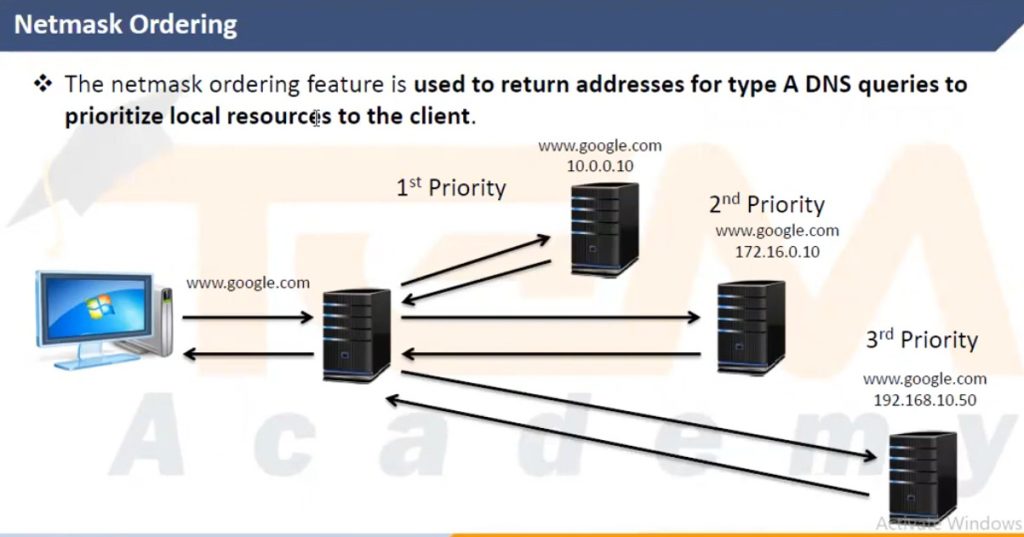
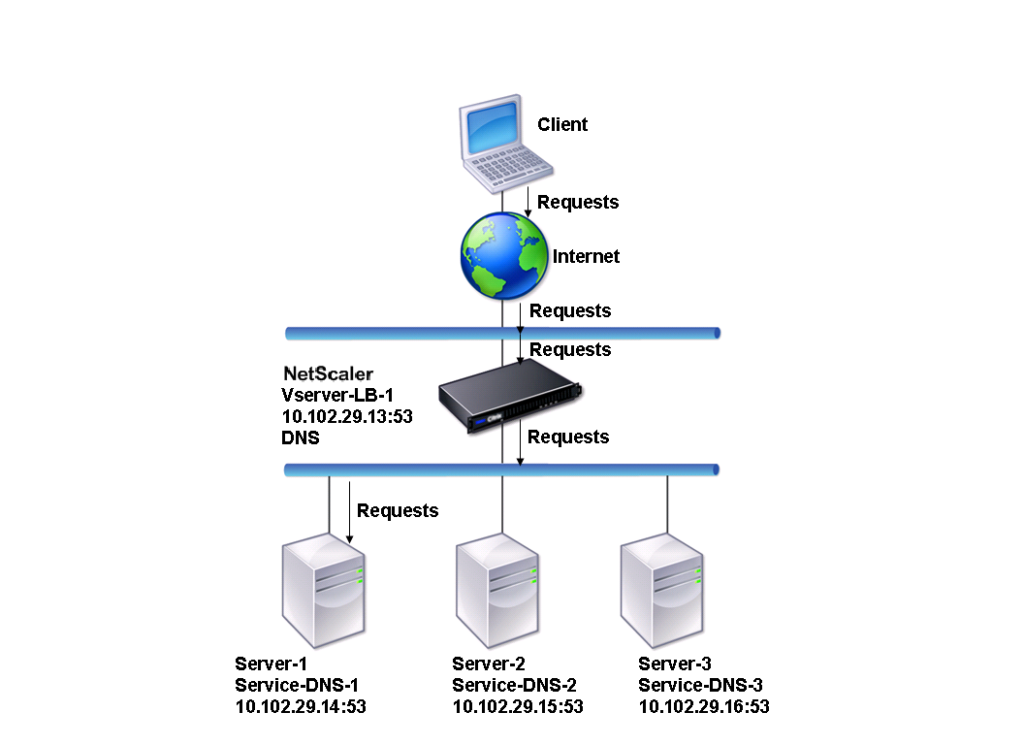
Load balance DNS Servers