
DHCP Server
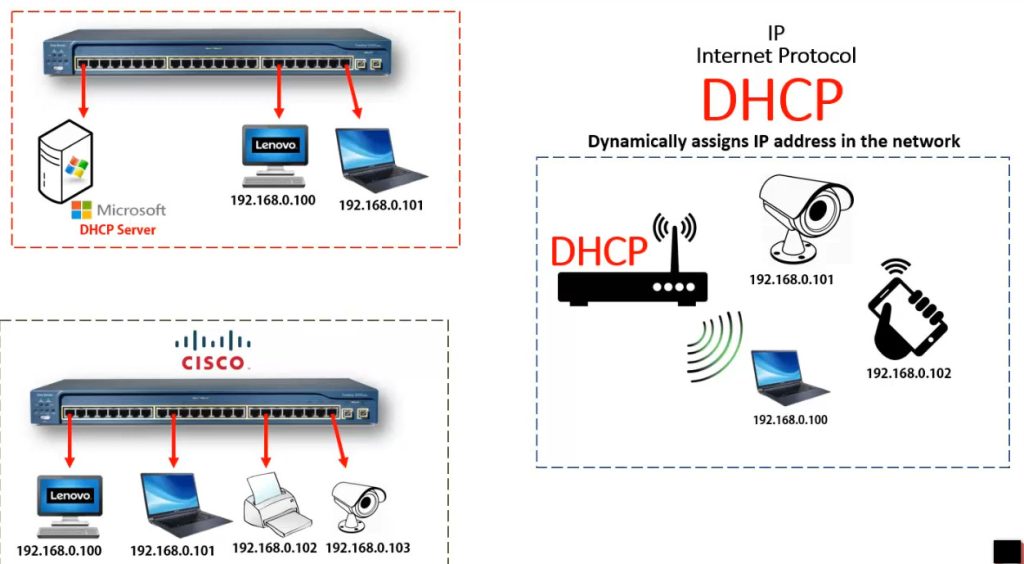
DHCP (Dynamic Host Configuration Protocol) is a network protocol used to automatically assign IP addresses and other network settings to devices in a network. It helps computers, phones, and other devices connect to a network without manually configuring the IP address.
1. Definition of DHCP
DHCP is a client-server protocol that automatically provides an IP address, subnet mask, default gateway, and DNS server to devices when they join a network.
For example, when you connect your laptop to a Wi-Fi router at home, the router’s DHCP service automatically gives your laptop an IP address so it can access the internet.
2. Purpose of DHCP
The main purpose of DHCP is to simplify network management. Without DHCP, a network administrator would have to manually assign an IP address to every device in the network. DHCP automates this process and reduces configuration errors.
3. How DHCP Works (DORA Process)
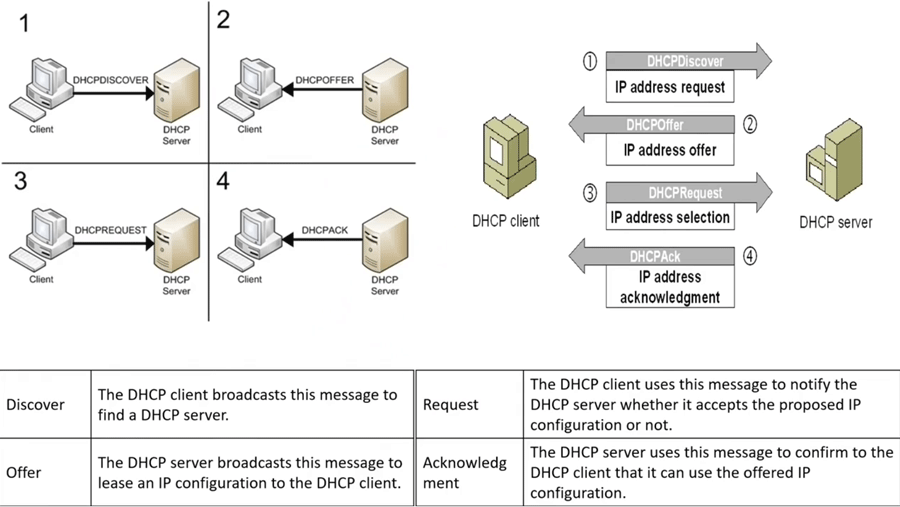
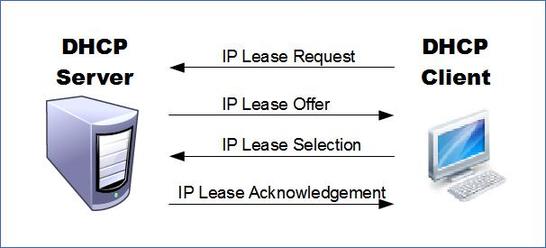
DHCP works using a four-step process commonly called DORA:
- Discover – The device (DHCP client) broadcasts a request to find a DHCP server in the network.
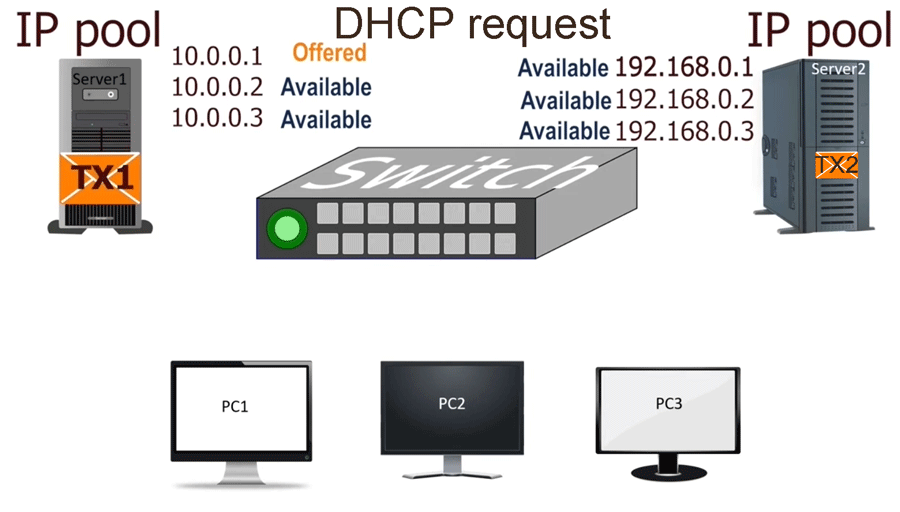
- Offer – The DHCP server responds with an available IP address offer.
- Request – The client requests the offered IP address from the server.
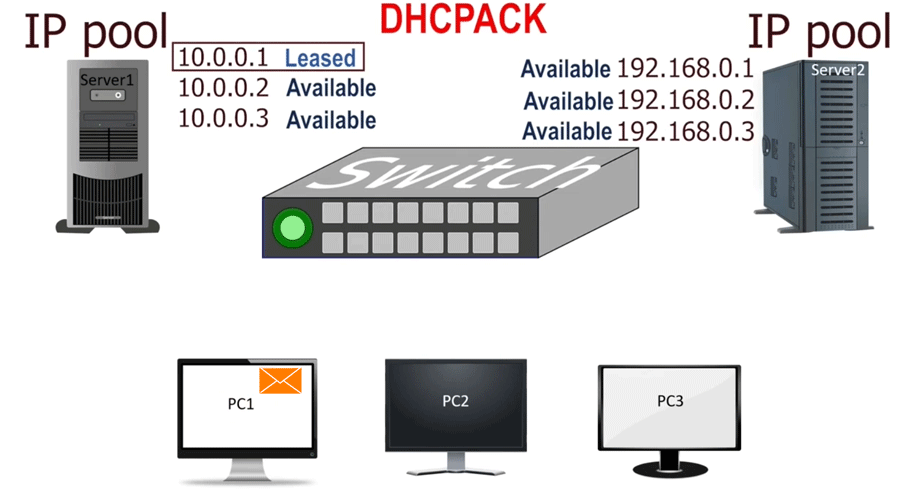
- Acknowledge – The server confirms and assigns the IP address to the client.
This process allows the device to obtain network configuration automatically.
4. DHCP Ports
DHCP uses UDP ports for communication:
- UDP Port 67 – Used by the DHCP server.
- UDP Port 68 – Used by the DHCP client.
Components of the DHCP Protocol
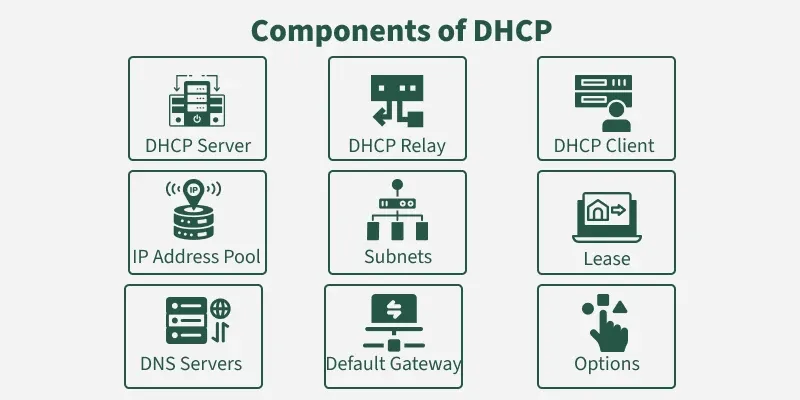
The DHCP architecture consists of the DHCP Server, Client, Relay, IP Address Pool, Subnet, Lease, DNS Servers, and Default Gateway. Each component has its unique role, which you can read in the table below:
| Component | Function |
|---|---|
| DHCP Server | Automatically assigns IP addresses from a pool of available addresses and provides additional network configuration parameters to connected devices. |
| DHCP Client | Devices that request for IP address and other network configuration information from a DHCP server. This includes computers, laptops, and mobile devices. |
| DHCP Relay | Facilitates communication between DHCP clients and servers, especially in networks with multiple subnets. |
| IP Address Pool | Holds a collection of available IP addresses that can be assigned to a DHCP client. |
| Subnet | A smaller segment of an IP network is designed to streamline network management. |
| Lease | The duration for which the assigned IP address and configuration details remain valid. |
| DNS Servers | DHCP servers can also relay DNS server information to clients for resolving domain names to IP addresses. |
| Default Gateway | The edge network device where packets are sent if the destination is outside the local network. |
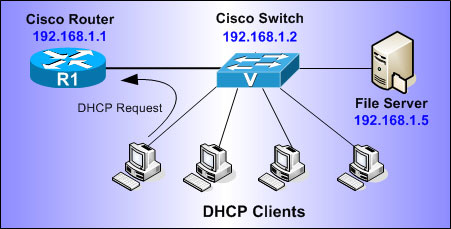
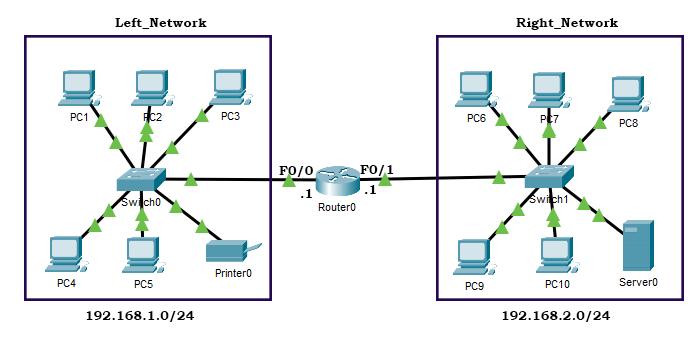
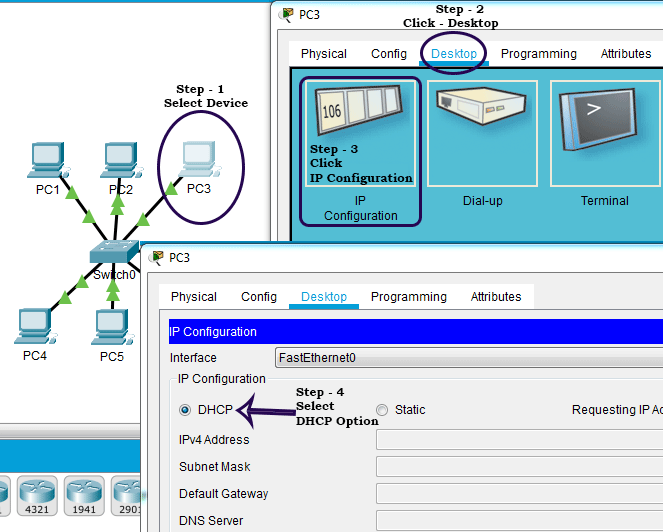
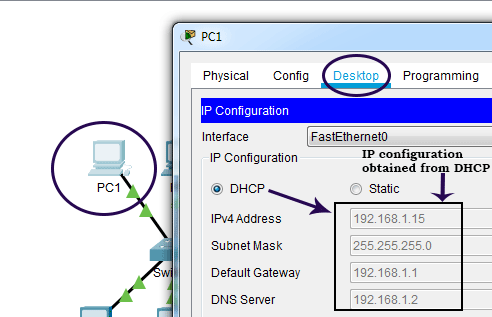
					ip dhcp pool Left_Network	        Create the DHCP pool Left_Network and enter pool configuration mode.
default-router 192.168.1.1	        Define the gateway IP address.
dns-server 192.168.1.2                the DNS server IP address.
network 192.168.1.0 255.255.255.0	Define the IP range for this pool.
exit
DHCP DORA Process
DHCP DORA Process is the 4-step process used by Dynamic Host Configuration Protocol (DHCP) to automatically assign an IP address and other network settings to a device in a network.
DORA stands for Discover, Offer, Request, Acknowledge.
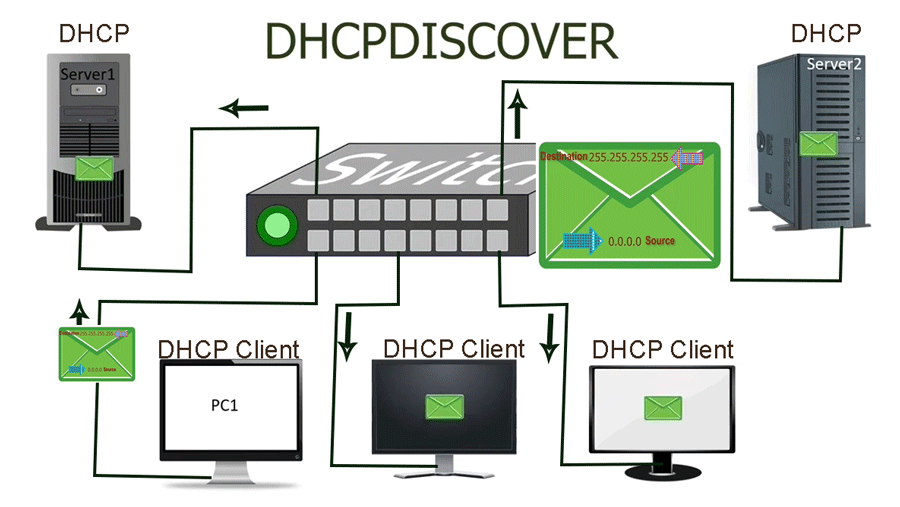
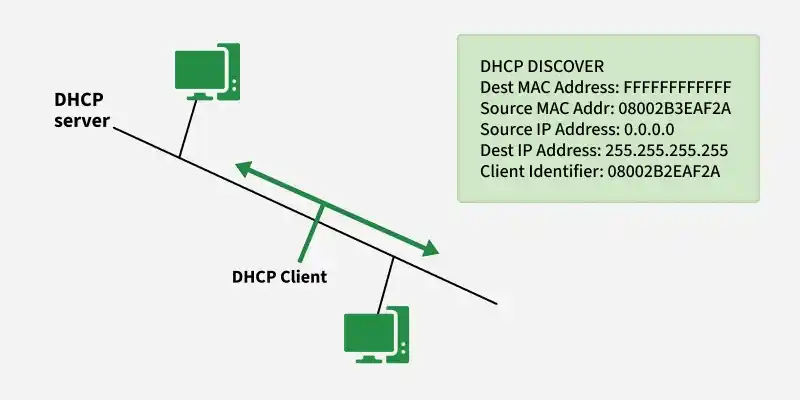
1. Discover (DHCP Discover)
When a device (computer, phone, laptop) connects to a network, it does not have an IP address.
So the device sends a DHCP Discover broadcast message to find a DHCP server in the network.
- The message is broadcast to all devices in the network.
- Source IP: 0.0.0.0
- Destination IP: 255.255.255.255
- Purpose: To locate a DHCP server.
Example:
A laptop connects to a Wi-Fi router and sends a discover message asking “Is there any DHCP server available?”
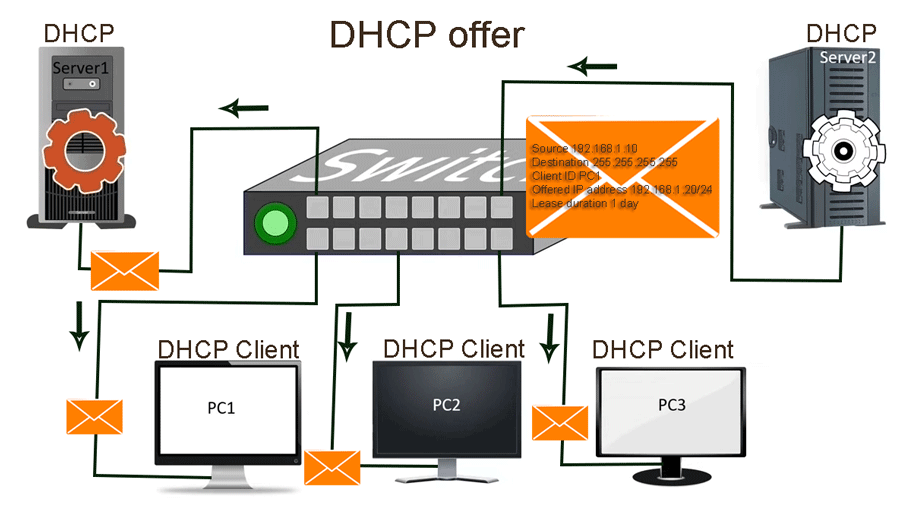
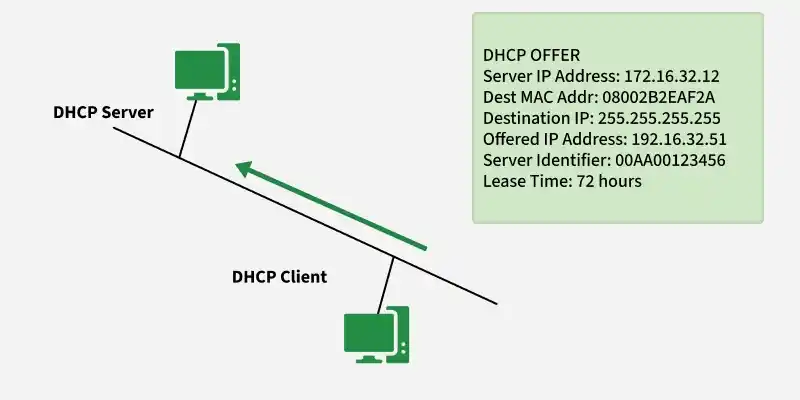
2. Offer (DHCP Offer)
When the DHCP server receives the discover message, it replies with a DHCP Offer message.
- The server offers an available IP address from its IP pool.
- It also includes network configuration information such as:
IP Address
Subnet Mask
Default Gateway
DNS Server
Example:
The router replies:
“Here is an available IP address 192.168.1.20 for you.”
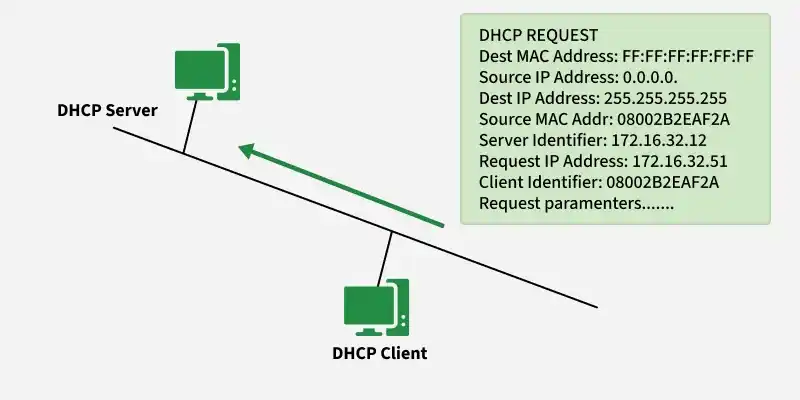
3. Request (DHCP Request)
After receiving the offer, the client sends a DHCP Request message to the server.
- The client requests the offered IP address.
- This message is also broadcast so other DHCP servers know which offer was accepted.
Example:
The laptop sends a request saying:
“I want to use the IP address 192.168.1.20 offered by this DHCP server.”
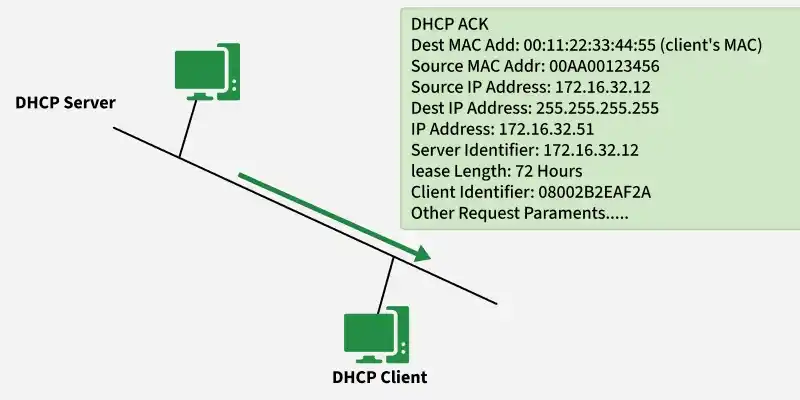
4. Acknowledge (DHCP Acknowledge)
Finally, the DHCP server sends a DHCP Acknowledge (ACK) message.
- The server confirms the IP assignment.
- The client can now use the IP address.
- The server also sets a lease time (how long the IP address can be used).
Example:
The router replies:
“IP address 192.168.1.20 is assigned to you for 24 hours.”
Simple Flow Example
Laptop connects to network →
- Discover – Laptop searches for DHCP server
- Offer – Router offers IP address
- Request – Laptop requests that IP
- Acknowledge – Router confirms and assigns the IP
What is a DHCP Relay Agent
1. What is a DHCP Relay Agent
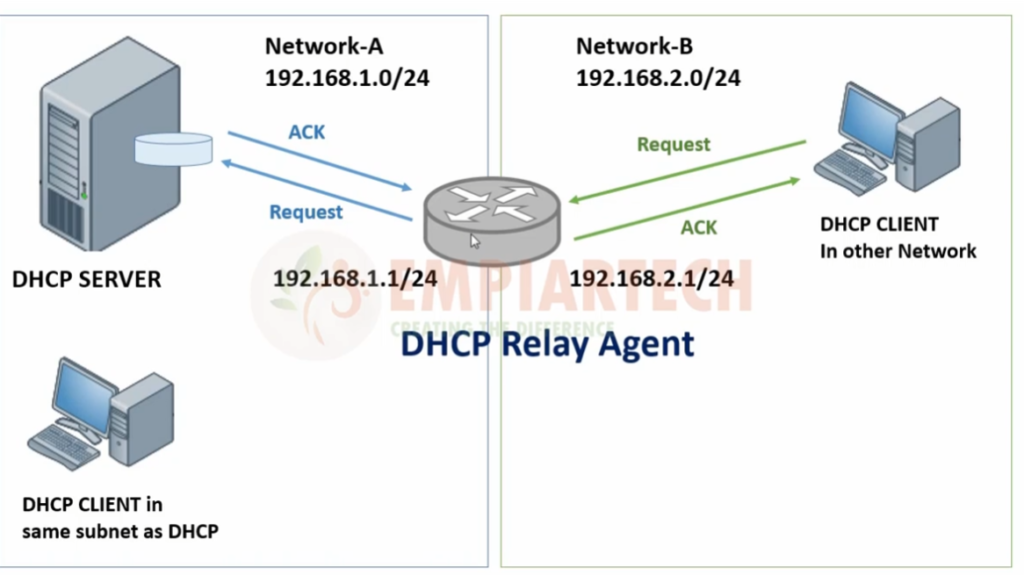
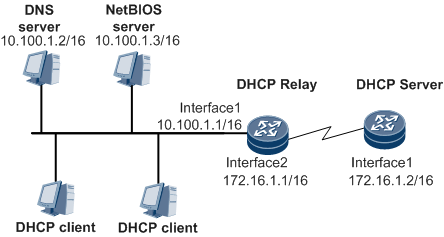
A DHCP Relay Agent is a network device (usually a router or Layer-3 switch) that forwards DHCP requests from clients to a DHCP server located in another network. DHCP uses broadcast messages, and broadcasts normally cannot cross routers. The relay agent solves this problem by receiving the broadcast request and sending it to the DHCP server as a unicast message.
2. Why DHCP Relay Agent is Needed
In large networks, the DHCP server is often placed in a central data center instead of every local network. Since DHCP discovery messages are broadcasts and routers block broadcasts between networks, clients in different subnets cannot reach the DHCP server directly. A DHCP relay agent forwards those requests so devices in other networks can still receive IP addresses automatically.
How a DHCP Relay Agent Works
1. DHCP Discover from Client
When a device (DHCP client) connects to a network, it does not have an IP address. The client sends a DHCP Discover message as a broadcast in the local network to find a DHCP server. The broadcast uses destination IP 255.255.255.255 and UDP port 67.
2. Relay Agent Receives the Broadcast
The router or Layer-3 switch configured as a DHCP Relay Agent receives the broadcast message from the client. Since routers normally do not forward broadcast packets to other networks, the relay agent captures this message and prepares to forward it to the DHCP server.
3. Forwarding Request to DHCP Server
The DHCP relay agent converts the broadcast request into a unicast packet and sends it to the DHCP server located in another network. It also adds its own interface IP address in the GIADDR (Gateway IP Address) field so the server knows from which subnet the request came.
4. DHCP Server Sends an Offer
After receiving the forwarded request, the DHCP server checks the subnet information and selects an available IP address from the correct address pool. The server then sends a DHCP Offer message back to the relay agent.
5. Relay Agent Sends Offer to Client
The DHCP relay agent receives the DHCP Offer from the server and forwards it to the client in the local network. The client then sees the offered IP address and network configuration.
6. Request and Acknowledge Process
The client sends a DHCP Request message to accept the offered IP address. The relay agent again forwards this request to the DHCP server. Finally, the server replies with a DHCP Acknowledge (ACK) message confirming the IP assignment, and the relay agent delivers this message to the client. The client can now use the assigned IP address to communicate on the network.
Example of DHCP Relay Agent
Suppose a company network has two subnets:
- Subnet 1: 192.168.1.0/24 (Office network)
- Subnet 2: 192.168.2.0/24 (Data center network)
The DHCP server is located in the data center network (192.168.2.10).
Step-by-step example:
- A computer in the office network sends a DHCP Discover broadcast.
- The office router acts as a DHCP relay agent.
- The router forwards the request to the DHCP server at 192.168.2.10.
- The DHCP server offers an IP address (for example 192.168.1.50).
- The router forwards the offer to the client.
- The client receives the IP address and can use the network.
Devices That Can Work as DHCP Relay Agent
Common devices used as DHCP relay agents include:
- Routers
- Layer-3 switches
- Firewalls
Example Command (Concept)
In many routers, the relay agent is configured with a command like:
					ip helper-address 192.168.2.10

This tells the router to forward DHCP requests to the DHCP server at that IP address.
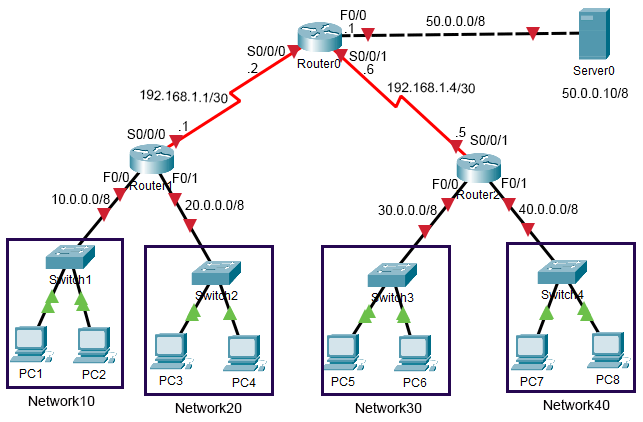
					Router0 (Interface configuration)
.................................
enable
configure terminal
interface fastethernet 0/0
ip address 50.0.0.1 255.0.0.0
no shutdown
exit

interface serial 0/0/0
ip address 192.168.1.2 255.255.255.252
clock rate 64000
bandwidth 64
no shutdown
exit

interface serial 0/0/1
ip address 192.168.1.6 255.255.255.252
clock rate 64000
bandwidth 64
no shutdown
exit

Router0 (RIP routing configuration)
...................................
enable
configure terminal
router rip
network 50.0.0.0
network 192.168.1.0
network 192.168.4.0
version 2
no auto-summary
exit


Router1 (Interface configuration)
.................................
enable
configure terminal
interface fastethernet 0/0
ip address 10.0.0.1 255.0.0.0
no shutdown

exit
interface fastethernet 0/1
ip address 20.0.0.1 255.0.0.0
no shutdown
exit

interface serial 0/0/0
ip address 192.168.1.1 255.255.255.252
no shutdown
exit

(RIP routing configuration)
.............................
enable
configure terminal
router rip
network 10.0.0.0
network 20.0.0.0
network 192.168.1.0
version 2
no auto-summary
exit

ip helper-address
.................
interface fastethernet 0/0
ip helper-address 50.0.0.10
exit
interface fastethernet 0/1
ip helper-address 50.0.0.10
exit

Router2 (Interface configuration)
.................................
enable
configure terminal
interface fastethernet 0/0
ip address 30.0.0.1 255.0.0.0
no shutdown
exit

interface fastethernet 0/1
ip address 40.0.0.1 255.0.0.0
no shutdown
exit

interface serial 0/0/1
ip address 192.168.1.5 255.255.255.252
no shutdown
exit

(RIP routing configuration)
............................
enable
configure terminal
router rip
network 30.0.0.0
network 40.0.0.0
network 192.168.1.4
version 2
no auto-summary
exit

ip helper-address
.................
interface fastethernet 0/0
ip helper-address 50.0.0.10
exit

interface fastethernet 0/1
ip helper-address 50.0.0.10
exit
What is DHCP Failover
1. What is DHCP Failover
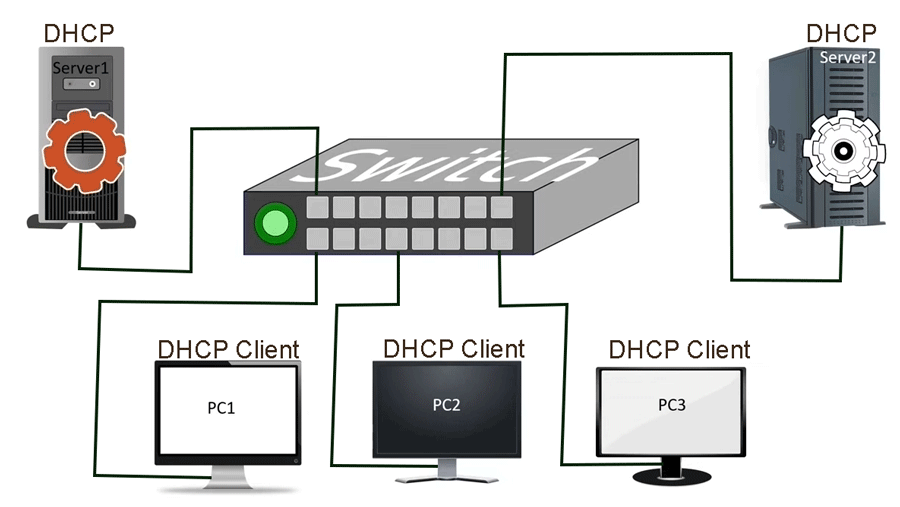
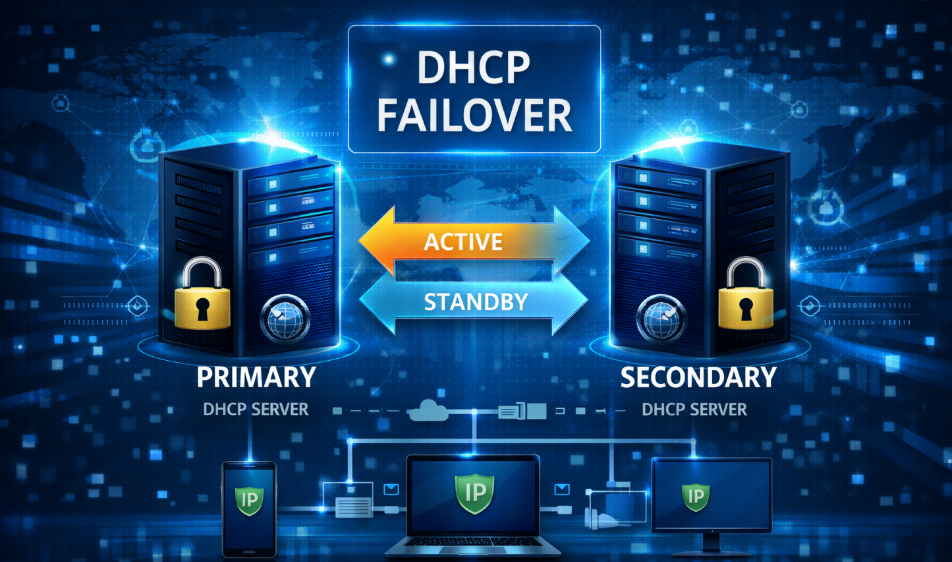
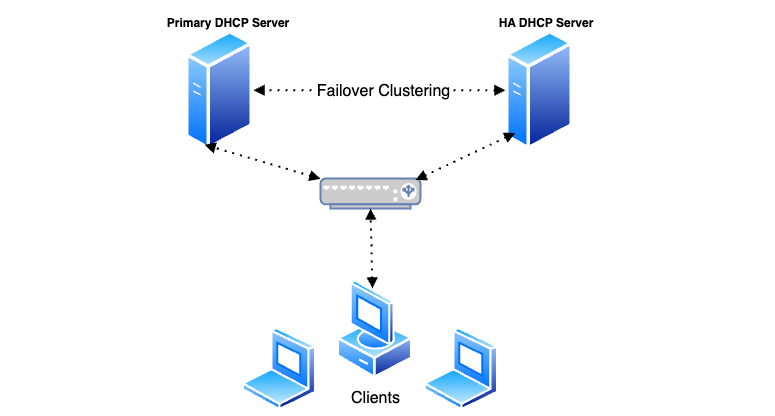
DHCP Failover is a feature that allows two DHCP servers to share IP address management so that if one DHCP server fails, the other server can continue assigning IP addresses to clients. This ensures high availability and prevents network interruption.
In simple terms, DHCP failover means backup DHCP servers working together to provide continuous IP address service.
2. Purpose of DHCP Failover
The main purpose of DHCP failover is to avoid network downtime. If a single DHCP server fails due to hardware issues, power failure, or network problems, devices will not receive IP addresses. With DHCP failover, another DHCP server automatically takes over the task and continues providing IP addresses to clients.
3. How DHCP Failover Works
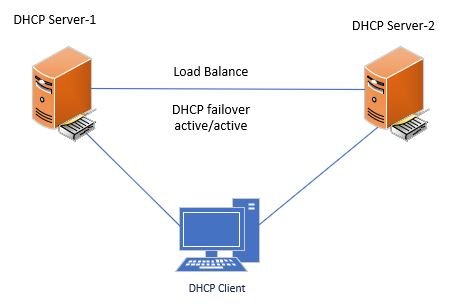
In DHCP failover, two DHCP servers share the same IP address pool and continuously synchronize their database. When one server assigns an IP address to a client, the information is also shared with the partner server. This ensures both servers have the same lease information.
If the primary server stops working, the secondary server already has the lease data and can continue assigning IP addresses to new clients.
4. Types of DHCP Failover Modes
1. Load Balance Mode
In this mode, both DHCP servers are active and share the load of assigning IP addresses. Each server handles approximately 50% of the client requests, improving performance and redundancy.
2. Hot Standby Mode
In this mode, one server acts as the primary server, and the other server remains as a backup. The backup server only starts assigning IP addresses if the primary server fails.
5. Example of DHCP Failover
Suppose a company network has two DHCP servers:
- Server 1: DHCP Primary Server (IP: 192.168.10.2)
- Server 2: DHCP Secondary Server (IP: 192.168.10.3)
- IP Pool: 192.168.10.100 – 192.168.10.200
Step-by-step example:
- A new laptop connects to the network and sends a DHCP request.
- The primary DHCP server assigns IP 192.168.10.105 to the laptop.
- The lease information is automatically shared with the secondary server.
- If the primary server fails due to power loss, the secondary server continues assigning IP addresses from the same pool.
- Network users can still connect without interruption.
6. Advantages of DHCP Failover
- Provides high availability for IP address assignment
- Prevents network downtime
- Improves reliability of network services
- Provides automatic backup for DHCP servers
7. Real Network Example
Large enterprise networks and data centers often configure DHCP failover using server operating systems such as Windows Server or network infrastructure from Cisco Systems and Juniper Networks to ensure continuous DHCP services.
Why Need DHCP Server in Company Network
1. Automatic IP Address Assignment
In a company network, many devices such as computers, laptops, printers, IP phones, and servers connect to the network. A DHCP server automatically assigns IP addresses and other network settings to these devices. Without DHCP, the network administrator would have to manually configure IP addresses on every device, which is time-consuming and error-prone.
Example:
In an office with 200 computers, when employees connect their laptops to the LAN or Wi-Fi, the DHCP server automatically gives each device an IP address like 192.168.10.25, 192.168.10.26, etc.
2. Easy Network Management
A DHCP server makes network management easier because all IP address assignments are controlled from a single server. If network settings such as DNS server or gateway need to change, the administrator can update them once on the DHCP server, and all clients will receive the new configuration automatically.
Example:
If a company changes its DNS server, the network administrator updates the configuration on the DHCP server, and all computers receive the new DNS information when they renew their lease.
3. Prevents IP Address Conflicts
When IP addresses are assigned manually, two devices may accidentally receive the same IP address, causing network problems. DHCP automatically tracks which addresses are already assigned and ensures each device gets a unique IP.
Example:
If two employees manually set their IP address to 192.168.1.50, a conflict occurs. With DHCP, the server assigns different IPs, preventing this issue.
4. Supports Large Networks
Large organizations may have hundreds or thousands of devices connecting to the network every day. DHCP makes it possible to manage these large networks efficiently without manually configuring every device.
Example:
In a corporate office with 1000+ devices, the DHCP server manages the IP address pool and dynamically assigns addresses as devices connect and disconnect.
Without DHCP Server in Company Network
1. Manual IP Address Configuration
Without a DHCP server, every device in the company network must be configured manually with an IP address, subnet mask, gateway, and DNS server. This takes a lot of time and effort for the network administrator.
Example:
If a company has 300 computers, the administrator must manually set the IP address on each computer. This makes network management difficult.
2. IP Address Conflicts
When IP addresses are assigned manually, two devices may accidentally use the same IP address. This causes IP address conflicts, and both devices may lose network connectivity.
Example:
Two employees set their computers to 192.168.1.25 manually. Because both devices use the same IP address, they cannot communicate properly on the network.
3. Difficult Network Management
Without DHCP, changing network settings becomes complicated. If the company changes the DNS server or default gateway, the administrator must update every device manually.
Example:
If 200 computers need a new DNS server address, the administrator must log into each computer and change the configuration one by one.
4. Problems for New Devices
When a new device joins the network, it cannot automatically get an IP address. The device will not connect to the network until the administrator manually configures it.
Example:
A new employee brings a laptop to the office. Without DHCP, the laptop cannot access the network until the administrator sets the IP configuration.
5. Limited Scalability
Large organizations may have hundreds or thousands of devices. Managing IP addresses manually in such large networks is inefficient and increases the chance of errors.
Example:
In a company with 1000 devices, manual IP configuration would be very slow and difficult to maintain.
DHCP Pool And DHCP Scope
1. What is a DHCP Pool
A DHCP Pool is a range of IP addresses that a DHCP server can automatically assign to devices (clients) in a network. The pool contains all the available IP addresses that can be given to computers, laptops, printers, and other devices when they connect to the network.
The DHCP server selects an unused IP address from this pool and assigns it to a client for a specific lease time.
Example:
If the DHCP pool is 192.168.1.100 – 192.168.1.200, the DHCP server can assign any IP address between these numbers to network devices.
2. What is a DHCP Scope
A DHCP Scope is the complete configuration of a network range managed by the DHCP server. It defines not only the IP address range but also other network parameters such as:
- IP address range
- Subnet mask
- Default gateway
- DNS server
- Lease duration
In simple terms, a scope is the network configuration, while the pool is the set of IP addresses inside that configuration.
Example:
A DHCP scope may be configured for the network 192.168.1.0/24, and inside that scope the DHCP pool may be 192.168.1.100 – 192.168.1.200.
Example of DHCP Pool and Scope
Network: 192.168.10.0/24
DHCP Scope Configuration:
- Network: 192.168.10.0
- Subnet Mask: 255.255.255.0
- Default Gateway: 192.168.10.1
- DNS Server: 8.8.8.8
- Lease Time: 24 hours
DHCP Pool:
Available IP range: 192.168.10.50 – 192.168.10.200
When a new computer connects to the network, the DHCP server assigns an IP from this pool.
DHCP Configuration on a Cisco Router and Switch
1. DHCP Configuration on a Cisco Router:
To set up a Cisco router as a DHCP server, follow these steps:
Enter Global Configuration Mode:
Router> enable
Router# configure terminal
Define the DHCP Address Pool:
Create a DHCP pool with a name (e.g., LAN-Pool) and specify the IP address range, subnet mask, and other relevant settings.
Router(config)# ip dhcp pool LAN-Pool
Router(dhcp-config)# network 192.168.1.0 255.255.255.0
Router(dhcp-config)# default-router 192.168.1.1 // Default Gateway IP
Router(dhcp-config)# dns-server 8.8.8.8 // DNS Server IP (optional)
Router(dhcp-config)# domain-name example.com // Domain name (optional)
Exclude IP Addresses (Optional):
It’s a good practice to reserve specific IP addresses (e.g., for servers, printers, or other devices) so they are not assigned dynamically by the DHCP server.
Use the ip dhcp excluded-address command:
Router(config)# ip dhcp excluded-address 192.168.1.1 192.168.1.20
This excludes the IP range 192.168.1.1 to 192.168.1.20 from being assigned dynamically.
Verify DHCP Configuration:
To check the status of your DHCP server and the assigned IP addresses, use the following command:
Router# show ip dhcp binding
This shows the IP address leases that have been assigned to clients.
2. DHCP Configuration on a Cisco Switch:
In general, Cisco switches do not act as DHCP servers by default (unless they are Layer 3 switches or have additional services configured). However, you can configure a Layer 3 switch to act as a DHCP server or simply configure a switch to relay DHCP requests (using the ip helper-address command).
a) Configuring a Cisco Layer 3 Switch as a DHCP Server:
If you’re using a Layer 3 switch and want to configure it as a DHCP server, the process is very similar to configuring a router. Here’s an example:
Enter Global Configuration Mode:
Switch> enable
Switch# configure terminal
Define the DHCP Address Pool:
Switch(config)# ip dhcp pool VLAN10
Switch(dhcp-config)# network 192.168.10.0 255.255.255.0
Switch(dhcp-config)# default-router 192.168.10.1
Switch(dhcp-config)# dns-server 8.8.8.8
Exclude IP Addresses:
Switch(config)# ip dhcp excluded-address 192.168.10.1 192.168.10.10
Configure VLAN Interface:
The switch needs an IP address for the VLAN interface (SVI) to communicate with devices in that VLAN:
Switch(config)# interface vlan 10
Switch(config-if)# ip address 192.168.10.1 255.255.255.0
Switch(config-if)# no shutdown
Verify DHCP Configuration:
Switch# show ip dhcp binding
Switch# show ip dhcp pool
b) Configuring a Layer 2 Switch to Relay DHCP Requests:
In some cases, a Layer 2 switch (which doesn’t route traffic between different subnets) can relay DHCP requests from clients to a DHCP server on another network. This is done using the ip helper-address command, which forwards the DHCP requests to a specified DHCP server.
Enter Global Configuration Mode:
Switch> enable
Switch# configure terminal
Configure the Switch’s VLAN Interface (if needed):
If you want to configure the switch to be part of a VLAN (e.g., VLAN 10), configure the interface for that VLAN:
Switch(config)# interface vlan 10
Switch(config-if)# ip address 192.168.10.2 255.255.255.0
Switch(config-if)# no shutdown
Configure the ip helper-address Command:
Point the switch to the IP address of the DHCP server (assuming the DHCP server is located on a different subnet):
Switch(config)# interface vlan 10
Switch(config-if)# ip helper-address 192.168.1.1 // IP of the DHCP server
Verify Configuration:
To check the forwarding of DHCP requests, you can use the following:
Switch# show ip interface vlan 10
Conclusion:
Router as DHCP Server: If you’re using a Cisco router to assign IP addresses, you can configure the DHCP pool and set up exclusions to avoid assigning certain IPs.
Switch as DHCP Server: If you’re using a Layer 3 switch, it can act as a DHCP server, similar to a router.
Layer 2 Switch: A Layer 2 switch can forward DHCP requests to a DHCP server on a different network by using the ip helper-address command.
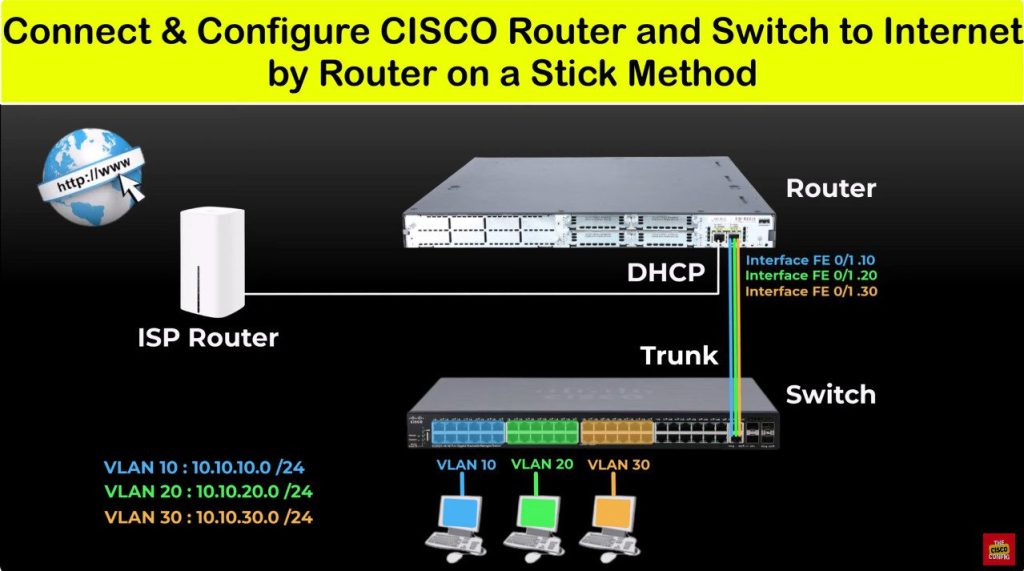
					VLAN DHCP Configuartion

config t
ip dhcp pool 10 <For VLAN 10>
network 10.10.10.0 255.255.255.0
default router 10.10.10.1
dns-server 8.8.8.8
exit


config t
ip dhcp pool 20
network 10.10.20.0 255.255.255.0
default router 10.10.20.1
dns-server 8.8.8.8
exit


config t
ip dhcp pool 30
network 10.10.30.0 255.255.255.0
default router 10.10.30.1
dns-server 8.8.8.8
exit