
What is Active Directory AD
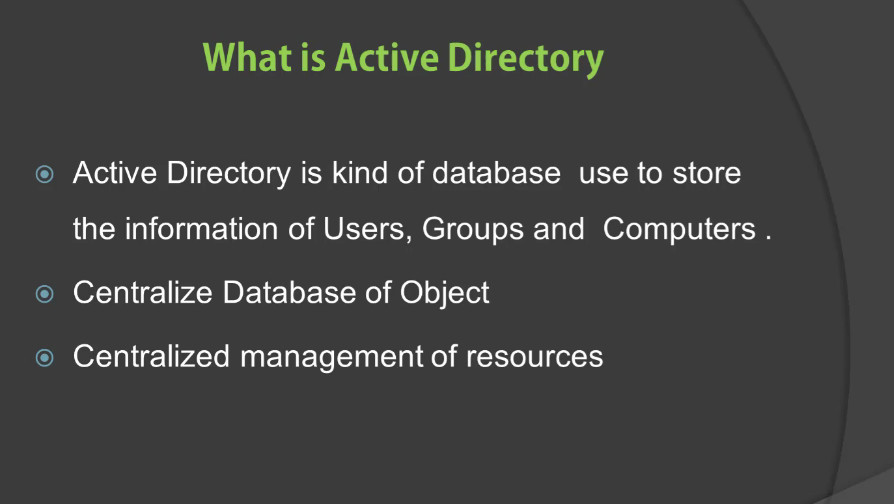
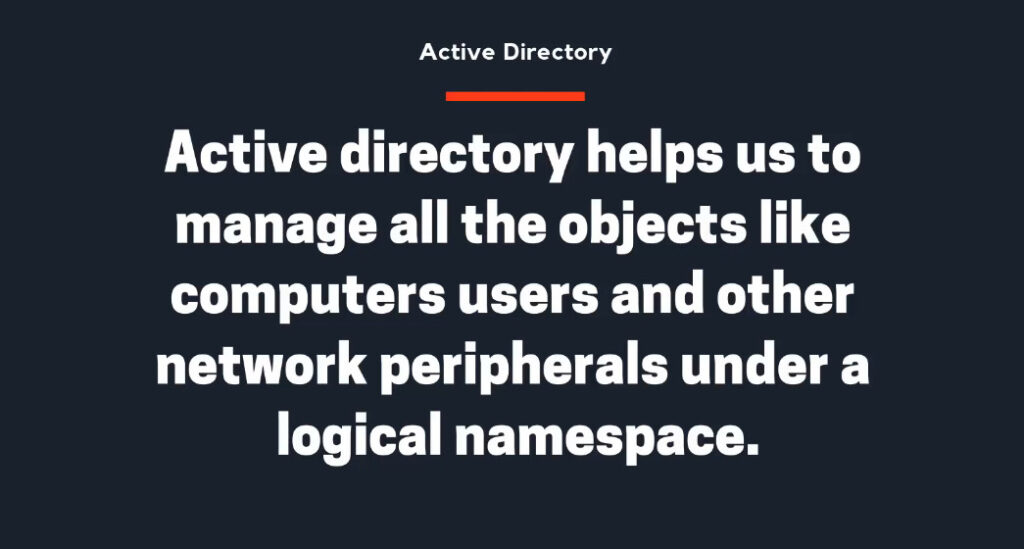
Active Directory (AD) is a directory service developed by Microsoft to manage and organize the network resources of a business or organization. It is primarily used in Windows-based environments and helps administrators efficiently manage users, computers, permissions, and other network resources within a domain.
Core features of Active Directory
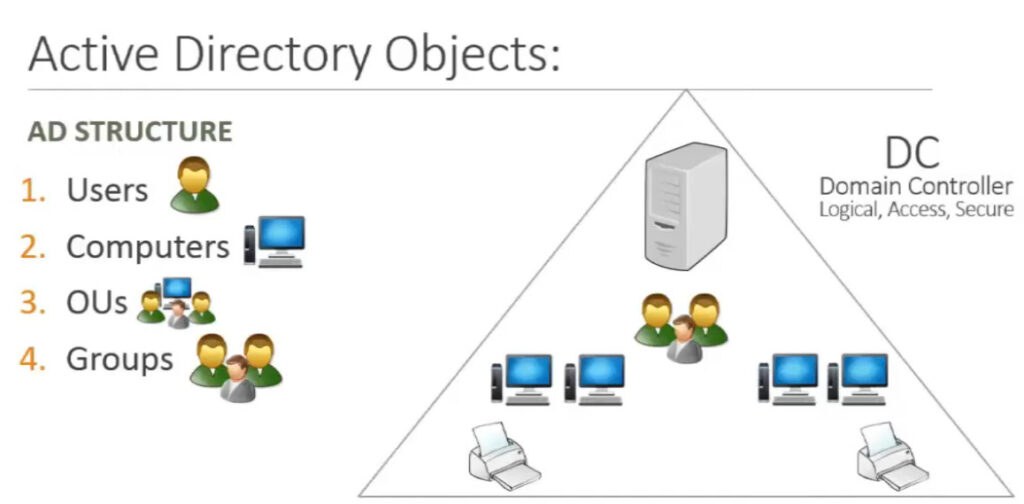
- User and group management: AD allows administrators to create, modify and delete users and groups. This helps organize and manage access rights and permissions for various users and groups within the organization.
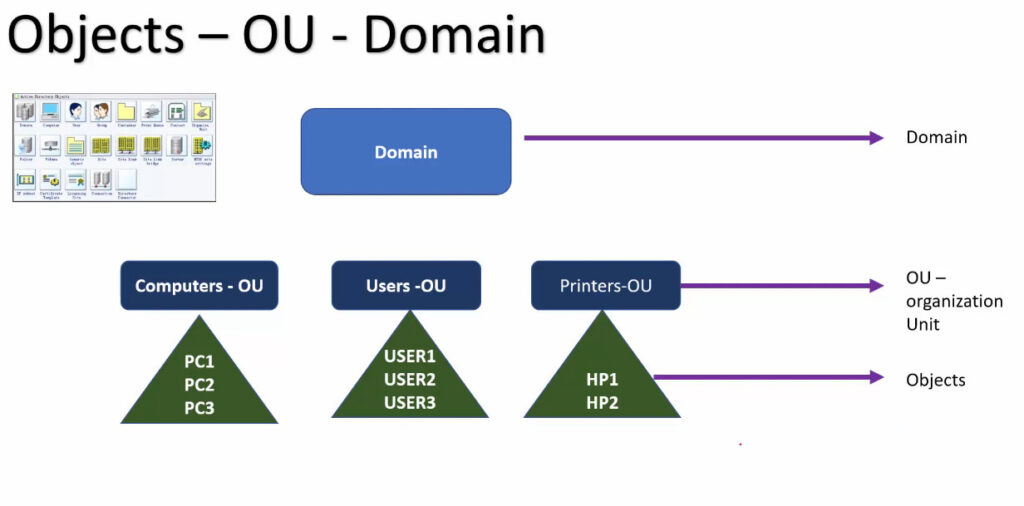
- Organizational units (OUs).: OUs are containers within AD that help organize objects, such as users and groups, in a hierarchical manner. This makes management of policies and permissions easier and clearer.
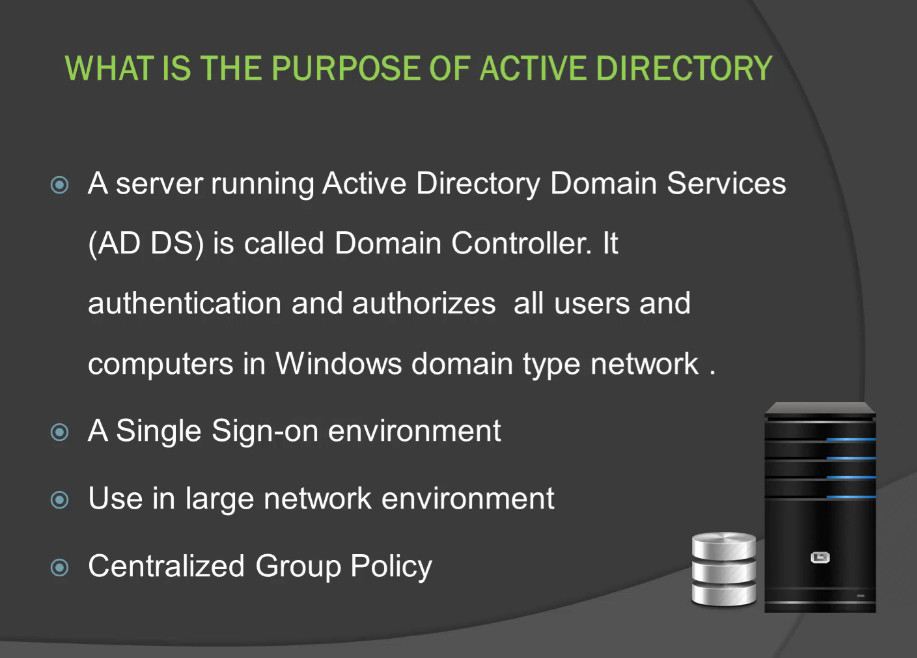
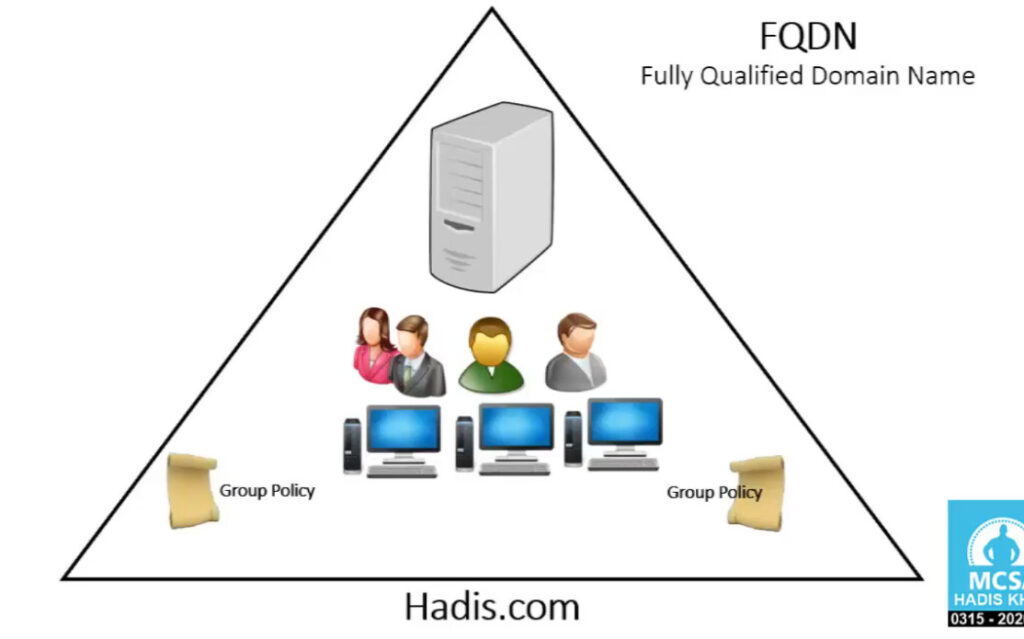
- Group Policy: Group policies allow administrators to centrally define and apply policies and settings to users, computers and other objects within the network. This ensures a consistent and secure environment.
- Domain controllers: A domain controller is a server that hosts AD services and provides authentication and authorization of users within the network.
1. Purpose of Active Directory
Active Directory is mainly used for:
User Authentication → Verifies username & password
Access Control → Defines what each user can do
Centralized Management → Manage all computers, users, and policies from one place
Organization → Keeps all network resources organized (users, PCs, printers, servers)
2. How Active Directory Works
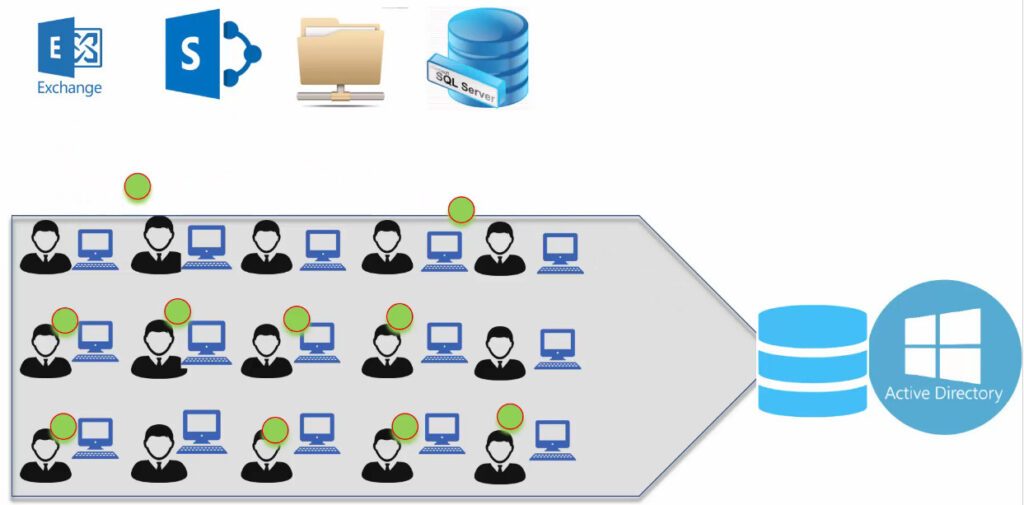
AD runs on a Windows Server and uses a database to store all the information about:
Users and passwords
Computers connected to the domain
Security groups and permissions
Network devices (printers, file servers, etc.)
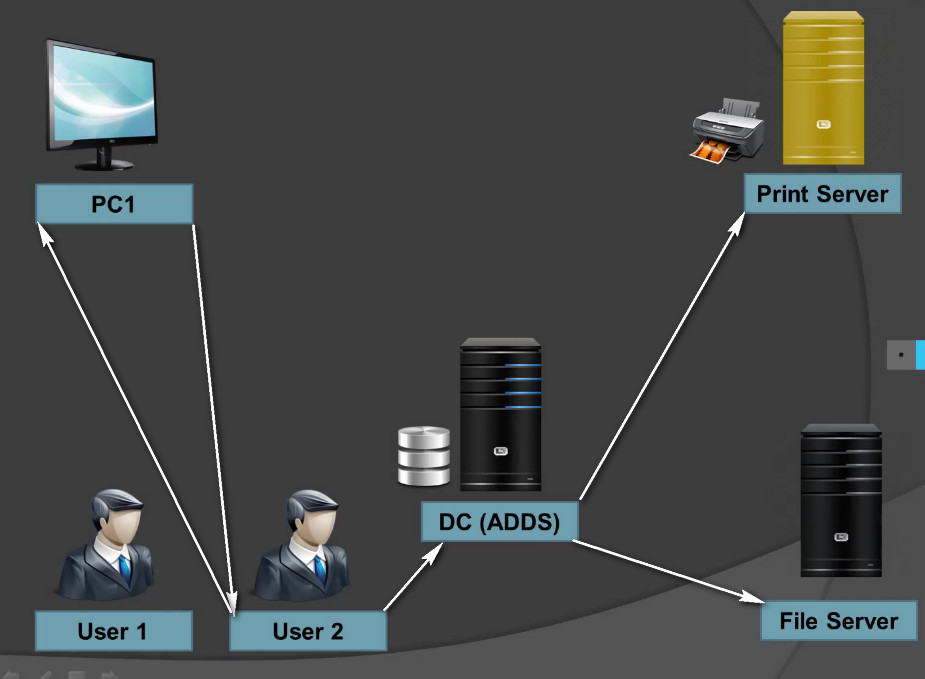
When a user logs in to their computer:
The login request goes to the Domain Controller (DC).
The DC checks the username and password in AD.
If it matches → access is granted.
The DC then applies Group Policies (like restrictions, mapped drives, wallpapers, etc.).
3 Example Network Scenario
Let’s say a company has 100 computers and 50 employees.
Instead of creating separate logins for each PC, Active Directory allows:
One central Domain Controller to manage everything
Each user has one username and password
Access rules (e.g., Sales can’t access IT files)
Printers and shared drives mapped automatically
Policies like password complexity or software installation rules
4. Advantages of Using Active Directory
✅ Centralized management of all users and devices
✅ One username/password for entire network
✅ Easier to apply company policies and security rules
✅ Improved network security and control
✅ Scalable — supports small to enterprise-level networks
5. Disadvantages
❌ Needs a dedicated Windows Server (Domain Controller)
❌ Complex to manage for small networks
❌ If the Domain Controller fails (without backup), login may fail
❌ Limited to Windows environments (though Linux can integrate with Samba)
| Item | Description |
|---|---|
| Software | Active Directory Domain Services (AD DS) |
| Runs On | Windows Server (e.g., 2016, 2019, 2022) |
| Database File | NTDS.dit |
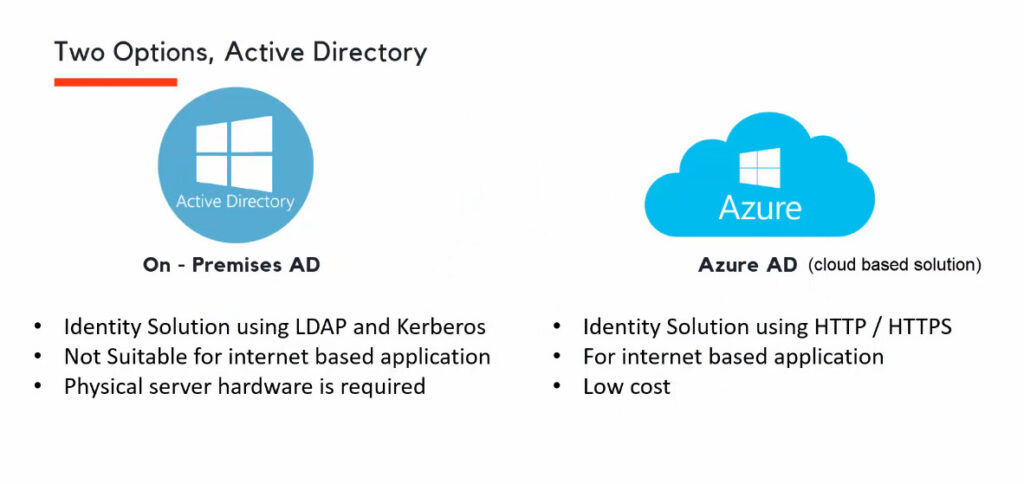
| Protocol Used | LDAP, Kerberos, DNS |
| Main Server Role | Domain Controller |
| Client Access | Windows, macOS, Linux (via domain join) |
Active Directory Slide
PC Workgroup vs Domain Environment
What is a Workgroup and a Domain Environment?
Both Workgroup and Domain are ways to organize and manage multiple computers in a network — but they differ in how control, security, and administration are handled.
1. What is a Workgroup?
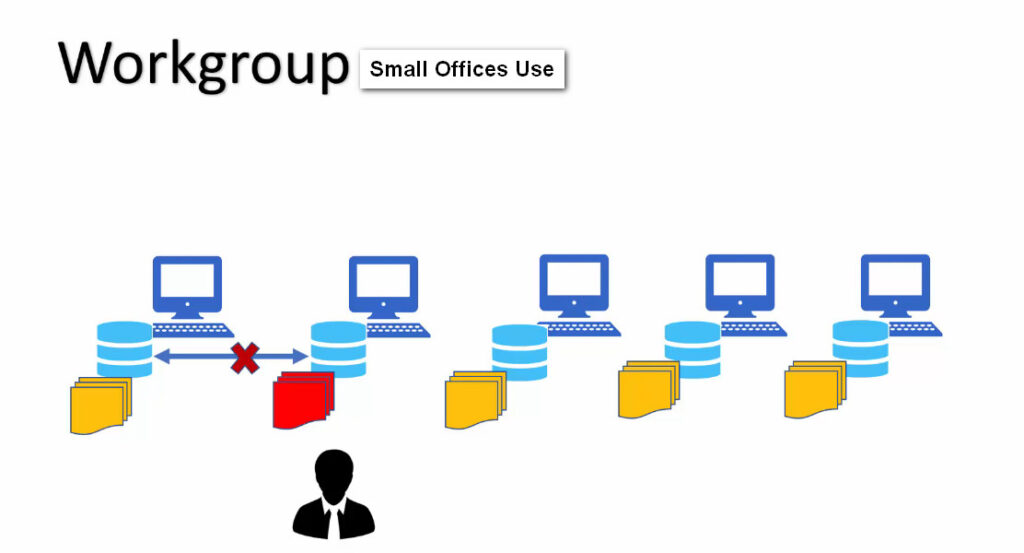
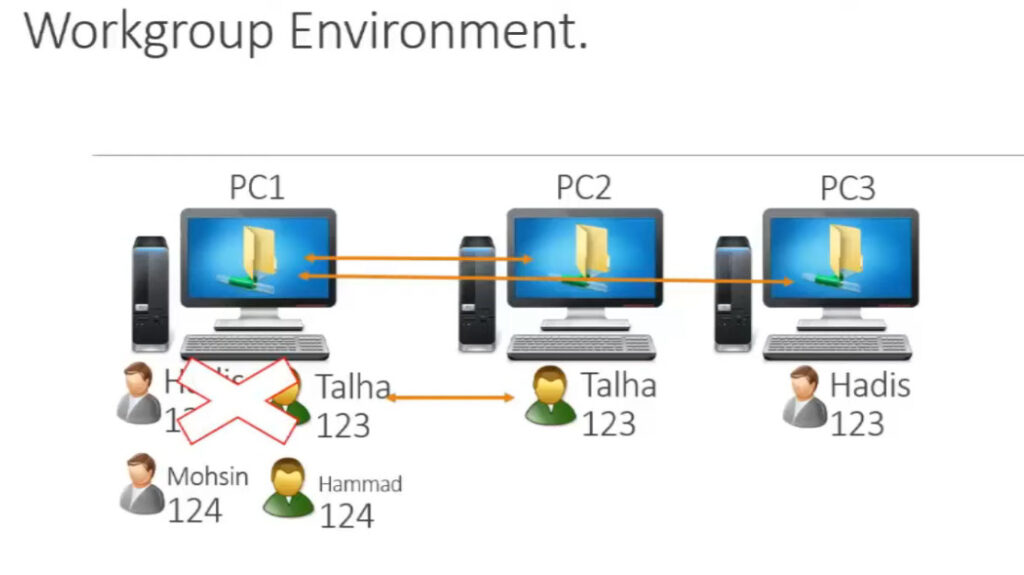
A Workgroup is a peer-to-peer network model where each computer is independent.
There is no central server controlling user accounts or permissions.
Each PC manages its own:
Users and passwords
Files and printers
Security settings
✅ Commonly used in small offices or home networks (5–10 computers).
Workgroup Example:
Imagine 5 PCs in a small office:
Each computer has its own login.
If a user needs access to another computer, that account must be manually created there.
No central management — each PC works alone.
Workgroup Benefits
✅ Easy to set up — no server required
✅ Low cost — just connect computers via LAN
✅ Suitable for small offices or home networks
✅ Less technical skill needed
Workgroup Limitations
❌ Hard to manage many PCs (manual updates, accounts, etc.)
❌ No centralized security or group policy
❌ Limited scalability (works best under ~10 PCs)
❌ No centralized file sharing or backup
What is a Workgroup and a Domain Environment?
Both Workgroup and Domain are ways to organize and manage multiple computers in a network — but they differ in how control, security, and administration are handled.
1. What is a Workgroup?
A Workgroup is a peer-to-peer network model where each computer is independent.
There is no central server controlling user accounts or permissions.
Each PC manages its own:
Users and passwords
Files and printers
Security settings
✅ Commonly used in small offices or home networks (5–10 computers).
Workgroup Example:
Imagine 5 PCs in a small office:
Each computer has its own login.
If a user needs access to another computer, that account must be manually created there.
No central management — each PC works alone.
Workgroup Benefits
✅ Easy to set up — no server required
✅ Low cost — just connect computers via LAN
✅ Suitable for small offices or home networks
✅ Less technical skill needed
Workgroup Limitations
❌ Hard to manage many PCs (manual updates, accounts, etc.)
❌ No centralized security or group policy
❌ Limited scalability (works best under ~10 PCs)
❌ No centralized file sharing or backup
2. What is a Domain Environment?
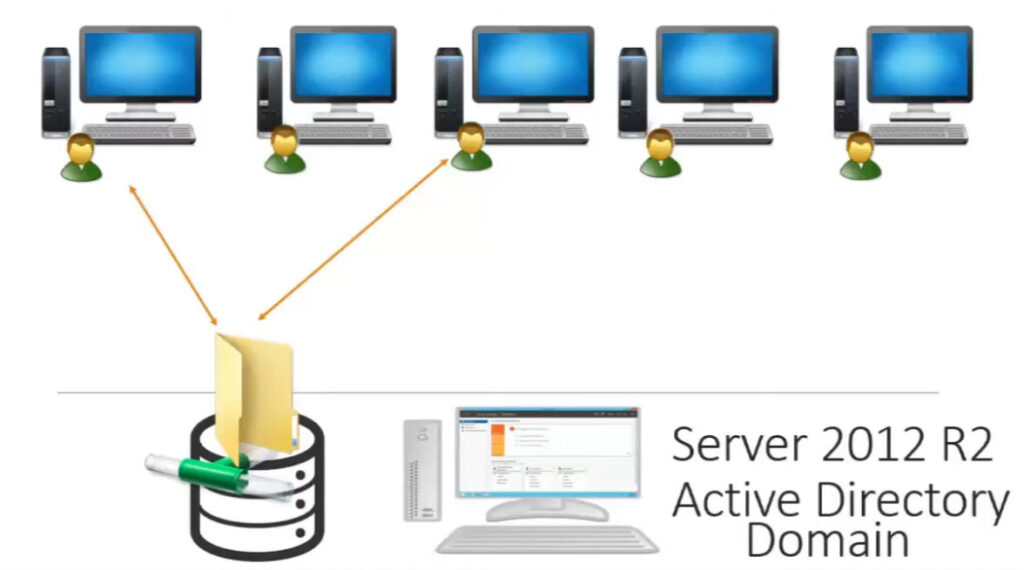
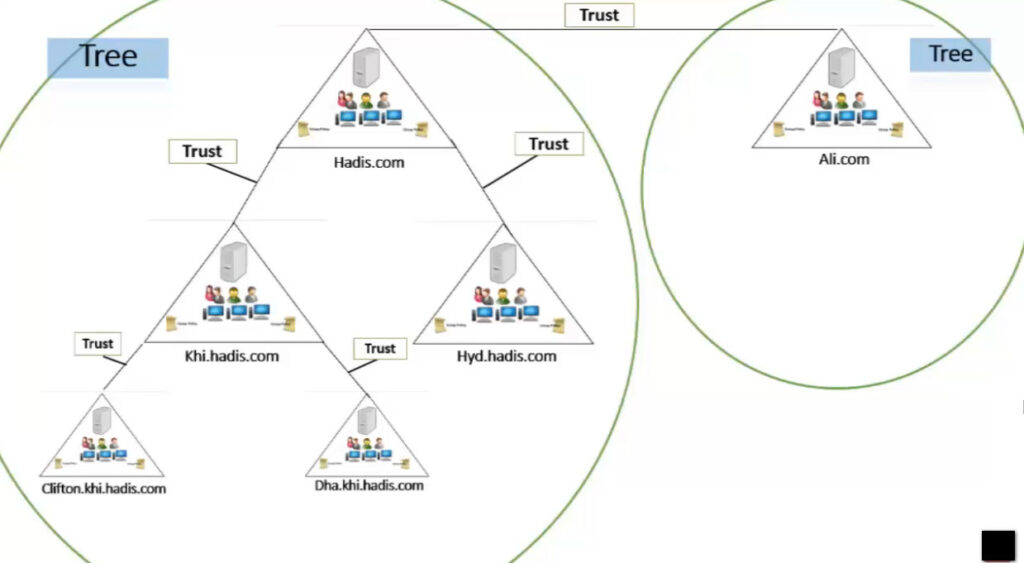
A Domain is a server-based network model controlled by a Domain Controller (DC) running Active Directory (AD).
All computers join this domain and are centrally managed.
Users log in using one username and password (stored on the server).
Policies, permissions, and updates are controlled from one place.
✅ Used in medium to large organizations (schools, offices, enterprises).
Domain Example:
In a company with 100 PCs:
The Domain Controller (Windows Server with AD) manages all user accounts.
Users can log into any PC in the domain using the same credentials.
The IT admin can control security, software updates, printers, and policies centrally.
Domain Benefits
✅ Centralized management of all users and computers
✅ Single sign-on (same login for all PCs)
✅ Group Policy — enforce security and configurations
✅ Easier software deployment and updates
✅ Stronger security and monitoring
✅ Scalable — supports hundreds or thousands of computers
Domain Limitations
❌ Requires a dedicated Windows Server (Domain Controller)
❌ Higher setup and maintenance cost
❌ Needs IT admin skills
❌ More complex than a workgroup


Large Network Without Domain Controller Problems & Benefits
Problems Without a Domain Controller
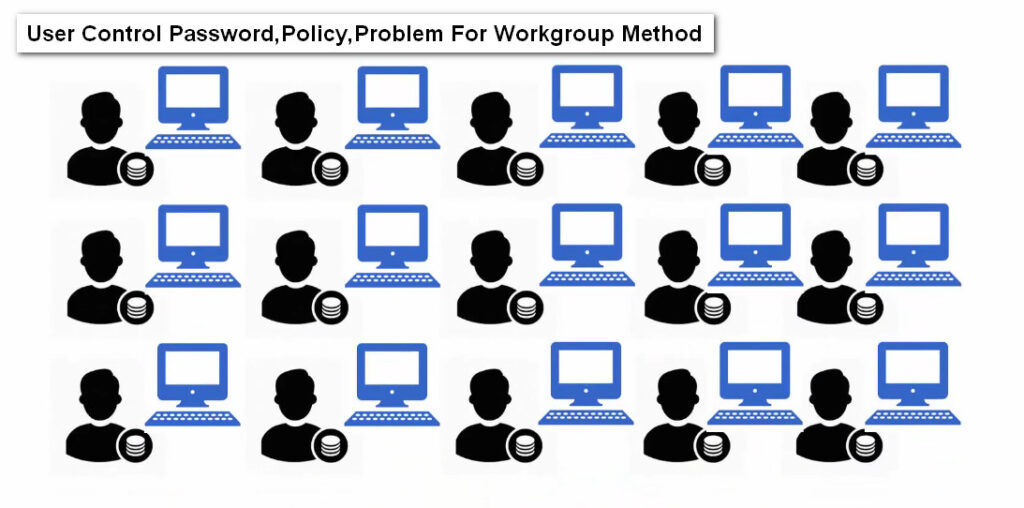
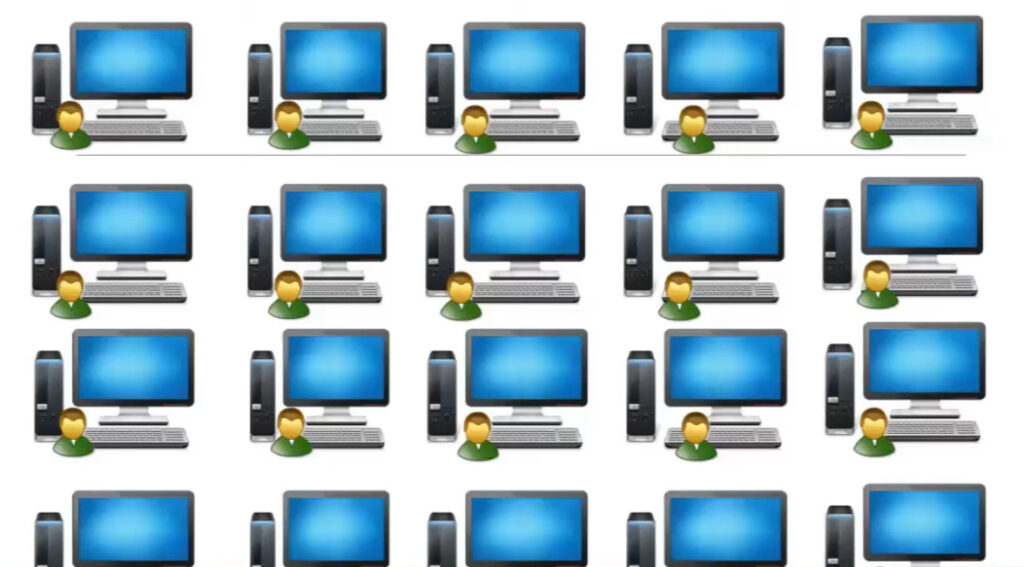
In a large organization (say 50–500+ computers), if you only use a Workgroup setup (no Domain Controller), many management and security problems occur.
Let’s look at them one by one 👇
1. No Centralized User Management
Every PC has its own user accounts.
If an employee changes their password, it must be updated on all PCs manually.
When new staff join or leave, the admin must add/remove accounts on each PC.
Result: Huge time waste and inconsistent access control.
2. Weak Security
Users can create weak passwords or disable firewalls.
No company-wide policy enforcement.
Data on each PC is vulnerable to unauthorized access.
💡 Result: High risk of security breaches and data leaks.
3. No Centralized Access Control
Permissions (file sharing, printer access, etc.) must be configured manually on each system.
It’s easy to make mistakes and give access to the wrong users.
Result: Data privacy becomes hard to maintain.
4. No Group Policy
You can’t set network-wide rules like:
Disable USB access
Restrict software installation
Set password complexity
Enforce screen lock
Result: Each user can configure their PC however they want — poor consistency and compliance.
5. Software and Update Management is Manual
No central system to install or update software on all PCs.
Each system must be updated manually.
Result: Some systems stay outdated or unprotected.
6. No Central Backup or Monitoring
Each computer stores data locally.
No centralized backup → high risk of data loss if a PC fails.
Result: No reliable data recovery in case of failure.
7. Hard to Troubleshoot
You can’t view all network logs or user activity in one place.
Diagnosing login or network problems takes much longer.
8. Poor Scalability
Workgroup networks become very hard to manage once you exceed ~10–15 PCs.
Adding new computers or users increases the complexity drastically.
9. User Inflexibility
A user can only log in on their own PC.
They can’t log in from another computer without a local account.
Result: Inconvenient for employees and IT staff.
Summary — Problems Without Domain Controller
| Area | Problem |
|---|---|
| User Accounts | Separate on every PC |
| Passwords | Managed individually |
| Security | Weak and inconsistent |
| Group Policy | Not available |
| Software Updates | Manual on each PC |
| Access Control | Hard to manage |
| Data Backup | No central system |
| Scalability | Poor beyond 10 PCs |
| Troubleshooting | Manual and slow |
| User Mobility | Limited |
Benefits of Having a Domain Controller (With Active Directory)
When you use a Domain Controller (DC) with Active Directory (AD), all network devices are controlled centrally from the server.
Here’s how it improves the network 👇
1. Centralized Management
Manage all user accounts, passwords, and computers from one server.
Add, disable, or update users in one place (AD Users & Computers).
Result: Saves time and ensures consistent control.
2. Strong Security
Enforce password policies, access permissions, and security updates centrally.
Use Group Policy (GPO) to control security features.
Result: High-level security across the organization.
3. Single Sign-On (SSO)
Users can log into any domain-joined PC using the same username and password.
Result: Simple and convenient login experience.
4. Group Policy Enforcement
Easily control network-wide settings like:
Disable USB drives
Install printers automatically
Configure desktop wallpaper
Restrict software installations
Result: Uniform setup and compliance across all PCs.
5. Centralized File & Printer Sharing
All files, folders, and printers can be shared and managed from the server.
You can set permissions per user or group.
Result: Organized and secure data sharing.
6. Easier Software and Update Deployment
Use tools like WSUS or SCCM to push software and updates automatically.
Result: Saves admin time and keeps all PCs up-to-date.
7. Scalability
Domains can handle thousands of users and computers easily.
Adding new devices or employees takes just a few minutes.
Result: Ideal for growing organizations.
8. Centralized Backup & Monitoring
Backup all user profiles and files to the server.
Monitor login activity and system health in one place.
Result: Better data protection and faster troubleshooting.
9. User Mobility
Users can log in from any domain computer — their files and settings follow them.
Result: Flexibility for employees in different departments.