
Site to Site VPN Configuration
Types Of Virtual Private Networks (VPN)
There are two main types of VPN that people can use to securely connect to corporate networks.
1. Remote access VPN
A remote access VPN enables the user to connect their device to a network from outside their organization’s office. This device-to-network approach typically involves a user connecting their laptop, smartphone, or tablet to a network through their VPN. For organizations with changing IP addresses, dynamic DNS (DDNS) can help maintain consistent VPN connectivity by automatically updating domain names with the correct IP address.
Increasingly, advances in VPN technology enable security checks to be carried out to ensure the device is secure before it is granted permission to connect. Remote access VPNs include cloud VPNs, which enable users to securely access applications and data via their web browser.
2. Site-to-Site VPN
A site-to-site VPN enables connections between multiple networks. This network-to-network approach is typically used to connect multiple offices or branch locations to a central office. Site-to-site VPN encryption is useful for organizations with several offices based in various geographical locations. It enables them to share resources from a primary network, such as email servers or data storage facilities, across multiple locations. It also allows access to all users as if servers were located in the physical office.
Site-to-Site VPN Detailed
1. Site-to-Site VPN — Detailed Explanation
Site-to-Site VPN is a VPN technology used to securely connect two different office networks or locations over the public Internet. Instead of creating a VPN connection separately on every computer, the VPN tunnel is normally created between two network devices such as FortiGate firewalls, Palo Alto firewalls, Cisco routers, or MikroTik routers. Once the tunnel is established, the users inside both offices can communicate with authorized networks through the encrypted tunnel.
Real example: Suppose a company has a Head Office with network 192.168.10.0/24 and a Branch Office with network 192.168.20.0/24. The Head Office has an ERP server at 192.168.10.50, while the Branch Office has 30 employees. A Site-to-Site IPsec VPN is configured between the Head Office firewall and Branch Office firewall. When a Branch employee accesses 192.168.10.50, the Branch firewall recognizes that the destination belongs to the Head Office network and sends the traffic through the encrypted VPN tunnel. The Head Office firewall decrypts the traffic and forwards it to the ERP server.
2. How Site-to-Site VPN Works
In a Site-to-Site VPN, both locations normally have a VPN-capable firewall or router. The two devices use the Internet to establish an encrypted tunnel. For example, the Head Office firewall may have public IP 203.0.113.10, while the Branch firewall has public IP 198.51.100.20. The devices authenticate each other and negotiate encryption parameters using IPsec.
After the tunnel is established, the firewalls know which private networks should use the VPN. For example:
- Head Office LAN →
192.168.10.0/24 - Branch LAN →
192.168.20.0/24
If a Branch PC with IP 192.168.20.25 wants to access the Head Office ERP server 192.168.10.50, the Branch firewall sends that traffic into the VPN tunnel instead of sending it directly to the Internet. The traffic is encrypted while travelling across the public Internet and decrypted at the Head Office firewall.
3. Site-to-Site VPN Real Deployment Example
Imagine a company with a Head Office and three Branch Offices.
Head Office:
- LAN:
10.10.10.0/24 - ERP Server:
10.10.10.50 - File Server:
10.10.10.60
Branch 1:
- LAN:
10.20.10.0/24
Branch 2:
- LAN:
10.30.10.0/24
Branch 3:
- LAN:
10.40.10.0/24
The company creates VPN tunnels between the Branch firewalls and the Head Office firewall. Now Branch 1 users can access the ERP server, Branch 2 users can access the file server, and Branch 3 users can access specific applications according to firewall policies.
This is useful because the company does not need to expose the ERP server directly to the public Internet. The server can remain on a private IP address and be reachable through the encrypted VPN.
Remote Access VPN Detailed
4. Remote Access VPN — Detailed Explanation
Remote Access VPN is designed for an individual user or device that needs secure access to the company’s internal network from outside the office. Unlike Site-to-Site VPN, the VPN connection is normally initiated by a VPN client installed on the user’s laptop, desktop, or mobile device.
For Example, an employee is Working From Home. The employee’s laptop is connected to their home Internet connection. The employee opens the company’s VPN client and connects to the corporate firewall. After authentication, the firewall establishes an encrypted VPN connection with that laptop.
The employee may receive a VPN address such as:
10.99.10.25
The company may then allow that VPN user to access specific internal resources such as the ERP server, RDP server, file server, or internal applications.
5. Remote Access VPN Real Example
Suppose the company has:
Office LAN:
10.10.10.0/24
RDP Server:
10.10.10.100
VPN Client Pool:
10.99.10.0/24
An employee is at home and needs to access the office RDP server.
The employee connects:
Home Laptop → Internet → Company Firewall → VPN Tunnel
The firewall authenticates the employee using username/password, MFA, certificate, or another authentication method.
After successful authentication, the employee receives:
10.99.10.25
The firewall policy allows the VPN user to access only:
10.10.10.100:3389
The employee can then open Remote Desktop and connect to the internal RDP server.
Importantly, the company does not necessarily need to expose TCP 3389 directly to the Internet. The RDP service can remain accessible only through the authenticated VPN connection.
How does a site-to-site VPN work?
A site-to-site VPN creates a secure connection between two or more networks at different locations. It encrypts data transmitted between these networks over the public internet, forming a virtual “tunnel” for secure communication.
What is the function of a site-to-site VPN?
A site-to-site VPN securely connects separate office networks, allowing them to function as one cohesive network. This enables secure communication and resource sharing between different locations, improving collaboration and productivity.
What are the benefits of a site-to-site VPN?
Site-to-site VPNs offer secure communication between geographically dispersed networks, reduced operational costs compared to dedicated leased lines, and centralized network management for improved efficiency.
What are the challenges of a site-to-site VPN?
Challenges include potential performance issues due to latency and bandwidth limitations, complexity in configuration and ongoing management, and ensuring compatibility between different VPN devices and protocols.
What is the difference between site-to-site VPN vs. remote access VPN?
Site-to-site VPNs connect entire networks together, while remote access VPNs connect individual devices, like laptops or smartphones, to a network, often used by employees working remotely.
What is the difference between site-to-site VPN vs. point-to-site VPN?
Site-to-site VPNs connect entire networks, while point-to-site VPNs connect individual devices to a network. Point-to-site offers more granular control over access for individual users and devices.
What is a VPN and what does VPN stand for?
VPN, meaning a virtual private network masks your Internet protocol (IP) address, creating a private connection from a public wi-fi connection.
What does a VPN do and how does it work?
VPNs use virtual connections to create a private network, keeping any device you connect to a public wi-fi safe from hackers and malware, and protecting sensitive information from unauthorized viewing or interception.
What are the advantages of using a VPN?
A VPN masks a user’s true location to the one they set their VPN to. Common uses include; Protecting Browsing History, Hiding your Private Information, Prevent Data Throttling, and Protecting Devices.
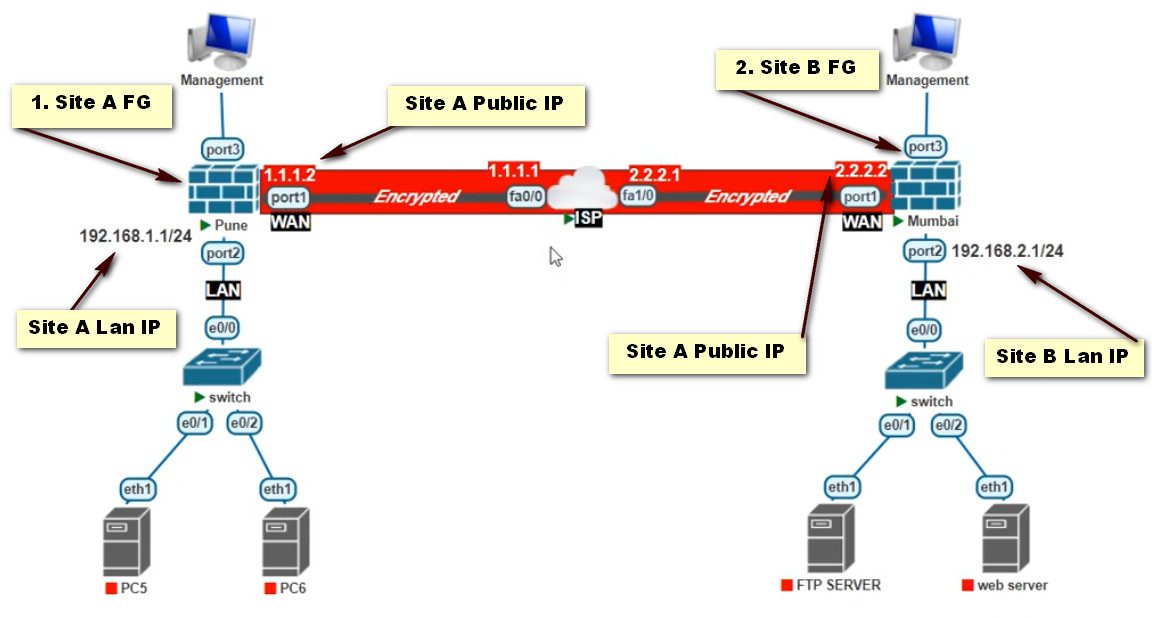
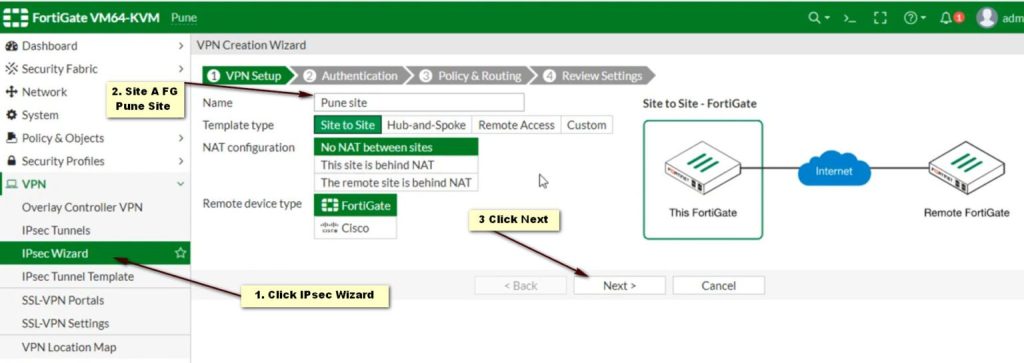
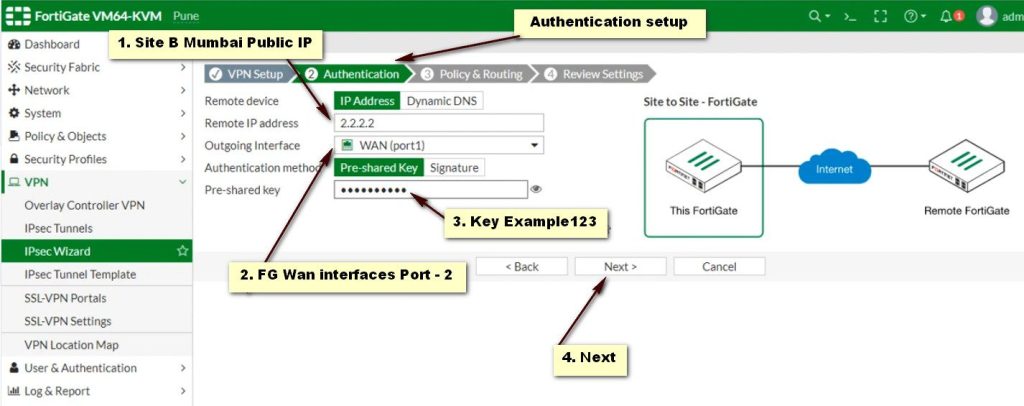
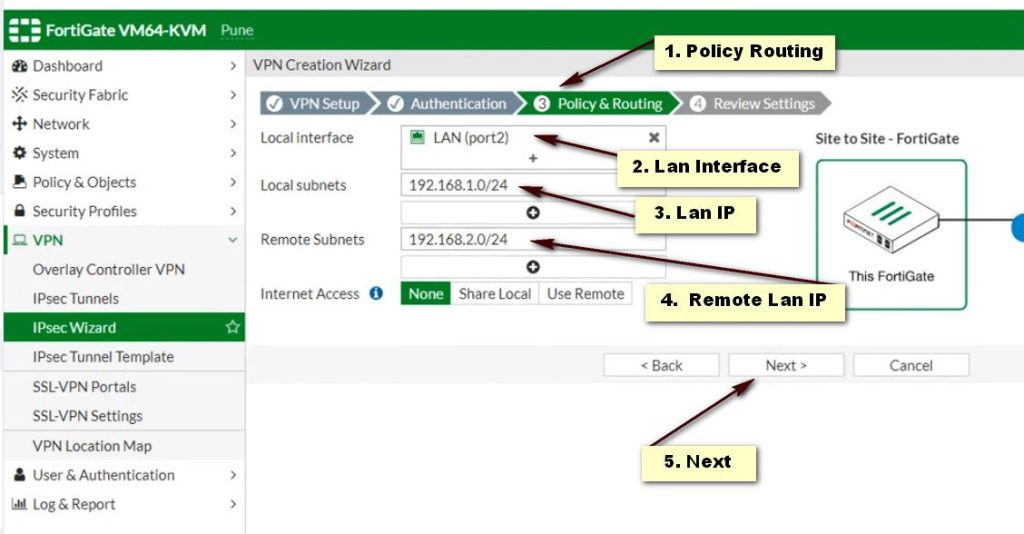
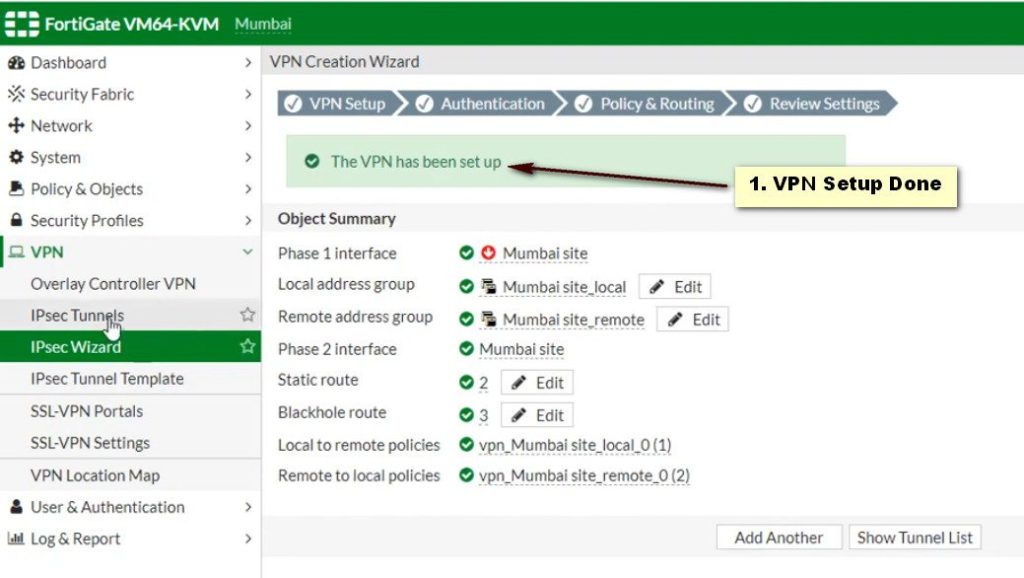
Access the FortiGate Admin Interface
- Log into your FortiGate firewall using its web interface. You’ll typically find this at https://<FORTINET_IP>.
Create a VPN Configuration
- Go to VPN > IPSec Tunnels.
- Click Create New and select Custom.
Phase 1 Configuration
- Name: Enter a name for the tunnel.
- Remote Gateway: Select Static and enter the StrongSwan public IP.
- Interface: Choose the interface that connects to the internet.
- Mode: Set to Main (Identity Protection).
- Pre-shared Key: Enter the same shared secret used in StrongSwan.
- Encryption and Authentication: Use default settings (AES256, SHA256).
- Advanced Settings: Adjust settings based on your requirements.
Phase 2 Configuration
- Select the tunnel you just created.
- Under Phase 2 Select, click Create.
- Name: Provide a name.
- Local Subnet: Enter the StrongSwan local subnet.
- Remote Subnet: Enter the FortiGate remote subnet.
- Encryption and Authentication: Match the settings used in Phase 1.
Review Policy Route
- Go to Policy & Objects > IPv4 Policy.
- Create a new policy that allows traffic from the local network to the remote network via the VPN tunnel.
Apply Changes
Save the configuration and apply changes.