Network Troubleshooting Commands

As a Windows administrator, it’s important to be familiar with the various networking commands which can be used for network troubleshooting.

Networking commands are an essential part of any network administrator’s toolkit and can help to solving networking issues, manage network settings, and much more.

In this guide, we’ll highlight the 12 essential networking commands that every Windows admin should be familiar with. These range from basic networking utilities to more advanced tools

As a Windows administrator, it’s important to be familiar with the various networking commands which can be used for network troubleshooting.

Networking commands are an essential part of any network administrator’s toolkit and can help to solving networking issues, manage network settings, and much more.

In this guide, we’ll highlight the 12 essential networking commands that every Windows admin should be familiar with. These range from basic networking utilities to more advanced tools.


Using the Windows Key + R keyboard combination to open the Run dialogue box is the quickest way to get to the command prompt in Windows 10. To open the command prompt, type “cmd” and hit Enter.

1- Ping

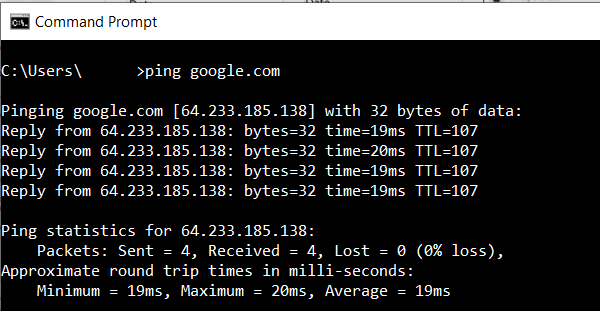
The ping command is a networking utility used to test the reachability of a host on an Internet Protocol (IP) network. It can be used to determine whether a specific IP address is accessible, and also measures the round-trip time for messages sent from the localhost to a remote host. In addition, Ping can provide information about the network routes and the amount of time required to traverse them.
2 – NetStat

NetStat is a networking utility that can be used to display all active network connections and their status. It can be used to identify which applications are using which ports and can be helpful in troubleshooting networking issues.

Most Windows, Linux, UNIX, and other operating systems include Netstat as a Common TCP – IP networking command-line method. 

To use the NetStat command, open the Command Prompt and type “netstat” followed by any desired options.

NetStat Command Options

OptionDescription
-aDisplays all connection and ports
-bDisplays the executable involved in each connection or hearing port
-eThis will combine with the -sand display the ethernet statistics
-nDisplays the address and the port number in the form of numerical
-oDisplays the ID of each connection for the ownership process.
-rDisplays the routing table
-vWhen used in combination with -b, the link or hearing port sequence for every executable is shown.

3 – Ip Config

IP Config is a command-line tool that is used to display the current IP address configuration of a Windows machine. This includes the IP address, subnet mask, and default gateway. Additionally, IP Config can be used to release and renew DHCP leases.

This command is particularly useful for troubleshooting networking issues. For example, if a machine is not receiving an IP address from a DHCP server, this can be easily checked using the IP Config command.

To use the IP Config tool, simply open the Command Prompt and type “ipconfig” followed by Enter. This will display the current IP address configuration of the machine.

Additional options can be used such as…

OptionDescription
/allDisplays all IP address information for all adapters.
/releaseReleases the DHCP lease
/renewRenews the DHCP lease
/flushdnsFlushes the DNS resolver cache

4 – Nslookup

Nslookup is a command-line networking tool used for querying Domain Name System (DNS) to obtain domain name or IP address mapping, or other DNS records. Nslookup has two modes: interactive and non-interactive.

The Windows version of Nslookup is available as part of the Microsoft networking tools. To use Nslookup on Windows, open the Command Prompt and type “nslookup” followed by the domain name or IP address you want to query.

For example, to find the IP address of www.example.com, you would type:

nslookup www.example.com

Nslookup can also be used to find the name of a machine with a given IP address. For example, to find the name of the machine with the IP address 10.0.0.1, you would type:

nslookup 10.0.0.1

5 – Tracert

The tracert command is a Command Prompt command that displays the network packets being sent and received, as well as the number of hops required for them to reach their destination. 

A traceroute is another name for this command. It gives a lot of information about how a packet gets from the source to the designated destination.

At all Windows operating systems, the tracert command is available in the Command Prompt.

To use the Tracert utility, open the command prompt and type “tracert” followed by the address of the host you wish to trace the route to.

OptionDescription
targetThis is the destination, either an IP address or hostname.
-dPrevents Tracert from resolving IP addresses to hostnames to get faster results.
-h MaxHopsThis Tracert option specifies the maximum number of hops in the search for the target. If the MaxHops option is not specified the target has not been found by 30 hops, then the tracert command will stop looking.
-w timeoutThis ping command requires a timeout value to be provided. The amount of time is adjusted in milliseconds

6 – GetMac

The MAC address is a unique identifier for every network capable device on the internet. The number is assigned during the manufacturing process and is stored in the device’s hardware.

The Getmac command is used to display the MAC addresses of all networking adapters on a Windows system. This information can be useful for troubleshooting networking issues or for identifying a specific networking device.

To use the Getmac command, open the Command Prompt and type “getmac” followed by the Enter key. The Getmac command will then display the MAC address, the network adapter name, and the type of networking for each adapter.

The Getmac command can also be used with various switches to provide additional information or to modify the way that the information is displayed.

7 – Route

The Route networking command is one of the most essential networking commands for Windows administrators. This command can be used to view and modify the network routing table. The route command can also be used to add or remove static routes from the routing table.

Routing tables are used to direct packets from one subnet to another. By using the route command, administrators can change the way network traffic is routed. This can be useful for troubleshooting networking issues or for implementing security measures.

The Route networking command can be executed from the Command Prompt or from PowerShell.

To view the current routing table, use the following syntax:

route print

 WINDOWS NETWORK TROUBLESHOOTING COMMANDS

 Basic Connectivity

Command

Description

ping <host>

Test if host is reachable (e.g., ping google.com)

tracert <host>

Trace the route packets take to a host

ipconfig

View IP configuration (IP, subnet, gateway)

ipconfig /all

Detailed config including DNS, MAC, etc.

ipconfig /release

Release current IP address

ipconfig /renew

Request new IP address from DHCP

ipconfig /flushdns

Clear DNS resolver cache

 Name Resolution

Command

Description

nslookup <host>

Query DNS for domain resolution

ping <IP> or <hostname>

Check name/IP resolution

netstat -an

Show all active connections and listening ports