
Basic Configuration FortiGate firewall
GUI Based Configuration
Basic configuration of a FortiGate firewall from Fortinet is the initial setup required to make the device ready for network security and internet access.
1. Accessing the FortiGate Device:
First, you access the FortiGate device by connecting a laptop or PC to its Management Port. You open a Web Browser and enter the Default IP Address (such as 192.168.1.99 or 192.168.1.1). Then you log in using the default username “admin” and set a strong password for security.
2. Configuring Interfaces (WAN & LAN):
You need to configure network interfaces:
- WAN interface → connects to the internet (set IP from ISP or DHCP or Provide Static IP Address )
- LAN interface → connects to internal network (set private IP like 192.168.10.1)
This step defines how traffic enters and leaves the firewall.
Next, you configure the network interfaces. The WAN interface is connected to the internet provided by the ISP, and the LAN interface is connected to the internal company network. Each interface is assigned an IP address based on the network design.
3. Setting Up Default Route:
After that, you set up the Default Route. This tells the firewall where to send internet-bound traffic. The default gateway is usually the ISP router IP address, and it ensures users inside the network can access the internet.
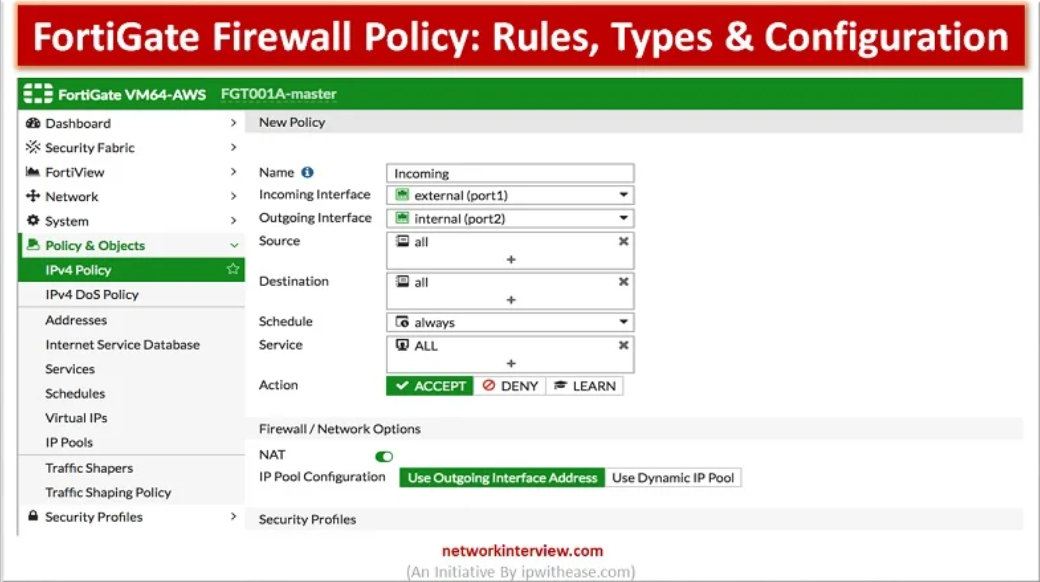
4. Creating Firewall Policy:
Then you create Firewall Policies. These rules control traffic between LAN and WAN. For example, you allow internal users to access the internet while applying NAT (Network Address Translation) so private IPs can communicate externally.
5. Configuring DHCP Server:
After policies, you configure a DHCP Server on the LAN Interface. This allows connected devices to automatically receive IP addresses, gateway, and DNS settings without manual configuration.
6. DNS Configuration:
You also configure DNS Settings so users can resolve domain names like google.com into IP addresses. Public DNS Servers like Google DNS (8.8.8.8) are commonly used.
7. Basic Security Features:
Finally, you enable Basic Security Features such as Antivirus, Web Filtering, and Intrusion Prevention System (IPS). These features help protect the network from malware, unsafe websites, and Cyber Attacks.
Basic Firewall Setup Includes:
👉 Interface Setup
👉 DNS Configuration
👉 Default Routing
👉 DHCP
👉 Firewall Policies
👉 Security Features
👉 Testing
Step-By-Step Configuration Guide
1.Initial Access & Management Login: Default IP: 192.168.1.99 | Credentials: admin / (no password).
- Connect an Ethernet cable from your PC to Management Port 1 or MGNT on the FortiGate 200F.
- Set your PC’s Ethernet interface to a static IP in the same range (e.g., 192.168.1.100 / 255.255.255.0).
- Open a browser and navigate to [https://192.168.1.99](https://192.168.1.99).
- Log in with Username admin and leave the password blank. You will be prompted to set a new administrator password immediately.
2.Configure WAN & LAN Interfaces:Network.
Interfaces”>
- WAN Interface (wan1 or port1):
- Double-click the WAN interface.
- Set Addressing Mode to Manual (enter ISP Static IP, Subnet Mask) or DHCP depending on your ISP.
- Enable administrative access for HTTPS and SSH if required for remote management.
- LAN Interface (lan or internal hardware switch):
- Set IP address to your local gateway (e.g., 192.168.10.1 / 255.255.255.0).
- Enable HTTPS, PING, and SSH under Administrative Access.
3.Enable DHCP Server on LAN:Network.
Interfaces > LAN Edit”>
- Scroll down to the DHCP Server toggle on the LAN interface configuration page and turn it ON.
- Set the Address Range (e.g., 192.168.10.100 to 192.168.10.200).
- Set Netmask to 255.255.255.0.
- Set DNS Server to Same as Interface IP or custom upstream resolvers (1.1.1.1, 8.8.8.8).
4.Configure Static Default Route:Network.
Static Routes”>
- Click Create New.
- Set Destination to 0.0.0.0/0 (Subnet).
- Set Gateway IP to your ISP router / Next-Hop IP address.
- Set Interface to wan1.
5.Create IPv4 Outbound Firewall Policy:Policy & Objects.
Firewall Policy”>
- Click Create New.
- Configure the essential fields:
- Name: LAN_to_WAN_Internet
- Incoming Interface: LAN
- Outgoing Interface: wan1
- Source: all
- Destination: all
- Schedule: always
- Service: ALL
- Action: ACCEPT
- Ensure NAT is toggled ON and set to Use Outgoing Interface Address.
- Click OK to save and apply the policy.
					                    INTERNET
                       │
                  ISP Router/ONT
                       │
                 WAN: port1
              203.0.113.2/30
                       │
                ┌─────────────┐
                │ FortiGate   │
                │    200F     │
                └─────────────┘
                  │         │
          port2 LAN         port3 DMZ
       192.168.1.1/24     172.16.10.1/24
             │                  │
        LAN Switch          DMZ Switch
             │          ┌───────┼────────┐
        User PCs       Web     Mail      ERP

FortiGate CLI Configuration
1. Login to CLI
You can access FortiGate CLI via console, SSH, or web terminal.
					login: admin
Password: ******
2. Configure LAN Interface
Set LAN IP address:
					config system interface
edit port1
set mode static
set ip 192.168.10.1 255.255.255.0
set allowaccess ping https ssh http
set role lan
next
end

OR

config system interface
  edit "port1"
    set mode static
    set ip 192.168.10.99 255.255.255.0
    set allowaccess ping https ssh
    set alias "LAN"
  next
end
config system dhcp server
    edit 1
        set dns-service default
        set default-gateway 192.168.10.99
        set netmask 255.255.255.0
        set interface "port1"
        config ip-range
            edit 1
                set start-ip 192.168.10.2
                set end-ip 192.168.10.254
            next
        end
    next
end
3. Configure WAN Interface (Internet)
					config system interface
edit port2
set mode dhcp
set allowaccess ping https ssh
set role wan
next
end

{Static WAN IP Configuration}

config system interface
    edit "port1"
        set mode static
        set ip 203.0.113.2 255.255.255.252
        set allowaccess ping https ssh
    next
end
4. Configure Default Route
					config router static
edit port2
set gateway 192.168.1.1
set device port2
next
end
5. Set Global DNS Server
					config system dns
set primary 8.8.8.8
set secondary 8.8.4.4
end
6. DHCP on LAN Port (Automatic IP)
					config system dhcp server
edit 1
set interface port1
set dns-service default
set default-gateway 192.168.10.1
set ip-range 192.168.10.100 192.168.10.200
next
end
get system dns
7. Firewall Policy (LAN to WAN Traffic)
					config firewall policy
edit 1
set name "LAN_TO_INTERNET"
set srcintf port1
set dstintf port2
set srcaddr all
set dstaddr all
set action accept
set schedule always
set service ALL
set nat enable
next
end
					FortiGate  Commands
...................
1. Check All Interfaces Status
get system interface

2. Detailed Interface Information
diagnose hardware deviceinfo nic port1

3. Check IP Address List
diagnose ip address list

4. Check Interface Traffic
diagnose netlink interface list

5. Check Link Status (Up/Down)
get system interface physical

6. Ping Test (Connectivity Check)
execute ping 8.8.8.8


7. Traceroute (Path Check)
execute traceroute 8.8.8.8

8. Check Routing Table
get router info routing-table all

9. Check Firewall Policy Hit Count
diagnose firewall iprope show

10. Check NAT Sessions
diagnose sys session list


11. DNS Troubleshooting
execute nslookup google.com

12. Clear Sessions (Fix stuck traffic issues)
diagnose sys session clear

13. Check HA Status
get system ha status