
What is BIOS
What is BIOS
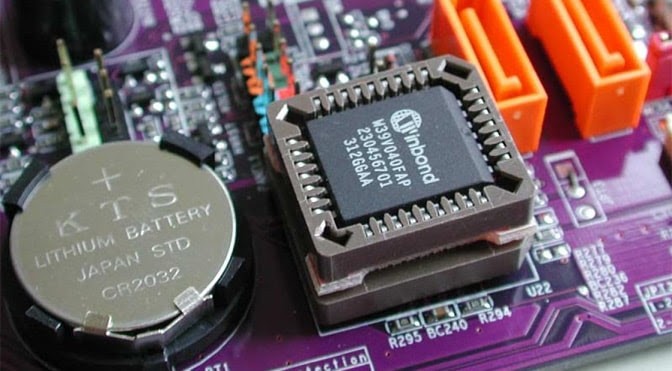
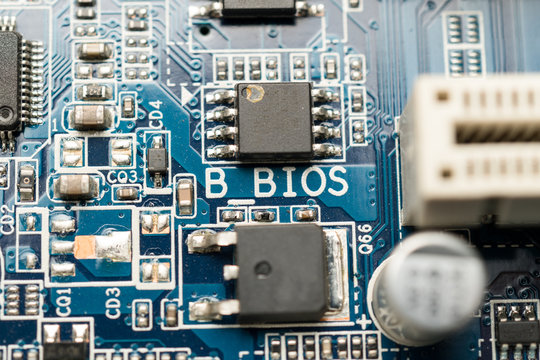
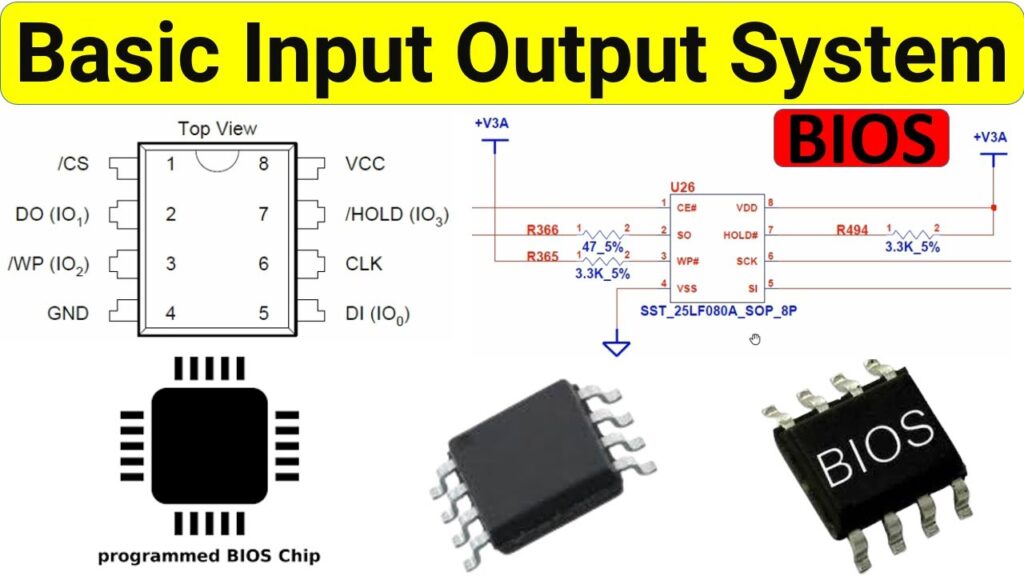
- BIOS (Basic Input/Output System) is a firmware program stored on a motherboard chip that runs automatically when you turn on a computer. It is the first software that starts the system before the operating system (like Windows or Linux) loads.
- BIOS is responsible for initializing and checking all essential hardware components such as the CPU, RAM, storage devices, keyboard, and display. It ensures that the computer hardware is working properly before starting the system.
- It also controls the boot process, meaning it decides which device (SSD, HDD, or USB) the computer should use to load the operating system.
- In simple terms, BIOS is the startup system of a computer that checks hardware and helps load the operating system so the PC can run.
- BIOS stands for Basic Input/Output System
- It is firmware stored on the motherboard chip
- It is the first software that starts when PC powers on
- It checks hardware using POST (CPU, RAM, storage, etc.)
- It helps in starting the operating system
- It controls the boot process of the computer
- Without BIOS, a computer cannot start
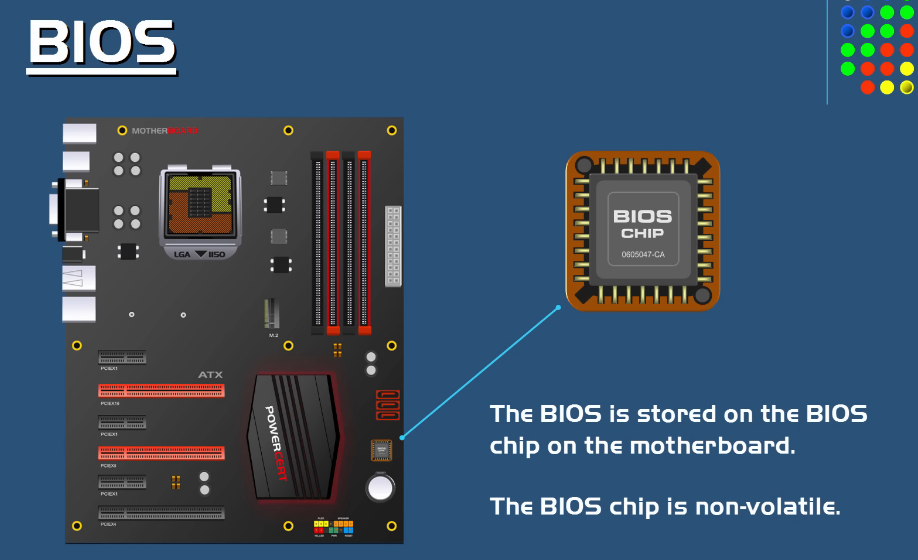
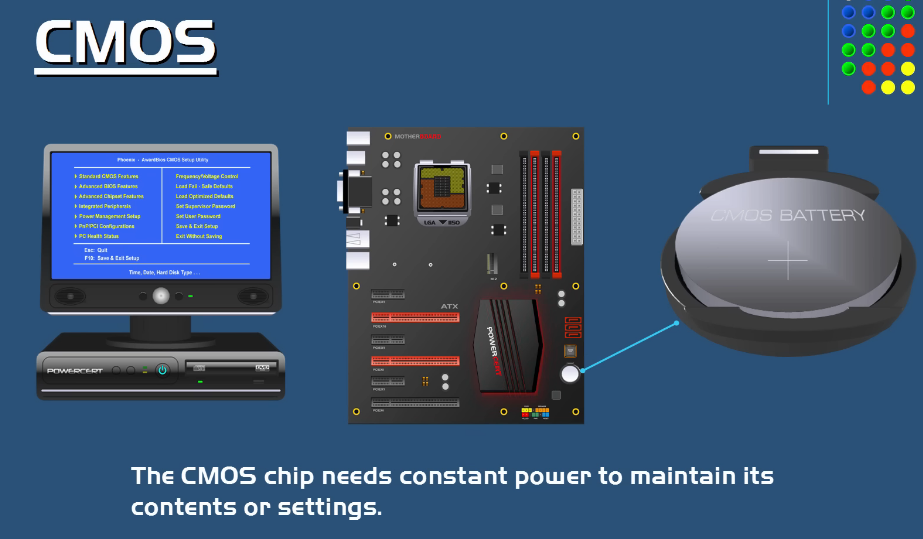
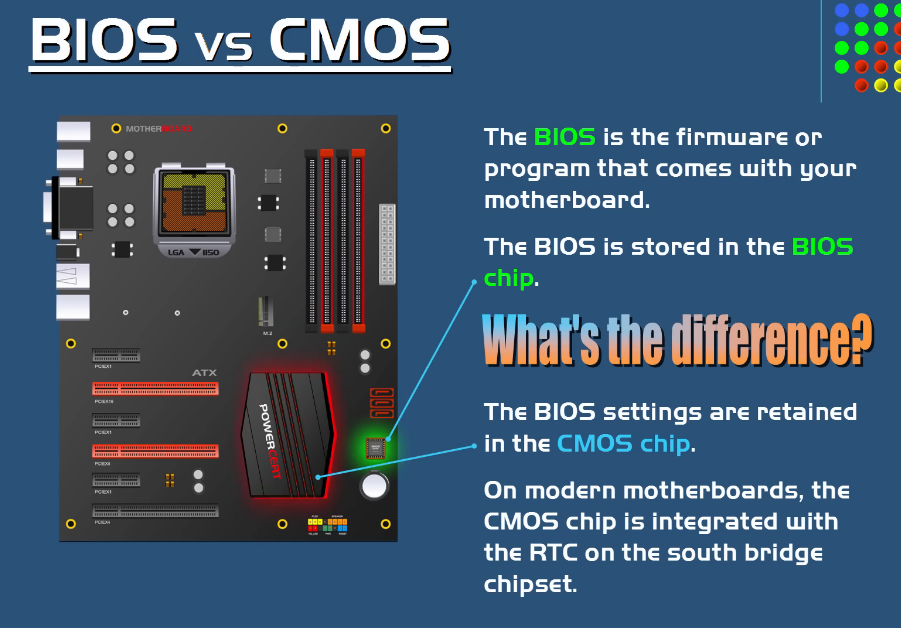
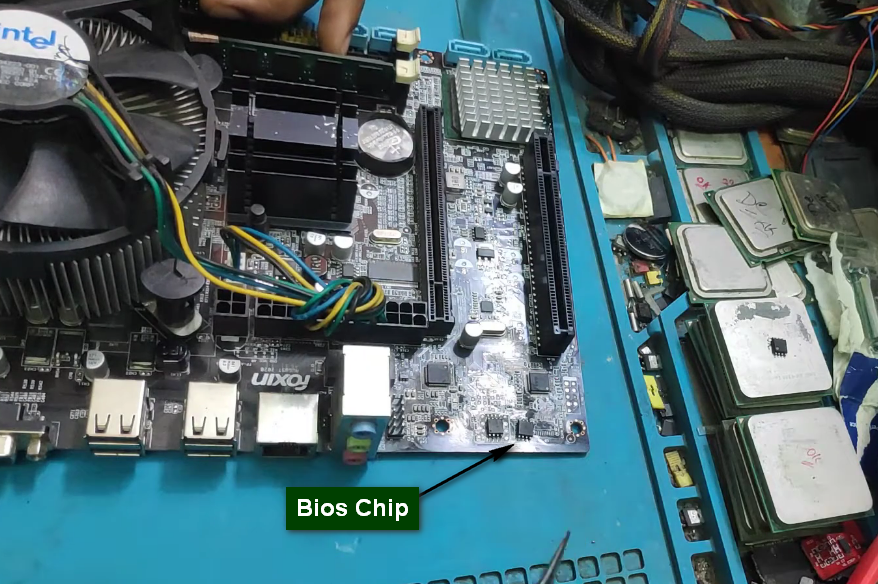
Work Of Bios
How BIOS Works :
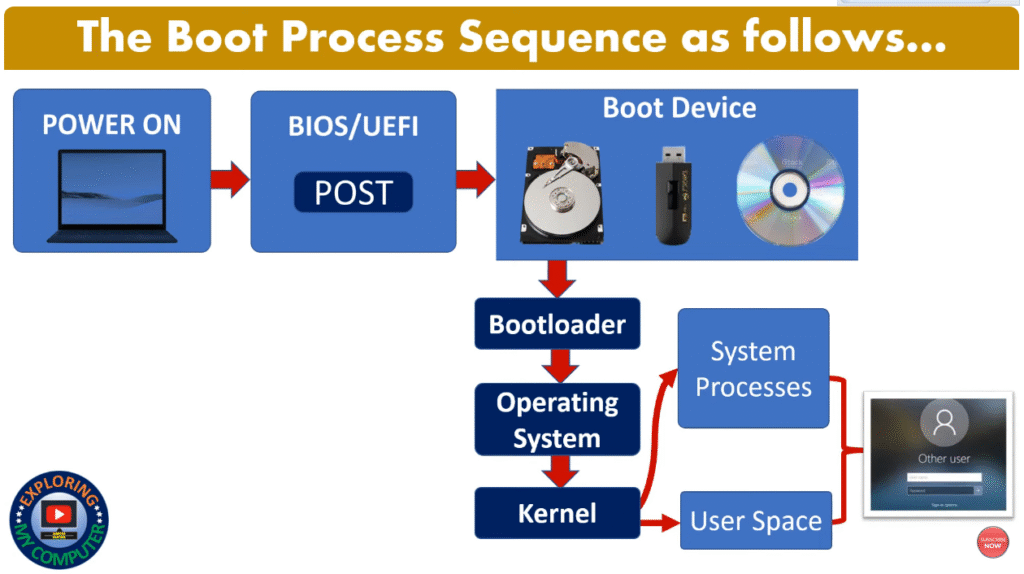
- BIOS starts working immediately when you press the power button of the computer. It is the first firmware that runs on the motherboard and takes control of the system before the operating system loads.
- After power on, BIOS performs a process called POST (Power-On Self Test). In this step, it checks whether important hardware components like CPU, RAM, GPU, storage devices, keyboard, and other essential parts are working properly. If any problem is found, the system shows an error or gives beep sounds.
- Once the hardware check is completed, BIOS initializes all devices so they can properly communicate with each other. This means it prepares the system hardware for normal operation.
- After initialization, BIOS looks at the boot order set in its settings. It decides which storage device should be used first, such as SSD, HDD, USB drive, or DVD, to load the operating system.
- Then BIOS loads a small program called the bootloader from the selected device. This bootloader is responsible for starting the operating system like Windows or Linux.
- Finally, once the operating system starts loading, BIOS hands over control to it and becomes inactive while the system continues running normally.
- BIOS starts automatically when the computer is powered on
- It checks all hardware using POST (CPU, RAM, storage, etc.)
- It initializes and prepares all hardware components
- It selects the boot device (SSD, HDD, USB, etc.)
- It loads the bootloader from the selected device
- It starts the operating system (Windows/Linux)
- After that, BIOS hands control to the OS and stops working
Types of BIOS
BIOS (Basic Input/Output System) can be divided into different types based on technology and usage.
1. Legacy BIOS (Traditional BIOS):
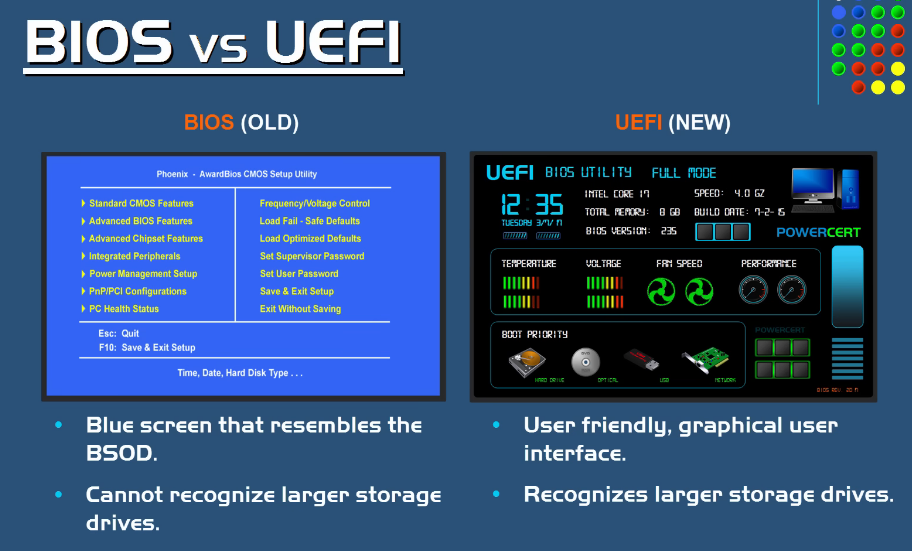
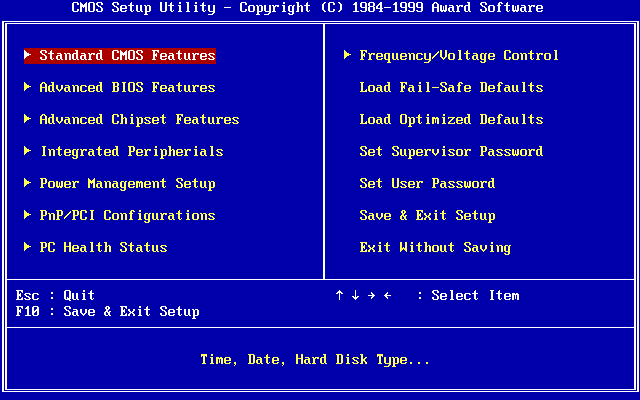
Legacy BIOS is the old type of BIOS system used in older computers. It has a simple text-based interface and supports basic hardware initialization and booting. It works with MBR (Master Boot Record) partition style and has limited features and slower boot speed compared to modern systems.
2. UEFI BIOS (Modern BIOS):
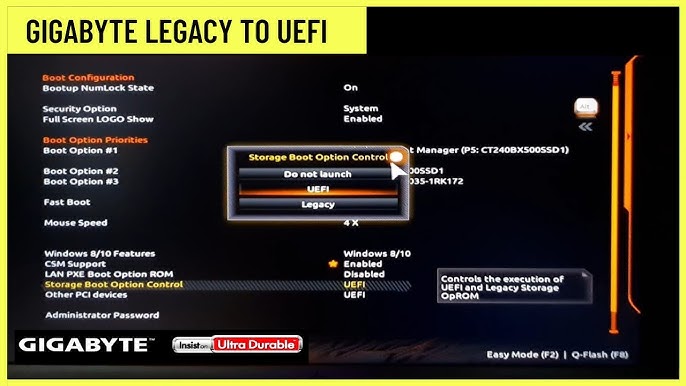
UEFI (Unified Extensible Firmware Interface) is the modern replacement of traditional BIOS. It has a graphical interface, faster booting, and supports advanced features like Secure Boot. UEFI supports GPT (GUID Partition Table) and can handle large storage drives (more than 2TB). Most modern computers use UEFI instead of Legacy BIOS.
3. Manufacturer BIOS (OEM BIOS):
This type of BIOS is developed by motherboard manufacturers like ASUS, Gigabyte, MSI, and ASRock. It is customized based on hardware and may include extra features like overclocking tools, hardware monitoring, and fan control settings.
4. Core BIOS (System BIOS):
Core BIOS is the basic firmware layer stored on ROM/flash chip that directly interacts with hardware. It is responsible for hardware initialization and system startup before loading the operating system.
5. Cloud / Remote BIOS (Advanced Systems):
This is a modern and rare type used in servers and enterprise systems. It allows remote access and management of BIOS settings over a network for system maintenance and control.
Difference Between UEFI and Legacy BIOS
- Legacy BIOS is the older firmware system used in traditional computers. It has a simple text-based interface and uses the MBR (Master Boot Record) partition style. It supports storage drives only up to 2TB, works in 16-bit mode, and has slower boot speed. It does not support modern security features or mouse control, so configuration is limited and basic.
- UEFI is the modern replacement of Legacy BIOS used in new computers. It has a graphical interface and supports both mouse and keyboard control. It uses GPT (GUID Partition Table), supports very large storage drives (more than 2TB), and provides much faster boot speed. UEFI also supports advanced features like Secure Boot, better hardware compatibility, and works in 32-bit or 64-bit mode for improved performance and security.
- In simple terms, Legacy BIOS is old, slow, and limited, while UEFI is modern, fast, and more secure with advanced features for today’s computers.
Partition Difference: MBR vs GPT:
- MBR (Master Boot Record) is the older partition style used mainly with Legacy BIOS systems. It stores boot information in a single location on the disk and supports a maximum disk size of up to 2TB. MBR allows only four primary partitions, and if more partitions are needed, one must be converted into an extended partition. Because it keeps boot data in one place, it is less secure and more prone to corruption. It is slower and mostly used in older computers.
- GPT (GUID Partition Table) is the modern partition style used with UEFI systems. It supports very large storage drives (more than 2TB) and allows up to 128 partitions without the need for extended partitions. GPT stores multiple copies of partition and boot data across the disk, making it more secure and reliable. It also provides faster and more stable boot performance and is required for modern operating systems running in UEFI mode.
- In simple terms, MBR is old, limited, and less secure, while GPT is modern, larger in capacity, more secure, and widely used in new computers.
- Legacy BIOS = Old motherboard startup firmware system
- UEFI = Modern fast and secure BIOS replacement
- MBR = Old disk partition style with 2TB limit
- GPT = Modern partition style supporting very large drives
- Legacy BIOS mainly works with MBR partitions
- UEFI mainly works with GPT partitions
- MBR supports only 4 primary partitions
- GPT supports up to 128 partitions
- UEFI provides faster boot speed than Legacy BIOS
- GPT is safer because it stores backup partition data
Legacy BIOS vs UEFI vs MBR vs GPT:
| Feature | Legacy BIOS | UEFI | MBR | GPT |
|---|---|---|---|---|
| Type | Firmware | Modern Firmware | Partition Style | Partition Style |
| Full Name | Basic Input Output System | Unified Extensible Firmware Interface | Master Boot Record | GUID Partition Table |
| Age | Old | New | Old | New |
| Boot Speed | Slow | Fast | Depends | Fast |
| Interface | Text-based | Graphical + Mouse support | Not applicable | Not applicable |
| Max Disk Support | Up to 2TB (practical limit) | Supports very large drives | Up to 2TB | Very large (TBs+) |
| Partition Limit | Limited system support | High flexibility | 4 primary partitions | Up to 128 partitions |
| Security | Low | High (Secure Boot) | Low | High reliability |
| Boot Mode | Legacy Mode | UEFI Mode | Works with BIOS | Works with UEFI |
| Compatibility | Old PCs | Modern PCs | Legacy BIOS | Modern UEFI |
| Data Protection | Low | High | Single boot record (risk) | Backup partition tables |
Problems Without BIOS in a Computer
- BIOS is one of the most important parts of a computer system because it is the first firmware that starts when the computer is powered on. Without BIOS, the computer cannot properly initialize hardware or load the operating system. A system without a working BIOS becomes almost unusable.
- When the power button is pressed, BIOS normally starts first and checks all hardware components such as the CPU, RAM, GPU, storage devices, and keyboard. Without BIOS, these hardware checks cannot happen, so the motherboard cannot confirm whether the components are working correctly.
- Another major problem is that the operating system cannot start. BIOS is responsible for finding the boot device (SSD, HDD, or USB) and loading the bootloader. Without BIOS, the system cannot locate or start Windows, Linux, or any other operating system.
- In many cases, a computer without BIOS may show only a black screen because no display initialization takes place. The monitor receives no proper video signal from the system. Some motherboards may also produce beep error codes to indicate BIOS failure or missing hardware initialization.
- Without BIOS, the motherboard also cannot properly communicate with hardware devices. Input devices such as the keyboard or mouse may not respond, storage devices may not be detected, and system fans or sensors may behave incorrectly.
- A corrupted or damaged BIOS can also cause boot loops, system freezing, random shutdowns, or failure to detect hardware components. In severe cases, the motherboard may need BIOS recovery or BIOS chip replacement.
- In simple terms, BIOS acts like the computer’s startup controller. Without it, the computer cannot check hardware, cannot boot the operating system, and cannot function normally.
- Computer cannot start without BIOS
- No hardware initialization happens
- CPU and RAM cannot be checked properly
- Operating system will not load
- Display may remain black screen
- Keyboard and storage devices may not work
- Boot process completely fails
- System may produce beep error sounds
- Motherboard cannot communicate with hardware properly
- Computer becomes unusable without working BIOS
Real Examples of BIOS Problems:
- One common BIOS problem is a black screen after turning on the computer. In this situation, the CPU fan and lights may work, but nothing appears on the monitor because the BIOS fails to initialize the hardware and display system.
- Another real example is continuous beep sounds during startup. BIOS uses beep codes to indicate hardware problems such as faulty RAM, graphics card issues, or missing hardware components. The computer cannot continue booting until the problem is fixed.
- Sometimes the computer shows messages like “Operating System Not Found” or “No Boot Device Found.” This happens when BIOS cannot detect the SSD or HDD correctly or the boot order settings are wrong.
- A corrupted BIOS can also cause boot loop problems where the computer repeatedly restarts without loading Windows. This often happens after failed BIOS updates or unstable settings.
- In some cases, RAM is not detected properly because BIOS cannot initialize the memory hardware correctly. As a result, the system may fail to start, freeze, or restart continuously.
- A failed BIOS update is another serious real-world problem. If electricity goes off during BIOS flashing, the motherboard firmware may become corrupted, causing the computer to stop booting completely.
- Incorrect BIOS settings can also create issues. For example, changing the wrong boot priority may force the computer to try booting from a USB device instead of the SSD, preventing Windows from loading.
- In simple terms, BIOS problems directly affect hardware detection, startup process, and operating system loading, which can make the entire computer unusable.
What is BIOS Beep
- A BIOS beep is a sound signal generated by the motherboard speaker when the computer starts. These beep sounds are produced by the BIOS during the POST (Power-On Self Test) process before the operating system loads.
- The main purpose of BIOS beep codes is to indicate the condition of hardware components inside the computer. During startup, BIOS checks important devices such as the CPU, RAM, graphics card, keyboard, and storage devices to ensure they are working properly.
- If the hardware works correctly, the system may produce a single short beep or no beep at all depending on the motherboard design. However, if BIOS detects a problem, it generates different beep patterns to identify the type of hardware issue.
- For example, continuous beep sounds often indicate RAM problems, while one long and two short beeps commonly point to graphics card errors. Different BIOS manufacturers such as AMI, Award, and Phoenix use different beep code patterns.
- These beep codes are very useful when the monitor does not display anything because they help technicians diagnose hardware failures without needing a display output.
- In simple terms, BIOS beeps are diagnostic sound signals used by the computer to report hardware status and startup problems during booting.
- BIOS beep is a sound signal from the motherboard speaker
- It occurs during computer startup (POST process)
- It checks hardware like CPU, RAM, and GPU
- Different beep patterns indicate different hardware problems
- Continuous beep often means RAM issue
- Long and short beep combinations may indicate GPU errors
- BIOS beep helps diagnose startup hardware problems
- Different BIOS brands use different beep codes
- short beep = System working normally
- No beep = Motherboard or power problem
- Continuous short beeps = RAM issue
- 1 long beep = Memory/RAM error
- 1 long + 2 short beeps = Graphics card problem
- 1 long + 3 short beeps = Display/video error
- Continuous long beeps = RAM not detected
- High-low repeating beeps = CPU overheating/power issue
- 5 short beeps = CPU error
- 6 short beeps = Keyboard controller problem
- 8 short beeps = GPU/display memory problem
BIOS Beep Codes Chart Table
| Beep Pattern | Possible Meaning |
|---|---|
| 1 Short Beep | System normal, POST successful |
| No Beep | Power supply, motherboard, or speaker problem |
| Continuous Short Beeps | RAM problem |
| 1 Long Beep | Memory/RAM issue |
| 1 Long + 2 Short Beeps | Graphics card (GPU) problem |
| 1 Long + 3 Short Beeps | Video card or display error |
| Continuous Long Beeps | RAM not detected properly |
| Repeating High-Low Beeps | CPU overheating or power problem |
| 5 Short Beeps | CPU error |
| 6 Short Beeps | Keyboard controller/gate error |
| 8 Short Beeps | Display memory/GPU problem |
BIOS Manufacturer Companies
BIOS Manufacturer Companies
- AMI (American Megatrends Inc.) – Most common BIOS in modern motherboards
- Phoenix Technologies – Old and classic BIOS provider
- Award Software – Popular in older PCs (now merged with Phoenix)
- Insyde Software – Mostly used in laptops (HP, Acer, etc.)
- ASUS BIOS – Customized UEFI BIOS for ASUS motherboards
- Gigabyte BIOS – UEFI BIOS used in Gigabyte boards
- MSI BIOS – UEFI BIOS used in MSI motherboards
- ASRock BIOS – UEFI BIOS used in ASRock boards
- Intel BIOS – Used in Intel reference motherboards (older systems)
- Dell / HP / Lenovo BIOS – OEM customized BIOS for branded laptops and PCs
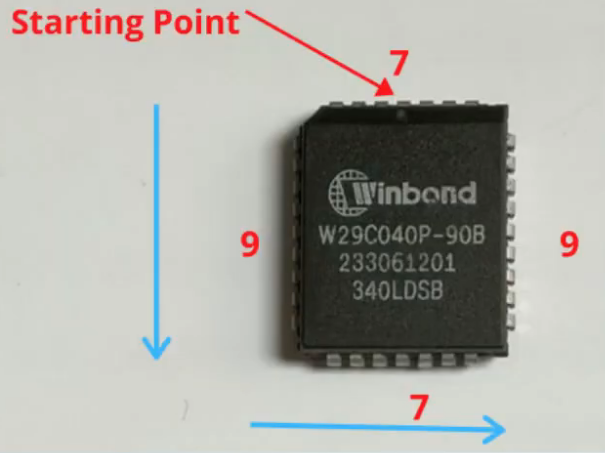
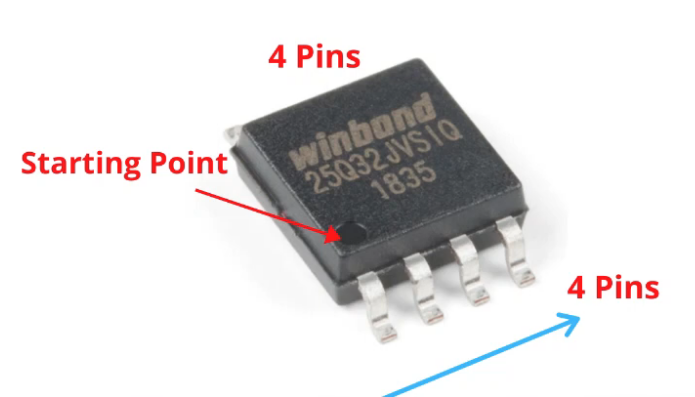
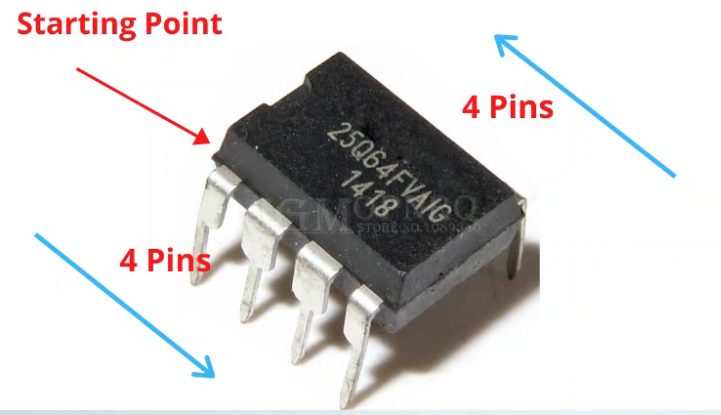
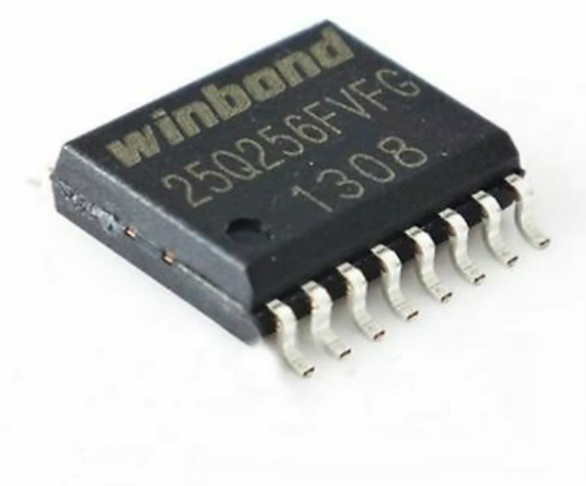
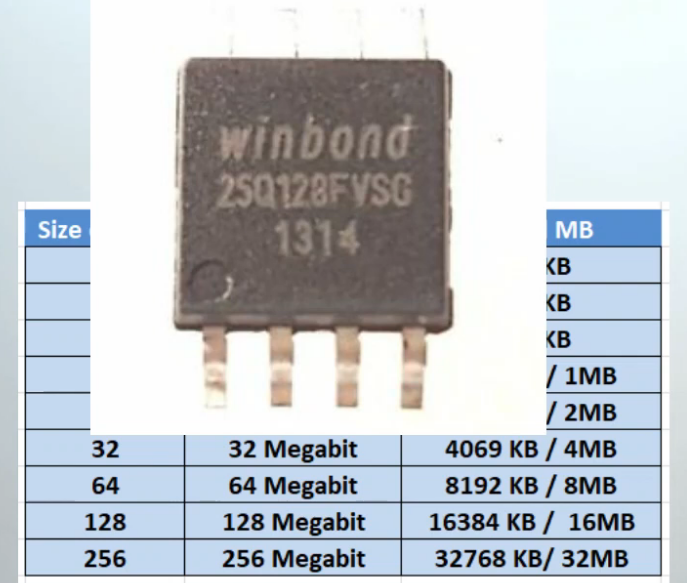
Winbond (BIOS-related)
- Winbond is a semiconductor company
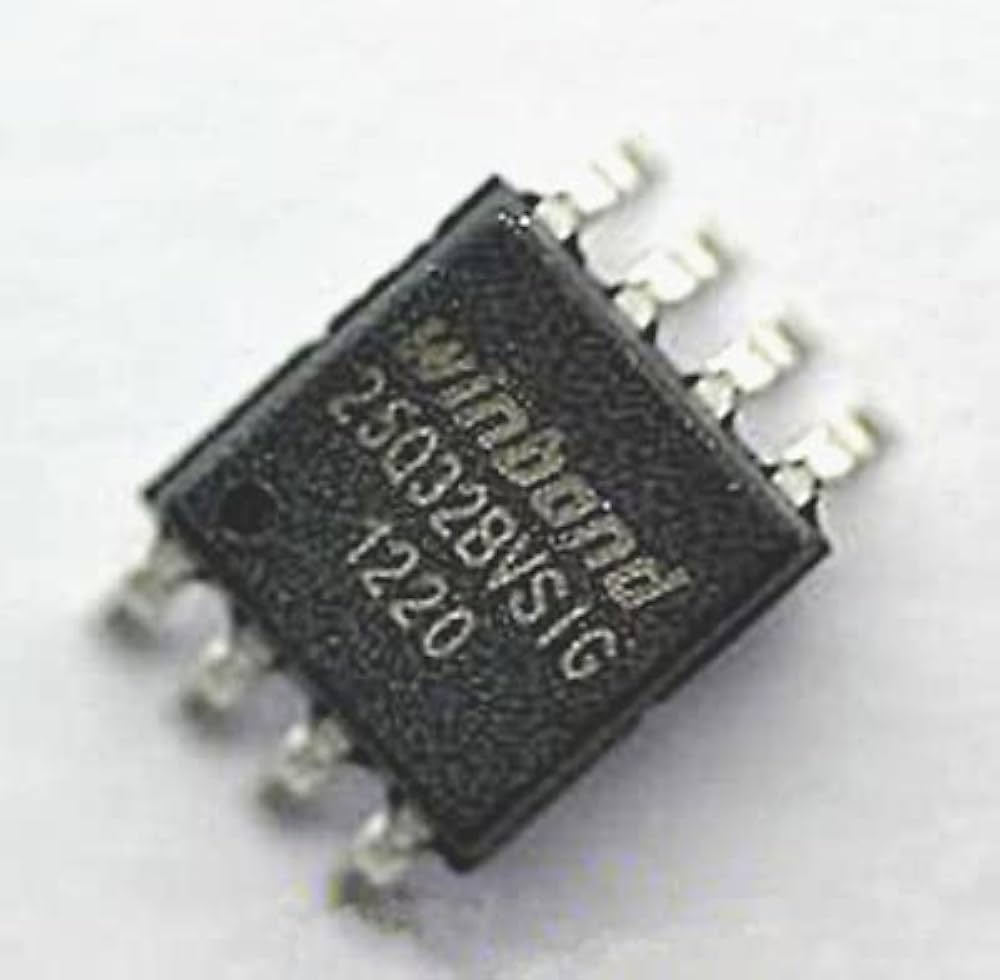
- It manufactures BIOS/UEFI flash memory chips used on motherboards
- BIOS firmware is stored inside these Winbond SPI flash chips
- It is not BIOS software, but BIOS storage hardware (chip)
- Common chips: Winbond 25Q series (like 25Q64, 25Q128)
- Used by many motherboard brands like ASUS, MSI, Gigabyte, ASRock
- These chips keep BIOS data even when PC is powered off
- If BIOS is corrupted, sometimes chip reprogramming is needed
Win+R msinfo32 Commnd for Check Which Bios Mode Running PC