Access Point - AP
History of Wireless Communication
1. Early Theoretical Foundation (1800s)
The foundation of wireless communication began with the work of James Clerk Maxwell in the 1860s. He developed the theory of electromagnetic waves, proving that energy could travel through space without wires. Later, Heinrich Hertz experimentally confirmed these waves in the 1880s, showing that wireless transmission was possible.
2. First Wireless Transmission (1890s)
The real breakthrough came with Guglielmo Marconi, who is known as the father of wireless communication. In 1895, he successfully transmitted radio signals over long distances without wires. By 1901, he sent the first transatlantic wireless signal, proving global wireless communication was possible.
3. Radio Communication Era (1900–1940)
After Marconi’s success, wireless technology developed rapidly. Radio broadcasting became popular for communication and entertainment. During events like World War I and World War II, wireless communication (radio) was widely used for military coordination, navigation, and intelligence.
4. Development of Television and Radar (1930–1950)
Wireless technology expanded beyond radio. Television broadcasting started using wireless signals, and radar systems were developed to detect objects like aircraft. These innovations played a crucial role in defense and communication systems.
5. Birth of Mobile Communication (1970s–1980s)
The first generation (1G) mobile communication systems were introduced, allowing voice calls over wireless networks. Early mobile phones were large and expensive but marked the beginning of personal wireless communication.
6. Digital Wireless Era (1990s)
The second generation (2G) brought digital communication, improving voice quality and enabling SMS (text messaging). Technologies like GSM became widely used, making mobile communication more reliable and accessible.
7. Internet and Wi-Fi Revolution (2000s)
Wireless communication expanded to data services with 3G and 4G networks. Wi-Fi technology became common in homes, offices, and public places, allowing wireless internet access. This era connected the world digitally.
8. Modern Wireless Technology (2010–Present)
Today, we use advanced technologies like 5G, offering high-speed internet, low latency, and support for smart devices (IoT). Wireless communication now powers smartphones, smart homes, autonomous vehicles, and cloud computing.
Conclusion
Wireless communication has evolved from simple radio waves to complex global networks. It has transformed how people communicate, work, and live, making the world more connected than ever.
History of Wi-Fi
History of Wi-Fi
Wi-Fi is a key part of modern wireless communication, allowing devices to connect to the internet without cables. Its development happened over several stages:
1. Early Wireless Foundations (1970s–1980s)
Before Wi-Fi, wireless data communication research was already happening. Companies and researchers were experimenting with radio-based networking, but there was no common standard, so devices from different vendors couldn’t easily communicate.
2. Creation of Wi-Fi Standard (1997)
The first official Wi-Fi standard was developed by the IEEE under the name IEEE 802.11 in 1997.
- It allowed wireless data transfer at about 2 Mbps.
- This was the foundation of all modern Wi-Fi technologies
3.Wi-Fi Brand Launch (1999)
The term “Wi-Fi” was introduced in 1999 by the Wi-Fi Alliance.
- This organization was formed to ensure compatibility between wireless devices.
- Wi-Fi became a global brand name for wireless networking.
👉 So, Wi-Fi was not invented by one person, but standardized and branded by organizations.
4. Commercial Growth (2000s)
Wi-Fi started becoming popular in homes, offices, and public places.
- Laptops and routers began including Wi-Fi by default.
- Public hotspots (cafes, airports) appeared.
- Internet access became more convenient and mobile.
5. Modern Wi-Fi (2010–Present)
Wi-Fi technology has improved significantly:
- Wi-Fi 4 (802.11n) – better speed and range
- Wi-Fi 5 (802.11ac) – faster speeds (5 GHz)
- Wi-Fi 6 (802.11ax) – high efficiency, supports many devices
Access Point (AP)
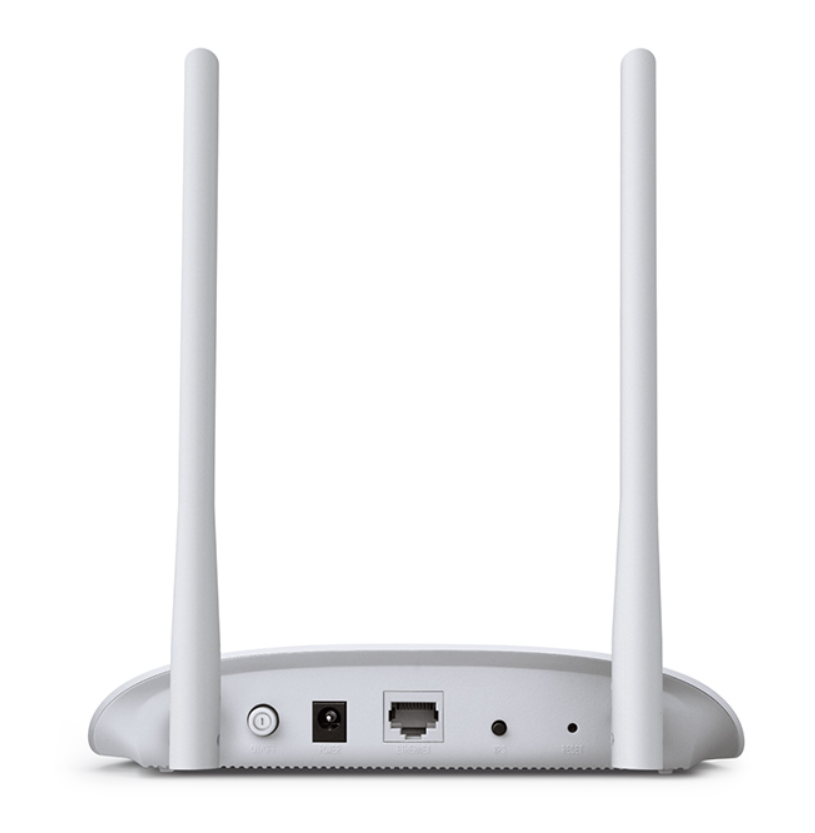
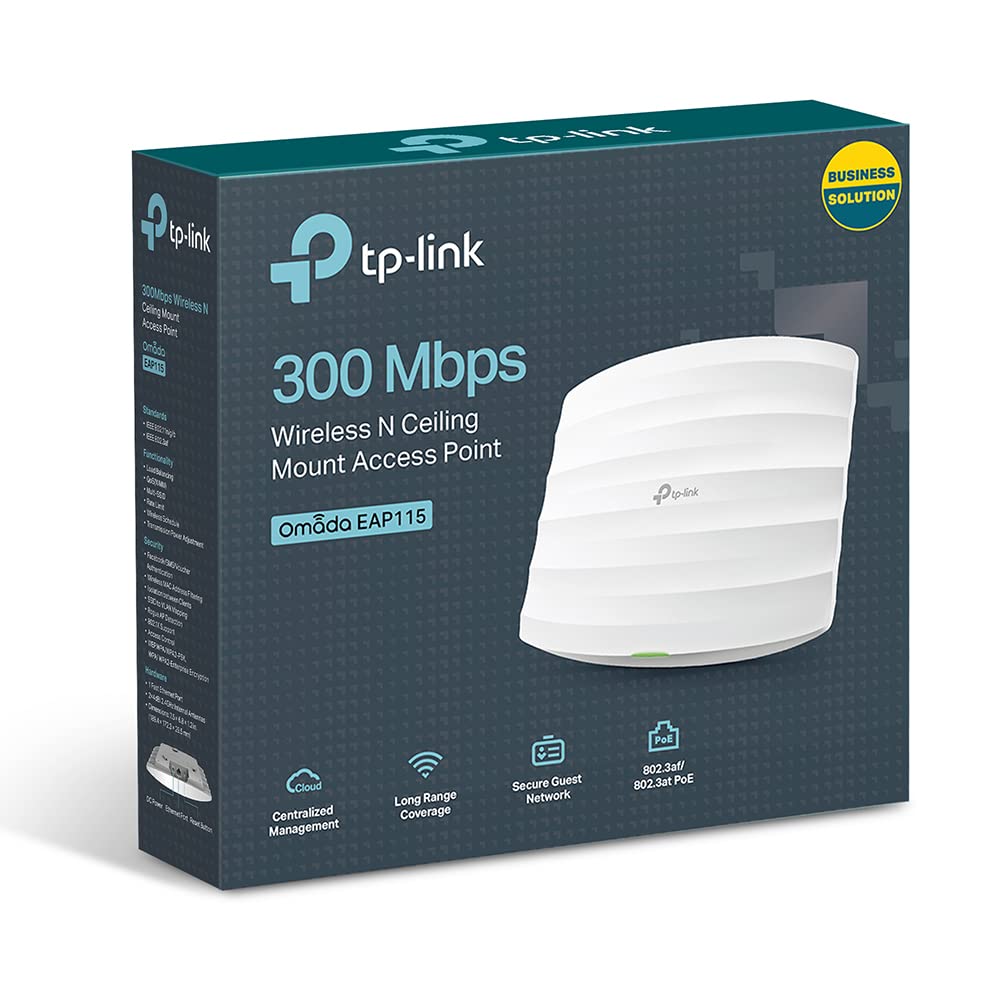
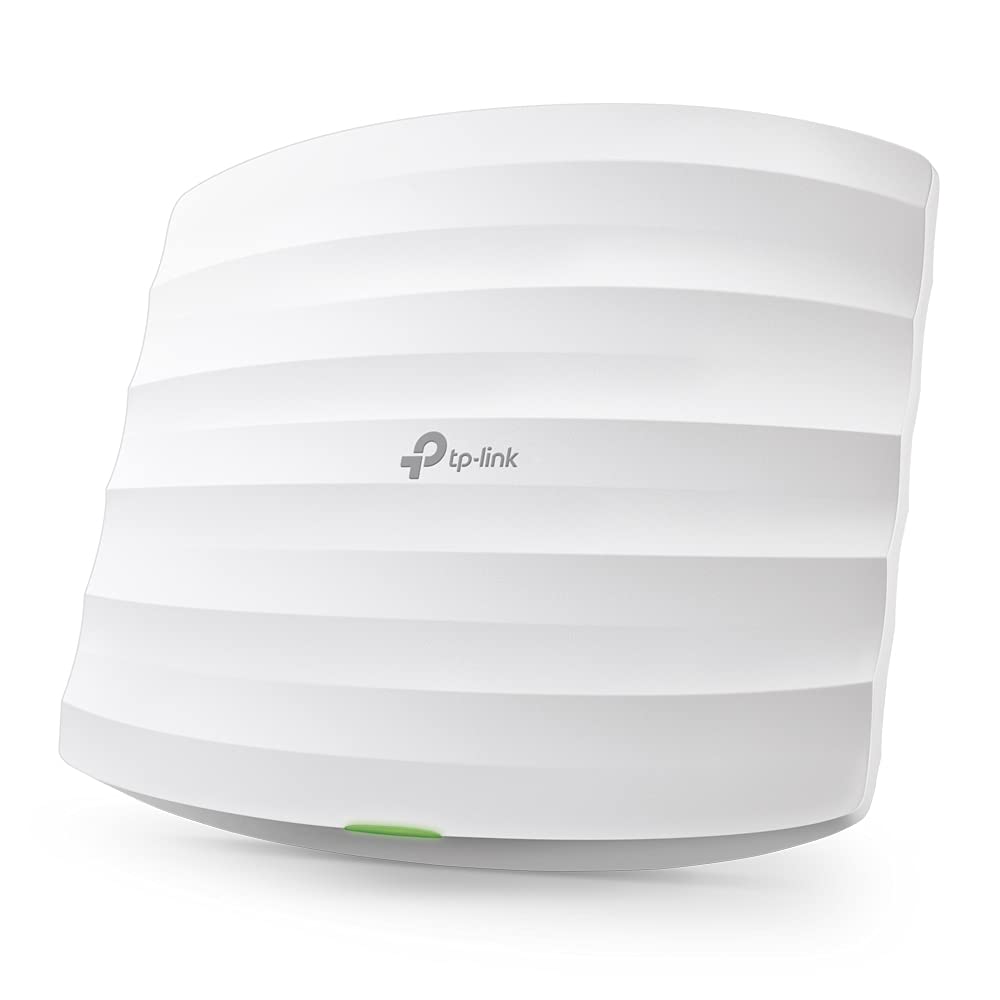
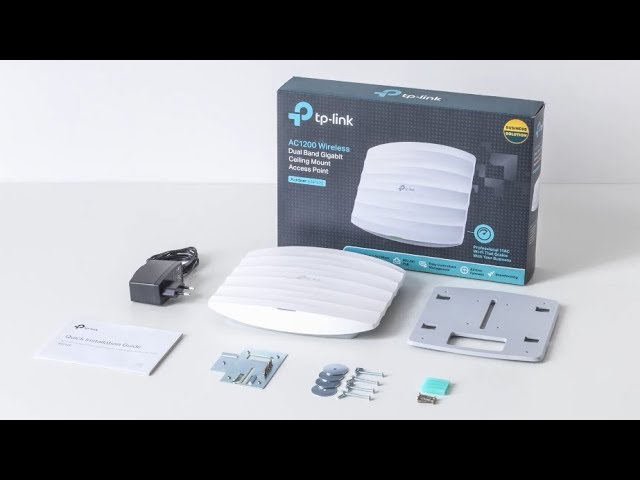
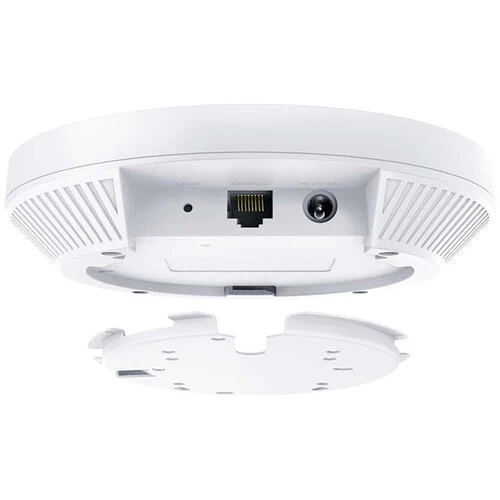
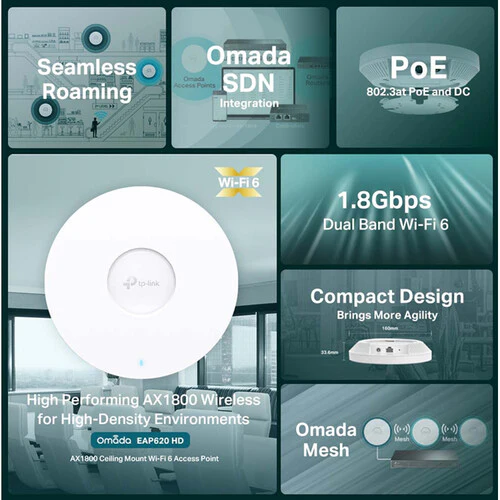
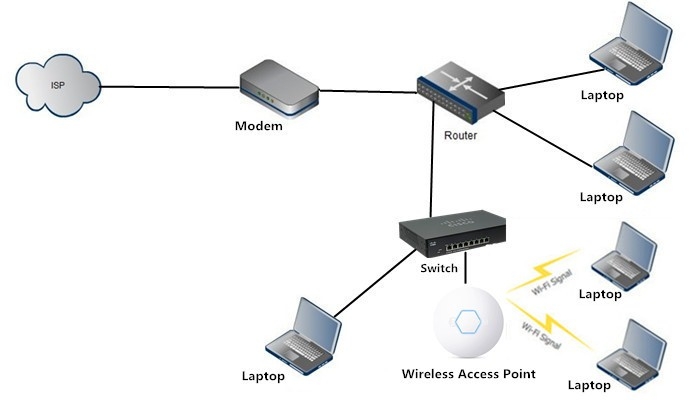
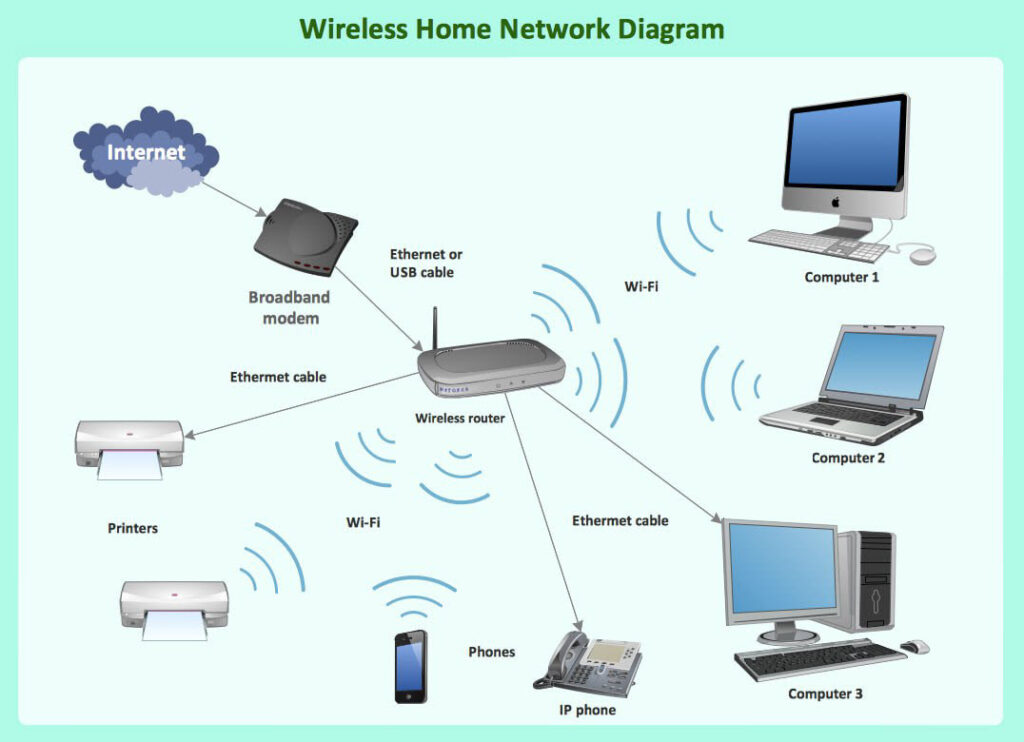
An Access Point (AP) is a networking device that allows wireless devices such as laptops, smartphones, and tablets to connect to a wired network using Wi-Fi. It acts as a bridge between the wired infrastructure (like a router or switch) and wireless users, enabling them to access the internet or internal network resources without needing physical cables.
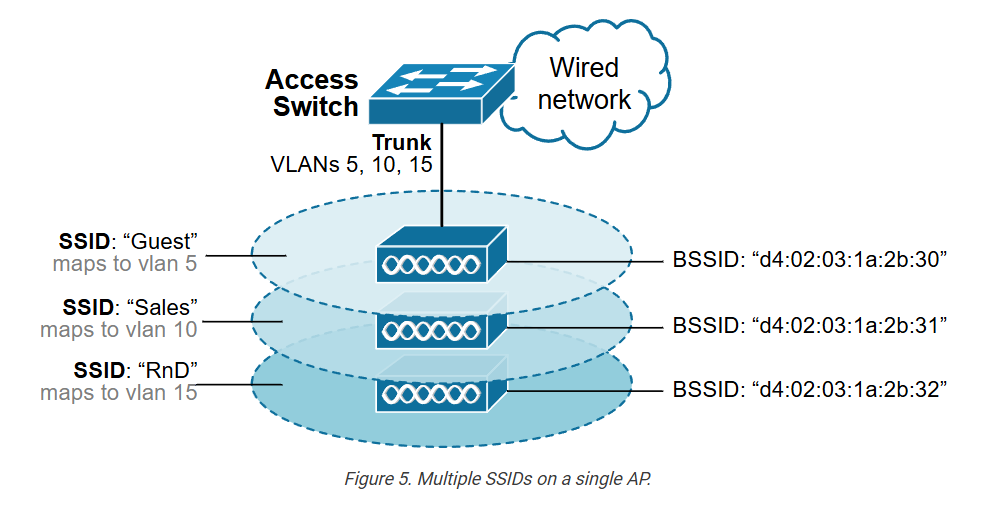
An access point works by connecting to a router or switch through an Ethernet cable. The wired network carries data, and the access point converts that data into radio signals, which are broadcast as a wireless network (SSID). When a user connects to this Wi-Fi, the access point forwards the data between the wireless device and the wired network, ensuring smooth communication.
Unlike a router, a pure access point does not perform advanced functions such as Network Address Translation (NAT), DHCP, or firewall services. Its primary role is to provide wireless connectivity. In many home routers, the access point functionality is built-in, but in larger environments like offices or campuses, separate dedicated access points are used for better performance and wider coverage.
For example, in a large office, the main router is placed in a server room and connected to multiple access points installed on different floors. Employees connect their devices to the nearest access point via Wi-Fi. The access point then sends their data to the router, which provides internet access or connects them to internal servers. This setup allows many users to move freely within the building while staying connected to the network.
Access points are widely used in homes, businesses, schools, airports, and hotels because they provide flexibility, mobility, and scalability. By adding more access points, network coverage can be extended easily, making them an essential component of modern wireless networking.
In Short
An Access Point (AP) is a device that provides Wi-Fi connection to wireless devices by connecting them to a wired network. It acts as a bridge between wired and wireless communication.
In short, an access point takes internet from a router through a cable and converts it into wireless signals, so devices like mobiles and laptops can connect.
Example:
In an office, a router is connected to an access point using a LAN cable. Employees connect their phones and laptops to the AP’s Wi-Fi and access the internet or company network.
Types of Access Points
Standalone Access Point (Fat AP):
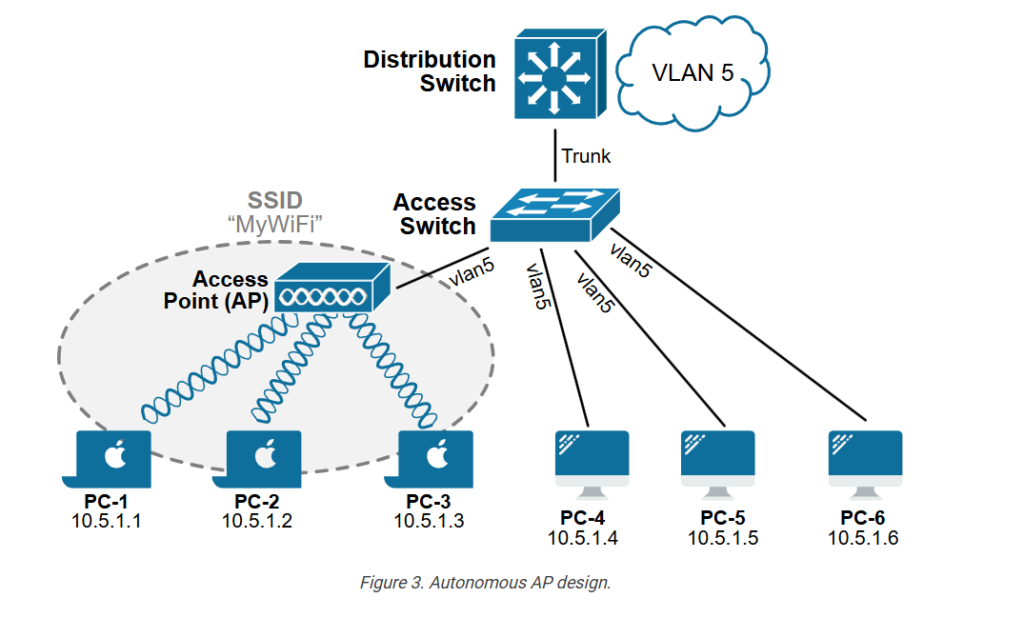
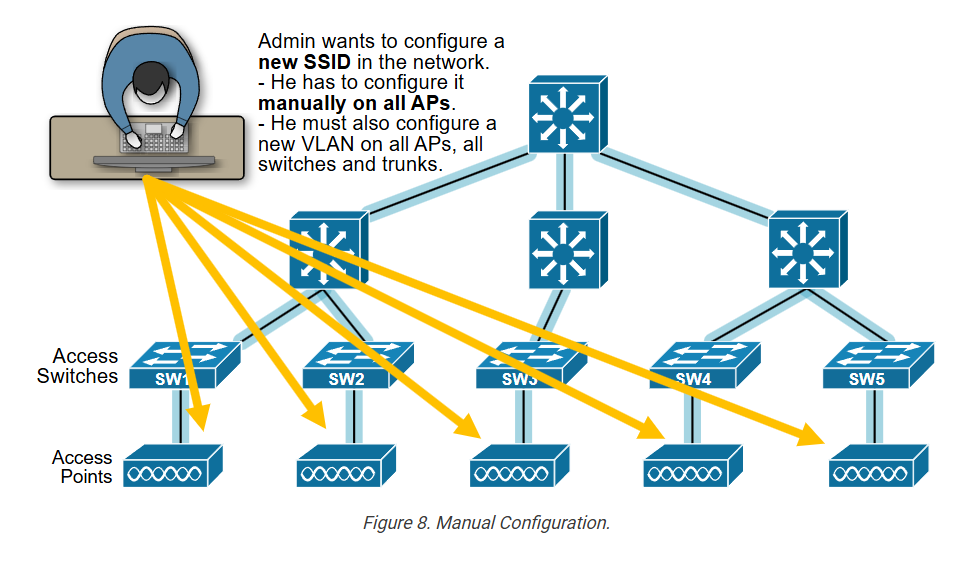
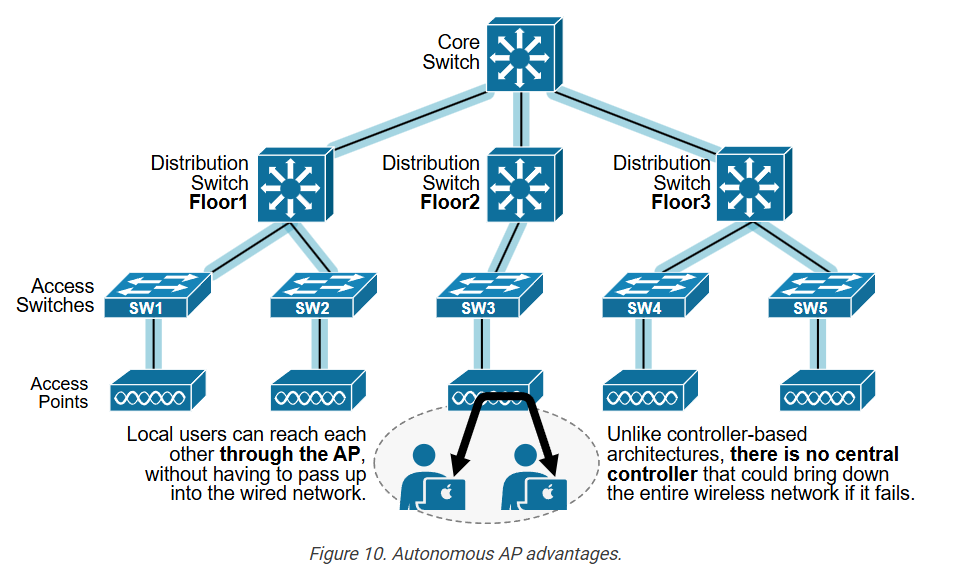
A standalone access point works independently and is configured manually on each device. It handles all functions like security, management, and wireless communication by itself. This type of AP is mainly used in small networks such as homes or small offices where only a few access points are required, and centralized control is not needed.
Controller-Based Access Point (Thin AP):
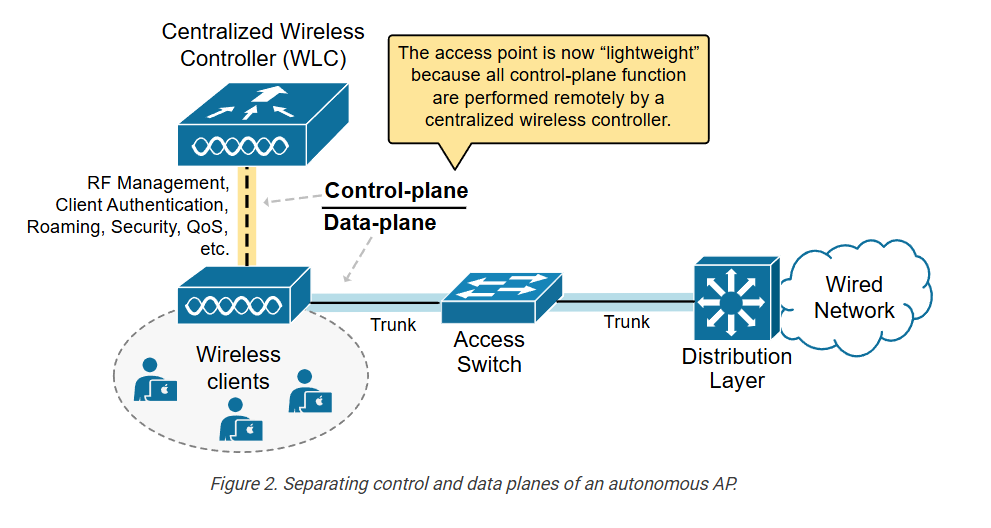
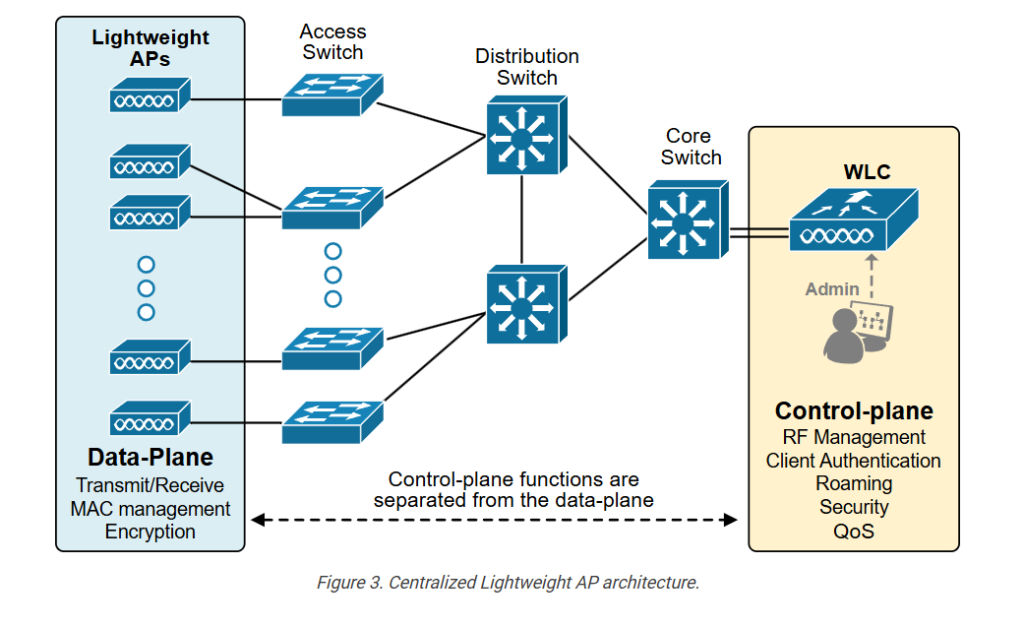
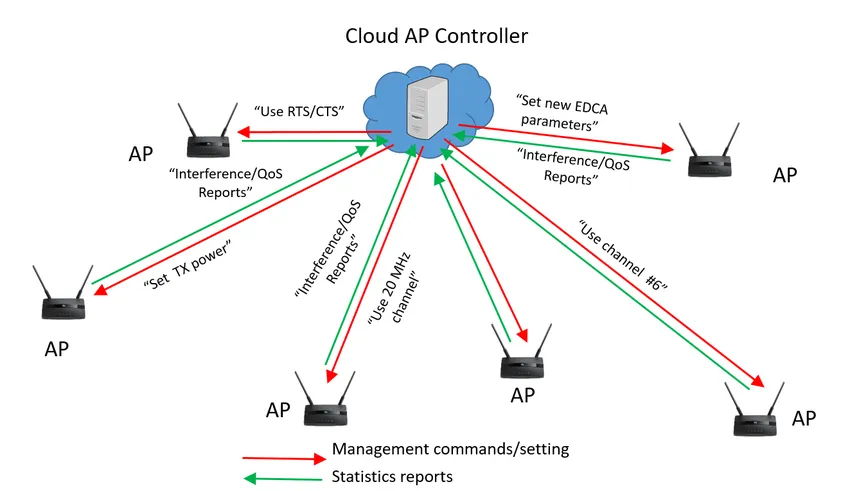
A controller-based access point depends on a central wireless controller for configuration and management. The AP itself handles basic wireless transmission, while the controller manages settings, security, and monitoring. This type is commonly used in large organizations, campuses, and enterprises where many access points need to be managed from a single location.
Cloud-Based Access Point:
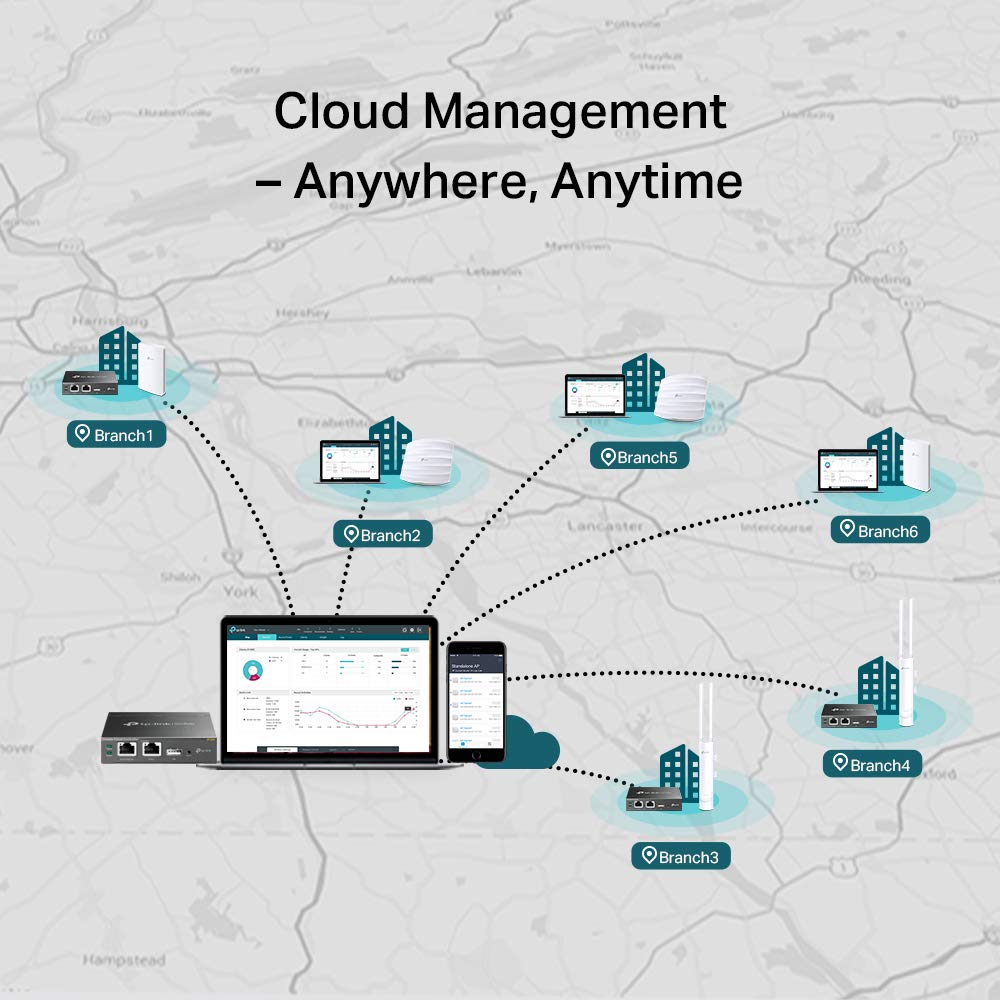
A cloud-based access point is managed through an online cloud platform instead of a local controller. Network administrators can configure, monitor, and troubleshoot the AP from anywhere using the internet. This is useful for businesses with multiple branches or remote locations, as it provides easy and centralized management without requiring physical presence.
Indoor Access Point:
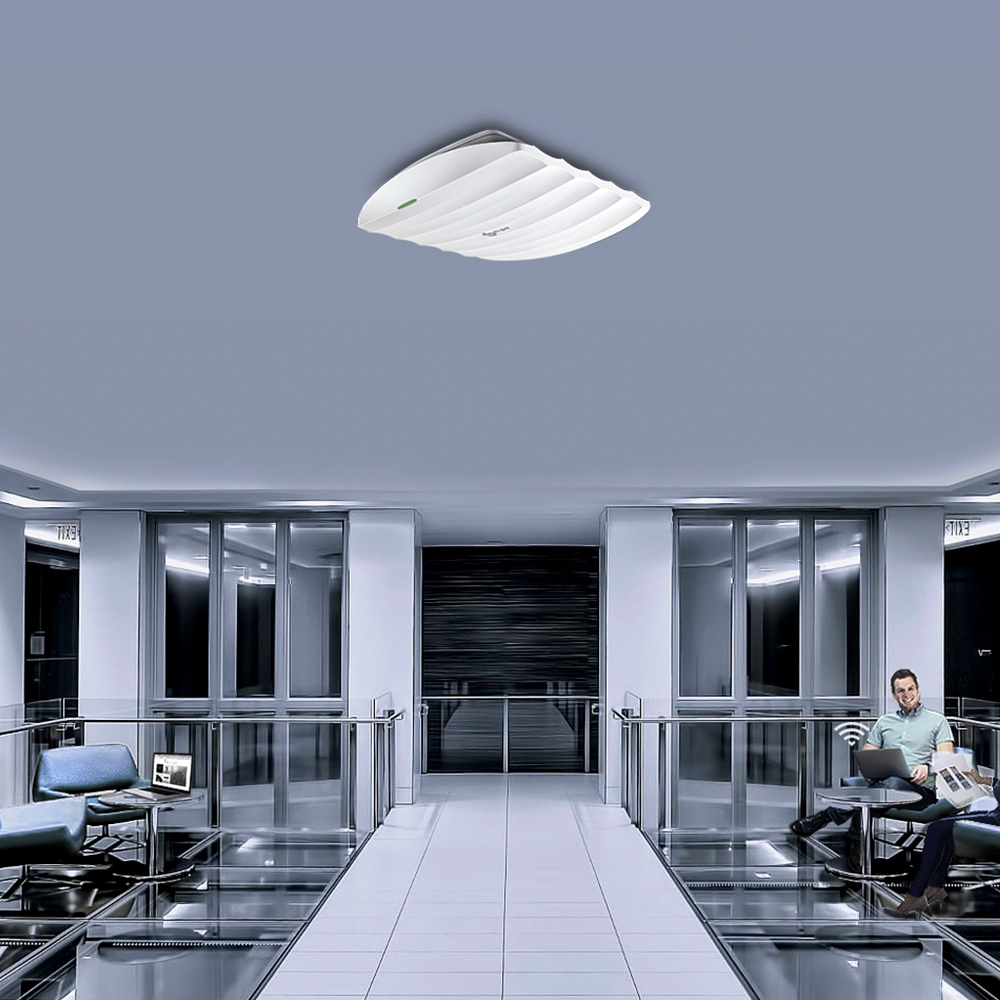
Indoor access points are designed for use inside buildings such as homes, offices, schools, and shopping malls. They are usually mounted on walls or ceilings and provide stable Wi-Fi coverage within enclosed environments. These APs are not built to handle harsh weather conditions.
Outdoor Access Point:
Outdoor access points are specially designed to work in external environments. They are weatherproof and can withstand rain, heat, dust, and other environmental factors. These are used in places like parks, stadiums, campuses, and outdoor public Wi-Fi areas where wide coverage is needed.
Wireless Repeater / Range Extender AP:
This type of access point extends an existing Wi-Fi network without using cables. It receives the wireless signal from another AP or router and rebroadcasts it to increase coverage. It is commonly used in homes or offices where the Wi-Fi signal is weak in certain areas.
Mesh Access Point:
Mesh access points work together to form a single, unified wireless network. Multiple mesh APs communicate with each other and provide seamless connectivity, allowing users to move from one area to another without losing connection. This type is widely used in large homes, hotels, and enterprises where continuous coverage is important.
👉 Simple Summary:
Different types of access points are used based on network size, environment, and management method.
What is Autonomous AP and Lightweight AP
Autonomous Access Point (Standalone / Fat AP):
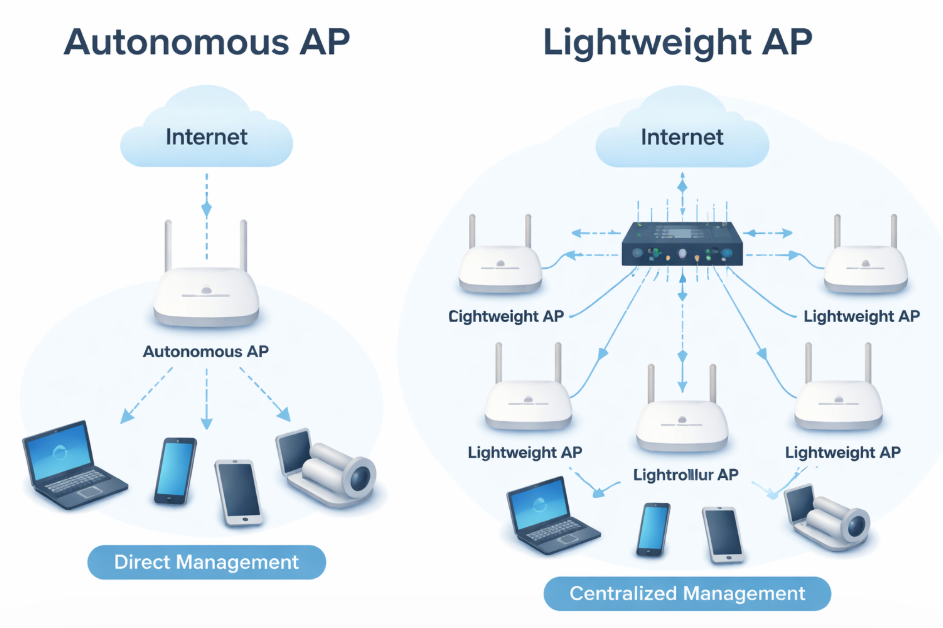
An autonomous AP works independently and has its own full operating system. It handles all functions such as configuration, security, and traffic management by itself. Each AP must be configured manually using CLI or web interface. This type is simple and suitable for small networks like homes or small offices where only a few access points are used. However, managing many autonomous APs becomes difficult because configuration must be done on each device separately.
Lightweight Access Point (Thin AP):
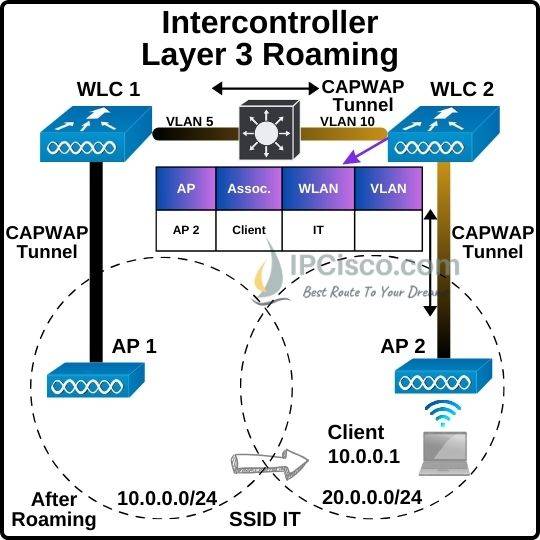
A lightweight AP does not work independently; it depends on a central device called a Wireless LAN Controller (WLC). The AP handles only basic wireless communication, while the controller manages configuration, security, and monitoring for all APs from one place. Lightweight APs use protocols like CAPWAP to communicate with the controller. This type is used in large networks such as enterprises, campuses, and big offices where many APs need centralized control and easy management.
Key Difference
| Feature | Autonomous AP | Lightweight AP |
|---|---|---|
| Control | Individual | Centralized (WLC) |
| Configuration | Manual (each AP) | From controller |
| Scalability | Low | High |
| Cost | Lower | Higher |
| Use Case | Small network | Large enterprise network |
👉 Simple Line:
- Autonomous AP = Works alone
- Lightweight AP = Works with controller
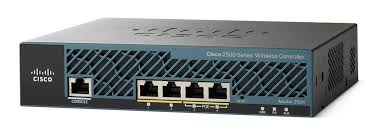
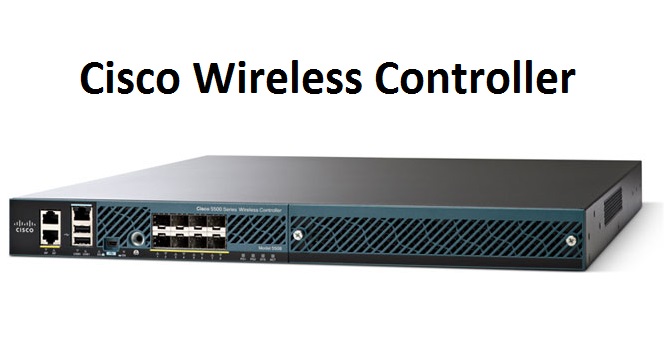
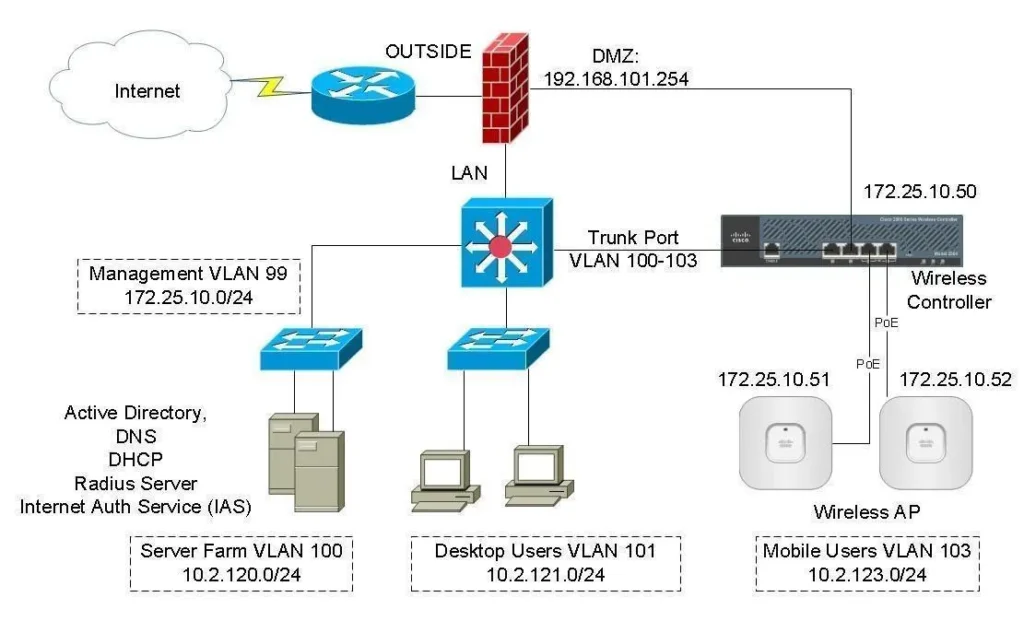
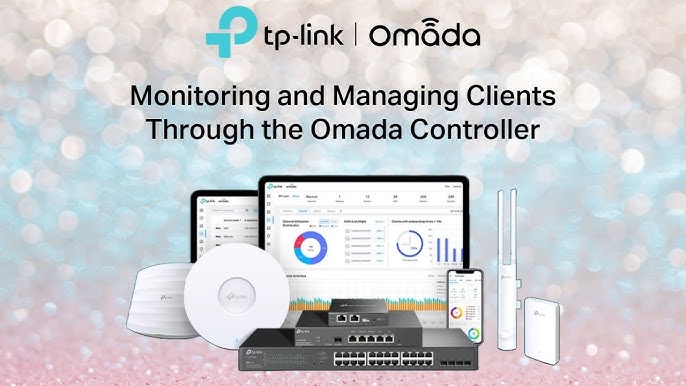
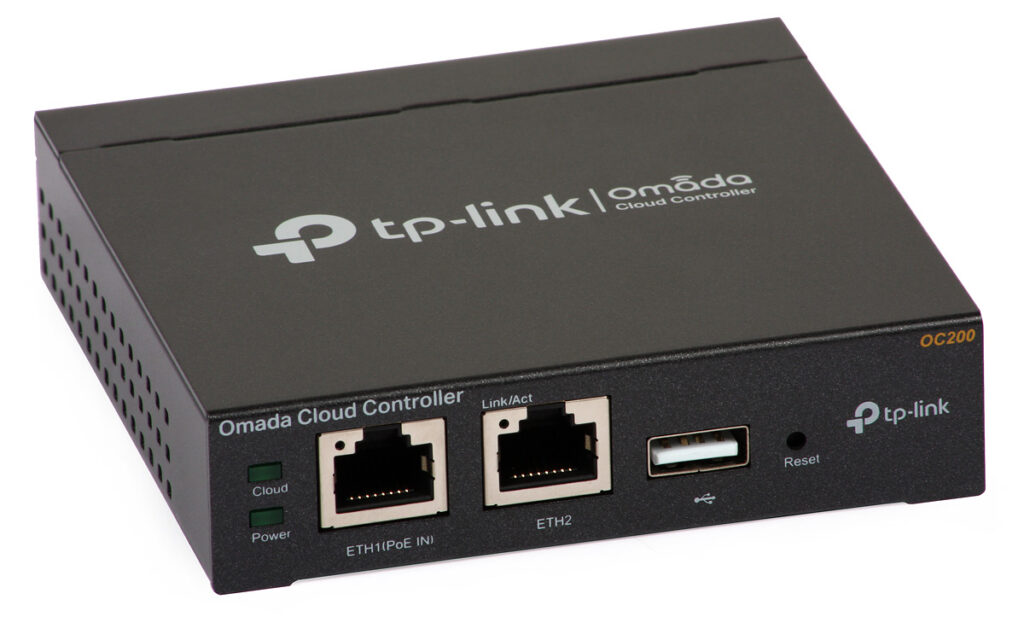
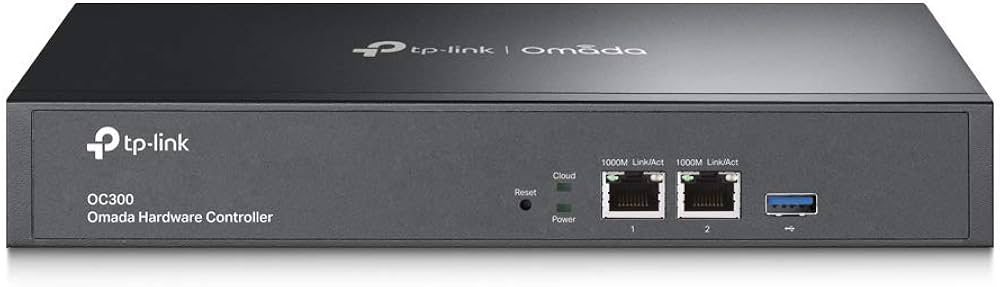
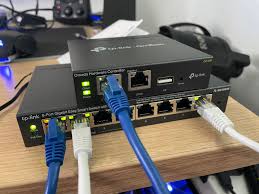
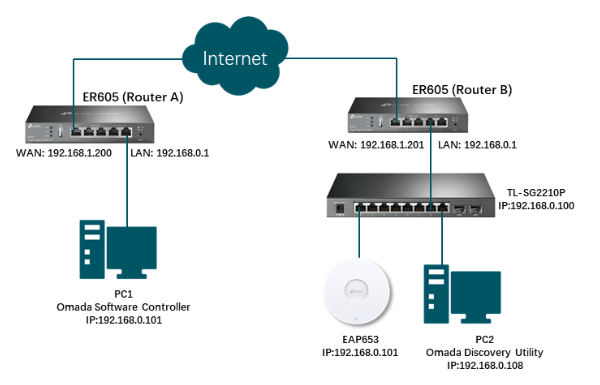
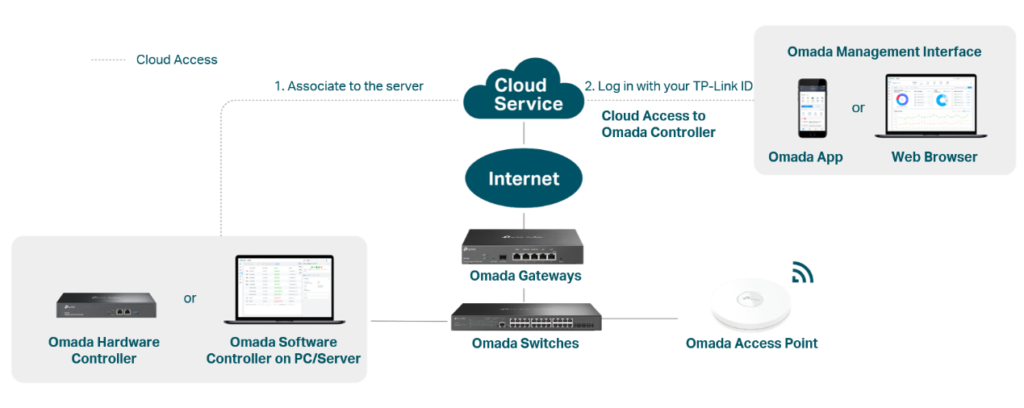
TP-Link Omada Hardware Controller | SDN Integrated 2 Gigabit Port + 1 USB 3.0 Port | Manage Up to 500 Devices | Easy & Intelligent Network Monitor & Maintenance Cloud Access & Omada App (OC300)
What is Wireless Roaming
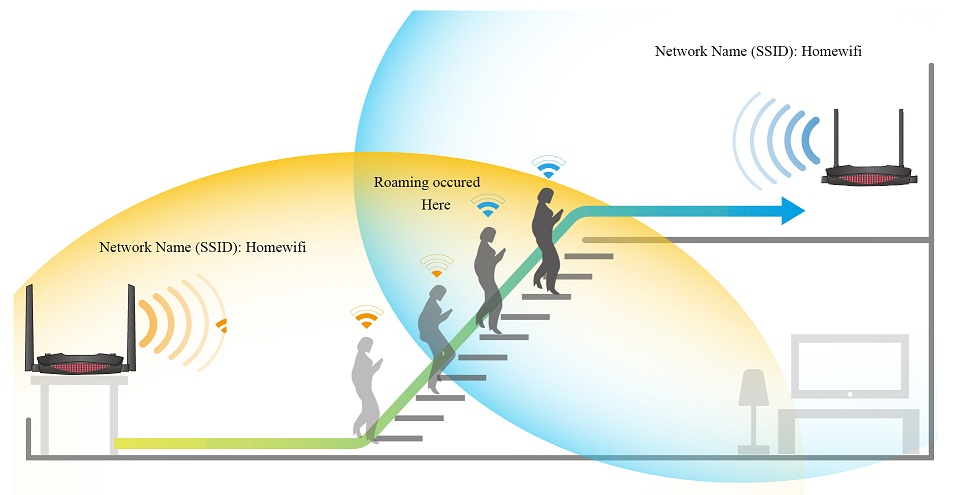
Wireless Roaming is the process in which a wireless device (such as a mobile phone or laptop) automatically switches from one access point to another without losing the network connection, as the user moves from one location to another.
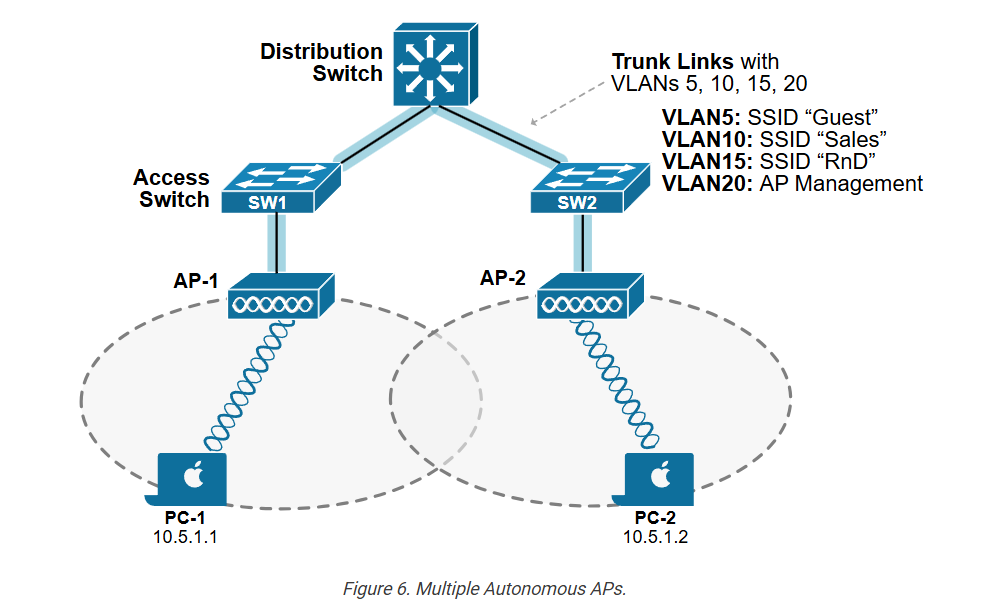
Wireless roaming is used in networks where multiple access points are installed with the same Wi-Fi network (same SSID). When a user moves away from one access point and closer to another, the device automatically connects to the access point with the stronger signal. This switching happens in the background, so the user does not experience any interruption in internet connectivity.
For example, in a large office or college campus, multiple access points are installed on different floors. When a person walks from the ground floor to the first floor, their device disconnects from the first access point and connects to the next one automatically. During this movement, activities like video calls or browsing continue smoothly—this is called wireless roaming.
Wireless roaming works best when all access points are properly configured with the same SSID, same security settings, and proper coverage overlap. Advanced technologies like IEEE 802.11r, 802.11k, and 802.11v are used in modern networks to make roaming faster and more efficient.
Simple Line:
Wireless Roaming = Automatic switching between access points without connection loss
How Roaming Works
1. Initial Connection
When your device (mobile/laptop) connects to Wi-Fi, it chooses the nearest or strongest access point based on signal strength.
2. Movement Begins
As you move away from that AP, the signal becomes weaker. At the same time, your device starts detecting other nearby APs with the same Wi-Fi network (SSID).
3. Scanning for Better AP
Your device continuously scans for available access points. When it finds another AP with a stronger signal, it prepares to switch.
4. Roaming Decision
The device decides to roam when:
- Current signal becomes weak
- Another AP has better signal strength
- Network conditions are better
5. Authentication & Reassociation
The device disconnects from the old AP and connects to the new AP. It may quickly re-authenticate and reassociate with the network.
6. Seamless Connectivity
If the network is well configured, the switch happens so fast that the user does not notice any disconnection (especially in voice/video calls).
Example
In a large office building:
- Ground floor → connected to AP1
- You move to first floor → AP1 signal weak
- Device switches to AP2 automatically
- Internet continues without interruption
Technologies That Improve Roaming
- 802.11r (Fast Roaming) → Faster authentication
- 802.11k → Helps device find best AP
- 802.11v → Guides device to better AP
Important Conditions for Good Roaming
- Same SSID (Wi-Fi name)
- Same password/security settings
- Proper AP placement and signal overlap
Simple Line:
WiFi Roaming = Device automatically connects to the best access point while moving
Outdoor Wireless Access Point
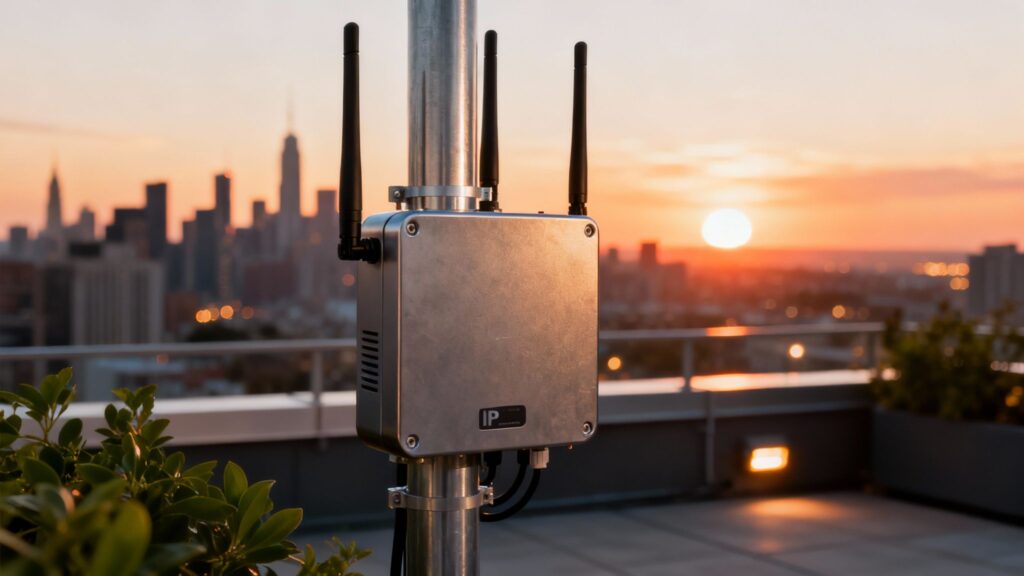
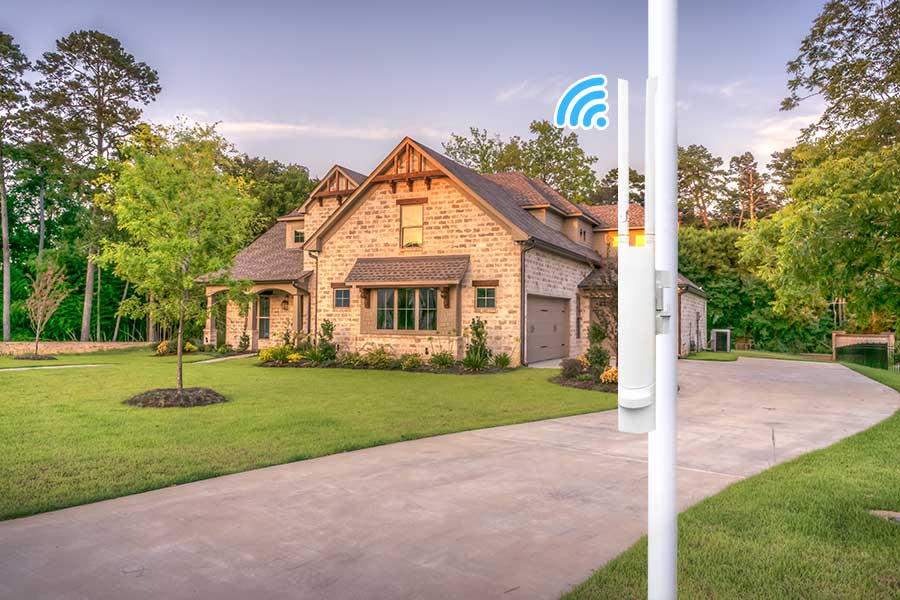
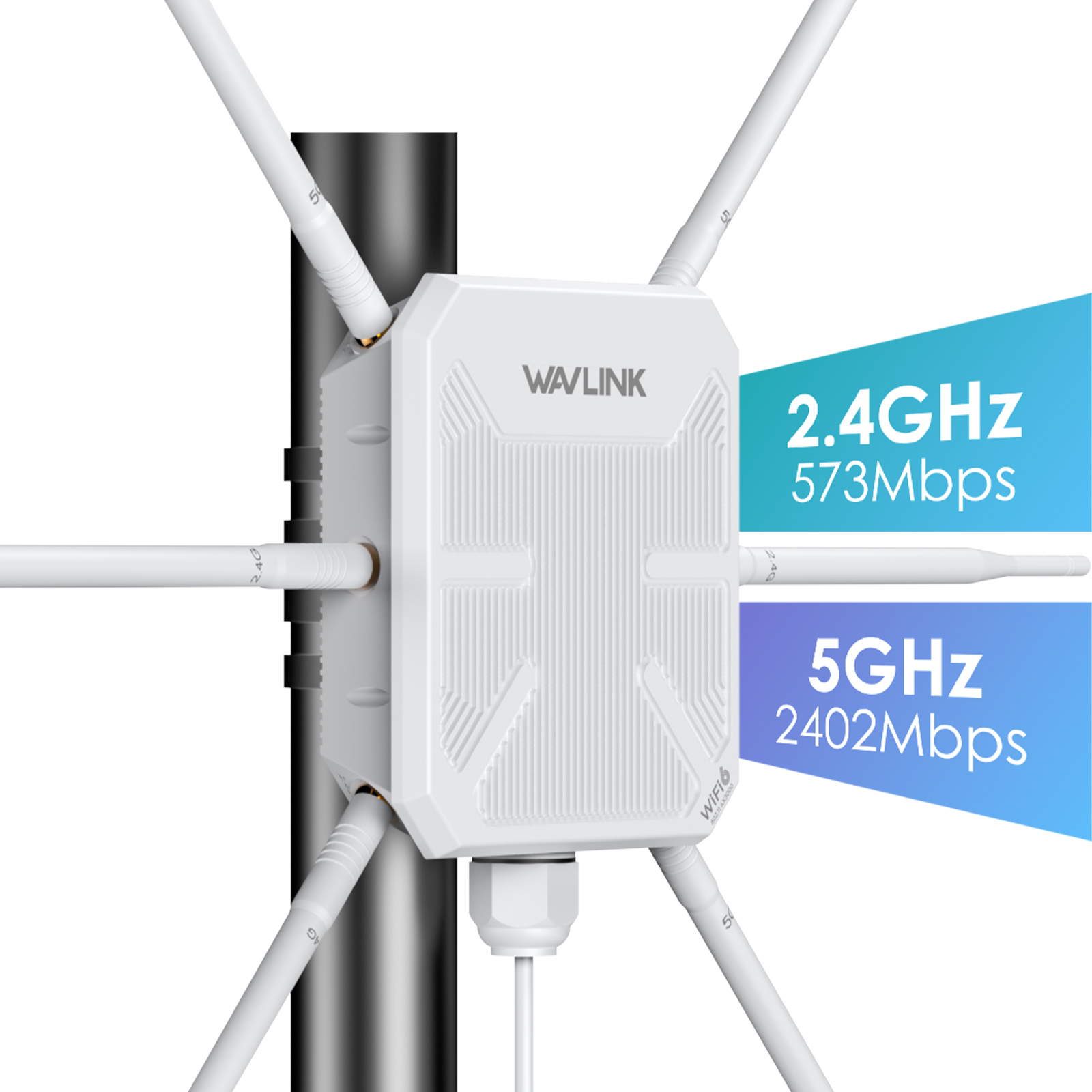
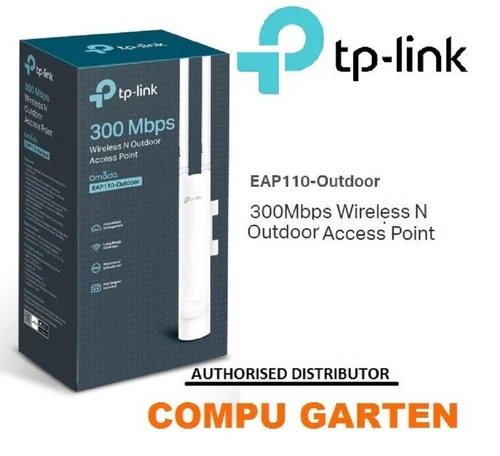
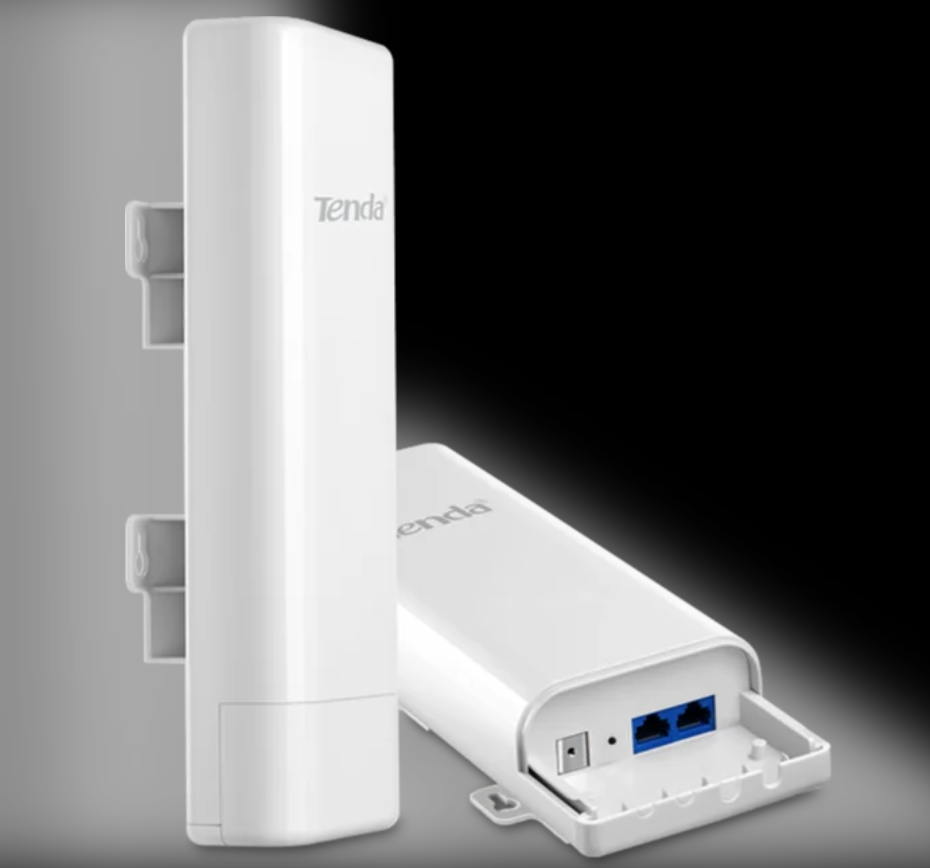
An Outdoor Wireless Access Point is a type of access point designed to provide Wi-Fi coverage in outdoor environments such as parks, campuses, streets, or large open areas. Unlike indoor APs, it is built with a weatherproof body so it can withstand rain, heat, dust, and humidity.
This device is installed outside on poles, walls, or rooftops and is connected to a network (usually through an Ethernet cable or fiber). It broadcasts Wi-Fi signals over a wide outdoor area, allowing users to connect their mobile phones, laptops, or other wireless devices even in open spaces.
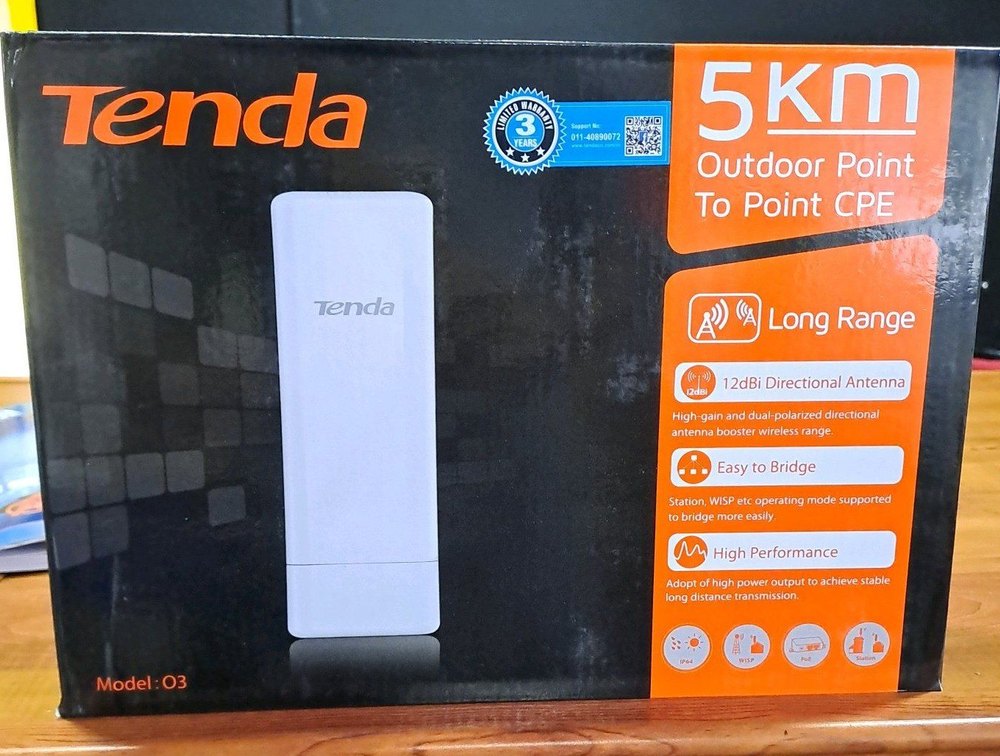
Outdoor wireless access points often have high power antennas and longer range compared to indoor APs. Some models support point-to-point or point-to-multipoint connections, which makes them useful not only for providing Wi-Fi but also for connecting buildings wirelessly.
For example, in a college campus, outdoor access points are installed across the campus grounds. Students can connect to Wi-Fi while walking between buildings, sitting in open areas, or in playgrounds. Similarly, in a public park or stadium, outdoor APs provide internet access to a large number of users.
Outdoor wireless access points are widely used in smart cities, campuses, industrial areas, railway stations, and outdoor events where reliable Wi-Fi coverage is needed beyond indoor spaces.
P2P Wireless (Point-to-Point Wireless)
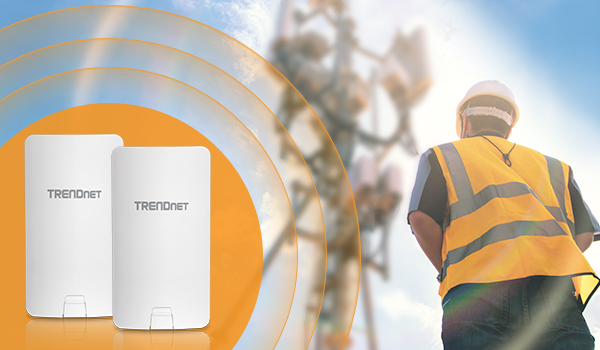
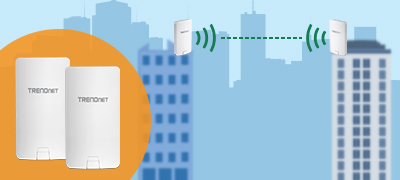
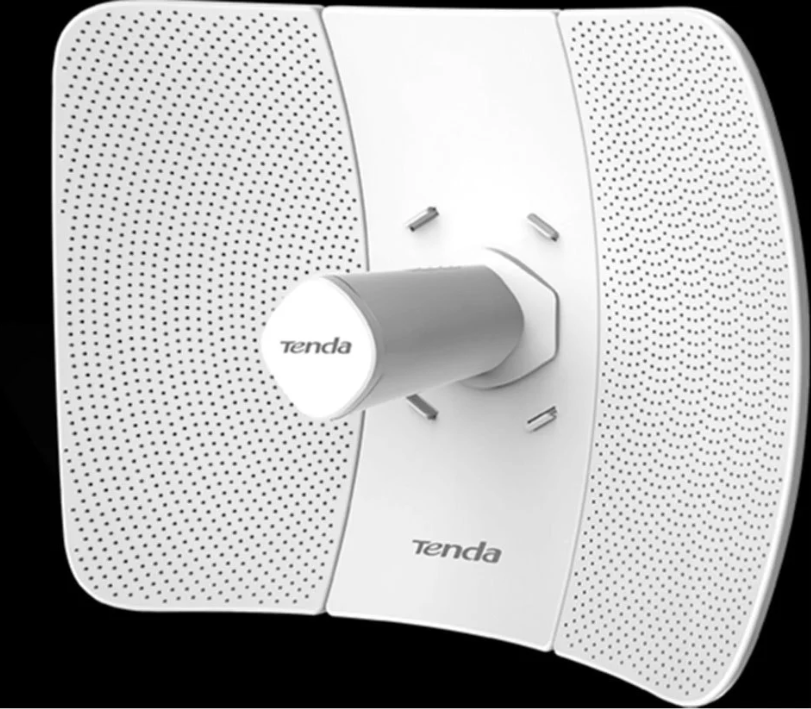
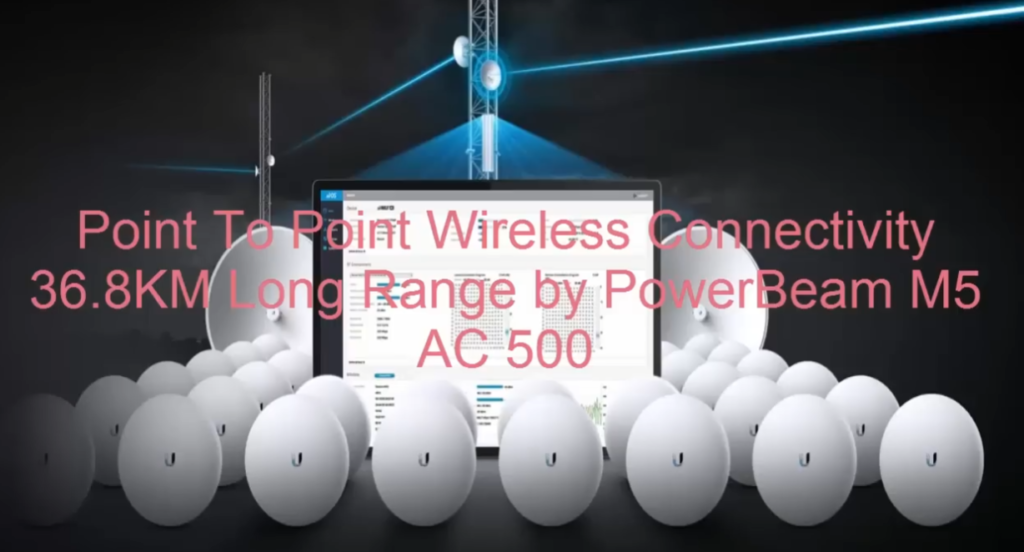
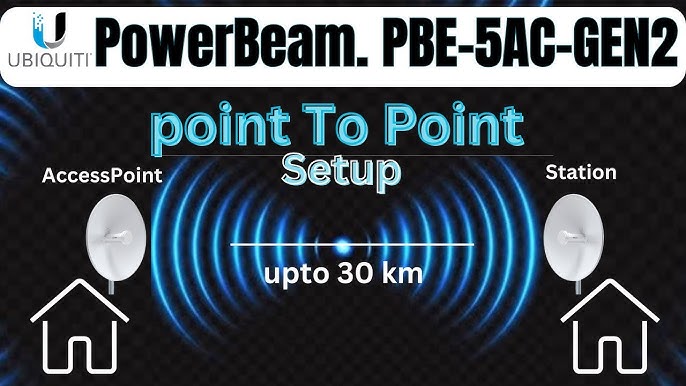
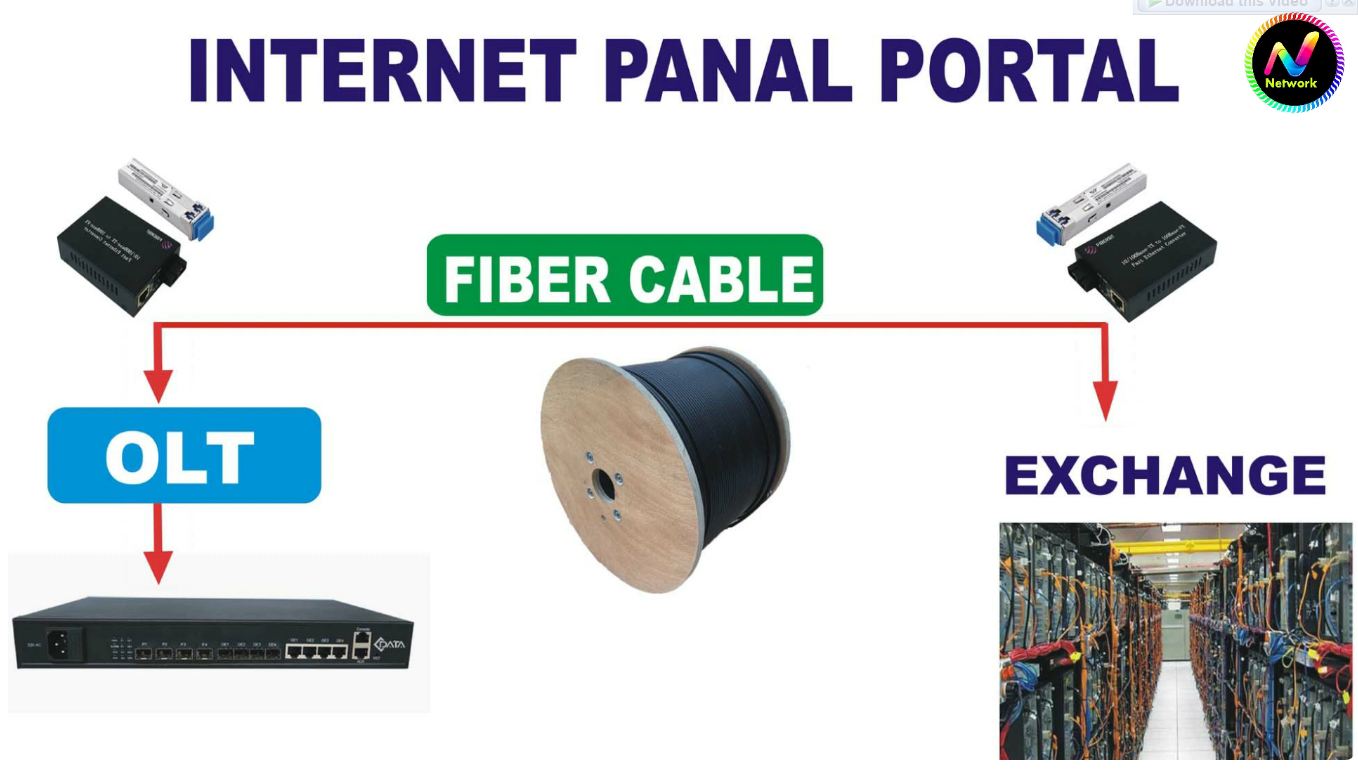
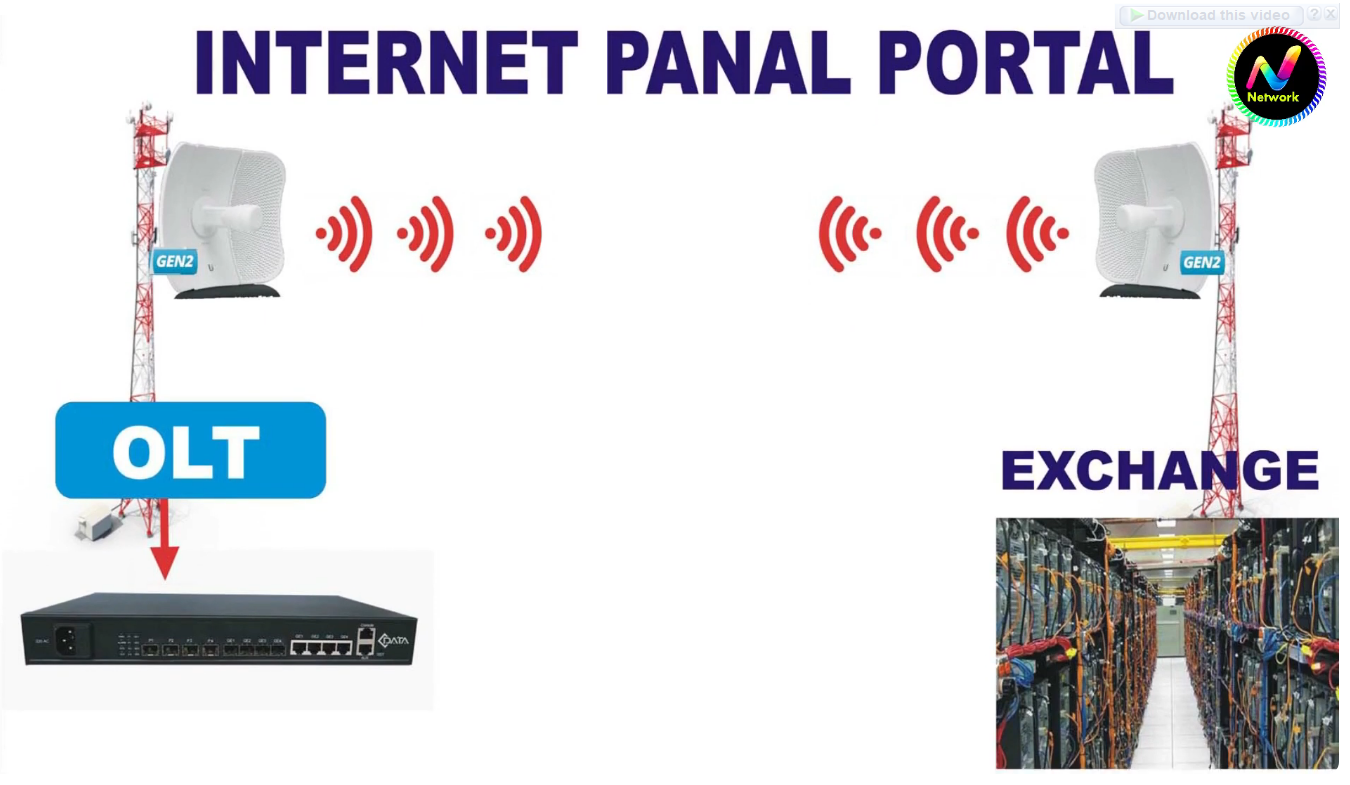
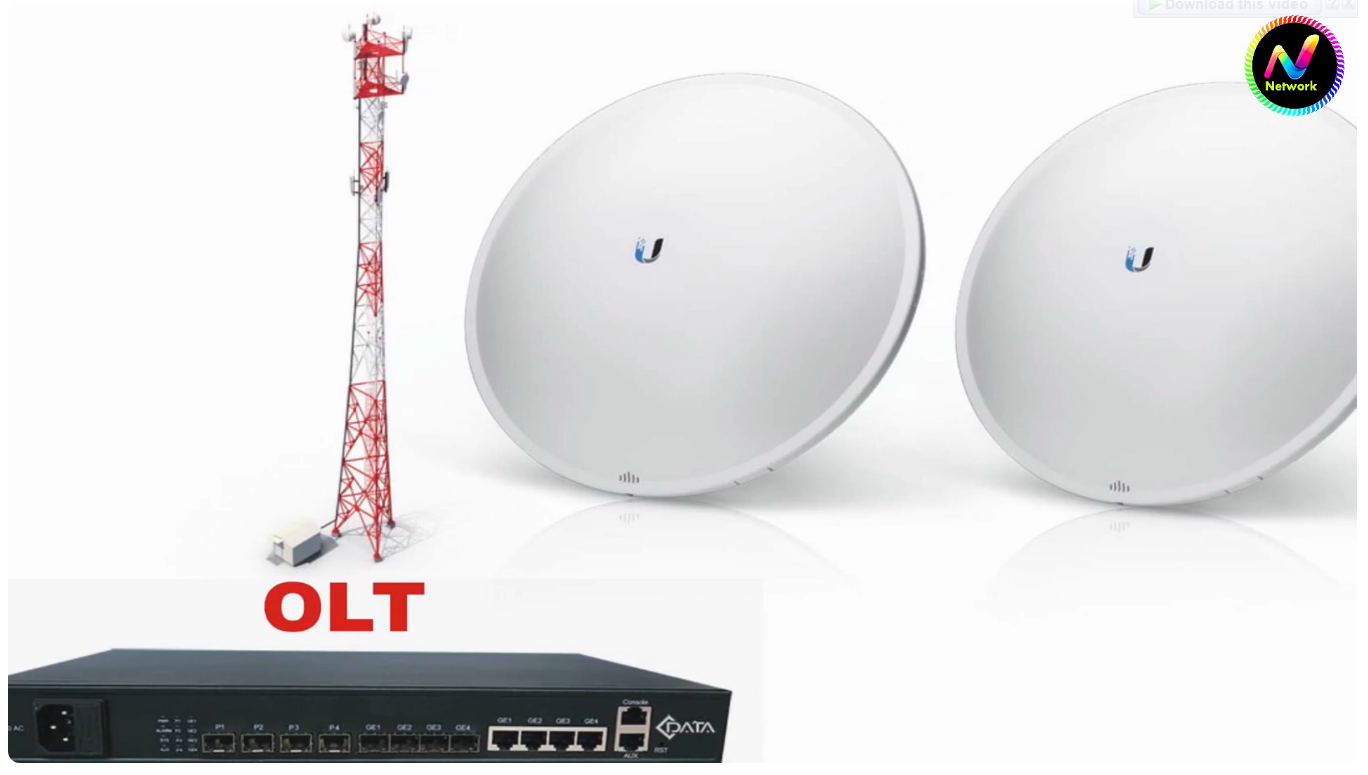
P2P Wireless (Point-to-Point Wireless) is a communication method where two devices are connected directly to each other using wireless signals, forming a dedicated link between two specific locations. It does not involve multiple users or devices like normal Wi-Fi; instead, it creates a one-to-one connection, making it more stable and focused.
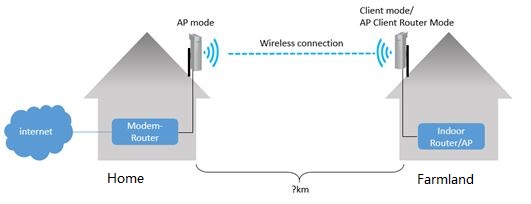
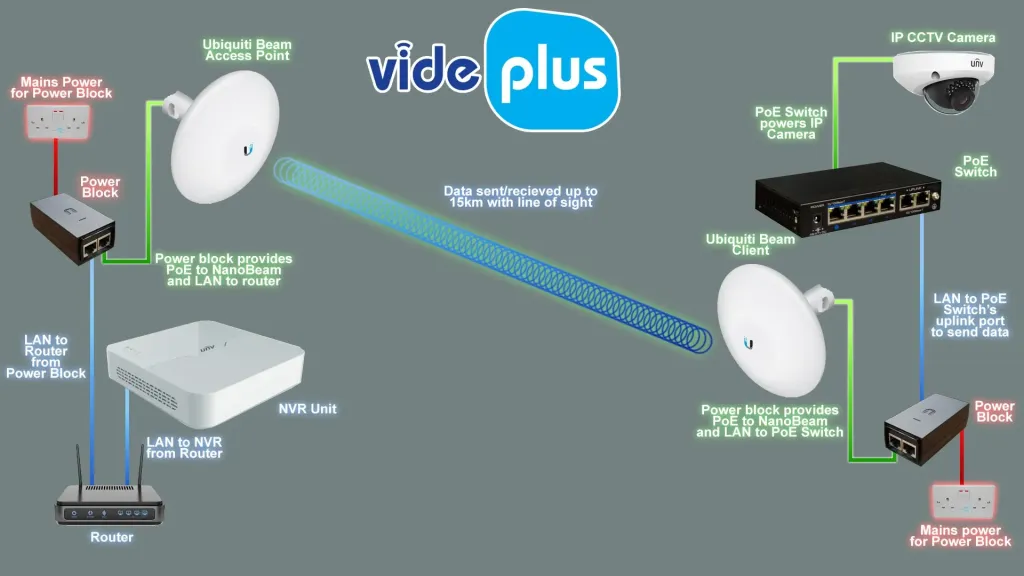
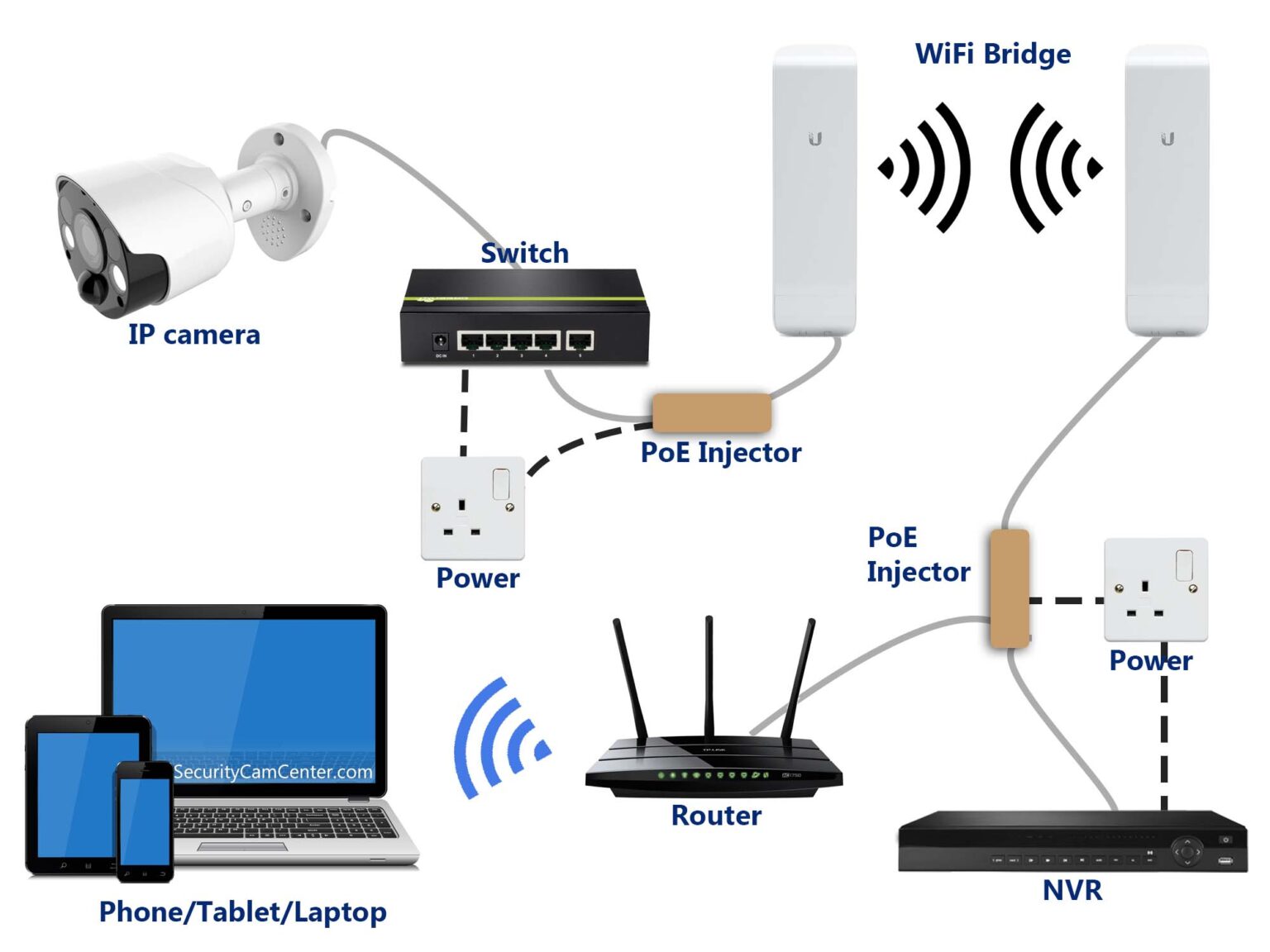
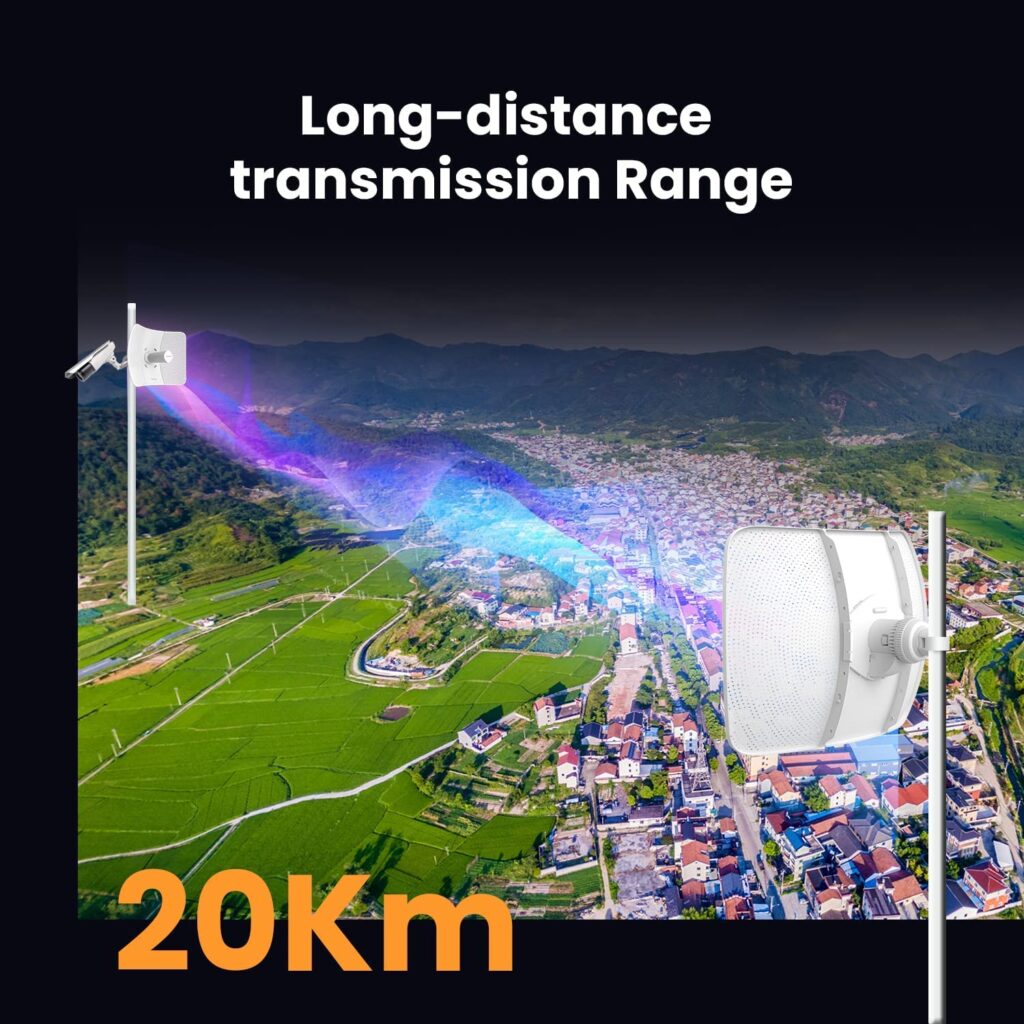
For example, if a company has two office buildings located 2–5 kilometers apart, running fiber or cable between them may be expensive or not possible. In this case, two P2P wireless devices can be installed on the rooftops of both buildings. These devices connect with each other wirelessly and share network resources, internet, and data between the two offices.
How P2P Wireless Works (Point-to-Point Wireless):
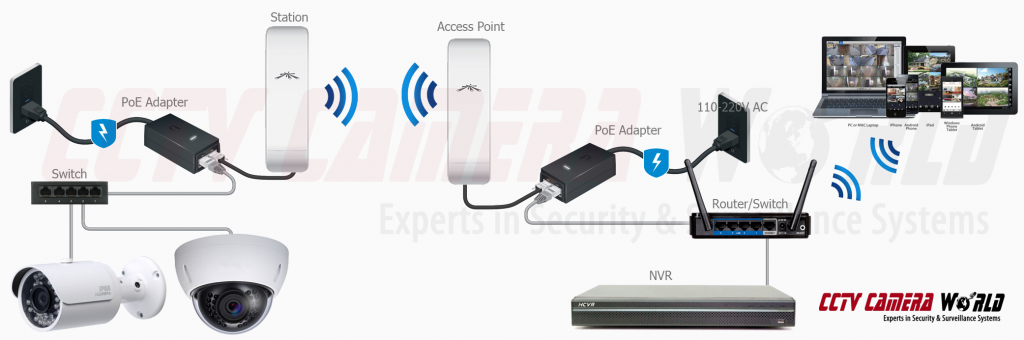
P2P wireless works by creating a direct wireless link between two devices placed at different locations. These devices communicate using radio signals, acting like a virtual cable between the two points.
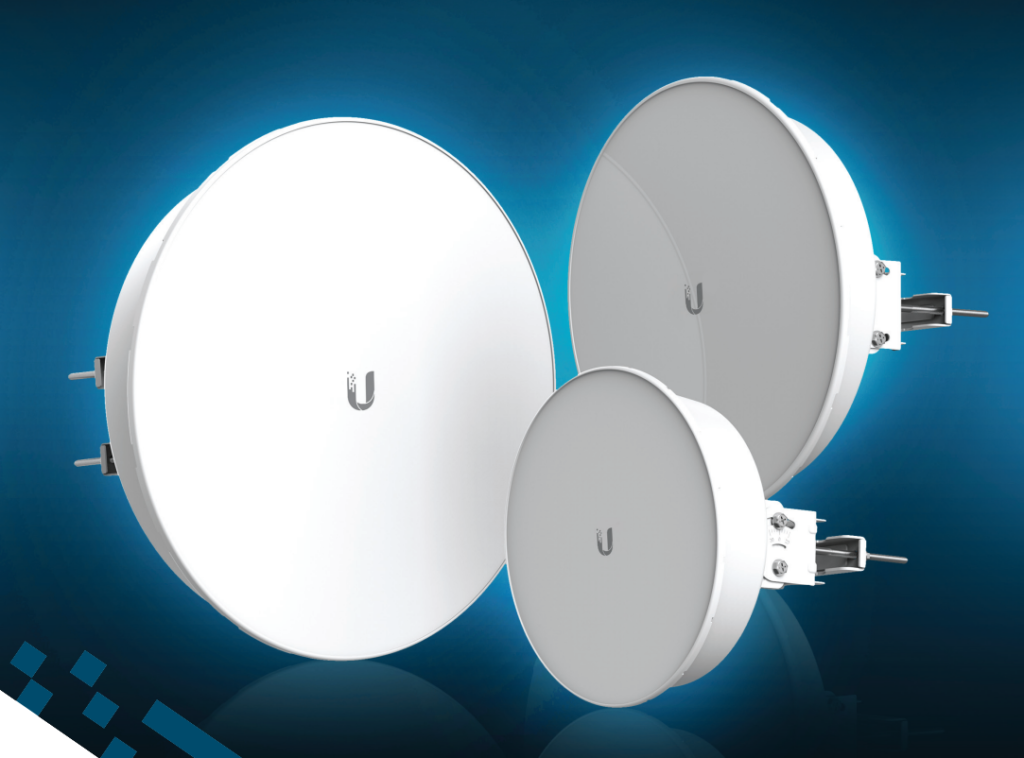
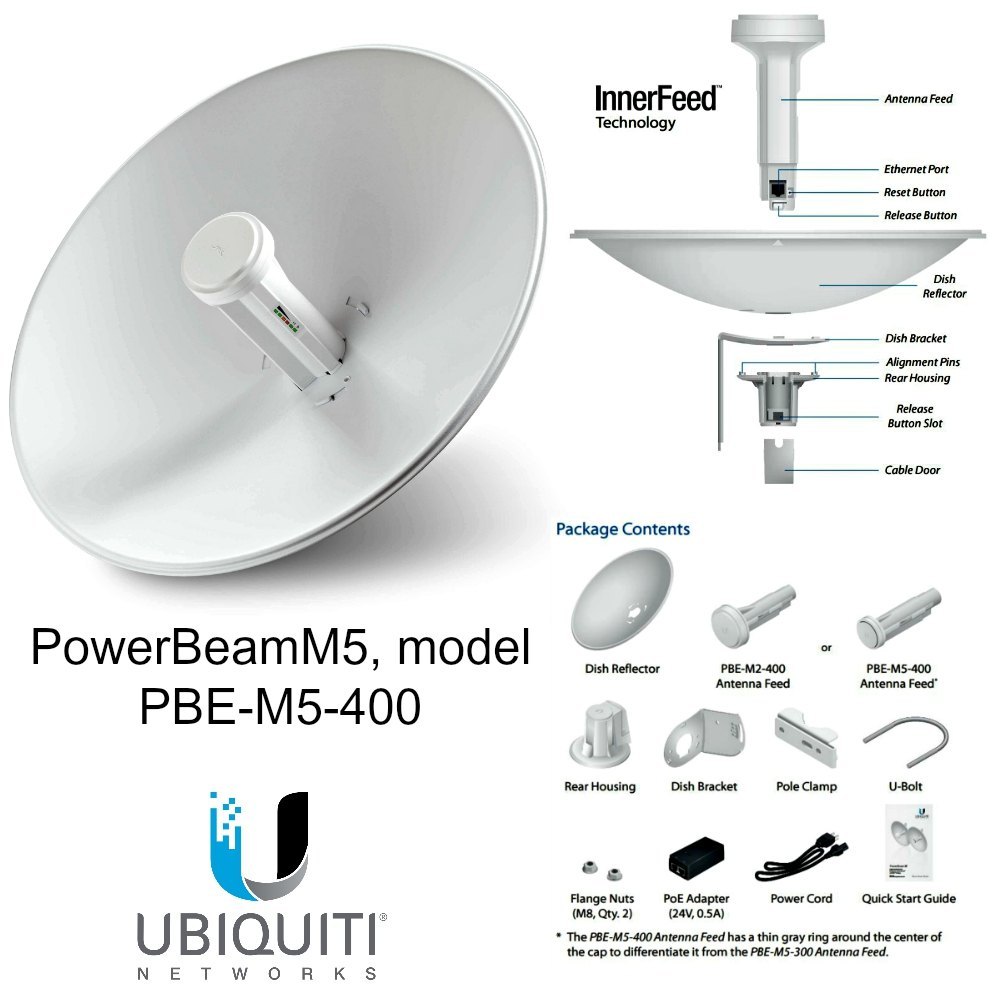
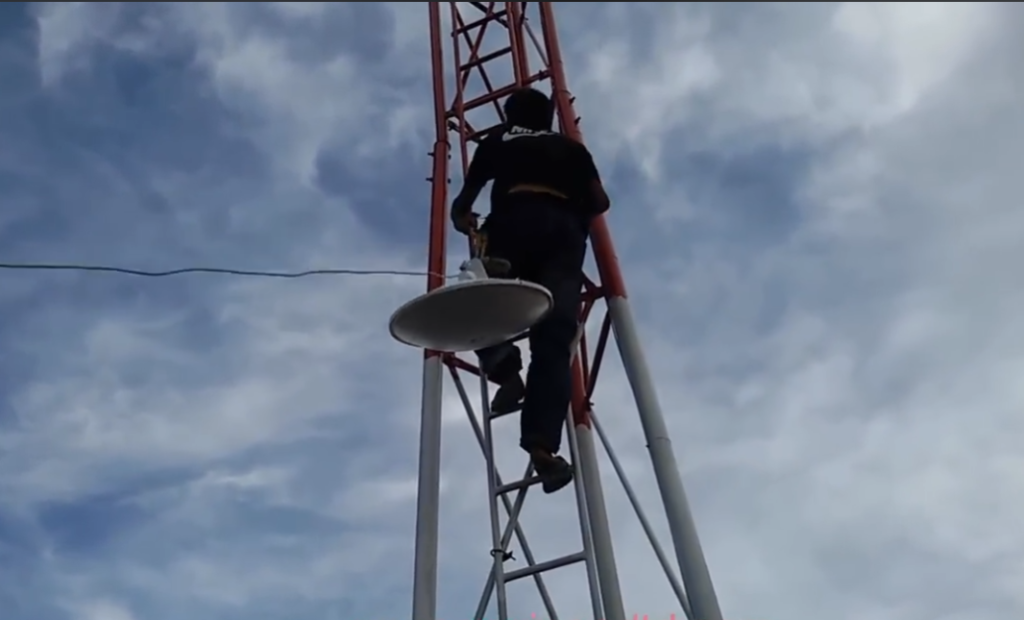
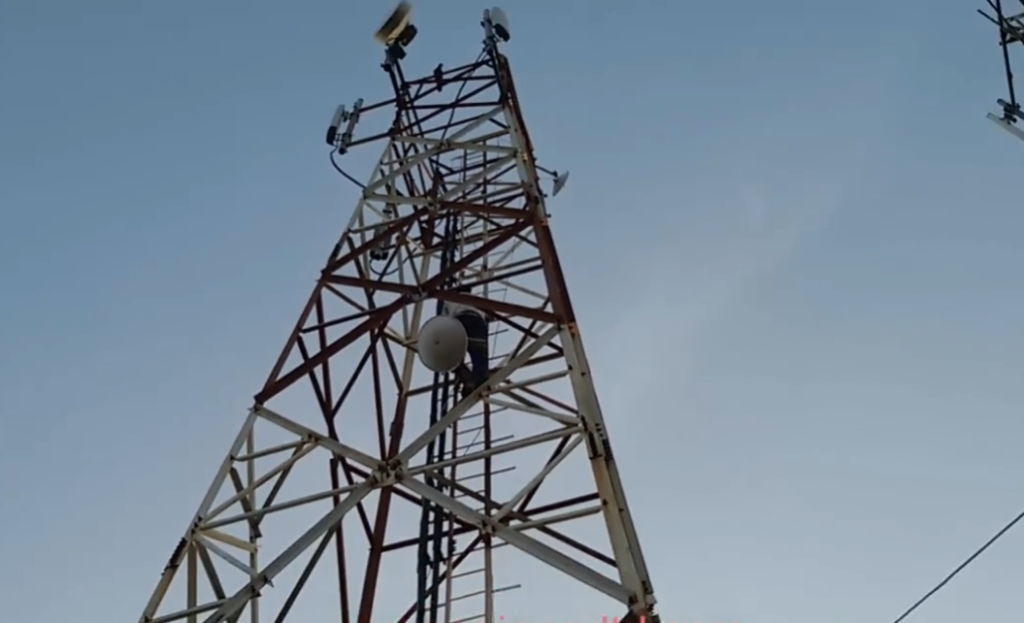
First, two wireless devices (usually with directional antennas) are installed at both locations, such as rooftops or towers. These antennas are carefully aligned facing each other to ensure a clear line-of-sight, because obstacles like buildings or trees can block the signal.
Once powered on, the devices establish a wireless connection using specific frequencies (like 2.4 GHz, 5 GHz, or higher bands). One device may act as the transmitter and the other as the receiver, or both can transmit and receive data simultaneously.
After the link is established, data starts flowing between the two points. For example, internet from one building can be sent wirelessly to another building through this link. To the network, it behaves just like a normal wired connection (Ethernet cable), even though it is wireless.
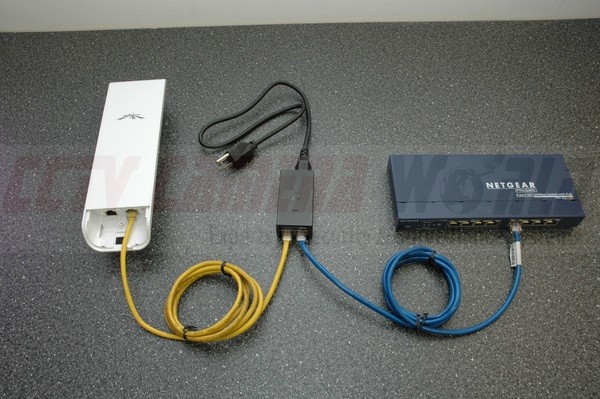
In real use, the P2P devices are connected to routers or switches on both sides. This allows full network access, including internet, file sharing, and applications, across both locations.
Simple Line: P2P works by connecting two devices wirelessly using aligned antennas to create a virtual cable between locations
Why P2P Wireless is Needed
P2P wireless is needed when connecting two locations using traditional wired methods like fiber or Ethernet cable is difficult, expensive, or not possible. In many real-world situations, laying cables across long distances, roads, rivers, or private property can take a lot of time and cost. P2P wireless provides a faster and more practical solution by creating a direct wireless link between the two points.
It is also required for long-distance connectivity, where two buildings, offices, or sites are located far apart. With P2P wireless, data can be transmitted over several kilometers without the need for physical infrastructure, making it ideal for remote or rural areas.
Another important reason is quick deployment. P2P wireless can be set up much faster compared to fiber installation. This makes it useful for temporary setups like construction sites, events, or emergency networks where immediate connectivity is needed.
P2P wireless is also used for network expansion and backup. Organizations can connect new branch offices or remote locations easily, and it can also act as a backup link if the main wired connection fails.
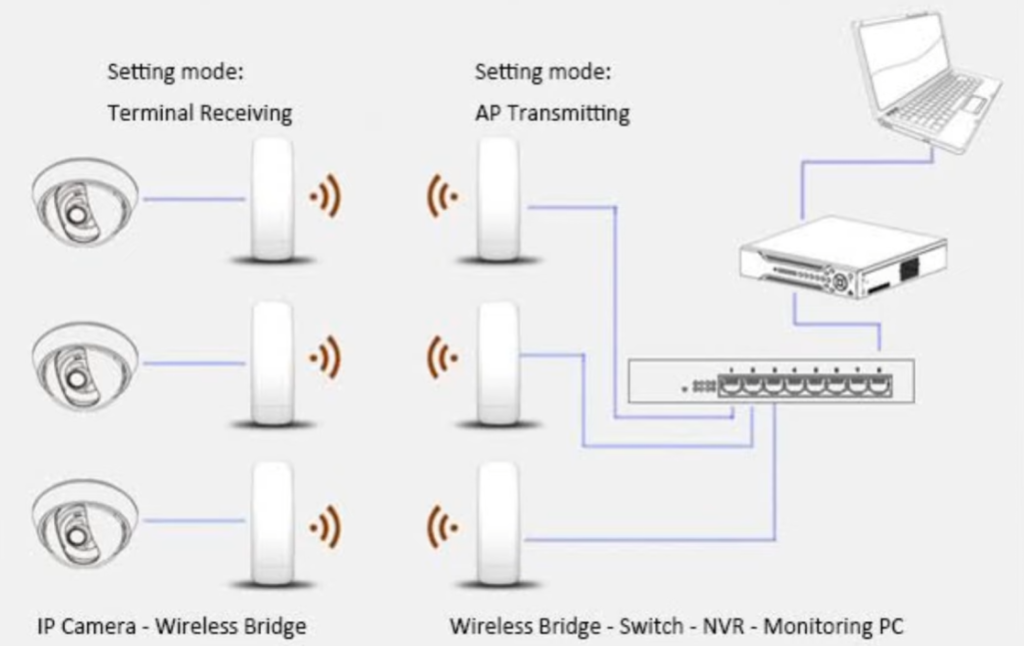
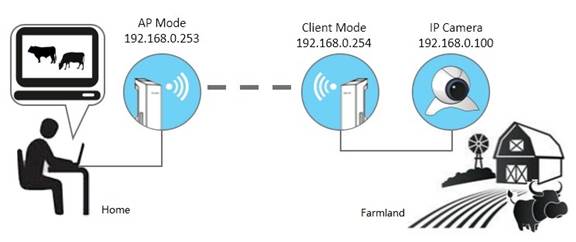
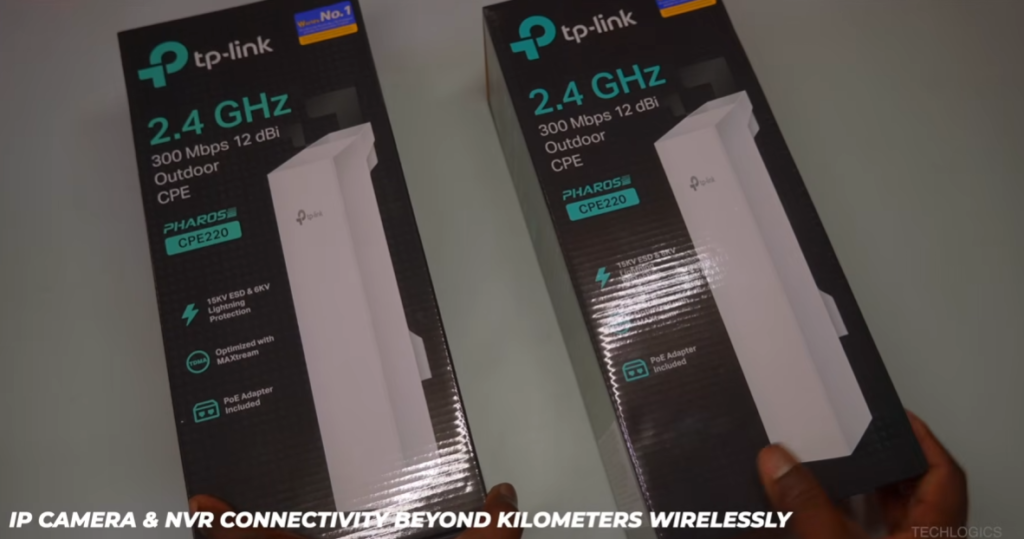
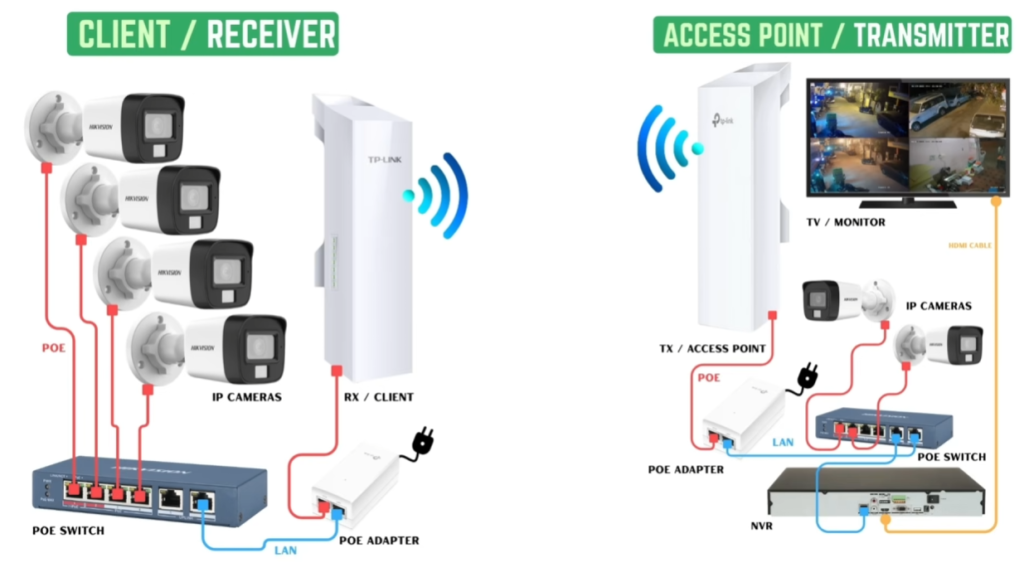
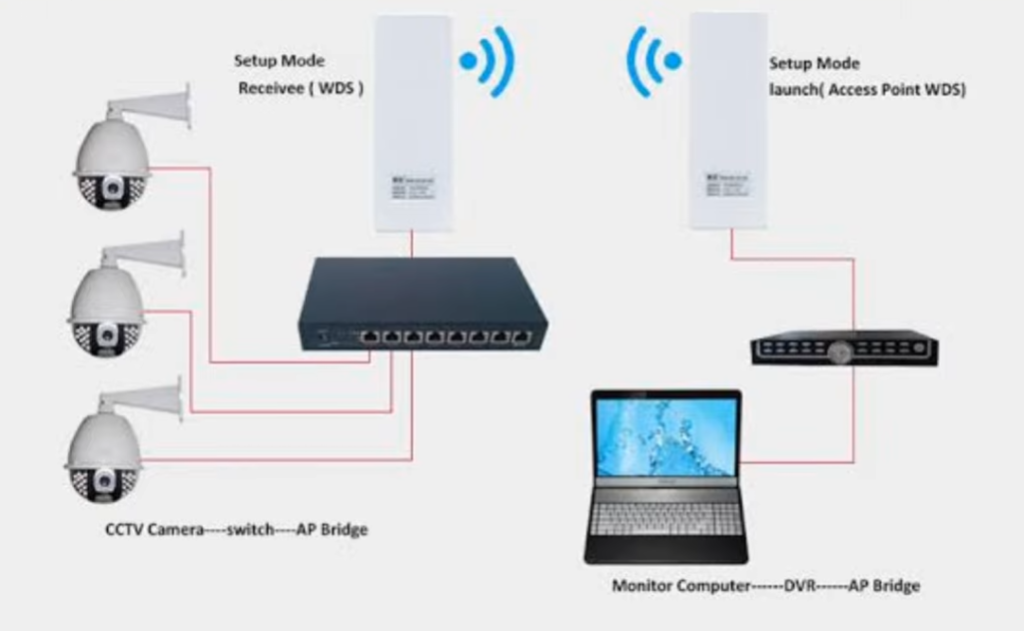
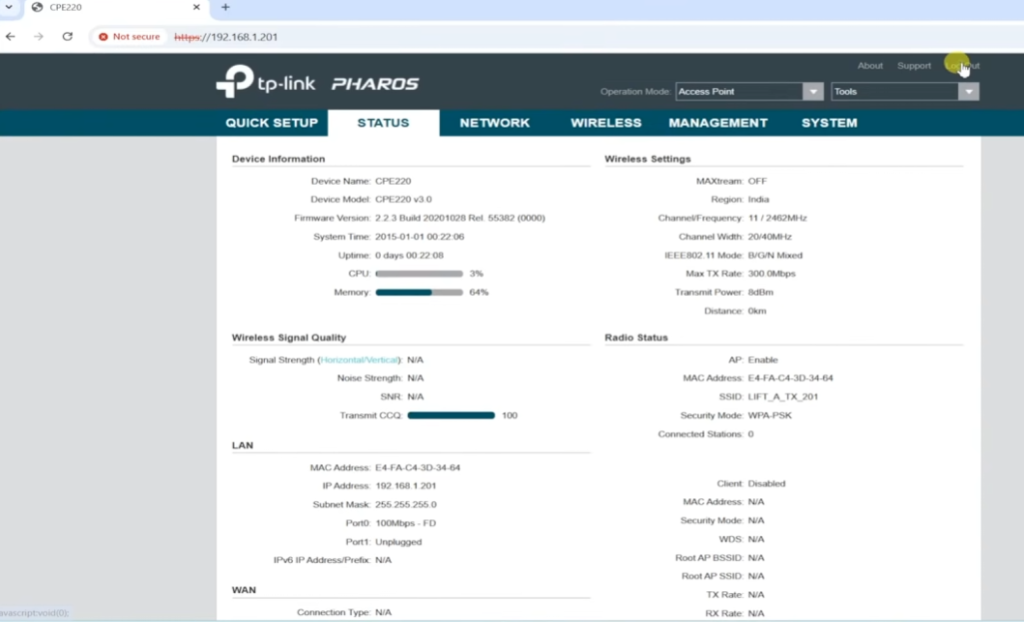
Additionally, it is needed for applications like CCTV connectivity, internet sharing, and inter-building communication, where stable and dedicated communication between two points is required.
Simple Line: P2P Wireless is needed to connect two locations quickly and cost-effectively without using cables

Multipoint (Point-to-Multipoint / P2MP)
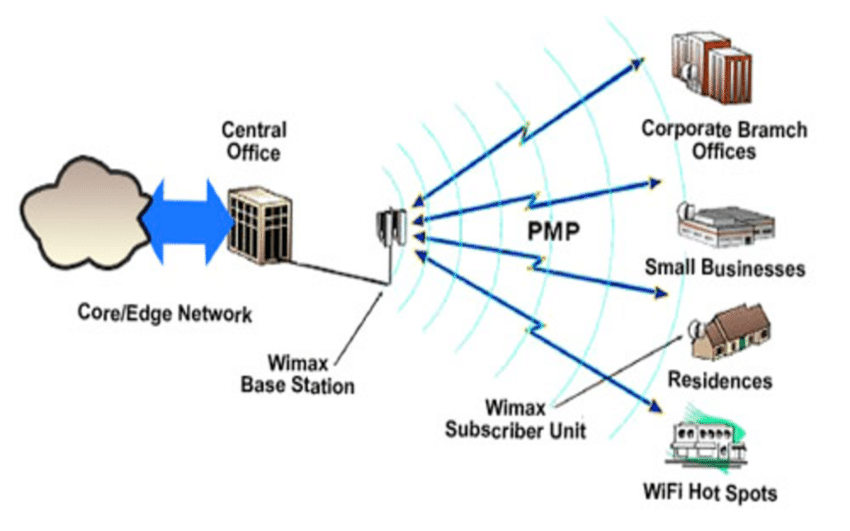
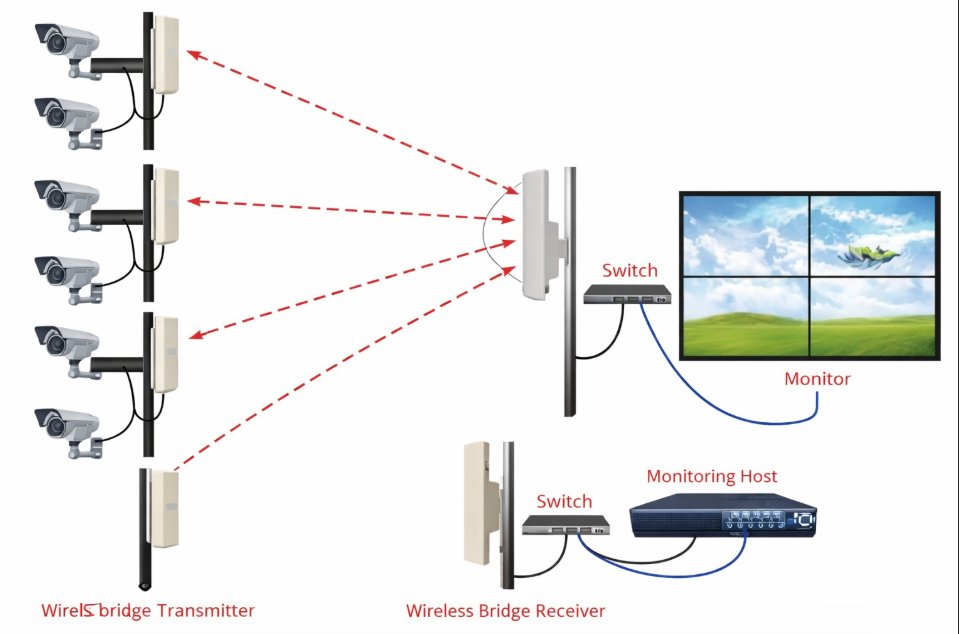
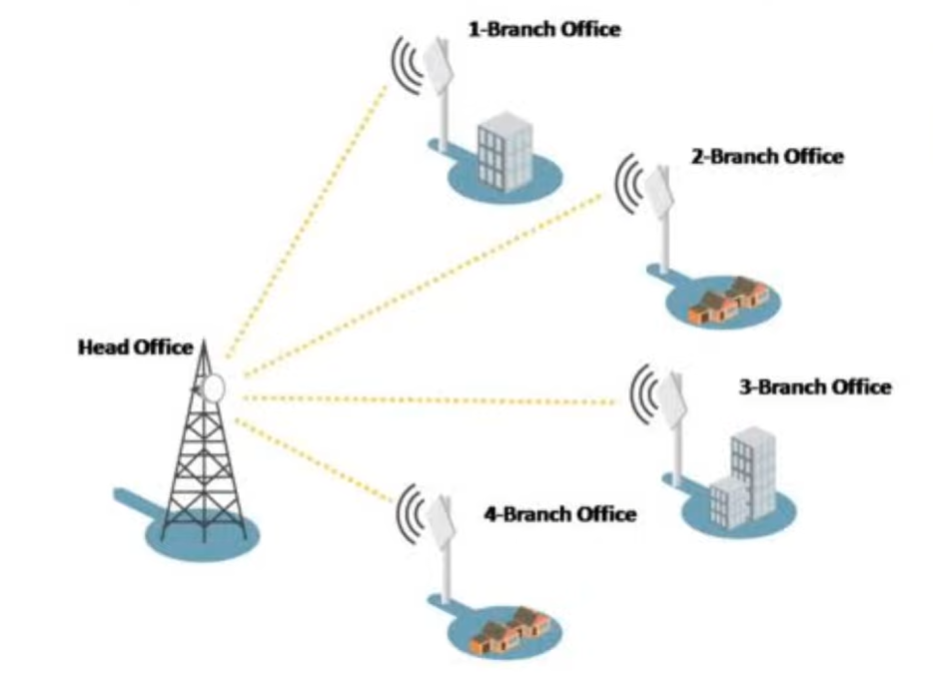
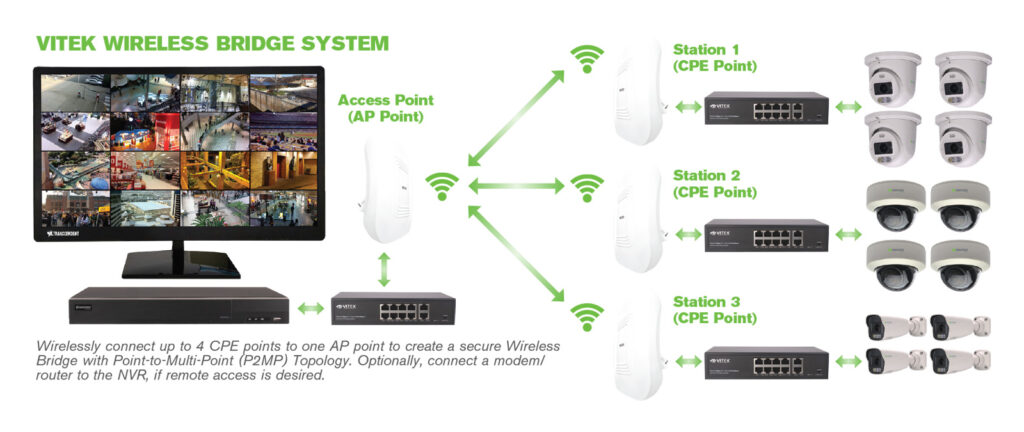
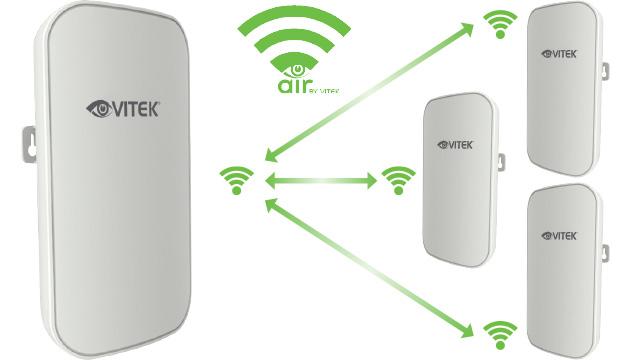
Multipoint (Point-to-Multipoint / P2MP) is a wireless communication method where a single central device connects to multiple remote devices at the same time. It creates a one-to-many connection, allowing several users or locations to share the same network through one main point.
In a multipoint setup, a central device such as an access point or base station is installed at a high or strategic location. This central unit sends and receives wireless signals to and from many client devices. Each client device, usually a CPE, connects back to the central device and communicates through it.
The working process is simple: the central device broadcasts wireless signals over a wide area, and multiple client devices connect to it. Data flows between the central device and each client, enabling internet access or network communication. All clients share the bandwidth of the central device.
For example, in a rural area, an internet service provider installs one wireless tower. Multiple houses have outdoor CPE devices installed on rooftops. All these homes connect to that one tower and receive internet service. This is a real-life example of multipoint communication.
Multipoint wireless is widely used in ISP networks, village broadband services, CCTV systems, and connecting multiple branch offices. It is cost-effective and easy to deploy because one central device can serve many users without needing separate connections for each.
What is Point To Multipoint Short Explain
In multipoint wireless, one main device (called base station or access point) communicates with many remote devices (clients). Instead of one-to-one connection (like P2P), it is one-to-many connection.
What is Wireless dBi Antenna
A wireless dBi antenna is an antenna used in wireless communication where dBi (decibels isotropic) indicates the gain or strength of the antenna signal. It shows how well the antenna can focus and transmit/receive signals in a particular direction.
The dBi value does not increase power but improves how the signal is directed. A higher dBi antenna focuses the signal in a narrow direction, allowing it to travel longer distances, while a lower dBi antenna spreads the signal in all directions but over a shorter range.
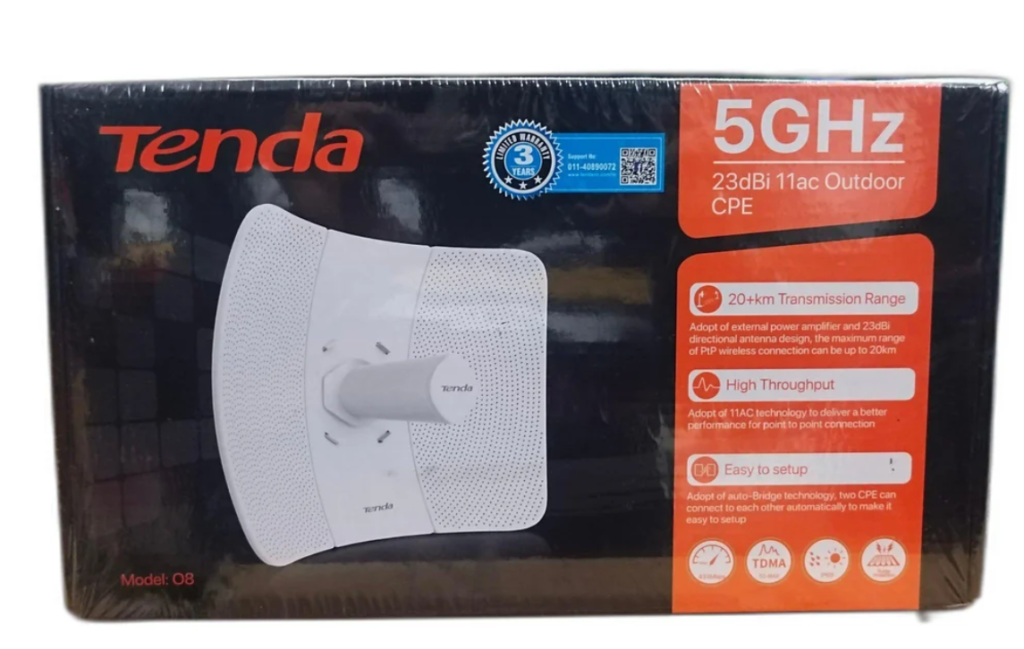
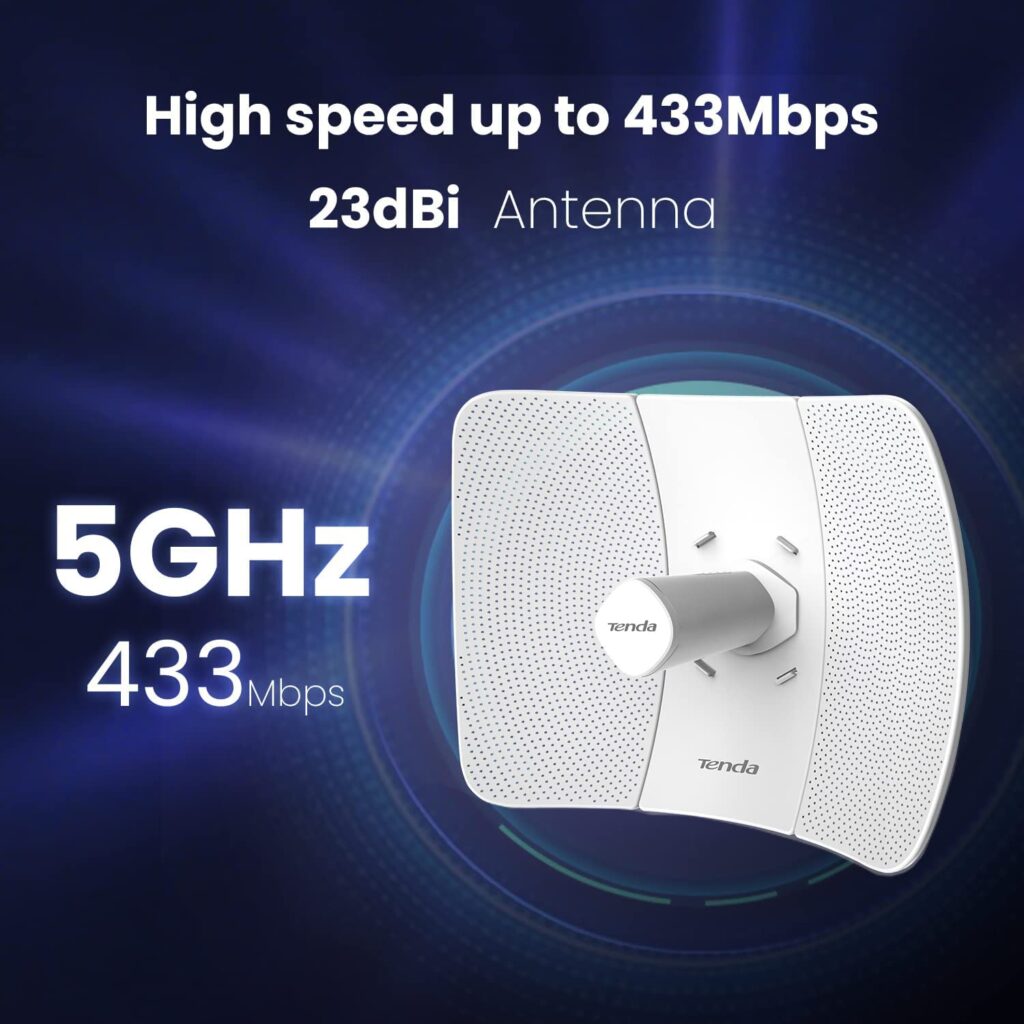
For example, a 5 dBi antenna is commonly used in home Wi-Fi routers because it provides wide coverage inside a house. On the other hand, a 20 dBi or 23 dBi antenna is used for long-distance wireless links (like building-to-building connections), where the signal needs to travel several kilometers in a focused path.
In real use, wireless dBi antennas are used in Wi-Fi routers, outdoor access points, P2P links, and ISP connections. The choice of dBi depends on whether you need wide coverage (low dBi) or long-distance focused communication (high dBi).
dBi to Kilometers (Approximate Range)
dBi (antenna gain) does not directly equal distance, but higher dBi generally means longer range if there is clear line-of-sight.
Approximate Mapping
- 2–5 dBi → ~50–200 meters (0.05–0.2 km)
- 8 dBi → ~200–500 meters (0.2–0.5 km)
- 12 dBi → ~0.5–1 km
- 15 dBi → ~1–2 km
- 18 dBi → ~2–3 km
- 20 dBi → ~2–5 km
- 23 dBi → ~5–10 km
- 27–30 dBi → ~10–20+ km
Difference between 2.4 GHz and 5 GHz Wi-Fi
2.4 GHz Wi-Fi
2.4 GHz is a lower frequency band used in wireless networks. It provides longer range and better ability to pass through walls and obstacles. However, it has slower speed and more interference because many devices (Bluetooth, microwave, other Wi-Fi networks) use this band.
👉 Use Case:
Best for large areas, homes with many walls, and basic internet use like browsing and messaging.
5 GHz Wi-Fi
5 GHz is a higher frequency band that provides faster speed and better performance. It has less interference because fewer devices use this band. However, its range is shorter, and it cannot pass through walls as effectively as 2.4 GHz.
👉 Use Case:
Best for high-speed activities like gaming, video streaming, and when you are close to the router.
Key Differences
| Feature | 2.4 GHz | 5 GHz |
|---|---|---|
| Speed | Slower | Faster |
| Range | Longer | Shorter |
| Wall Penetration | Better | Poor |
| Interference | More | Less |
| Use | General use | High-speed tasks |
What is Wi-Fi 6
Wi-Fi 6 is the latest generation of Wi-Fi technology (also called 802.11ax) designed to provide faster speed, better performance, and improved efficiency, especially when many devices are connected at the same time.
What is Wi-Fi 6
Wi-Fi 6 improves how wireless networks handle traffic. It uses advanced technologies like OFDMA and MU-MIMO to allow multiple devices to communicate at the same time, reducing congestion and improving speed.
👉 It works on both 2.4 GHz and 5 GHz bands (and Wi-Fi 6E adds 6 GHz).
Previous Wi-Fi Standards (Others)
Wi-Fi 5 (802.11ac)
Wi-Fi 5 provides high speed but mainly works on 5 GHz band. It is good for streaming and gaming but not efficient when many devices are connected.
Wi-Fi 4 (802.11n)
Wi-Fi 4 works on 2.4 GHz and 5 GHz. It offers moderate speed and is widely used in older routers.
Older Versions (802.11a/b/g)
These are older standards with low speed and outdated technology, mostly not used today.
Key Differences
| Feature | Wi-Fi 4 (n) | Wi-Fi 5 (ac) | Wi-Fi 6 (ax) |
|---|---|---|---|
| Speed | Medium | High | Very High |
| Efficiency | Low | Medium | High |
| Device Handling | Basic | Better | Excellent |
| Frequency | 2.4 & 5 GHz | 5 GHz | 2.4 & 5 GHz |
| Best Use | Normal use | Streaming | Many devices |
What is Wi-Fi Channel Frequency
Wi-Fi Channel Frequency refers to the specific frequency range (in MHz or GHz) that a Wi-Fi network uses to transmit and receive data. Wi-Fi does not use a single frequency; instead, it is divided into multiple channels, and each channel operates on a slightly different frequency to avoid interference.
Explanation
Wi-Fi works mainly on 2.4 GHz and 5 GHz bands, and each band is divided into smaller parts called channels. A channel is like a “lane” on a road—multiple networks can use different channels to reduce traffic and interference.
2.4 GHz Channels
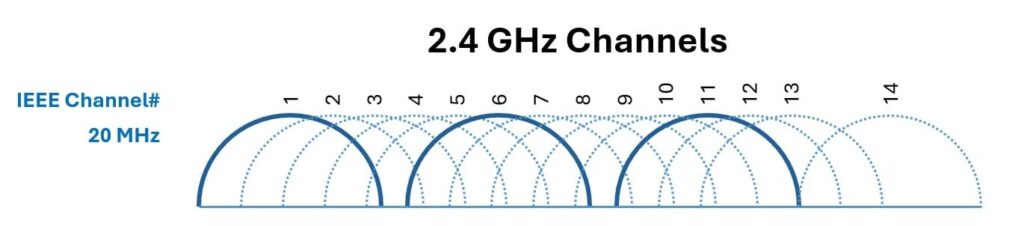
The 2.4 GHz band has channels 1 to 14, but in most countries, only channels 1, 6, and 11 are commonly used because they do not overlap.
👉 Frequency range: 2.412 GHz – 2.472 GHz
5 GHz Channels
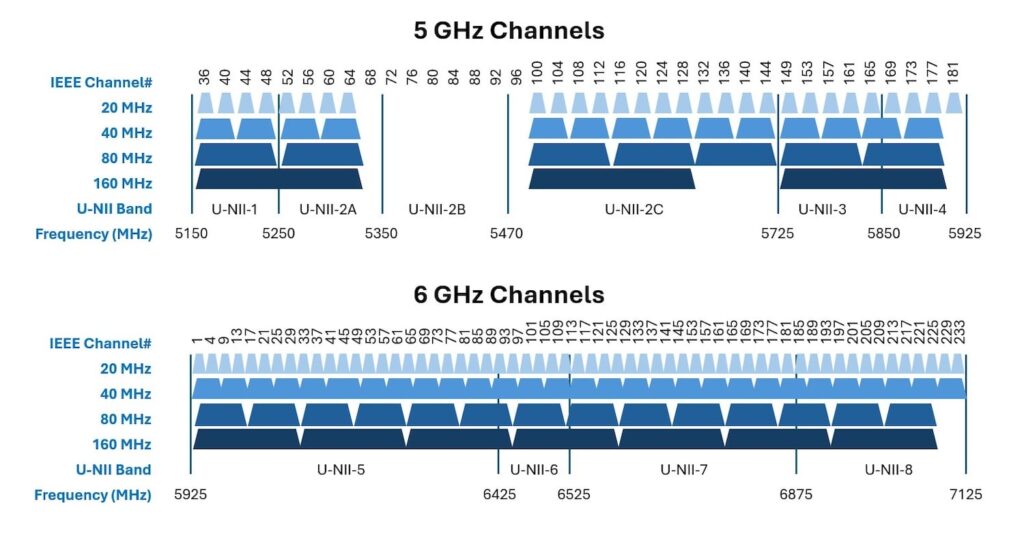
The 5 GHz band has many more channels (like 36, 40, 44, 48, etc.), and they are less crowded and faster.
👉 Frequency range: 5.180 GHz – 5.825 GHz (approx)
Example
If many Wi-Fi networks in your area use the same channel (like channel 6), there will be interference and slow speed. Changing your router to channel 1 or 11 can improve performance.
Why Channels Are Important
- Reduce interference from other networks
- Improve speed and performance
- Allow multiple networks to work together
Access Point (AP) can work in different Modes
Access Point Mode (AP Mode)
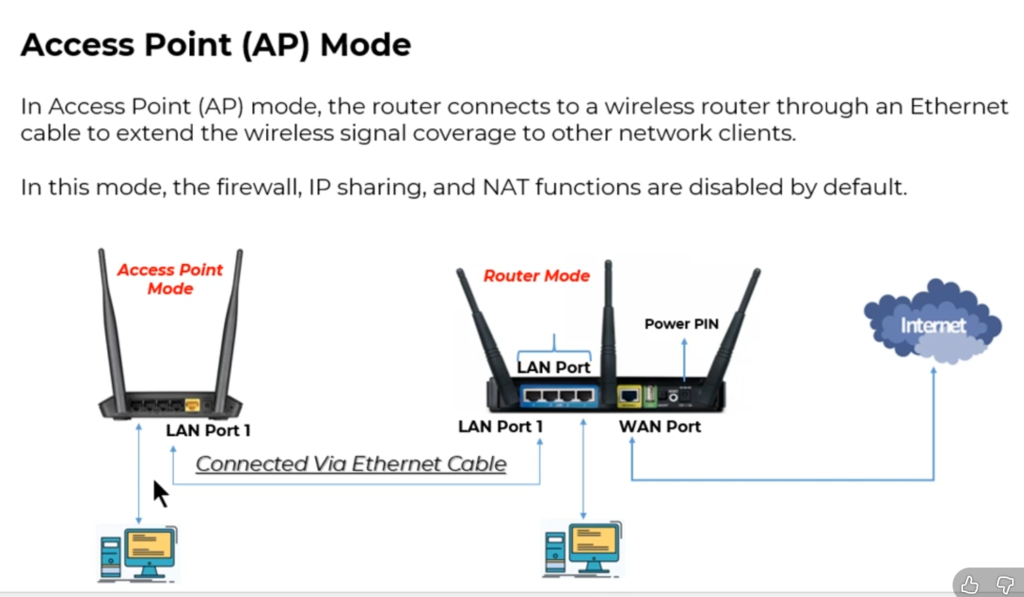
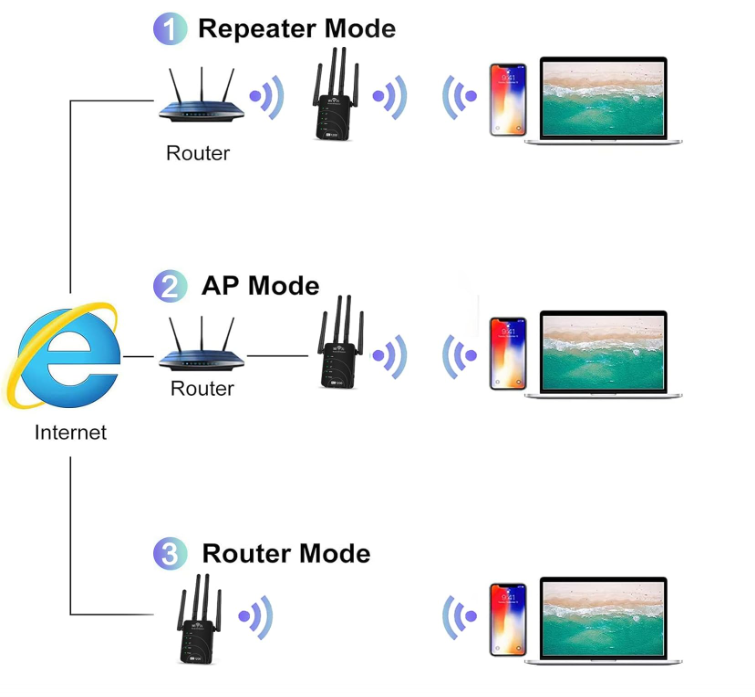
Access Point Mode (AP Mode) is the most common and default mode of a wireless access point. In this mode, the device works as a central point that provides Wi-Fi (wireless connectivity) to multiple devices and connects them to a wired network (LAN).
How it works (simple explanation)
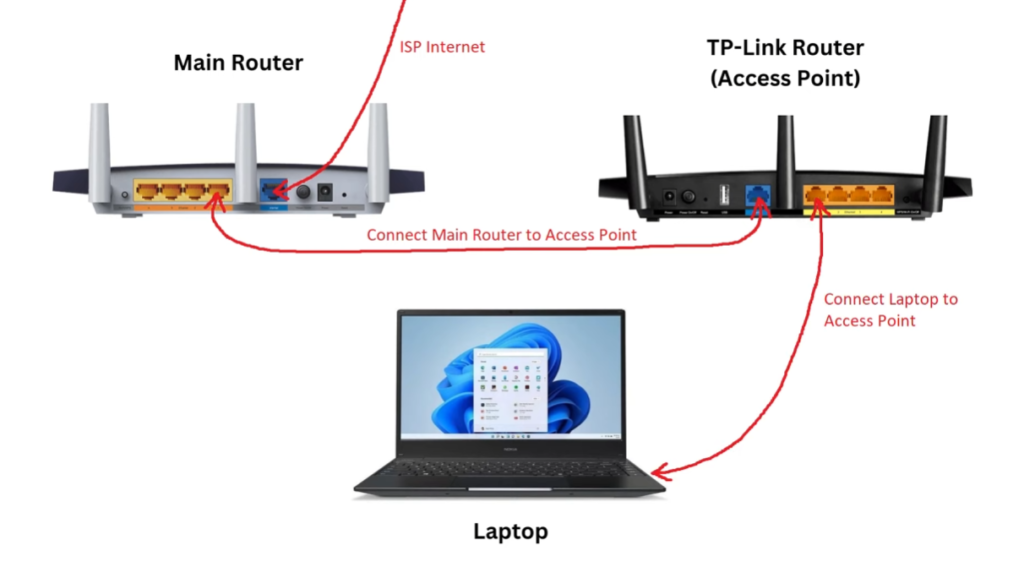
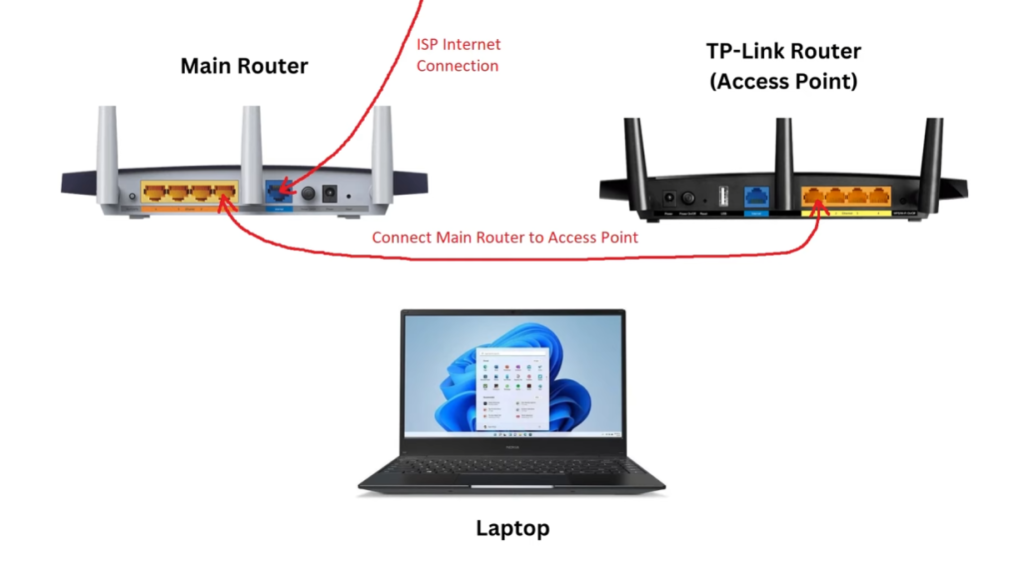
In AP Mode, the access point is connected to a router or switch using an Ethernet cable. It then converts the wired network into a wireless signal (Wi-Fi) so that devices like mobiles, laptops, and tablets can connect.
👉 So basically:
Wired Network (LAN) ➝ Access Point ➝ Wireless Devices
Example
Imagine your home router:
- Internet comes from ISP → router
- Router connects to AP (or built-in AP in Wi-Fi router)
- Your phone connects via Wi-Fi
👉 Here, the AP is working in AP Mode to provide Wi-Fi.
Real-Life Use Cases
- Home Wi-Fi router
- Office wireless network
- School/college campus Wi-Fi
- Airport or hotel Wi-Fi
mportant Note
- AP Mode does not do routing (routing is done by router)
- It mainly handles wireless communication
In One Line
Access Point Mode = Device that converts wired network into wireless Wi-Fi network
Repeater Mode (Range Extender Mode)
Definition
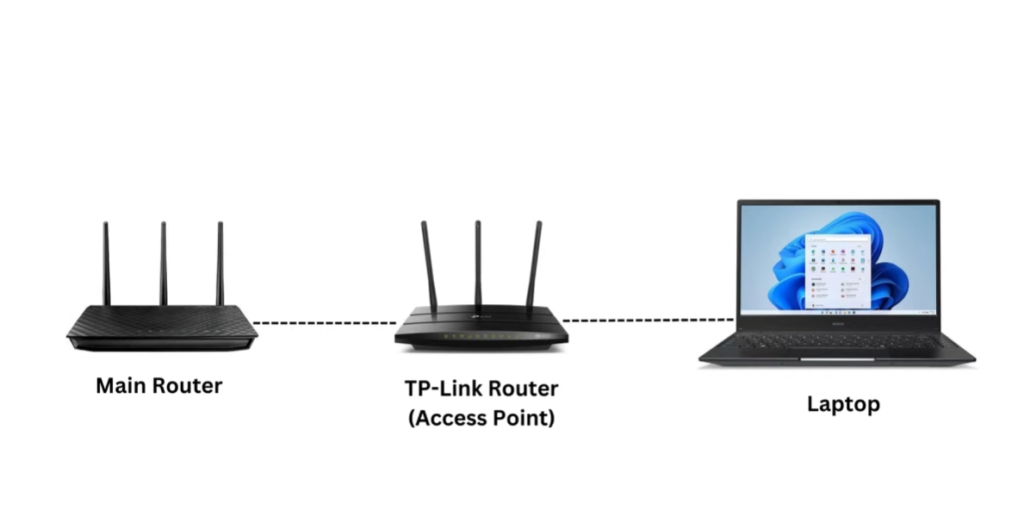
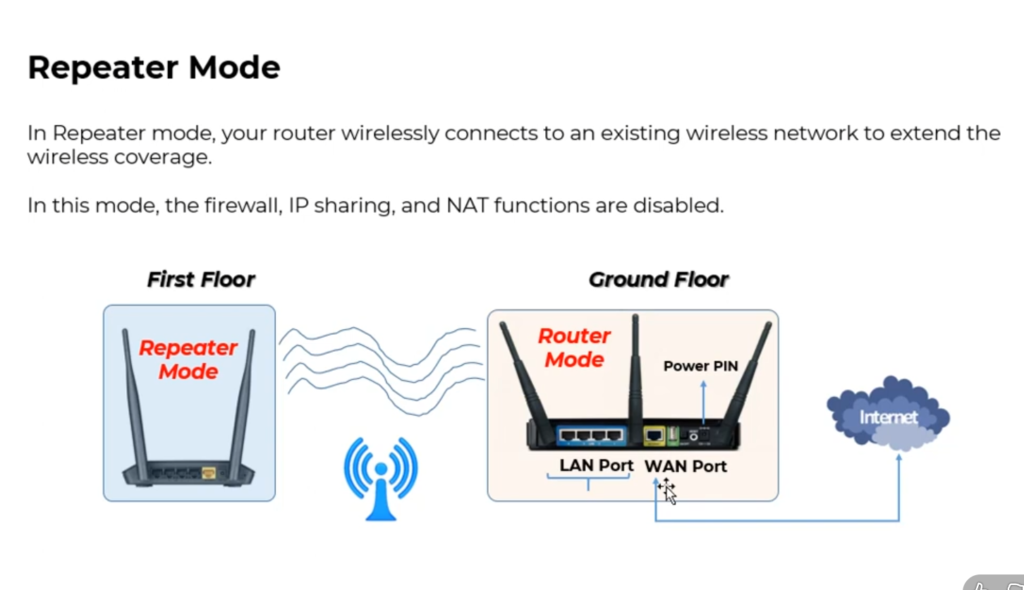
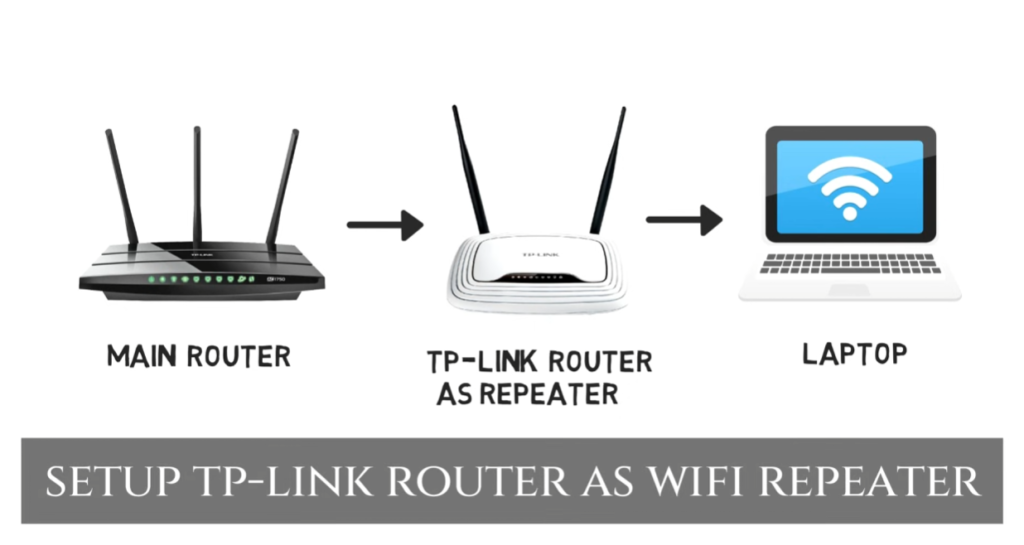
Repeater Mode (also known as Range Extender Mode) is a wireless mode in which an access point or device is used to extend the coverage area of an existing Wi-Fi network. Instead of creating a new network, it connects to the main router wirelessly and re-broadcasts the same signal to areas where the Wi-Fi signal is weak or unavailable.
How it works
In this mode, the repeater first receives the wireless signal from the main router or access point, then amplifies it and transmits it again. This process helps the signal reach longer distances. However, since the same device is handling both receiving and transmitting, it uses the same bandwidth, which can reduce speed.
Example
Suppose you have a Wi-Fi router in your living room, but the signal becomes very weak in your bedroom. If you place a repeater device in the hallway (between the router and bedroom), it will capture the Wi-Fi signal from the router and extend it into the bedroom, allowing your mobile or laptop to connect easily.
Advantages
Repeater Mode is very useful because it is easy to install and does not require any cables. It is also a cost-effective solution for improving Wi-Fi coverage in homes, offices, or multi-floor buildings. It helps eliminate dead zones where internet access was previously not available.
Disadvantages
One major drawback of repeater mode is that it can reduce network speed, sometimes by up to 50%, because it uses the same channel to receive and transmit data. It can also introduce latency (delay) and performance depends heavily on how strong the original signal is.
Important Tip
For best performance, the repeater should be placed midway between the main router and the weak signal area. If placed too far from the router, it will receive a weak signal and repeat poor quality Wi-Fi, which reduces performance.
Final Line
Repeater Mode is used to extend an existing Wi-Fi network by receiving and re-transmitting the signal to cover a larger area.
In One Line
Repeater Mode = Extends existing Wi-Fi signal to cover more area
Bridge Mode (Point-to-Point / Point-to-Multipoint)
Definition
Bridge Mode is a wireless mode in which an access point is used to connect two or more separate wired networks using a wireless link. Instead of providing Wi-Fi to users, it acts like a bridge between networks, allowing devices on both sides to communicate as if they are on the same LAN.
How it works
In Bridge Mode, access points are configured to communicate directly with each other over Wi-Fi. One AP is usually set as the main bridge, and the other AP(s) connect to it. The data from one network is transmitted wirelessly to the other network, effectively replacing the need for a physical cable.
Point-to-Point (PtP)
Point-to-Point bridge mode is used to connect two locations.
👉 Example: Suppose a company has two buildings across the road. Running a cable is difficult, so one AP is placed on each building. These APs connect wirelessly and link both office networks together, allowing file sharing and communication.
Point-to-Multipoint (PtMP)
Point-to-Multipoint bridge mode connects one central AP to multiple remote APs.
👉 Example: An Internet Service Provider (ISP) installs one main tower (central AP) and connects multiple customer locations (remote APs). All users get connectivity from the central point.
Advantages
Bridge Mode is useful because it eliminates the need for long cables, reduces installation cost, and allows connectivity over long distances. It is commonly used in offices, campuses, and ISPs for network expansion.
Disadvantages
The performance of bridge mode depends on line-of-sight and signal quality. Obstacles like buildings, trees, or interference can reduce speed and stability. Also, proper alignment of antennas is required for best performance.
Final Line
Bridge Mode is used to wirelessly connect two or more wired networks, either between two locations (PtP) or one-to-many locations (PtMP).
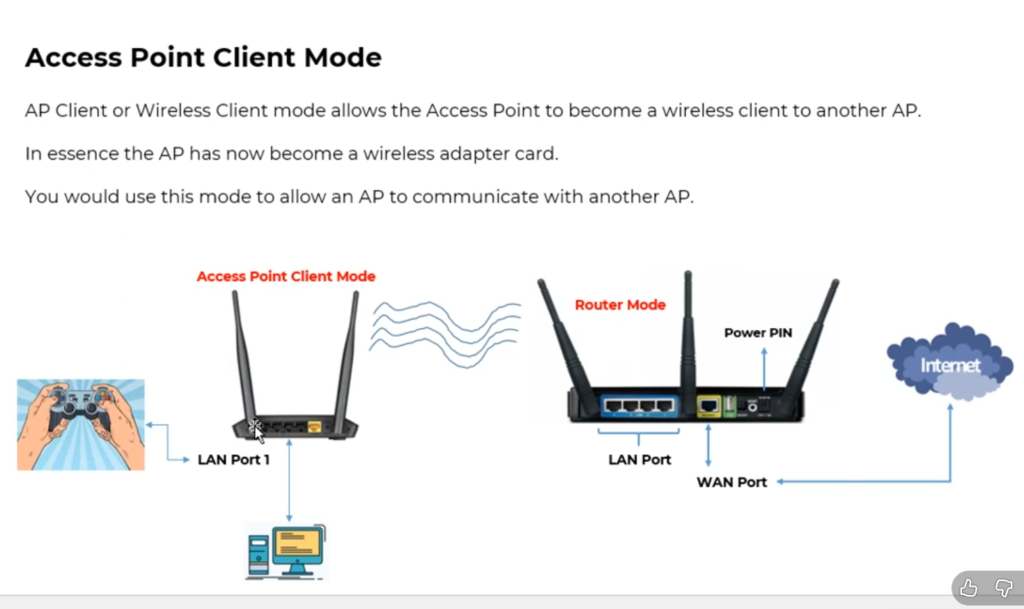
Client Mode (Station Mode)
Definition
Client Mode (also called Station Mode) is a wireless mode in which an access point works like a Wi-Fi client instead of providing Wi-Fi. In this mode, the device connects to an existing wireless network (like a router) and provides network access to wired devices through Ethernet.
How it works
In Client Mode, the access point uses its wireless interface to connect to a main router or AP, just like a mobile or laptop would. Once connected, it shares that connection through its LAN (Ethernet) port to devices that do not have Wi-Fi capability.
Example
Suppose you have a desktop computer or printer that does not support Wi-Fi. You can connect an access point in Client Mode to your home Wi-Fi network, and then connect the desktop or printer to the AP using an Ethernet cable.
👉 This allows the wired device to access the internet through Wi-Fi indirectly.
Key Features
In this mode, the AP does not broadcast a Wi-Fi signal for other devices. It only acts as a receiver (client) of the wireless network. It is useful for connecting non-wireless devices to a wireless network.
Advantages
Client Mode is very useful when you want to add Wi-Fi capability to wired devices without installing a Wi-Fi adapter. It is easy to configure and does not require additional cabling to the router.
Disadvantages
The main limitation is that it usually supports only a few wired devices (depending on ports). Also, performance depends on the signal strength of the main Wi-Fi network.
Final Line
Client Mode = Access Point works as a Wi-Fi receiver and provides internet to wired devices through Ethernet.