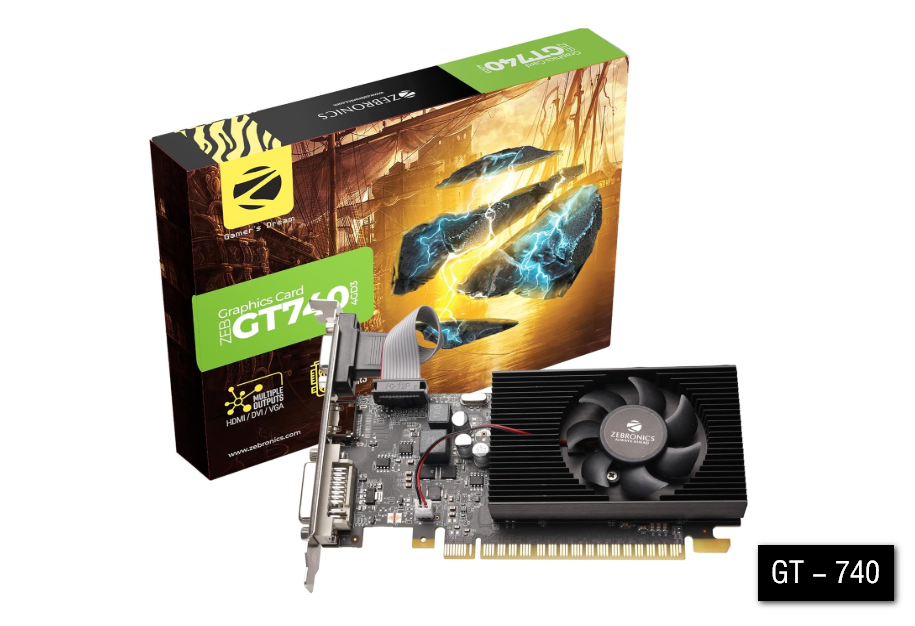
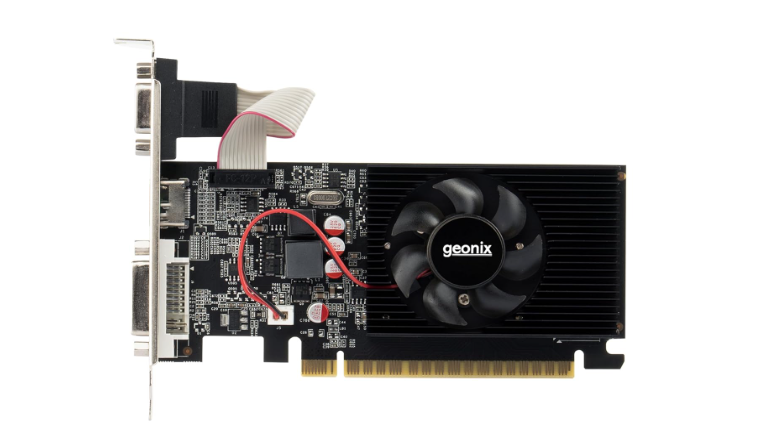
Computer Components
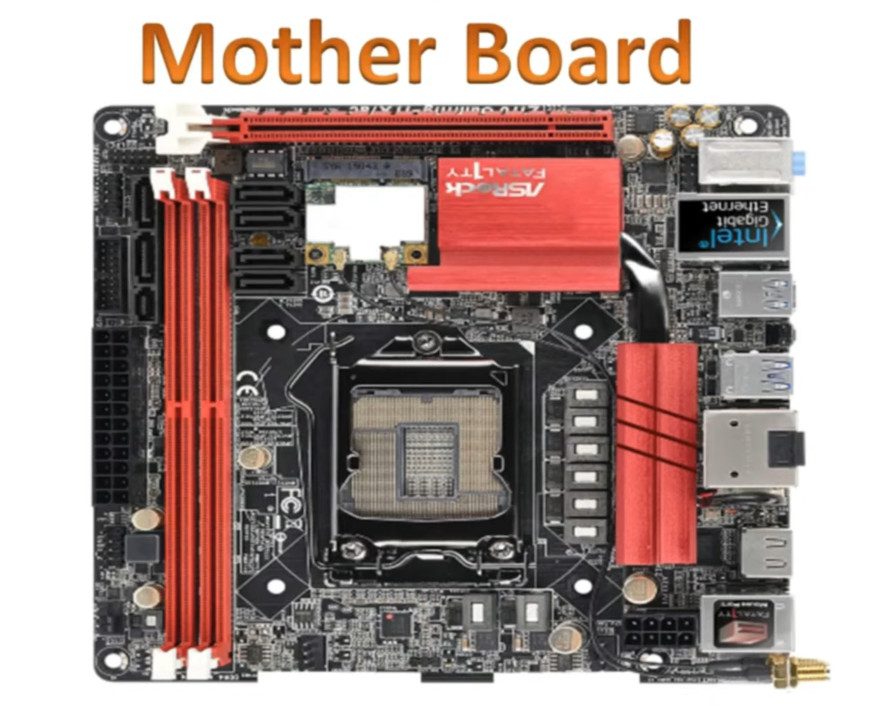
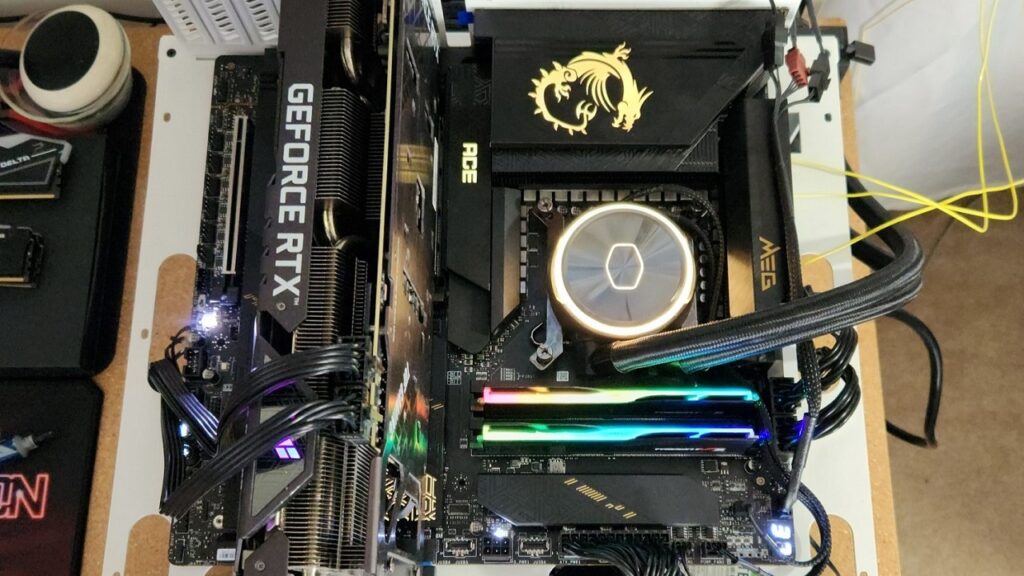
What is a Computer Motherboard
What is a Computer Motherboard:
A computer motherboard is the main circuit board of a computer. It is also called the mainboard or system board. All important components of the computer are connected to the motherboard, and it helps them communicate with each other.
Connection of Components:
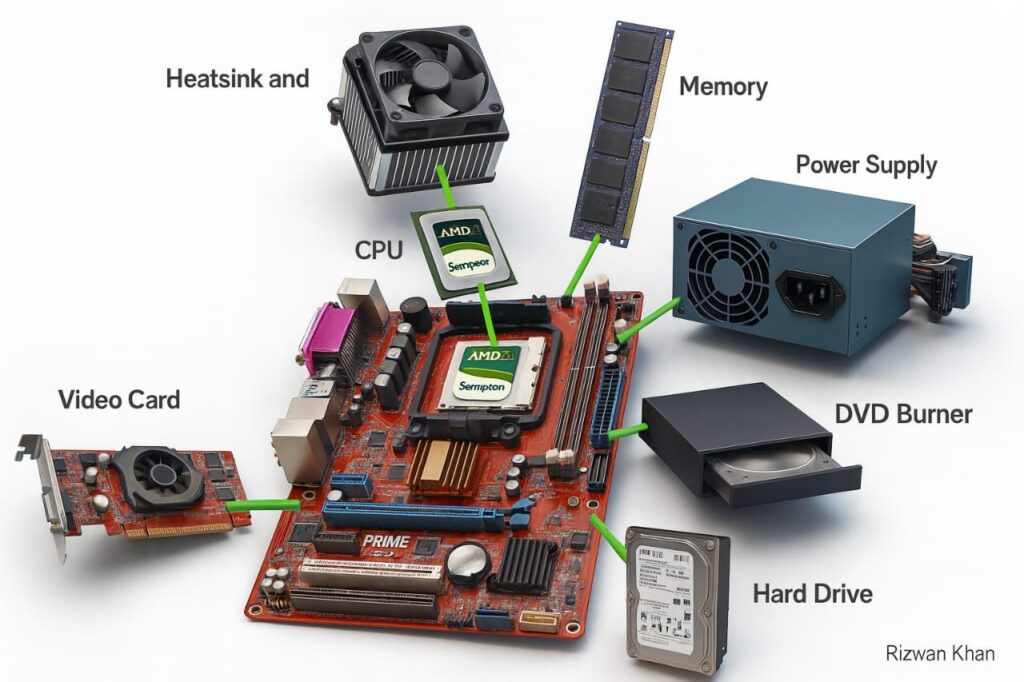
The motherboard connects major hardware parts such as the CPU, RAM, storage devices, graphics card, and power supply. Without the motherboard, these components cannot work together properly.
CPU and RAM Support:
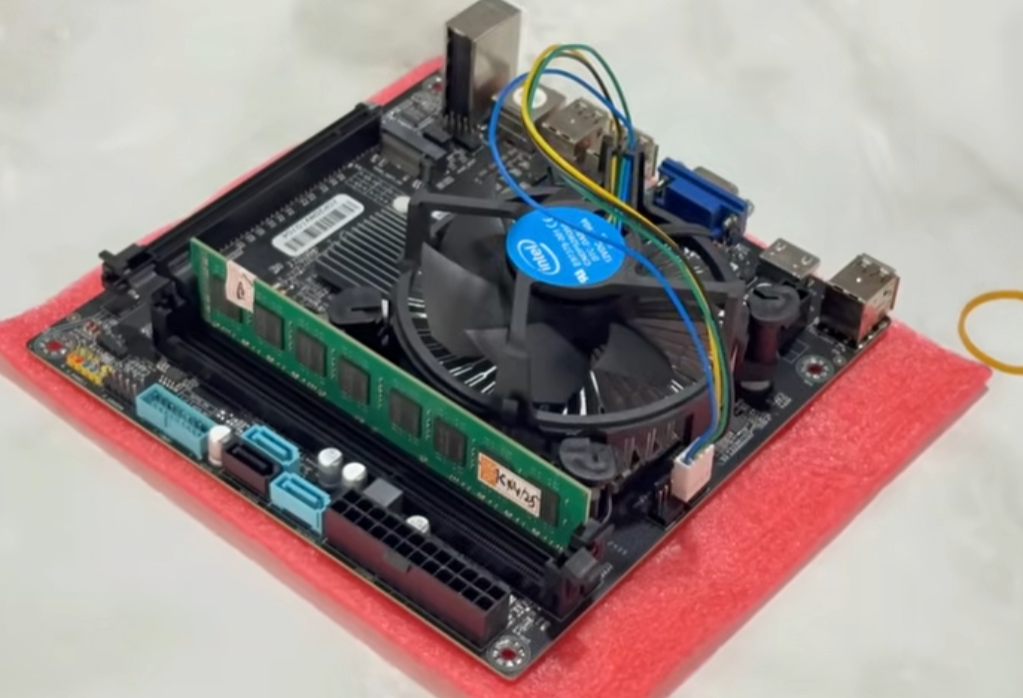
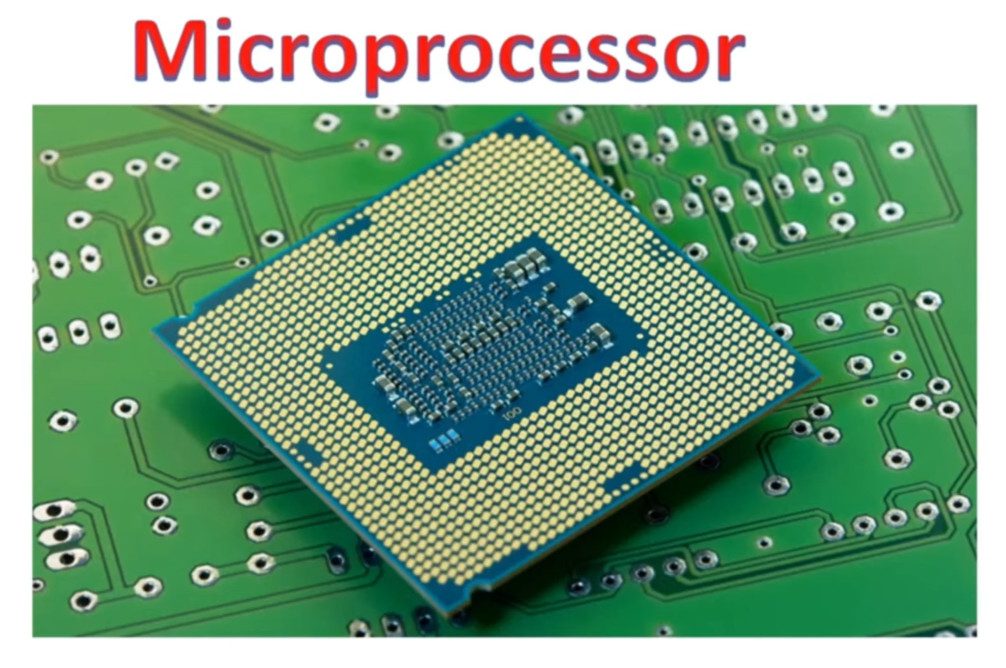
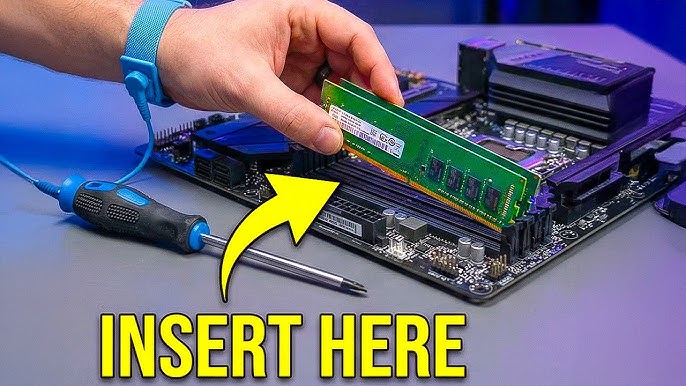
The CPU socket on the motherboard is used to install the processor. RAM slots are used to install memory modules. These components are essential for processing data and running programs.
Expansion and Storage:
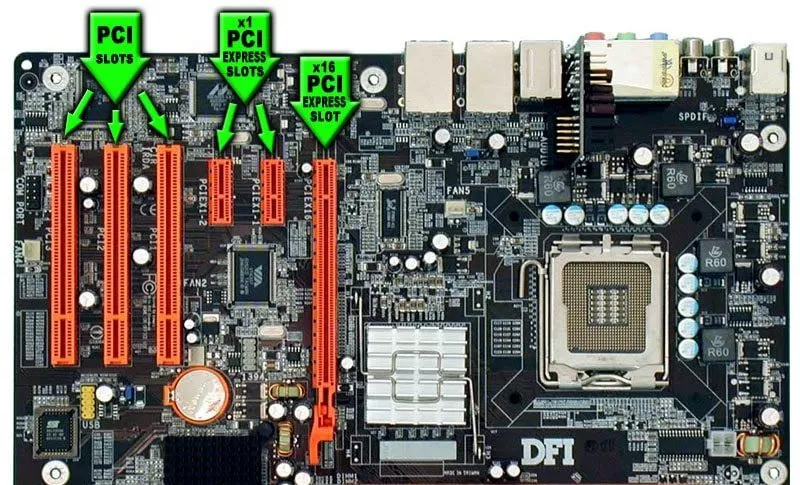
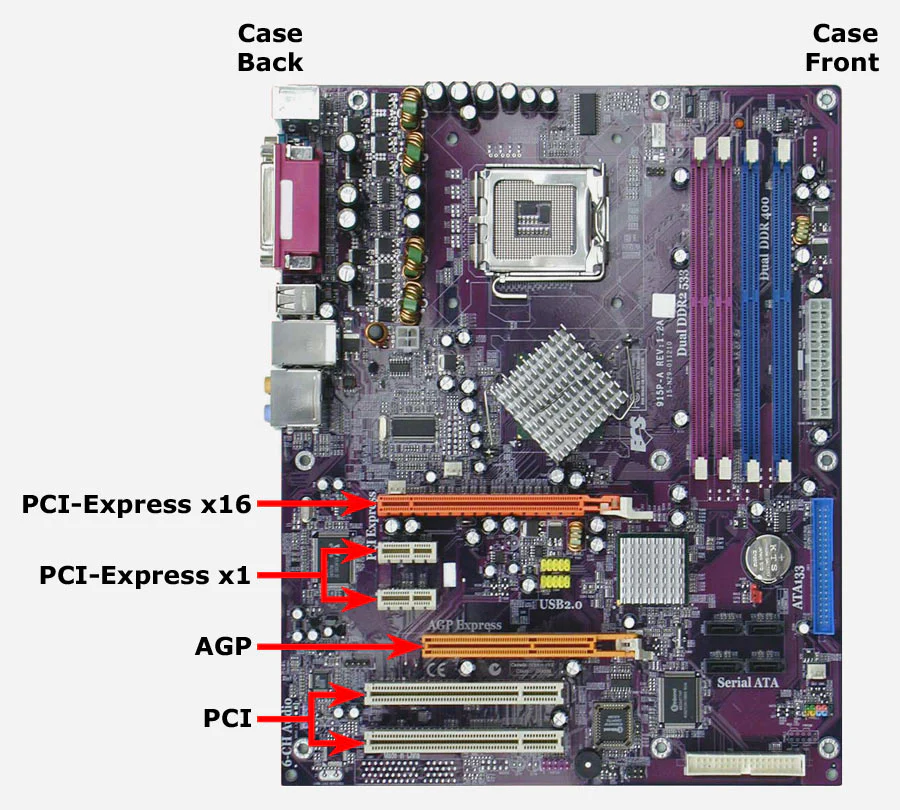
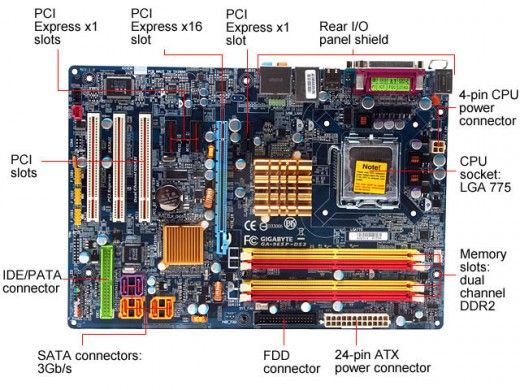
The motherboard contains expansion slots like PCIe for graphics cards, Wi-Fi cards, and other devices. It also includes storage connectors such as SATA and M.2 ports for HDDs and SSDs.
Input and Output Ports:
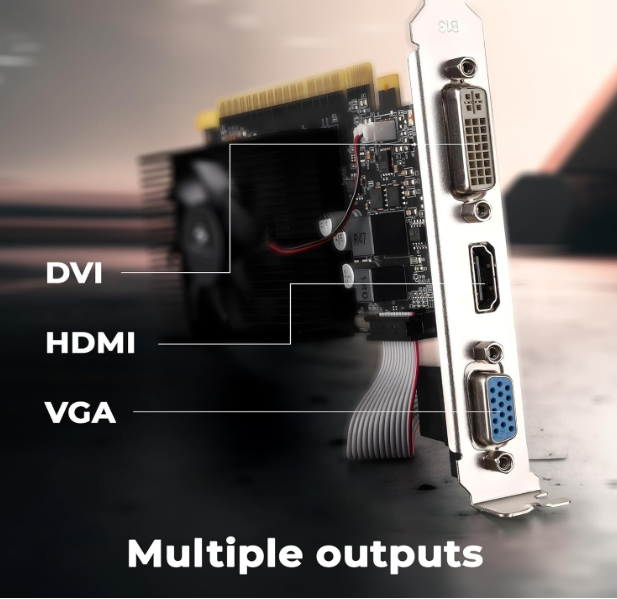
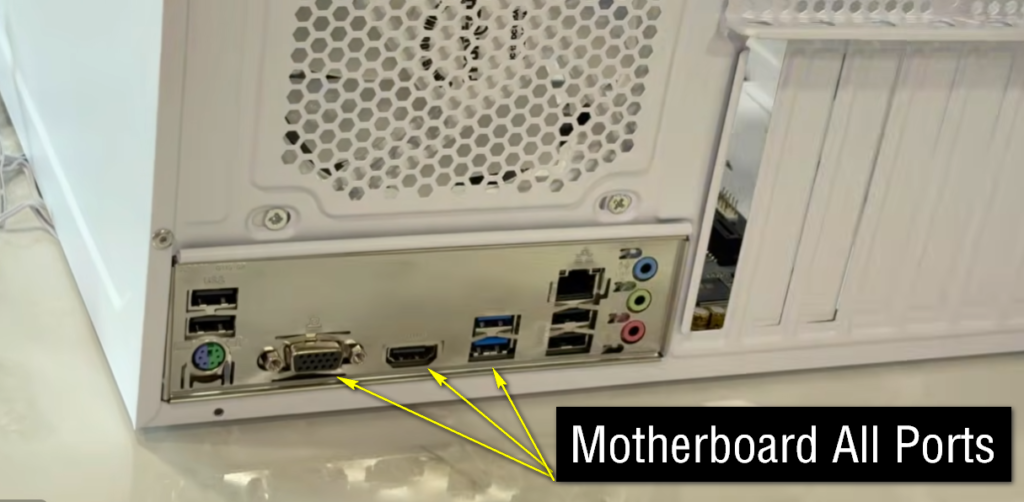
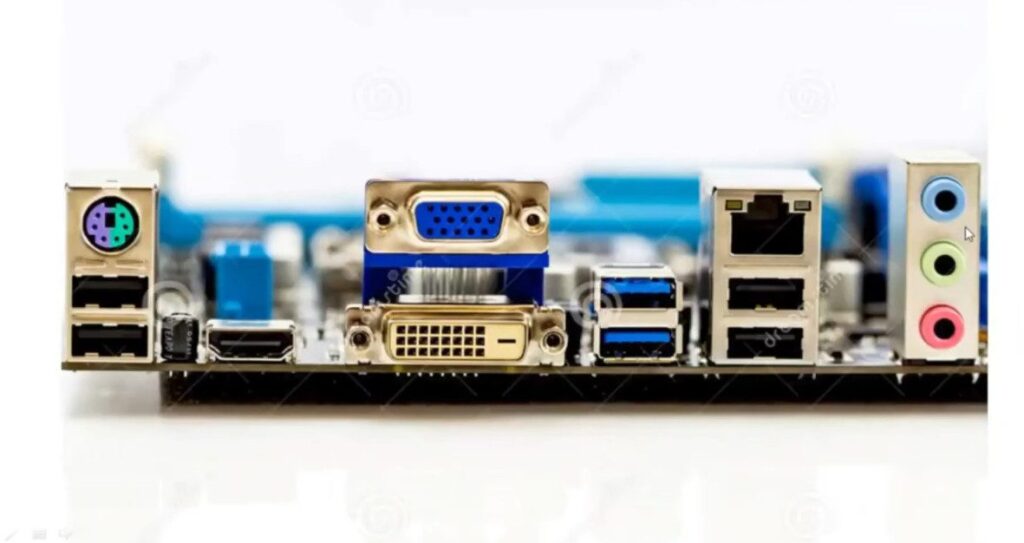
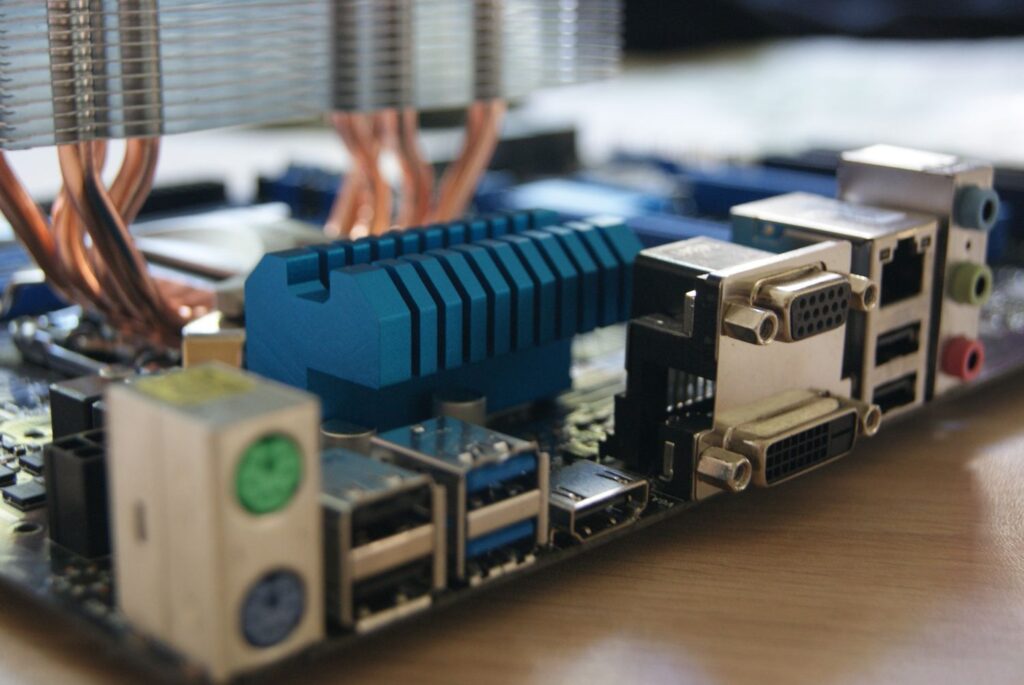
A motherboard provides different ports such as USB ports, audio ports, LAN ports, HDMI, and display ports. These ports are used to connect external devices like keyboards, mice, monitors, speakers, and network cables.
Role of the Chipset:
The chipset on the motherboard controls communication between the processor, memory, storage, and other hardware components. It helps the computer work smoothly and efficiently.
Conclusion:
In simple words, the motherboard is the backbone of a computer. It connects all hardware components together and allows the entire system to function properly.
- A motherboard is the main circuit board of a computer.
- It connects all hardware components together.
- It allows communication between the CPU, RAM, storage, and other devices.
- It distributes power to different computer parts.
- It contains ports, slots, and connectors for hardware installation.
- It is also called the mainboard or system board.
- Without a motherboard, a computer cannot function properly
Problems Without a Motherboard
Computer Cannot Start:
Without a motherboard, the computer cannot power on or boot because all components depend on the motherboard to communicate and operate.
No Connection Between Components:
The CPU, RAM, storage devices, and graphics card cannot connect or communicate with each other without the motherboard.
No Power Distribution:
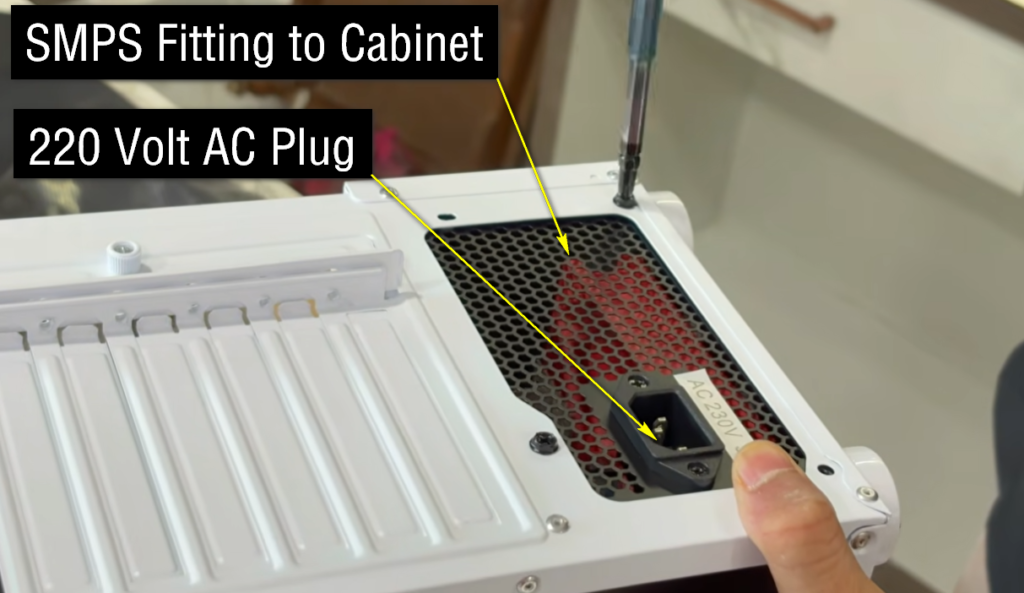
The motherboard distributes power from the SMPS to different hardware parts. Without it, components will not receive proper power.
No Display Output:
The monitor will not show any display because the processor and graphics system cannot function without motherboard connections.
Storage Devices Will Not Work:
HDDs and SSDs cannot operate because they require motherboard ports such as SATA or M.2 connections.
USB and External Devices Will Not Function:
Devices like keyboard, mouse, printer, and USB drives cannot connect because the motherboard contains the input and output ports.
BIOS and System Initialization Missing:
The motherboard contains the BIOS/UEFI firmware that starts the computer and checks hardware. Without it, the system cannot initialize.
Cooling Fans May Not Operate Properly:
CPU and cabinet fans are usually connected and controlled through the motherboard. Without it, cooling systems may not work correctly.
No Networking or Audio:
LAN, Wi-Fi, and audio functions are controlled through motherboard components. Without the motherboard, network and sound features will not work.
Complete System Failure:
In simple words, a computer cannot function without a motherboard because it is the main circuit board that connects and controls all hardware components.
- Computer cannot start or boot.
- CPU, RAM, and storage cannot communicate.
- No power distribution to components.
- No display output on the monitor.
- USB, audio, and LAN ports will not work.
- HDD and SSD cannot connect or operate.
- BIOS/UEFI system initialization will fail.
- The computer becomes completely non-functional.
Components of a Motherboard
CPU Socket:
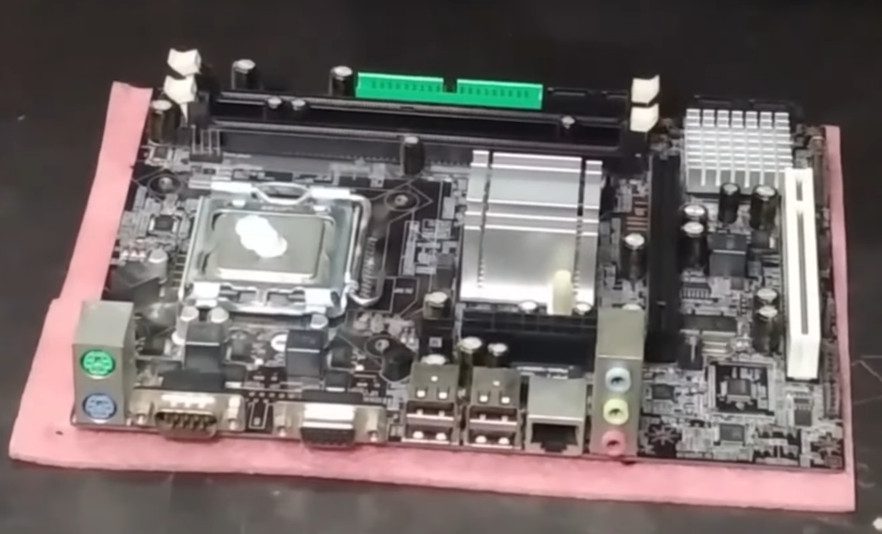
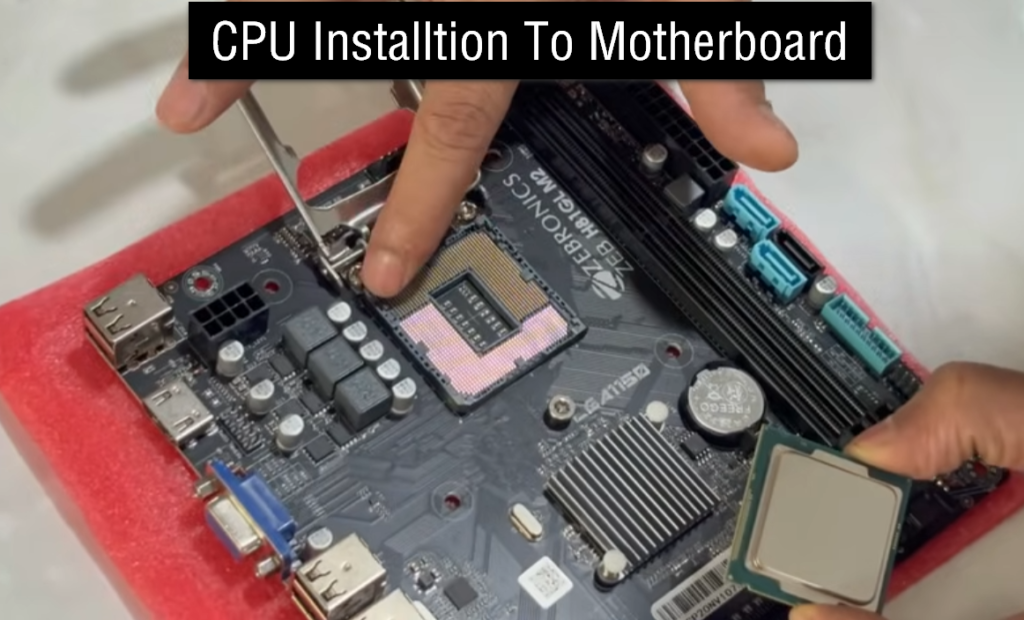
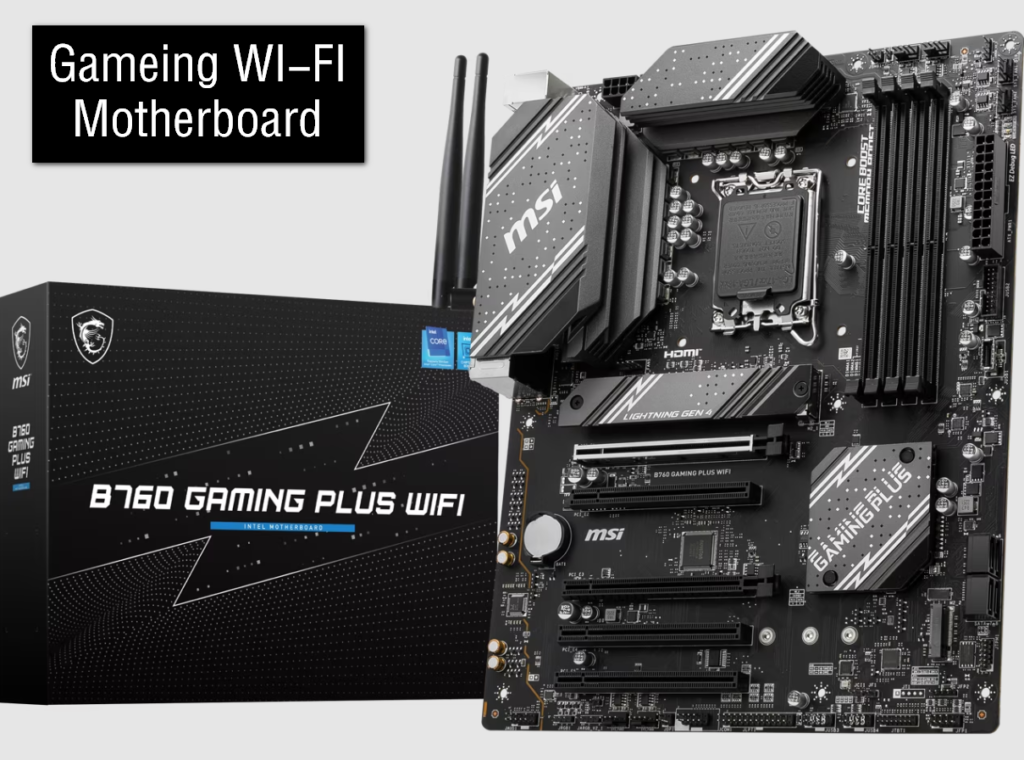
The CPU socket is the place where the processor is installed. It connects the CPU to the motherboard and allows the processor to communicate with other components.
RAM Slots:
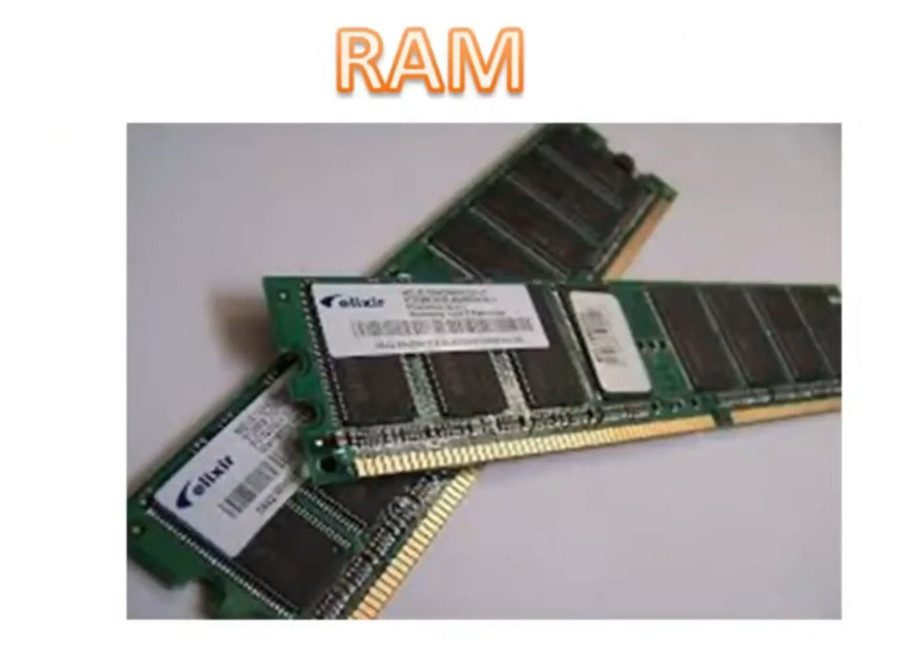
RAM slots are used to install memory modules. RAM helps the computer store temporary data for faster processing and multitasking.
Chipset:
The chipset controls communication between the CPU, RAM, storage devices, and other hardware components. It plays an important role in system performance and compatibility.
PCIe Expansion Slots:
PCIe slots are used to connect expansion cards such as graphics cards, Wi-Fi cards, sound cards, and network cards.
Storage Connectors:
Motherboards include SATA ports and M.2 slots for connecting HDDs and SSDs. These are used to store the operating system, software, and files.
Power Connectors:
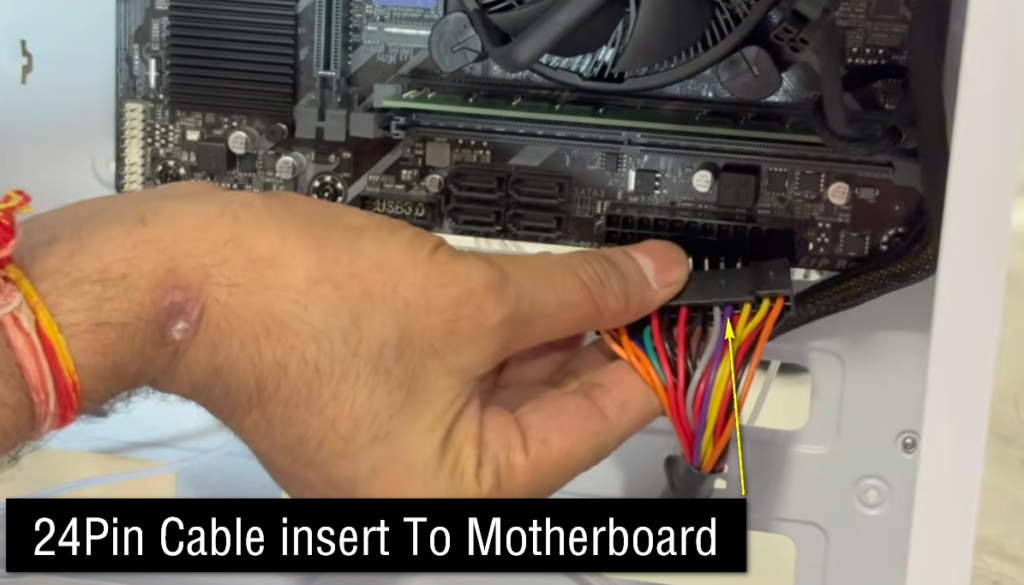
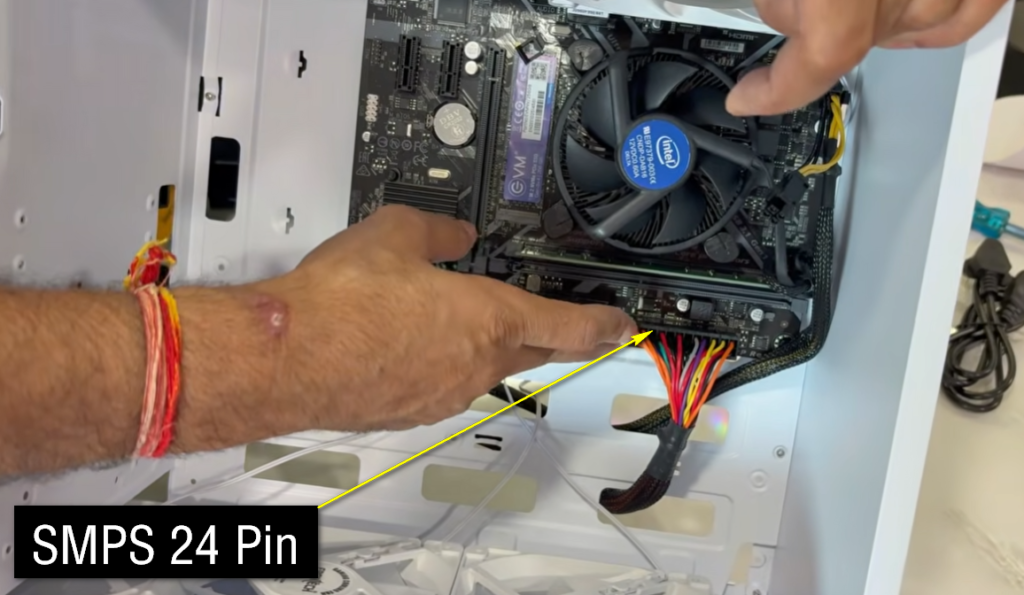
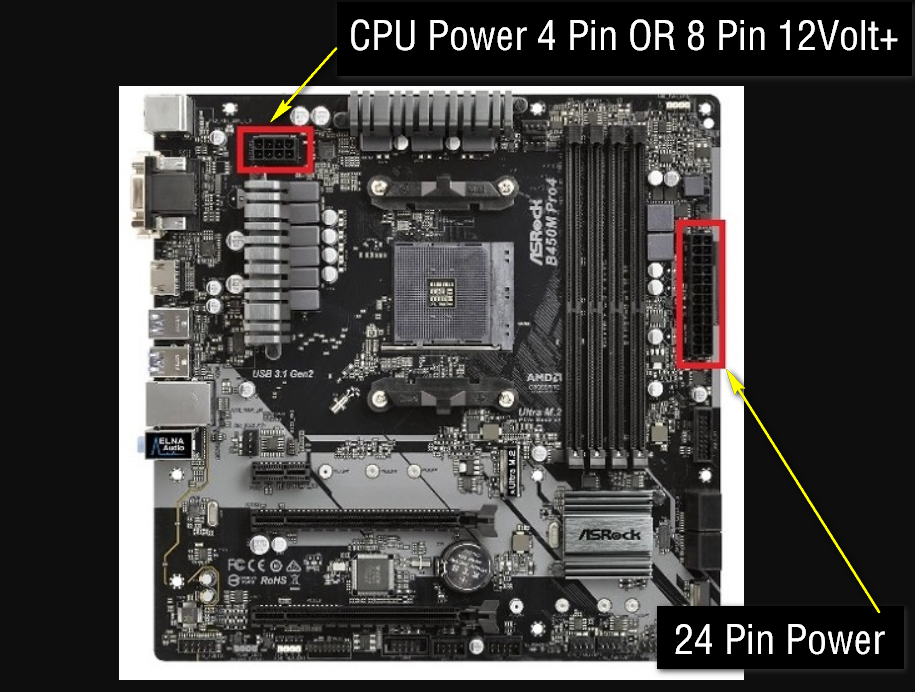
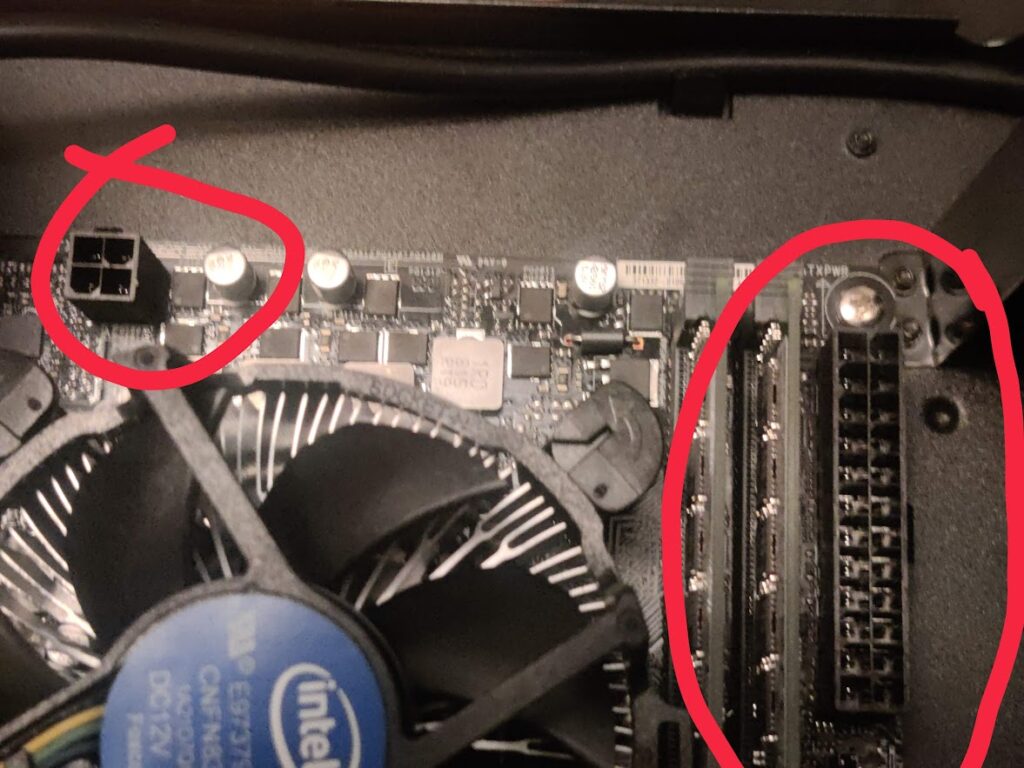
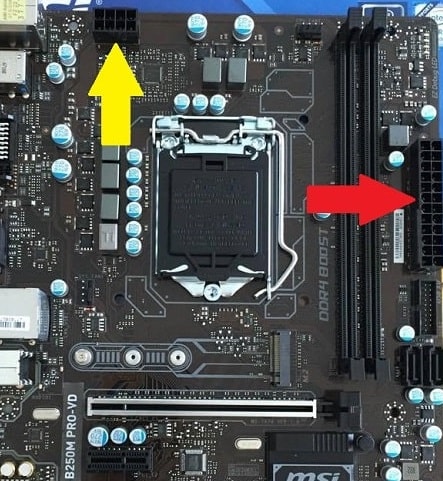
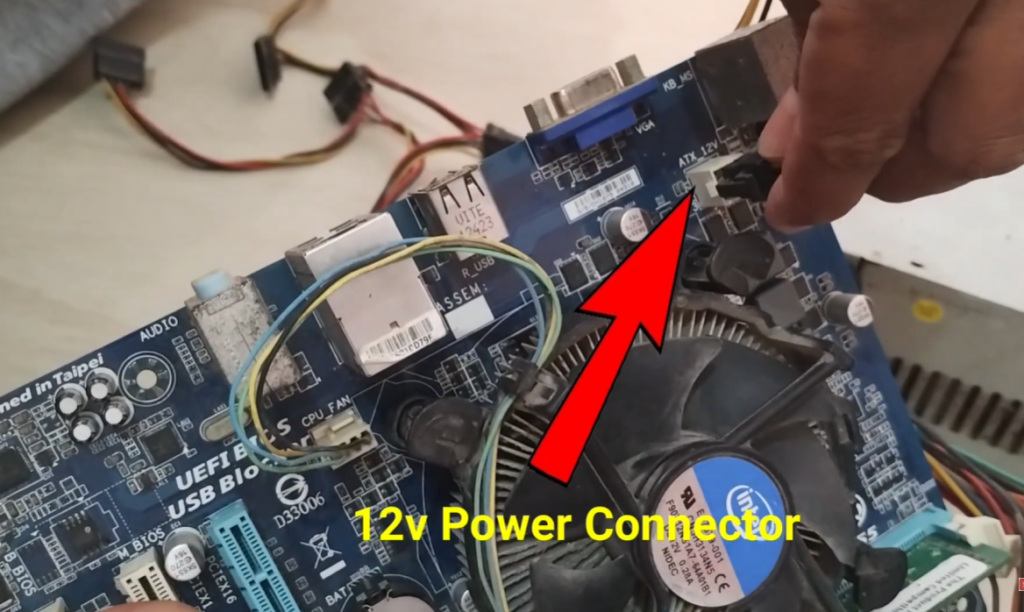
Power connectors provide electricity from the SMPS to the motherboard, CPU, and other components. The main connectors are the 24-pin ATX connector and CPU power connector.
BIOS/UEFI Chip:
The BIOS or UEFI chip contains firmware that starts the computer and checks hardware during boot. It also allows users to configure system settings.
CMOS Battery:
The CMOS battery powers the BIOS memory to save date, time, and hardware settings even when the computer is turned off.
VRM (Voltage Regulator Module):
The VRM controls and stabilizes the voltage supplied to the CPU and RAM for proper performance and protection.
Rear I/O Ports:
Rear I/O ports include USB ports, LAN ports, audio ports, HDMI, DisplayPort, and PS/2 ports. These are used to connect external devices.
Heatsinks:
Heatsinks help cool important motherboard components such as the chipset and VRM by dissipating heat.
Fan Headers:
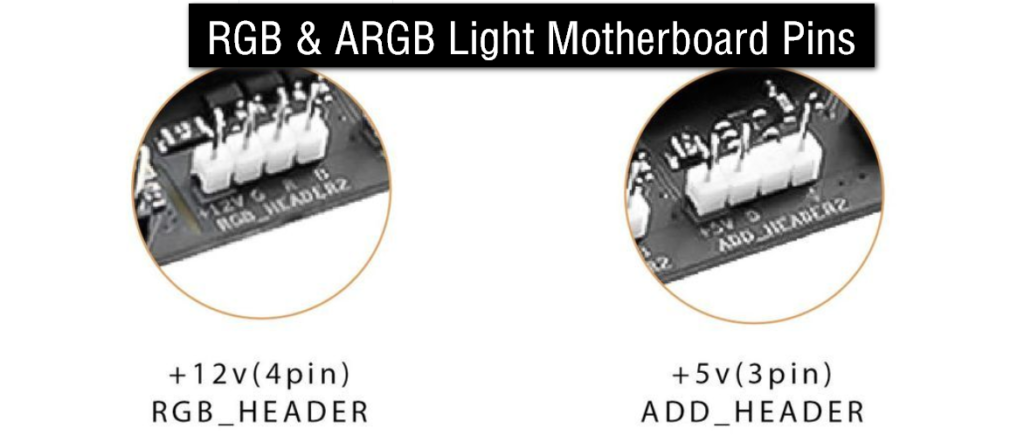
Fan headers are connectors used to power and control CPU fans and cabinet cooling fans.
Front Panel Headers:
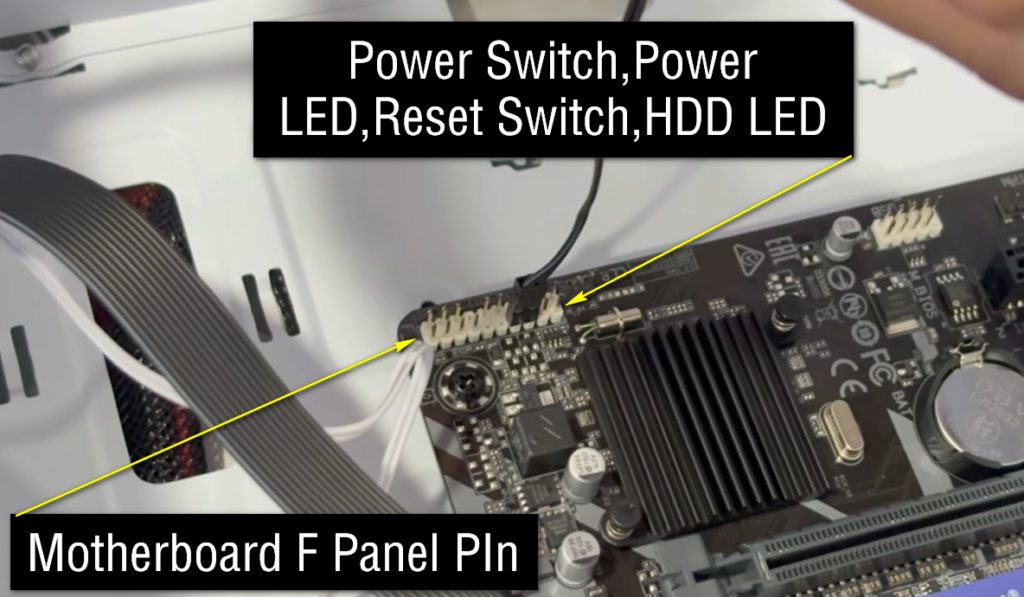
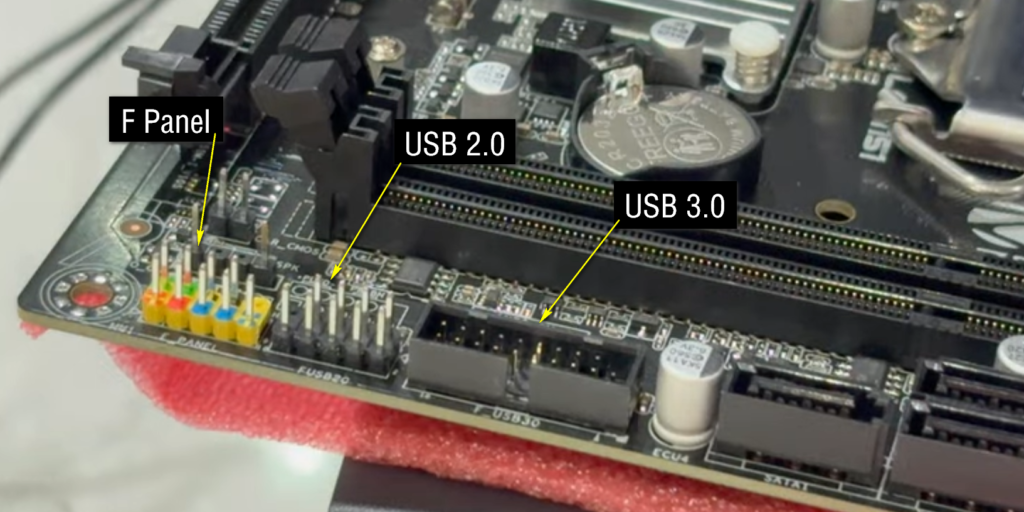
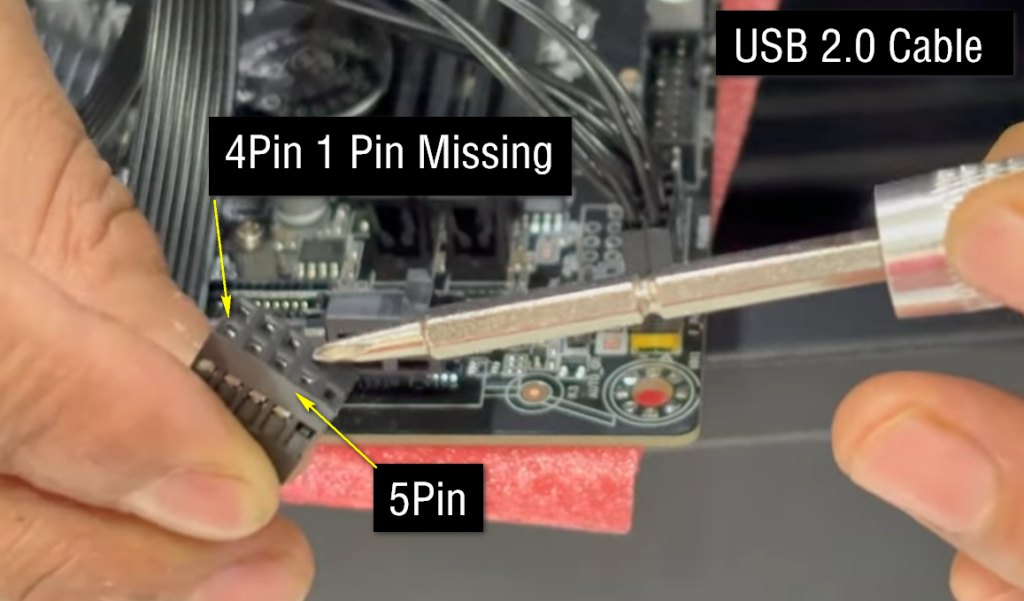
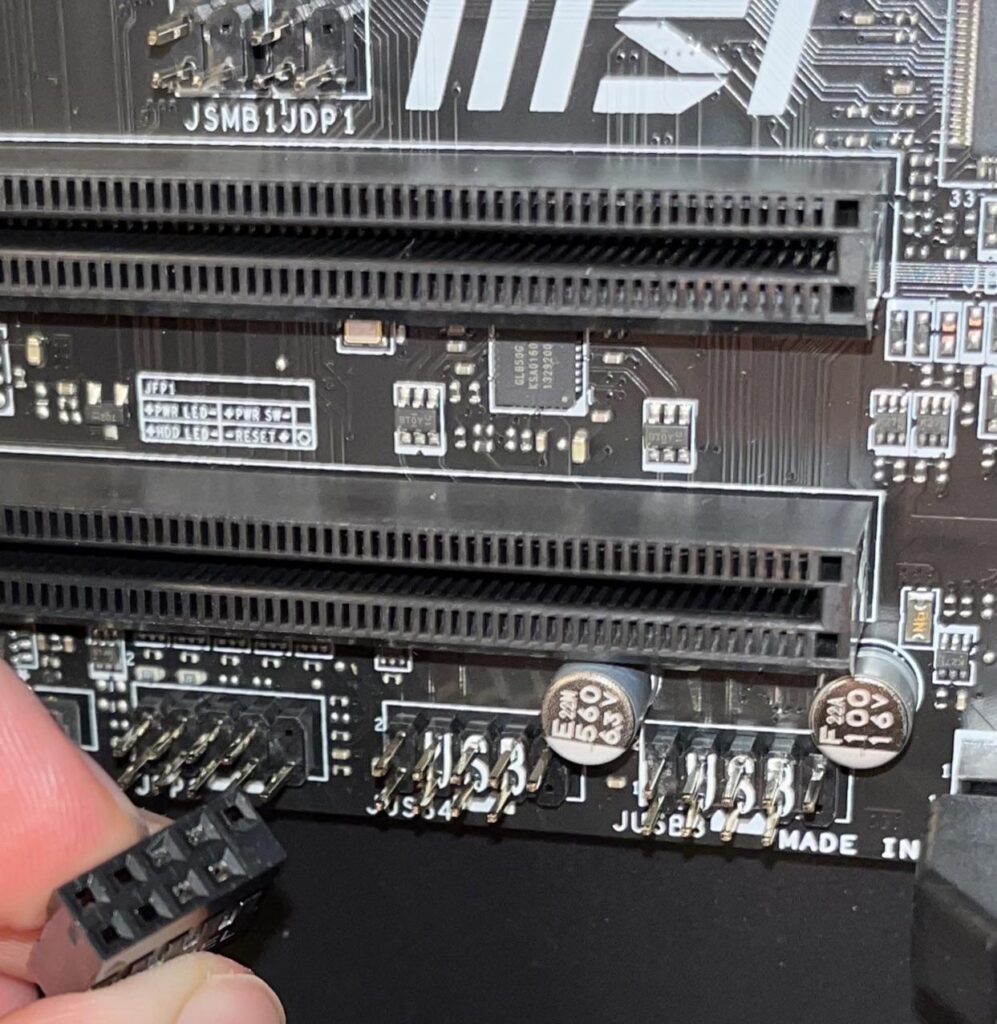
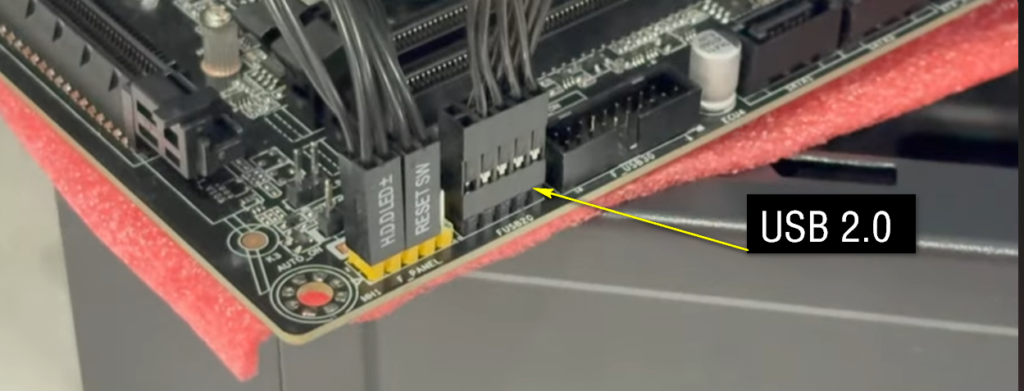
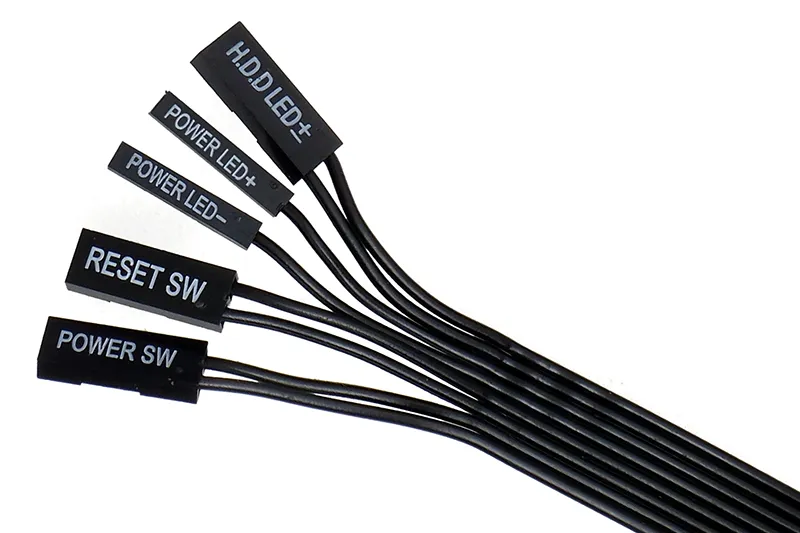
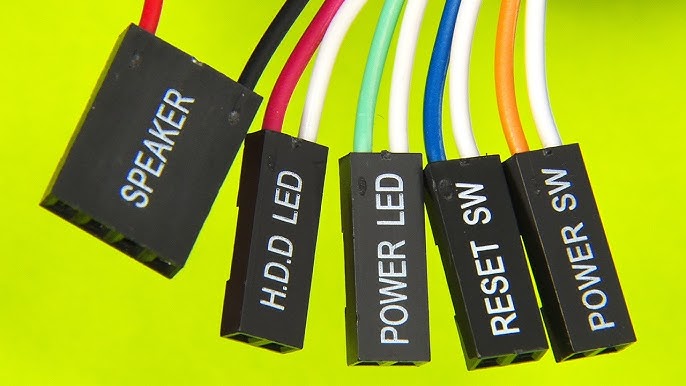
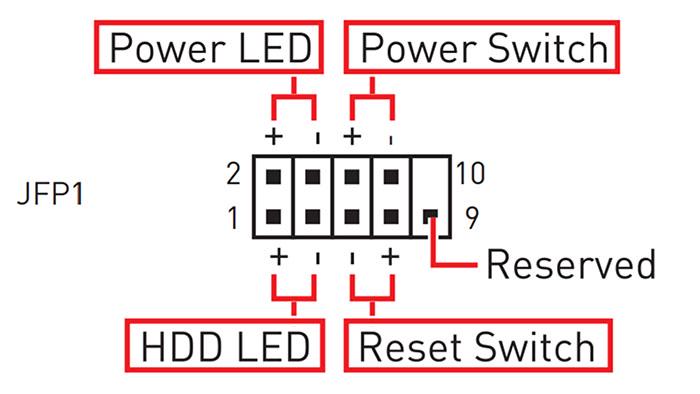
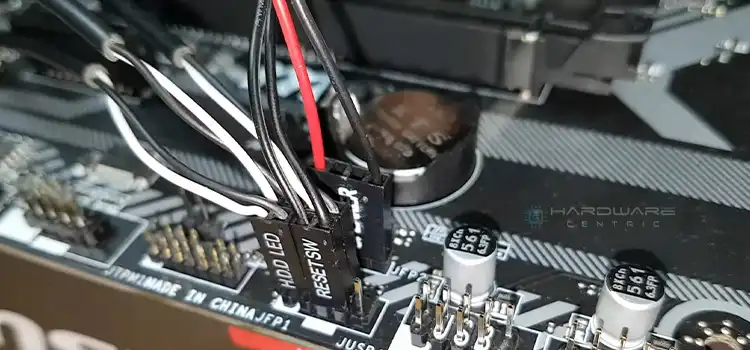
Front panel headers connect the computer case buttons and LEDs, such as the power button, reset button, power LED, and HDD LED.
- CPU Socket – Holds the processor.
- RAM Slots – Install memory modules.
- Chipset – Controls hardware communication.
- PCIe Slots – Connect graphics and expansion cards.
- SATA/M.2 Ports – Connect HDDs and SSDs.
- Power Connectors – Supply power to components.
- BIOS/UEFI Chip – Starts and manages the system.
- CMOS Battery – Saves BIOS settings and time.
- VRM – Regulates CPU power.
- Rear I/O Ports – USB, LAN, audio, and display ports.
- Fan Headers – Connect cooling fans.
- Front Panel Headers – Connect power and reset buttons.
Motherboard Manufacturer Companies
- ASUS = Premium motherboard brand known for strong performance, stability, and ROG (Republic of Gamers) series for high-end gaming PCs.
- Gigabyte = Reliable brand offering durable motherboards with good cooling, VRM quality, and wide range from budget to high-end gaming.
- MSI = Popular gaming motherboard brand with easy BIOS interface, strong gaming features, and good value for money.
- ASRock = Budget-friendly brand that provides feature-rich motherboards at lower prices, good for entry and mid-range builds.
- Biostar = Mostly focused on low-cost motherboards for basic office and home PCs with simple performance needs.
- Intel (older boards) = Previously made reference motherboards, now mostly discontinued for modern consumer PCs.
- Dell (OEM) = Custom motherboards used in Dell branded PCs, not usually sold separately.
- HP (OEM) = Prebuilt system motherboards designed for HP desktops and laptops, limited upgrade options.
- Lenovo (OEM) = Used in Lenovo PCs and laptops, optimized for stability rather than customization.
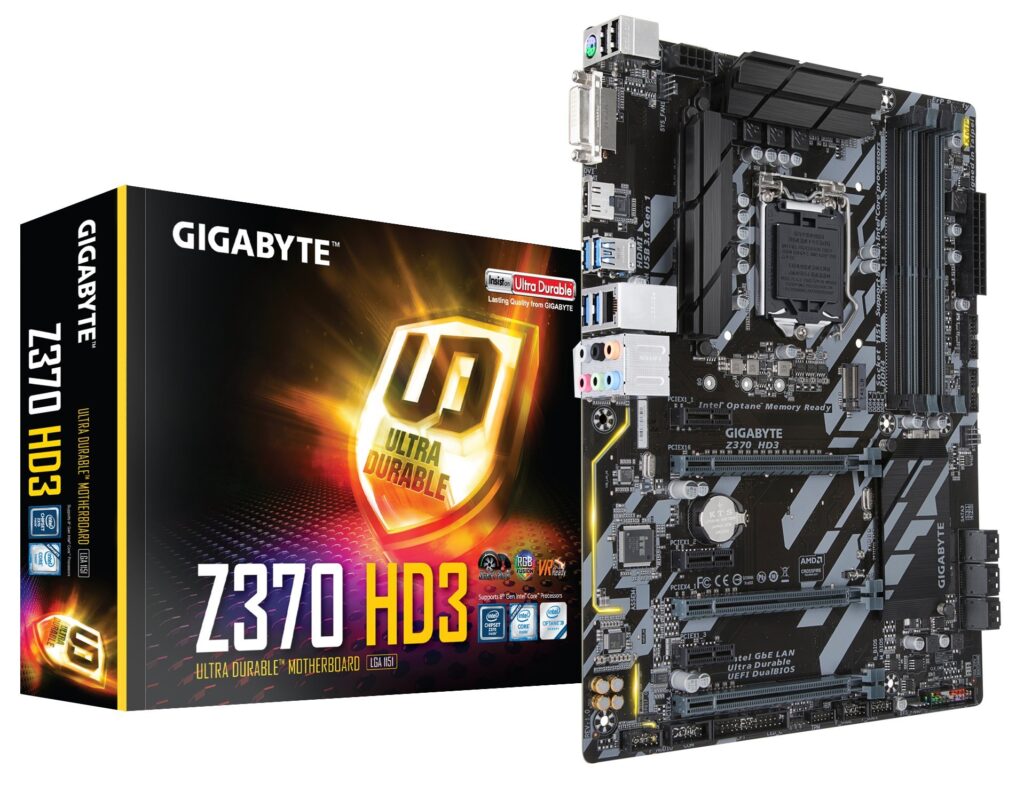
Intel Chipsets Motherboard Price In India
- H510 = ₹4,000–₹6,000 → Basic entry-level motherboard for office work, browsing, and Intel 10th/11th gen CPUs, limited features and no overclocking support.
- H610 = ₹5,000–₹7,000 → Modern budget motherboard for Intel 12th/13th gen CPUs, good for basic PC and light gaming, supports DDR4/DDR5 (model dependent).
- B460 = ₹6,000–₹9,000 → Older budget gaming chipset for Intel 10th gen, stable performance but limited upgrade options.
- B560 = ₹7,000–₹11,000 → Better budget gaming board with memory overclocking support, suitable for Intel 10th/11th gen gaming builds.
- B660 = ₹8,000–₹14,000 → Popular mid-range gaming chipset for Intel 12th/13th gen, good balance of price and performance.
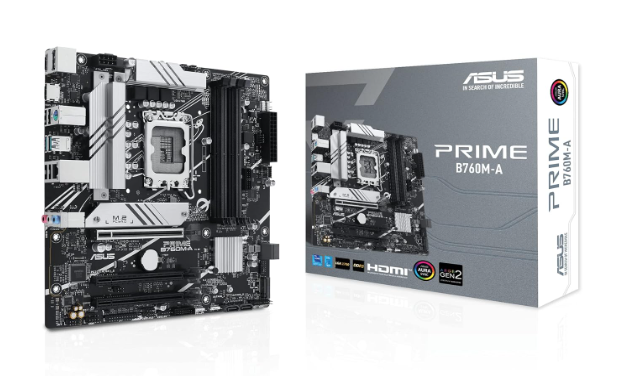
- B760 = ₹10,000–₹18,000 → Updated mid-range board for Intel 13th/14th gen CPUs, supports DDR5, good for gaming and productivity.
- Z490 = ₹12,000–₹25,000 → High-end chipset for Intel 10th gen with CPU overclocking support, used in powerful gaming PCs.
- Z590 = ₹15,000–₹28,000 → Premium board for Intel 11th gen, supports high-speed RAM and overclocking features.
- Z690 = ₹18,000–₹35,000 → High-end Intel 12th gen chipset, supports DDR5, PCIe 5.0, and strong overclocking.
- Z790 = ₹22,000–₹50,000+ → Latest Intel flagship chipset for gaming and workstation PCs, best performance and full overclocking support.
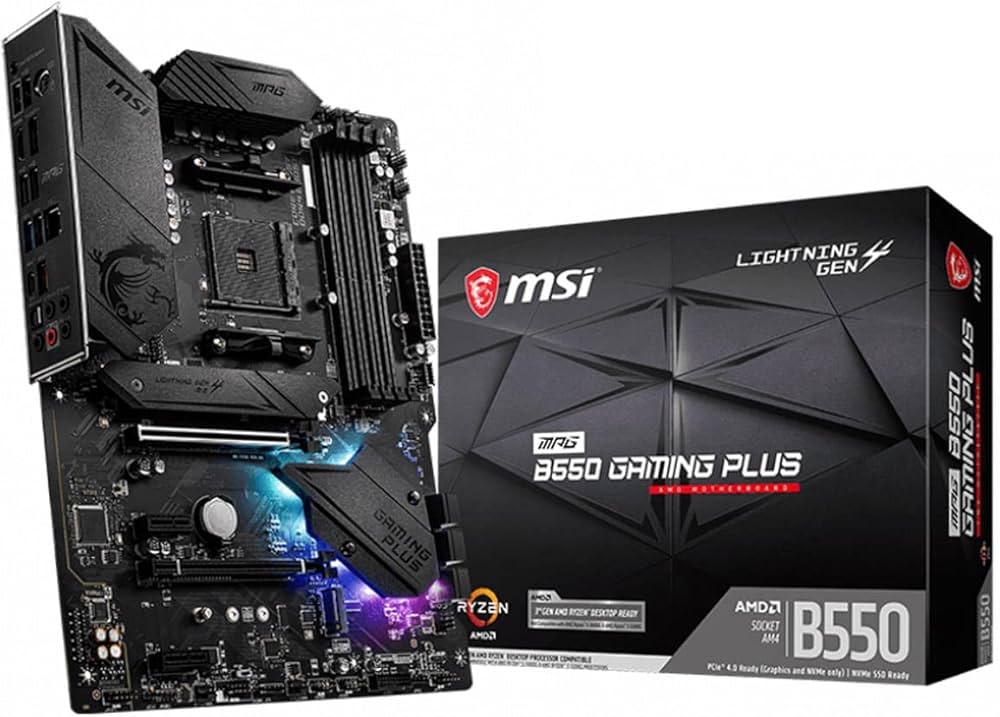
AMD Chipsets Motherboard Price In India
AM4 Chipsets (DDR4 Platform)
- A320 → Ultra budget motherboard for basic office use, no overclocking support, works with Ryzen 1000–3000 (some 5000 with BIOS).
- B350 → Entry gaming board with basic overclocking support, used for Ryzen 1000–3000 series.
- X370 → Early high-end AM4 chipset with better VRM and performance support for Ryzen 1000–3000.
- B450 → Best budget gaming motherboard, supports Ryzen 1000–5000 with BIOS update, very popular.
- X470 → Improved high-end AM4 board with better stability and overclocking for Ryzen 2000–5000.
- B550 → Best modern AM4 gaming chipset, supports PCIe 4.0 and Ryzen 3000–5000.
AM5 Chipsets (DDR5 Platform)
- A620 → Entry-level AM5 motherboard for budget Ryzen 7000–9000 builds, limited features.
- B650 → Best value AM5 gaming motherboard with strong performance and upgrade support.
- B650E → Enhanced version with PCIe 5.0 support for GPU and SSD, future-ready gaming board.
- X670 → High-end AM5 chipset for powerful gaming and productivity PCs.
- X670E → Extreme performance motherboard with full PCIe 5.0 support, best for enthusiasts and overclocking.
Computer Internal Parts
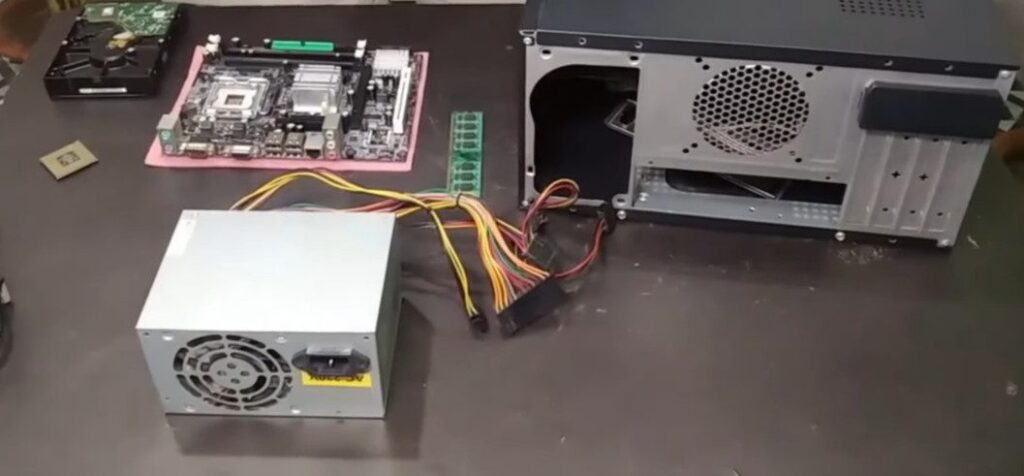
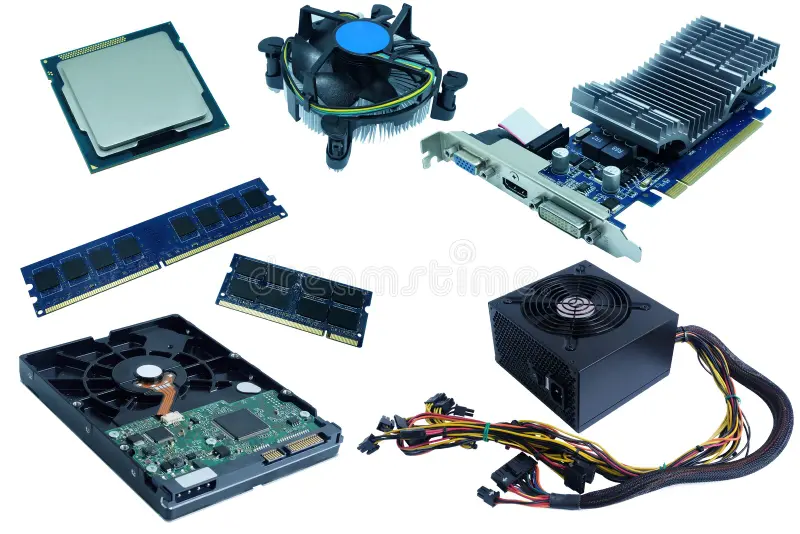
- Motherboard – Main circuit board that connects all hardware parts.
- CPU (Processor) – Executes all instructions and controls system operations.
- RAM – Temporary memory used for fast data access and multitasking.
- HDD / SSD – Permanent storage for files, software, and operating system.
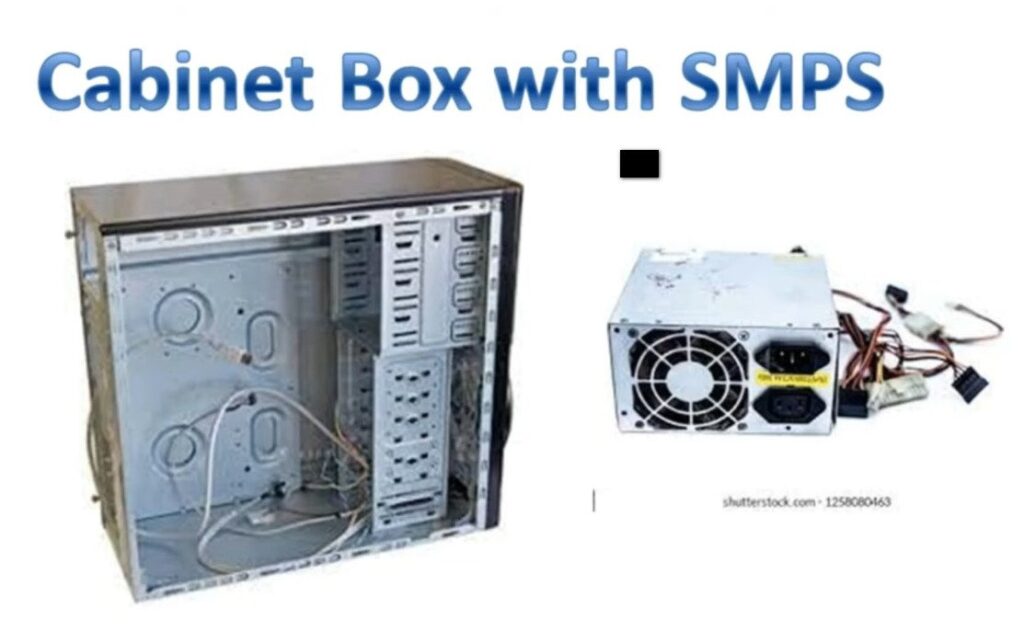
- SMPS (Power Supply) – Converts electricity and powers all components.
- GPU (Graphics Card) – Processes images, videos, and gaming graphics.
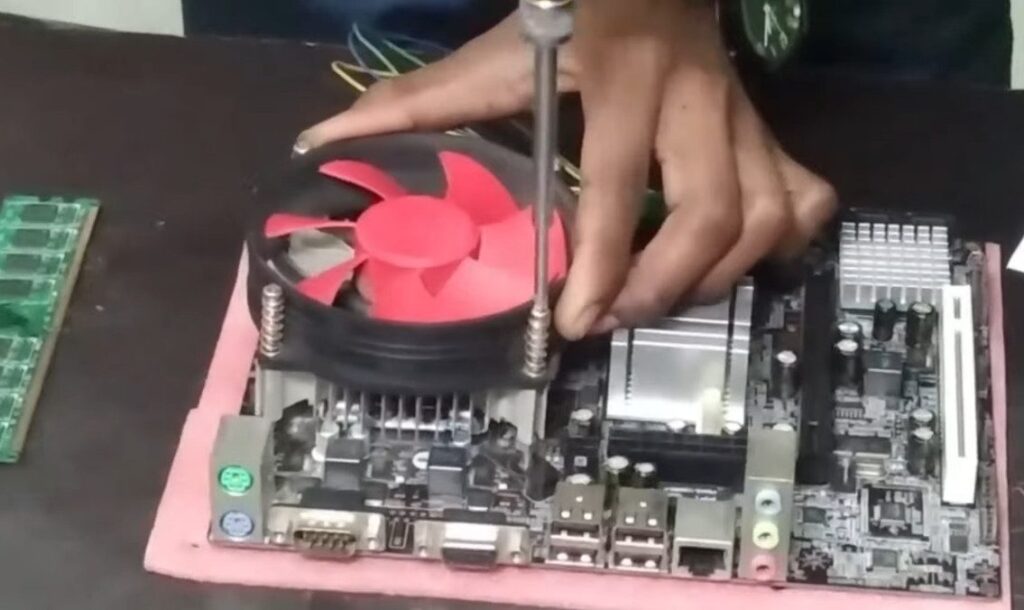
- CPU Cooler – Removes heat from the processor to keep it stable.
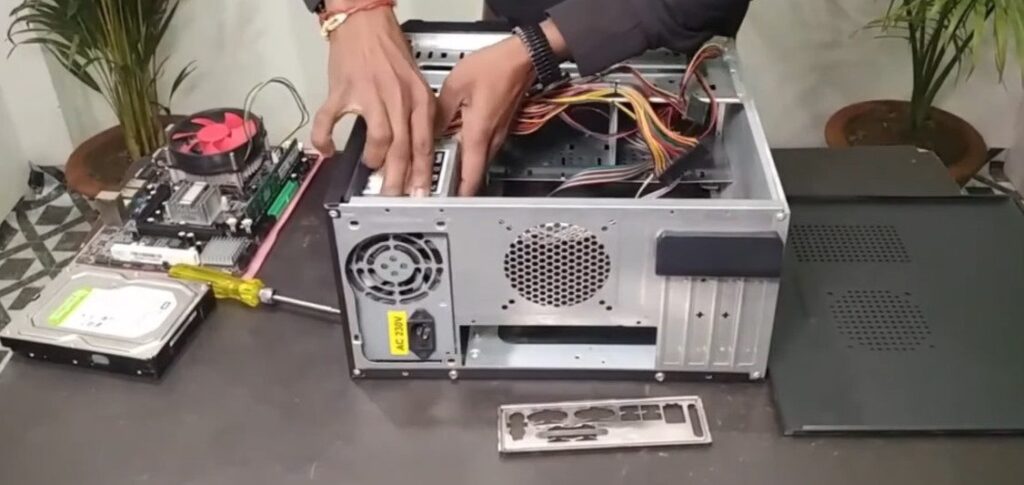
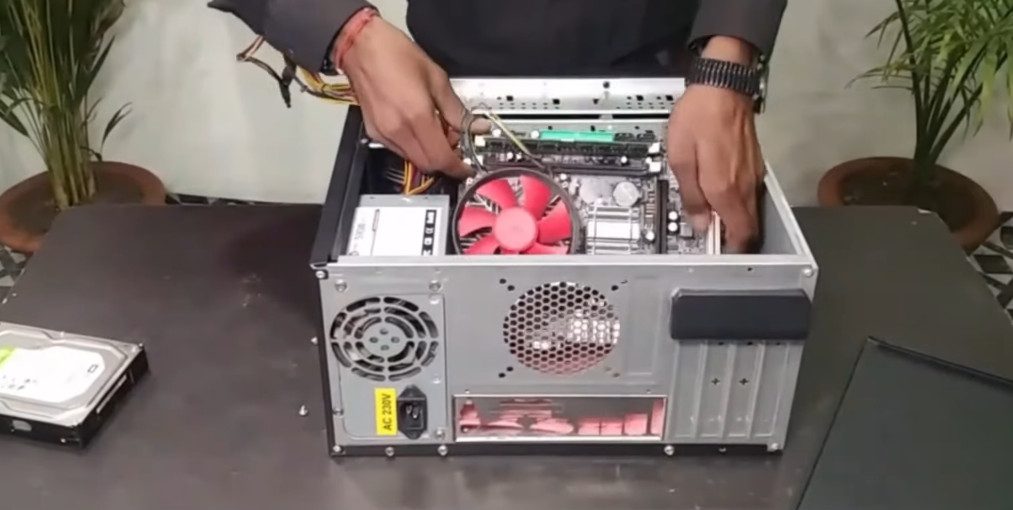
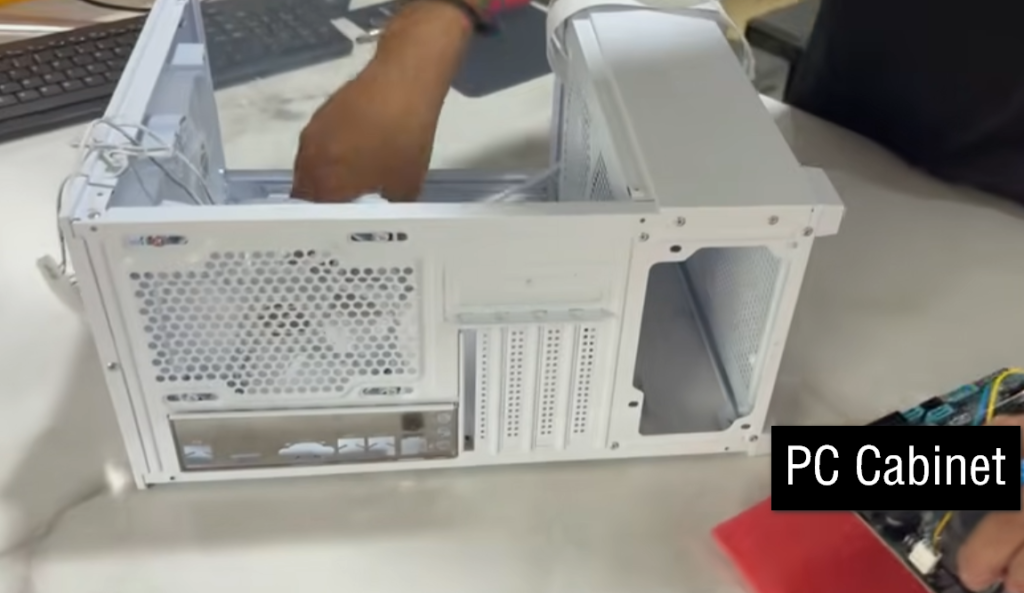
- Cabinet (Case) – Protects and holds all internal components together.
- BIOS/UEFI – Firmware that starts the computer and loads the system.
- CMOS Battery – Keeps system time and BIOS settings saved.
- PCIe Slots – Used to install expansion cards like GPU or network cards.
- SATA / M.2 Ports – Connect storage devices like HDD and SSD.
- Network Card (NIC) – Enables internet and network connectivity.
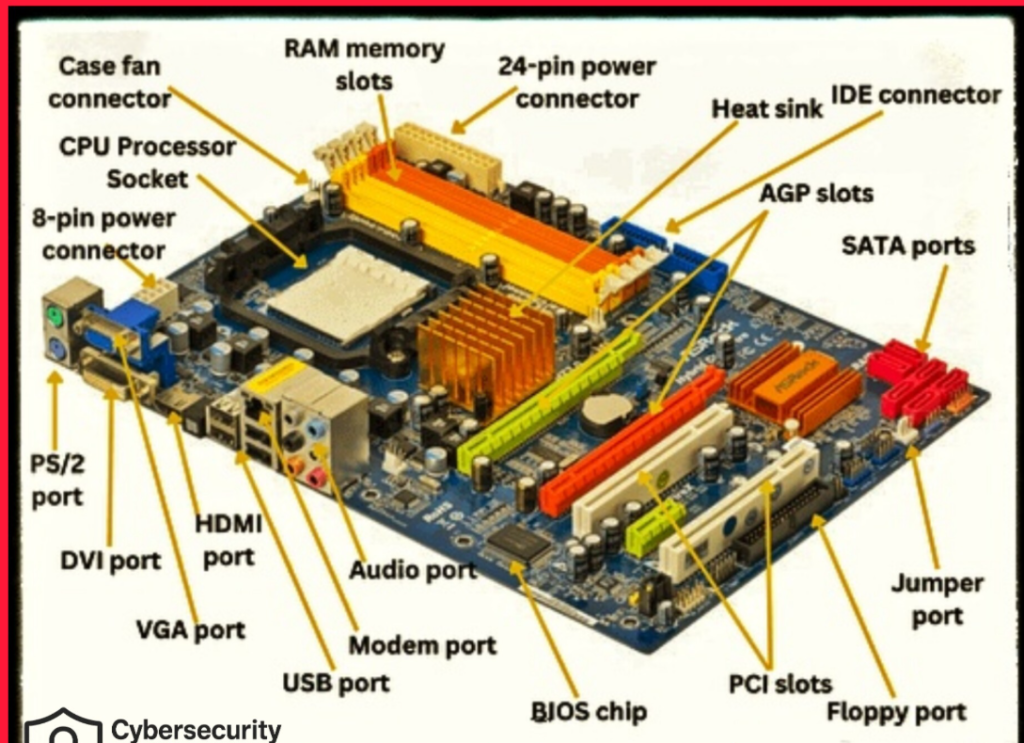
Motherboard Components
- CPU Socket – It is the place where the processor is installed and connected to the motherboard.
- RAM Slots – Used to insert RAM modules for system memory and fast processing.
- Chipset – Controls data flow between CPU, RAM, storage, and other devices.
- PCIe Slots – Used to install expansion cards like graphics card and network card.
- SATA Ports – Connect storage devices like HDD and SSD to the motherboard.
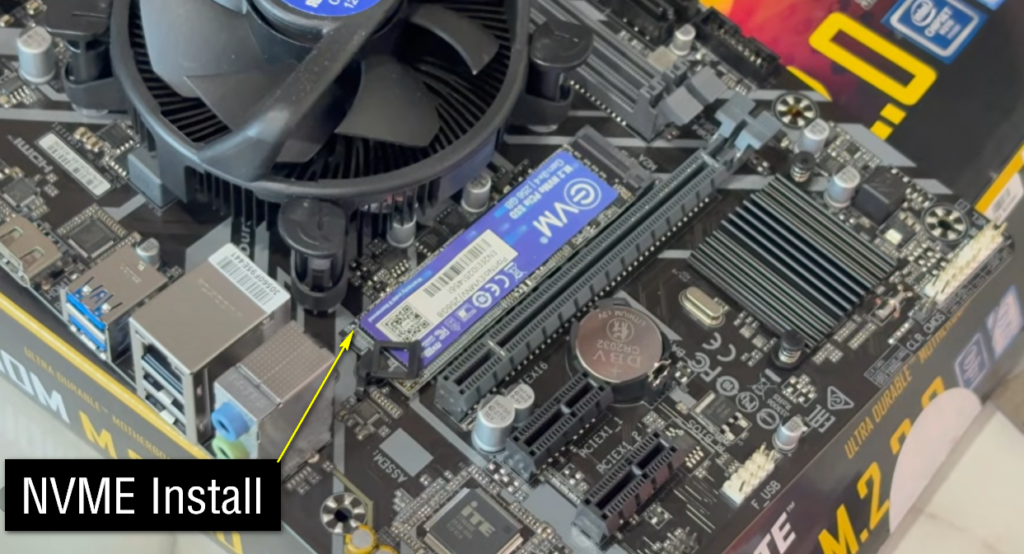
- M.2 Slot – Used for high-speed SSDs for better performance.
- Power Connectors – Provide electrical power from SMPS to the motherboard.
- BIOS/UEFI Chip – Contains firmware that starts the computer and loads the operating system.
- CMOS Battery – Keeps system time and BIOS settings saved even when power is off.
- VRM (Voltage Regulator Module) – Supplies stable and safe power to the CPU.
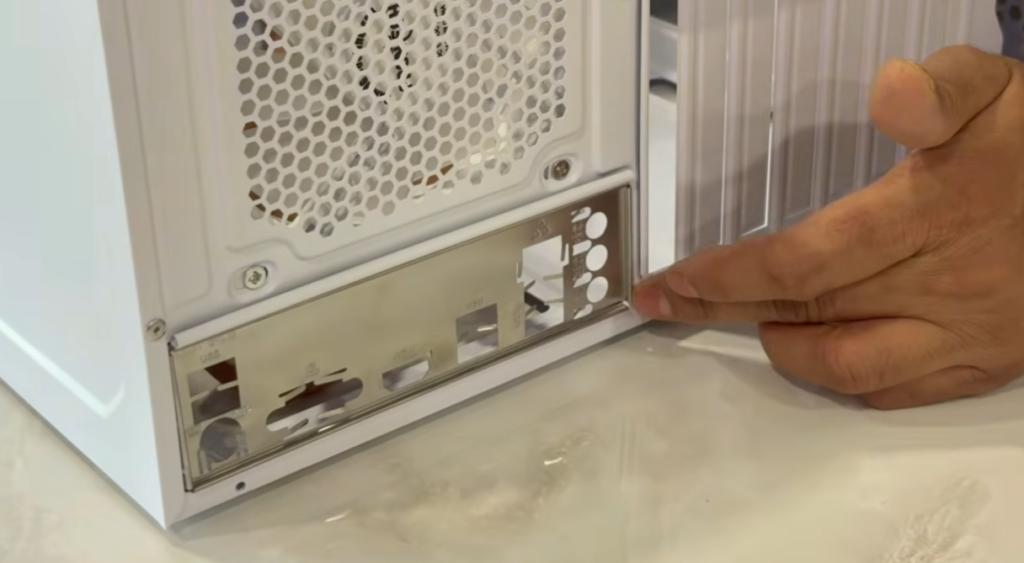
- Rear I/O Ports – External ports like USB, LAN, audio, and display connections.
- Fan Headers – Connect and control cooling fans on the motherboard.
- Front Panel Headers – Connect case buttons like power switch and LEDs.
Motherboard PCIe Slot Types
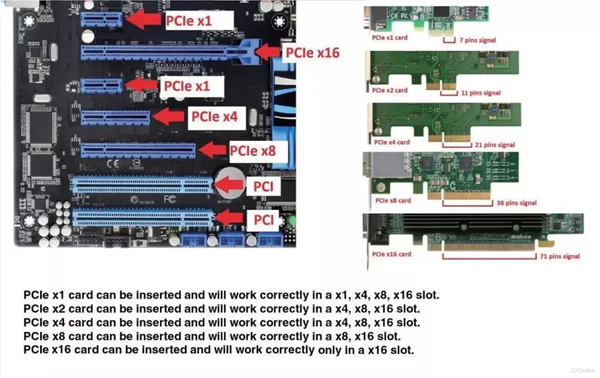
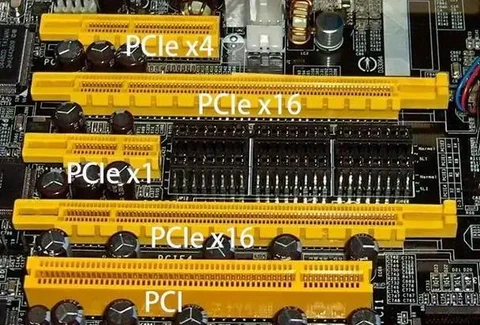
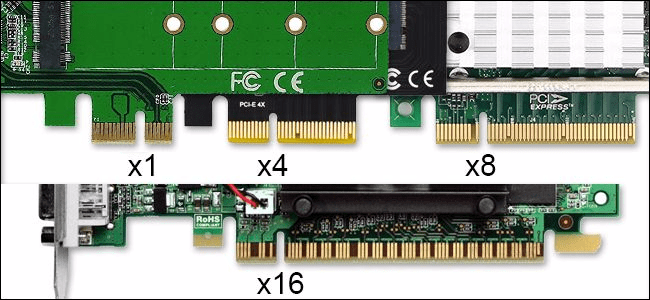
- PCIe x1 – Small slot, used for Wi-Fi cards, sound cards, USB expansion cards.
- PCIe x4 – Medium slot, used for SSD adapter cards, RAID controllers, network cards.
- PCIe x8 – Larger slot, used for high-speed network cards and workstation expansion cards.
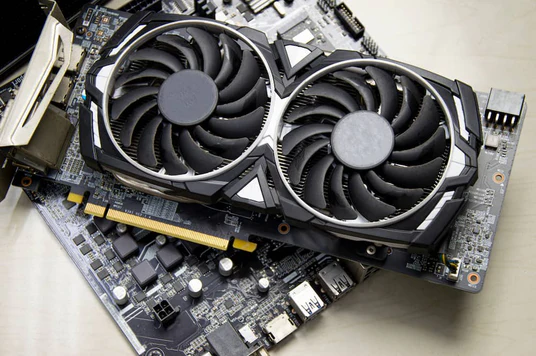
- PCIe x16 – Longest slot, mainly used for dedicated graphics cards (GPU).
- PCIe 3.0 – Older generation PCIe standard with moderate bandwidth.
- PCIe 4.0 – Faster than PCIe 3.0, supports modern GPUs and NVMe SSDs.
- PCIe 5.0 – Very high-speed PCIe standard for latest GPUs and SSDs.
- PCIe 6.0 – Newest PCIe generation with extremely high data transfer speeds.
- M.2 PCIe Slot – Special PCIe-based slot used mainly for NVMe SSDs.
Computer Input Devices
- Keyboard – A keyboard is an input device used to enter text, numbers, and commands into a computer. It is mainly used for typing documents, sending emails, and giving instructions to software.
- Mouse – A mouse is a pointing device used to control the cursor on the screen. It allows users to click, select, drag, and open files or programs easily.
- Scanner – A scanner is an input device that converts physical documents and images into digital format so they can be saved, edited, or shared on a computer.
- Microphone – A microphone is used to capture sound or voice and convert it into digital signals. It is used for recording, voice calls, and speech recognition.
- Webcam – A webcam is an input device that captures video and images. It is commonly used for video calls, online meetings, and live streaming.
- Joystick – A joystick is mainly used in gaming and simulation systems to control movement and actions in a more interactive way.
- Barcode Scanner – A barcode scanner reads printed barcode data and converts it into digital information for use in billing, inventory management, and tracking systems.
- Touchscreen – A touchscreen allows users to give input directly by touching the screen. It is used in smartphones, tablets, and modern computers.
Computer Output Devices
- Monitor – A monitor is an output device that displays information such as text, images, videos, and graphics from the computer. It helps users see and interact with the system easily.
- Printer – A printer is an output device that converts digital documents and images into a physical paper copy. It is commonly used for reports, photos, and official documents.
- Speaker – A speaker is an output device that converts digital audio signals into sound. It is used to listen to music, videos, system sounds, and voice calls.
- Headphones – Headphones are personal output devices that deliver sound directly to the user’s ears. They are used for private listening, gaming, and online communication.
- Projector – A projector is an output device that displays computer output on a large screen or wall. It is widely used in classrooms, meetings, and presentations.
- Plotter – A plotter is an output device used to print large and precise drawings such as maps, engineering designs, and architectural plans.
Computer Networking Devices
- Router – A router is a networking device that connects multiple networks together and provides internet access to different devices. It also directs data to the correct destination.
- Switch – A switch is used in a LAN network to connect multiple computers and devices. It sends data only to the specific device that needs it, making communication efficient.
- Hub – A hub is a basic networking device that connects multiple devices and sends data to all connected devices, even if it is not needed by all.
- Modem – A modem converts digital data from a computer into signals for internet transmission and also converts incoming signals back into digital form.
- Access Point (AP) – An access point provides wireless Wi-Fi connectivity, allowing devices like phones and laptops to connect to a network without cables.
- Firewall – A firewall is a security device that monitors and controls network traffic to protect systems from unauthorized access and cyber threats.
- Network Interface Card (NIC) – A NIC is a hardware component that allows a computer to connect to a network using wired or wireless communication.
- Repeater – A repeater is used to boost or extend the network signal so that it can travel longer distances without losing strength.
- Bridge – A bridge connects two different network segments and helps in reducing traffic by filtering data between them.
- Gateway – A gateway connects two different types of networks and allows them to communicate with each other by translating data formats.
Computer Storage Devices
- HDD (Hard Disk Drive) – Stores large amounts of data using magnetic disks. It is cheaper and commonly used in desktop computers for long-term storage.
- SSD (Solid State Drive) – A fast storage device with no moving parts. It improves system speed and is used for better performance and quick booting.
- Pen Drive (USB Drive) – A small portable device used to store and transfer data easily between computers. It connects through a USB port.
- Memory Card – A compact storage device used in mobile phones, cameras, and other portable devices for saving photos, videos, and files.
- External HDD/SSD – A portable storage device used for backup and extra storage. It connects via USB and is easy to carry.
- CD/DVD – Optical storage discs used to store data, music, videos, and software. They require a CD/DVD drive to read or write data.
- Blu-ray Disc – A high-capacity optical disc used for storing HD videos and large files with better quality than DVD.
- NAS (Network Attached Storage) – A network-based storage system that allows multiple users to access and share data over a network.
Cables and Connectors
- Power Cable – Supplies electricity from the main power source to the computer and other devices. It is essential for turning on and running the system safely.
- HDMI Cable – Transfers high-quality video and audio signals from the computer to monitors, TVs, or projectors. It supports HD and 4K display output.
- VGA Cable – An older video cable used to connect a computer to a monitor for display output. It only carries video signals, not audio.
- DisplayPort Cable – A modern cable used for high-resolution video and audio transmission. It is commonly used in gaming and professional displays.
- USB Cable – Used for connecting devices and transferring data between computers, phones, printers, and other peripherals. It also provides power in some cases.
- LAN Cable (Ethernet) – Used for wired internet connection between a computer and a router or switch. It provides fast and stable network access.
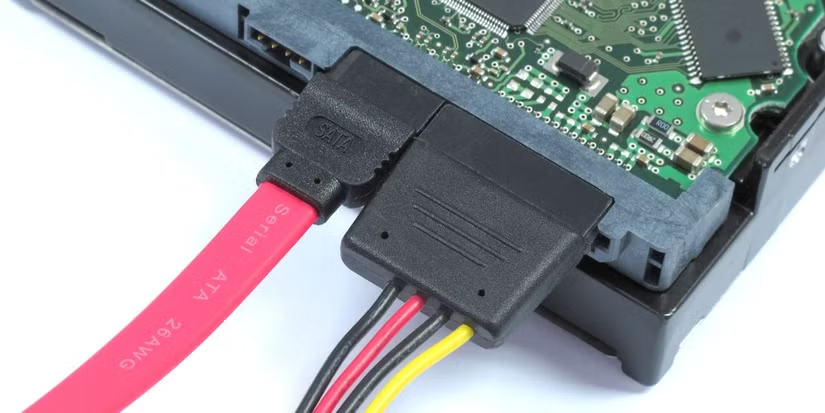
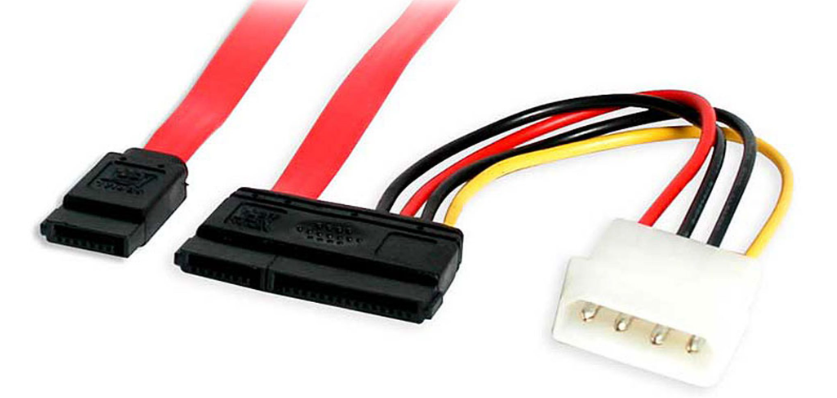
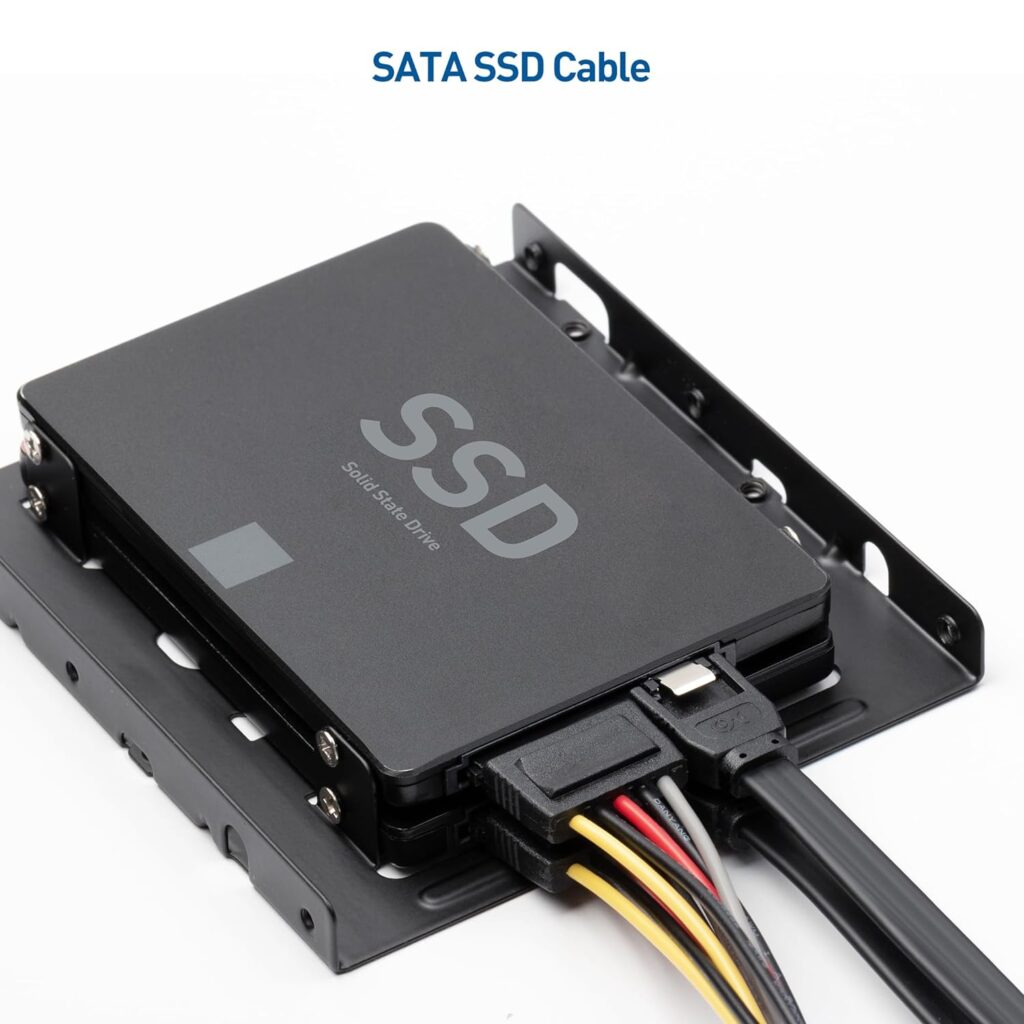
- SATA Cable – Connects storage devices like HDD and SSD to the motherboard for data transfer inside the computer.
- Audio Cable – Transfers sound signals between devices such as speakers, microphones, and sound systems.
- DVI Cable – Used for transmitting digital video signals from a computer to a monitor. It is mainly used in older display systems.
- PS/2 Connector – A traditional connector used for connecting keyboards and mice to older computers.
Cables and Connectors
- UPS (Uninterruptible Power Supply) – Provides backup power during electricity failure and protects the computer from sudden shutdown. It also helps prevent data loss and hardware damage.
- External Hard Drive – A portable storage device used for backup and extra storage. It is easy to carry and connects via USB.
- Printer – An output device that prints documents and images on paper. It is widely used in offices and homes for hard copy output.
- Scanner – An input device that converts physical documents and photos into digital files. It helps in storing and sharing documents easily.
- Webcam – A camera device used to capture video and images. It is mainly used for video calls, meetings, and online classes.
- Keyboard – An input device used to type letters, numbers, and commands into a computer. It is essential for data entry and communication.
- Mouse – A pointing device used to control the cursor on the screen. It allows clicking, selecting, and dragging items easily.
- Speakers – An output device that produces sound from the computer. It is used for music, videos, and system audio.
- Headphones – A personal audio device that delivers sound directly to the ears. It is used for private listening and calls.
- USB Hub – A device that increases the number of USB ports. It allows multiple devices to be connected to a single computer.
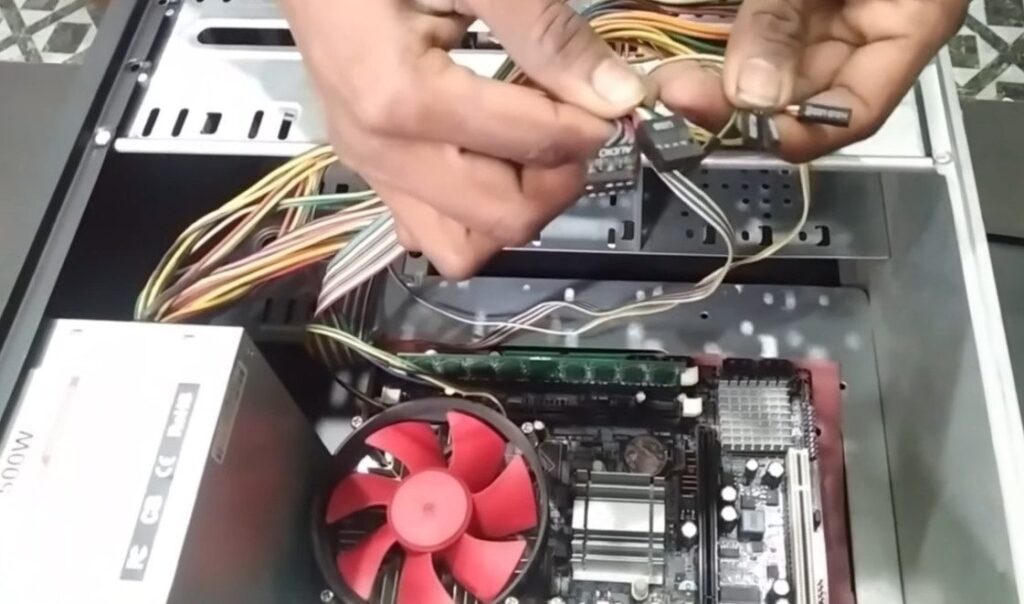
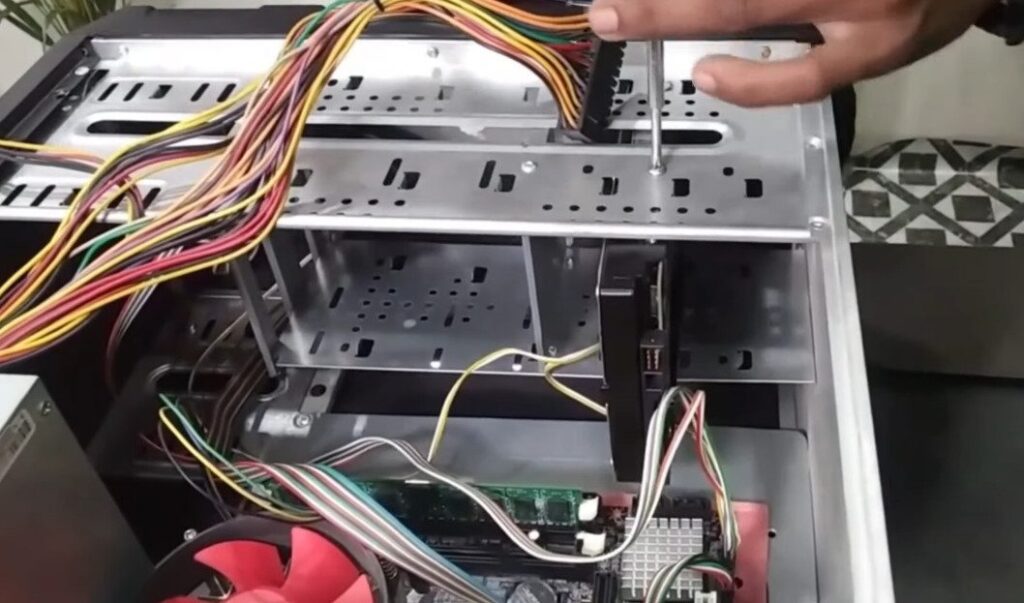
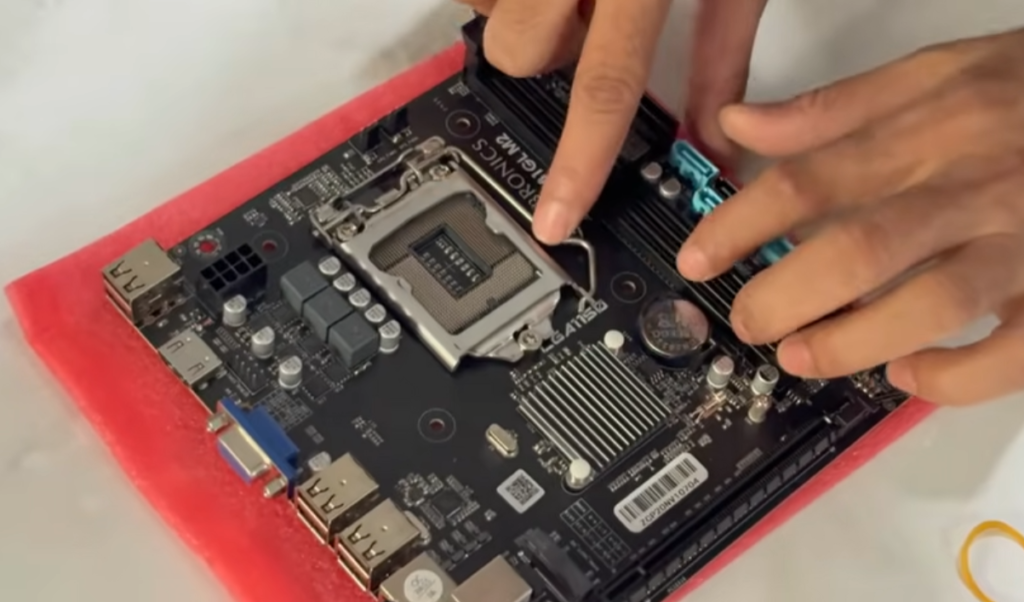
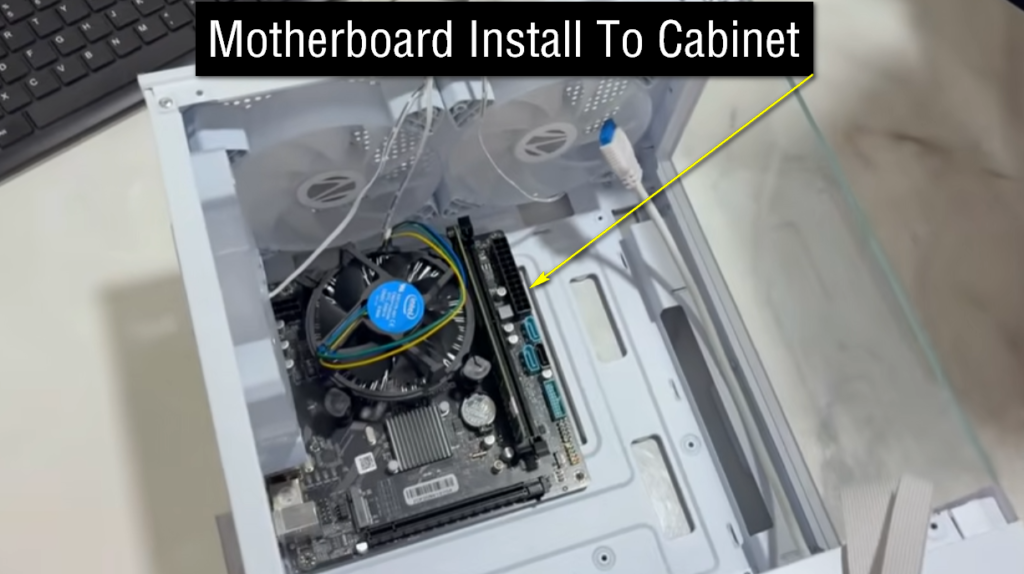
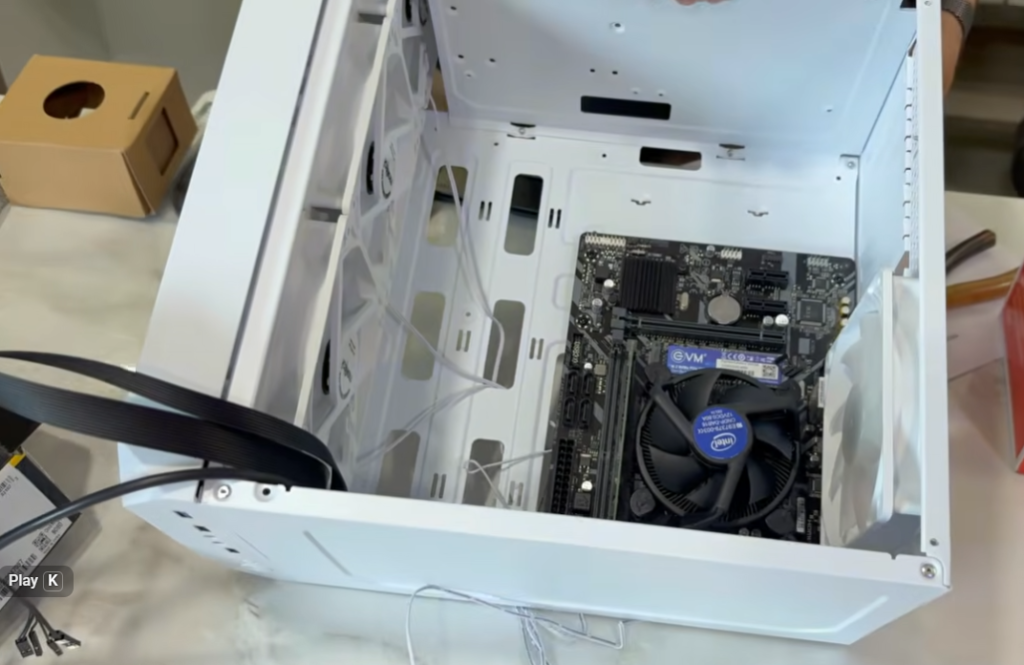
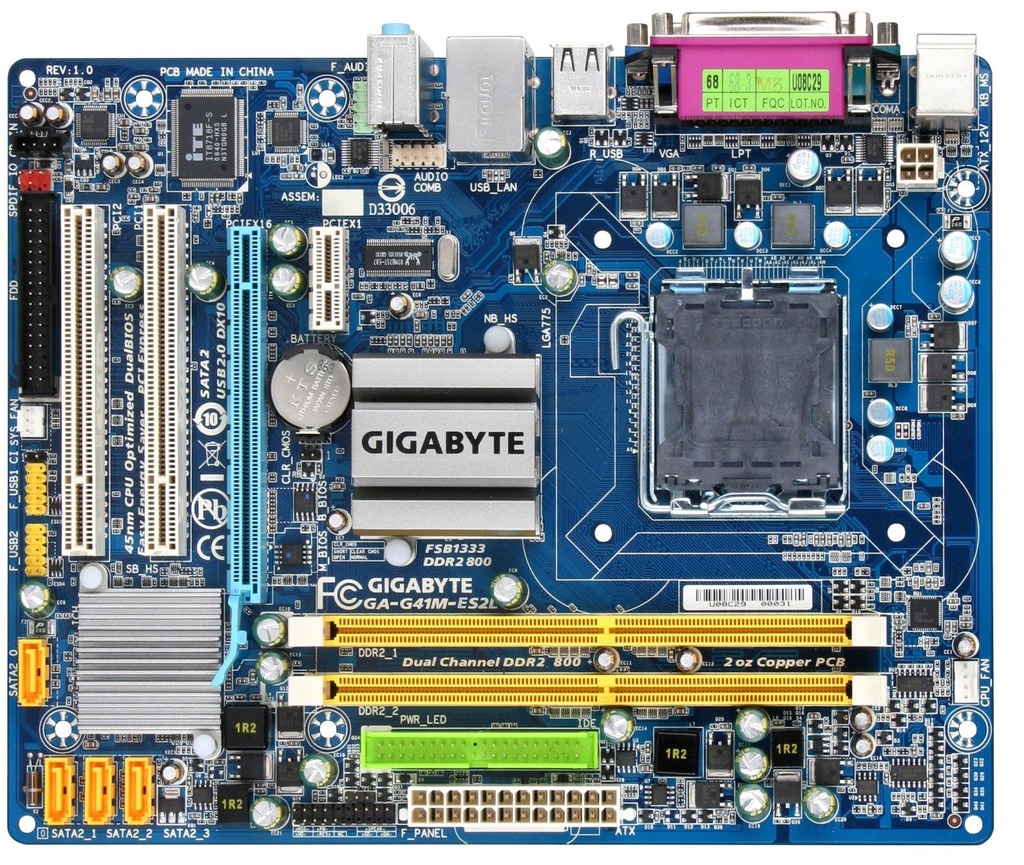
Components Slide Images of Motherboard
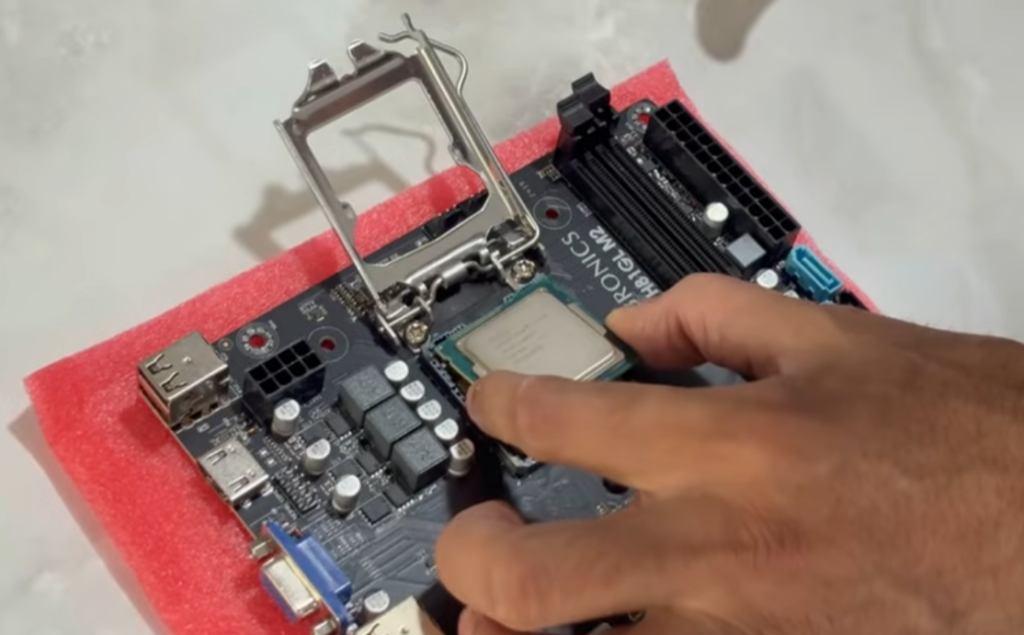
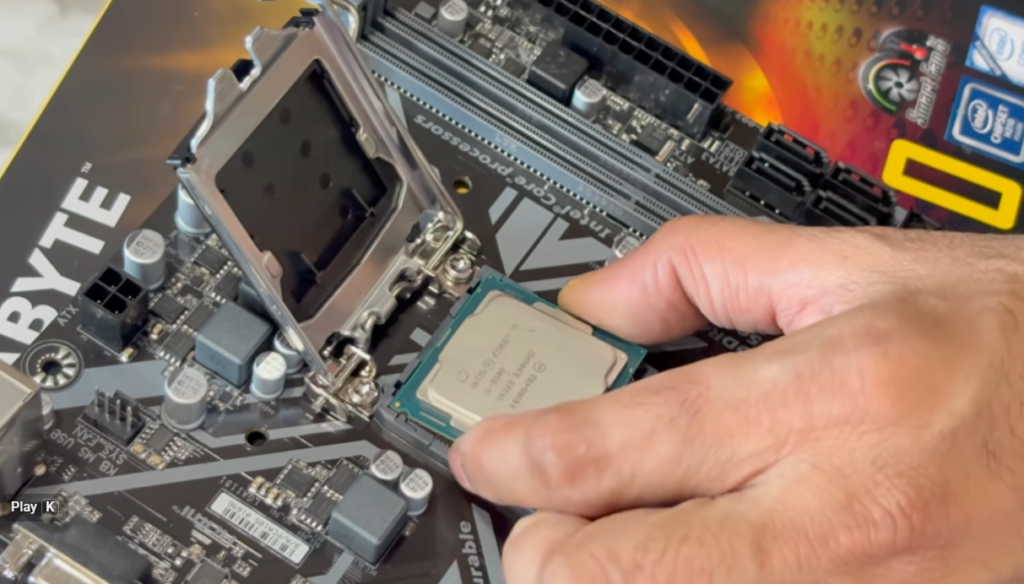
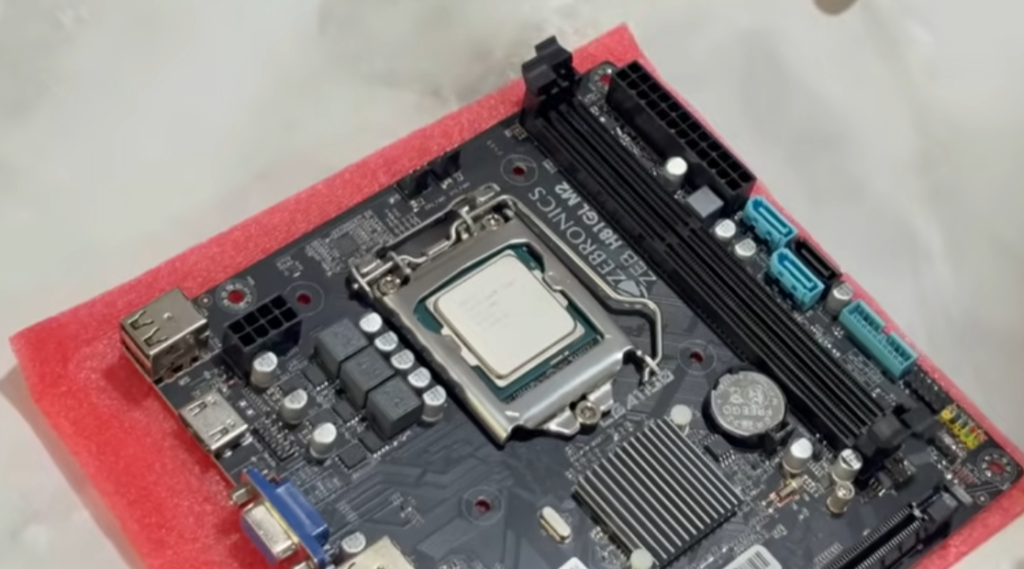
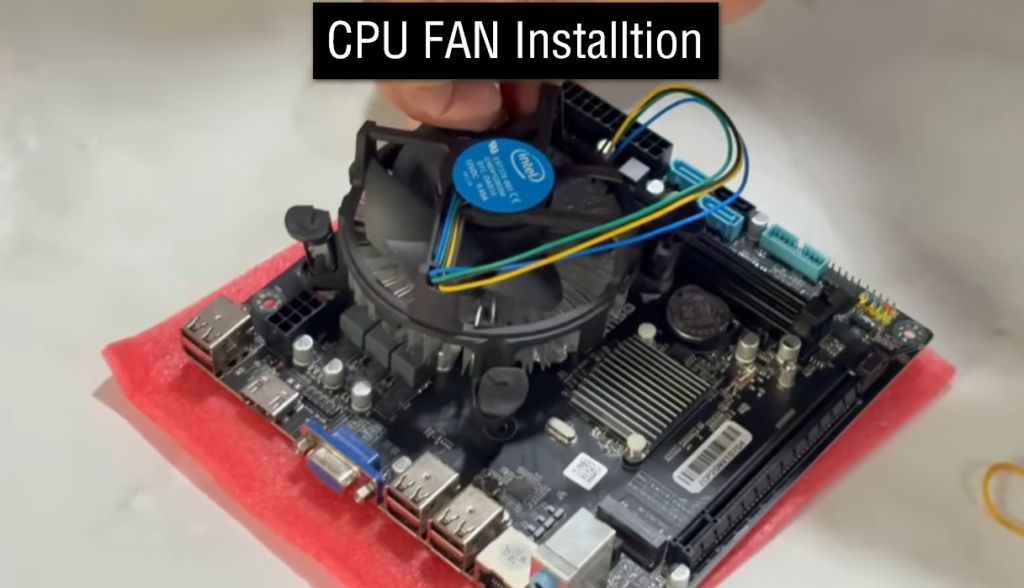


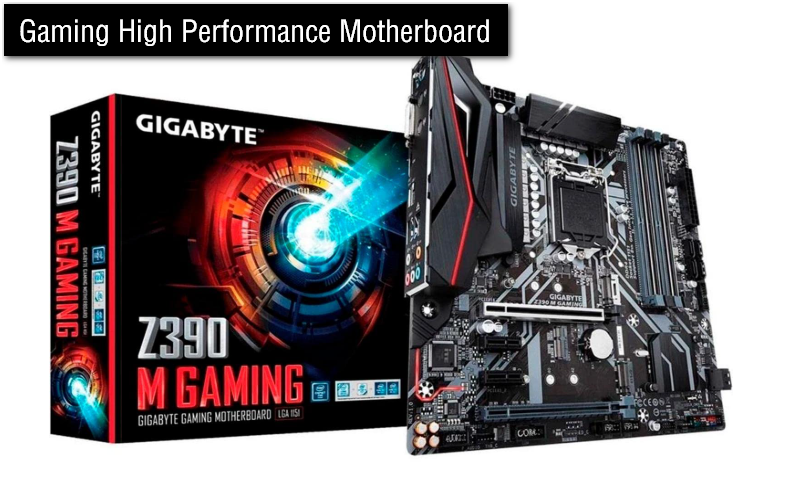
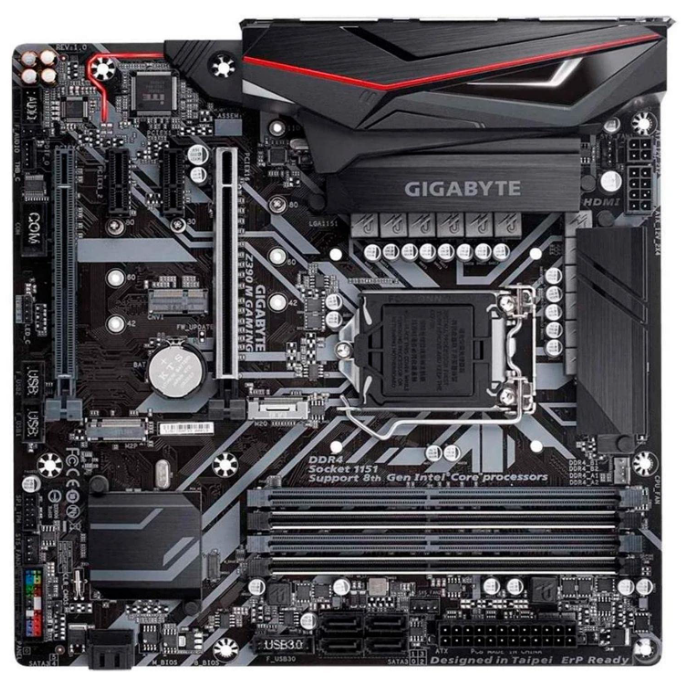
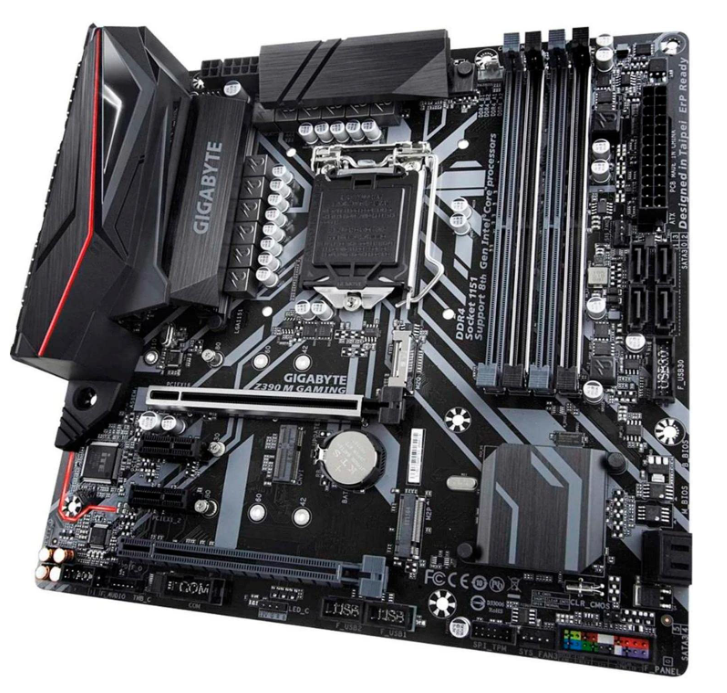
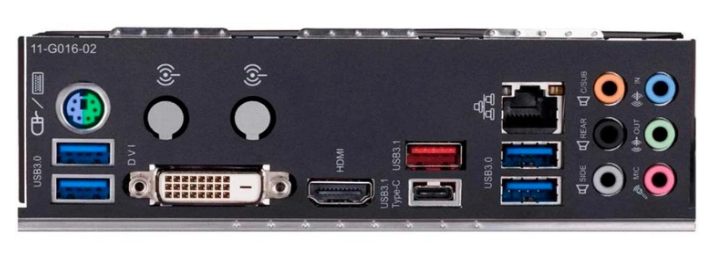
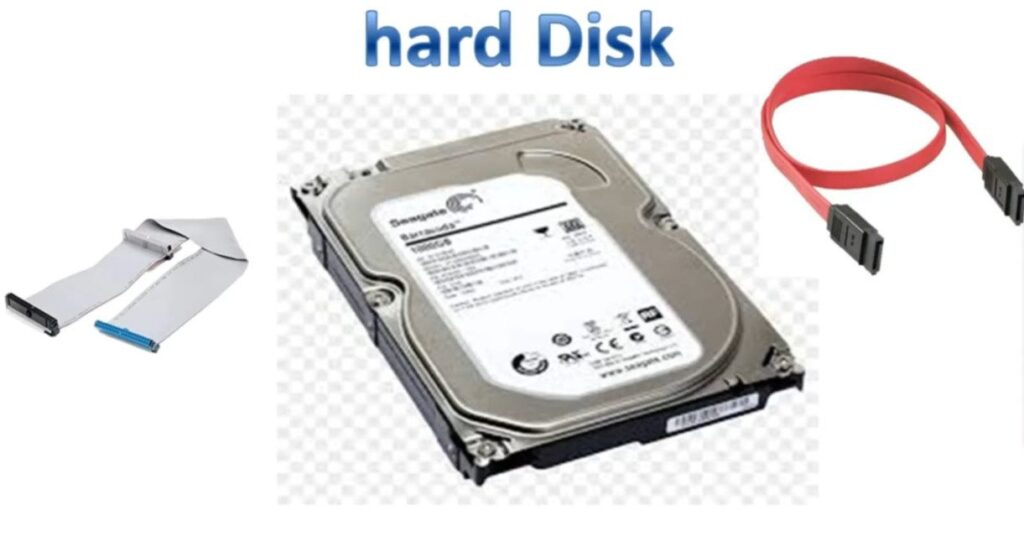

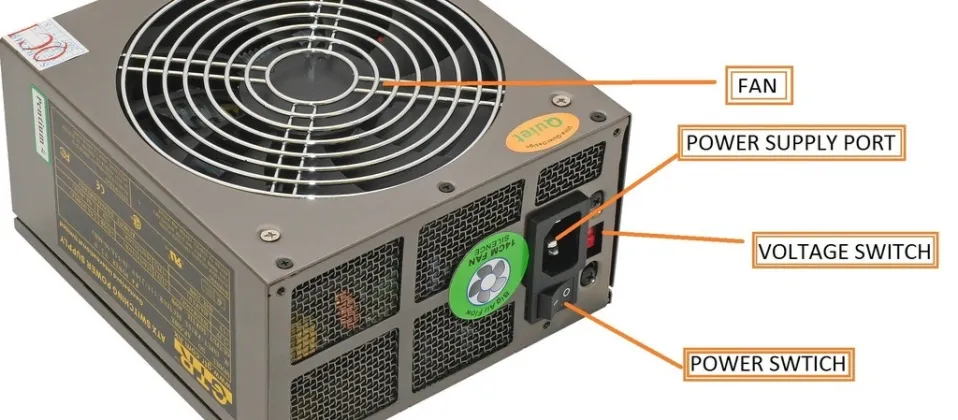
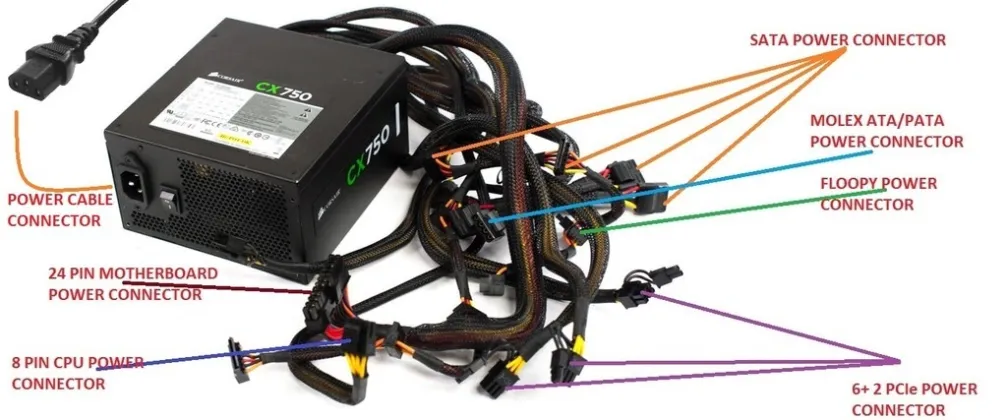
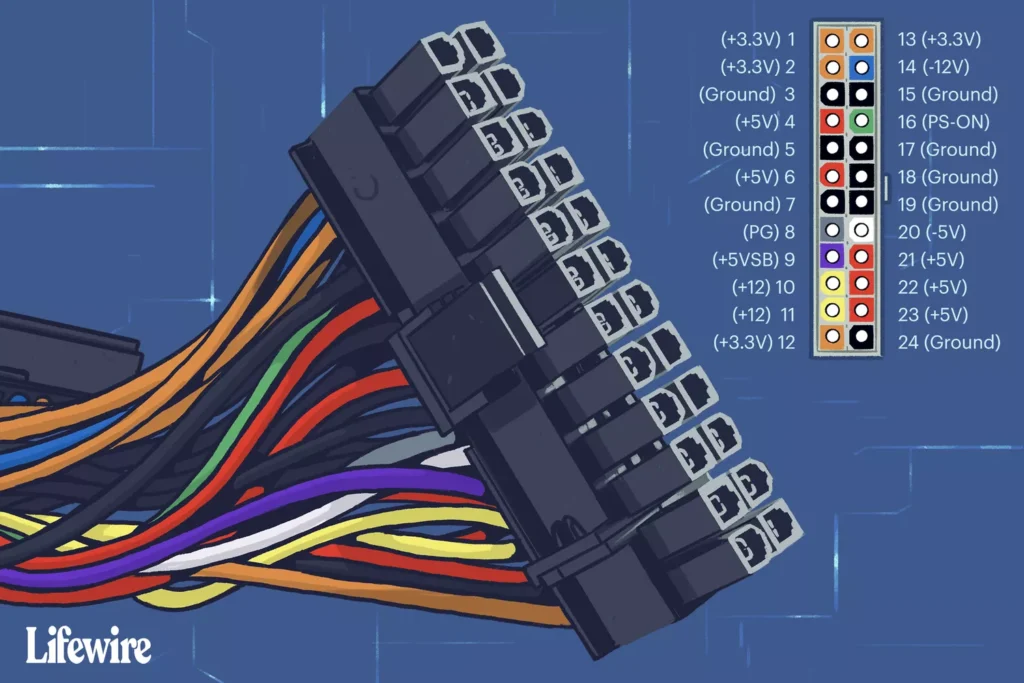
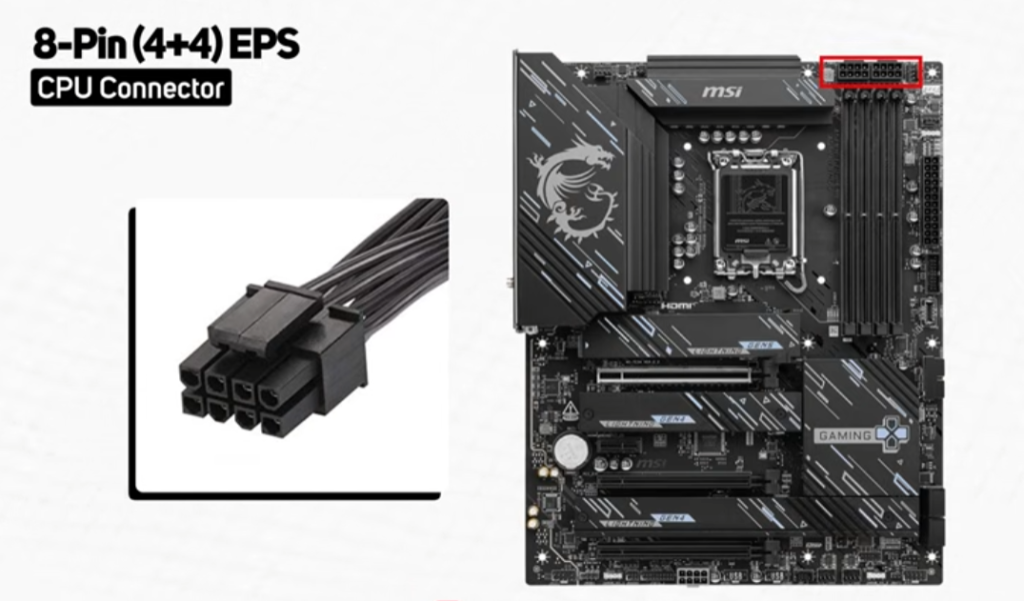
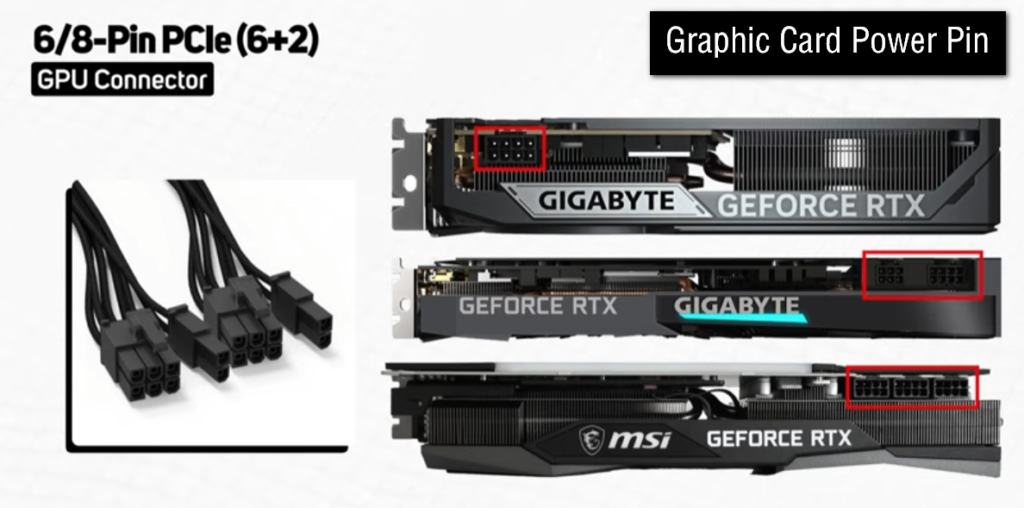
What is HDD & How Works
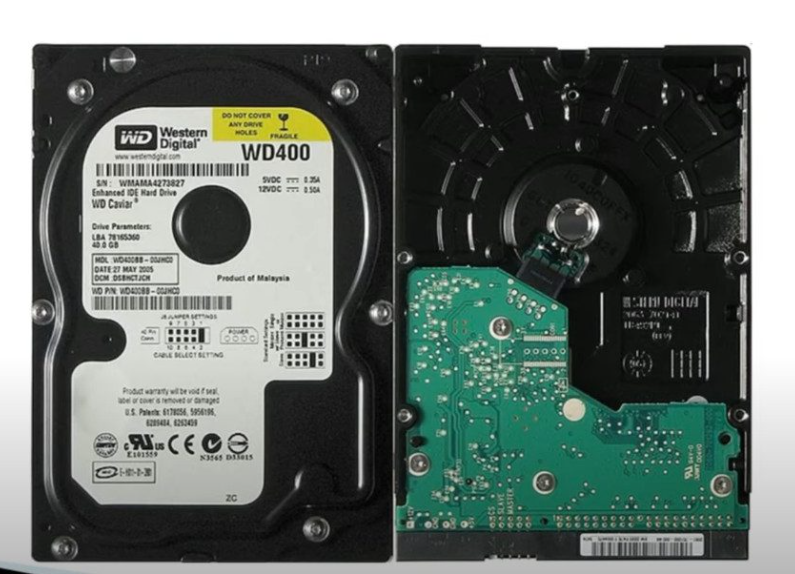
- A HDD (Hard Disk Drive) is a storage device used in computers to store data permanently. It keeps files, operating system, software, music, videos, and documents even when the power is turned off.
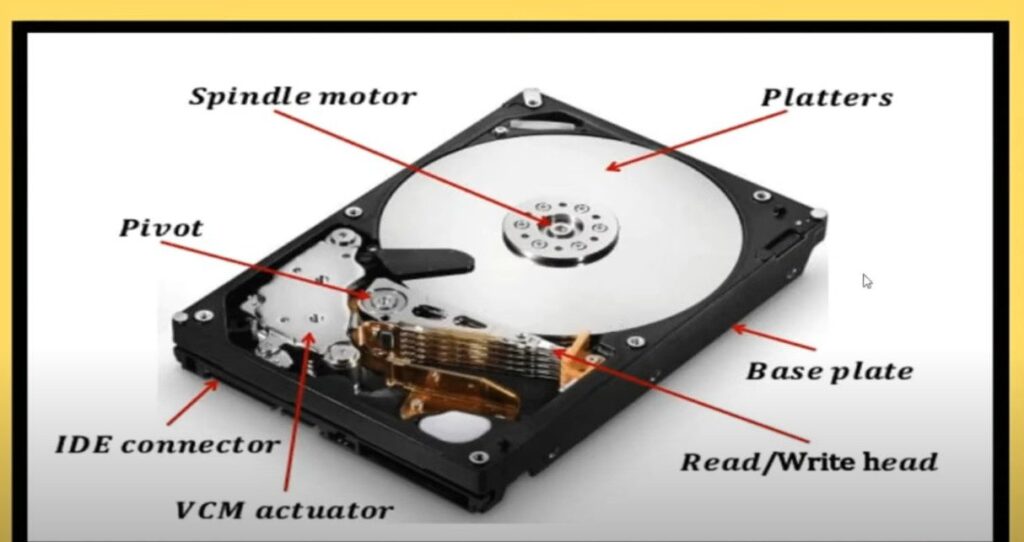
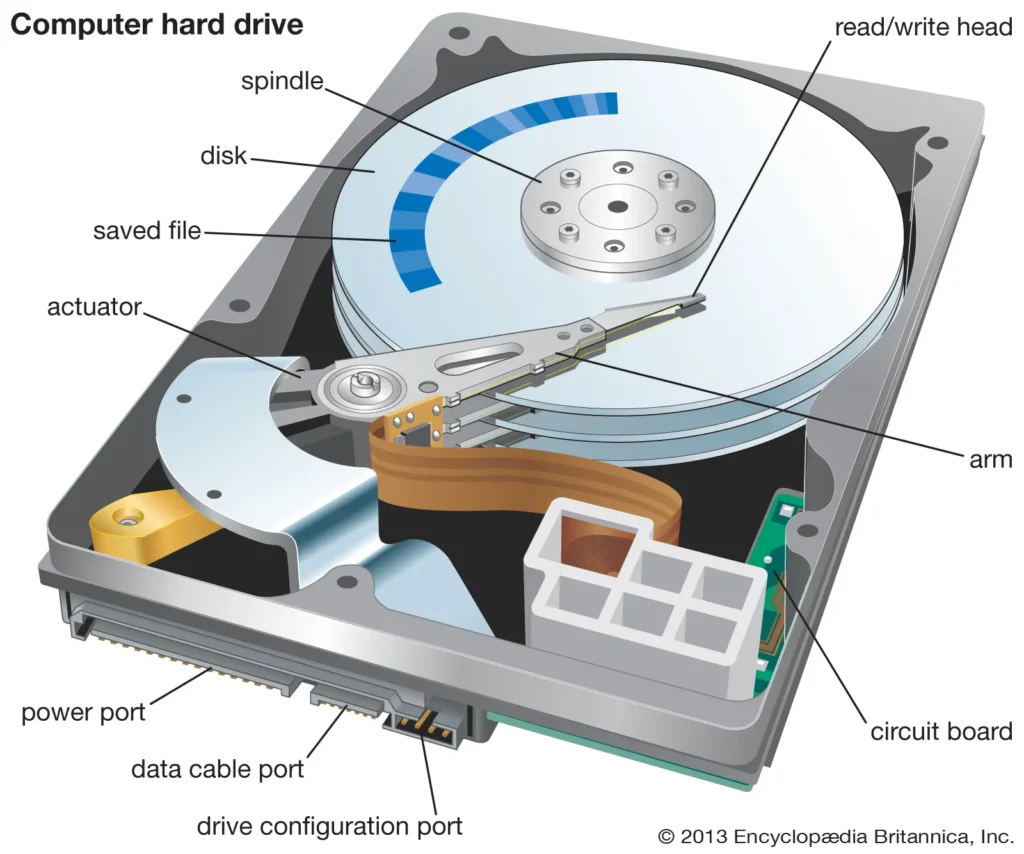
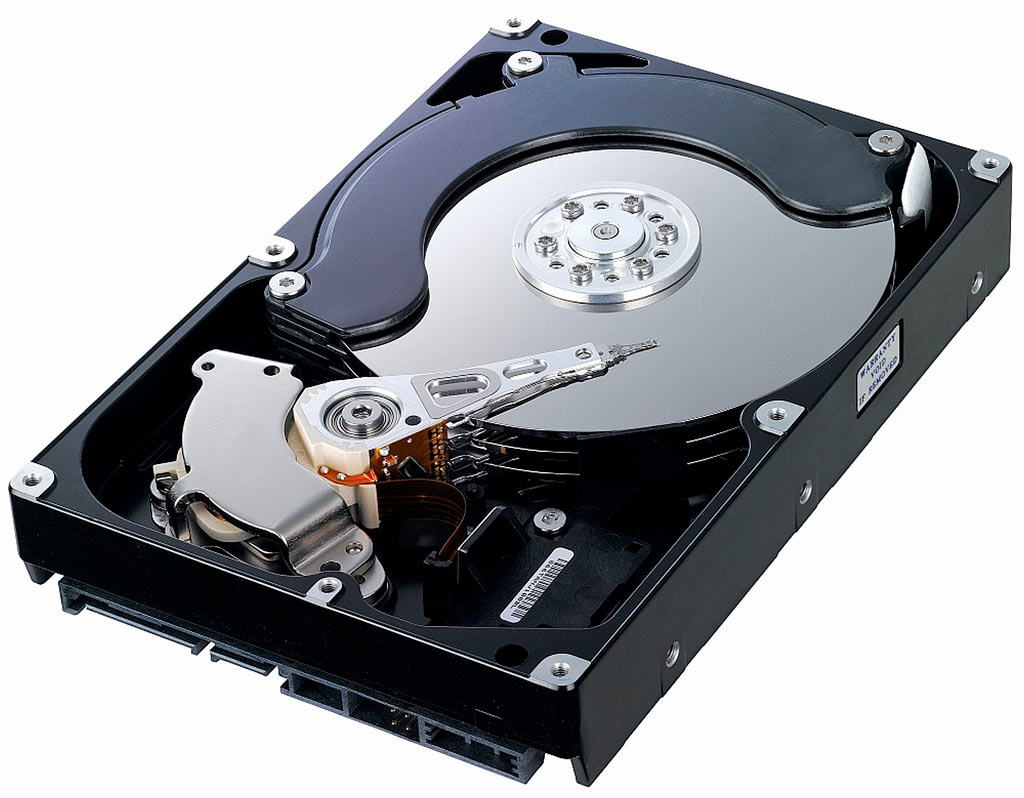
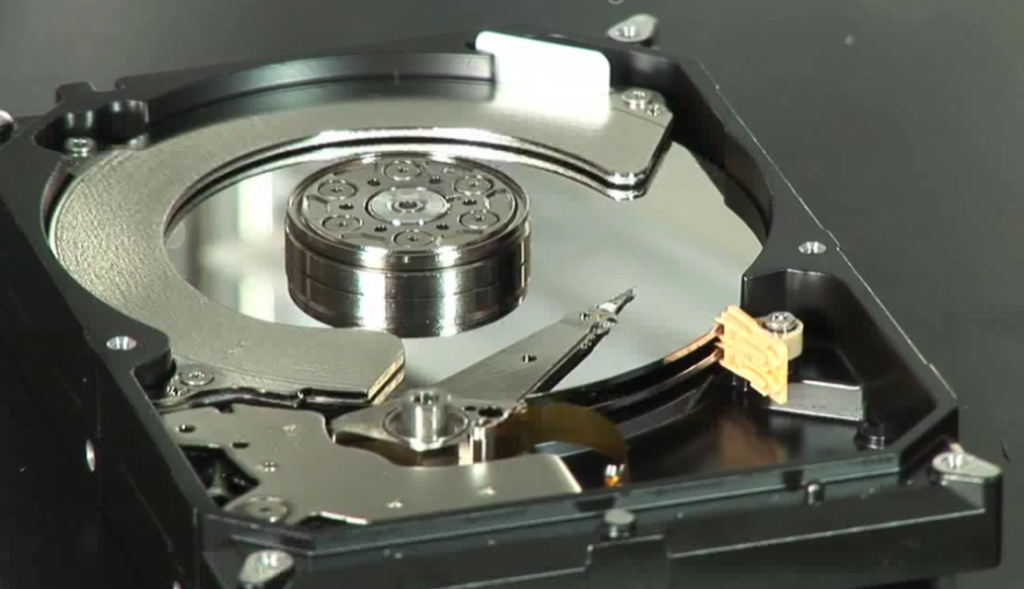
- HDD works using magnetic disks (platters) that rotate at high speed. A read/write head moves over the disk to store or retrieve data.
- It is commonly used in desktop and laptop computers because it provides large storage capacity at a low cost, but it is slower compared to SSD.
- In simple words, HDD is a long-term storage device used to save all important data in a computer.
Real Example of HDD:
- A 1TB HDD in a desktop computer is a real example of HDD storage. It is commonly used to store Windows, software, movies, photos, and documents in home and office PCs.
- For example, many old Dell or HP desktop computers come with a Seagate or Western Digital 1TB HDD, where users store their files and install programs.
- In CCTV systems, a 2TB or 4TB surveillance HDD is used to store video recordings from security cameras.
How Hard Disk? Works ?
A Hard Disk Drive (HDD) works by storing and reading data using magnetic technology. It uses spinning disks called platters and a moving read/write head to access information.
1. Platters Rotation
Inside the HDD, there are circular disks called platters. These platters spin very fast (usually 5400 or 7200 RPM).
2. Read/Write Head
A small part called the read/write head floats just above the spinning platters. It does not touch the surface.
3. Data Writing Process
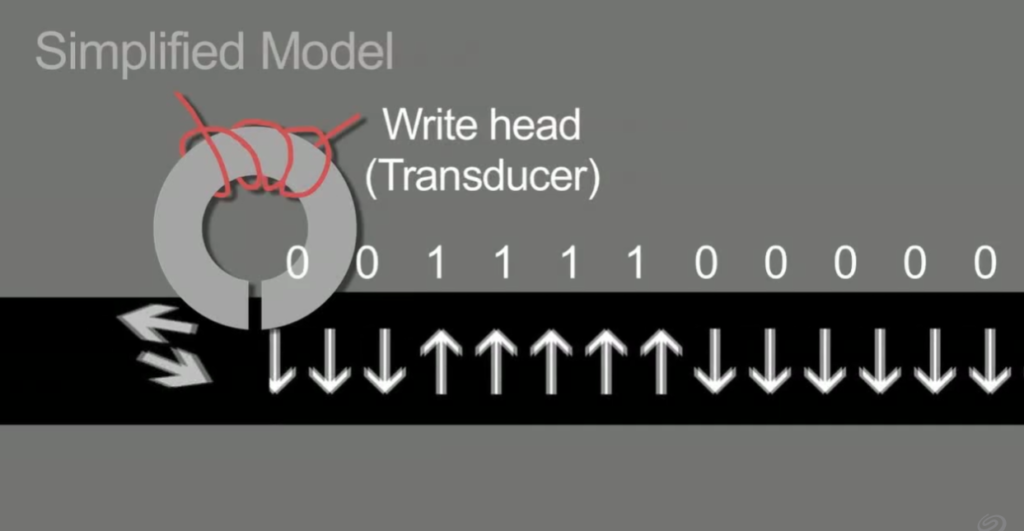
When you save data, the write head changes the magnetic patterns on the platter surface. These patterns represent 0s and 1s (binary data).
4. Data Reading Process
When you open a file, the read head detects the magnetic patterns and converts them back into digital data that the computer can understand.
5. Actuator Arm Movement
The actuator arm moves the read/write head to the correct position on the platter to find the required data quickly.
6. Controller Board
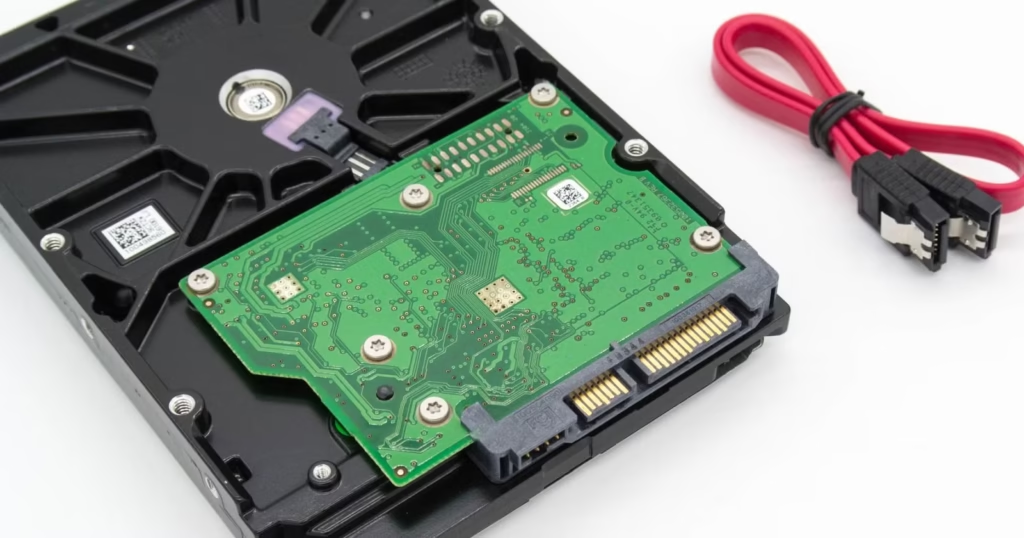
The HDD has a circuit board that controls all operations and communicates with the motherboard.
Simple Summary
HDD works by spinning magnetic disks and using a moving head to read and write data in digital form.
Real Example of How HDD Works:
- When you open a movie file (example: “Avengers.mp4”) from a 1TB HDD, the system sends a request to the HDD.
- The HDD spins its internal platters and the read head finds the movie data stored in magnetic form.
- Then the data is sent to RAM and CPU, and the movie starts playing on the screen.
👉 Another real example:
- When you save a Word file (example: “School_Project.docx”), the HDD writes the data in magnetic form on the disk so it stays saved even after shutdown.
What is hard disk RPM?
- RPM stands for Revolutions Per Minute. It is a unit used to measure how many times a hard disk’s platter rotates in one minute.
- In a Hard Disk Drive (HDD), data is stored on spinning circular disks called platters. These platters rotate continuously while the system is working.
- The RPM value shows the speed of rotation. For example, a 5400 RPM HDD means the platters spin 5400 times in one minute, while a 7200 RPM HDD spins 7200 times per minute.
- Higher RPM generally means faster data reading and writing speed, because the read/write head can access data more quickly.
- In simple words, RPM is the speed of a hard disk,
Example of RPM:
- A real example of RPM is a 7200 RPM Hard Disk Drive (HDD) used in desktop computers.
- In this HDD, the internal platters rotate 7200 times per minute, allowing faster access to data compared to a 5400 RPM HDD.
- For example, when you open a file like “movie.mp4” or “project.docx”, the 7200 RPM HDD can load it faster because the disk spins more quickly and the read/write head finds data in less time.
- Another example is a 5400 RPM HDD in laptops, which spins slower and is used to save battery power, but it takes more time to open files.
👉 In simple words:
- 7200 RPM HDD = faster performance (desktop PCs)
- 5400 RPM HDD = slower but power saving (laptops)
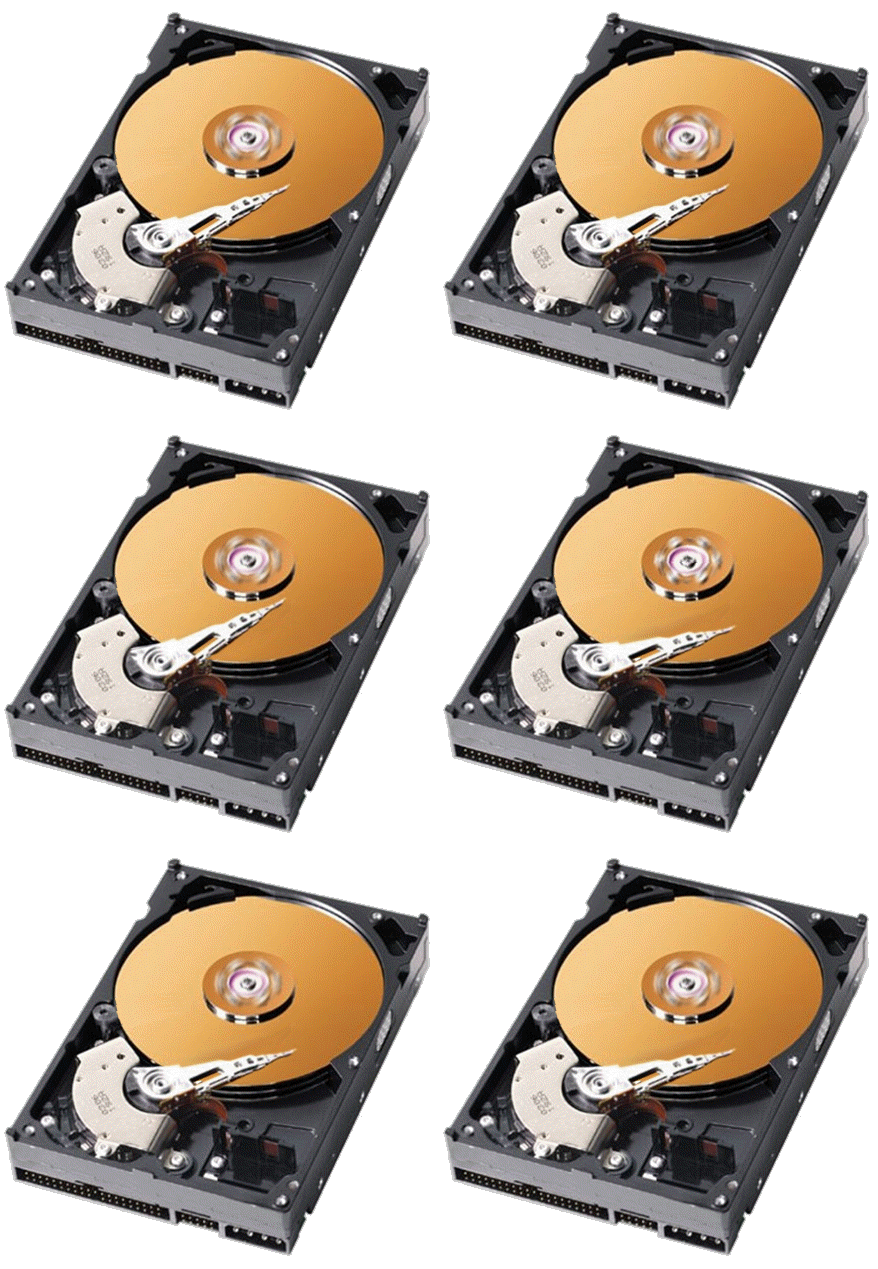
Hard Disk Color Code Hard Disk Color Types, Differences and Uses
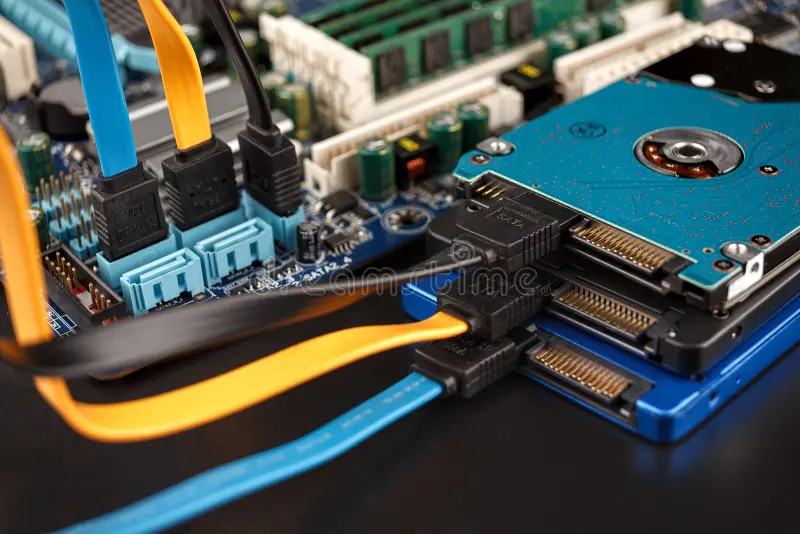
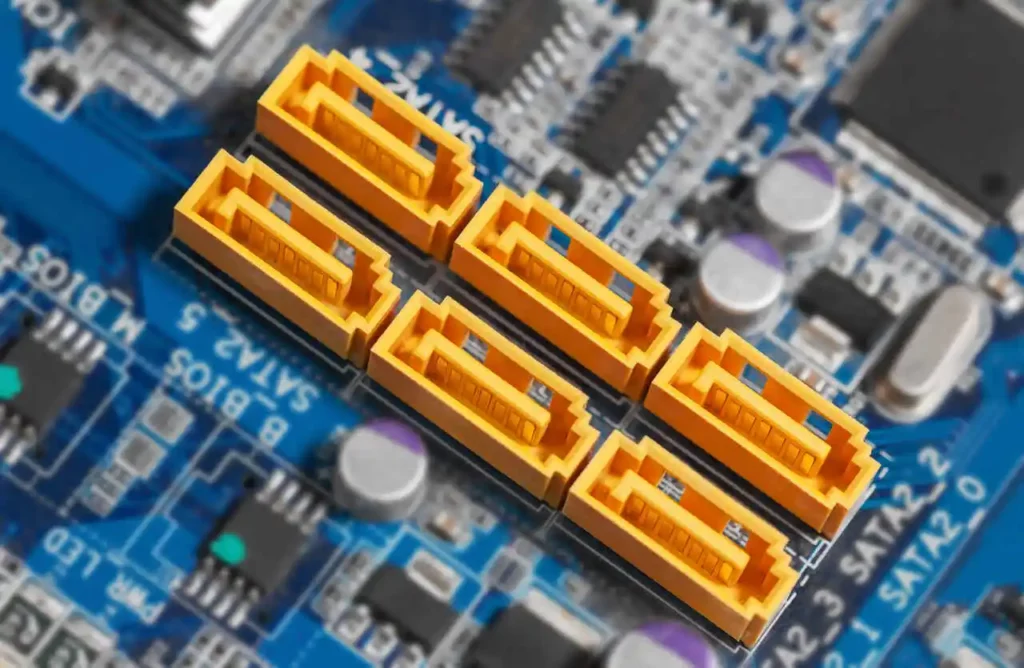
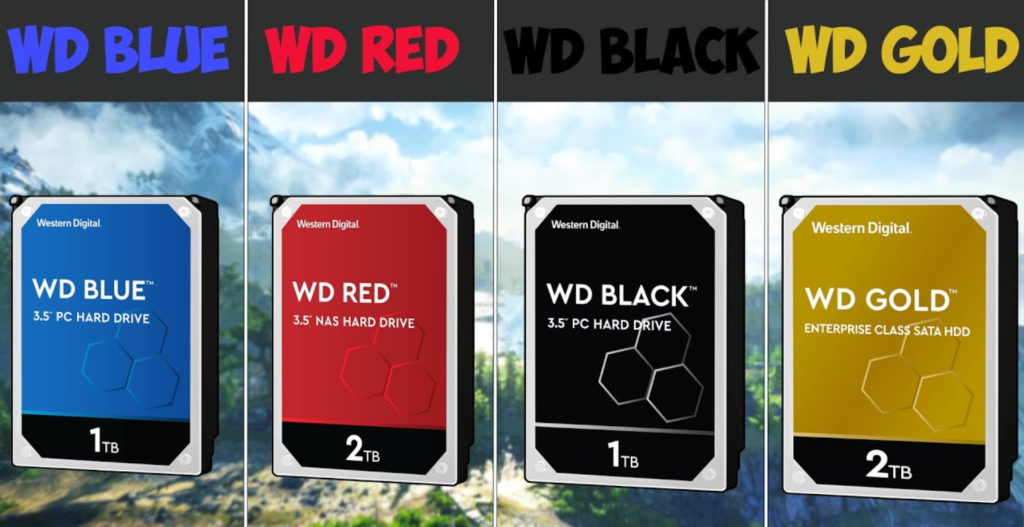
Hard disk (HDD) does not have a standard color code like resistors or cables, but people usually refer to connector colors (SATA ports/cables) and HDD types by label colors (Western Digital brands).
HDD Connector Color (SATA Cable Ports):
- Blue SATA port – Standard SATA 6Gbps (most common HDD/SSD connection)
- Black SATA port – Older SATA 3Gbps or basic ports (depends on motherboard)
- White/Grey SATA port – Sometimes used for RAID or secondary ports (varies by board)
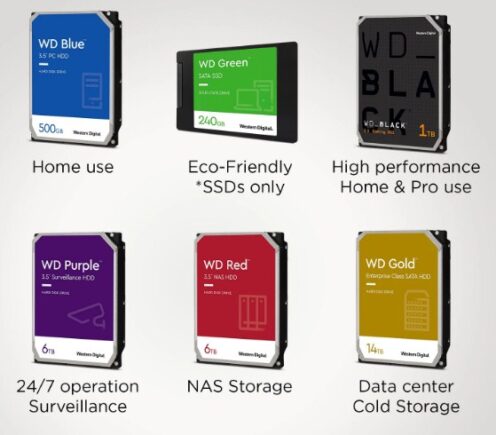
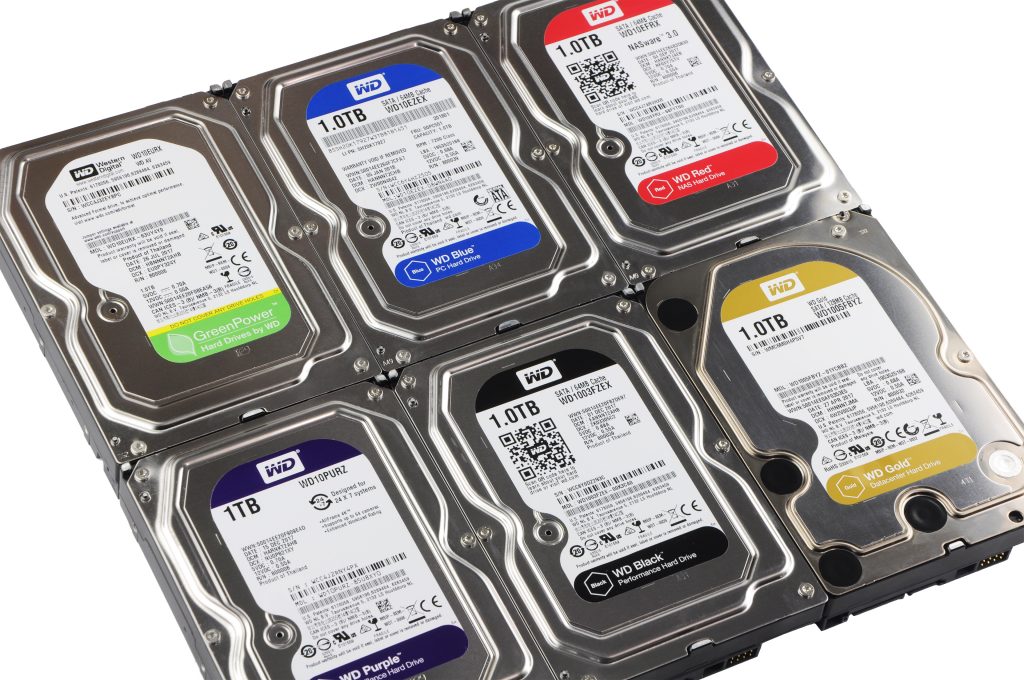
HDD Brand Color (Example: Western Digital):
- Blue (WD Blue) – Everyday use, normal storage
- Black (WD Black) – High performance gaming/work
- Red (WD Red) – NAS/server storage (24/7 use)
- Purple (WD Purple) – CCTV surveillance storage
- Green (older WD Green) – Low power, slow storage
Hard Disk Color Types, Differences and Uses:
WD Blue:
WD Blue is a common hard disk used for normal computer work. It gives balanced performance and is suitable for home and office use. It is mainly used for Windows, software, documents, and general storage.
WD Black:
WD Black is a high-performance hard disk designed for faster speed and heavy workloads. It is commonly used in gaming PCs, video editing systems, and professional work where high performance is needed.
WD Red:
WD Red is specially designed for NAS (Network Attached Storage) systems. It can run 24/7 without stopping, so it is used in offices, servers, and CCTV storage systems where continuous data access is required.
WD Purple:
WD Purple is made for surveillance systems. It is optimized for recording videos from CCTV cameras continuously, making it ideal for security and monitoring systems.
WD Green:
WD Green is an older type of hard disk that focuses on low power consumption. It is slower compared to others and is used for basic storage and backup purposes.
In simple words, different HDD colors show different uses: Blue for normal use, Black for performance, Red for servers, Purple for CCTV, and Green for low power backup storage.
What is WD Gold?
- WD Gold is a high-performance enterprise hard disk drive (HDD) manufactured by Western Digital. It is specially designed for professional environments where high speed, reliability, and continuous operation are required.
- This hard drive is mainly used in data centers, servers, and large business storage systems. It is built to handle heavy workloads and large amounts of data without failure.
- WD Gold supports 24/7 operation, meaning it can run continuously without stopping. It is more durable and stable compared to normal desktop hard drives like WD Blue or WD Black.
- It also provides high storage capacity and fast data transfer speed, making it suitable for cloud storage, databases, and backup systems.
- In simple words, WD Gold is a powerful and reliable hard disk used in professional and enterprise-level systems for long-term and heavy data storage.
Real Examples of Hard Disk Color Types:
WD Blue (Normal Use):
A real example is a WD Blue 1TB HDD used in a home desktop computer for Windows, MS Office, games, and personal files. Many HP and Dell PCs come with this type of drive.
WD Black (High Performance):
A real example is a WD Black 1TB HDD used in a gaming PC or editing system where fast loading of games and software like Photoshop or Premiere Pro is required.
WD Red (NAS/Server Use):
A real example is a WD Red 4TB HDD used in a NAS device in offices for file sharing between multiple computers or in small business servers.
WD Purple (CCTV Use):
A real example is a WD Purple 2TB HDD installed in a DVR/NVR system that records video from 4, 8, or 16 security cameras 24/7.
WD Green (Basic/Backup Use):
A real example is a WD Green external HDD used for backup storage of photos, videos, and documents from a laptop or PC.
What is Hard Disk Protocol
What is HDD Protocol?
An HDD protocol is the communication standard used between the hard disk (HDD) and the motherboard. It helps transfer data, commands, and signals so the computer can read and write information on the disk.
Main HDD Protocol Types
SATA (Serial ATA)
SATA is the most common HDD protocol used in modern computers. It provides fast and reliable data transfer between the HDD/SSD and motherboard.
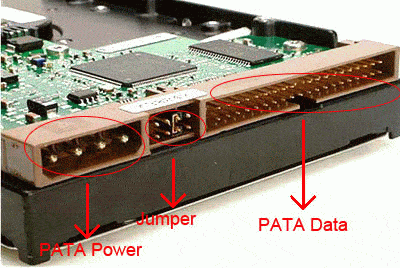
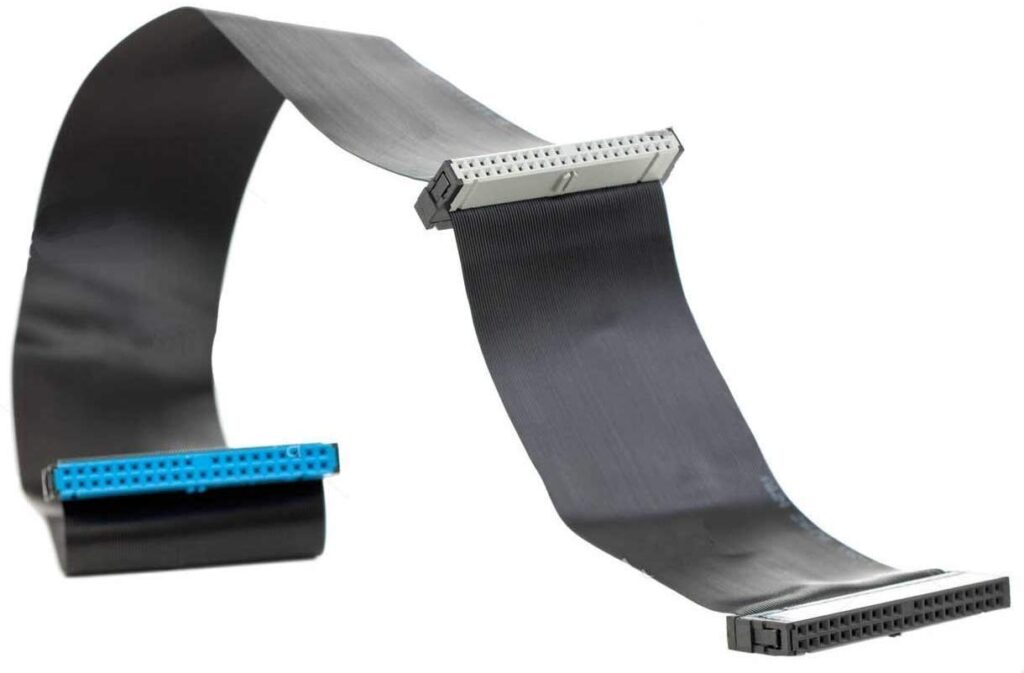
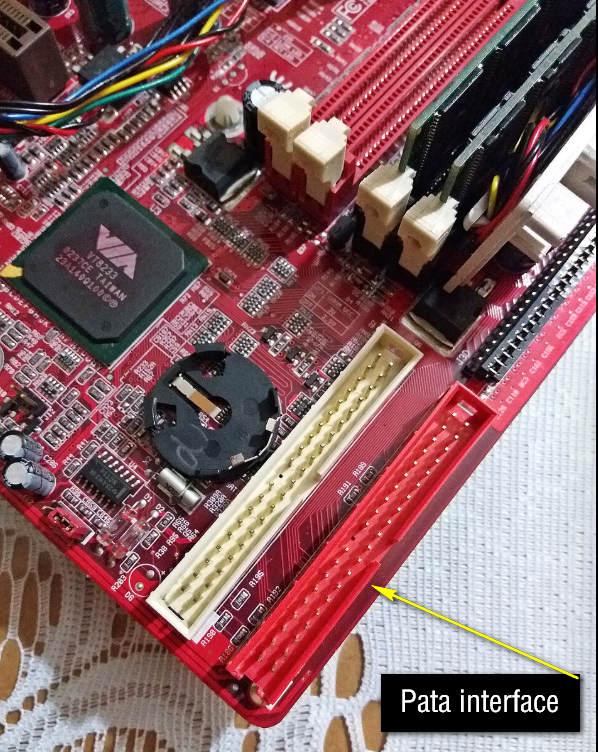
IDE / PATA (Parallel ATA)
IDE is an older HDD protocol used in older computers. It is slower compared to SATA and uses wide ribbon cables for connection.
SCSI (Small Computer System Interface)
SCSI is a high-performance protocol used in servers and professional systems. It supports multiple devices and faster data handling.
SAS (Serial Attached SCSI)
SAS is an advanced version of SCSI used in enterprise servers. It is faster, more reliable, and used for 24/7 high-load systems.
What is AHCI?
- AHCI (Advanced Host Controller Interface) is a technical standard used by computers to control and communicate with SATA storage devices like HDDs and SSDs. It is a mode that works between the motherboard and storage drive.
- AHCI allows the system to use advanced features of SATA drives, such as faster data transfer, better performance, and improved communication between the storage device and the computer.
- It also supports features like Hot Plugging (hot swap), which means you can connect or remove a drive without turning off the computer, and NCQ (Native Command Queuing), which improves read and write efficiency.
- AHCI is mainly used in modern computers and is set in BIOS/UEFI settings. It is more advanced and faster compared to the older IDE mode.
- In simple words, AHCI is a mode that helps the computer communicate efficiently with HDD and SSD to improve speed and performance.
AHCI ID Chart (Comparison)
| Feature | AHCI (Advanced Host Controller Interface) | IDE (Legacy Mode) |
|---|---|---|
| Full Form | Advanced Host Controller Interface | Integrated Drive Electronics |
| Speed | Fast (supports SATA high speed) | Slow |
| Technology | Modern SATA standard | Older PATA standard |
| Hot Plug | Supported (remove/add drive while running) | Not supported |
| NCQ Support | Yes (improves performance) | No |
| Performance | Better and optimized | Lower performance |
| Usage | Modern HDD/SSD systems | Old computers |
| Default in BIOS | Yes (new systems) | Rare/Legacy systems |
What is Protocol Means? With Example:
- A protocol means a set of rules that allows devices or systems to communicate with each other in a proper way. It defines how data is sent, received, and understood between two devices.
- In simple real-life example, when two people talk, they follow rules like speaking one by one and using a common language. Without these rules, communication becomes difficult. This is similar to a protocol in computers.
- In computer systems, protocols are used everywhere. For example, when you open a website, the HTTP/HTTPS protocol helps your browser communicate with the web server and load the webpage correctly.
- Another example is TCP/IP protocol, which is used when you send messages, emails, or data over the internet. It ensures that data reaches the correct destination safely and in order.
- In storage devices like HDD, the SATA protocol is used to connect and communicate between the motherboard and the hard disk, allowing data transfer.
- In simple words, a protocol is a set of communication rules that helps different devices or systems understand each other and exchange data properly.

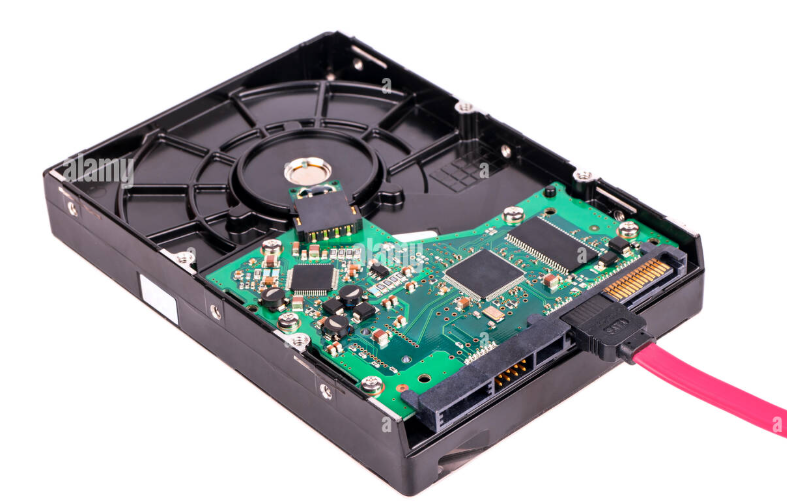
HDD & SSD Power Supply Use
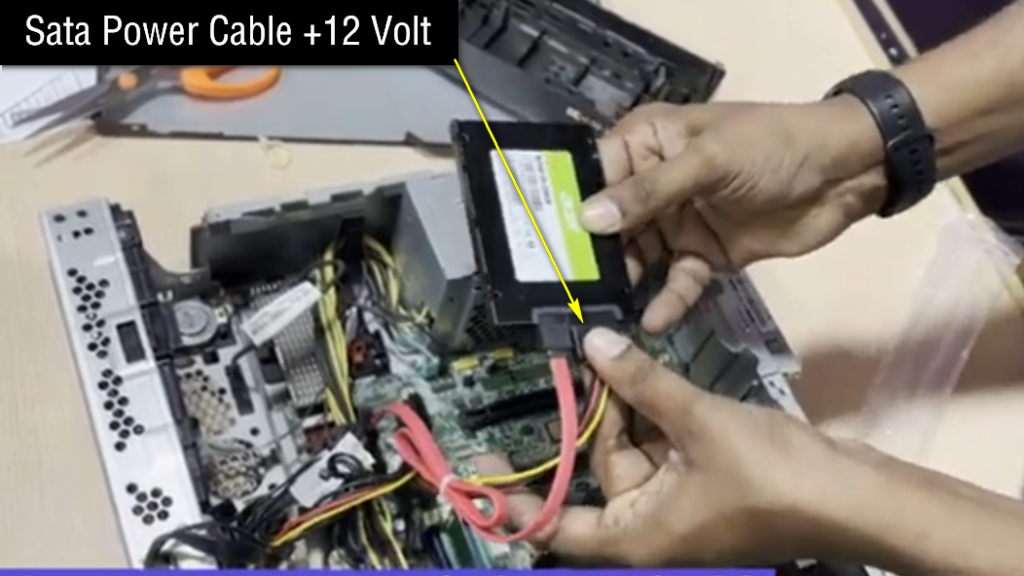
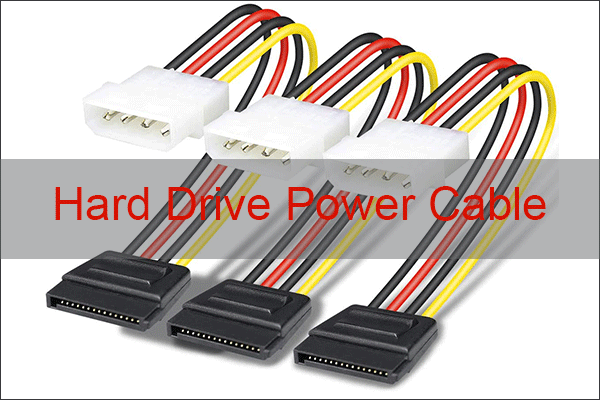
- An HDD (Hard Disk Drive) needs electrical power from the computer’s Power Supply Unit (SMPS) to operate. Without proper power, the hard disk cannot spin or access data.
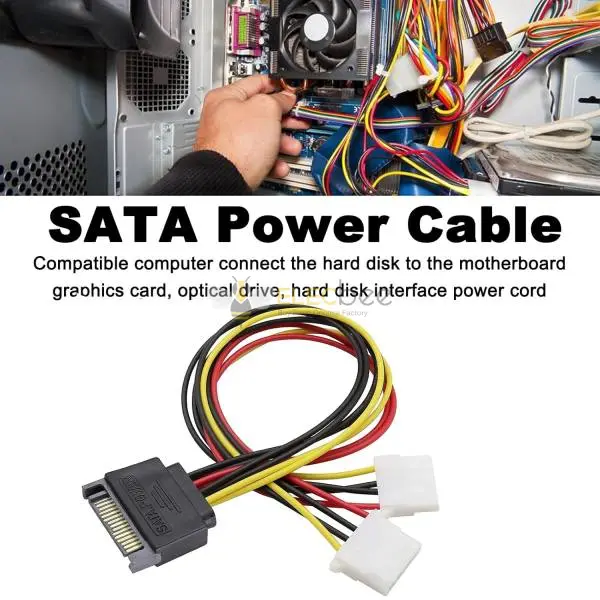
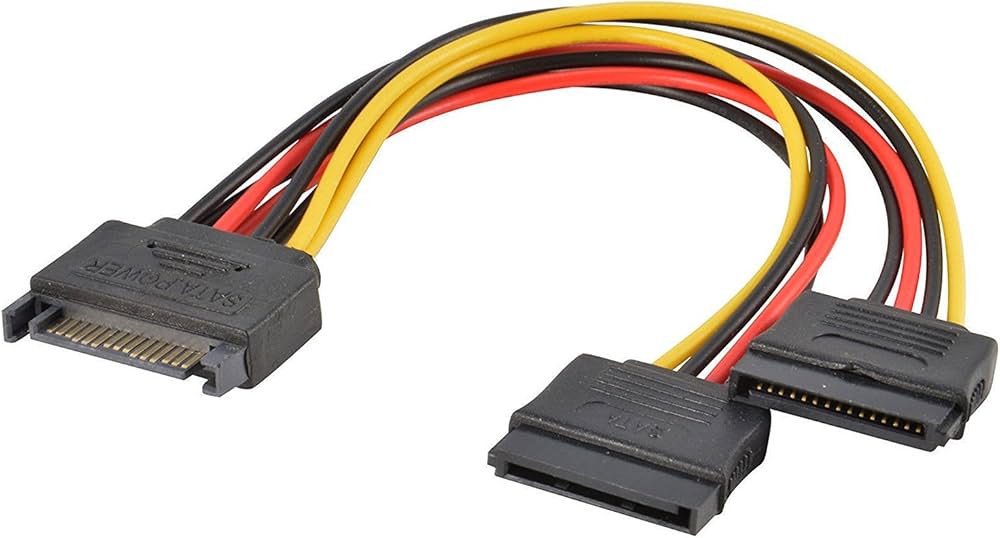
- The SMPS provides DC power (5V and 12V) to the HDD through a SATA power connector. This cable is directly connected from the power supply to the hard disk inside the computer cabinet.
- When the computer is turned on, the SMPS sends power to the HDD. The 12V line helps the platter motor to spin, while the 5V line powers the electronic control board of the hard disk.
- If the power supply is weak or faulty, the HDD may not start properly, may make clicking sounds, or may not be detected by the system at all.
- In simple words, the power supply unit is essential for HDD because it provides the required electricity to run and store or access data properly.
What is SSD & How Works
What is SSD?
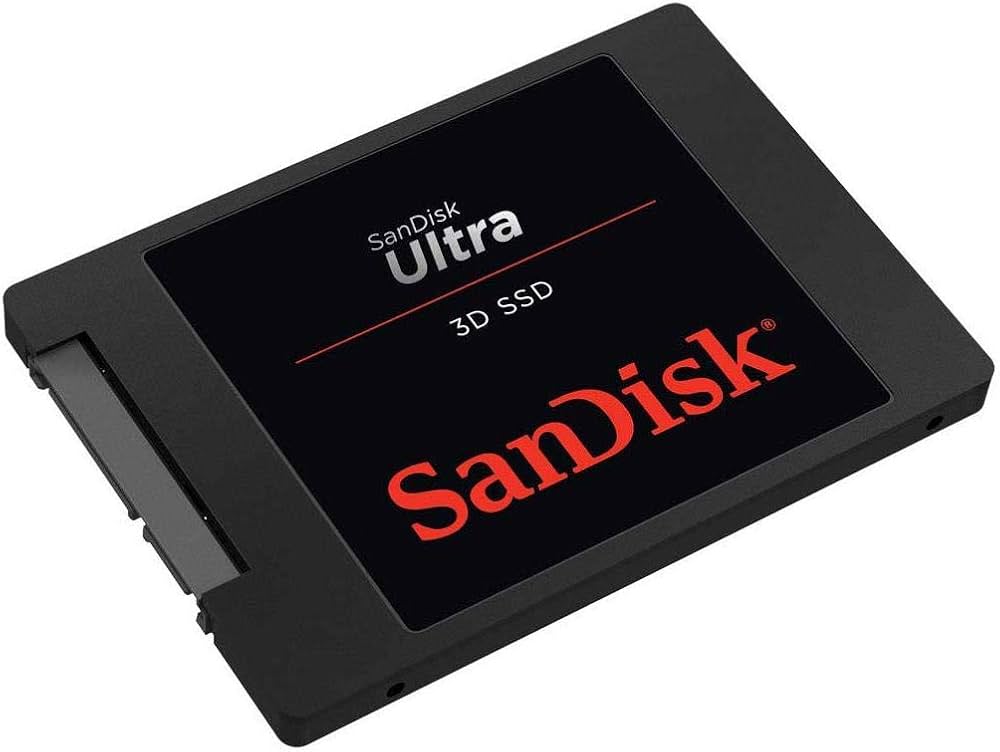
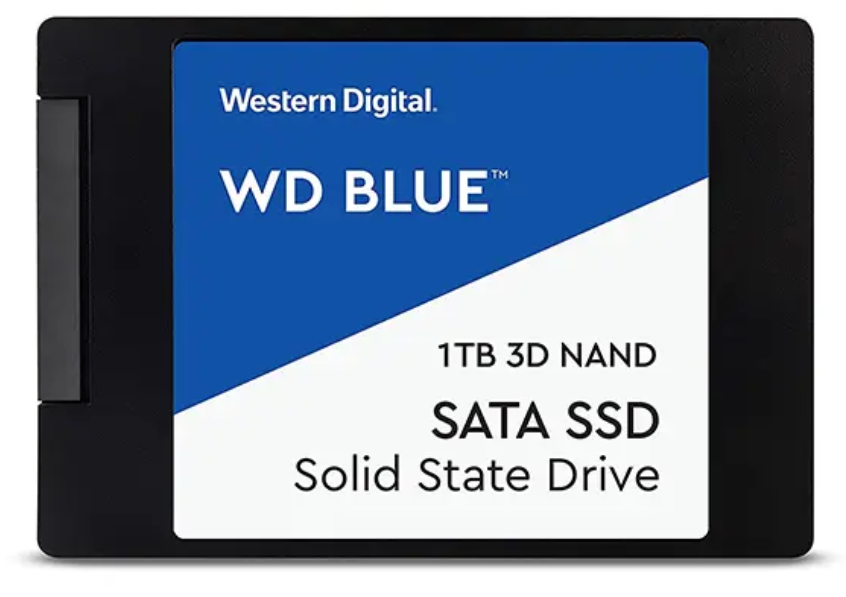
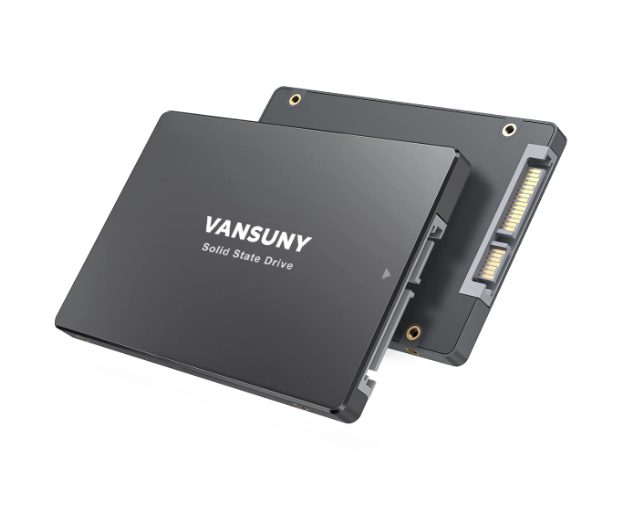
- A SSD (Solid State Drive) is a storage device used in computers to store data permanently, just like an HDD. It stores the operating system, software, files, and documents even when the power is off.
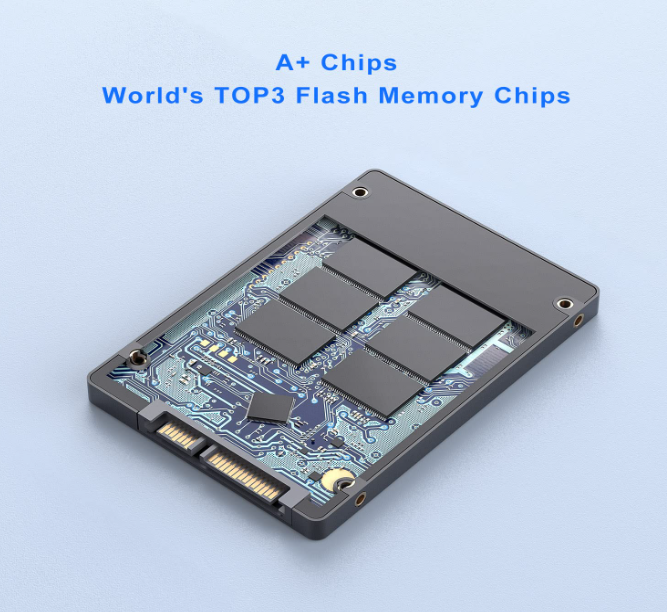
- Unlike HDD, SSD has no moving parts. It uses flash memory chips to store data, which makes it much faster and more reliable.
- SSD provides very fast booting, quick file opening, and high performance compared to HDD. It is commonly used in modern laptops, desktops, and gaming PCs.
- In simple words, SSD is a fast storage device that improves computer speed and performance.
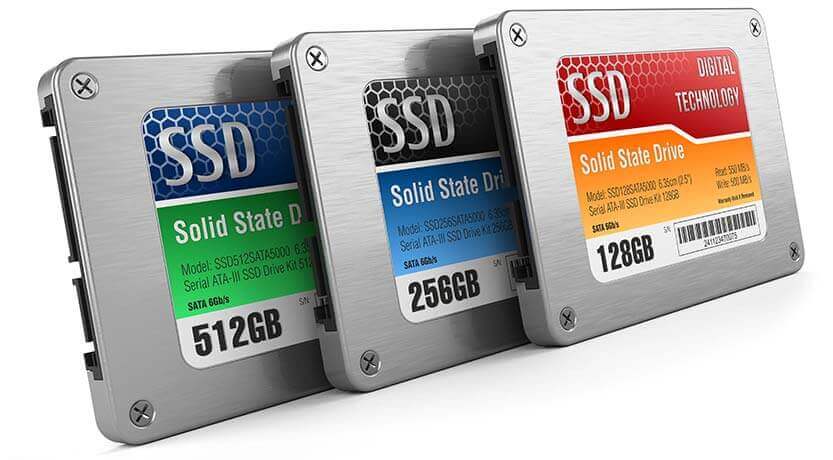
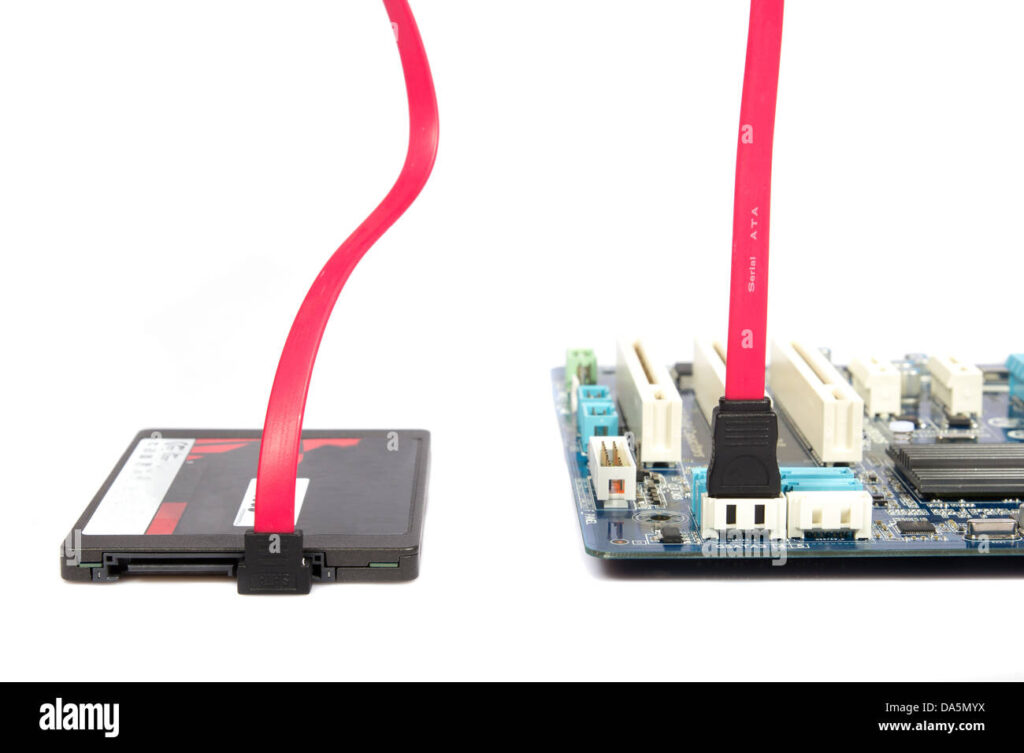
How SSD Works?
- An SSD (Solid State Drive) works by storing data using flash memory chips instead of spinning disks like HDD. It has no moving parts, which makes it very fast and reliable.
- Inside an SSD, data is stored in NAND flash memory cells in the form of electrical charges. These cells hold digital data (0 and 1).
- When you save a file, the SSD controller sends data to memory chips and stores it electronically. There is no mechanical movement, so the process is very quick.
- When you open a file, the SSD controller directly reads the stored electrical data from memory cells and sends it to the CPU and RAM for processing.
- Because SSD uses electronic signals instead of spinning platters, it provides very fast booting, quick file access, and high performance.
- In simple words, SSD works like a digital memory chip system that stores and retrieves data using electricity, not movement.
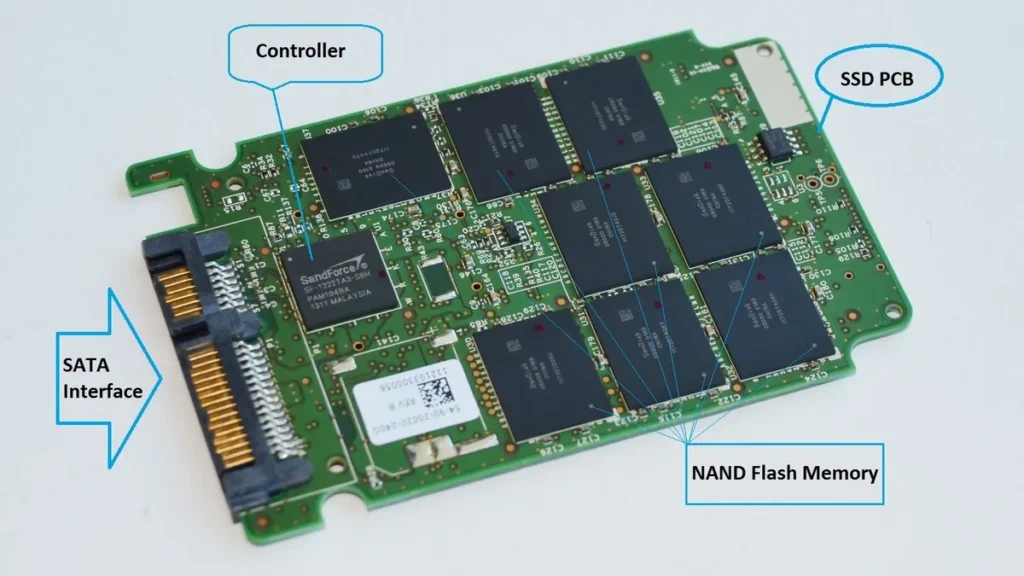
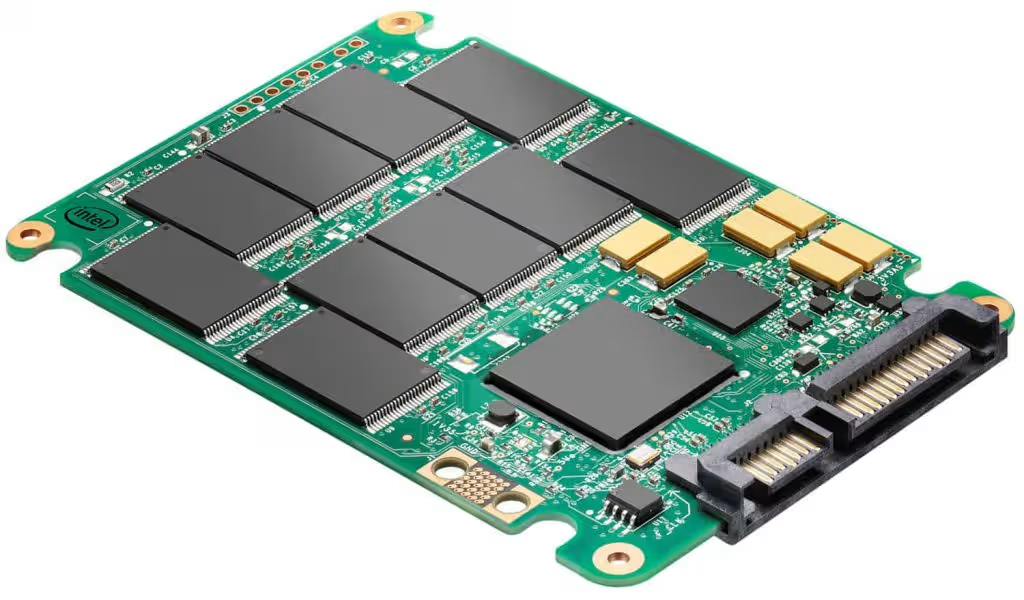
HDD vs SSD (Differences)
- HDD (Hard Disk Drive) uses spinning magnetic disks and mechanical parts to store and access data. It is an older technology and works by physically reading and writing data using a moving head.
- SSD (Solid State Drive) uses flash memory chips to store data electronically. It has no moving parts, which makes it a modern and advanced storage technology.
- In terms of speed, HDD is slower because it depends on disk rotation and mechanical movement, while SSD is much faster because it accesses data directly from memory chips.
- For performance, SSD provides quick booting, fast file opening, and smooth system operation. HDD is comparatively slower and takes more time to load programs and files.
- HDD is cheaper and offers large storage capacity at low cost, while SSD is more expensive but provides better speed and reliability.
- In simple words, HDD is a traditional slow storage device, while SSD is a modern fast storage device used for better performance.
SSD (Solid State Drive):
- SSD is a modern storage device that uses flash memory instead of moving parts.
- It is extremely fast in reading and writing data compared to HDD.
- It helps the computer boot up in a few seconds.
- Applications and games load much faster on SSD.
- It has no mechanical parts, so it works silently.
- SSD is more durable because it is not affected by physical shock easily.
- It consumes less power, which is good for laptops and battery life.
- It generates less heat compared to HDD.
- It is more expensive per GB, so storage capacity is limited for the price.
- Best suited for operating system, software, gaming, and performance work.
HDD (Hard Disk Drive):
- HDD is a traditional storage device that uses spinning magnetic disks.
- It is slower because data is read and written using a moving head.
- Booting the system and opening files takes more time compared to SSD.
- It is suitable for storing large files like movies, photos, and backups.
- HDD produces noise due to mechanical movement.
- It is less durable and can get damaged if dropped or shaken.
- It consumes more power compared to SSD.
- It generates more heat during operation.
- It is cheaper, so you can get large storage at low cost.
- Best suited for bulk storage and budget systems.
Final Conclusion:
SSD is best for speed, performance, and smooth experience, while HDD is best for low-cost large storage.
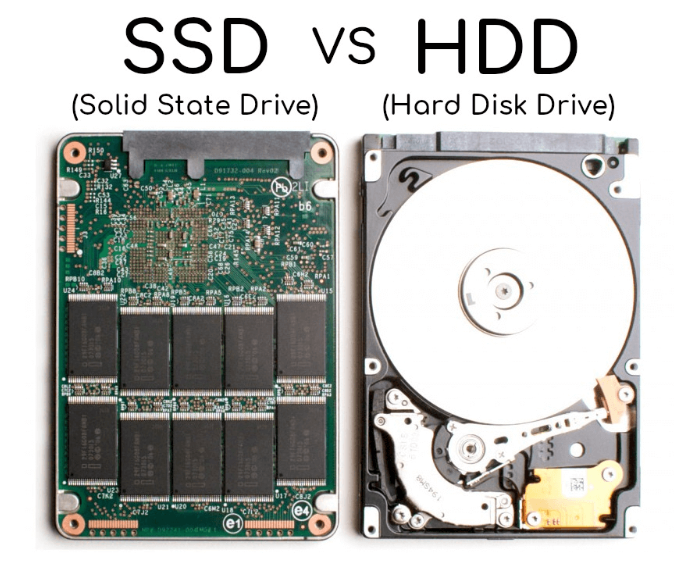
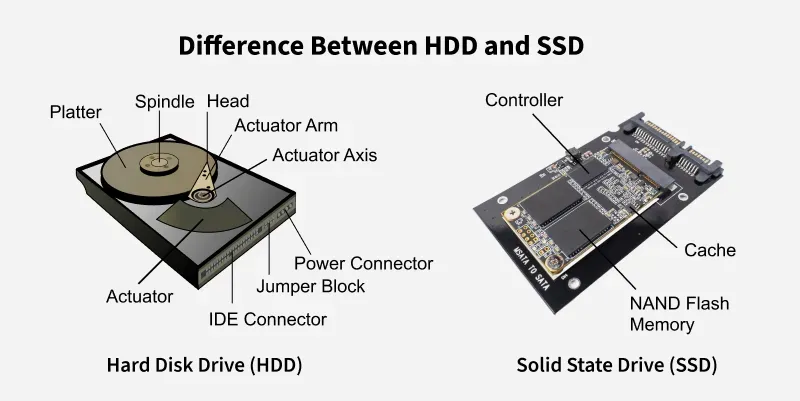
Real Example of HDD and SSD
- A real example of HDD (Hard Disk Drive) is a Seagate 1TB HDD used in desktop computers. It is commonly used to store movies, photos, games, and operating systems in older or budget PCs. For example, many office computers still use a 1TB Seagate or Western Digital HDD for storage.
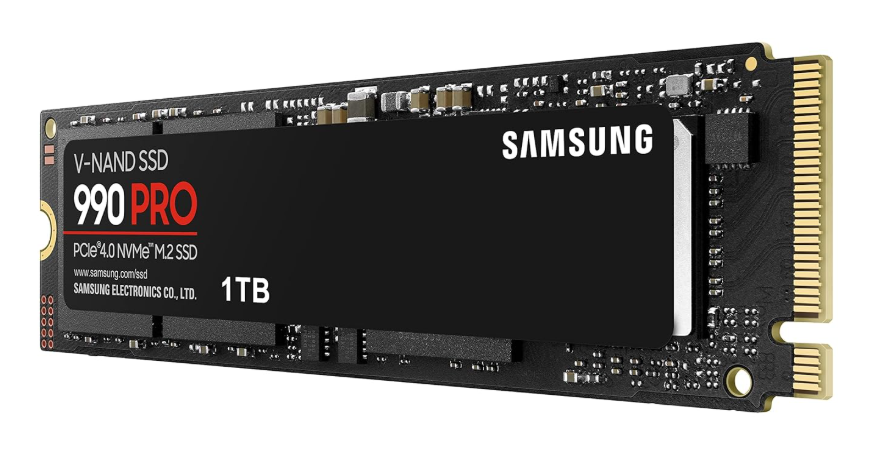
- A real example of SSD (Solid State Drive) is a Samsung 970 EVO Plus 500GB NVMe SSD used in modern laptops and gaming PCs. It is used to install Windows and software so that the system can start within a few seconds and run very fast.
- Another example is Kingston A400 240GB SSD, which is widely used in desktop upgrades to replace HDD and improve system speed.
👉 In simple words:
- HDD example = Seagate / WD 1TB hard disk (slow but large storage)
- SSD example = Samsung / Kingston SSD (fast and modern storage)
HDD vs SSD Speed:
HDD (Hard Disk Drive):
HDDs are much slower because they use spinning magnetic disks and a moving read/write head. Their typical speed ranges from about 80 to 160 MB/s. This means copying large files, booting Windows, or loading games takes more time. Performance can also slow down further when the disk becomes fragmented or nearly full.
SSD (Solid State Drive):
SSDs are much faster because they use flash memory with no moving parts. A basic SATA SSD can reach 450 to 600 MB/s, while NVMe SSDs can go from 2000 to 7000+ MB/s. This makes the system feel very responsive, with fast boot times, quick app loading, and smooth file transfers.
Comparison summary:
In real-world use, SSDs are typically 5× to 50× faster than HDDs, depending on the type. This difference is especially noticeable in startup time, gaming load screens, and heavy software usage.
Price of HDD vs SSD:
HDD (Hard Disk Drive):
HDDs are much cheaper per GB because the technology is older and uses mechanical parts. In general, a 1TB HDD costs around ₹2,500 – ₹3,500 in India. Even higher capacities like 2TB or 4TB are still relatively affordable, making HDDs a good choice for bulk storage like movies, backups, and large files.
SSD (Solid State Drive):
SSDs are more expensive because they are faster and use flash memory. A 1TB SATA SSD usually costs around ₹4,500 – ₹7,000, while a 1TB NVMe SSD can cost ₹5,500 – ₹10,000 or more depending on speed and brand. Smaller capacities like 256GB or 512GB are cheaper but still cost more than HDD for the same space.
Comparison summary:
Overall, HDDs are the budget-friendly option for large storage, while SSDs are the premium option for speed and performance, costing roughly 1.5× to 3× more per GB than HDDs
Here is a clear HDD vs SSD comparison table:
| Feature | HDD (Hard Disk Drive) | SSD (Solid State Drive) |
|---|---|---|
| Speed | Slow (≈ 80–160 MB/s) | Very fast (≈ 500 MB/s to 7000+ MB/s) |
| Price per GB | Low (cheap storage) | Higher |
| Durability | Lower (moving parts) | High (no moving parts) |
| Noise | Audible spinning noise | Silent |
| Power Consumption | Higher | Lower |
| Heat Generation | More heat | Less heat |
| Lifespan | Good, but mechanical wear | Very good (limited write cycles) |
| Boot Time (OS) | Slow (30–90 sec typical) | Fast (5–15 sec typical) |
| Best Use | Backup, bulk storage | OS, gaming, apps, performance tasks |
What is M.2 & How Works
What is M.2?
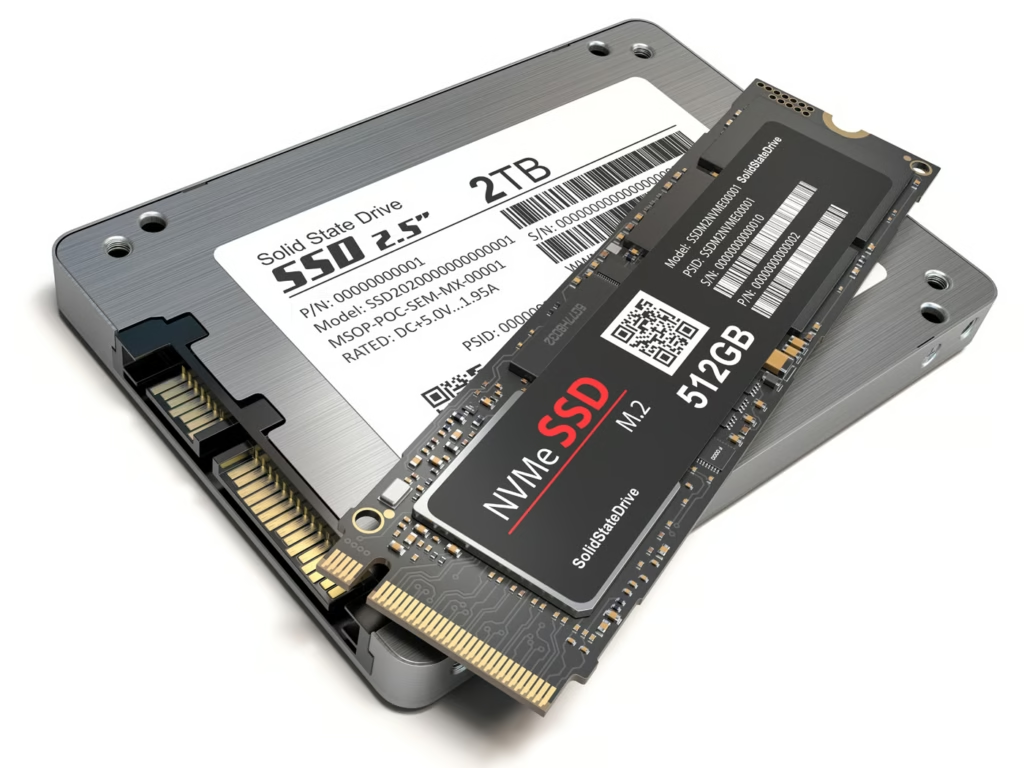
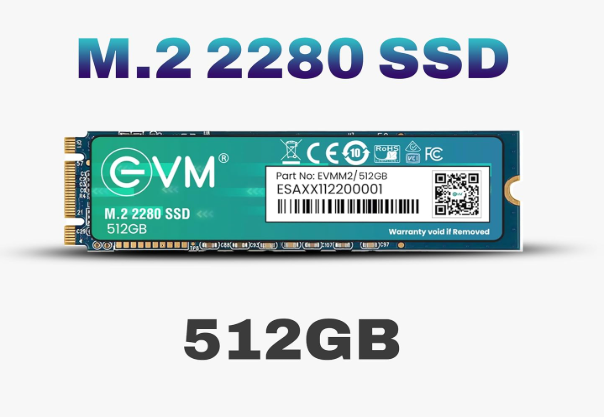
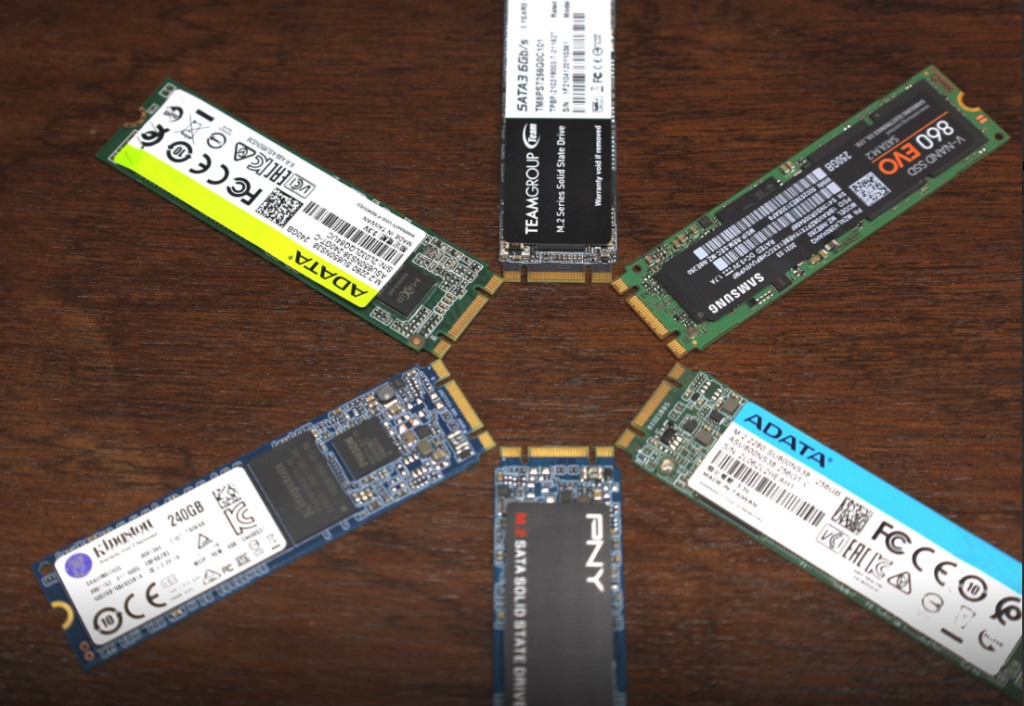
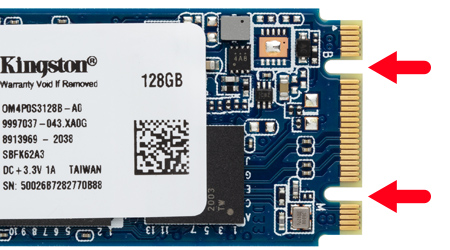
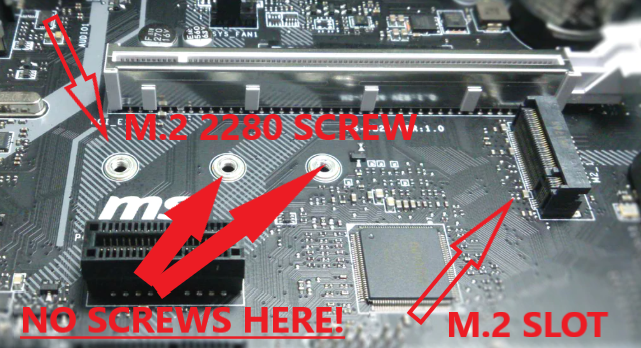
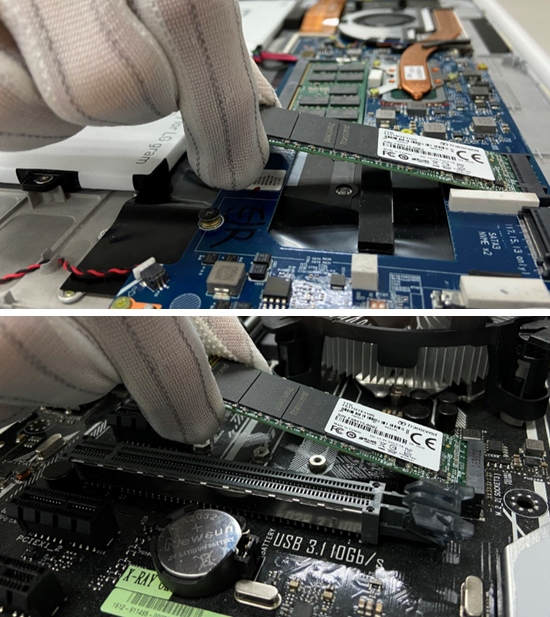
- M.2 is a storage form factor used in modern computers and laptops. It is a very small and slim slot on the motherboard where SSDs are directly installed. Unlike traditional hard drives or 2.5-inch SSDs, M.2 drives do not need cables, which makes the system cleaner and more compact.
- M.2 SSDs are mainly used for high-speed storage. They are commonly found in laptops, gaming PCs, and ultrabooks because they provide much faster data transfer compared to HDDs and older SSD types. This helps in quick booting, fast application loading, and smooth system performance.
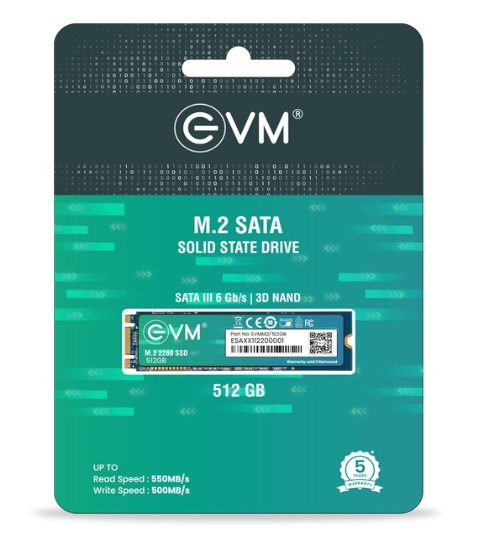
There are two main types of M.2 SSDs: SATA and NVMe. M.2 SATA SSDs are similar in speed to regular SATA SSDs, while M.2 NVMe SSDs are much faster because they use the PCIe interface. NVMe drives are currently the fastest storage option available for consumer PCs.
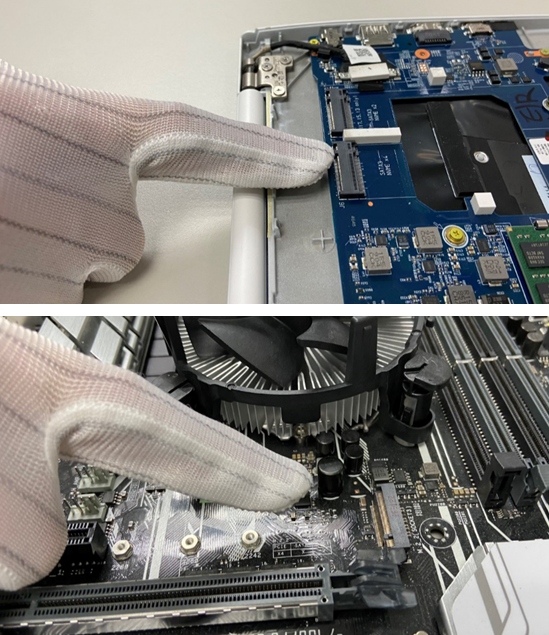
How M.2 SSD Works ?
- M.2 SSD works using flash memory to store data digitally. Unlike HDDs, it has no moving parts. All data is stored in memory chips, which allows very fast access and transfer of files.
- When you open a file or start your computer, the M.2 SSD quickly sends data to the CPU. It connects directly to the motherboard through the M.2 slot, so data does not need to travel through cables, making the process faster and more efficient.
- M.2 NVMe SSDs use the PCIe lane for communication. This is a high-speed pathway inside the motherboard that allows very large amounts of data to move at once. This is why NVMe M.2 SSDs are much faster than SATA SSDs.
- In simple terms, M.2 SSD works like a very fast digital storage chip that instantly reads and writes data. It improves boot time, app loading, and overall system performance significantly
Real Example of M.2 SSD:
Example 1 (Laptop):
A modern laptop like an HP Pavilion or Dell Inspiron may use a 512GB M.2 NVMe SSD. When you press the power button, Windows can start in 5–10 seconds because the M.2 SSD quickly loads system files.
Example 2 (Gaming PC):
A gaming PC may use a 1TB M.2 NVMe SSD (like Samsung 970 EVO or WD Black SN770). Games like GTA V or Call of Duty load in a few seconds instead of 1–2 minutes like HDD.
Example 3 (File Transfer):
If you copy a 10GB video file:
- HDD → takes several minutes
- M.2 NVMe SSD → finishes in seconds to under a minute
Simple real-life idea:
M.2 SSD works like a “super-fast memory lane” inside your computer that helps everything open and run quickly.
Difference between SSD and M.2
SSD (Solid State Drive):
SSD is a type of storage device that uses flash memory to store data. It is faster than HDD and has no moving parts. SSD is a general category of storage, and it comes in different shapes like 2.5-inch SATA SSD and M.2 SSD.
M.2:
M.2 is not a storage type. It is a form factor (shape/slot) used to connect SSDs directly to the motherboard. M.2 SSDs can be either SATA or NVMe, and they are usually smaller and faster.
SSD (Solid State Drive):
- SSD is a storage device that stores data using flash memory instead of mechanical parts.
- It is much faster than traditional HDDs in reading and writing data.
- SSDs come in different types such as 2.5-inch SATA SSD and M.2 SSD.
- It improves system speed, boot time, and application loading.
- SSD uses cables (in SATA version) or direct slot connection (in M.2 version).
- It is more expensive than HDD but gives better performance.
- SSD is widely used in laptops, desktops, and gaming systems.
M.2:
- M.2 is a modern form factor (physical shape and slot type) used for storage devices.
- It connects directly to the motherboard without any cables.
- M.2 SSDs can be SATA (moderate speed) or NVMe (very high speed).
- It is smaller and more compact compared to traditional SSDs.
- It is commonly used in modern laptops and gaming PCs for high performance.
- The speed of M.2 depends on the type of SSD (SATA or NVMe), not just the M.2 slot itself.
- It helps in building slim, lightweight, and fast systems.
What is M.2 & How Works
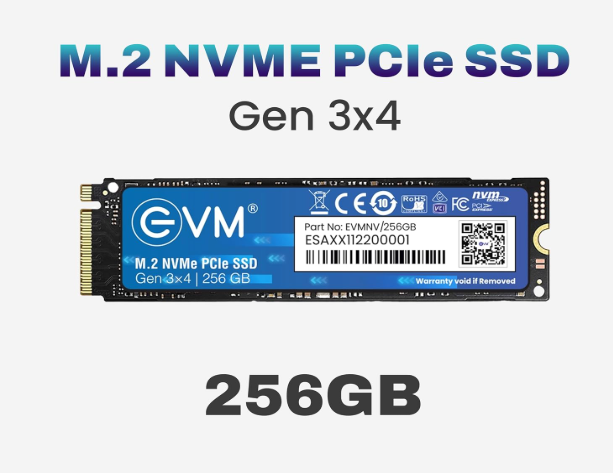
What is NVMe?
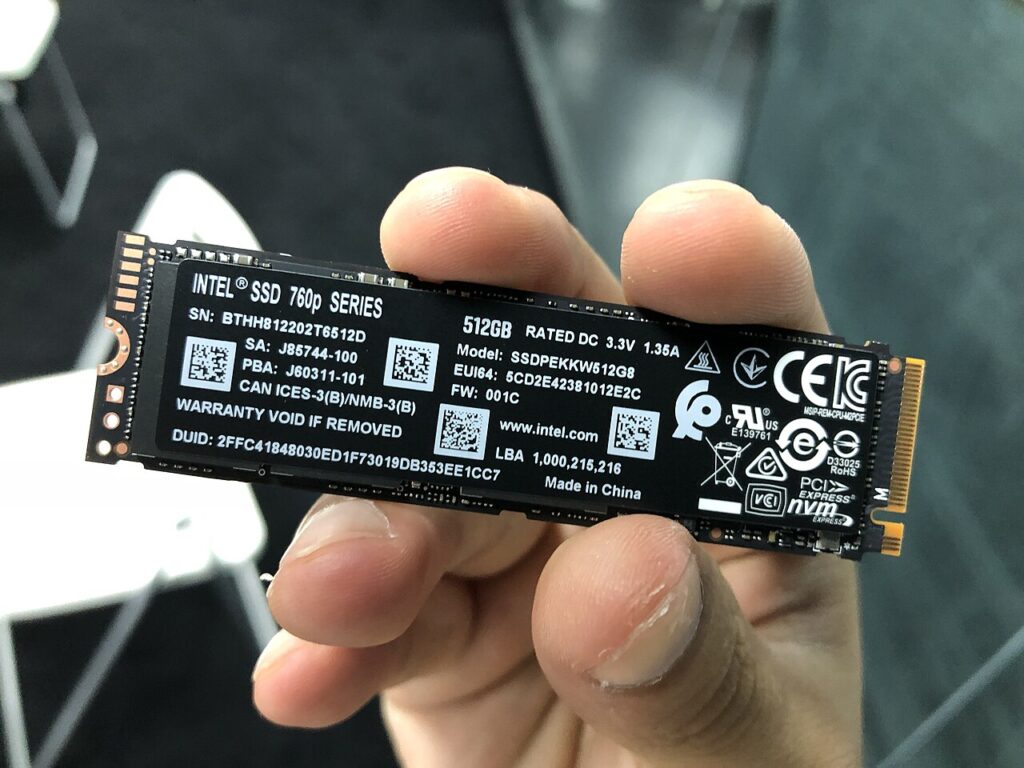
- NVMe (Non-Volatile Memory Express) is a modern storage communication technology used in high-speed SSDs. It is designed to transfer data between storage and the CPU in a much faster and more efficient way compared to older technologies like SATA.
- NVMe works by using PCIe (PCI Express) lanes on the motherboard. These lanes are high-speed pathways that allow data to move directly between the SSD and the processor. Because of this direct connection, NVMe reduces delay (latency) and increases overall performance.
- NVMe is commonly used in M.2 SSDs. It is one of the main reasons why modern M.2 NVMe SSDs are much faster than traditional SATA SSDs. This makes computers boot quickly, open applications instantly, and handle large files smoothly.
- In simple terms, NVMe is not a storage device, but a speed technology/protocol. It makes SSDs extremely fast by improving how data is transferred inside the computer.
How NVMe M.2 Works?
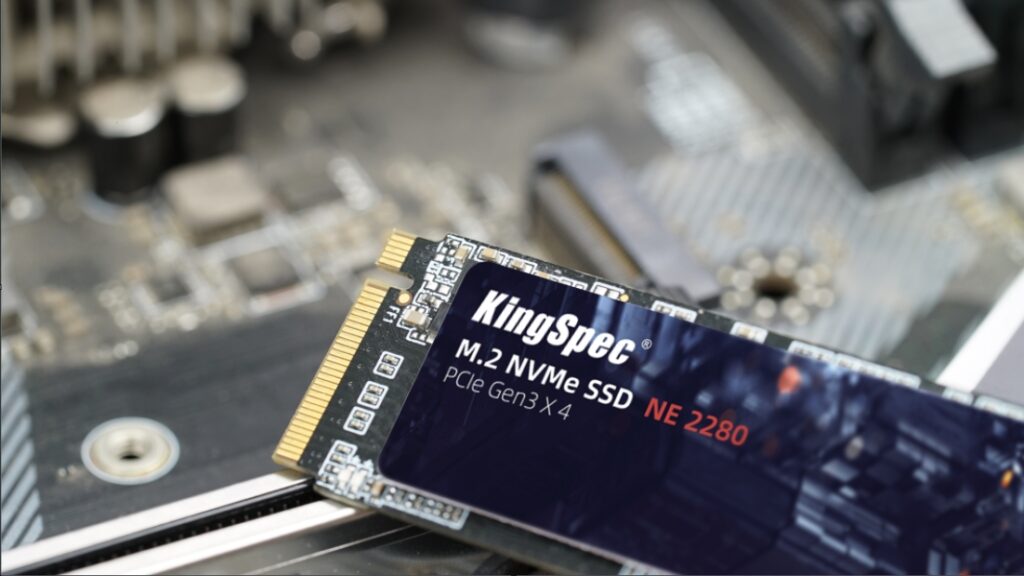
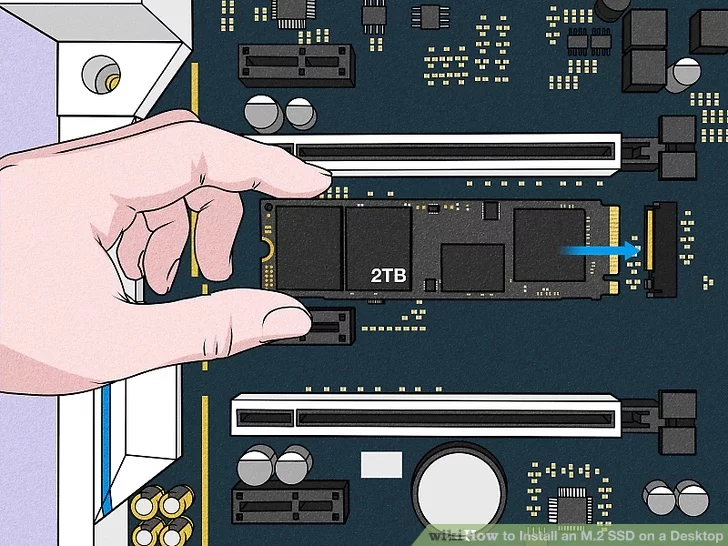
- NVMe M.2 SSD works by storing data in flash memory chips and connecting directly to the motherboard through the M.2 slot. It does not use cables or moving parts, which makes it compact and very fast.
- When the system needs data (like opening a file or starting Windows), the NVMe SSD quickly sends that data to the CPU using PCIe lanes. These lanes are high-speed pathways that allow much more data to move at the same time compared to older SATA connections.
- NVMe is the protocol that controls how data is transferred, while M.2 is the physical slot. Together, they create a very fast storage system where communication between storage and processor is highly efficient and has very low delay (latency).
- In simple terms, NVMe M.2 works like a direct high-speed road between storage and CPU, allowing your computer to load everything very quickly.
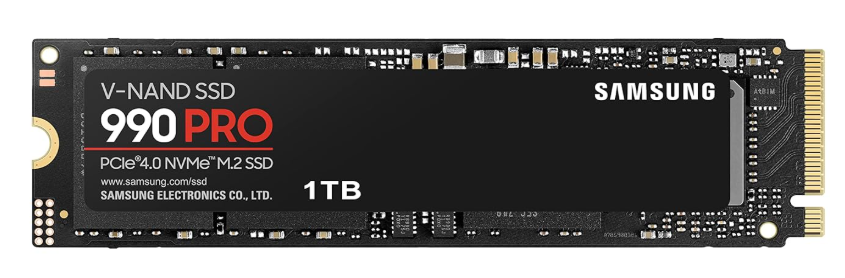
What is PCIe Lane?
PCIe lane (Peripheral Component Interconnect Express lane) is a high-speed data pathway inside a computer that connects components like SSDs, graphics cards, and other devices to the CPU.
How it works
- Each PCIe lane acts like a small road for data. Data travels between the device (like an SSD or GPU) and the processor through these lanes. The more lanes a device has, the more data it can send and receive at the same time.
- PCIe lanes are grouped in sets like x1, x4, x8, and x16. For example, an M.2 NVMe SSD usually uses 4 lanes (x4), while a graphics card often uses 16 lanes (x16) for maximum performance.
- More lanes = higher speed. This is why NVMe SSDs are much faster than SATA SSDs, because SATA uses a slower single connection, while NVMe uses multiple PCIe lanes.
Simple Example:
- PCIe x1 → small data speed (basic devices)
- PCIe x4 → used in NVMe SSDs
- PCIe x16 → used in graphics cards
Difference Between SSD, M.2 SATA, and NVMe
SSD vs M.2 SATA vs NVMe
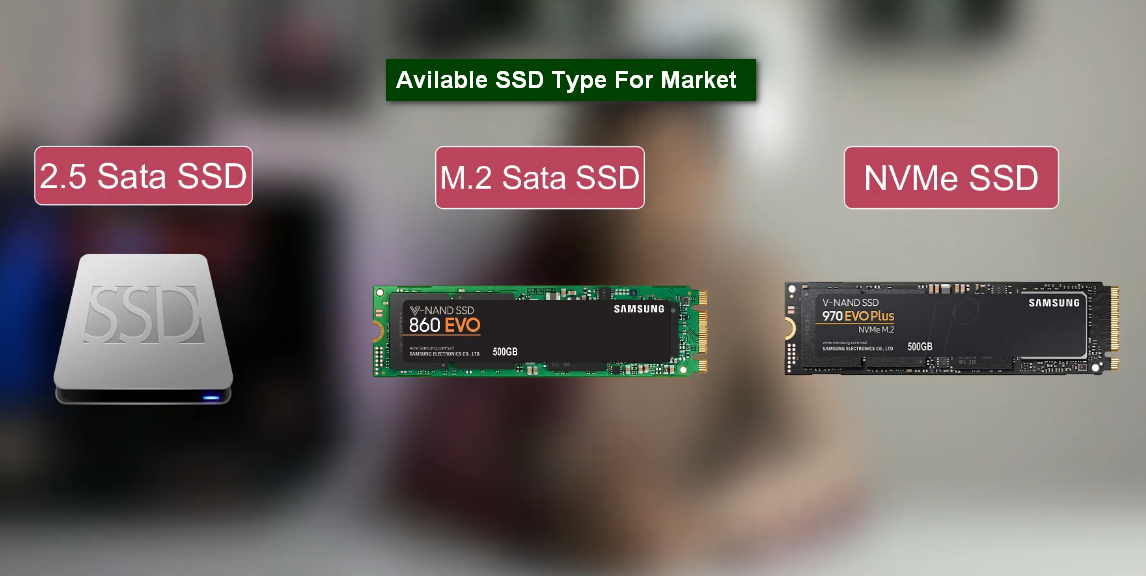
SSD (Solid State Drive):
SSD is a storage device that stores data using flash memory. It is much faster than HDD because it has no moving parts. “SSD” is a general name for modern fast storage devices. SSDs can use different connection types like SATA or NVMe.
M.2 SATA SSD:
M.2 SATA SSD is an SSD that uses the small M.2 slot on the motherboard but still works with SATA technology. Even though it looks modern and compact, its speed is similar to a normal 2.5-inch SATA SSD. It usually gives speeds around 500–600 MB/s.
Example:
Good for normal office work, studying, browsing, and regular gaming.
M.2 NVMe SSD:
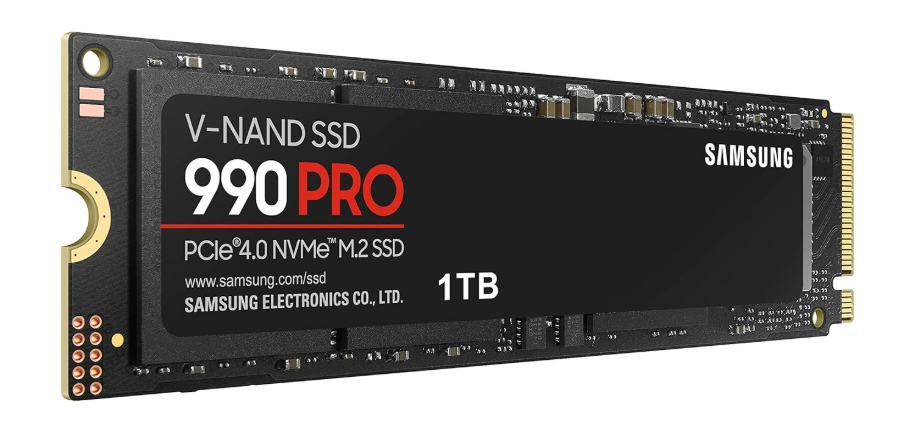
M.2 NVMe SSD also uses the M.2 slot, but it works with NVMe technology through PCIe lanes. This allows data to move much faster than SATA. NVMe SSDs can reach speeds of 2000–7000+ MB/s, making them the fastest storage devices for consumer PCs.
Example:
Best for gaming, video editing, programming, and heavy software work.
Difference Between SSD, M.2 SATA, and NVMe
| Feature | SSD (General) | M.2 SATA SSD | M.2 NVMe SSD |
|---|---|---|---|
| Meaning | Storage technology | M.2 form with SATA speed | M.2 form with NVMe speed |
| Connection | SATA or M.2 | M.2 slot | M.2 slot |
| Speed | Faster than HDD | Around 500–600 MB/s | Around 2000–7000+ MB/s |
| Protocol | SATA/NVMe | SATA | NVMe (PCIe) |
| Performance | Good | Medium-fast | Extremely fast |
| Cables Needed | Sometimes yes | No | No |
| Best Use | Normal PC use | Everyday fast computing | Gaming, editing, heavy tasks |
What is SMPS & How Works
What is SMPS (Switched-Mode Power Supply)?
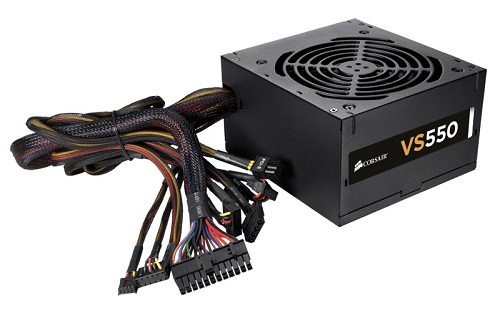
- SMPS is the power supply unit (PSU) of a computer that converts electricity from the wall socket into usable power for computer components. It supplies the correct voltage and current to parts like the motherboard, CPU, graphics card, HDD, SSD, and fans.
- The electricity from a wall socket is high-voltage AC (Alternating Current), but computer parts need low-voltage DC (Direct Current). The SMPS converts AC power into stable DC power safely and efficiently.
SMPS also controls and distributes power to different computer components. For example:
- 12V → CPU, GPU, fans
- 5V → USB devices, storage devices
- 3.3V → motherboard circuits
Modern SMPS units are energy-efficient and include safety protections. They protect the PC from problems like overheating, over-voltage, short circuits, and power fluctuations.
Main Functions of SMPS:
- Converts AC power to DC power
- Supplies power to all PC parts
- Controls voltage and current
- Protects the computer from electrical damage
Simple Line:
SMPS is the “power heart” of a computer that provides safe electricity to every component.
How SMPS Works ?
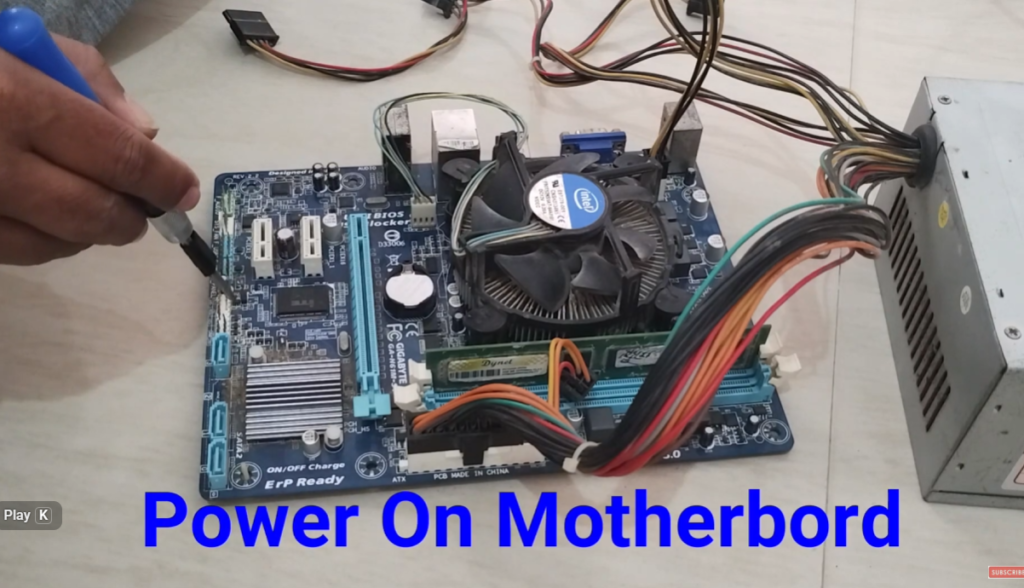
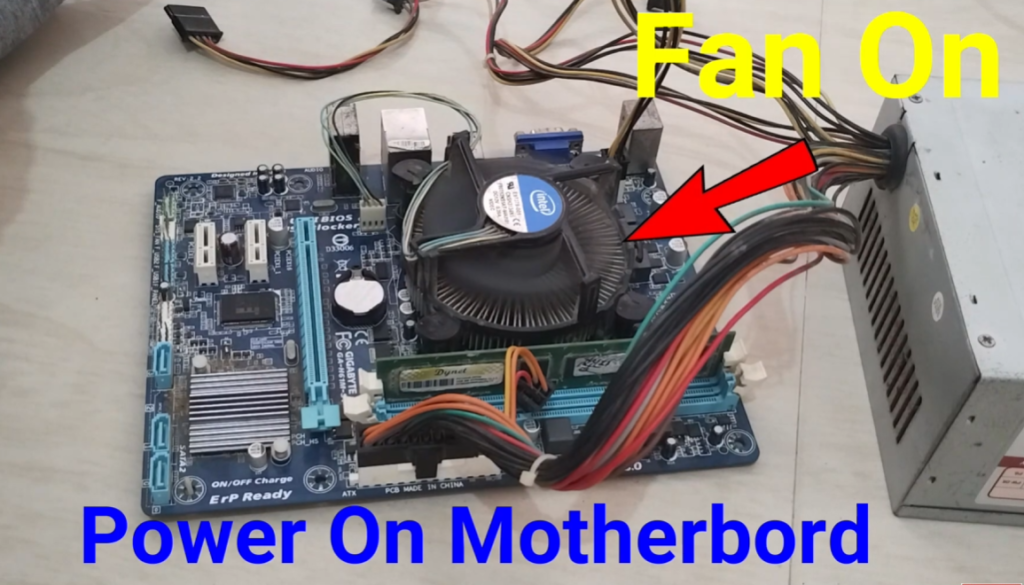
- SMPS (Switched-Mode Power Supply) works by converting high-voltage AC electricity from the wall socket into low-voltage DC electricity required by the computer. Computer components cannot use direct wall power, so the SMPS changes and controls the power safely.
- First, the SMPS receives AC power from the main electric supply. Inside the SMPS, the AC current is converted into DC current using electronic components like rectifiers and capacitors.
- Then the SMPS switches the power at very high speed using transistors. This high-speed switching helps reduce heat and improve power efficiency. After that, transformers and filters adjust the voltage into different levels like 12V, 5V, and 3.3V.
- Finally, the SMPS sends the correct power to different computer parts.
- For example:
- CPU and GPU use mainly 12V
- SSD/HDD and USB devices use 5V
- Motherboard circuits use 3.3V
- SMPS also includes protection systems. It can stop damage from overheating, short circuits, over-voltage, or power fluctuations.
What is SMPS Watt
What is SMPS Watt?
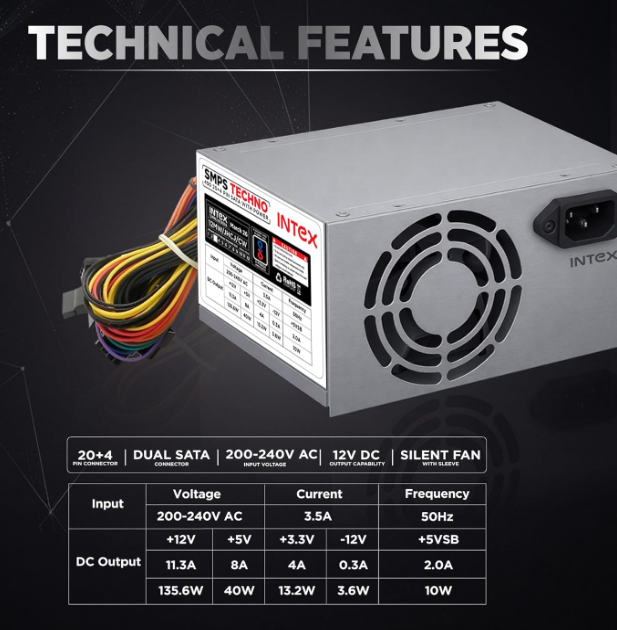
- SMPS watt refers to the amount of electrical power a power supply unit can deliver to the computer components. It is measured in watts (W). The watt rating shows the maximum power capacity of the SMPS.
- Every component inside a computer uses electricity. The processor (CPU), graphics card (GPU), motherboard, RAM, SSD, HDD, cooling fans, and other devices all consume power while the system is running. The SMPS provides this required power to each component safely.
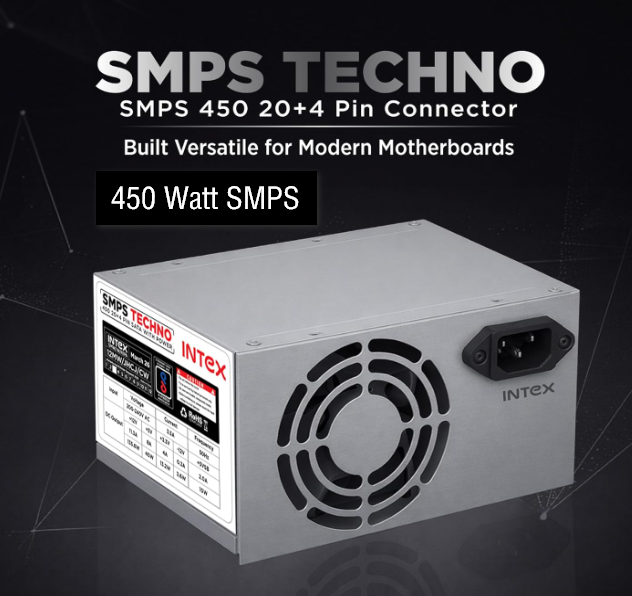
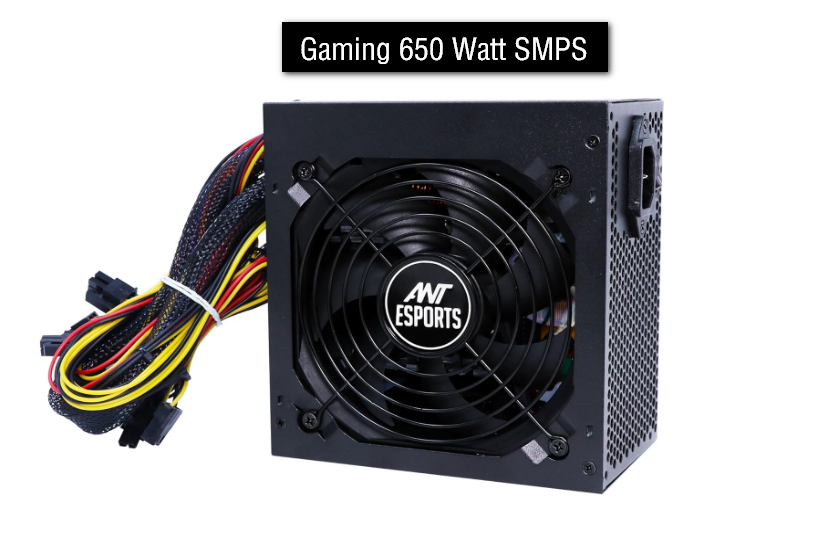
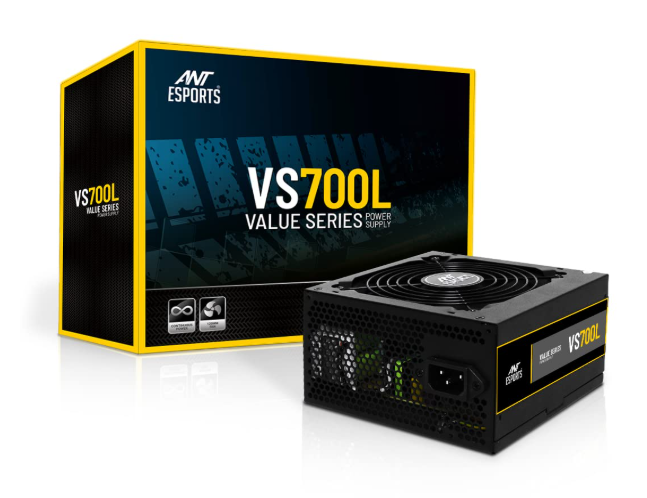
- A higher watt SMPS can support more powerful hardware. For example, a basic office computer may work properly with a 450W SMPS, while a gaming PC with a powerful graphics card may require 650W, 750W, or more.
- Choosing the correct wattage is important for system stability and safety. If the SMPS watt is too low, the computer may crash, restart, or fail to power high-end components properly. Using a slightly higher watt SMPS also helps with future upgrades.
- In simple terms, SMPS watt tells how much total power the power supply can give to the computer.
- SMPS watt indicates the maximum amount of electrical power the power supply unit can deliver to the computer.
- It is measured in watts (W), such as 450W, 550W, 650W, or 750W.
- The SMPS provides power to all computer components including CPU, GPU, motherboard, RAM, SSD, HDD, and cooling fans.
- Different computer parts consume different amounts of power depending on their performance level.
- A higher watt SMPS can support more powerful hardware and advanced gaming components.
- Basic office or home PCs usually require lower wattage like 300W–450W.
- Gaming PCs and video editing systems often require 550W–850W or higher.
- If the SMPS watt is too low, the computer may crash, restart, freeze, or fail to boot properly.
- Using a slightly higher watt SMPS helps improve system stability and allows future hardware upgrades.
- Modern SMPS units are more power efficient and include safety protections against overheating and short circuits.
- A good quality SMPS is important for stable computer performance and hardware safety.
What is Bronze Certified SMPS
What is Bronze Certified SMPS?
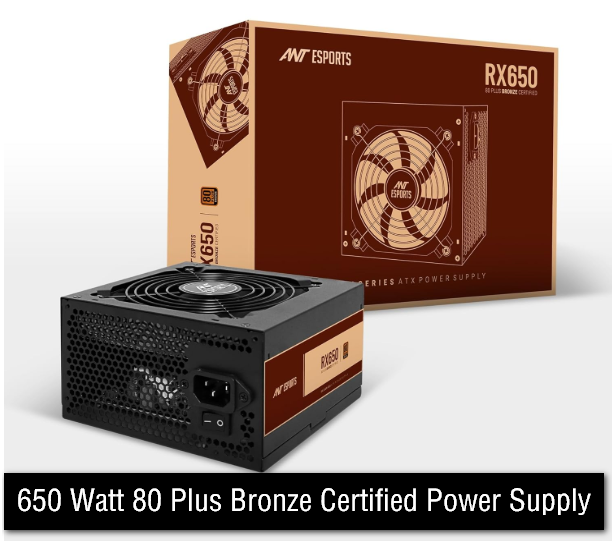
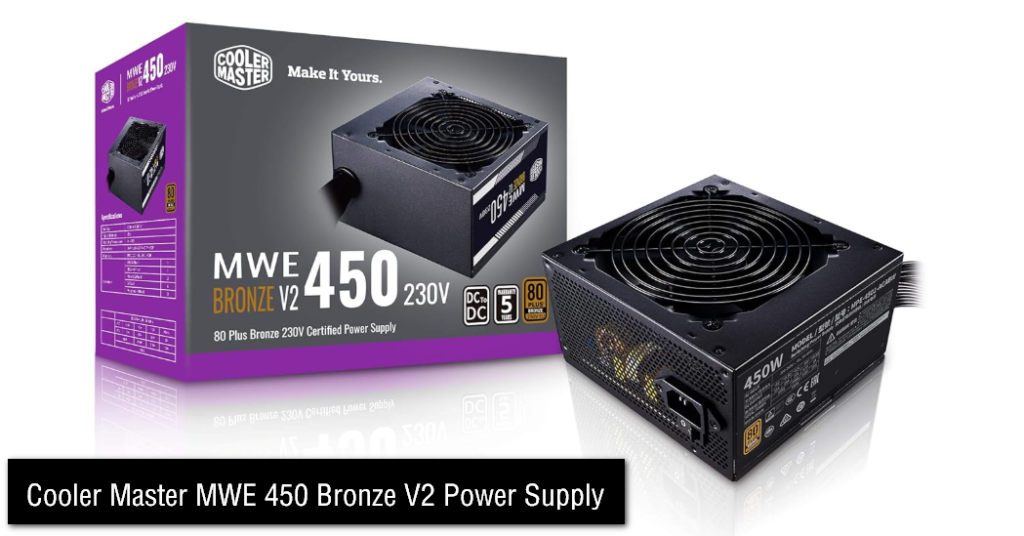
- A Bronze Certified SMPS is a power supply unit that has received the “80 Plus Bronze” efficiency certification. This certification shows that the SMPS can convert electrical power efficiently with less energy waste.
- When electricity comes from the wall socket, some power is normally lost as heat during conversion from AC to DC. A Bronze certified SMPS reduces this power loss and uses electricity more efficiently than normal non-certified power supplies.
- An 80 Plus Bronze SMPS is usually around 82%–85% efficient depending on the load. This means most of the electricity is converted into usable power for the computer, while less energy is wasted as heat.
- Because of better efficiency, Bronze certified SMPS units produce less heat, consume less electricity, and provide more stable power to computer components. This improves system reliability and is especially useful for gaming PCs and systems that run for long hours.
- Bronze certification is one level in the 80 Plus rating system. Higher levels include Silver, Gold, Platinum, and Titanium, which offer even better efficiency and performance.
- In simple terms, a Bronze certified SMPS is a safer and more energy-efficient power supply for computers.
Silver, Gold, Platinum SMPS (80 Plus)
80 Plus Silver SMPS:
Silver certified SMPS is more efficient than Bronze. It converts more electricity into usable power and wastes less energy as heat. It is usually around 85%–88% efficient. It is suitable for mid-range gaming PCs and reduces electricity loss compared to lower grades.
80 Plus Gold SMPS:
Gold certified SMPS is widely used in gaming and high-performance PCs. It is more efficient than Silver and Bronze, usually around 87%–92% efficiency. It produces less heat, saves more electricity, and provides stable power for powerful components like GPU and CPU.
80 Plus Platinum SMPS:
Platinum certified SMPS is a high-end power supply with very high efficiency, around 90%–94%. It wastes very little energy and produces minimal heat. It is used in premium gaming PCs, workstations, and professional systems where stability and efficiency are very important.
Simple Comparison:
- Silver → Good efficiency
- Gold → Better efficiency (most popular for gaming) 🎮
- Platinum → Very high efficiency (premium use)
SMPS 24-Pin Wire Color Code
SMPS 24-Pin Wire Color Code
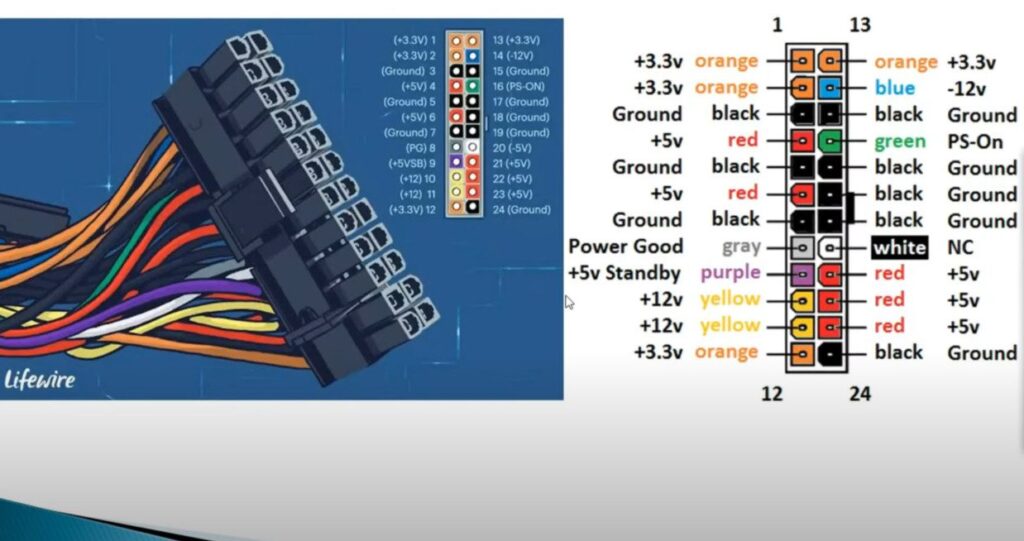
- The 24-pin SMPS connector is the main power cable that connects the power supply unit to the motherboard. It carries different wires, and each wire provides a specific voltage or signal needed for the computer to work properly.
- The orange wire carries +3.3V power. This voltage is mainly used for RAM, chipset, and low-power motherboard circuits that need stable low voltage to function correctly.
- The red wire provides +5V power. It is used for devices like USB ports, SSDs, HDDs, and other motherboard components that require medium-level power.
- The yellow wire carries +12V power. This is the most important high-power line and is used for the CPU, GPU, and cooling fans, which need more electricity to operate.
- The black wire is the ground (0V) wire. It completes the electrical circuit by returning current back to the SMPS safely.
- The purple wire provides +5V standby power. It keeps some parts of the system active even when the PC is off, allowing features like wake-on-keyboard or power button start.
- The blue wire provides -12V power. It is mainly used for older or legacy communication devices and is rarely used in modern computers.
- The gray wire sends a “Power Good” signal. It tells the motherboard that the power is stable and the system can safely start.
- The green wire is the PS_ON signal wire. When it is connected to ground, it tells the SMPS to turn ON and start supplying power.
- In simple terms, the 24-pin SMPS cable distributes different voltages and control signals to safely run and start the entire computer system.
- 🟠 Orange wire: +3.3V → RAM, chipset, motherboard logic
- 🔴 Red wire: +5V → USB ports, HDD, SSD, motherboard parts
- 🟡 Yellow wire: +12V → CPU, GPU, fans (high power)
- ⚫ Black wire: Ground (0V) → completes circuit
- 🟣 Purple wire: +5V Standby → wake/sleep power function
- 🔵 Blue wire: -12V → old/legacy serial devices (rare use)
- ⚪ Gray wire: Power Good signal → tells motherboard power is stable
- 🟢 Green wire: PS_ON signal → turns SMPS ON when connected to ground
What is RAM
- RAM (Random Access Memory) is one of the most important components of a computer. It is commonly called the computer’s “short-term memory.” RAM temporarily stores the data and programs that are currently being used by the system. The CPU directly accesses data from RAM because it is extremely fast. Without RAM, a computer cannot operate properly or efficiently.
- When you open a program such as a web browser, game, video editor, or Microsoft Word, the software is first loaded from the SSD or HDD into RAM. After that, the CPU reads the data from RAM and processes it. For example, if you open many tabs in a browser like Chrome, each tab uses some amount of RAM. If the system has low RAM, the browser may become slow, freeze, or reload tabs frequently.
- One of the most important characteristics of RAM is that it is temporary memory. This means all data stored in RAM is erased when the computer is turned off. RAM does not permanently save files such as photos, videos, or games. Permanent storage is handled by SSDs or HDDs, while RAM only keeps the data needed for active tasks.
- RAM is much faster than HDDs and even faster than SSDs. HDDs use mechanical parts and are slower, SSDs are much faster, but RAM is designed for extremely high-speed access because the CPU requires very fast memory for processing. This is why having more RAM improves multitasking and overall system smoothness.
- When a computer has insufficient RAM, several performance problems can occur. Applications may take longer to open, games can lag, the system may stutter or freeze, and multitasking becomes difficult. In such cases, Windows may use part of the SSD or HDD as “virtual memory” or a “page file.” However, storage drives are much slower than RAM, so performance decreases significantly.
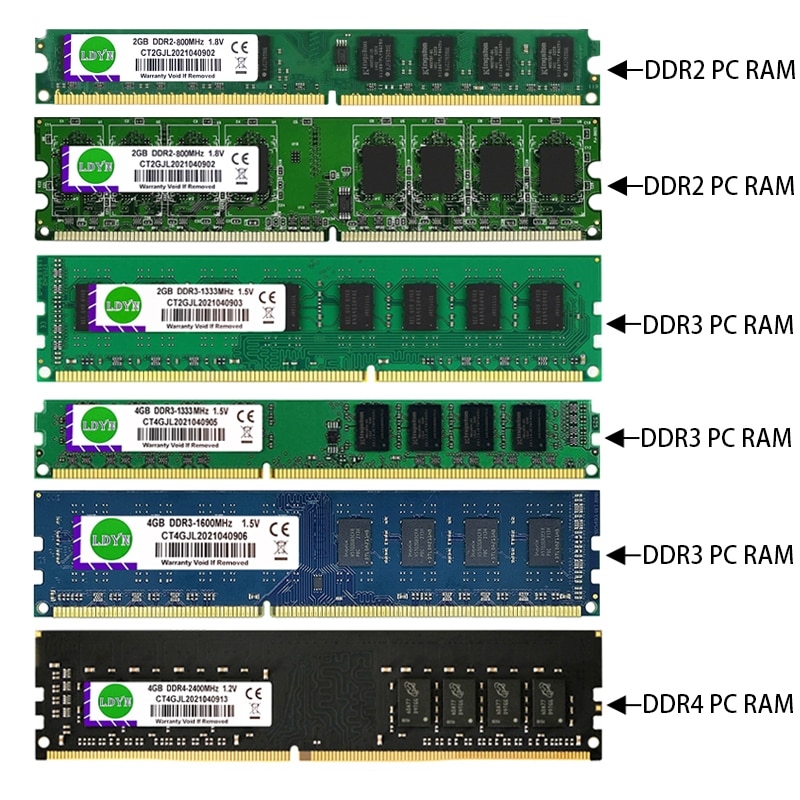
- There are different generations of RAM, such as DDR3, DDR4, and DDR5. Newer generations generally provide higher speed, better efficiency, and lower power consumption. DDR3 is older technology, DDR4 is still widely used, and DDR5 is the latest and fastest mainstream generation. The motherboard and CPU must support the specific RAM type being used.
- RAM speed is measured in MHz, such as 2400MHz, 3200MHz, or 5600MHz. Higher speed allows faster data transfer between RAM and the CPU. Capacity is also very important. Typically:
- 4GB RAM is suitable for basic tasks
- 8GB RAM is good for normal daily use
- 16GB RAM is ideal for gaming and heavy multitasking
- 32GB or more is used for professional workloads like video editing, virtualization, or advanced software development
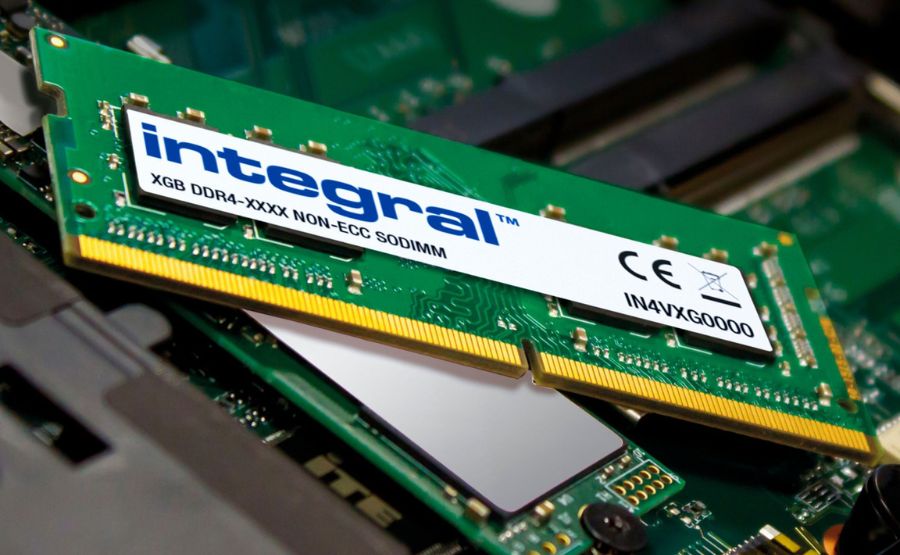
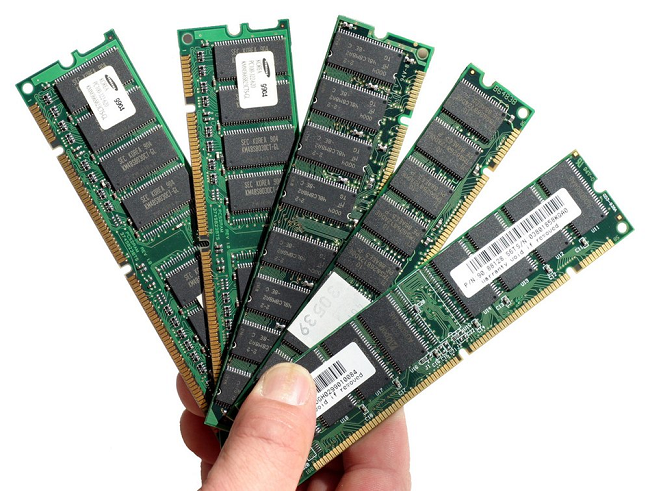
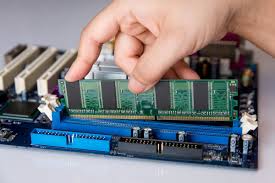
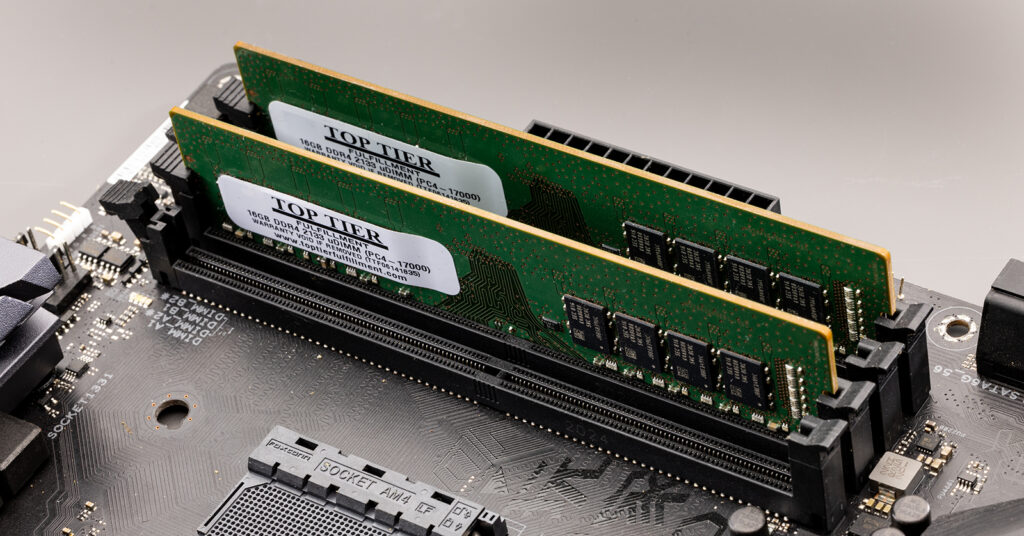
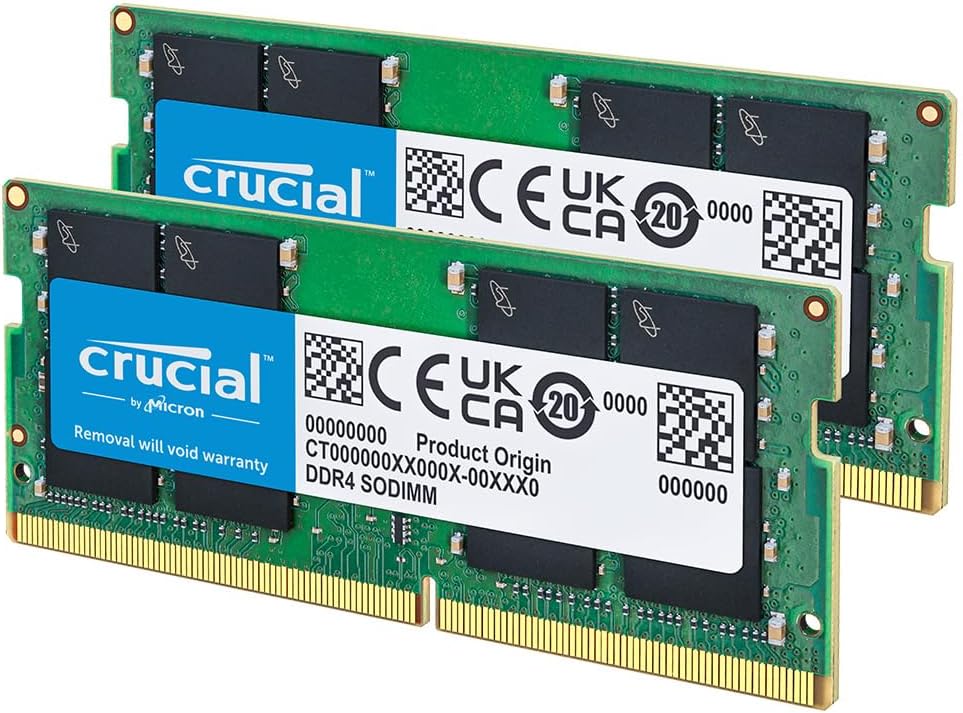
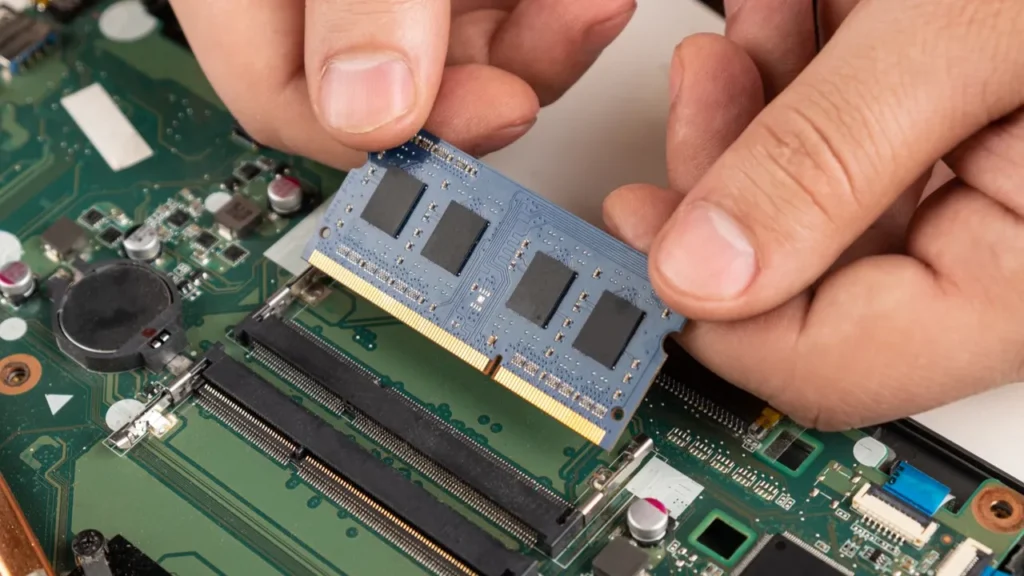
- Desktop computers usually use DIMM-type RAM modules, while laptops use smaller SO-DIMM modules. RAM is installed into dedicated RAM slots on the motherboard. Most motherboards contain two or four RAM slots depending on the model.
- Using two matching RAM sticks can enable dual-channel mode. In dual-channel operation, the CPU can access memory through two channels simultaneously, improving bandwidth and overall system performance. This is especially useful for gaming and high-performance applications.
- In simple terms, SSDs and HDDs act as permanent storage, while RAM acts like a temporary workspace for the CPU. Just as a person keeps important documents on a desk while working, the computer keeps active data in RAM so the CPU can access it quickly. The more RAM and the faster it is, the smoother and more responsive the computer will feel.
What is DDR?
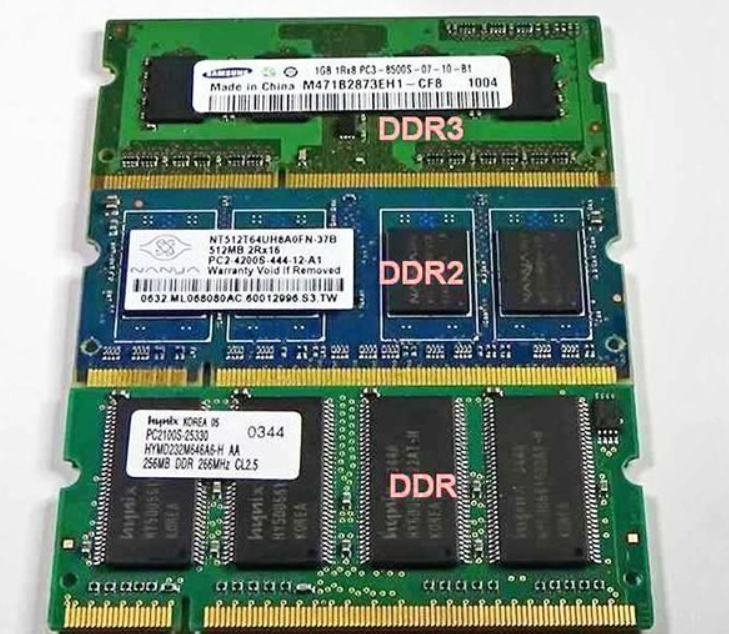
- DDR (Double Data Rate) is a type of RAM technology used in computers and laptops. It is called “Double Data Rate” because it can transfer data on both the rising and falling edges of the clock cycle, which makes it faster than older memory types.
- DDR RAM is used to temporarily store data that the CPU needs while running applications, games, or system processes. This helps the computer work smoothly and quickly by giving fast access to active data.
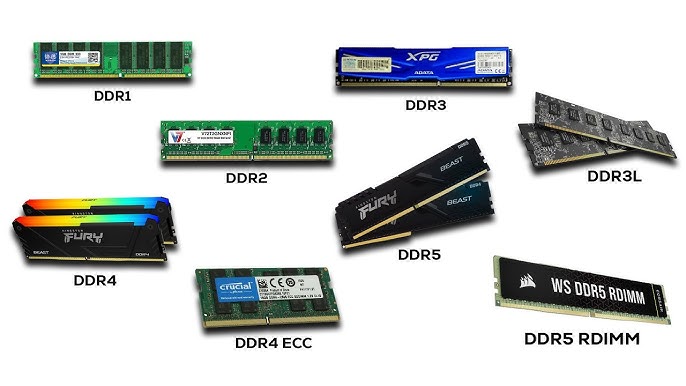
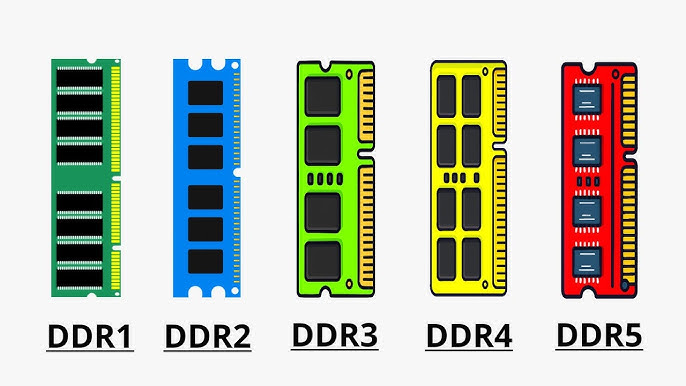
- There are different generations of DDR memory such as DDR1, DDR2, DDR3, DDR4, and DDR5. Each new generation improves speed, performance, and energy efficiency compared to the previous one.
- DDR memory is important because faster RAM directly improves multitasking, gaming performance, and overall system responsiveness.
- In simple terms, DDR is a type of RAM technology that helps the computer run faster by allowing quicker data transfer between memory and the processor.
What is RAM Pin?
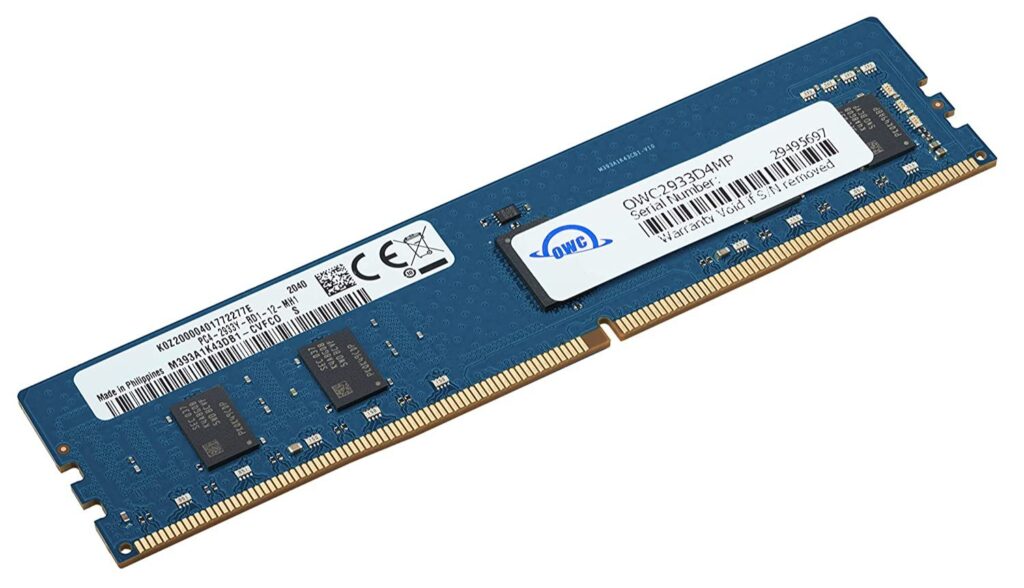
- RAM pins are the small gold contact points at the bottom of a RAM module that connect the RAM to the motherboard slot. These pins are responsible for transferring data between the RAM and the processor through the motherboard, allowing the computer to read and write information quickly.
- Different generations of RAM have different numbers of pins because each generation has improved speed and design. For example, DDR2 and DDR3 desktop RAM use 240 pins, DDR4 uses 288 pins, and DDR5 also uses 288 pins but with a different layout, so they are not interchangeable.
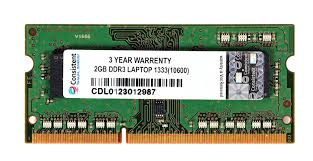
- Laptop RAM (SO-DIMM) has fewer pins compared to desktop RAM due to its smaller size. For example, DDR3 laptop RAM has 204 pins, DDR4 laptop RAM has 260 pins, and DDR5 laptop RAM has 262 pins.
- In simple terms, RAM pins are the connection points that allow communication between RAM and the motherboard, and each DDR generation has a different pin design to prevent incorrect installation.
- RAM pins are metal contact points that connect RAM to the motherboard
- They transfer data between RAM and CPU
- Each DDR generation has a different pin count and design
- DDR3 = 240 pins (desktop), DDR4 = 288 pins, DDR5 = 288 pins (different layout)
- Laptop RAM has fewer pins than desktop RAM
- Pins make sure RAM fits only in the correct slot
- Different pin designs prevent wrong installation
- RAM cannot work without proper pin connection
How Work Ram
- RAM works as a high-speed temporary memory between the CPU and storage devices like SSD or HDD. Its main job is to quickly provide data to the CPU whenever the computer needs it. Because RAM is much faster than storage drives, the CPU can process information quickly without waiting too long.
- When you turn on the computer, the operating system such as Windows is loaded from the SSD or HDD into RAM. After that, whenever you open a program, game, or browser, the required files are copied from storage into RAM. The CPU then reads instructions and data directly from RAM because accessing storage every time would be too slow.
- Inside RAM, data is stored in tiny electronic cells made from transistors and capacitors. Each cell stores binary values, either 0 or 1. Billions of these cells together form the memory space of the RAM module. Every memory location has its own address, so the CPU can quickly find and access specific data whenever needed.
- The term “Random Access” means the CPU can access any memory location directly and instantly, instead of reading data in sequence. This makes RAM extremely fast compared to older storage technologies.
- The memory controller, which is built into modern CPUs, manages communication between the CPU and RAM. When the CPU needs data:
- The CPU sends a request to the memory controller.
- The memory controller finds the correct address in RAM.
- RAM sends the requested data back to the CPU.
- The CPU processes the data.
This process happens billions of times every second while the computer is running.
RAM constantly changes its stored data depending on what programs are active. For example:
- Opening a game loads game textures, sounds, and code into RAM.
- Opening Chrome loads webpages and tabs into RAM.
- Editing a video loads video data into RAM for fast processing.
- If RAM becomes full, the operating system starts moving some data to virtual memory on the SSD or HDD. This is much slower, which is why computers become laggy when RAM usage is too high.
- Modern RAM such as DDR4 and DDR5 transfers data very quickly using high-frequency electrical signals. RAM speed is measured in MHz or MT/s. Faster RAM allows quicker communication with the CPU, improving system performance in many tasks.
- RAM also works together with cache memory. CPU cache is even faster but much smaller. Frequently used data moves from RAM into cache so the CPU can access it almost instantly.
What is Ram speed MHZ
- RAM MHz refers to the operating speed of the RAM. MHz stands for Megahertz, which means one million cycles per second. In simple terms, RAM MHz tells us how quickly the RAM can communicate with the CPU and transfer data inside the computer. The higher the MHz value, the faster the RAM can send and receive information. Faster RAM helps the CPU access data more quickly, which can improve overall system performance.
- When a computer is running, the CPU constantly requests data from RAM. RAM responds by sending the required information through electrical signals. The MHz rating shows how many times per second these operations can happen. For example, 2400MHz RAM works slower than 3200MHz RAM because the 3200MHz module can handle more data transfers in the same amount of time. This higher transfer speed reduces delays and helps programs run more smoothly.
- Modern RAM uses DDR technology, which stands for Double Data Rate. DDR RAM can transfer data twice during one clock cycle, making it much more efficient. Because of this, the advertised RAM speed is usually double the actual clock speed. For example, DDR4-3200 RAM does not physically run at 3200MHz internally. Its actual clock speed is around 1600MHz, but because data is transferred twice per cycle, the effective speed becomes 3200MT/s (Mega Transfers per second). People commonly call this “3200MHz RAM” for simplicity.
- RAM speed affects many computer tasks. Faster RAM can improve gaming performance, multitasking, video editing, rendering, and software loading times. In gaming, faster RAM can help increase FPS, especially in CPU-heavy games. Systems that use integrated graphics benefit even more because integrated GPUs use system RAM as video memory. Faster RAM allows the graphics processor to access data more quickly, improving graphics performance.
- However, RAM speed is not the only important factor. RAM capacity, measured in GB, is also very important. Capacity determines how much data can be stored temporarily, while MHz determines how quickly that data can move. For example, 16GB RAM running at 3200MHz can usually perform better in multitasking than 8GB RAM running at the same speed because it can hold more active data at once.
- RAM speed also depends on motherboard and CPU support. Every motherboard and processor has a maximum supported RAM speed. If you install RAM faster than what the motherboard supports, the RAM may automatically run at a lower speed. For example, if a motherboard supports only 2666MHz and you install 3200MHz RAM, the system may run the RAM at 2666MHz unless special settings such as XMP or EXPO are enabled in the BIOS.
- Different RAM generations support different speed ranges. DDR3 RAM usually operates around 1333MHz to 1866MHz. DDR4 commonly runs between 2400MHz and 3600MHz. DDR5 starts at much higher speeds such as 4800MHz and can exceed 6000MHz. Newer generations not only provide higher speed but also better efficiency and bandwidth.
- In simple terms, RAM MHz can be compared to the speed limit of a highway. RAM capacity (GB) is like the width of the road, while MHz is like the speed of the vehicles traveling on it. A wider road can handle more traffic, and faster vehicles move data more quickly. For the best computer performance, both sufficient RAM capacity and good RAM speed are important.
RAM Speeds (MHz)
DDR3 RAM Speeds:
800MHz DDR3
This is one of the earliest and slowest DDR3 RAM speeds. It was mainly used in very old desktop computers and laptops designed for basic office work, web browsing, and light applications. Modern software and operating systems feel slow with this RAM speed because data transfer rates are limited.
1066MHz DDR3
1066MHz DDR3 RAM provided slightly better performance than 800MHz memory and became common in older Intel Core 2 Duo and early AMD systems. It improved multitasking slightly, but today it is considered outdated for modern gaming or heavy software usage.
1333MHz DDR3
1333MHz became one of the most popular DDR3 RAM speeds for Windows 7-era computers. It offered decent performance for everyday tasks such as watching videos, browsing the internet, Microsoft Office work, and light gaming. Many budget gaming PCs used this speed during the early 2010s.
1600MHz DDR3
1600MHz DDR3 RAM became the standard for performance-oriented DDR3 systems. It provided better memory bandwidth and improved gaming, multitasking, and application loading speeds. Many gaming computers with Intel 3rd and 4th generation processors used 1600MHz RAM.
1866MHz DDR3
1866MHz DDR3 was considered high-performance memory for enthusiast users. It allowed faster communication between the CPU and RAM, improving gaming FPS and rendering performance in some workloads. It was commonly used in premium gaming systems and workstations.
2133MHz DDR3
2133MHz was among the highest common DDR3 speeds available before DDR4 became mainstream. This speed was mostly used by enthusiasts, overclockers, and high-end gaming users who wanted maximum DDR3 performance. It required motherboard and CPU support to run properly.
DDR4 RAM Speeds:
2133MHz DDR4
2133MHz was the first standard speed introduced with DDR4 RAM technology. Even though it had the same number as high-end DDR3 RAM, DDR4 was more efficient and offered better bandwidth. This speed was mostly used in early DDR4 systems.
2400MHz DDR4
2400MHz DDR4 became a common speed for office PCs and entry-level gaming systems. It offered good performance for normal computer usage, including web browsing, media playback, and moderate multitasking.
2666MHz DDR4
2666MHz DDR4 became extremely popular because many Intel processors officially supported this speed. It provided balanced performance for gaming, productivity, and everyday computing while remaining affordable.
2933MHz DDR4
2933MHz RAM improved memory transfer speed further and became common in systems designed for heavier multitasking and better gaming performance. Some AMD Ryzen systems especially benefited from faster RAM speeds.
3000MHz DDR4
3000MHz DDR4 was widely used in gaming computers because it offered better performance without becoming too expensive. Faster memory helped improve communication between the CPU and RAM, which slightly increased gaming FPS in CPU-intensive games.
3200MHz DDR4
3200MHz DDR4 became one of the most recommended RAM speeds for modern gaming PCs. It provided an excellent balance between cost, stability, and performance. Many Intel and AMD systems perform very efficiently at this speed.
3600MHz DDR4
3600MHz DDR4 is considered high-performance memory and is especially popular with AMD Ryzen processors. Faster RAM at this speed improves memory latency and bandwidth, which helps gaming, content creation, and heavy multitasking workloads.
4000MHz DDR4
4000MHz DDR4 belongs to enthusiast-level memory. This speed is mainly used by advanced gamers, overclockers, and professionals who want maximum memory performance. Running RAM at this speed often requires motherboard tuning and XMP profiles.
4266MHz and Higher DDR4
Speeds above 4266MHz are considered extreme DDR4 overclocking territory. These RAM kits are expensive and designed for enthusiasts who want benchmark-level performance. Stability and compatibility become more difficult at these speeds.
DDR5 RAM Speeds:
4800MHz DDR5
4800MHz is the base speed for DDR5 RAM and already offers much higher bandwidth than most DDR4 memory. It improves multitasking, gaming, and productivity performance significantly compared to older generations.
5200MHz DDR5
5200MHz DDR5 provides faster memory transfer rates and better responsiveness for modern applications. It is commonly used in mid-range DDR5 gaming and productivity systems.
5600MHz DDR5
5600MHz DDR5 became one of the most popular DDR5 speeds because it offers strong performance without extremely high cost. It works very well for gaming, streaming, video editing, and heavy multitasking.
6000MHz DDR5
6000MHz DDR5 is considered the “sweet spot” for many modern high-performance PCs, especially AMD Ryzen systems. It provides excellent bandwidth and low latency balance, helping gaming and productivity applications perform better.
6400MHz DDR5
6400MHz DDR5 is a high-end speed designed for enthusiast gaming systems and workstations. It offers faster communication between the CPU and RAM, improving performance in memory-intensive workloads.
7200MHz DDR5
7200MHz DDR5 is premium enthusiast-grade memory used in advanced gaming and professional systems. This speed provides extremely high bandwidth but requires strong motherboard and CPU support for stable operation.
8000MHz and Higher DDR5
RAM speeds above 8000MHz are mainly targeted at overclockers and extreme-performance enthusiasts. These kits are very expensive and require premium hardware, advanced BIOS tuning, and good cooling solutions.
- 800MHz DDR3 – Very old and very slow RAM used in outdated PCs.
- 1066MHz DDR3 – Basic old RAM for simple computing tasks.
- 1333MHz DDR3 – Common old RAM for light use and office work.
- 1600MHz DDR3 – Standard DDR3 speed for decent performance systems.
- 1866MHz DDR3 – Faster DDR3 used for better gaming and multitasking.
- 2133MHz DDR3 – Highest DDR3 speed for enthusiast old systems.
- 2133MHz DDR4 – Early DDR4 base speed, basic performance.
- 2400MHz DDR4 – Entry-level DDR4 for normal daily use.
- 2666MHz DDR4 – Popular stable RAM speed for general PCs.
- 2933MHz DDR4 – Slightly faster RAM for better multitasking.
- 3000MHz DDR4 – Good gaming RAM with improved performance.
- 3200MHz DDR4 – Most common and balanced gaming RAM speed.
- 3600MHz DDR4 – High-performance RAM, great for gaming and Ryzen CPUs.
- 4000MHz DDR4 – Enthusiast RAM for overclocking and heavy tasks.
- 4266MHz+ DDR4 – Extreme overclocked RAM for advanced users.
- 4800MHz DDR5 – Base DDR5 speed, faster than DDR4.
- 5200MHz DDR5 – Mid DDR5 speed for good modern performance.
- 5600MHz DDR5 – Popular balanced DDR5 gaming RAM.
- 6000MHz DDR5 – Sweet spot for high-performance gaming PCs.
- 6400MHz DDR5 – High-end DDR5 for demanding workloads.
- 7200MHz DDR5 – Enthusiast DDR5 for extreme performance.
- 8000MHz+ DDR5 – Ultra overclocked RAM for professionals.
What is Dual Channel RAM
1. Basic idea:
Dual Channel RAM is a memory architecture in a computer where two RAM modules work together simultaneously to improve data transfer speed between the RAM and CPU. It is designed to increase memory bandwidth without increasing the total RAM size.
2. Working principle:
Normally, RAM communicates with the processor through a single 64-bit data channel. In dual channel mode, the motherboard splits the memory workload into two 64-bit channels, effectively allowing 128-bit data transfer. This parallel processing reduces bottlenecks and improves system responsiveness.
3. Data handling:
When the system needs data, instead of fetching it from one RAM stick, the memory controller accesses both RAM sticks at the same time. This parallel access helps in faster loading of applications, smoother multitasking, and reduced delay in memory operations.
4. Performance impact:
Dual channel RAM improves performance in tasks that depend heavily on memory bandwidth. These include gaming, video editing, 3D rendering, and using integrated graphics. In such cases, the improvement can range from 10% to 30% or more, depending on the workload.
5. Real-world example:
If you compare a system with 1×16GB RAM (single channel) and another with 2×8GB RAM (dual channel), both have the same total memory. However, the dual channel system often performs better because it can move data faster between CPU and RAM.
6. Hardware requirement:
To enable dual channel mode, the motherboard must support it, and RAM sticks should ideally be matched in capacity and speed. They must also be installed in the correct paired slots (commonly A2 and B2) for activation.
7. Limitations:
Dual channel does not increase total RAM capacity or permanently double performance. The improvement depends on the type of workload. Some simple tasks may not show noticeable differences.
8. Importance:
Dual channel memory is important because modern applications require high data throughput. It helps reduce system lag and improves overall efficiency, especially in systems with integrated graphics that use system RAM as video memory.
A2 and B2 RAM Slots:
1. Meaning:
A2 and B2 are specific RAM slots found on a motherboard. These slots are used for installing RAM sticks in the correct positions so that the system can run in dual channel mode, which improves memory performance.
2. Slot structure:
Motherboards usually have 2 or 4 RAM slots, labeled as A1, A2, B1, and B2. These labels represent different memory channels inside the motherboard. A and B are two separate channels, and each channel has its own slots.
3. Why A2 and B2 are used:
In most modern motherboards, the recommended slots for dual channel RAM are A2 and B2. These slots are designed to connect each RAM stick to a separate memory channel, allowing both sticks to work together at the same time.
4. Performance reason:
When RAM is installed in A2 and B2 slots, the system can use both memory channels simultaneously. This increases memory bandwidth and improves system speed, especially in gaming, multitasking, and heavy software use.
5. Wrong slot effect:
If RAM is installed in A1 and B1 instead of A2 and B2, the system may still run, but it may not activate proper dual channel performance. This can reduce overall speed compared to the recommended setup.
6. Identification:
A2 and B2 slots are usually the second and fourth slots from the CPU socket. They are often marked with different colors or labeled clearly on the motherboard. The motherboard manual always shows the correct slot configuration.
7. Conclusion:
A2 and B2 slots are important because they ensure the RAM runs in dual channel mode, giving better performance and smoother system operation compared to incorrect slot usage.
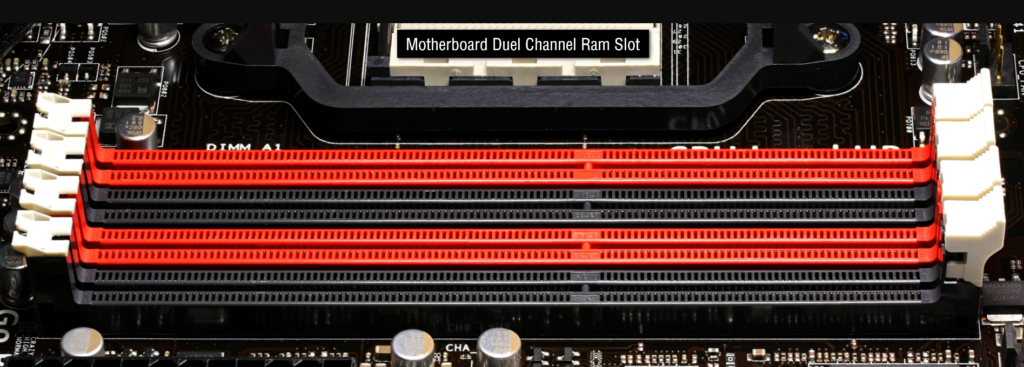
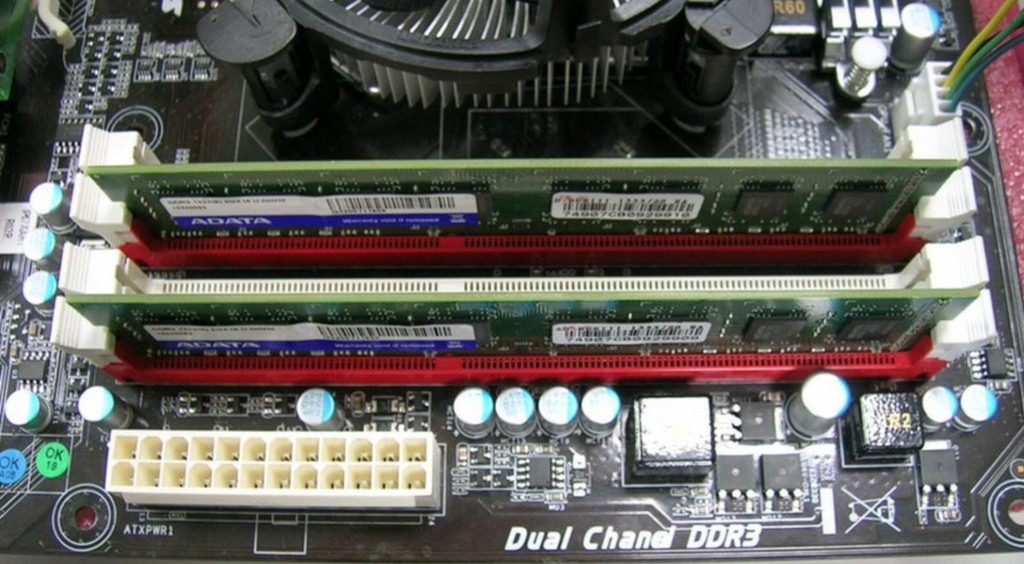
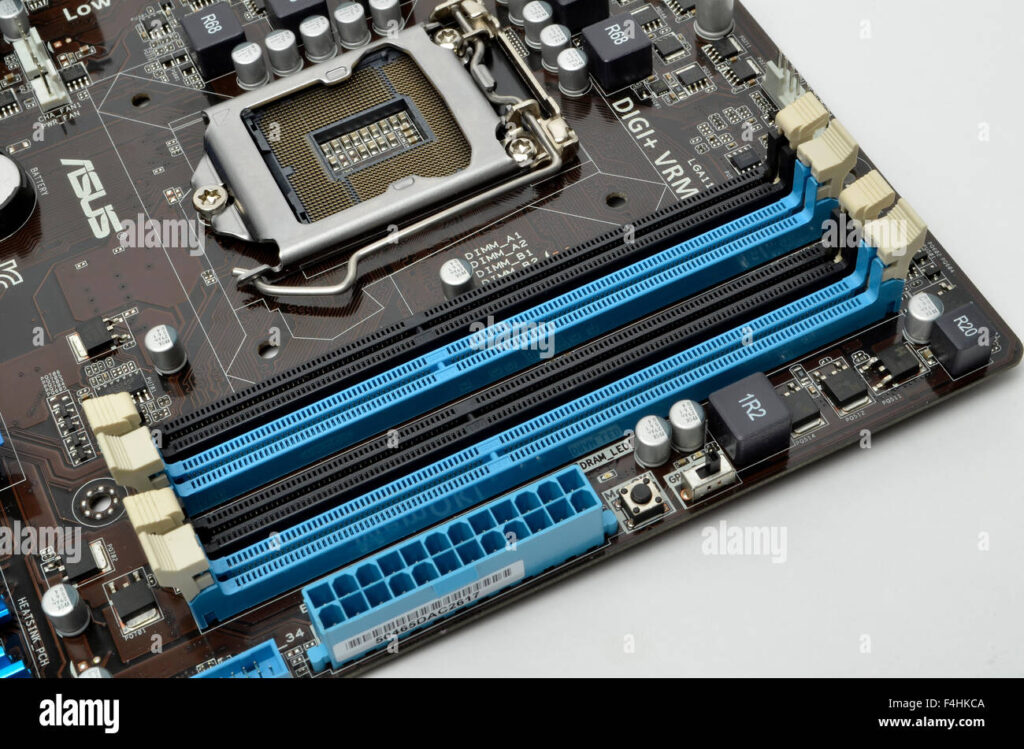
Type of Memory RAM and ROM
- RAM and ROM are two important types of memory used in a computer, but they serve completely different purposes. RAM stands for Random Access Memory, while ROM stands for Read Only Memory. Both help the computer function properly, but the way they store and manage data is different.
- RAM is temporary memory that stores data and programs currently being used by the CPU. Whenever you open an application such as a browser, game, or video editor, the computer loads that program into RAM because RAM is very fast. The processor can quickly access information from RAM, which helps the system run smoothly. However, RAM is volatile memory, meaning all its stored data is erased when the computer is turned off or restarted.
- ROM, on the other hand, is permanent memory that stores important startup instructions for the computer. It contains firmware or BIOS data needed to boot the system. Unlike RAM, ROM does not lose its data when power is removed. Because of this, ROM is called non-volatile memory. Its main job is not running applications but helping the computer start properly every time it is powered on.
- Another major difference is speed and usage. RAM is much faster and is constantly changing while the computer operates. ROM is slower and usually remains unchanged for long periods. Users frequently use RAM indirectly while multitasking, gaming, browsing, or editing files. ROM mostly works in the background and is rarely modified by normal users.
- A simple real-life example is a classroom. RAM is like the desk where students keep books and notebooks they are currently using. Once class ends, the desk is cleared. ROM is like the school’s permanent rulebook stored safely in the office. The rulebook remains there permanently and helps the school function correctly. Similarly, RAM temporarily stores active work, while ROM permanently stores essential startup instructions.
Here is a table chart of RAM vs ROM differences:
Feature RAM (Random Access Memory) ROM (Read Only Memory) Full Form Random Access Memory Read Only Memory Type Temporary memory Permanent memory Data Nature Volatile (data lost when power off) Non-volatile (data saved permanently) Speed Very fast Slower than RAM Use Runs active programs and apps Stores startup instructions (BIOS/firmware) Changeable Yes, data changes constantly Mostly not changeable Power Off Effect Data is erased Data remains stored Example Games, apps, browser tabs BIOS, boot instructions
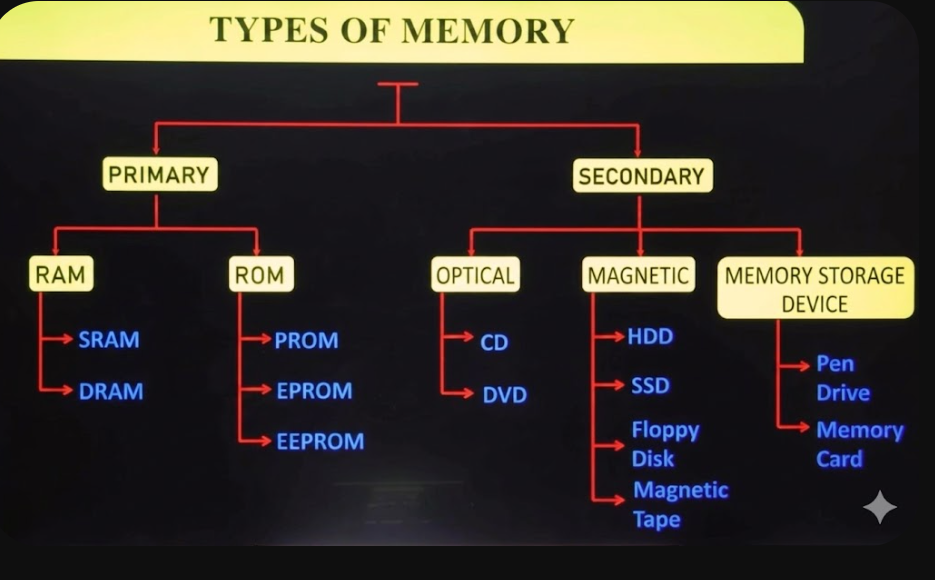
- SRAM and DRAM are both types of RAM (Random Access Memory), but they work in very different ways and are used for different purposes inside a computer. SRAM stands for Static RAM, while DRAM stands for Dynamic RAM.
- SRAM stores data using flip-flop circuits, which means it does not need to be refreshed repeatedly as long as power is supplied. Because of this, SRAM is very fast and provides quick access to data. However, it is also expensive and consumes more power compared to other types of memory. Due to its high speed, SRAM is mainly used in CPU cache memory such as L1, L2, and L3 cache, where fast access is extremely important.
- DRAM, on the other hand, stores data using tiny capacitors that slowly lose charge over time. Because of this, DRAM must be refreshed thousands of times per second to keep data safe. This makes DRAM slower than SRAM, but it has a major advantage: it is cheaper and can store much more data in the same physical space. For this reason, DRAM is used as the main system memory in computers, such as the RAM sticks (DDR4, DDR5) found in laptops and desktops.
- Another important difference is efficiency. SRAM is faster but takes up more space on a chip, so it is used only in small amounts where speed is critical. DRAM is slower but highly dense, making it suitable for large memory requirements like running applications, games, and multitasking.
- In simple terms, SRAM is like a super-fast but small notebook kept right next to you for instant use, while DRAM is like a larger notebook that you keep nearby but need to refresh and manage more carefully. Both are essential, but they serve different roles in making the computer work efficientl
- SRAM and DRAM can be understood better with real examples from how computers actually work.
- SRAM (Static RAM) is used inside the processor as cache memory. For example, in a modern CPU like the Intel Core i5-12400, SRAM is used in L1, L2, and L3 cache. When you open a game or application, the CPU stores frequently used instructions in this cache so it can access them instantly. This makes tasks like gaming, loading apps, and repeating calculations much faster because the CPU does not need to wait for slower memory.
- DRAM (Dynamic RAM) is used as the main system memory in computers, such as 8GB or 16GB DDR4/DDR5 RAM sticks in laptops and desktops. For example, when you run multiple applications like Chrome, YouTube, and Photoshop at the same time, DRAM temporarily stores all the active data so the CPU can use it. This allows smooth multitasking, but it is slower compared to SRAM and needs constant refreshing to maintain data.
- In simple terms, SRAM is used in very small amounts for extremely fast operations inside the CPU, while DRAM is used in larger amounts as the main working memory of the computer. SRAM helps speed up critical tasks through cache, whereas DRAM handles everyday computing tasks like running programs and storing active data.
What is PROM, EPROM, and EEPROM
- PROM, EPROM, and EEPROM are all types of ROM (Read Only Memory), but they differ in how data is written, erased, and reused.
- PROM stands for Programmable Read Only Memory. It is manufactured as a blank chip and can be programmed only once by the user. After data is written into it, it becomes permanent and cannot be changed or erased. PROM is like a one-time storage used for fixed instructions where no updates are needed.
- EPROM stands for Erasable Programmable Read Only Memory. Unlike PROM, EPROM can be erased and reprogrammed. However, erasing data is not simple; it requires exposing the chip to ultraviolet (UV) light. To do this, the chip is usually removed from the device and placed under a special UV lamp, which clears all stored data so new data can be written again.
- EEPROM stands for Electrically Erasable Programmable Read Only Memory. It is more advanced and flexible than both PROM and EPROM. In EEPROM, data can be erased and rewritten using electrical signals without removing the chip from the device. This makes it much easier and faster to update stored information.
- In simple terms, PROM can be written only once, EPROM can be erased using UV light and reused, and EEPROM can be erased and rewritten electronically anytime. Today, EEPROM is the most commonly used type because it is convenient and easy to update in modern electronic devices.
- PROM, EPROM, and EEPROM are different types of ROM (Read Only Memory), and each one has its own real-world usage based on how data is stored and updated.
- PROM (Programmable Read Only Memory) is used in devices where data needs to be written only once and then kept permanent. For example, in older electronic devices like simple calculators or early game cartridges, the manufacturer would program the chip once, and after that the information could not be changed or erased. This makes PROM suitable for fixed instructions that never need updates.
- EPROM (Erasable Programmable Read Only Memory) is used in older computer systems where data may need to be updated occasionally. For example, early computer BIOS chips and microcontroller development systems used EPROM. If engineers needed to change the program, they had to remove the chip and expose it to ultraviolet (UV) light to erase the data before reprogramming it again. This made updates possible but slow and inconvenient.
- EEPROM (Electrically Erasable Programmable Read Only Memory) is used in modern electronic devices where data needs to be updated easily. For example, computer BIOS settings, smart cards, mobile phones, and microcontrollers like Arduino use EEPROM. The main advantage is that data can be erased and rewritten using electrical signals without removing the chip or using UV light, making it very flexible and convenient.
- In short, PROM is write-once memory used for permanent data, EPROM can be erased using UV light and reused, and EEPROM can be easily updated using electricity. This is why EEPROM is widely used in modern devices, while PROM and EPROM are mostly outdated.
What is a Graphics Card (GPU)
What is a Graphics Card (GPU)?
A graphics card, also known as a GPU (Graphics Processing Unit), is a hardware component that processes and renders images, videos, animations, and 3D graphics. It converts digital data into visual output that can be displayed on a monitor. A graphics card performs thousands of calculations simultaneously, making it ideal for gaming, video editing, artificial intelligence, and scientific computing. Without a graphics card, a computer would struggle to display complex graphics and visual effects efficiently.
History of Graphics Cards?
The earliest computers used simple display adapters capable of showing only text and basic graphics. During the 1980s, graphics standards such as CGA, EGA, and VGA improved display quality and color support. In the 1990s, dedicated 3D graphics accelerators were introduced, revolutionizing computer gaming. Companies such as NVIDIA, ATI (later acquired by AMD), and 3dfx competed to develop faster graphics technologies. Today, modern GPUs contain billions of transistors and are used not only for gaming but also for AI, machine learning, scientific research, and professional content creation.
How a Graphics Card Works?
A graphics card receives data from the CPU and processes graphical instructions. The GPU calculates colors, textures, lighting effects, shadows, and object positions. After processing these calculations, the graphics card sends the completed image to the monitor. This process happens many times per second, creating smooth animations and responsive gameplay. Modern GPUs can process thousands of tasks simultaneously, making them much faster than CPUs for graphical workloads.
GPU Core?
The GPU core is the main processor inside a graphics card. It contains thousands of small processing units designed for parallel computing. Unlike a CPU, which focuses on a few complex tasks, a GPU can perform many simple calculations at the same time. This makes it extremely efficient for rendering graphics, processing videos, and training artificial intelligence models.
Video Memory (VRAM)?
VRAM, or Video Random Access Memory, is dedicated memory used by the graphics card. It stores textures, images, frame buffers, and graphical data that the GPU needs for rendering. More VRAM allows a graphics card to handle higher resolutions and more detailed graphics. Modern graphics cards typically come with 4GB, 8GB, 12GB, 16GB, or even 24GB of VRAM.
Cooling System?
Graphics cards generate significant heat during operation. To prevent overheating, they use cooling systems consisting of fans, heat sinks, heat pipes, or liquid cooling solutions. Effective cooling helps maintain stable performance, extends hardware lifespan, and prevents thermal throttling, where the GPU reduces speed to lower temperatures.
Integrated Graphics?
Integrated graphics are built directly into the CPU or motherboard and share system memory instead of having dedicated VRAM. They consume less power and are suitable for everyday tasks such as web browsing, office work, and video playback. Examples include Intel UHD Graphics and AMD Radeon integrated graphics.
Dedicated Graphics Cards?
Dedicated graphics cards are separate expansion cards installed into a motherboard’s PCIe slot. They include their own GPU and VRAM, providing significantly higher performance than integrated graphics. Dedicated GPUs are essential for gaming, video editing, 3D modeling, engineering applications, and AI workloads.
NVIDIA Graphics Cards?
NVIDIA is one of the world’s leading graphics card manufacturers. Its GeForce series is popular among gamers, while RTX technology introduced real-time ray tracing and AI-powered features such as DLSS. NVIDIA GPUs are widely used in gaming, professional visualization, and artificial intelligence research.
AMD Graphics Cards?
AMD produces Radeon graphics cards that compete directly with NVIDIA products. AMD GPUs are known for offering strong performance at competitive prices. The company has developed several successful architectures, including GCN and RDNA, which power modern Radeon graphics cards.
Intel Graphics Cards?
Intel entered the dedicated graphics card market with its Arc series. Intel Arc GPUs target gamers and content creators by offering modern features such as hardware ray tracing, AV1 encoding, and AI acceleration. Intel also produces integrated graphics found in many processors.
Uses of Graphics Cards:
Graphics cards are used in a wide variety of applications. Gamers use them to achieve high frame rates and realistic visual effects. Video editors rely on GPUs for faster rendering and playback. Engineers and designers use graphics cards for CAD and 3D modeling software. Scientists use GPUs for simulations and data analysis. Artificial intelligence researchers use powerful GPUs to train machine learning models and neural networks.
Future of Graphics Cards:
The future of graphics cards is closely connected with artificial intelligence and high-performance computing. Modern GPUs are becoming more efficient and powerful with each generation. Technologies such as AI upscaling, ray tracing, and machine learning acceleration continue to improve graphics quality and computing performance. As AI applications grow, graphics cards will play an increasingly important role in both consumer and professional computing.
One-Line Definition:
A graphics card (GPU) is a specialized processor that renders graphics, accelerates visual computing tasks, and improves performance in gaming, content creation, AI, and scientific applications.
Integrated vs Dedicated GPU
There are two main types of graphics processing units:
- Integrated GPU: This is built inside the CPU and uses shared system RAM. It is suitable for basic tasks like browsing, watching videos, and light games, but it has limited performance.
- Dedicated GPU: This is a separate hardware card installed on the motherboard. It has its own memory called VRAM and is much more powerful. It is used for gaming, professional video editing, animation, and heavy graphics work.
Computer Without Graphics Card Problems
- Without a graphics card, the computer can still work but will have low gaming performance and poor graphics quality.
- Without a graphics card, the system relies on integrated graphics, which is weak for heavy games and editing.
- Without a graphics card, modern games may lag, freeze, or not run at all.
- Without a graphics card, video editing and 3D rendering become very slow and time-consuming.
- Without a graphics card, the CPU gets extra load, making the overall system slower.
- Without a graphics card, the PC is still usable for basic tasks like browsing and office work only.
What is NVIDIA
- NVIDIA is a technology company that is best known for making graphics cards (GPUs) used in gaming, video editing, AI, and 3D work.
- It designs powerful GPUs like GeForce series, which help computers show high-quality graphics, smooth gameplay, and fast performance. NVIDIA also works in AI, data centers, and machine learning chips.
- In simple words, NVIDIA is a company that makes the brain of graphics in computers and gaming systems.
What is NVIDIA?
NVIDIA is a leading technology company that specializes in designing and manufacturing graphics processing units (GPUs) and advanced computing hardware. It is one of the most important companies in the world for gaming, artificial intelligence (AI), professional graphics, and high-performance computing.
Graphics Cards (GPUs)
NVIDIA is most famous for its GeForce graphics cards, which are used in gaming PCs and laptops. These GPUs are responsible for rendering high-quality images, smooth animations, and realistic 3D environments in games. They improve FPS (frames per second) and make games run smoothly even at high settings.
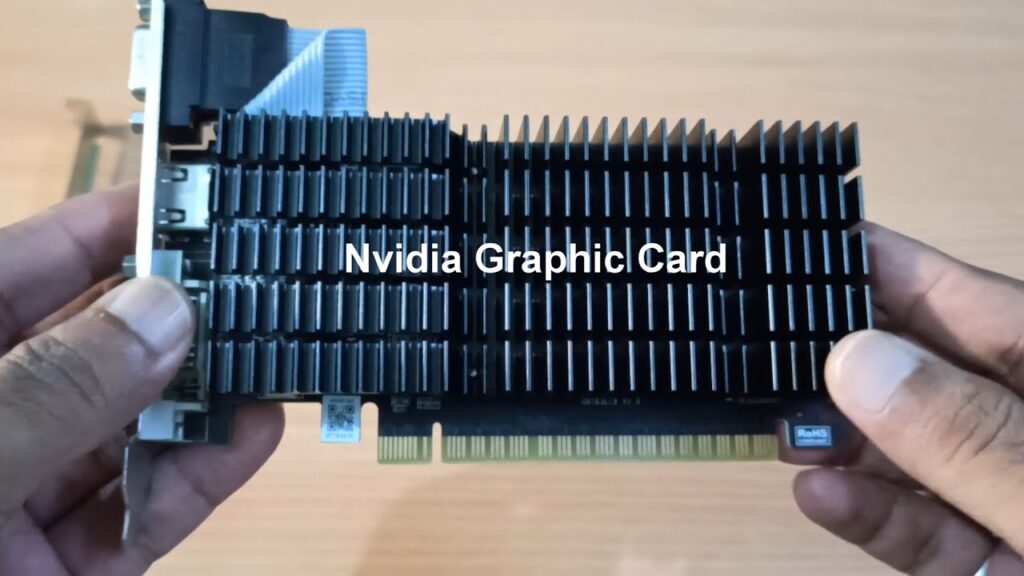
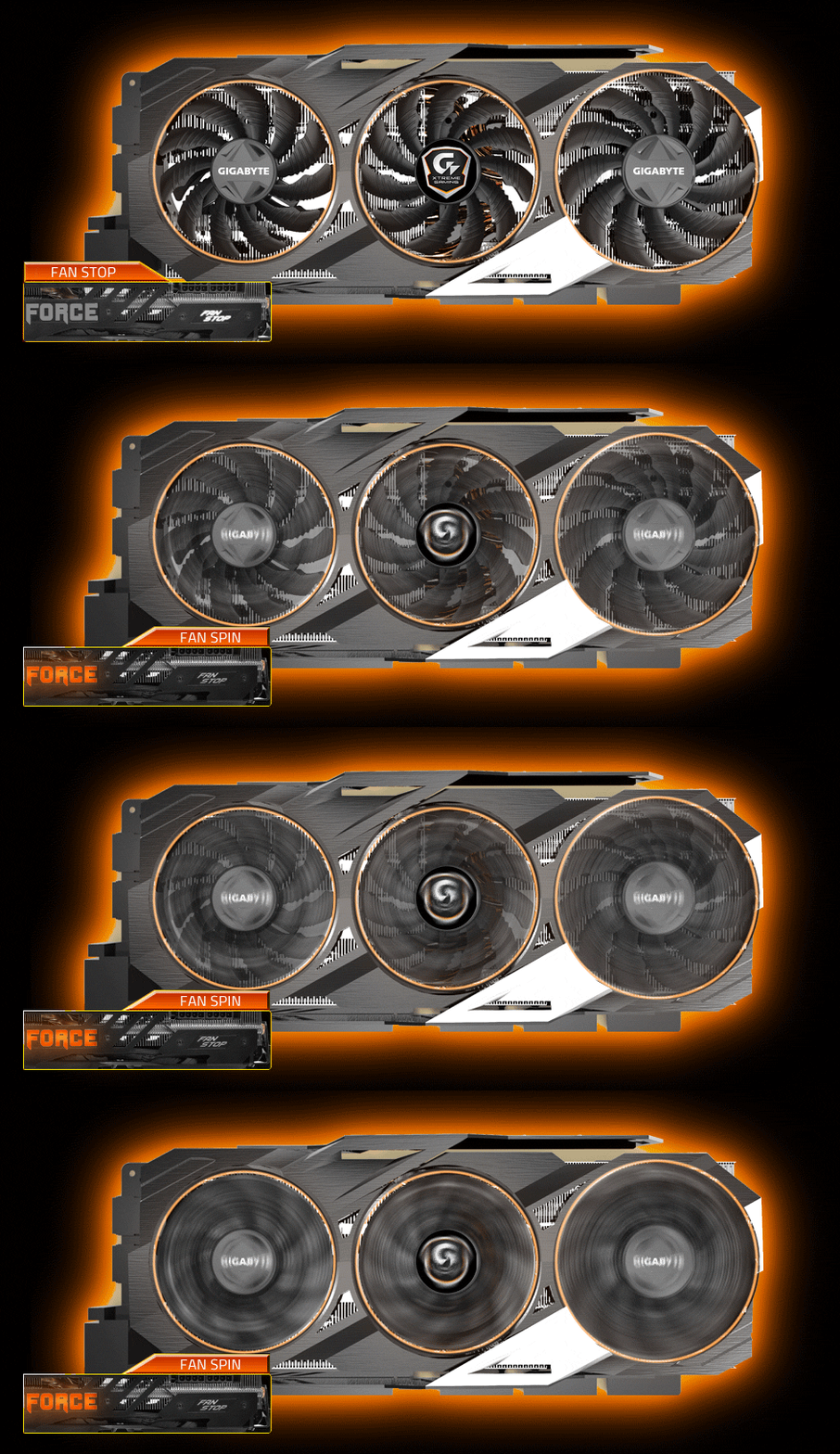
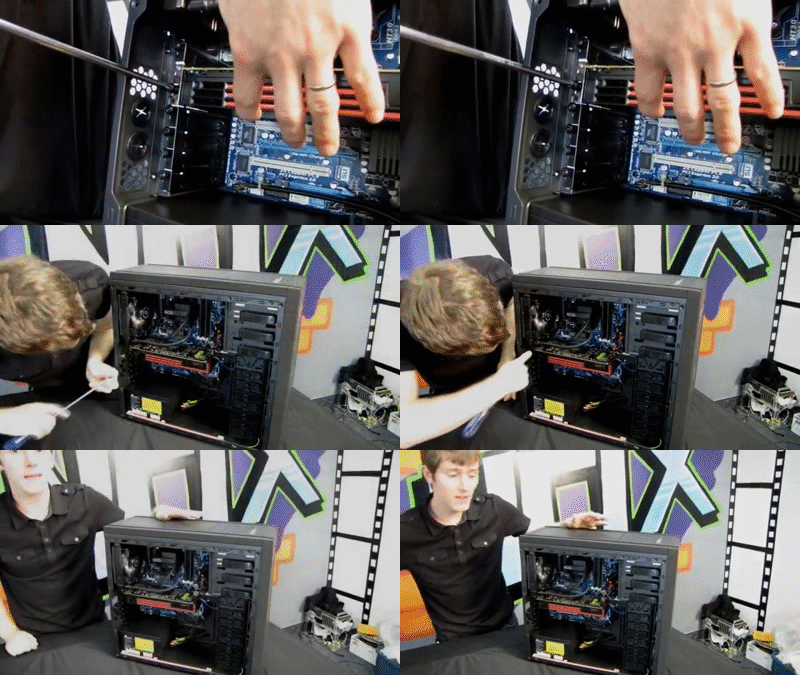
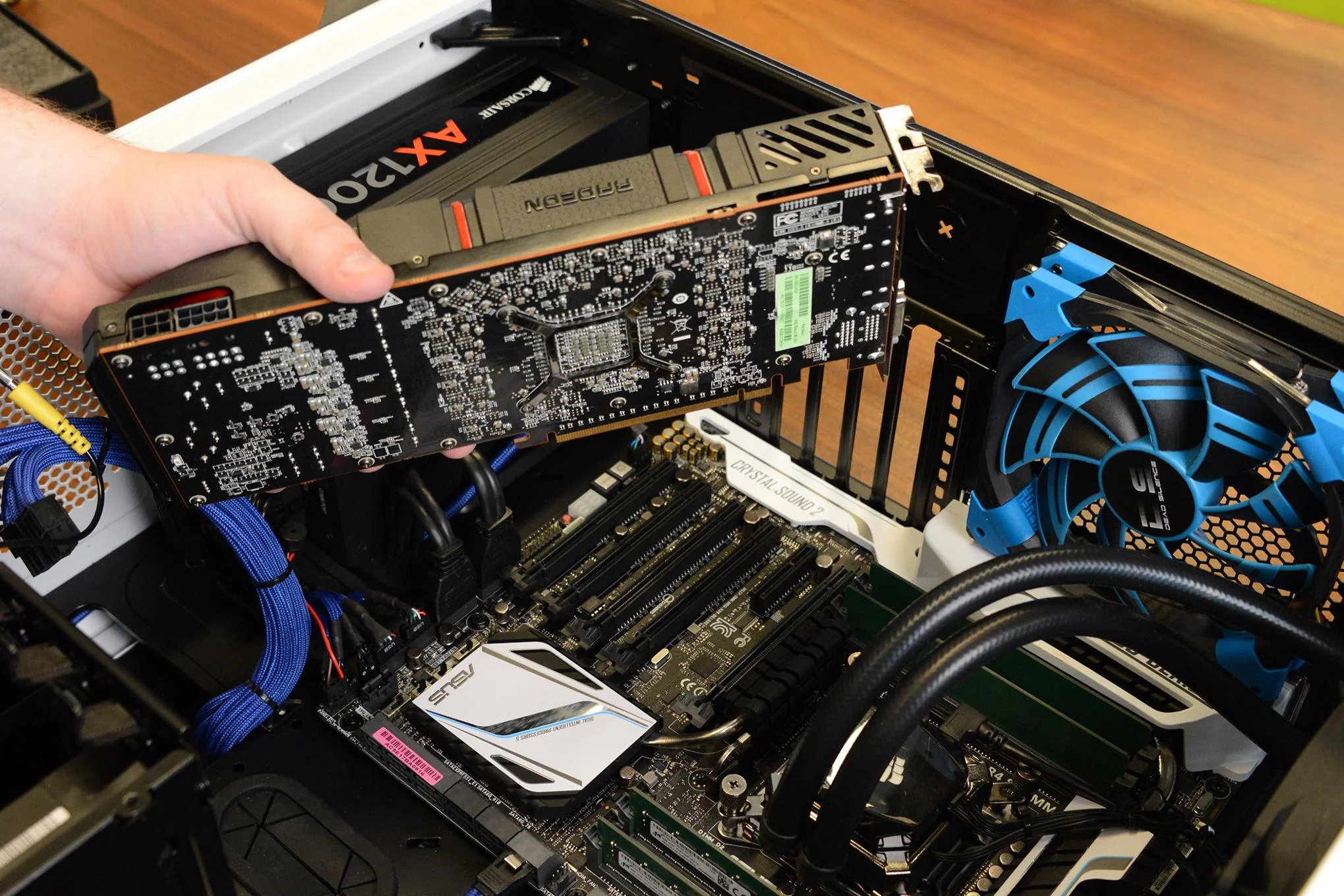
NVIDIA Graphics Card Models
Introduction to NVIDIA
NVIDIA is one of the world’s largest graphics technology companies. Founded in 1993, NVIDIA originally focused on developing graphics processors for computers and gaming systems. Over time, the company expanded into artificial intelligence, data centers, autonomous vehicles, scientific computing, and high-performance computing. Today, NVIDIA GPUs are used in gaming PCs, workstations, supercomputers, and AI research laboratories around the world.
NVIDIA GeForce GT Series:
The GeForce GT series is NVIDIA’s entry-level graphics card family. These graphics cards are designed for users who need better display performance than integrated graphics but do not require high-end gaming capabilities. GT series cards are commonly found in office computers, educational systems, and home PCs. They support video playback, multiple monitors, and basic graphic acceleration. Popular examples include the GT 710, GT 730, and GT 1030. While these cards can handle older or lightweight games, they are primarily intended for everyday computing tasks rather than modern gaming.
NVIDIA GeForce GTX Series:
The GTX series was created for gaming enthusiasts who needed significantly more performance than entry-level graphics cards. GTX graphics cards became extremely popular because they provided excellent gaming performance at reasonable prices. Built on architectures such as Maxwell, Pascal, and Turing, GTX cards offered strong performance for 1080p and 1440p gaming. Unlike modern RTX cards, GTX GPUs do not include dedicated ray-tracing hardware. Models such as the GTX 1050 Ti, GTX 1060, GTX 1070, and GTX 1080 Ti became some of the most successful gaming graphics cards ever produced. Even today, many gamers continue to use GTX cards for esports and general gaming.
NVIDIA RTX Series:
The RTX series represents a major technological advancement in graphics processing. Introduced in 2018, RTX graphics cards added dedicated hardware for real-time ray tracing and artificial intelligence acceleration. Ray tracing allows games to simulate realistic lighting, reflections, and shadows, making graphics appear much closer to real life. RTX cards also include Tensor Cores, which accelerate AI workloads and support technologies such as DLSS (Deep Learning Super Sampling). DLSS uses artificial intelligence to improve game performance while maintaining image quality. The RTX family has become the flagship gaming lineup for NVIDIA and is widely used by gamers, streamers, content creators, and professionals.
RTX 20 Series:
The RTX 20 series, based on the Turing architecture, was the first generation to introduce ray tracing technology to consumer graphics cards. These GPUs demonstrated the future of gaming graphics by offering realistic lighting and reflections. Models such as the RTX 2060, RTX 2070, RTX 2080, and RTX 2080 Ti provided impressive performance improvements over previous GTX cards. Although ray tracing was still new and demanding at the time, the RTX 20 series laid the foundation for future generations of graphics technology.
RTX 30 Series:
The RTX 30 series, based on the Ampere architecture, significantly improved gaming performance and ray-tracing capabilities. These graphics cards delivered much higher frame rates and better efficiency than the previous generation. Popular models such as the RTX 3060, RTX 3070, RTX 3080, and RTX 3090 became highly sought after by gamers and professionals alike. The RTX 30 series made 4K gaming more accessible and improved AI-powered features such as DLSS. These GPUs were also widely used for content creation, machine learning, and rendering applications.
RTX 40 Series:
The RTX 40 series introduced the Ada Lovelace architecture and brought major improvements in AI processing, ray tracing, and power efficiency. Features such as DLSS 3 and Frame Generation allowed games to achieve much higher frame rates using artificial intelligence. Models including the RTX 4060, RTX 4070, RTX 4080, and RTX 4090 provided exceptional gaming and professional performance. The RTX 4090 became one of the most powerful consumer graphics cards ever released, capable of handling advanced gaming, 3D rendering, and AI workloads with ease.
RTX 50 Series:
The RTX 50 series is NVIDIA’s newest generation of consumer graphics cards. Built on the Blackwell architecture, these GPUs focus heavily on artificial intelligence, improved ray tracing, and advanced rendering technologies. Models such as the RTX 5060, RTX 5070, RTX 5080, and RTX 5090 offer substantial performance improvements over previous generations. The RTX 50 series is designed not only for gaming but also for professional AI development, scientific computing, and content creation. These GPUs represent NVIDIA’s continued push toward AI-driven computing and graphics processing.
NVIDIA Titan Series:
The Titan series was created for users who needed both gaming performance and professional computing capabilities. Titan graphics cards featured large amounts of VRAM and powerful processing hardware, making them suitable for deep learning, scientific simulations, and content creation. Models such as the Titan X, Titan Xp, Titan V, and Titan RTX were highly regarded among professionals and enthusiasts. Although NVIDIA eventually shifted its focus toward RTX Professional and data-center GPUs, the Titan series remains an important part of NVIDIA’s history.
NVIDIA Quadro Series:
The Quadro series was developed specifically for professional workstation users. Unlike gaming-focused GeForce cards, Quadro GPUs were optimized for engineering, architecture, medical imaging, and scientific applications. They featured certified drivers that ensured compatibility and stability with professional software packages. Quadro cards were widely used by engineers, architects, designers, and researchers who required accurate calculations and reliable performance in demanding workloads.
NVIDIA RTX Professional Series:
The RTX Professional series replaced the Quadro brand and represents NVIDIA’s modern workstation GPU lineup. These graphics cards combine the power of RTX technology with enterprise-grade reliability and software certification. Models such as the RTX A2000, RTX A4000, RTX A5000, and RTX A6000 are commonly used in industries such as architecture, engineering, film production, animation, and AI research. They provide large memory capacities and advanced computing capabilities for professional applications.
NVIDIA Data Center GPUs:
NVIDIA also develops specialized GPUs for data centers and artificial intelligence. These products are not intended for gaming but are designed for machine learning, deep learning, scientific research, and cloud computing. GPUs such as the A100, H100, H200, and B200 power some of the world’s fastest supercomputers and AI systems. These accelerators process enormous amounts of data and are widely used by technology companies, research institutions, and cloud service providers.
Importance of NVIDIA GPUs:
NVIDIA GPUs have transformed the computing industry by making high-performance graphics and parallel computing widely available. They have played a major role in advancing gaming technology, artificial intelligence, scientific research, and digital content creation. Today, NVIDIA is considered one of the most influential technology companies, with its GPUs powering everything from gaming PCs to cutting-edge AI systems.
NVIDIA GeForce GT Series Models:
- GT 210 – Basic entry-level graphics card for display output, office work, and video playback.
- GT 220 – Improved multimedia GPU with better HD video acceleration and graphics performance.
- GT 240 – Budget graphics card capable of casual gaming and multimedia applications.
- GT 420 – Entry-level DirectX 11 GPU designed for home and office computers.
- GT 430 – Low-cost graphics card offering improved video decoding and display support.
- GT 440 – Budget gaming GPU suitable for older games and multimedia tasks.
- GT 520 – Energy-efficient graphics card designed for basic computing and entertainment.
- GT 530 – Entry-level GPU providing smooth video playback and everyday graphics performance.
- GT 610 – Affordable graphics card mainly used for display upgrades and office systems.
- GT 620 – Entry-level multimedia GPU with support for HD content and multiple monitors.
- GT 630 – Budget graphics solution offering light gaming and multimedia capabilities.
- GT 640 – More powerful entry-level GPU capable of casual gaming and graphic applications.
- GT 705 – OEM graphics card commonly found in pre-built office and business computers.
- GT 710 – Popular low-cost GPU used for display output, video playback, and multi-monitor setups.
- GT 720 – Entry-level graphics card providing basic multimedia and graphics acceleration.
- GT 730 – Budget graphics card suitable for light gaming, media playback, and office work.
- GT 740 – Higher-performance GT series card designed for casual gaming and multimedia use.
- GT 1010 – Modern entry-level GPU intended primarily for display upgrades and office systems.
- GT 1030 – Popular budget graphics card capable of light gaming, multimedia editing, and HTPC use.
NVIDIA GeForce GTX Series Models:
- GTX 460 – Popular mid-range gaming GPU with strong DirectX 11 performance.
- GTX 465 – Enhanced gaming card with improved graphics processing power.
- GTX 470 – High-performance GPU designed for demanding games and applications.
- GTX 480 – Flagship Fermi graphics card with excellent gaming performance for its time.
GTX 500 Series (Fermi Refresh):
- GTX 550 Ti – Budget gaming graphics card for entry-level gamers.
- GTX 560 – Mid-range GPU offering smooth 1080p gaming performance.
- GTX 560 Ti – Enhanced version with improved gaming capabilities.
- GTX 570 – High-end graphics card suitable for demanding games.
- GTX 580 – Flagship GTX 500 series GPU with top-tier gaming performance.
- GTX 590 – Dual-GPU graphics card built for enthusiast gamers.
GTX 600 Series (Kepler Architecture):
- GTX 650 – Entry-level gaming GPU for casual and esports gaming.
- GTX 650 Ti – Improved version offering better gaming performance.
- GTX 660 – Popular mid-range graphics card for 1080p gaming.
- GTX 660 Ti – Enhanced GTX 660 with additional processing power.
- GTX 670 – High-performance gaming graphics card.
- GTX 680 – Flagship Kepler GPU delivering excellent gaming results.
- GTX 690 – Dual-GPU flagship card designed for extreme gaming.
GTX 700 Series (Kepler Architecture):
- GTX 750 – Power-efficient gaming GPU requiring minimal power.
- GTX 750 Ti – Popular budget gaming card with excellent efficiency.
- GTX 760 – Mid-range GPU offering smooth Full HD gaming.
- GTX 770 – High-performance graphics card for modern games.
- GTX 780 – Enthusiast-level gaming GPU with strong performance.
- GTX 780 Ti – Improved flagship model with higher gaming capabilities.
- GTX Titan Black – Hybrid gaming and professional graphics card.
- GTX Titan Z – Dual-GPU Titan card aimed at extreme enthusiasts.
GTX 900 Series (Maxwell Architecture):
- GTX 950 – Budget gaming GPU suitable for esports and casual gaming.
- GTX 960 – Popular mid-range graphics card for 1080p gaming.
- GTX 970 – High-value gaming GPU with excellent performance.
- GTX 980 – Flagship Maxwell card for high-end gaming.
- GTX 980 Ti – Enthusiast graphics card with near-Titan performance.
GTX 10 Series (Pascal Architecture):
- GTX 1050 – Entry-level gaming graphics card for budget systems.
- GTX 1050 Ti – Improved version with more VRAM and performance.
- GTX 1060 – Popular 1080p gaming GPU with excellent value.
- GTX 1070 – High-performance graphics card for 1440p gaming.
- GTX 1070 Ti – Enhanced GTX 1070 with additional processing power.
- GTX 1080 – Premium gaming GPU designed for high-refresh gaming.
- GTX 1080 Ti – Legendary enthusiast graphics card with exceptional performance.
GTX 16 Series (Turing Architecture):
- GTX 1630 – Entry-level modern graphics card for light gaming and multimedia.
- GTX 1650 – Budget gaming GPU widely used in entry-level gaming PCs.
- GTX 1650 Super – Improved GTX 1650 with significantly higher gaming performance.
- GTX 1660 – Mid-range gaming card ideal for 1080p gaming.
- GTX 1660 Super – Excellent value GPU with faster memory and better performance.
- GTX 1660 Ti – Most powerful GTX 16 series card for high-quality 1080p gaming.
GTX Series Purpose:
- GTX 400–600 Series → Early DirectX 11 gaming GPUs.
- GTX 700 Series → Improved efficiency and gaming performance.
- GTX 900 Series → Maxwell architecture with excellent power efficiency.
- GTX 10 Series → Pascal architecture and one of NVIDIA’s most successful generations.
- GTX 16 Series → Modern GTX cards without Ray Tracing support.
NVIDIA GeForce RTX Series Models
RTX 20 Series (Turing Architecture):
- RTX 2060 – Entry-level RTX GPU with Ray Tracing and DLSS support for 1080p gaming.
- RTX 2060 Super – Improved RTX 2060 offering better performance and additional VRAM.
- RTX 2070 – High-performance gaming GPU suitable for 1440p gaming.
- RTX 2070 Super – Enhanced RTX 2070 with faster gaming and rendering performance.
- RTX 2080 – Premium gaming GPU designed for high-refresh-rate and 1440p gaming.
- RTX 2080 Super – Faster version of RTX 2080 with improved graphics capabilities.
- RTX 2080 Ti – Flagship RTX 20 Series GPU with exceptional gaming performance.
- RTX Titan – Enthusiast-class GPU with massive VRAM for gaming and professional workloads.
RTX 30 Series (Ampere Architecture):
- RTX 3050 – Budget RTX graphics card for 1080p gaming and Ray Tracing.
- RTX 3060 – Popular mid-range GPU delivering excellent Full HD gaming performance.
- RTX 3060 Ti – Powerful gaming card offering near-high-end performance at a lower cost.
- RTX 3070 – High-performance GPU designed for 1440p and entry-level 4K gaming.
- RTX 3070 Ti – Enhanced RTX 3070 with faster memory and improved performance.
- RTX 3080 – Enthusiast gaming GPU built for smooth 4K gaming experiences.
- RTX 3080 Ti – Premium graphics card approaching RTX 3090-level performance.
- RTX 3090 – Flagship gaming and creator GPU with massive VRAM and computing power.
- RTX 3090 Ti – Ultimate RTX 30 Series GPU for gaming, rendering, and AI workloads.
RTX 40 Series (Ada Lovelace Architecture):
- RTX 4050 (Laptop) – Entry-level laptop GPU with modern RTX features and AI acceleration.
- RTX 4060 – Efficient gaming GPU ideal for 1080p and entry-level 1440p gaming.
- RTX 4060 Ti – Enhanced RTX 4060 offering better gaming and content creation performance.
- RTX 4070 – Powerful graphics card designed for high-quality 1440p gaming.
- RTX 4070 Super – Improved version with more cores and faster performance.
- RTX 4070 Ti – Premium GPU capable of high-refresh-rate 1440p and 4K gaming.
- RTX 4070 Ti Super – Enhanced Ti model with increased VRAM and performance.
- RTX 4080 – High-end gaming GPU built for advanced 4K gaming and creative work.
- RTX 4080 Super – Faster RTX 4080 with improved value and gaming performance.
- RTX 4090 – One of the most powerful consumer graphics cards ever created for gaming, AI, and rendering.
RTX 50 Series (Blackwell Architecture):
- RTX 5050 – Entry-level RTX 50 Series GPU for modern gaming and AI features.
- RTX 5060 – Mainstream graphics card offering excellent 1080p gaming performance.
- RTX 5060 Ti – Enhanced version with additional performance and memory options.
- RTX 5070 – Powerful mid-range GPU designed for high-quality 1440p gaming.
- RTX 5070 Ti – Improved model with stronger Ray Tracing and AI capabilities.
- RTX 5080 – High-end graphics card built for advanced 4K gaming and content creation.
- RTX 5090 – Flagship RTX 50 Series GPU delivering extreme gaming, AI, and workstation performance.
What is Quadro?
NVIDIA Quadro is a professional graphics card series designed for engineers, architects, designers, animators, scientists, and workstation users. Unlike GeForce gaming cards, Quadro GPUs feature certified drivers, higher reliability, better precision, and optimization for professional software.
NVIDIA Quadro Series :
- Quadro NVS Series – Professional multi-monitor graphics cards for business and office environments.
- Quadro FX Series – Early workstation GPUs designed for CAD, engineering, and 3D design.
- Quadro K Series – Kepler-based professional graphics cards for designers and engineers.
- Quadro M Series – Maxwell-based workstation GPUs with improved performance and efficiency.
- Quadro P Series – Pascal-based professional graphics cards optimized for CAD and visualization.
- Quadro RTX Series – RTX workstation GPUs with Ray Tracing and AI acceleration support.
Popular Models
- Quadro K600 – Entry-level workstation graphics card.
- Quadro K2200 – Popular CAD and engineering GPU.
- Quadro M2000 – Professional graphics card for design applications.
- Quadro P1000 – Budget workstation GPU for CAD software.
- Quadro P2000 – Widely used engineering and 3D design GPU.
- Quadro P4000 – High-performance professional graphics card.
- Quadro P6000 – Flagship Pascal workstation GPU.
- Quadro RTX 4000 – Professional RTX graphics card with Ray Tracing.
- Quadro RTX 5000 – High-end workstation GPU for rendering.
- Quadro RTX 6000 – Advanced professional GPU with large VRAM.
- Quadro RTX 8000 – Top-tier workstation graphics card for enterprise workloads.
What is NVIDIA RTX Professional?
NVIDIA RTX Professional is a series of professional workstation graphics cards designed for engineers, architects, designers, animators, scientists, AI developers, and content creators. These GPUs are built to provide high reliability, certified drivers, large memory capacities, and optimized performance for professional applications.
Unlike GeForce RTX gaming graphics cards, RTX Professional GPUs are specifically engineered for workstation environments where stability, accuracy, and compatibility with professional software are critical.
Purpose of RTX Professional:
The primary purpose of RTX Professional graphics cards is to provide reliable performance for professional applications. Many industries work with large 3D models, high-resolution videos, scientific simulations, and artificial intelligence workloads that require powerful graphics processing. RTX Professional GPUs are specifically built to meet these demands while maintaining long-term stability and reliability.
Professional Software Support:
One of the biggest advantages of RTX Professional graphics cards is their certified drivers. NVIDIA works closely with software developers to test and certify these GPUs for professional applications. This ensures better compatibility, fewer software issues, and improved stability when using engineering, design, and content creation software. Professionals depend on this reliability because even small errors can affect important projects.
RTX Technology:
RTX Professional graphics cards include advanced technologies such as Real-Time Ray Tracing and AI acceleration. Ray Tracing creates realistic lighting, shadows, and reflections in 3D environments, making designs and visualizations more accurate. Tensor Cores accelerate artificial intelligence calculations, helping professionals work faster with AI-powered applications and machine learning tasks.
Large Memory Capacity:
Professional projects often require very large amounts of graphics memory. RTX Professional GPUs are available with significantly more VRAM than most consumer gaming graphics cards. This allows users to work with large architectural designs, detailed 3D scenes, high-resolution textures, and massive datasets without running into memory limitations.
Workstation Performance:
RTX Professional graphics cards are designed for workstation computers that operate under heavy workloads for extended periods. These GPUs are built with high-quality components and are tested for reliability. They can run complex simulations, render detailed scenes, and process large amounts of data continuously without sacrificing stability.
Industries That Use RTX Professional GPUs:
RTX Professional graphics cards are widely used in architecture, engineering, manufacturing, animation, visual effects, scientific research, medical imaging, and artificial intelligence development. These industries depend on powerful graphics hardware to create accurate designs, perform simulations, visualize data, and accelerate computational workloads.
Popular RTX Professional Models:
The RTX Professional lineup includes models such as the RTX A2000, RTX A4000, RTX A4500, RTX A5000, RTX A5500, and RTX A6000. Newer generations include the RTX 4000 Ada, RTX 5000 Ada, and RTX 6000 Ada. Each model offers different levels of performance and memory capacity to meet various professional requirements.
Difference from GeForce RTX:
Although RTX Professional and GeForce RTX graphics cards share similar core technologies, they are designed for different audiences. GeForce RTX cards focus on gaming and entertainment, while RTX Professional cards focus on stability, precision, software certification, and professional workloads. RTX Professional GPUs generally include larger memory capacities, enterprise support, and optimized drivers for workstation applications.
Importance in Modern Computing:
As industries increasingly rely on 3D visualization, artificial intelligence, and large-scale data processing, RTX Professional graphics cards have become essential tools for professionals. They help reduce project completion times, improve workflow efficiency, and enable users to handle complex tasks that would otherwise require much longer processing times.
NVIDIA RTX Professional Series:
- RTX A400 – Entry-level professional GPU for CAD, design, and office workstations.
- RTX A1000 – Compact workstation GPU for 2D/3D design and content creation.
- RTX A2000 – Popular professional graphics card for CAD, BIM, and engineering software.
- RTX A4000 – Mid-range workstation GPU for 3D modeling, rendering, and visualization.
- RTX A4500 – High-performance professional GPU for advanced design and simulation.
- RTX A5000 – Powerful workstation graphics card for AI, rendering, and engineering workloads.
- RTX A5500 – Enterprise-class GPU with large VRAM for demanding professional applications.
- RTX A6000 – Flagship professional workstation GPU for AI, simulation, and 3D rendering.
Ada Generation RTX Professional GPUs:
- RTX 2000 Ada Generation – Compact workstation GPU for professional design work.
- RTX 4000 Ada Generation – Professional GPU for CAD, animation, and visualization.
- RTX 4500 Ada Generation – High-performance workstation GPU for complex projects.
- RTX 5000 Ada Generation – Advanced professional GPU for rendering and AI workloads.
- RTX 6000 Ada Generation – Flagship Ada workstation GPU with massive computing power.
Blackwell Generation RTX Professional GPUs:
- RTX PRO 2000 Blackwell – Entry-level Blackwell workstation GPU.
- RTX PRO 4000 Blackwell – Professional graphics card for engineering and design.
- RTX PRO 5000 Blackwell – High-end workstation GPU for AI and rendering.
- RTX PRO 6000 Blackwell – Flagship Blackwell professional GPU for enterprise workloads.
What is a Data Center GPU?
A Data Center GPU (Graphics Processing Unit) is a specialized processor designed for servers, data centers, and supercomputers. Unlike gaming graphics cards that focus on rendering graphics and games, Data Center GPUs are built to handle massive computational workloads such as artificial intelligence (AI), machine learning, scientific simulations, cloud computing, and big data analytics.
How It Works
A Data Center GPU contains thousands of processing cores that can perform many calculations simultaneously. This parallel processing capability allows it to process huge amounts of data much faster than a traditional CPU. As a result, tasks that might take hours or days on CPUs can often be completed in a fraction of the time using Data Center GPUs.
Why Data Center GPUs Are Important
Modern technologies such as AI chatbots, image generation, self-driving vehicles, medical research, weather forecasting, and scientific simulations require enormous computing power. Data Center GPUs provide the performance needed to train AI models, analyze large datasets, and run complex simulations efficiently.
NVIDIA Data Center GPU Models:
- Tesla K20 – Early data center GPU designed for scientific and high-performance computing.
- Tesla K40 – Advanced HPC accelerator for research and engineering workloads.
- Tesla K80 – Dual-GPU server accelerator for AI, analytics, and supercomputing.
- Tesla P100 – Pascal-based GPU optimized for deep learning and HPC applications.
- Tesla V100 – Volta-based AI accelerator featuring Tensor Cores for machine learning.
- A30 – Data center GPU designed for AI inference and enterprise workloads.
- A40 – Professional visualization and virtual workstation accelerator.
- A100 – Industry-leading AI and supercomputing GPU for training large AI models.
- H100 – Hopper-based accelerator built for generative AI and large language models.
- H200 – Enhanced H100 with larger memory and higher bandwidth.
- B100 – Blackwell-based AI accelerator for next-generation data centers.
- B200 – Flagship Blackwell GPU delivering extreme AI and HPC performance.
- GB200 – Combined CPU-GPU AI superchip designed for massive AI infrastructure.
- GTX 1050–1660 series are mid-range GPUs for basic gaming and normal use.
- RTX 2060–3060 series are mid-range to upper GPUs for smooth 1080p gaming and editing.
- RTX 3070–3080 series are high-end GPUs for 1440p and 4K gaming and heavy work.
- RTX 4060–4090 series are latest powerful GPUs with AI features and top performance.
- RTX A-series (A2000–A6000) are professional GPUs for design, engineering, and animation work.
- Tesla/H100 series are extreme GPUs used for AI, research, and supercomputers.
Graphics Card Price Range
1. Entry-level / GTX series price:
NVIDIA GTX series graphics cards like GTX 1050, 1650, and 1660 are usually the cheapest options in the GPU market. Their price generally ranges from around ₹8,000 to ₹25,000, depending on condition (new or used) and model. These cards are suitable for basic gaming, office work, and light editing.
2. Mid-range RTX series price:
RTX 2060, 3050, and 3060 series GPUs fall in the mid-range category. Their price is usually between ₹20,000 to ₹40,000. These graphics cards support modern gaming features like ray tracing and DLSS and are good for 1080p high settings gaming and moderate editing work.
3. High-end RTX 30 series price:
RTX 3070, 3070 Ti, 3080, and 3080 Ti are high-performance GPUs. Their price typically ranges from ₹35,000 to ₹80,000 or more. These cards are designed for 1440p and 4K gaming, heavy video editing, 3D rendering, and professional-level performance.
4. Latest RTX 40 series price:
The newest RTX 4060, 4060 Ti, 4070, 4080, and 4090 GPUs are the most powerful gaming cards in the consumer market. Their prices start from around ₹30,000 and can go up to ₹2,00,000 or more depending on the model. The RTX 4090 is the top-end gaming GPU and is extremely expensive due to its extreme performance.
5. Professional RTX A-series price:
NVIDIA professional workstation GPUs like RTX A2000, A4000, A5000, and A6000 are used in industries such as animation, engineering, and architecture. Their price usually ranges from ₹40,000 to ₹5,00,000+ depending on performance level and workload capability.
6. AI and data center GPU price:
High-end AI and data center GPUs like NVIDIA H100 or Tesla series are extremely expensive. Their cost can go above ₹10,00,000 or even much higher, as they are designed for artificial intelligence training, cloud computing, and supercomputer-level tasks.
- GTX 1050–1660 series ≈ ₹8,000 – ₹25,000
- RTX 2060–3060 series ≈ ₹20,000 – ₹40,000
- RTX 3070–3080 series ≈ ₹35,000 – ₹80,000
- RTX 4060–4090 series ≈ ₹30,000 – ₹2,00,000+
- RTX A-series (workstation) ≈ ₹40,000 – ₹5,00,000+
- H100 / AI GPUs ≈ ₹10,00,000+ (very expensive)
AMD Graphics Card
Introduction to AMD Graphics Cards
AMD (Advanced Micro Devices) is one of the world’s leading manufacturers of graphics processing units (GPUs). AMD graphics cards are marketed primarily under the Radeon, Radeon Pro, and Instinct brands. These graphics cards are used for gaming, professional design, content creation, artificial intelligence, scientific research, and data center computing. AMD has competed with NVIDIA for decades and is known for providing strong performance and excellent value for money.
Radeon HD Series (2007–2013)
The Radeon HD series was one of AMD’s most successful graphics card families. These GPUs introduced support for DirectX 10 and DirectX 11 technologies and significantly improved gaming performance during their time. Radeon HD cards were widely used for gaming, multimedia, and professional applications.
AMD Graphics Card Family Tree
- Radeon Series → Early consumer GPUs.
- Radeon HD Series → DirectX 10/11 gaming GPUs.
- Radeon R5/R7/R9 Series → Gaming GPUs before RX branding.
- Radeon RX Series → Modern gaming graphics cards.
- Radeon Pro Series → Professional workstation GPUs.
- FirePro Series → Legacy workstation GPUs.
- Instinct Series → Data center and AI accelerators.
Radeon HD 4000 Series:
- Radeon HD 4350 – Low-power graphics card ideal for office work, video playback, and basic multimedia tasks.
- Radeon HD 4550 – Budget multimedia GPU with improved HD video acceleration and display capabilities.
- Radeon HD 4570 – Entry-level graphics card offering better gaming and multimedia performance.
- Radeon HD 4650 – Affordable gaming GPU capable of handling casual and mainstream games.
- Radeon HD 4670 – Popular budget gaming graphics card with excellent performance and efficiency.
- Radeon HD 4730 – Mid-range gaming GPU designed for smooth gaming experiences.
- Radeon HD 4770 – First 40nm graphics card offering better power efficiency and gaming performance.
- Radeon HD 4830 – Performance-oriented graphics card suitable for modern gaming applications.
- Radeon HD 4850 – Highly successful gaming GPU known for its outstanding price-to-performance ratio.
- Radeon HD 4870 – High-end gaming graphics card providing excellent performance for enthusiasts.
- Radeon HD 4890 – Improved version of the HD 4870 with higher clock speeds and faster gaming performance.
- Radeon HD 4870 X2 – Dual-GPU flagship card delivering extreme gaming performance.
Radeon HD 5000 Series:
- Radeon HD 5450 – Ultra-low-power graphics card designed for office systems and home theater PCs.
- Radeon HD 5550 – Budget multimedia graphics card with support for HD video playback.
- Radeon HD 5570 – Entry-level graphics solution suitable for multimedia and light gaming.
- Radeon HD 5670 – Affordable DirectX 11 gaming graphics card for mainstream users.
- Radeon HD 5750 – Mid-range gaming GPU offering good performance and efficiency.
- Radeon HD 5770 – One of AMD’s most popular graphics cards for Full HD gaming.
- Radeon HD 5830 – Higher-performance graphics card aimed at serious gamers.
- Radeon HD 5850 – Powerful enthusiast GPU delivering excellent gaming performance.
- Radeon HD 5870 – Flagship single-GPU graphics card featuring top-tier gaming capabilities.
- Radeon HD 5970 – Dual-GPU enthusiast graphics card that was among the fastest GPUs of its time.
Radeon HD 6000 Series:
- Radeon HD 6450 – Basic graphics card for office computing, video playback, and display expansion.
- Radeon HD 6570 – Affordable graphics solution for multimedia applications and casual gaming.
- Radeon HD 6670 – Popular entry-level gaming GPU requiring no external power connector.
- Radeon HD 6750 – Mainstream graphics card designed for smooth Full HD gaming performance.
- Radeon HD 6770 – Enhanced gaming graphics card with improved performance and features.
- Radeon HD 6790 – Mid-range gaming GPU providing strong value for budget-conscious gamers.
- Radeon HD 6850 – High-performance graphics card for enthusiasts and advanced gamers.
- Radeon HD 6870 – Powerful gaming GPU capable of handling demanding games and applications.
- Radeon HD 6950 – Premium graphics card designed for high-quality gaming experiences.
- Radeon HD 6970 – Flagship single-GPU model delivering top-tier gaming performance.
- Radeon HD 6990 – Dual-GPU enthusiast graphics card built for extreme gaming setups.
Radeon HD 7000 Series:
- Radeon HD 7350 – Entry-level graphics card for business and office computing environments.
- Radeon HD 7450 – Low-cost display adapter designed for multimedia and productivity systems.
- Radeon HD 7470 – Budget graphics solution supporting multiple displays and HD content.
- Radeon HD 7510 – OEM graphics card for basic graphics and multimedia tasks.
- Radeon HD 7570 – Affordable GPU suitable for everyday computing and light gaming.
- Radeon HD 7670 – Improved entry-level graphics card for multimedia and casual gaming.
- Radeon HD 7730 – Budget gaming graphics card offering good Full HD performance.
- Radeon HD 7750 – Energy-efficient gaming GPU suitable for compact desktop systems.
- Radeon HD 7770 – Popular 1080p gaming graphics card with excellent performance per watt.
- Radeon HD 7790 – Mid-range gaming GPU delivering improved frame rates and efficiency.
- Radeon HD 7850 – Powerful gaming graphics card providing strong value for enthusiasts.
- Radeon HD 7870 – High-performance GPU designed for demanding modern games.
- Radeon HD 7870 XT – Enhanced version with additional processing power and gaming capability.
- Radeon HD 7950 – Enthusiast graphics card featuring large VRAM and advanced gaming performance.
- Radeon HD 7970 – Flagship single-GPU graphics card and one of the most powerful GPUs of its generation.
- Radeon HD 7990 – Dual-GPU flagship graphics card created for maximum gaming and rendering performance.
Radeon HD 4000 Series:
- Radeon HD 4350 – Low-power graphics card ideal for office work, video playback, and basic multimedia tasks.
- Radeon HD 4550 – Budget multimedia GPU with improved HD video acceleration and display capabilities.
- Radeon HD 4570 – Entry-level graphics card offering better gaming and multimedia performance.
- Radeon HD 4650 – Affordable gaming GPU capable of handling casual and mainstream games.
- Radeon HD 4670 – Popular budget gaming graphics card with excellent performance and efficiency.
- Radeon HD 4730 – Mid-range gaming GPU designed for smooth gaming experiences.
- Radeon HD 4770 – First 40nm graphics card offering better power efficiency and gaming performance.
- Radeon HD 4830 – Performance-oriented graphics card suitable for modern gaming applications.
- Radeon HD 4850 – Highly successful gaming GPU known for its outstanding price-to-performance ratio.
- Radeon HD 4870 – High-end gaming graphics card providing excellent performance for enthusiasts.
- Radeon HD 4890 – Improved version of the HD 4870 with higher clock speeds and faster gaming performance.
- Radeon HD 4870 X2 – Dual-GPU flagship card delivering extreme gaming performance.
Radeon HD 5000 Series:
- Radeon HD 5450 – Ultra-low-power graphics card designed for office systems and home theater PCs.
- Radeon HD 5550 – Budget multimedia graphics card with support for HD video playback.
- Radeon HD 5570 – Entry-level graphics solution suitable for multimedia and light gaming.
- Radeon HD 5670 – Affordable DirectX 11 gaming graphics card for mainstream users.
- Radeon HD 5750 – Mid-range gaming GPU offering good performance and efficiency.
- Radeon HD 5770 – One of AMD’s most popular graphics cards for Full HD gaming.
- Radeon HD 5830 – Higher-performance graphics card aimed at serious gamers.
- Radeon HD 5850 – Powerful enthusiast GPU delivering excellent gaming performance.
- Radeon HD 5870 – Flagship single-GPU graphics card featuring top-tier gaming capabilities.
- Radeon HD 5970 – Dual-GPU enthusiast graphics card that was among the fastest GPUs of its time.
Radeon HD 6000 Series:
- Radeon HD 6450 – Basic graphics card for office computing, video playback, and display expansion.
- Radeon HD 6570 – Affordable graphics solution for multimedia applications and casual gaming.
- Radeon HD 6670 – Popular entry-level gaming GPU requiring no external power connector.
- Radeon HD 6750 – Mainstream graphics card designed for smooth Full HD gaming performance.
- Radeon HD 6770 – Enhanced gaming graphics card with improved performance and features.
- Radeon HD 6790 – Mid-range gaming GPU providing strong value for budget-conscious gamers.
- Radeon HD 6850 – High-performance graphics card for enthusiasts and advanced gamers.
- Radeon HD 6870 – Powerful gaming GPU capable of handling demanding games and applications.
- Radeon HD 6950 – Premium graphics card designed for high-quality gaming experiences.
- Radeon HD 6970 – Flagship single-GPU model delivering top-tier gaming performance.
- Radeon HD 6990 – Dual-GPU enthusiast graphics card built for extreme gaming setups.
Radeon HD 7000 Series:
- Radeon HD 7350 – Entry-level graphics card for business and office computing environments.
- Radeon HD 7450 – Low-cost display adapter designed for multimedia and productivity systems.
- Radeon HD 7470 – Budget graphics solution supporting multiple displays and HD content.
- Radeon HD 7510 – OEM graphics card for basic graphics and multimedia tasks.
- Radeon HD 7570 – Affordable GPU suitable for everyday computing and light gaming.
- Radeon HD 7670 – Improved entry-level graphics card for multimedia and casual gaming.
- Radeon HD 7730 – Budget gaming graphics card offering good Full HD performance.
- Radeon HD 7750 – Energy-efficient gaming GPU suitable for compact desktop systems.
- Radeon HD 7770 – Popular 1080p gaming graphics card with excellent performance per watt.
- Radeon HD 7790 – Mid-range gaming GPU delivering improved frame rates and efficiency.
- Radeon HD 7850 – Powerful gaming graphics card providing strong value for enthusiasts.
- Radeon HD 7870 – High-performance GPU designed for demanding modern games.
- Radeon HD 7870 XT – Enhanced version with additional processing power and gaming capability.
- Radeon HD 7950 – Enthusiast graphics card featuring large VRAM and advanced gaming performance.
- Radeon HD 7970 – Flagship single-GPU graphics card and one of the most powerful GPUs of its generation.
- Radeon HD 7990 – Dual-GPU flagship graphics card created for maximum gaming and rendering performance.
AMD Radeon RX Series:
RX 400 Series:
- RX 460 – Entry-level Polaris gaming graphics card for esports and 1080p gaming.
- RX 470 – Mid-range gaming GPU offering strong Full HD performance.
- RX 480 – Flagship Polaris graphics card designed for high-quality 1080p gaming.
RX 500 Series:
- RX 550 – Budget graphics card for light gaming and multimedia use.
- RX 560 – Entry-level gaming GPU for esports and casual gamers.
- RX 570 – Popular budget gaming graphics card for 1080p gaming.
- RX 580 – High-value graphics card delivering excellent Full HD performance.
- RX 590 – Enhanced RX 580 with higher clock speeds and improved gaming performance.
RX Vega Series:
- RX Vega 56 – High-performance gaming GPU featuring HBM2 memory.
- RX Vega 64 – Enthusiast graphics card for demanding games and content creation.
- Radeon VII – Premium 7nm graphics card designed for gaming and professional workloads.
RX 5000 Series (RDNA):
- RX 5300 – Entry-level RDNA graphics card for budget gaming systems.
- RX 5500 XT – Efficient Full HD gaming GPU with modern RDNA architecture.
- RX 5600 XT – Powerful 1080p gaming graphics card with excellent value.
- RX 5700 – High-performance gaming GPU for 1440p gaming.
- RX 5700 XT – Flagship RDNA graphics card delivering enthusiast-level performance.
RX 6000 Series (RDNA 2):
- RX 6400 – Entry-level graphics card for basic gaming and multimedia tasks.
- RX 6500 XT – Budget RDNA 2 gaming GPU for entry-level gamers.
- RX 6600 – Efficient Full HD gaming graphics card with low power consumption.
- RX 6600 XT – Enhanced version offering higher gaming performance.
- RX 6650 XT – Improved RX 6600 XT with faster memory and clocks.
- RX 6700 – Mainstream graphics card designed for smooth 1440p gaming.
- RX 6700 XT – Popular 1440p gaming GPU with strong performance.
- RX 6750 XT – Faster version of the RX 6700 XT for high-refresh-rate gaming.
- RX 6800 – Premium gaming graphics card suitable for 1440p and 4K gaming.
- RX 6800 XT – High-end enthusiast GPU built for demanding games.
- RX 6900 XT – Flagship RDNA 2 graphics card with exceptional performance.
- RX 6950 XT – Enhanced flagship model delivering maximum RDNA 2 performance.
RX 7000 Series (RDNA 3):
- RX 7600 – Modern mainstream graphics card for high-quality 1080p gaming.
- RX 7600 XT – Improved version featuring increased memory capacity.
- RX 7700 XT – Powerful graphics card optimized for 1440p gaming.
- RX 7800 XT – High-performance enthusiast GPU with excellent value.
- RX 7900 GRE – Advanced gaming graphics card positioned between XT and XTX models.
- RX 7900 XT – Premium 4K gaming GPU for enthusiasts.
- RX 7900 XTX – Flagship RDNA 3 graphics card delivering top-tier gaming performance.
RX 9000 Series (RDNA 4):
- RX 9060 XT – Mainstream RDNA 4 graphics card with improved AI and Ray Tracing capabilities.
- RX 9070 – High-performance gaming GPU designed for modern 1440p and 4K gaming.
- RX 9070 XT – Flagship RDNA 4 graphics card offering advanced gaming and content creation performance.
AMD Radeon Pro Series:
- Radeon Pro WX 2100 – Entry-level professional workstation graphics card designed for CAD drafting, office visualization, engineering applications, and entry-level 3D design workloads.
- Radeon Pro WX 3100 – Budget workstation GPU providing reliable performance for technical drawing, product design, educational institutions, and small business environments.
- Radeon Pro WX 3200 – Compact professional graphics solution optimized for CAD, architecture, and engineering software while maintaining low power consumption.
- Radeon Pro WX 4100 – Mid-range workstation graphics card offering certified driver support and stable performance for designers, engineers, and architects.
- Radeon Pro WX 5100 – Professional graphics card designed for advanced CAD modeling, content creation, 3D visualization, and digital media production.
- Radeon Pro WX 7100 – High-performance workstation GPU built for animation, rendering, virtual reality development, and complex engineering projects.
- Radeon Pro WX 8200 – Enterprise-class graphics card delivering powerful compute capabilities for scientific visualization, simulation, and professional rendering.
- Radeon Pro WX 9100 – Flagship Vega-based workstation graphics card featuring large memory capacity and exceptional performance for professional applications.
Radeon Pro W Series:
- Radeon Pro W5500 – Professional workstation GPU designed for CAD applications, engineering workflows, and content creation projects requiring reliable performance.
- Radeon Pro W5500X – Enhanced workstation graphics solution optimized for creative professionals and advanced design workloads.
- Radeon Pro W5700 – High-performance professional GPU built for 3D modeling, animation, video editing, and engineering visualization.
- Radeon Pro W5700X – Upgraded workstation graphics card providing improved rendering and visualization performance for professionals.
- Radeon Pro W6400 – Compact and energy-efficient workstation graphics card suitable for entry-level professional design and business environments.
- Radeon Pro W6600 – Mid-range professional GPU optimized for CAD, architecture, engineering design, and 3D content creation.
- Radeon Pro W6600X – Enhanced version of the W6600 delivering higher workstation performance for demanding professional applications.
- Radeon Pro W6800 – High-end professional graphics card featuring large memory capacity for advanced rendering and simulation tasks.
- Radeon Pro W6800X – Premium workstation GPU designed for creative professionals working with complex 3D scenes and high-resolution media.
- Radeon Pro W6800X Duo – Dual-GPU professional graphics card built for extreme rendering workloads, visual effects production, and scientific computing.
- Radeon Pro W7500 – Modern RDNA 3 workstation graphics card designed for professional productivity, CAD, and content creation applications.
- Radeon Pro W7600 – Advanced workstation GPU offering improved graphics performance for engineering, visualization, and creative workflows.
- Radeon Pro W7700 – High-performance RDNA 3 professional graphics card built for rendering, AI-assisted workflows, and advanced design projects.
- Radeon Pro W7800 – Enterprise-grade workstation GPU designed for professional rendering, visualization, simulation, and AI workloads.
- Radeon Pro W7900 – Flagship Radeon Pro graphics card delivering exceptional performance for animation, visual effects, scientific computing, and complex rendering tasks.
Radeon Pro Mobile Series:
- Radeon Pro 450 – Mobile workstation graphics processor designed for professional laptop users working with graphics and design applications.
- Radeon Pro 455 – Improved mobile GPU providing enhanced graphics acceleration for creative professionals on portable workstations.
- Radeon Pro 460 – Professional mobile graphics solution optimized for content creation and multimedia production.
- Radeon Pro 555 – Mobile workstation GPU designed for photo editing, video editing, and creative software applications.
- Radeon Pro 555X – Enhanced version of the Radeon Pro 555 with improved graphics performance and efficiency.
- Radeon Pro 560 – High-performance mobile workstation GPU for professional graphics workloads and multimedia creation.
- Radeon Pro 560X – Advanced laptop graphics processor delivering better performance for professional users and creators.
- Radeon Pro Vega 16 – Professional mobile GPU featuring Vega architecture for demanding creative and engineering workloads.
- Radeon Pro Vega 20 – Enhanced Vega-based workstation graphics processor for advanced content creation and rendering tasks.
- Radeon Pro 5300M – Modern mobile workstation graphics card optimized for professional productivity and creative applications.
- Radeon Pro 5500M – Powerful laptop workstation GPU designed for video editing, 3D modeling, and professional graphics workloads.
- Radeon Pro 5600M – Flagship mobile workstation graphics processor delivering exceptional performance for creative professionals.
Graphics Card Slide Models
GeForce RTX 2060 Super Twin X2 8GB GDDR6 Graphics Card
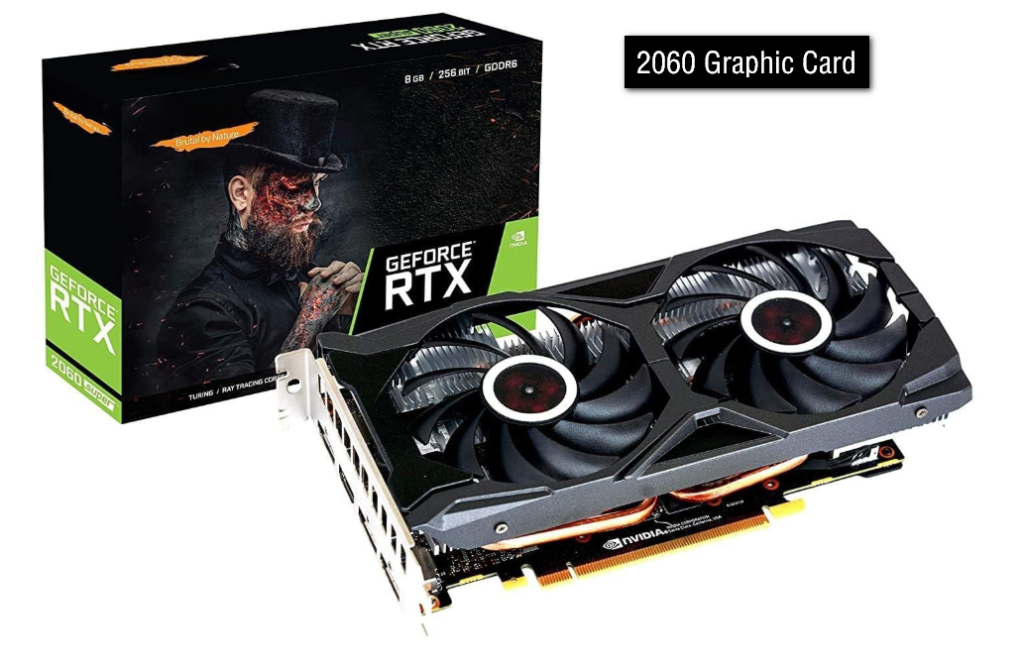
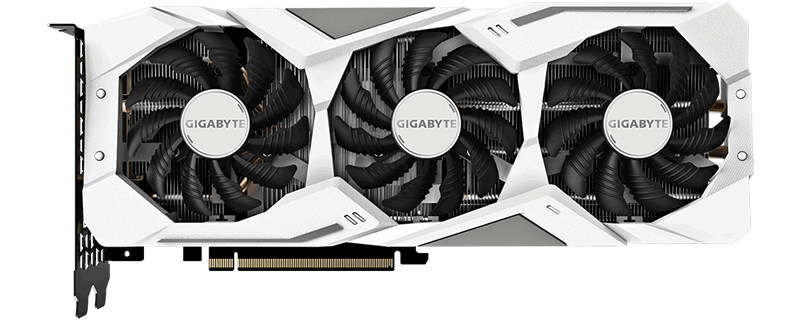
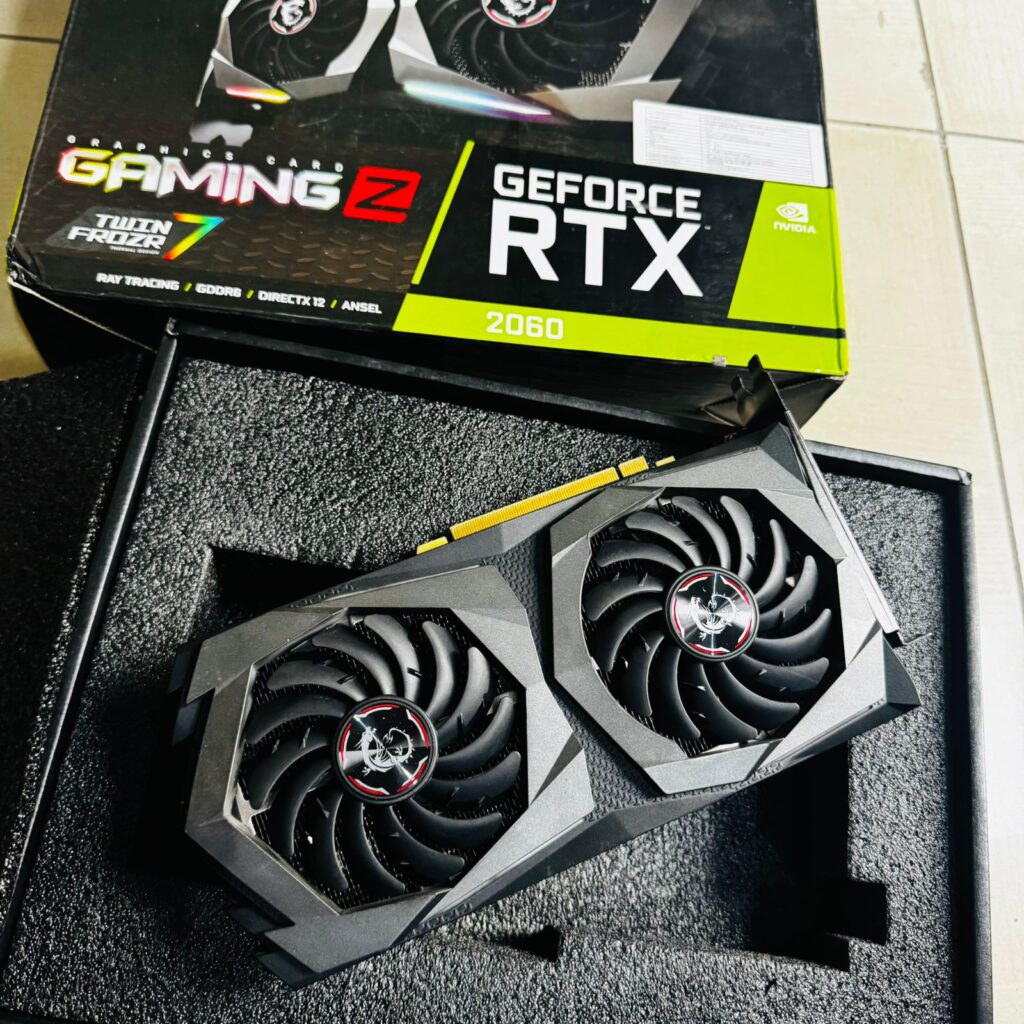
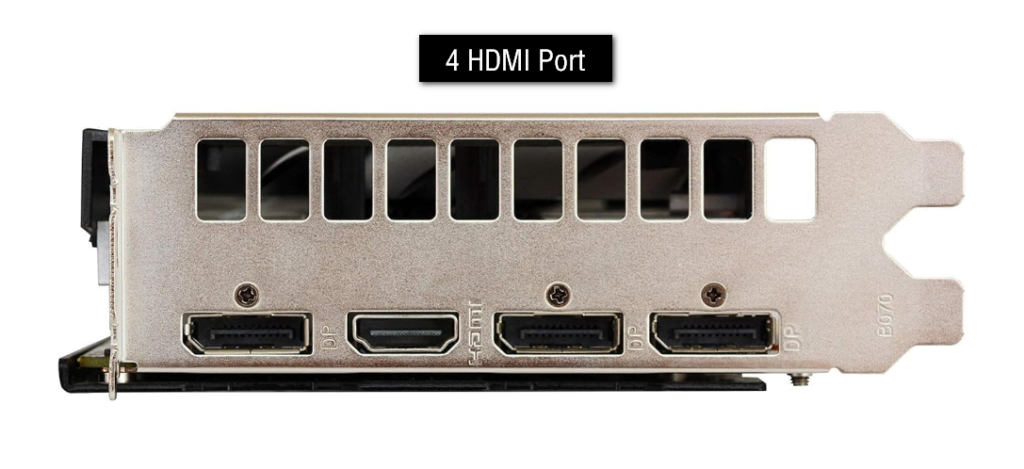
Galax GeForce RTX™ 3080 Ti SG (1-Click OC Feature), 12GB GDDR6X 384-bit
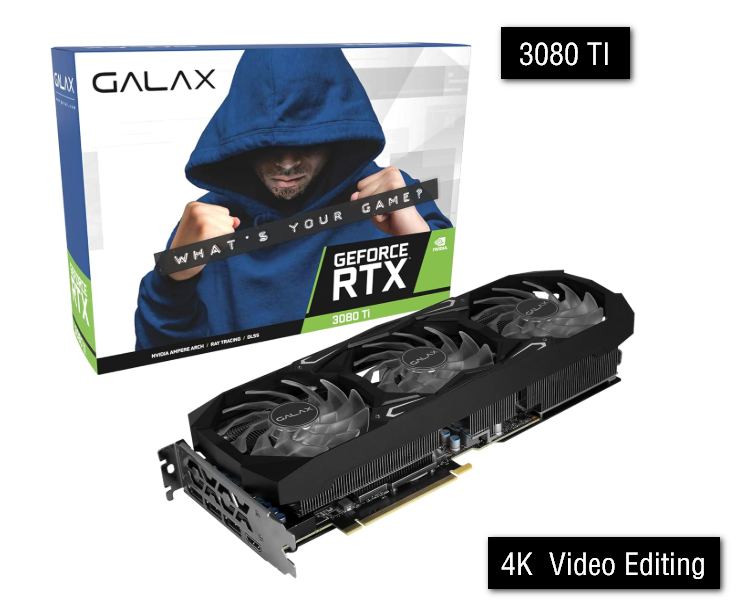
MSI Gaming GeForce RTX 3060 gddr6 pci_e_x16 12GB 15 Gbps GDRR6 192-Bit HDMI/DP PCIe 4 Torx Twin Fan Ampere OC Graphics Card (RTX 3060 Ventus 2X 12G OC), Black
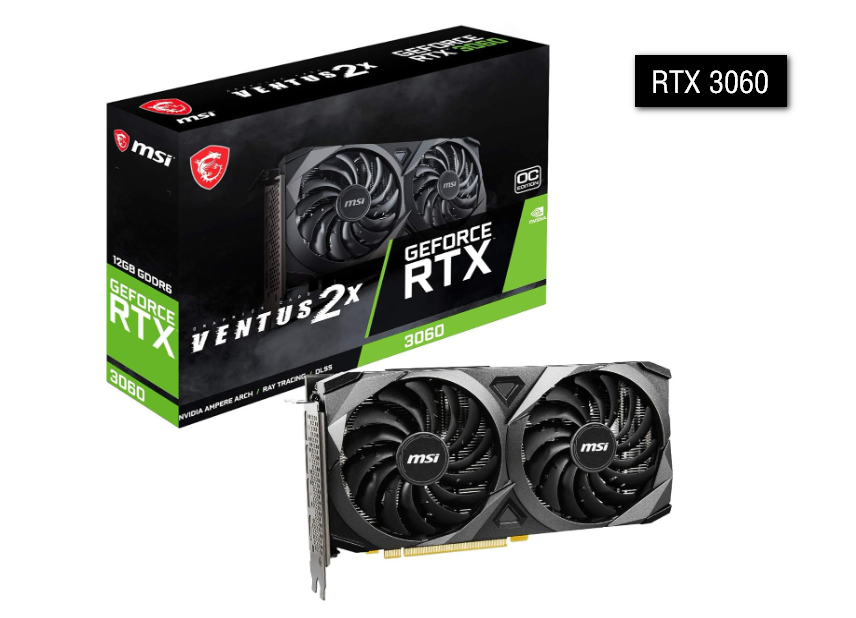
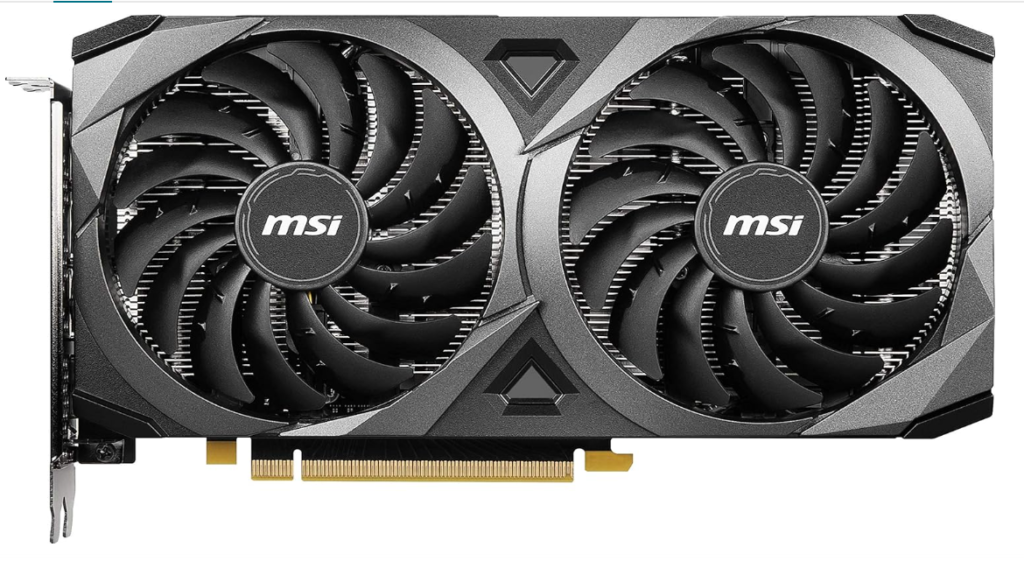
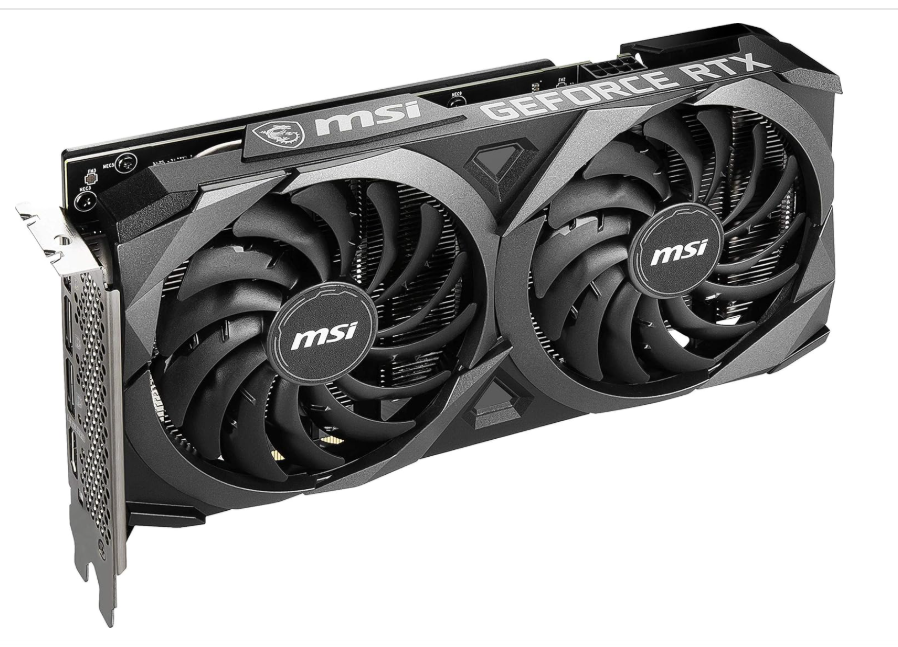
ASUS Rog Strix Geforce RTX 4090 White OC Edition Gaming Graphics Card (Pcie 4.0, 24Gb Gddr6X,)
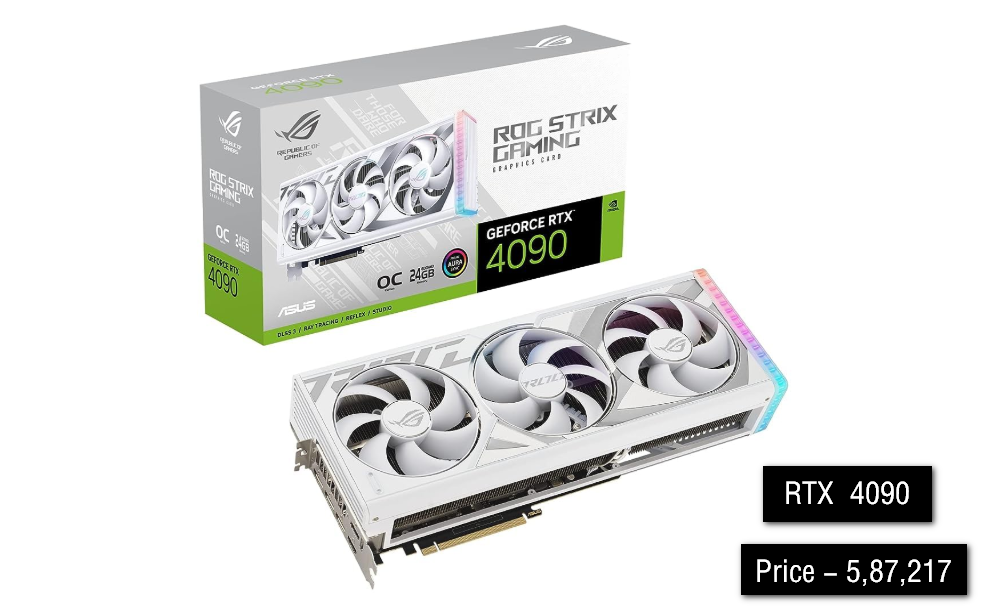
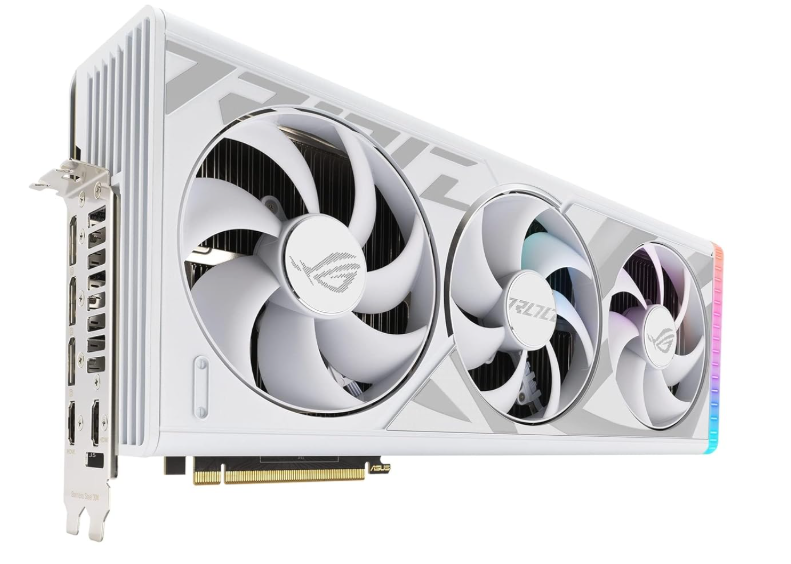
MSI GeForce RTX 5070 12G Gaming Trio OC Graphic Card - NVIDIA GeForce RTX 5070 GPU, 12GB GDDR7 192-bit Memory, 28 Gbps, PCI Express Gen 5
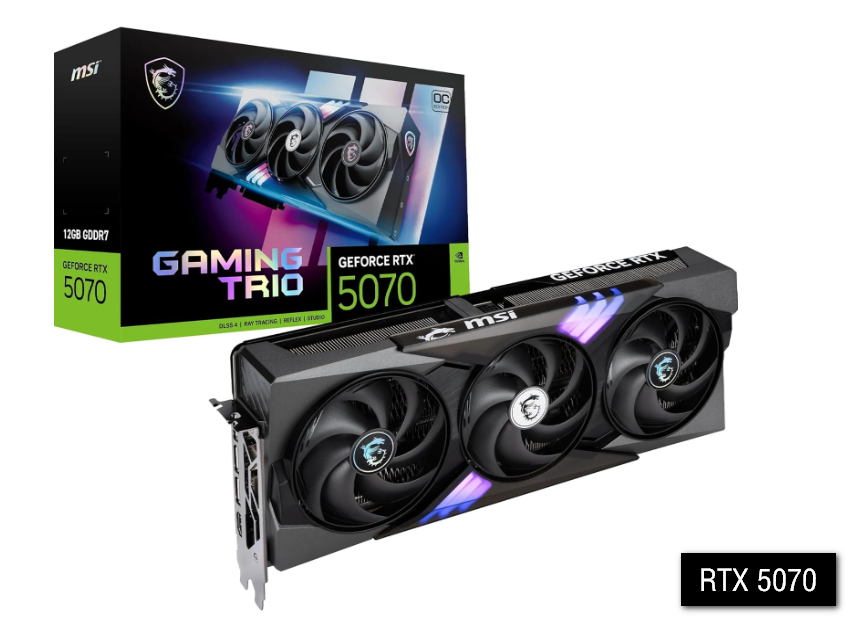
ASUS TUF Gaming GeForce RTX 4070 Ti Super BTF White OC Edition 16GB GDDR6X with DLSS3, Innovative PCIe high-Power Connector,
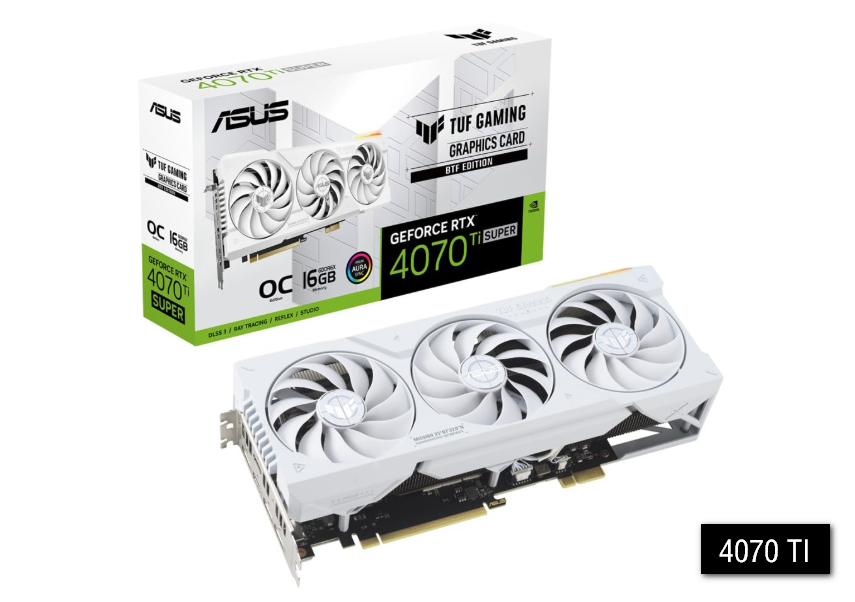
GIGABYTE Geforce RTX 5080 Gaming OC 16G Graphics Card, WINDFORCE Cooling System, 16GB 256-Bit GDDR7, pci_e_x16 GV-N5080GAMING OC-16GD Video Card
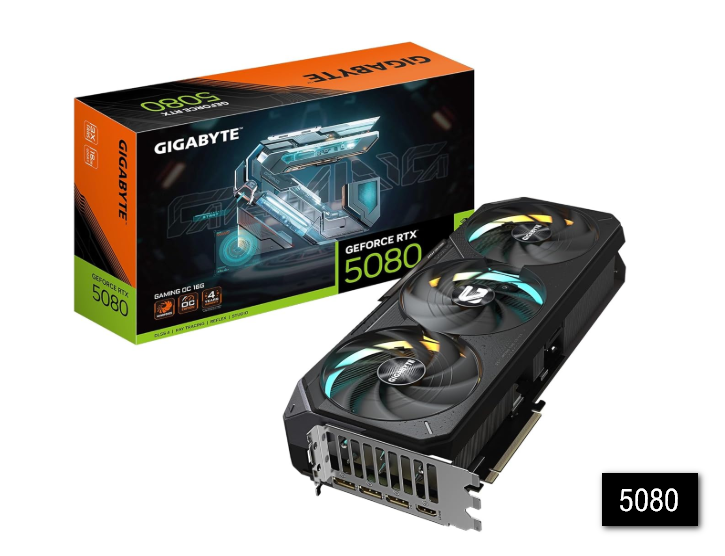
Gaming GeForce GTX 1660 Super OC 6GB GDDR6 Graphics Card (GV-N166SOC-6GD), PCIe x16, Windforce Cooling, HDMI/DP, 192-bit
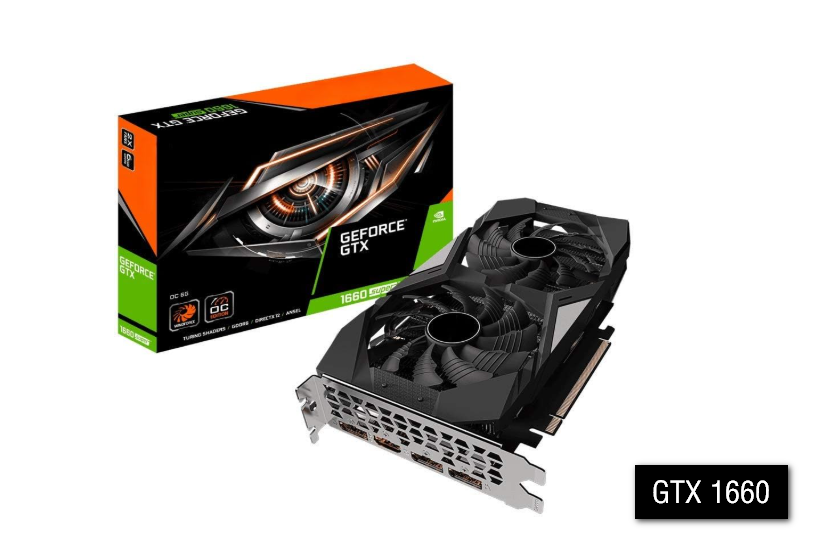
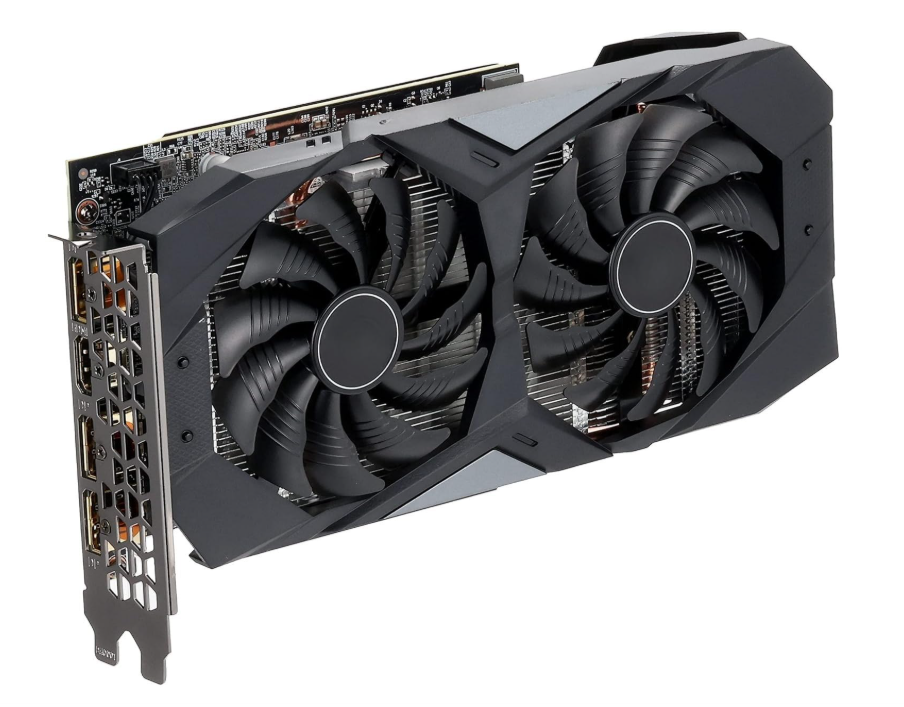
ZEBRONICS GT740-4GD3 Graphics Card,pci_e_x16 Powered by NVIDIA,4GB GDDR3,128-Bit,Pcie3.0,Upto 2560 X 1440 @60Hz,Multiple Outputs-HDMI | DVI