Computer Troubleshooting
Windows User Account Password Unlocking
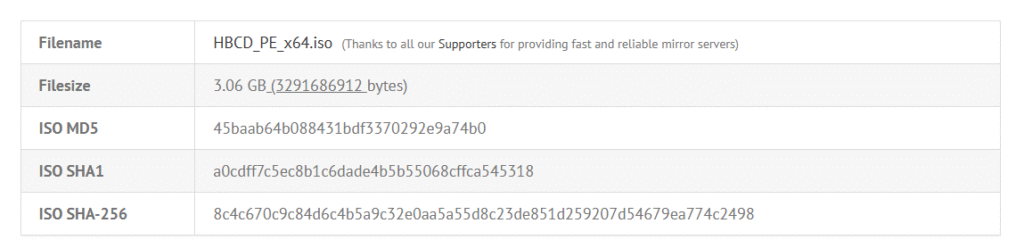
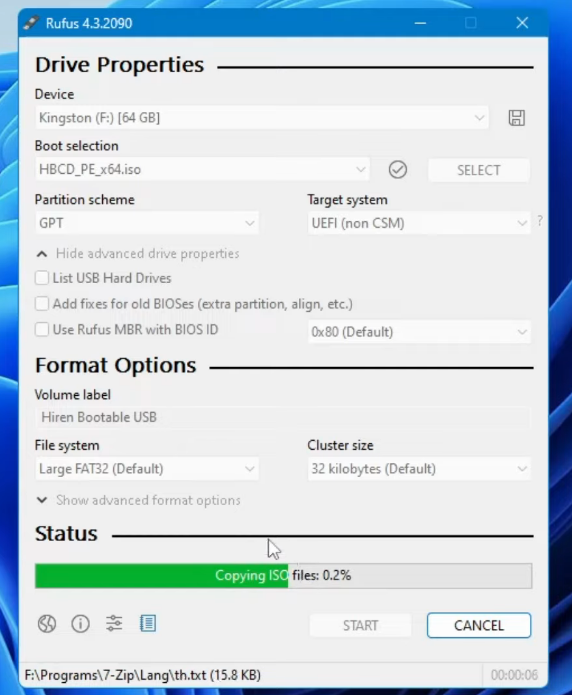
Hiren’s BootCD (often abbreviated as HBCD) is a bootable utility toolset that includes a wide range of software for diagnosing, repairing, and recovering Windows computers. It’s especially popular among IT professionals and tech-savvy users for troubleshooting and fixing PCs that won’t boot properly or have various software issues.
What You Can Do with Hiren’s BootCD
Here are some of the most common uses:
Recover data from non-bootable systems
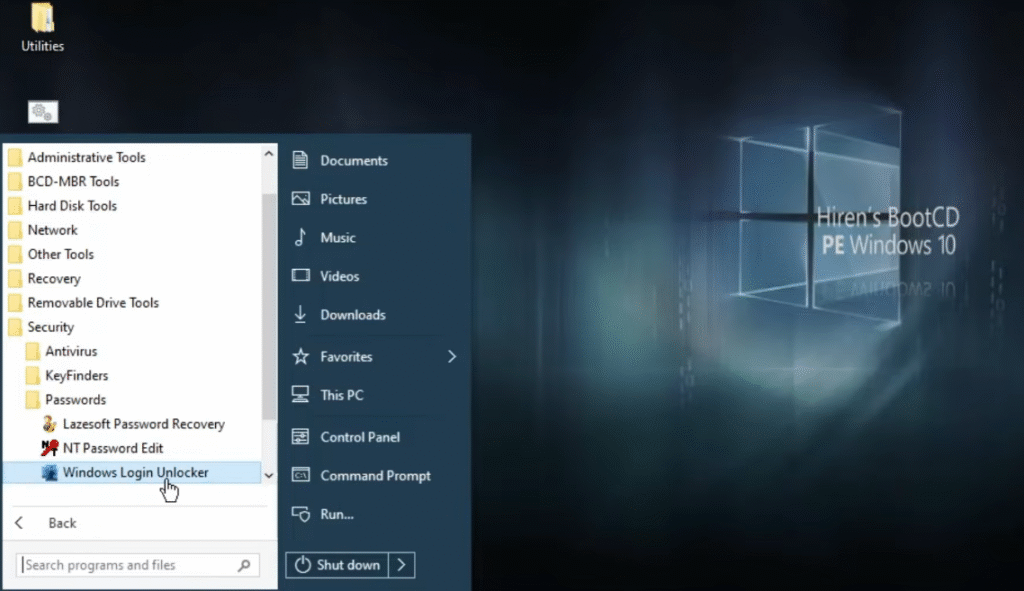
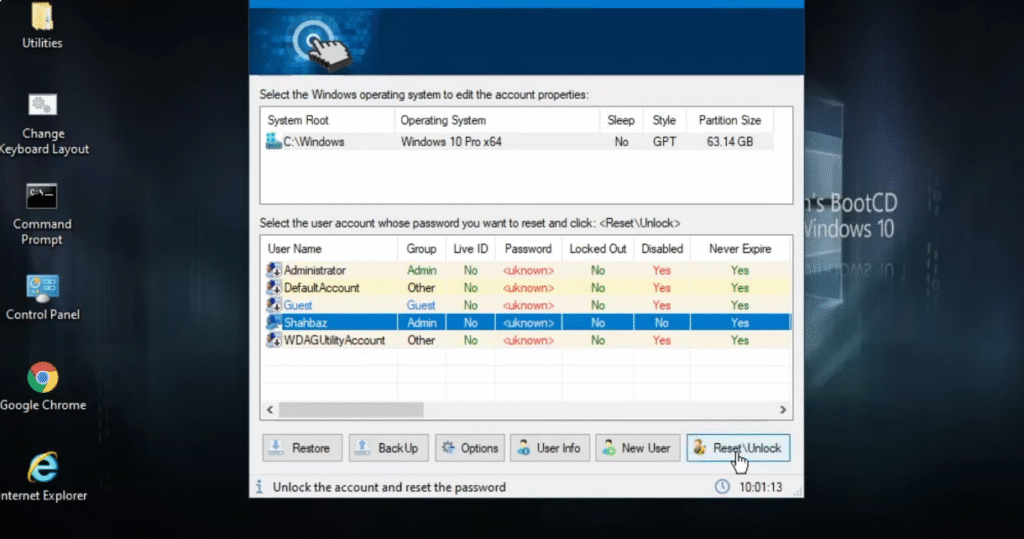
Reset or recover Windows passwords
Scan and remove malware
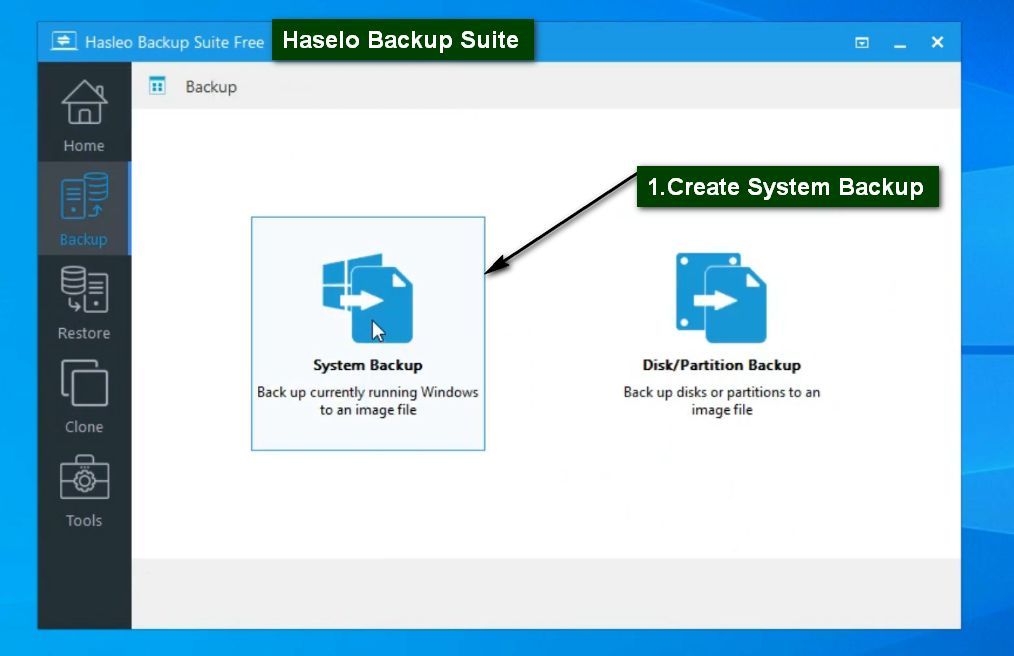
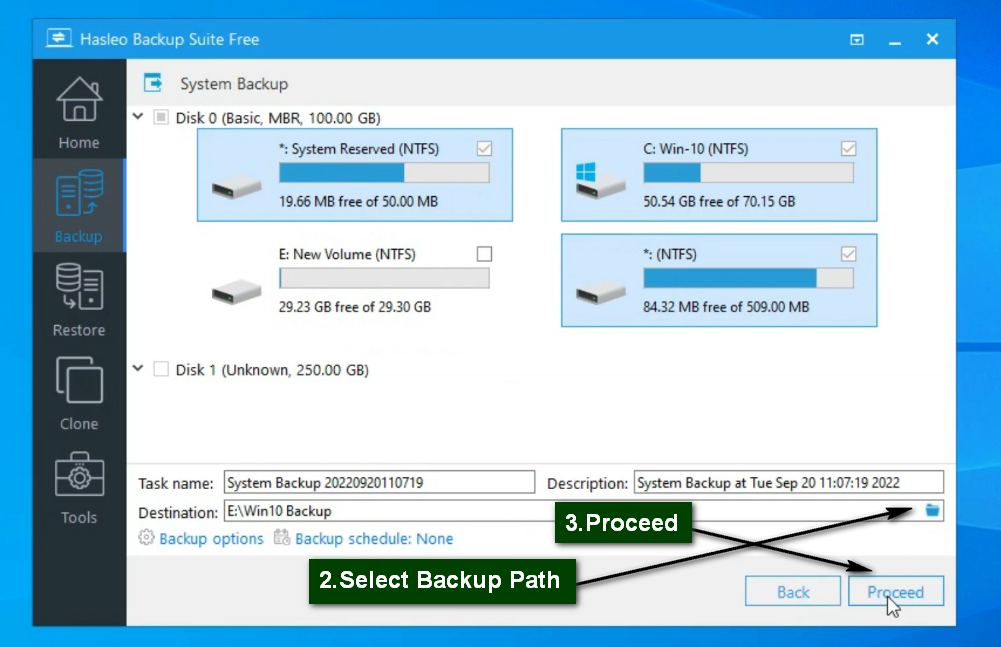
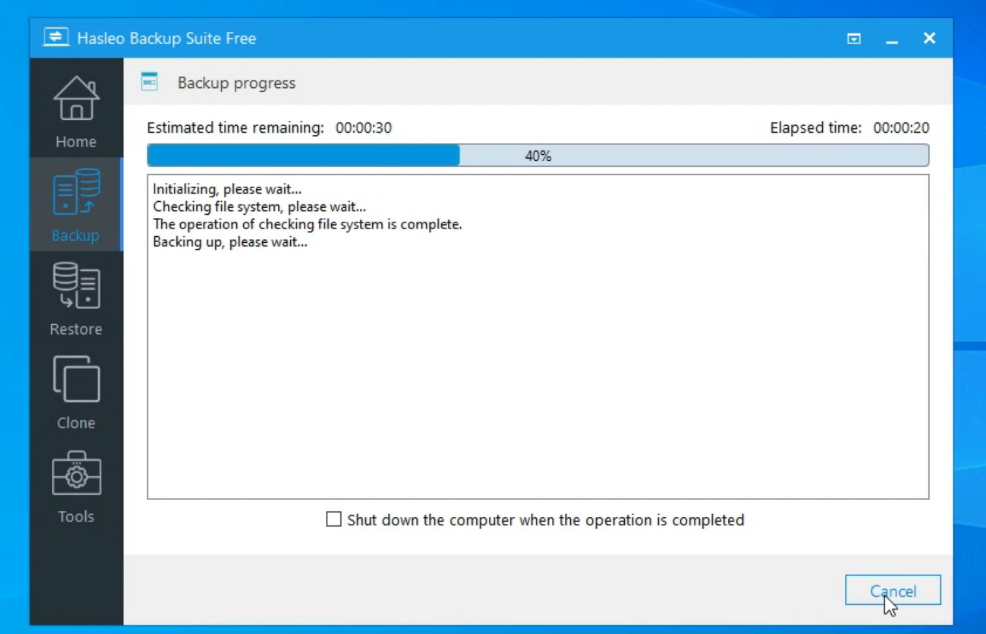
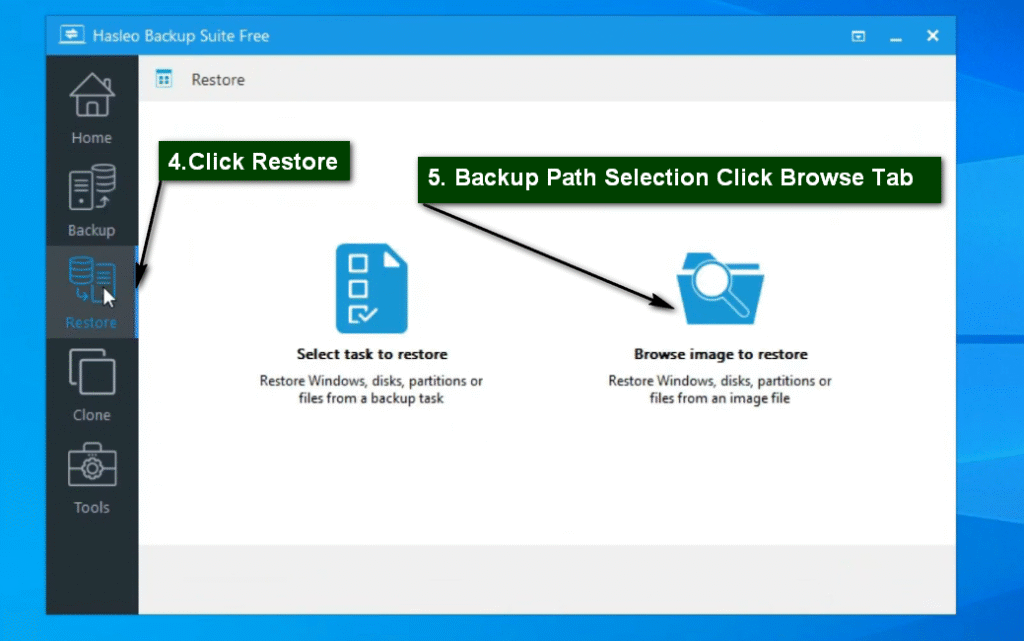
Backup and restore drives or partitions
Diagnose hardware problems
Clone disks
Partition management
Access Windows even if it won’t boot
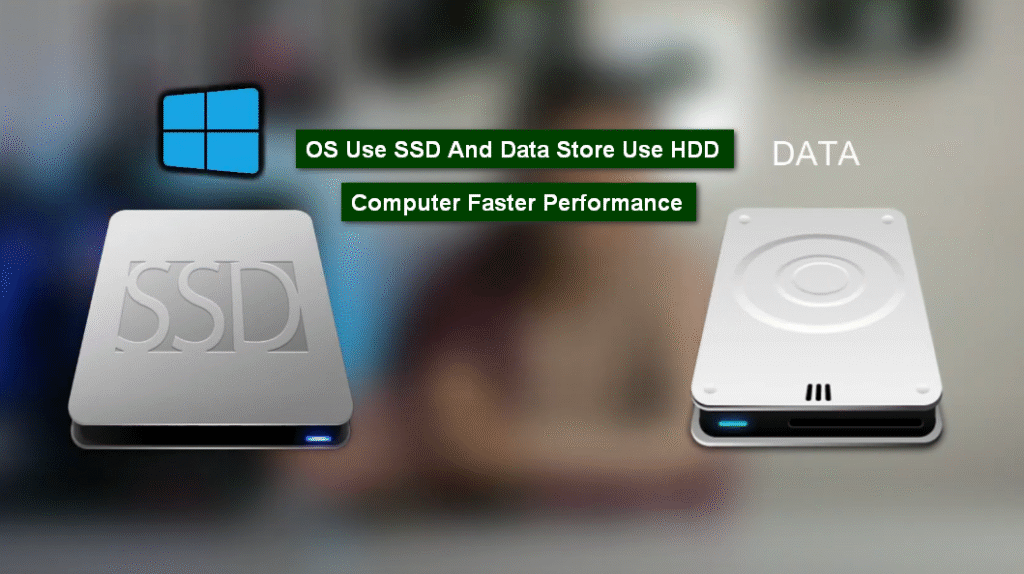
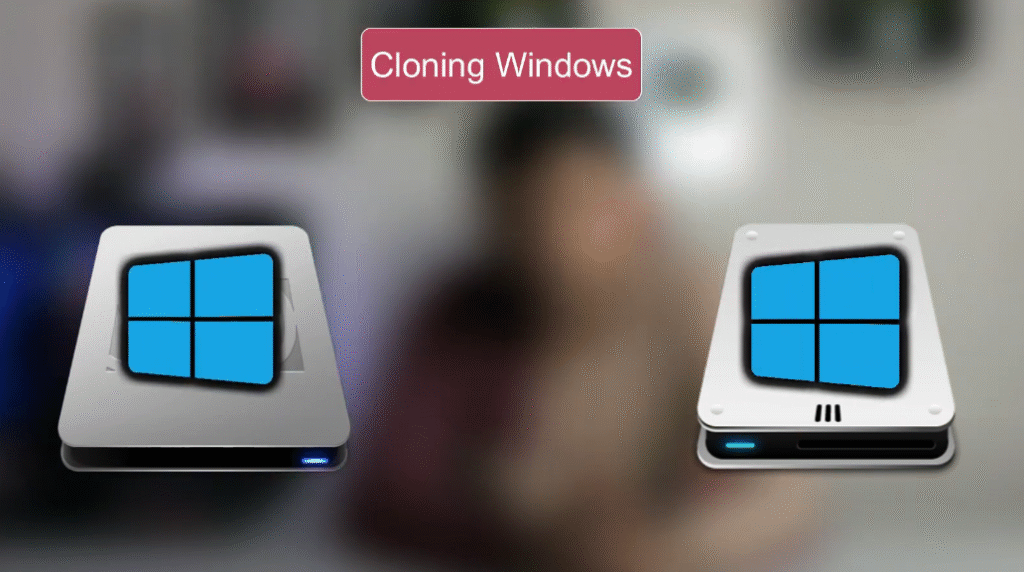
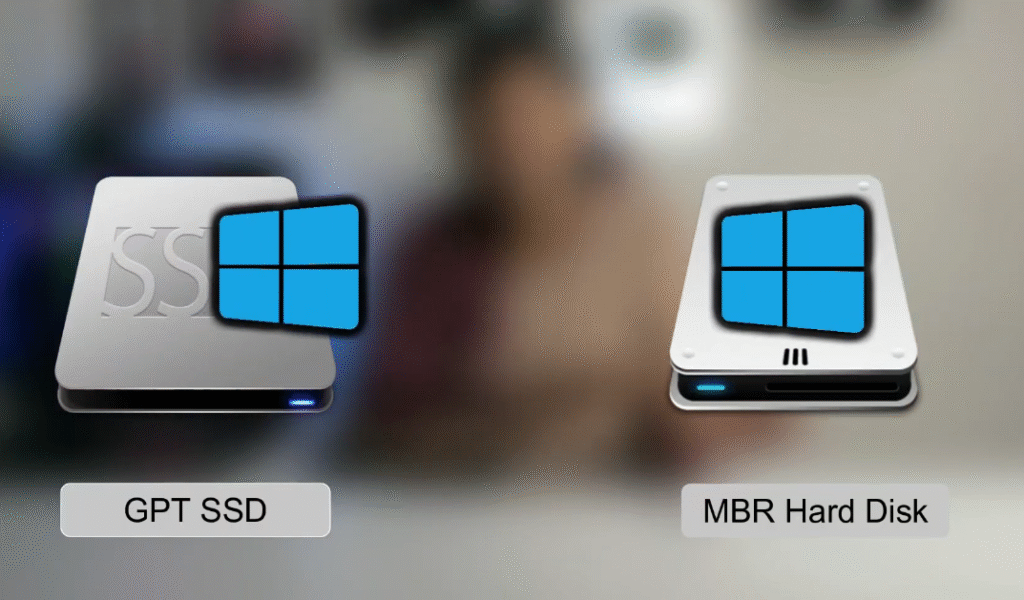
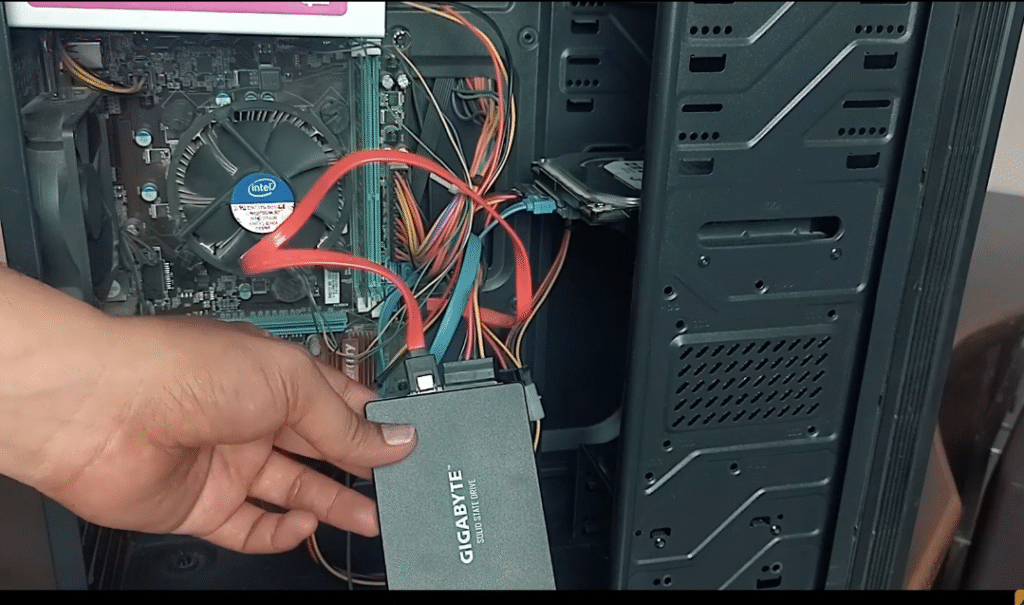
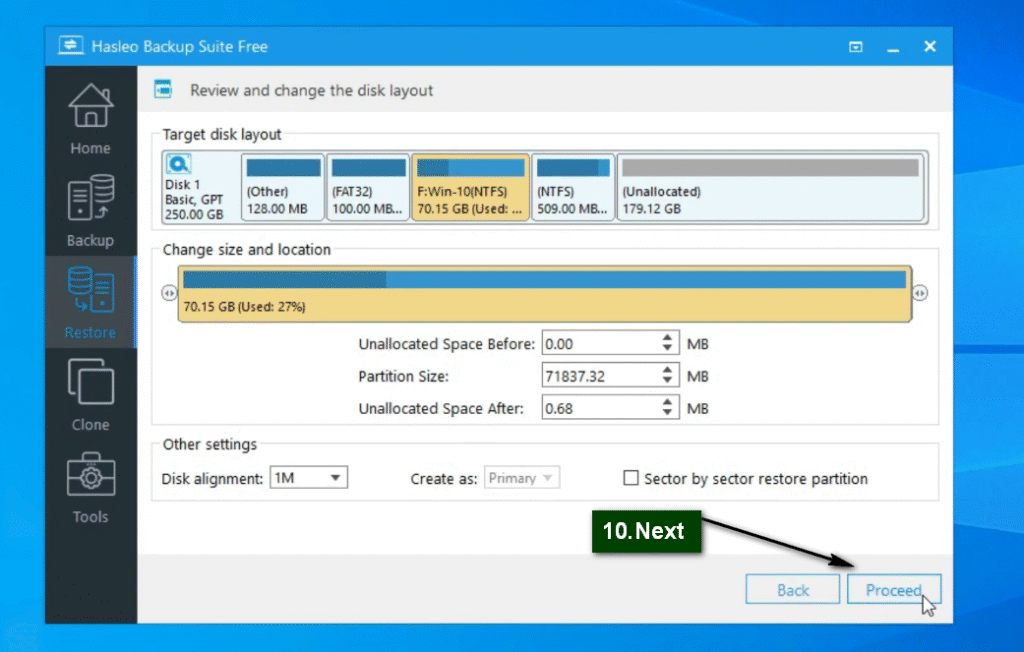
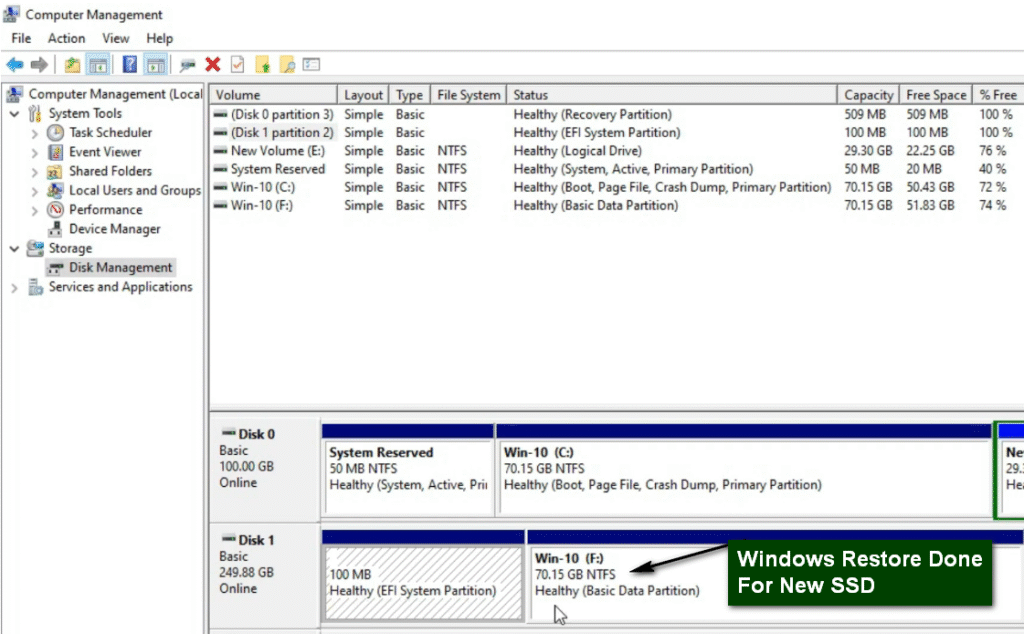
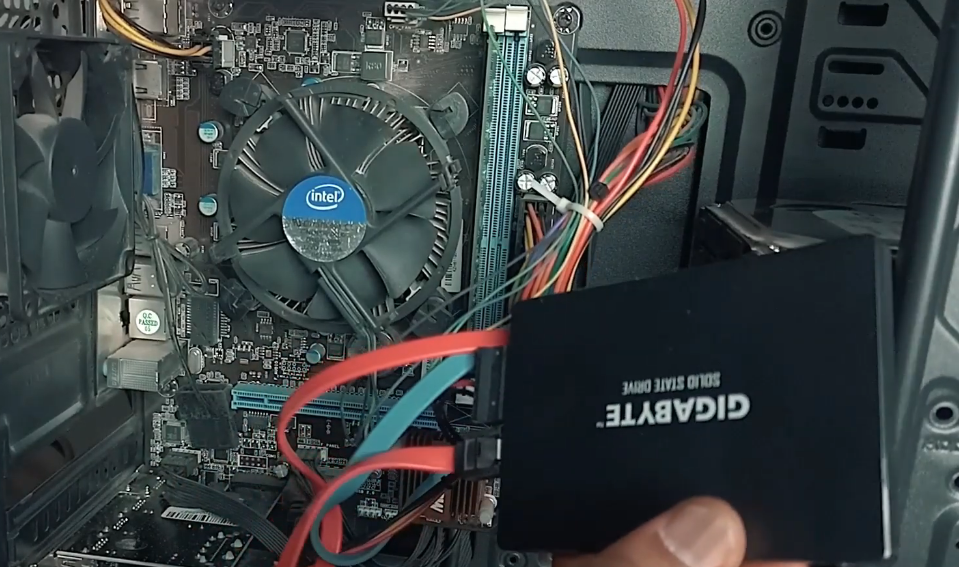
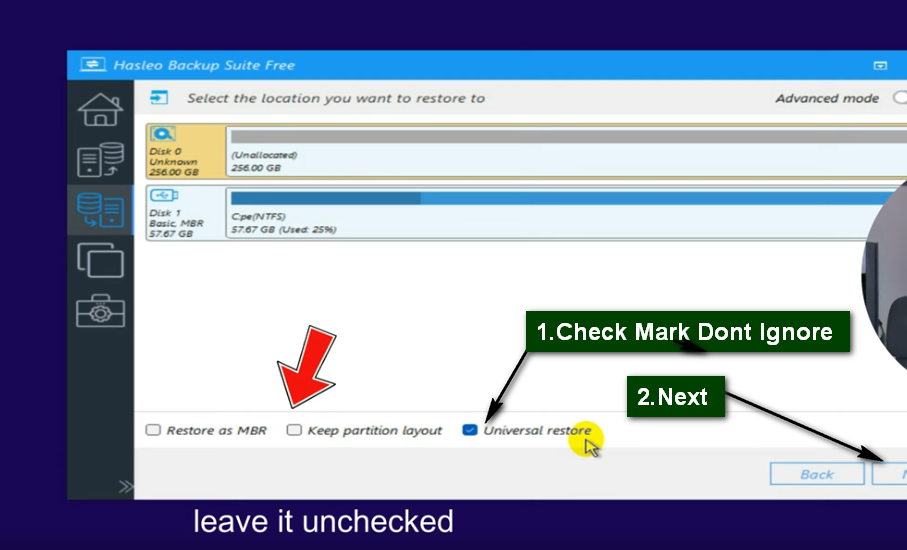
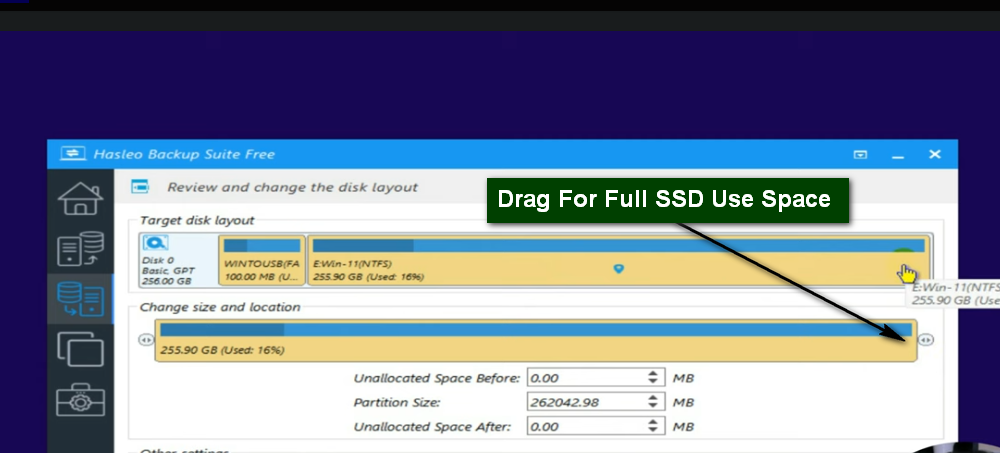
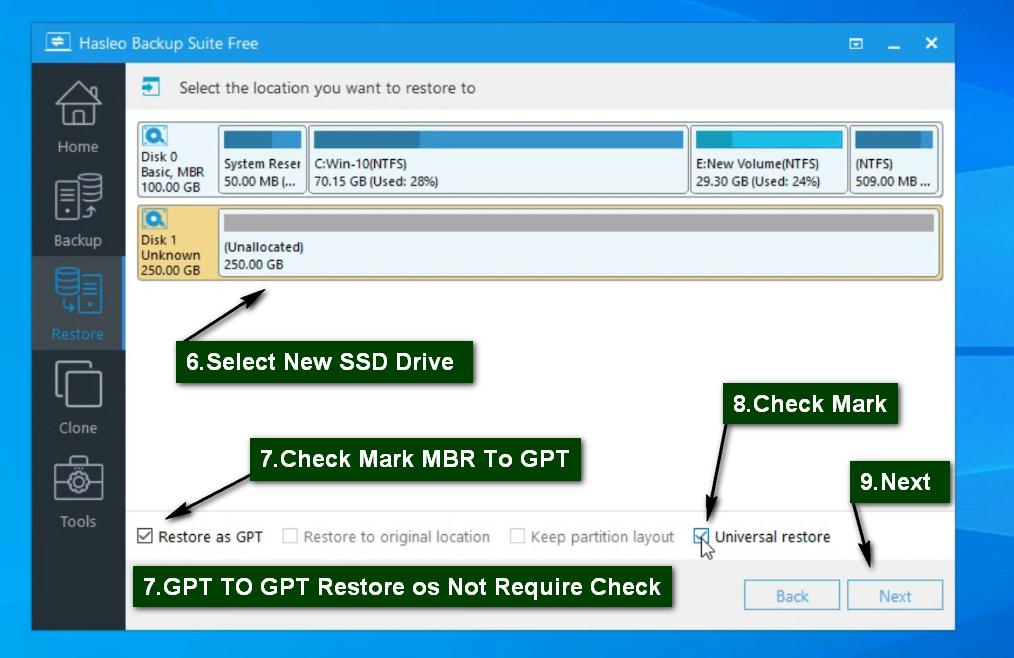
Disk Cloning Migrate HDD TO SSD
Cloning a Windows operating system (OS) means creating an exact copy of a system — including Windows itself, installed software, settings, and files — and it’s commonly done for backup, migration, or deployment purposes.
Here’s why people clone Windows OS:
1. System Backup
A clone acts as a full backup of your system.
If your original drive fails (e.g., due to hardware failure or malware), you can restore the clone to a new drive and pick up where you left off.
2. Upgrading to a New Drive
Example: You’re upgrading from a slower HDD to an SSD.
Cloning lets you move your entire Windows system to the new drive without reinstalling Windows or your apps.
3. Faster Deployment on Multiple PCs
In businesses or schools, IT staff can install and configure Windows once, then clone that system to many computers.
Saves time vs. setting up each PC individually.
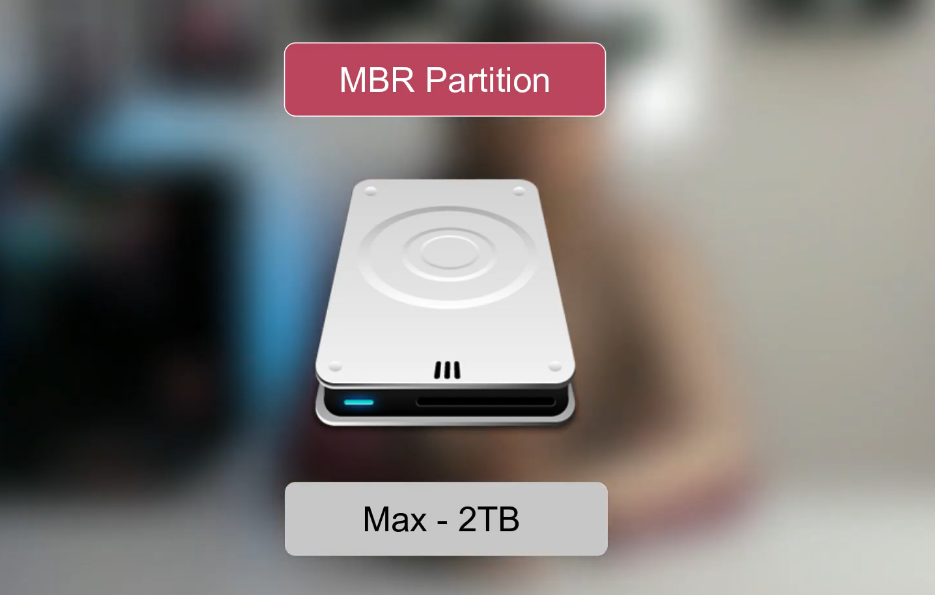
MBR (Master Boot Record)
Older partitioning system (used since the 1980s).
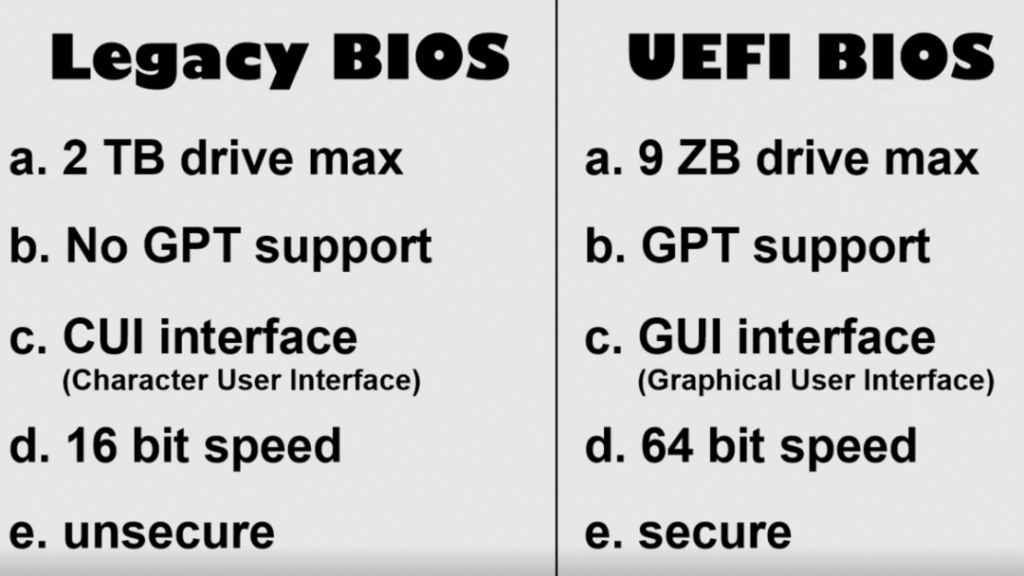
Supports up to 2 TB drives.
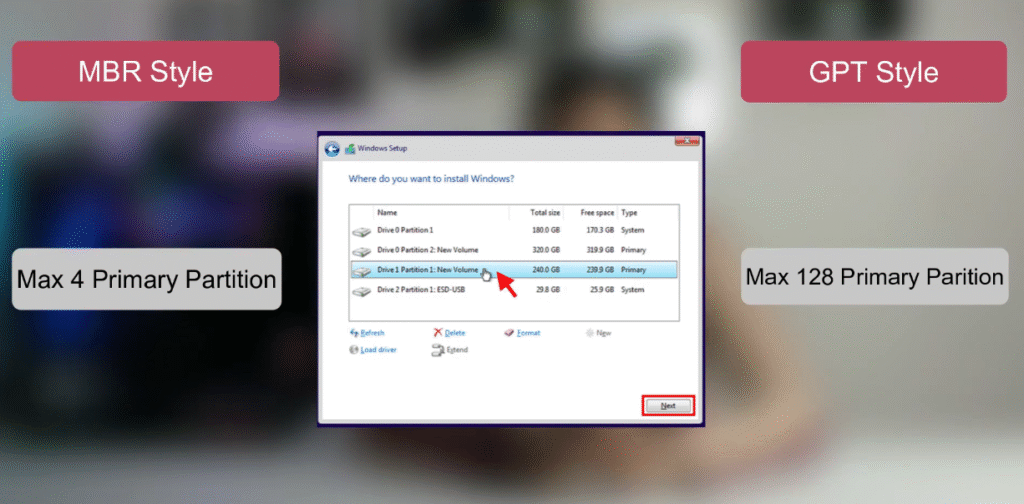
Allows up to 4 primary partitions.
Stores boot info in the first sector of the drive — if corrupted, system may not boot.
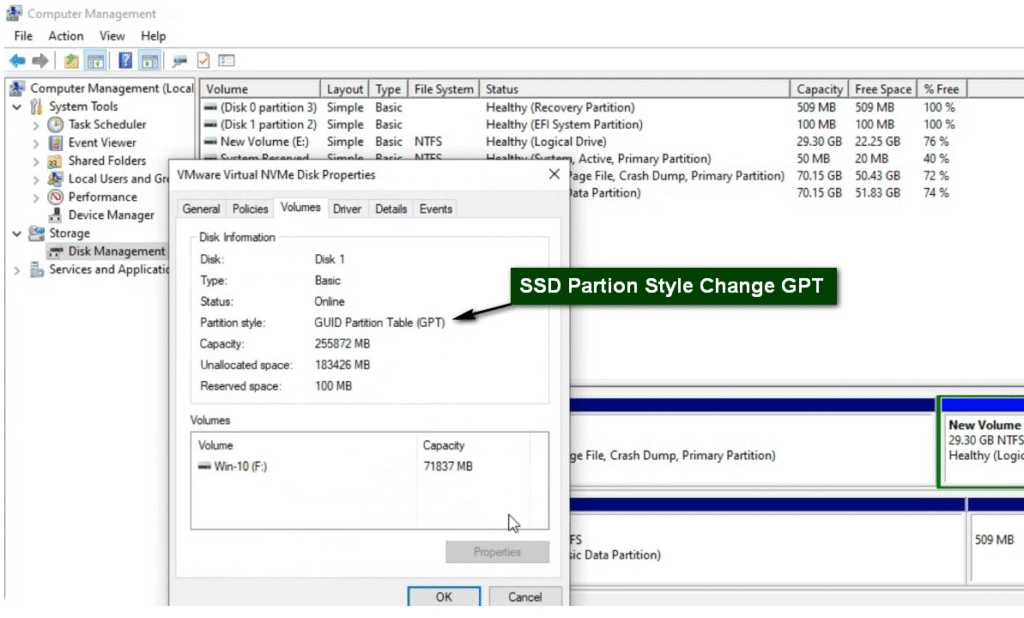
GPT (GUID Partition Table)
Modern replacement for MBR.
Supports drives larger than 2 TB.
Allows up to 128 partitions (on Windows).
More reliable and secure: stores multiple copies of boot data across the disk.
Required for booting Windows in UEFI mode.
In Simple Terms:
| Feature | MBR | GPT |
|---|---|---|
| Max Disk Size | 2 TB | 9.4 ZB (virtually unlimited) |
| Max Partitions | 4 primary | 128 |
| Boot Mode | Legacy BIOS | UEFI |
| Reliability | Single boot record | Redundant boot records |
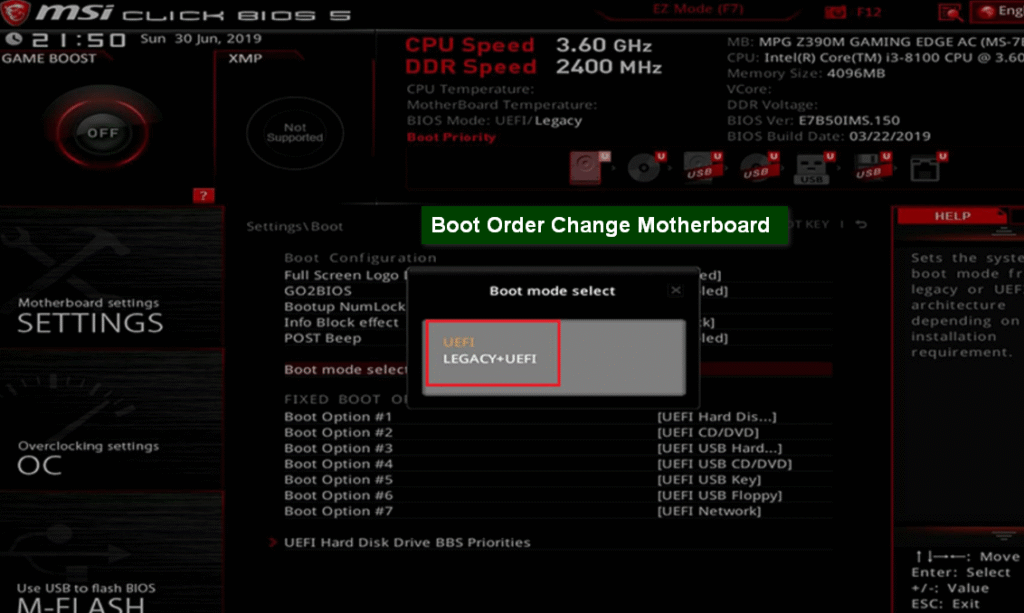
- All Done Then Bios Boot Order Change For New SSD
- HDD Sata Cable And Power Cable Remove Then Windows Loading
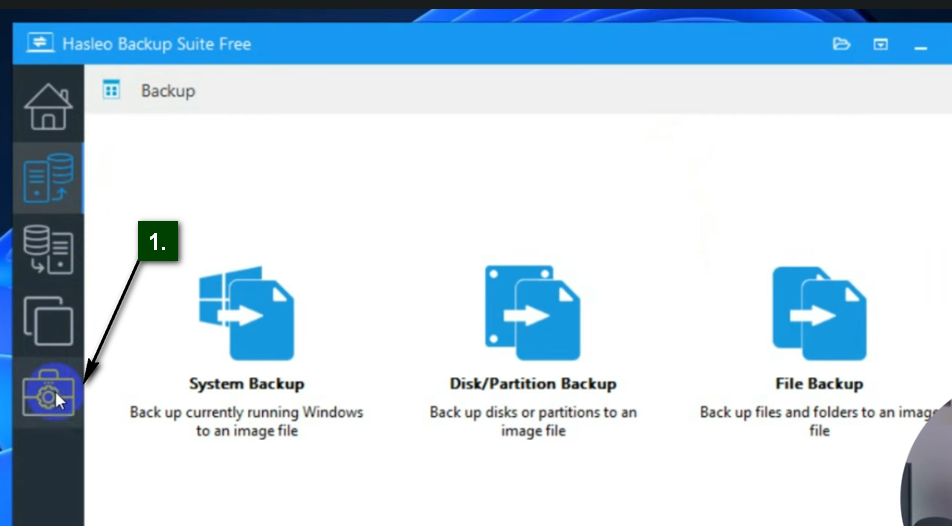
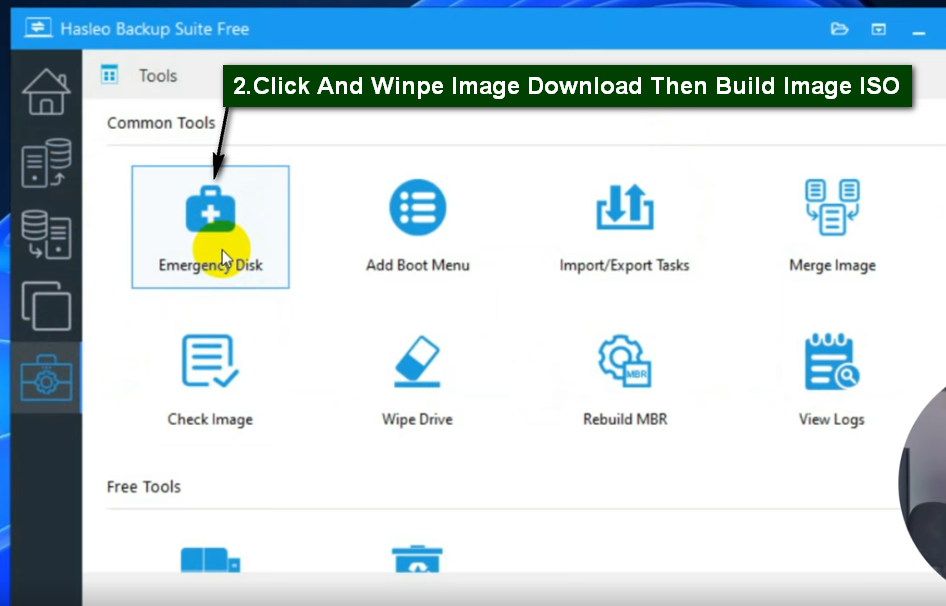
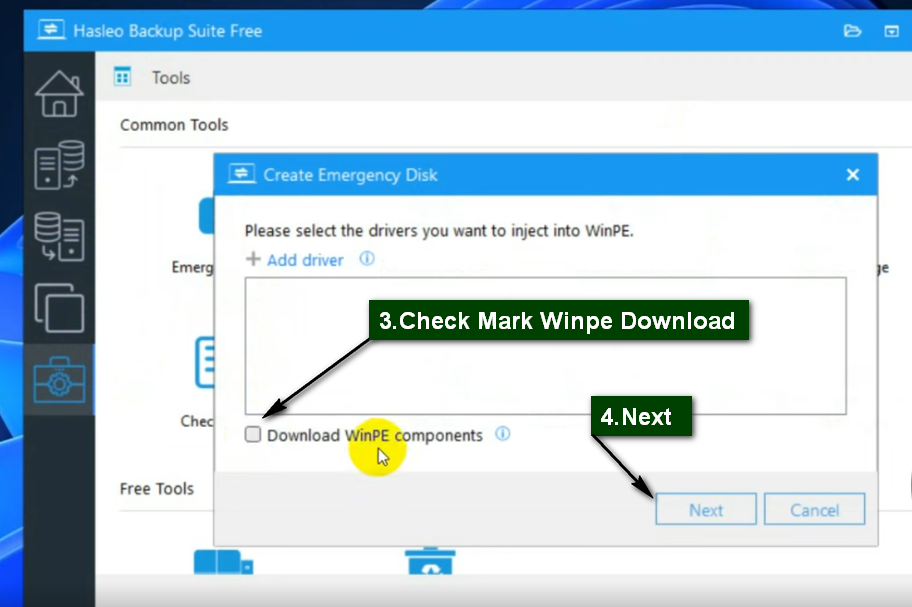
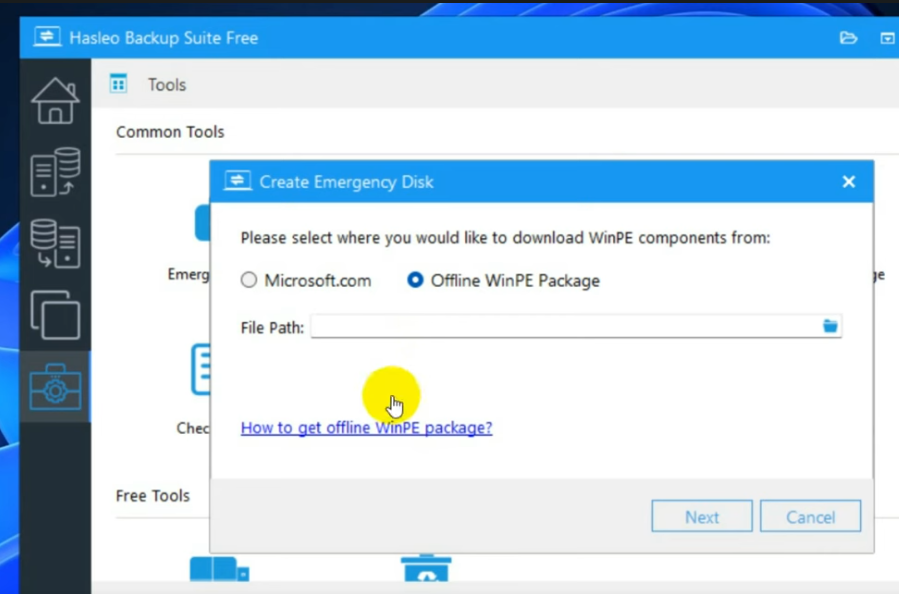
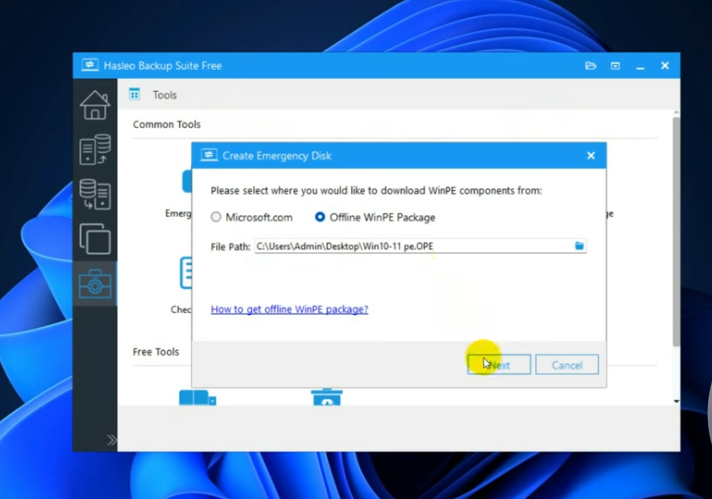
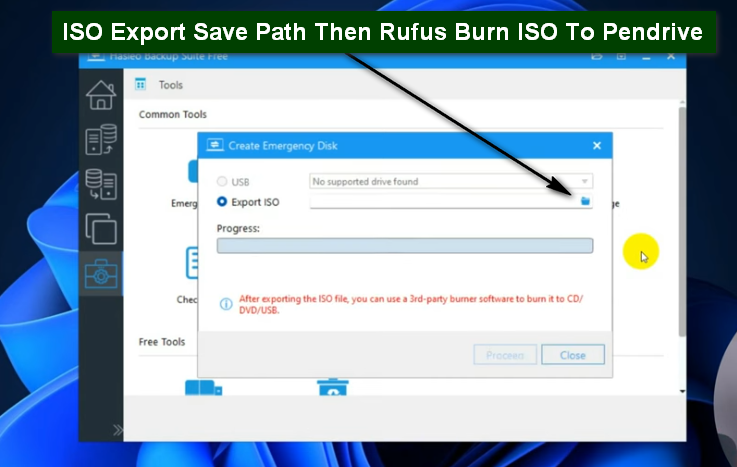
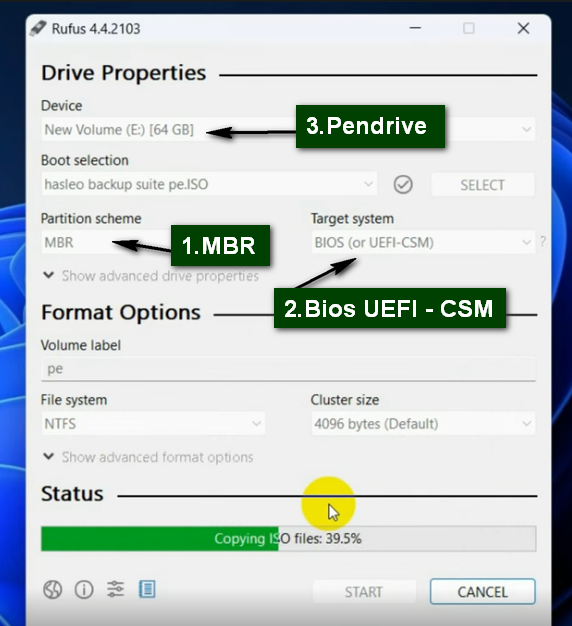
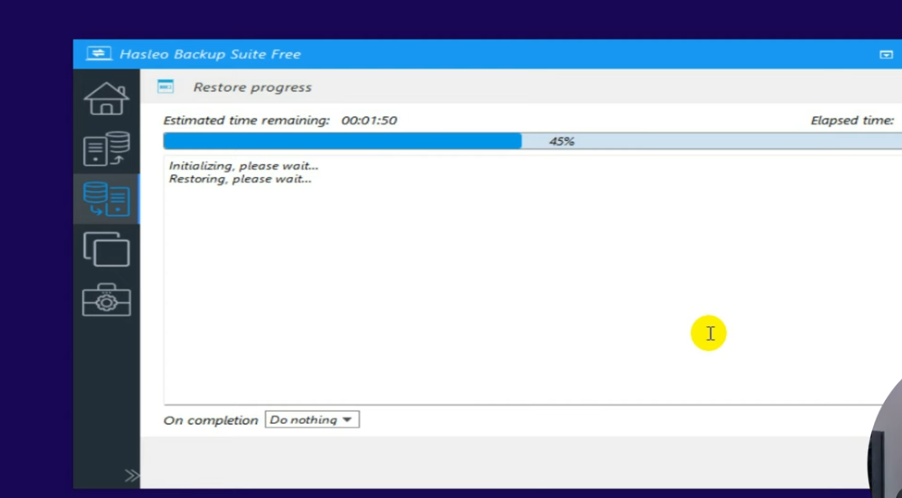
Haselo Backup Sute ISO For Boot Pendrive
If we want to clone Windows to any other computer hardware then we have to. Build Haselo Winpe ISO Image
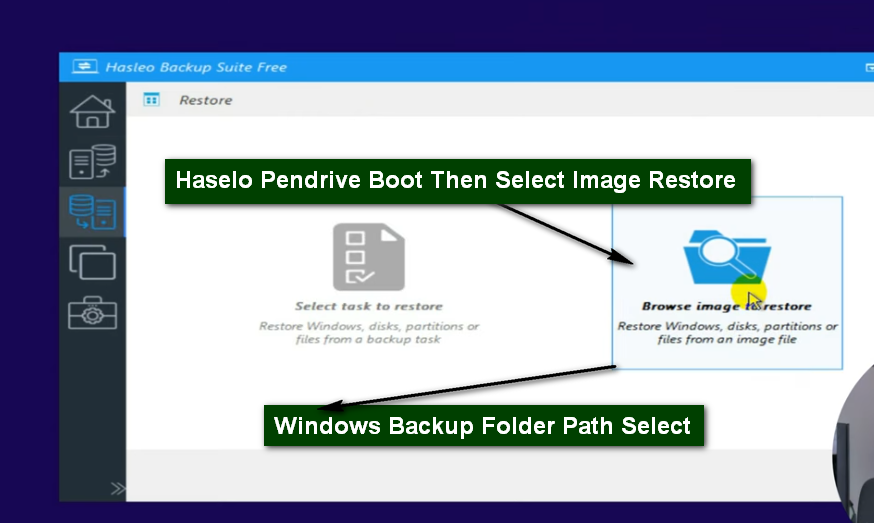
- Windows Backup Folder File Copy To Pendrive
- Then Boot order Change To Boot Haselo ISO Pendrive
- All Done then Boot For System SSD New Hardware PC
Usefull Run Commnds
Windows Run Commnds
;;;;;;;;;;;;;;;;;;;
System Information Checking
...........................
control system
winver
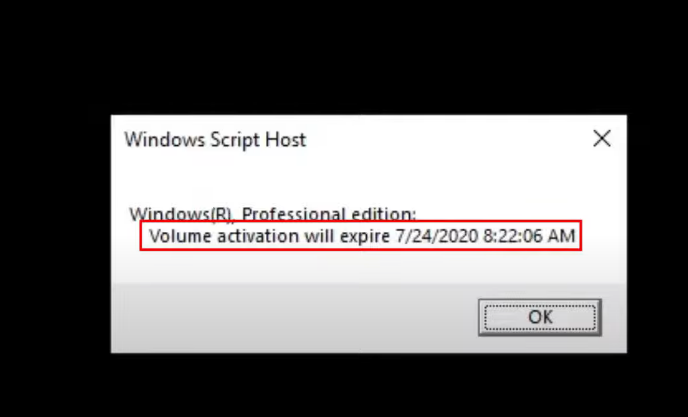
Checking Windows Activate Or Not And Original & Duplicate
Date and Time properties
........................
timedate.cpl
Sound Properties
.................
mmsys.cpl
System Properties Domain Join
.............................
sysdm.cpl
Remote Desktop
..............
mstsc
Program Uninstalling
....................
appwiz.cpl
Defult App
..........
computerdefaults
Device Management
.................
devmgmt.msc
Computer Management including System Tools, Storage, Services
.............................................................
compmgmt.msc
Disk Partition Manager
.......................
diskmgmt.msc
Group Policy Editor
...................
gpedit.msc
Local Security Policy Settings
..............................
secpol.msc
Network properties
..................
ncpa.cpl
Device Manager
.............
devmgmt.msc
Windows Firewall Properties
...........................
firewall.cpl
Shared Folders
..............
fsmgmt.msc
Microsoft Licenceing
1. Check Windows Activation Status
Command:
slmgr /xpr
What it does:
Opens a small window telling you if Windows is activated.
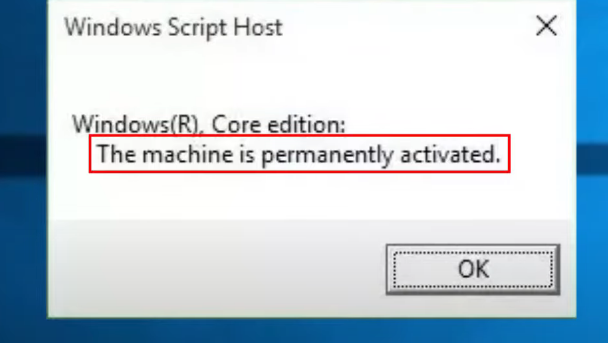
If it says: “The machine is permanently activated”, then your Windows is activated.
- Volume Activation Expire Date then Windows not Genuine
2. Check Activation Details (including license type)
Command:
slmgr /dlv
What it shows:
Activation status
License type (Retail, OEM, Volume)
Partial product key
Activation expiration (if any)
3. Check Product Key Channel (OEM / Retail / Volume)
Command:
slmgr /dli
What to look for:
Retail – Purchased and transferable.
OEM – Comes pre-installed on a device, tied to hardware.
Volume – Used by organizations (may require activation via KMS server).